Integrating Custom Zia Agents with Bigin
Hello Biginners!
With the introduction of Zoho's Zia Agents, automation in Bigin has moved beyond predefined rules into something much more dynamic and intelligent. Instead of building rigid workflows, you can now create custom Zia Agents that understand context, process instructions, and perform actions across your applications.
Using Agent Studio, you can construct these custom Zia agents to handle specific business needs such as responding to leads, updating CRM records, or executing communication workflows on behalf of Bigin users.
What You'll Learn in This Post
In this post, we'll cover:
- Real-world scenario
- Deploying a custom Zia Agent
- Understanding the Agent API
- Triggering the agent using Zoho Flow
- Setting up required connections in Flow
- Implementing a custom function for Agent API
- Understanding the function workflow
- Integrating Bigin with the agent via Flow
- Testing the integration flow
How the Custom Zia Agent Integration Works
Before we begin, here’s a simple flow diagram showing how a custom Zia Agent connects with Bigin through Zoho Flow to automatically handle new contacts and send personalized welcome emails.

Real-world Scenario
To understand how this works in implementation, let's consider a common use case in Bigin:
Let's say you use Agent Studio to build a custom Zia Agent called Auto-Reply Agent for Leads. This agent is set up to generate and send a personalized email automatically whenever a new lead (contact) is created.

For detailed instructions on how to create and configure agents, refer to the Creating Agents guide.

In most sales workflows, when a new contact is created, the next step is to acknowledge the lead with a quick response—something that's often done manually or through predefined workflows using generic email messages.
With Auto-Reply Agent for Leads, we can now take this a step further by integrating it with Bigin so that the entire process happens automatically with personalized email messages.
Now that the Auto-Reply Agent is ready, the next step is to deploy the agent and make it available for integration.
Watch the Integration in Action
Before we begin the implementation, here's a quick demo of the complete configuration in action. It covers from deploying a custom Zia agent to generating and sending a personalized welcome email.
Deploying a Custom Zia Agent
Zia's Agent Studio provides two ways to deploy a Zia Agent, depending on how you want to use it. One way is to deploy it as a digital employee, which allows the agent to act as in-app assistant within Zoho apps. The other way is to deploy it as a connection, where the agent is exposed via an API endpoint.
In this scenario, we deploy the agent as a connection because we want it to be triggered automatically whenever a new contact is created in Bigin. By deploying it as a connection, we can use the agent's API and integrate it with Zoho Flow to handle the automation seamlessly.
To deploy the agent, navigate to the Deploy dropdown button in Zia's Agent Studio configuration page and select Deploy using connection.
In the Tools Param Mapping sliding panel, review the configured parameters. Modify these settings if required, and then click Next to proceed.
Next, choose an existing connection from the dropdown or click New to create a new connection for the required service.

Follow the prompts to authorize the connection. Once completed, the agent will be successfully deployed and ready to be triggered via its API.
Understanding the Agent API
Let's now review the Agent API details by navigating to Integrate > Agent API. These details are essential for integrating the agent with your automation.

The deployed agent exposes an Agent API endpoint that allows you to send instructions along with contextual data.
Endpoint:
- https://agents.zoho.com/ziaagents/api/v1/agents/3989000000030001/trigger
Method: POST
Authentication: OAuth
Headers:
- {"X-ZIAAGENTS-ORG": "903723720","X-ZIAAGENTS-AGENT-SESSION-ID": "","Authorization": "Zoho-oauthtoken <token>"}
Request body:
- {"query": "","reasoning": false,"attachments": [""],"systemArgs": {}}
At a higher level, this API works like this:
- We send a prompt as a query, which tells the agent what to do.
- We pass the contact ID through systemArgs, so the agent can fetch full details from Bigin.
- The agent processes the request and performs the action.
In our use case, the action is generating and sending a personalized welcome email.
To ensure the request is routed correctly and securely, the Agent API provides the following headers:
- X-ZIAAGENTS-ORG - Identifies the Zia Agent Organization.
- X-ZIAAGENTS-AGENT-SESSION-ID - Helps track execution sessions.
- Authorization - Provides OAuth token for secure access.
Optionally, we can also use X-ZIAAGENTS-AGENT-ID to specify which agent to trigger.
Triggering the agent using Zoho Flow
Now that the agent is deployed, the next step is to trigger it automatically whenever a new contact is created in Bigin.
To achieve this, we use Zoho Flow to build the automation.
Setting up the connections
Before building the flow, we need to configure the required connections to ensure that data can be fetched from Bigin and the Zia Agent can be triggered securely.
The Bigin connection is used to fetch details of the newly created contact. Since Bigin is available as a default server in Zoho Flow, this connection can be created directly while configuring the trigger.
To set up a Bigin connection, go to Settings > Connections in Zoho Flow. Click on Create Connection, then select Bigin from the list. Provide a name of your choice for the connection and click Authorize to complete the setup.
Ensure the connection has the Contact Created trigger access while authorizing the connection:

This allows the flow to access contact data and pass it to the custom function.
The Zia Agent is not available as a default service in Zoho Flow, so we must create a custom connection using an Auth Profile.
This connection is used to authenticate and trigger the agent via its API.
To configure this, we create an OAuth2-based Auth Profile using client credentials obtained from the Zoho API console.
First, navigate to the Zoho API Console and register a server-side application. While registering, use the redirect URI:
https://flow.zoho.com/oAuth/callback
Once the client is created, you'll receive the Client ID and Client Secret, which are required to set up the Auth Profile in Zoho Flow.

In Zoho Flow, go to Settings > Auth Profiles and click Create to add a new authentication profile. Choose OAuth v2 as the authentication method, then enter a name of your choice for the auth profile.
Once done, do the following:
- Provide the Client ID and Client Secret from the Zoho API Console.
- Provide the Authorization URL, Access Token URL, and Refresh Token URL. For details, refer to the Zoho Accounts API documentation.
- Set the scope as: ZiaAgents.agents.TRIGGER.
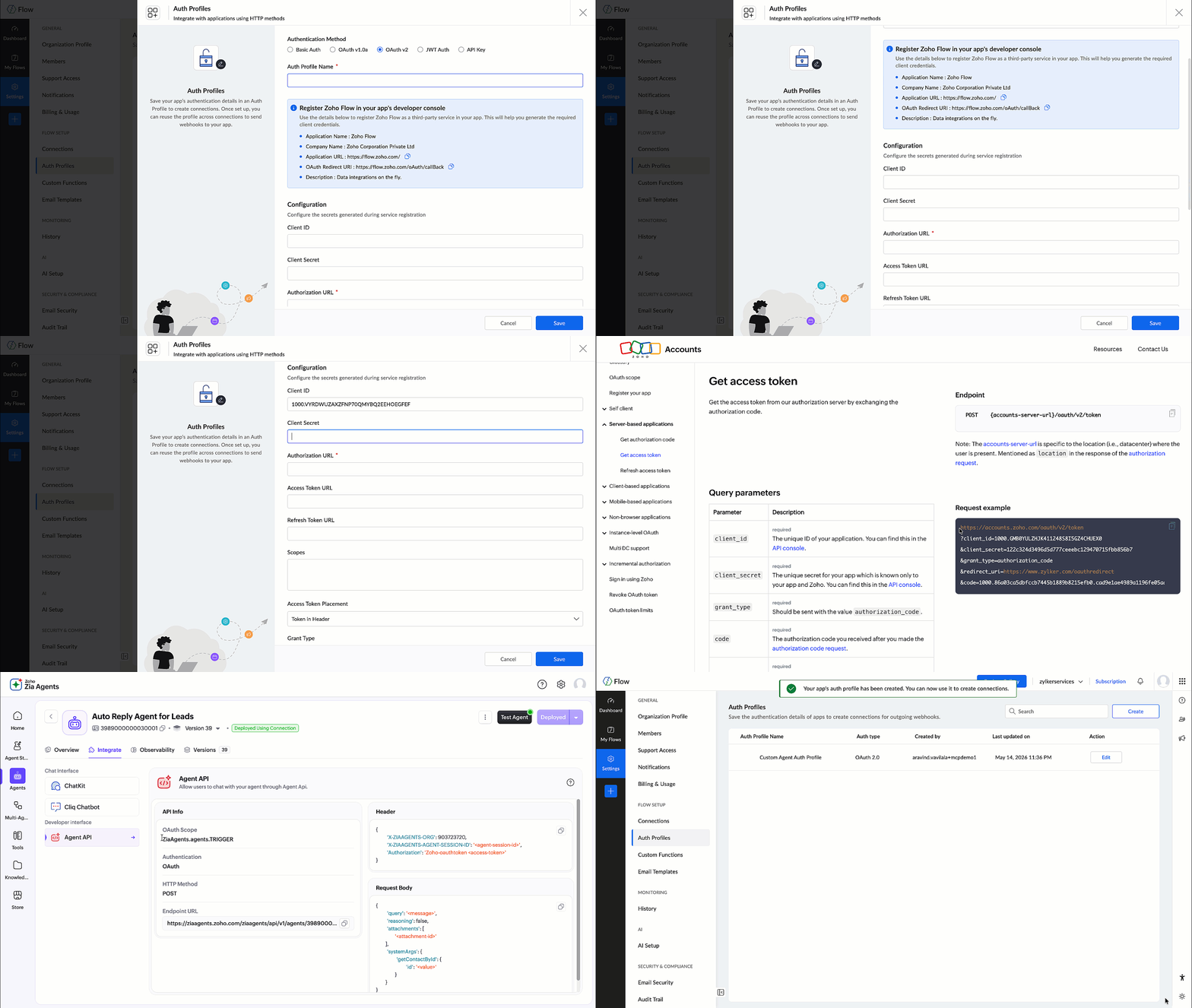
Using OAuth ensures that the connection remains active and secure, without relying on access tokens that expire frequently.
This Auth Profile is then used to create the Zia Agent connection.

Once the connection is created, it's used in the custom function during the API call:
- connection:"ziaagentconnection"
This allows the function to invoke the Zia Agent API securely.
Implementing the custom function
In Zoho Flow, navigate to Settings > Custom Functions and click Create Custom Function.
Provide a function name and set the return type as void, since this function is only used to trigger the agent. Add an input parameter named id with the type string, which represents the contact ID from Bigin.

Once created, the Deluge editor will open where you can define the function logic as shown below:
- void trigger_lead_auto_reply(string id){// Instruct the agent to fetch contact and send welcome emailquery = "New lead added. Send a short, friendly welcome email to the newly created contact based on auto-reply-agent-skill instructions.";// Build request bodybody = Map();body.put("query",query);body.put("reasoning",false);body.put("attachments",List());// Pass the contact ID nested under the tool name — required for agent to extract itrecordInfo = Map();recordInfo.put("id",id);sysArgs = Map();sysArgs.put("ContactId",recordInfo);body.put("systemArgs",sysArgs);// Headersheaders = Map();headers.put("X-ZIAAGENTS-ORG","111860686");headers.put("X-ZIAAGENTS-AGENT-ID","2307000000029001");headers.put("X-ZIAAGENTS-AGENT-SESSION-ID","10000");headers.put("Content-Type","application/json");// Trigger the agent — fire and forget, no return neededresponse = invokeurl[url :"https://agents.zoho.com/ziaagents/api/v1/agents/2307000000029001/trigger"type :POSTbody:body.toString()headers:headersconnection:"ziaagentconnection1"];info response;}
How this custom function works
This function acts as the bridge between Bigin and the Zia Agent API, constructs the API request, sends it to the agent, and triggers the required action.
Let's understand how it works step by step.
A. Defining the instruction (query)
- query = "New lead added. Send a short, friendly welcome email ..."
This is the instruction sent to the agent. It tells the agent what action needs to be performed and how the response should be generated.
B. Building the request body
- body = Map();body.put("query",query);body.put("reasoning",false);body.put("attachments",List())
Here we construct the request body based on the Agent API format:
- query: defines the task
- reasoning: disabled to keep the response concise
- attachments: not used in this scenario
C. Passing contact context using systemArgs
- recordInfo = Map();recordInfo.put("id",id);sysArgs = Map();sysArgs.put("ContactId",recordInfo);body.put("systemArgs",sysArgs)
Instead of passing all contact details, we pass only the contact ID.
The agent uses this ID to fetch complete contact information from Bigin. This ensures that the agent works with latest data without increasing the request payload.
D. Setting headers
- headers = Map();headers.put("X-ZIAAGENTS-ORG","111860686");headers.put("X-ZIAAGENTS-AGENT-ID","2307000000029001");headers.put("X-ZIAAGENTS-AGENT-SESSION-ID","10000");headers.put("Content-Type","application/json");
These headers help identify the organization and the specific agent being triggered.
X-ZIAAGENTS-AGENT-ID is the agent's unique identifier. You can find it on the agent's overview page in Agent Studio.
X-ZIAAGENTS-AGENT-SESSION-ID is the session ID, which you can define per your preference.
Authentication is handled through the configured connection in the function.
E. Triggering the Agent API
response = invokeurl
- [url :"https://agents.zoho.com/ziaagents/api/v1/agents/2307000000029001/trigger"type :POSTbody:body.toString()headers:headersconnection:"ziaagentconnection1"];
This is where the API call is made.
At this stage:
- The request is sent to the Zia Agent.
- The agent processes the query.
- It fetches the contact details using the provided ID.
- It generates and sends the personalized welcome email.
Integrating Bigin with Custom Function
Once the connections and custom function is set up, the next step is to configure the flow.
Create a new flow in Zoho Flow and define the following:
- Trigger: Select Bigin and choose the event Contact Created.
- Action: Add the Custom Function created earlier.
Map the required input parameter:
- Pass the Contact ID from the Bigin trigger to the function input parameter id.
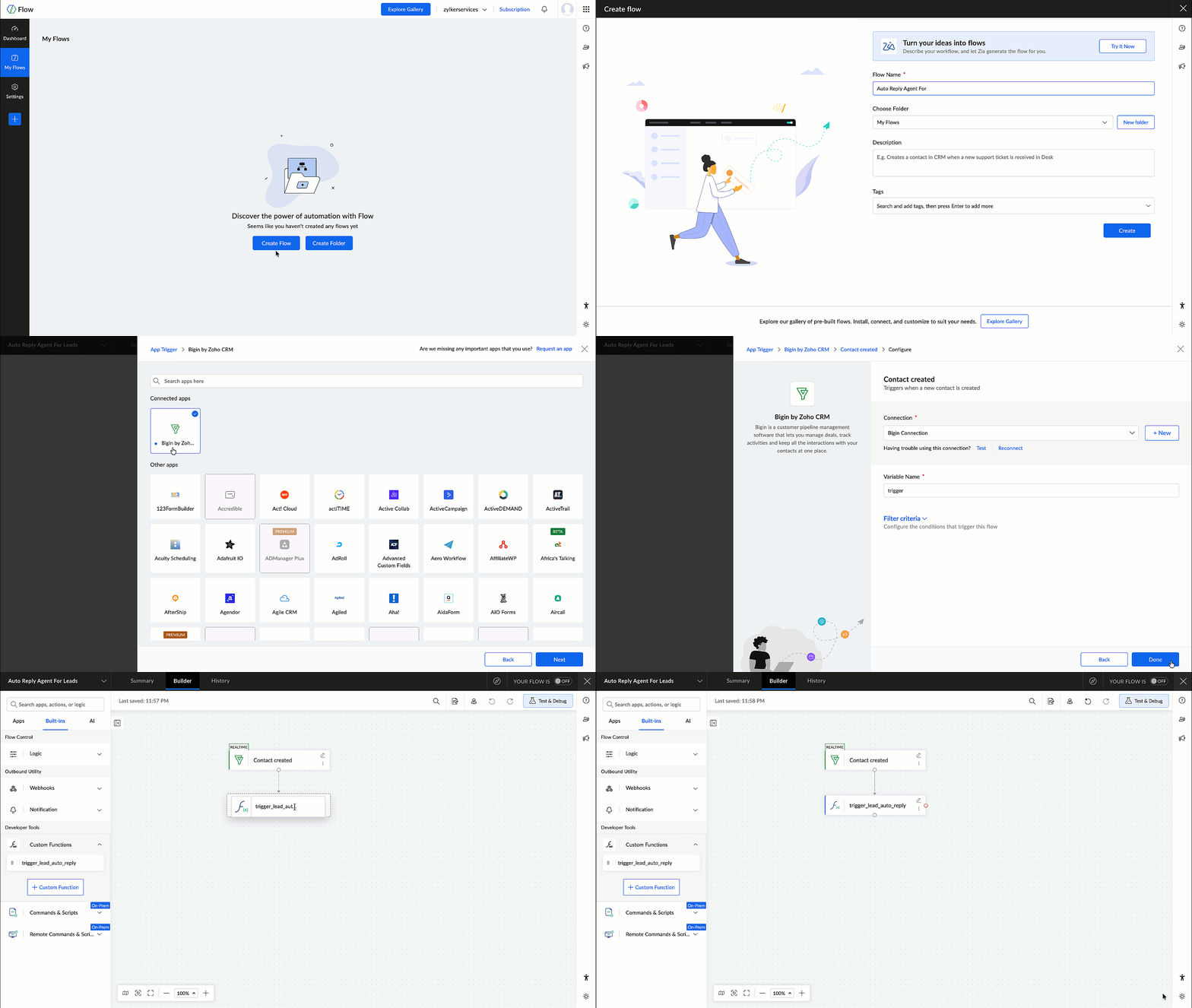
This ensures that wherever a new contact is created in Bigin, the flow is triggered and the contact ID is passed to the custom function, which in turn invokes the Zia Agent.
Testing the Flow
After configuring the flow, it's important to test the setup to ensure everything works as expected.
Create a test contact in Bigin and verify the following:
- The flow is triggered successfully.
- The custom function is executed.
- The Zia Agent is invoked.
- A welcome email is generated and sent to the contact.
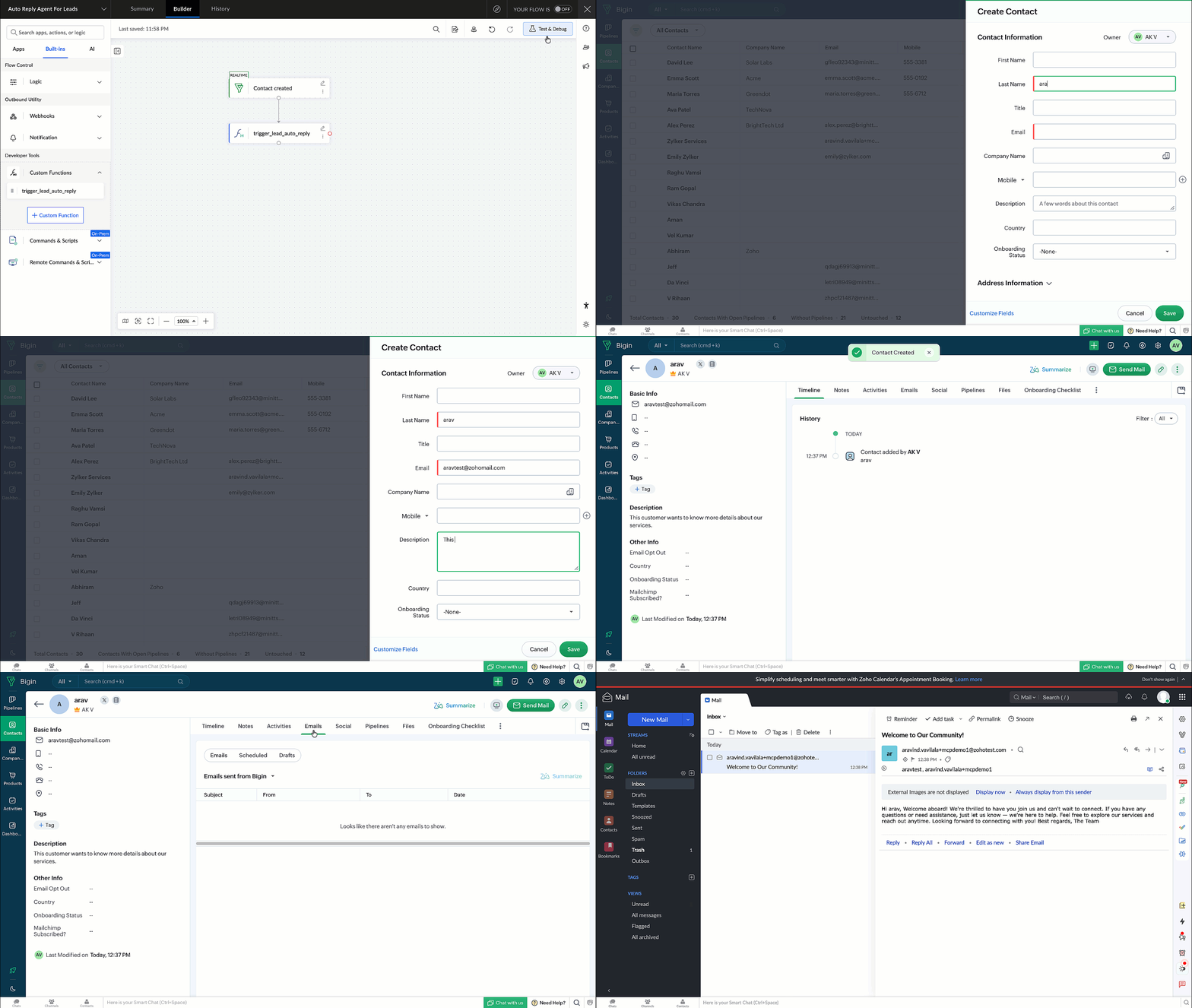
Once verified, the flow can be enabled for real-time execution.
In this post, we explored how to deploy and integrate a custom Zia Agent with Bigin using Zoho Flow.
This approach enables you to move beyond predefined workflows and build intelligent, automated communication systems using Zia Agents.