Weekly Tips : Take Control of Your Sent Emails using Outbox Delay
Ever clicked “Send” on an email, then instantly realized you forgot something—like a file, an attachment, or even made a small typo? It happens more often than you'd think. Wouldn’t it be helpful if your email waited a little before actually going out? A short delay can give you just enough time to make those last-minute changes or even stop the email entirely if needed.
Here’s how Zoho Mail’s Outbox Delay feature can help you take back control—by giving you a grace period before your emails are actually sent.
Outbox Delay
The Outbox Delay option lets you delay sending an email for a set time, even after hitting Send. You can choose a delay from 1 to 120 minutes. During this time, emails remain in the Outbox and can be edited or deleted.
It’s a helpful alternative to Undo Send. If needed, you can skip the delay by using Send Right Now (Ctrl+Shift+Enter / Command+Shift+Enter) via the drop-down next to the Send button.
Want to schedule an email instead? Use Send Later to pick a specific time—scheduled emails are moved to the Scheduled folder until they are sent.
Enable/ Disable Outbox Delay
- Log into your Zoho Mail account.
- Click the Settings icon.
- Go to Mail > Compose settings.
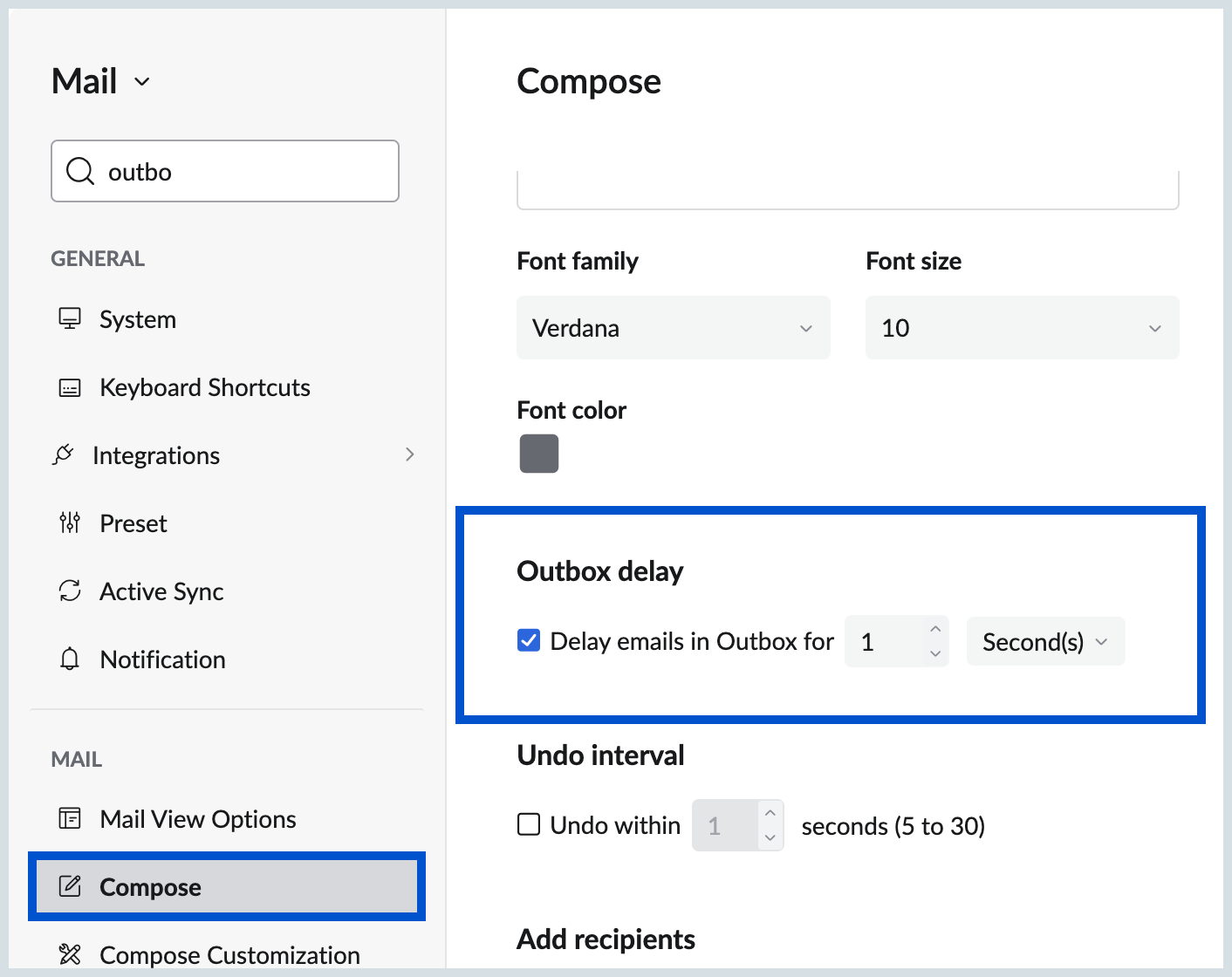
- Locate the Outbox delay section.
- Check it if you want to send your email after a predefined period. In this option, you can set the delay period in terms of the minutes or seconds by which you want the email to be delayed.
The email will be moved to the outbox folder and will be sent after the specified duration.