Automation Series: Assign Subsequent Task Owner on Completion
When a project progresses, tasks get piled up over time. As new tasks are created, tracking ownership and assigning them can become time consuming. In Zoho Projects, this can be addressed by automating task assignment using Custom Function, so that ownership is assigned once the previous task is Closed.
Use-case
Use-case
In a pharmaceutical manufacturing unit, the procurement phase involves a set of tasks such as raw material sourcing, quality checks, approvals etc. These tasks are often repetitive and handled within the task list. Even if tasks are added by different teams based on requirements, and the list continues to expand, task ownership might remain unassigned until a user is assigned manually. This delays the other upcoming tasks and project timelines.
With this automation, a workflow rule is triggered when a task is marked as Closed. When a Custom Function is associated with the rule, it automatically assigns the next task to a particular user. This ensures related tasks continue with the same owner without manual intervention.
To configure this flow in your Zoho Projects portal,
1. Navigate to the upper-right corner of the page.
2. Click  → Developer Space → Connections.
3. Click Create Connection and add the following scopes:
- ZohoProjects.users.READ
- ZohoProjects.tasks.READ
- ZohoProjects.tasks.UPDATE

4. Navigate to Custom Functions under Developer Space.
5. Click on the Tasks tab in the upper navigation panel.
6. Create a new custom function and add the below Deluge script.

Ensure that the portal URL aligns with your data centre. If not, the function may not execute as expected.
- // scopes: ZohoProjects.users.READ, ZohoProjects.tasks.READ, ZohoProjects.tasks.UPDATE
- // replace userEmail - ["alex@abc.com","bob@abc.com"] with your next task owner email id
- userEmail = ["alex@abc.com","bob@abc.com"];
- projectsV3Endpoint = "https://projectsapi.zoho.com/api/v3/portal/";
- params = Map();
- params.put("filter",{"criteria":{{"field_name":"status","criteria_condition":"custom_condition","value":{"${ALL_OPEN}"}}},"pattern":"1"});
- params.put("sort_by","ASC(created_time)");
- getTasks = invokeurl
- [
- url :projectsV3Endpoint + portalId + "/projects/" + projectId + "/tasks"
- type :GET
- parameters:params
- connection:"connectionprojects"
- ];
- nextTaskId = getTasks.get("tasks").get(0).get("id");
- owners = List();
- for each email in userEmail {
- userEmails = List();
- userEmails.add(email);
- params = Map();
- params.put("type",1);
- params.put("page",1);
- params.put("view_type",1);
- params.put("per_page",50);
- params.put("filter",{"criteria":{{"cfid":"4","criteria_condition":"contains","value":userEmails}},"pattern":"1"});
- getAllUsers = invokeurl
- [
- url :projectsV3Endpoint + portalId + "/projects/" + projectId + "/users"
- type :GET
- parameters:params
- connection:"connectionprojects"
- ];
- userId = getAllUsers.get("users").get(0).get("id");
- zpuids = Map();
- zpuids.put("zpuid",userId);
- owners.add(zpuids);
- }
- updateTaskParameter = Map();
- updateTaskParameter.put("owners_and_work",{"owners":owners});
- updateTaskResponse = invokeurl
- [
- url :projectsV3Endpoint + portalId + "/projects/" + projectId + "/tasks/" + nextTaskId
- type :PATCH
- parameters:updateTaskParameter.toString()
- connection:"connectionprojects"
- ];
- return "success";

Line 3: Add the user email IDs to whom the tasks should be assigned.
Line 4: Modify the data centre URL to match your Zoho Projects portal.
Lines 13, 31 and 45: Replace "connectionprojects" with your Zoho Projects connection name.
7. Add the following arguments during configuration.

9. In the upper navigation panel click on Tasks Tab → New Workflow Rule.
10. Select the execution condition as Based on User Action and execute the rule when a task is Updated.
12. Click Add Criteria+ and set this trigger Task Status Is Closed from the drop-down
11. Click +Add Action and select Associate Custom Function and select the previously created custom function.
12. Click Save Rule.
13. Toggle the Workflow Rule Status on to enable it.
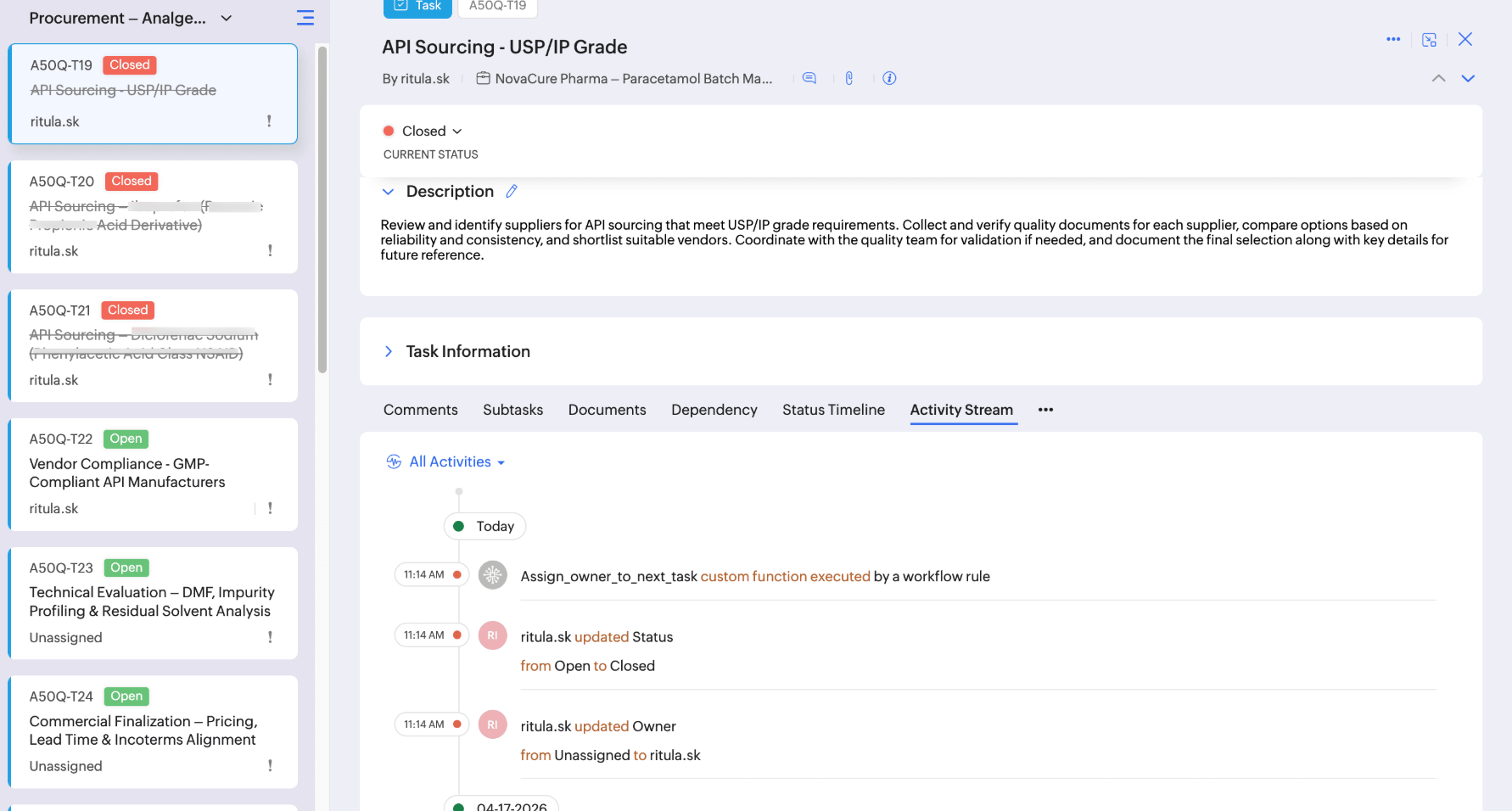
With this automation in place, ownership assignment becomes effortless, ensuring tasks are taken up as ongoing ones are complete.
If you have any questions, feel free to drop a comment below or reach out to us at support@zohoprojects.com.