Building an AI Agent for Workplace Occasions

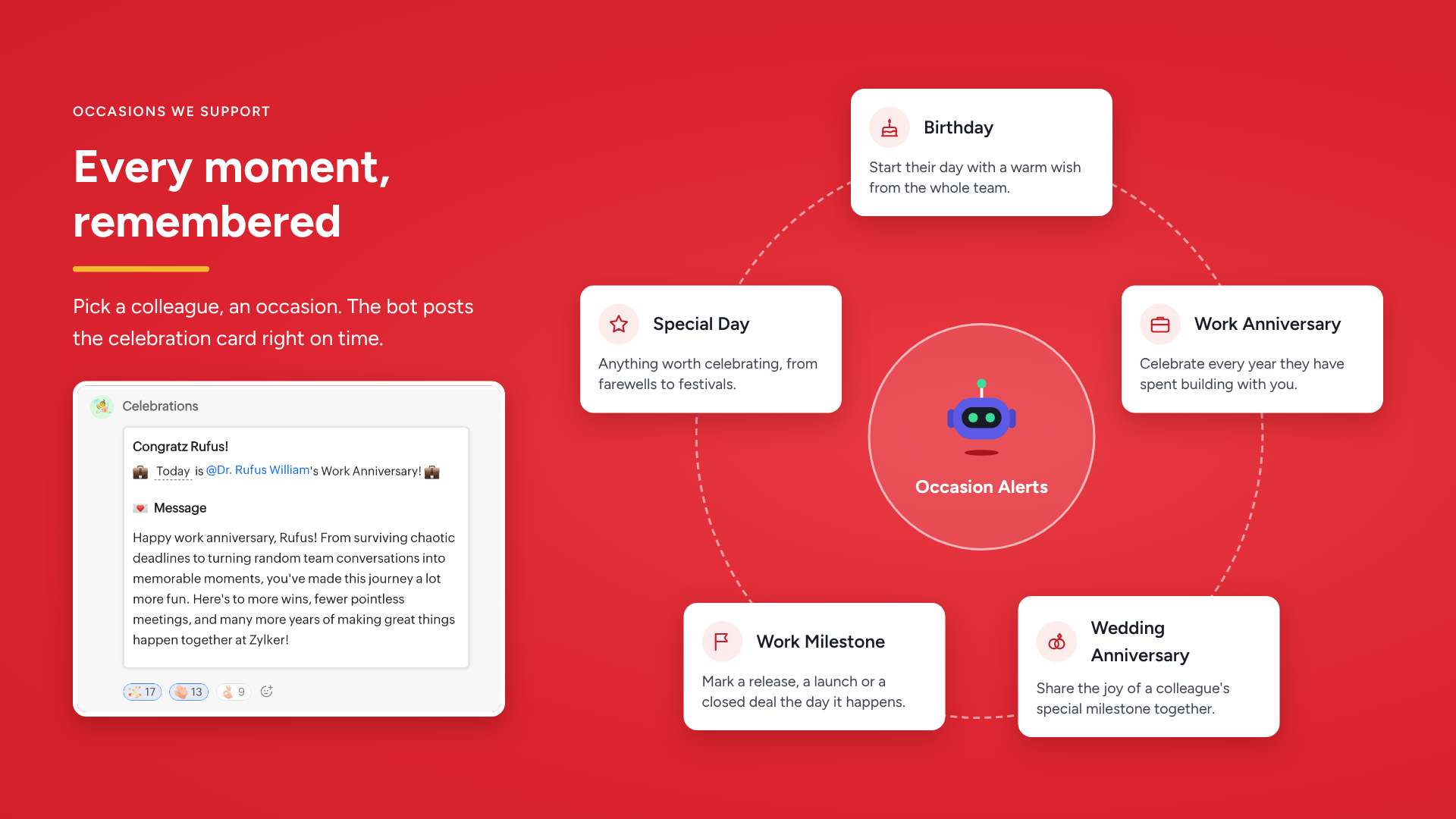
Set up Automatic Occasion Alerts, an AI agent built on the Zoho Cliq developer platform using MCP tools, designed to manage workplace celebrations. Simply add a birthday, work anniversary, or any special occasion once, and the agent will post a celebration card to your selected channels every year.
One setup and one less thing for your team to remember.
Why it is worth building?
- Boosts morale and strengthens relationships between colleagues.
- Gives people a moment of genuine recognition when their own milestones are remembered.
- Recognizing milestones builds the kind of understanding and collaboration a purely transactional relationship doesn't.
Prerequisites
Before you begin, ensure you have:
- An MCP-compatible AI client connected to Zoho Cliq's MCP tools.
- Add member and Send message permissions in the channel where the agent can post celebration cards.
1. Create a Cliq connection
This connection allows the bot to add itself to the channels you select.
- Go to Cliq Connections by clicking Profile Picture → Bots & Tools → Connections in the top-right corner.
- Click Create Connection and select Zoho Cliq.
- Enter a connection name, select the
ZohoCliq.Channels.UPDATEscope, and click Create.
2. Configure the MCP server
This lets your AI client access Cliq's MCP tools to build the required components.
- Open Zoho MCP and click Create MCP Server.
- Name your server and click Create.
- Click Add Tools and select the required tools under Zoho Cliq.
- Open Connect, copy the server URL, and follow the displayed instructions to connect your AI client.
Once both connections are configured, you're ready to build the agent.
Category | Tool | Purpose |
Datastore | Create a datastore | Creates the database that stores every occasion. |
List all datastores | Checks existing datastores to avoid a name collision. | |
Scheduler | Create a scheduler | Creates the daily scheduler that posts the day's occasions at your configured time. |
Update a handler for a specific scheduler | Updates the code of an existing scheduler handler. | |
Slash command
| Create a slash command | Creates the /addoccasion command that opens the Add Occasion form. |
Create a handler for a specific command | Creates a suggestion handler in the slash command, for viewing or creating occasions. | |
List all commands | Checks existing commands to avoid a name collision. | |
Update a handler for a specific command | Updates the code of an existing command handler. | |
Function
| Create a new function | Creates a function for editing and deleting an occasion. |
List all functions | Checks existing functions to avoid a name collision. | |
Create a handler for a specific function | Handles dynamic changes in the form, based on input. | |
Update a handler for a specific function | Updates the code of an existing function handler. | |
Bot | Create a bot | Creates the bot that posts every occasion. |
Create a handler for a specific bot | Creates a handler for menu actions, so you can view your occasions anytime. | |
Update a handler for a specific bot | Updates the code of an existing bot handler. |
Prompt
How it works?
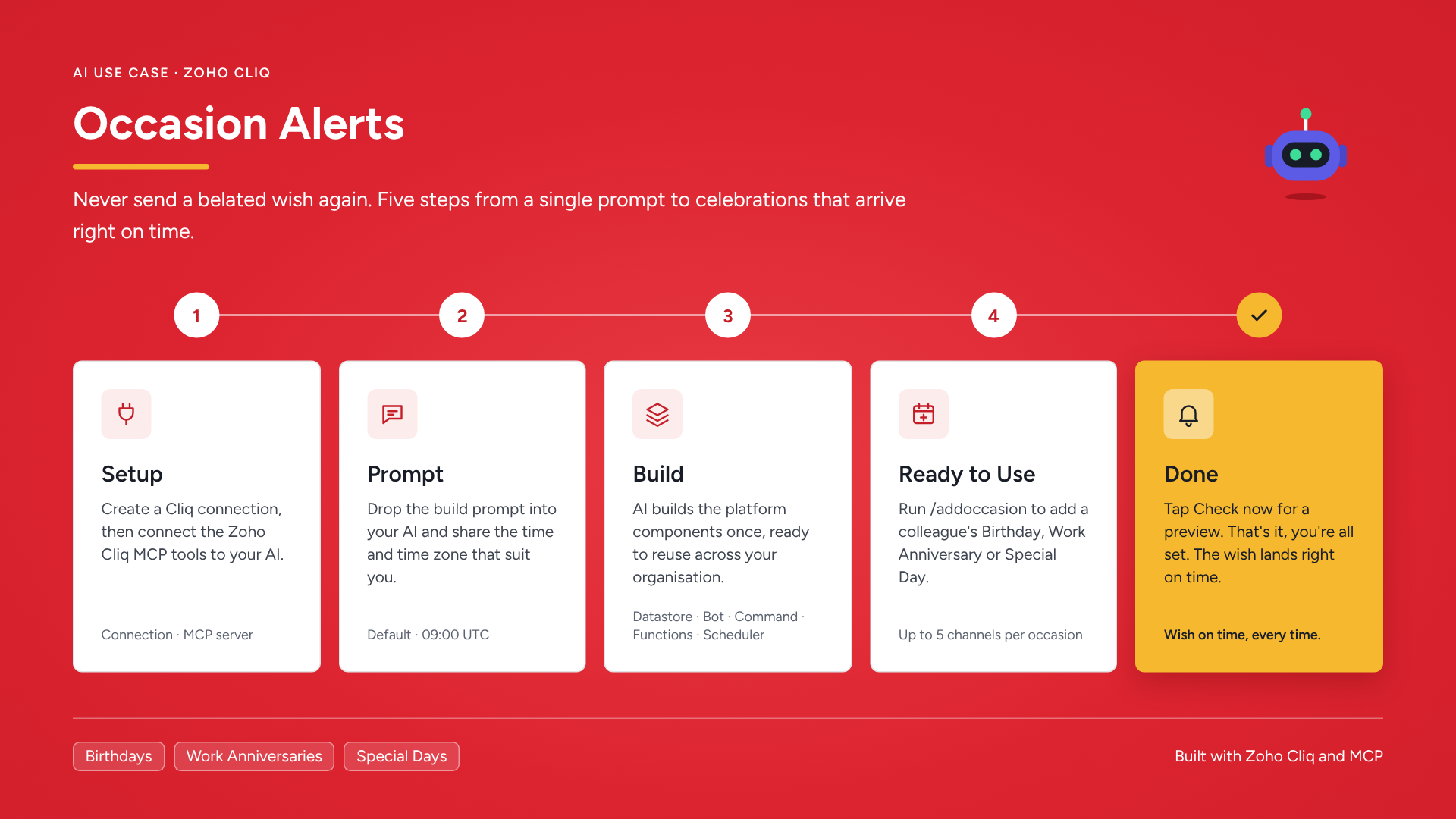
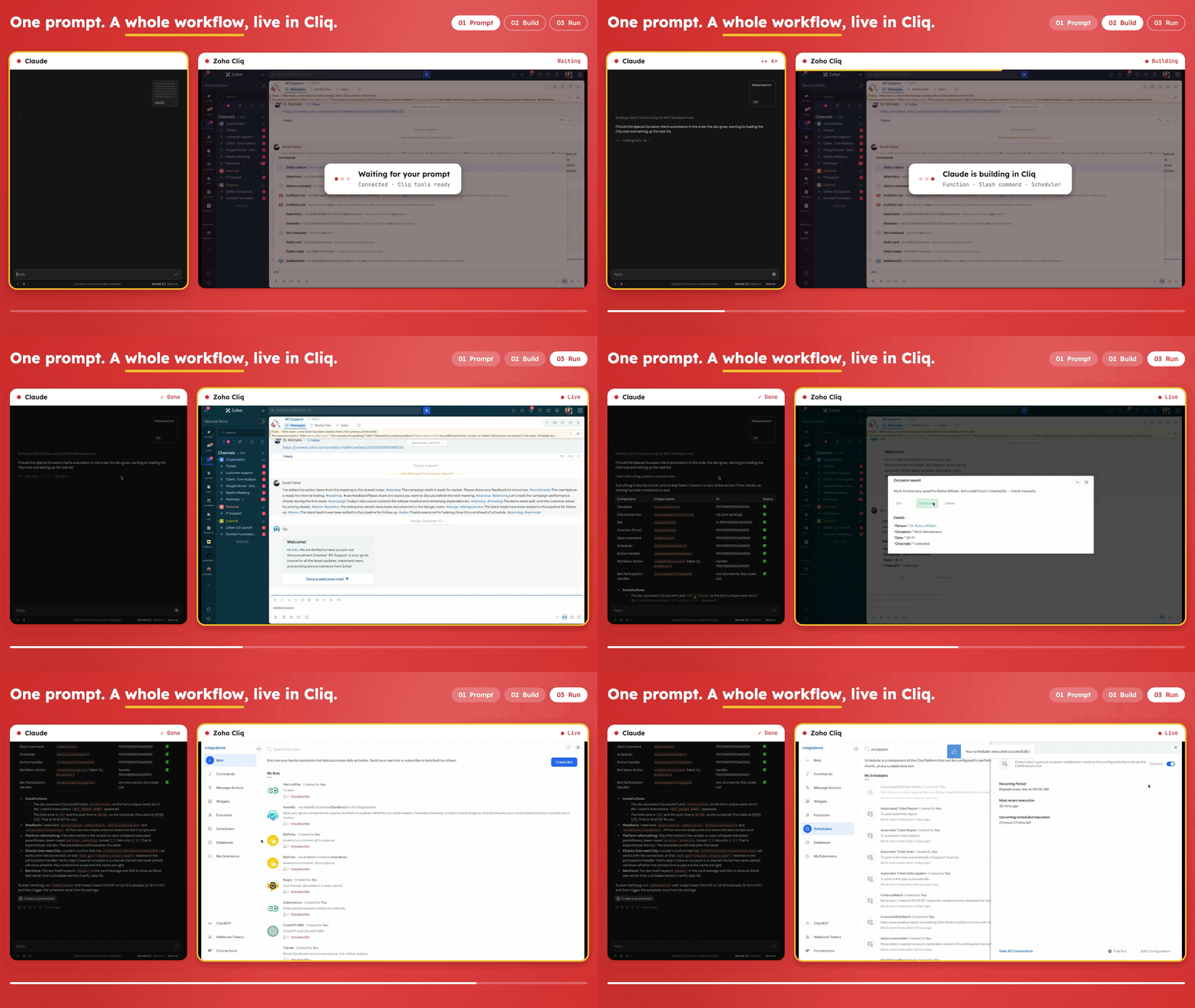
The AI tool/LLM utilizes your MCP connection to create six essential components for the developer platform: a datastore, a slash command, a bot, a button function, a form function, and a scheduler.
The datastore saves every occasion you add.
The slash command allows you to open the form and quickly add an occasion.
The bot publishes alerts as messages.
The button function manages actions related to the occasions you've added.
The form function validates and saves each occasion you submit.
The scheduler posts the day's occasions to their designated channels at your specified time.
You can create an occasion for anyone or anything worth celebrating and share it across up to five channels at once.
▶️ Check now to preview the exact card in your own direct message with the bot, and keep it separate from the actual channel.
At the scheduled time, the bot will post to all selected channels with the day's occasion. If no specific time is set, the default posting time is 9 AM every day.
Note: The bot automatically joins a channel the first time it is selected, so you only need permission to add it at that point. If the bot is later removed, notifications to that channel will stop, and the owner of each affected occasion will be notified, by name, about who removed it. Alerts will resume only after the bot has been re-added.
Business use cases where this pays off
Marking a colleague's birthday, work anniversary, or any other special day, automatically.
Marking work milestones, such as a release or a feature launch, so the team celebrates them too.
Marking a major deal closed with a customer as a special-day occasion, to build goodwill.