Tip #62- Exploring Technician Console: Send Ctrl + Alt + Del- 'Insider Insights'
Hello Zoho Assist Community!
This week, we’ll be exploring the Send Ctrl + Alt + Del option in the Technician Console. Let’s jump right in.
System administrators often rely on Ctrl + Alt + Del when managing remote devices that have unresponsive applications or require system-level intervention. During a session administrators can send Ctrl+Alt+Del to the remote computer without it triggering on your local machine.
For remote troubleshooting, technicians frequently need quick access to system-level controls. Normally, this would require pressing the key combination on the computer’s physical keyboard. With Zoho Assist, however, you can trigger this command directly from the remote session interface.
Once executed, it opens important Windows security options such as Task Manager, Lock or Log Off, Password change settings, and System restart or sign-out controls.
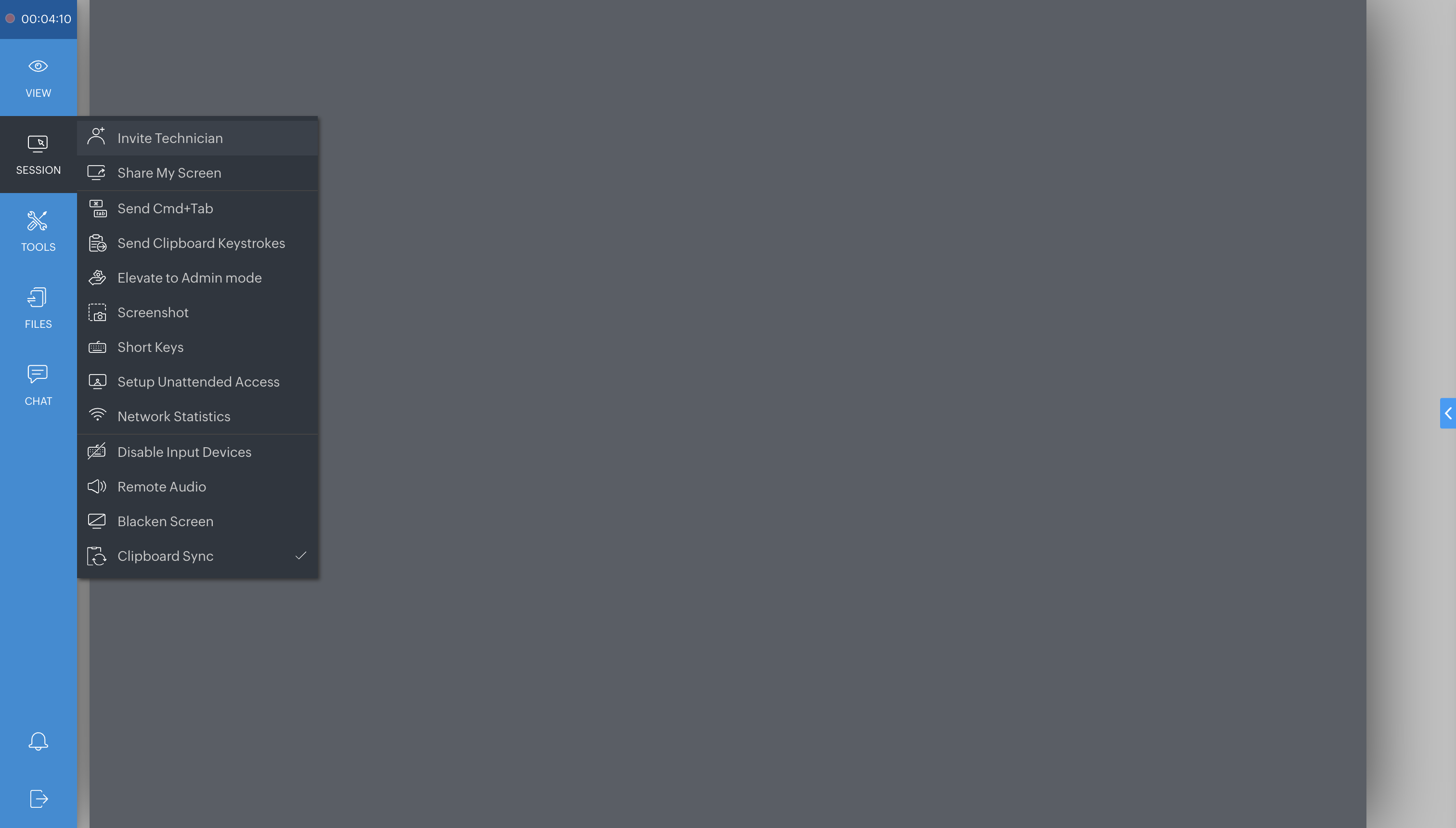
To use these shortcuts in a Zoho Assist session, first connect to the remote device. Once the session starts, navigate to the Technician Console, click Session, and select Send Ctrl+Alt+Del or Send Alt+Tab. The command will then be executed instantly on the remote system. The command will then be executed instantly on the remote system.
Using Ctrl + Alt + Del or Send Alt + Tab remotely helps technicians quickly access critical system controls and troubleshoot remote device seamlessly.