Tip #61- Collaborate live with Invite Technician- 'Insider Insights'
Hello Zoho Assist Community!
From the series of Technician Console, we will be exploring Session. Let's jump right into a brief overview. We’ve all been there: you’re deep into a complex remote session, and you realize you need a second pair of eyes. Instead of ending the call or rescheduling, why not just bring the expert to you?
With Zoho Assist, you can invite internal colleagues or external consultants to join your active session instantly. No downtime, no friction, just faster fixes. Invite Technician
From the series of Technician Console, we will be exploring Session. Let's jump right into a brief overview. We’ve all been there: you’re deep into a complex remote session, and you realize you need a second pair of eyes. Instead of ending the call or rescheduling, why not just bring the expert to you?
With Zoho Assist, you can invite internal colleagues or external consultants to join your active session instantly. No downtime, no friction, just faster fixes. Invite Technician
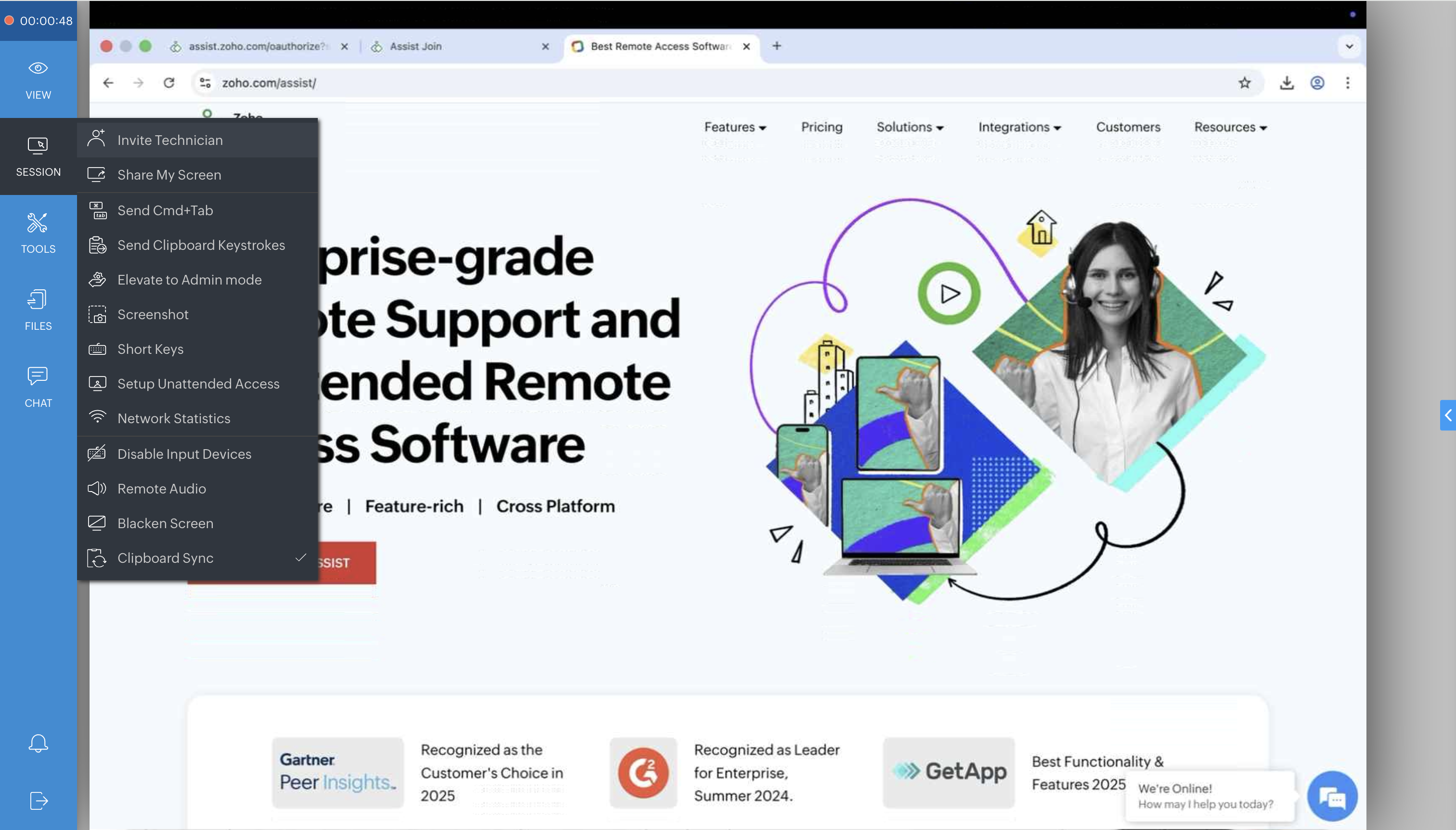
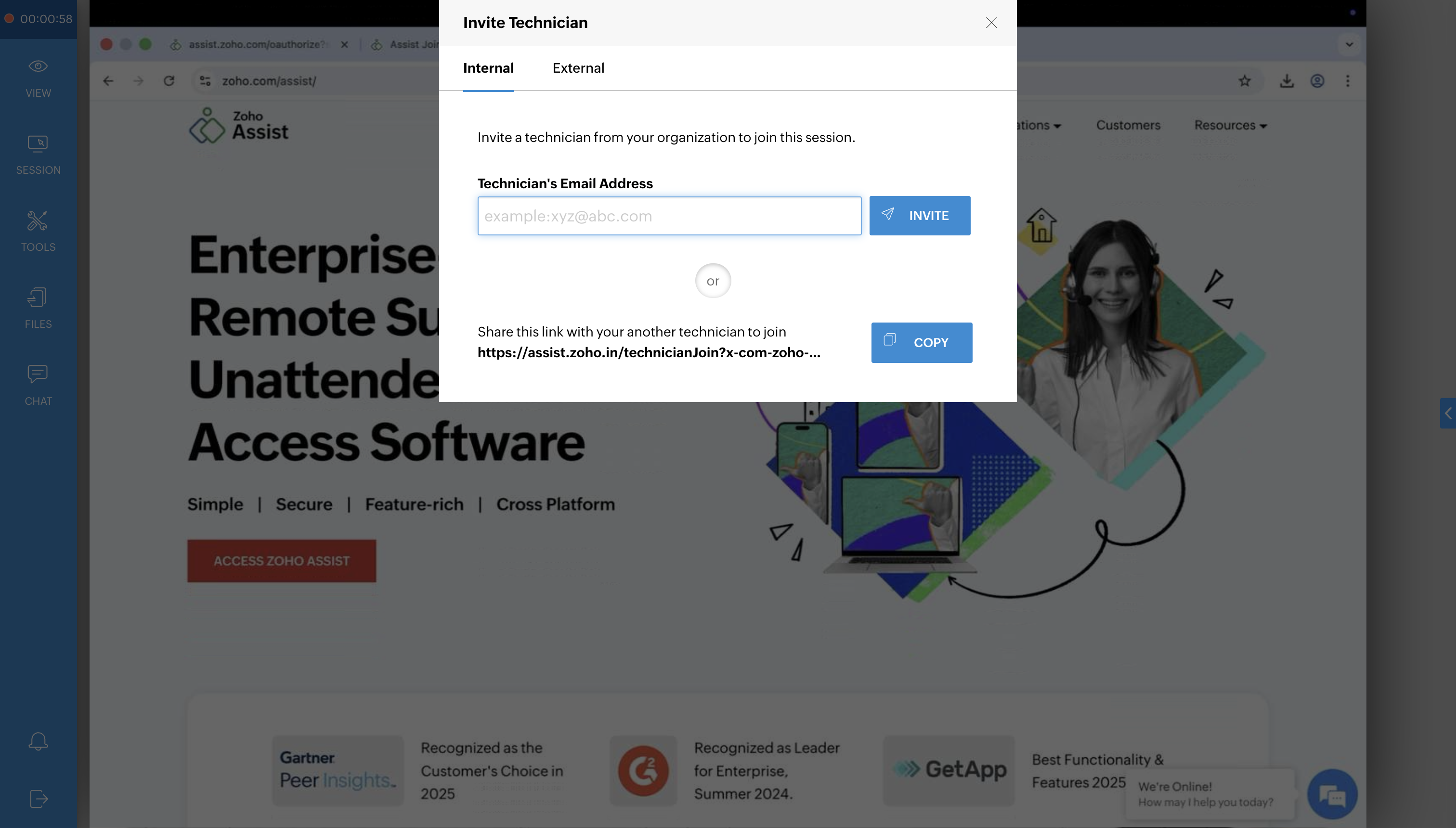
During the live session, you can invite a technician by navigating to the Technician Console, selecting Session, and then choosing Invite Technician. From there, choose Internal, enter your colleague’s email address, and click Invite. Alternatively, you can copy the invite link and quickly share it with your teammate via chat for faster collaboration.
Similarly, you can choose External, enter the technician's email address, and click Invite for faster troubleshooting.
Invite Technician
One of the best parts of this feature? Continuity. If the primary technician needs to leave, the invited technician (internal or external) can keep the session running with the same permissions. This ensures the customer isn't left hanging if you have to jump to another meeting.
Try it out! If you need help setting up or have any questions, feel free to reach out to us at support@zohoassist.com — we’re here to help.
Try it out! If you need help setting up or have any questions, feel free to reach out to us at support@zohoassist.com — we’re here to help.