Important Update: New Fields Addition in Zoho Sprints Integration
We'd like to inform you of an upcoming update to the 'Timesheets' module in the Zoho Sprints integration from June 3, 2026. To enhance time tracking and reporting accuracy for the Zoho Sprints integration, three new fields - Log Type, Meeting ID, Release ID have been introduced in the 'Timesheets' module.
Whats Changing
Previously, only item-based timesheets were imported into Analytics. With this update, meeting timesheet entries will also be synchronized and made available for reporting under 'Timesheets' module.
As part of this update, the following new fields are added to the existing Timesheet table:
Log Type
Meeting ID
Release ID
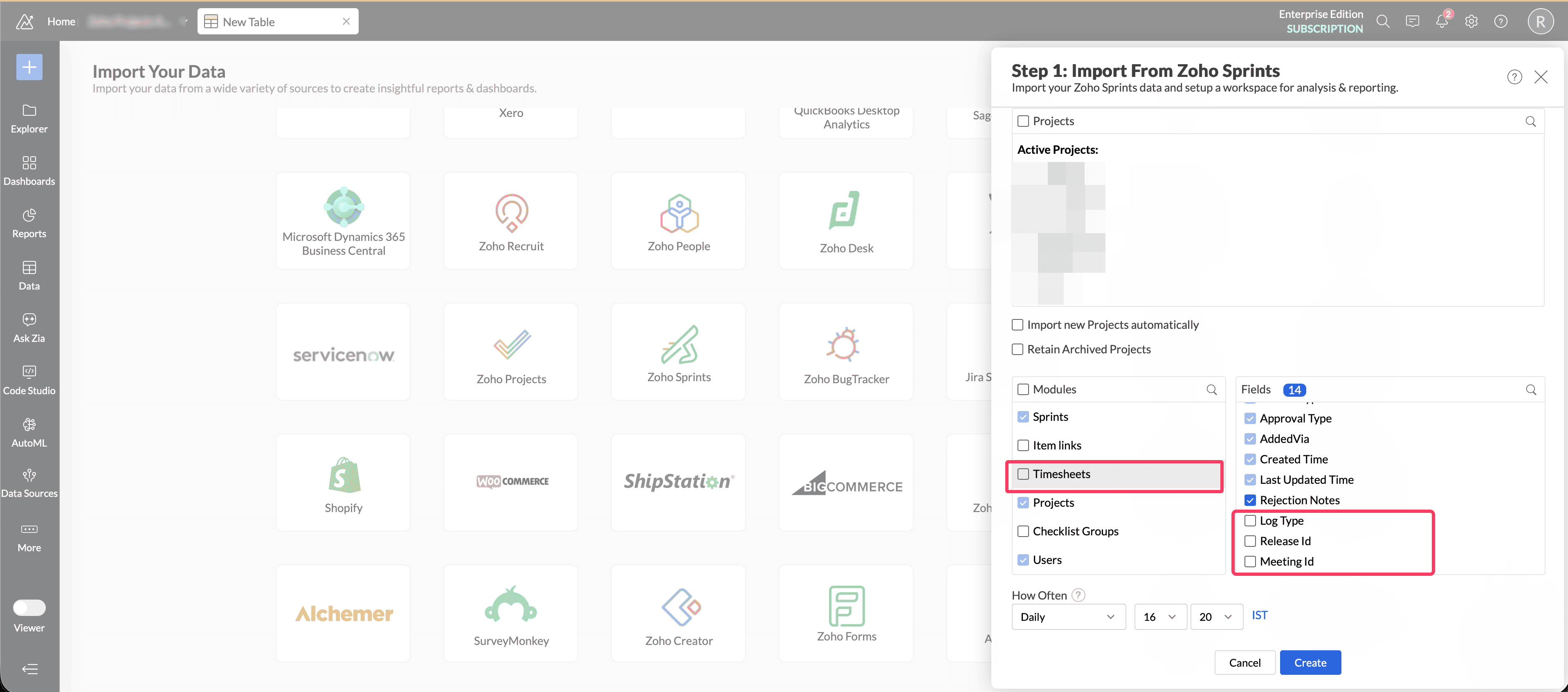
Item timesheet entries will continue to be stored against Item ID. Meeting timesheet entries will be stored against Meeting ID.
The Log Type field helps identify whether a time entry is associated with an item or a meeting.
Action Required
Meeting ID and Release ID fields will be enabled from June 3. We request you to validate your existing timespent reports and make required changes to filter or segregate the timespent data between meetings and items using the Log Type field.
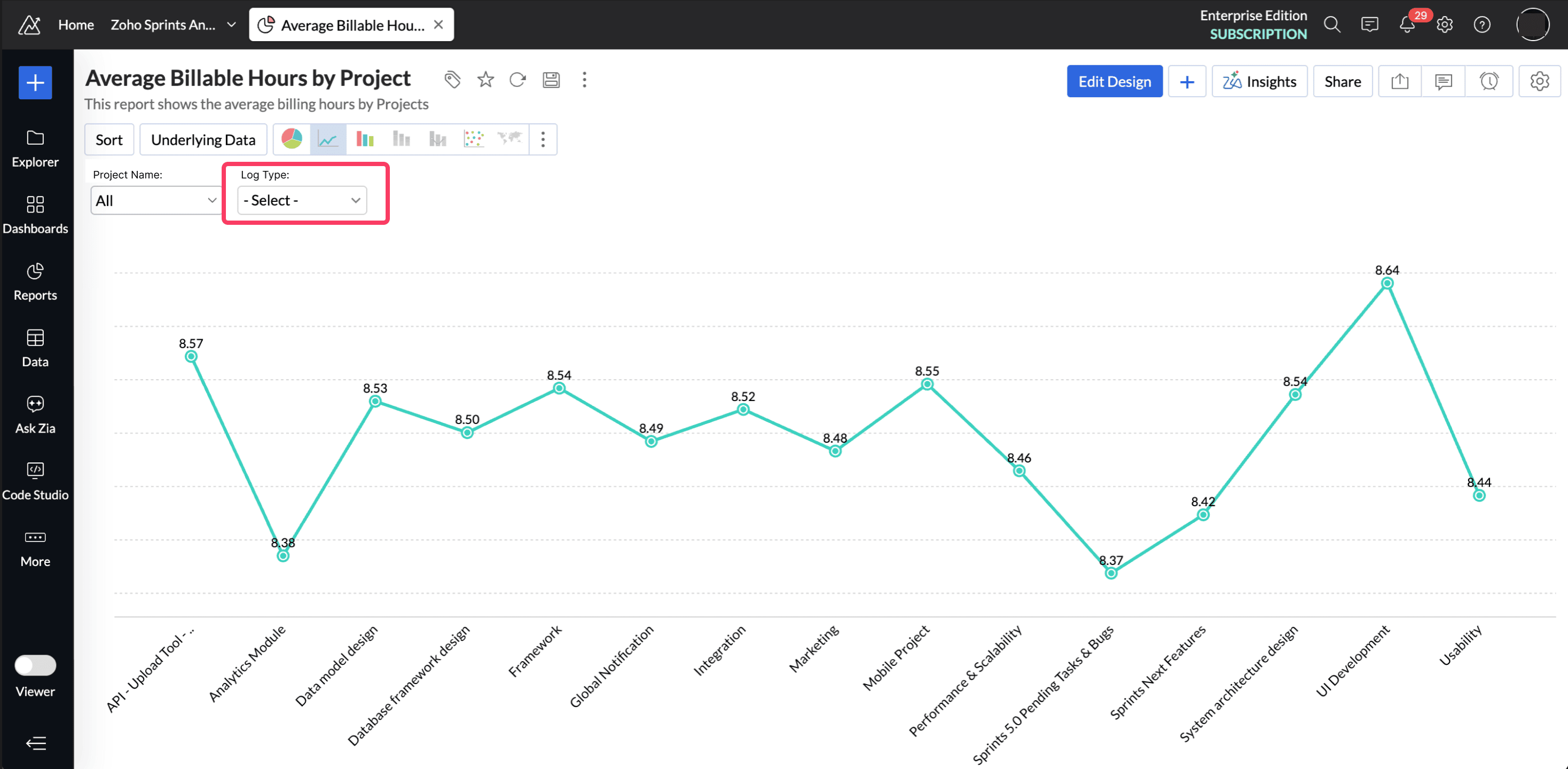
Changes After June 3, 2026
The new fields Meeting ID and Release ID will be enabled automatically in your setup.
A full data fetch will be performed based on your sync schedule.
Item-based timesheets will be mapped to Item ID.
Meeting timesheets will be mapped to Meeting ID.
The Log Type field will help identify the source of each time entry.
Meeting history date will also be synced.
Prepare Before June 3,206
We recommend taking these steps before the change goes live:
Validate your existing time spent reports, query tables and dashboards that use the Timesheets table.
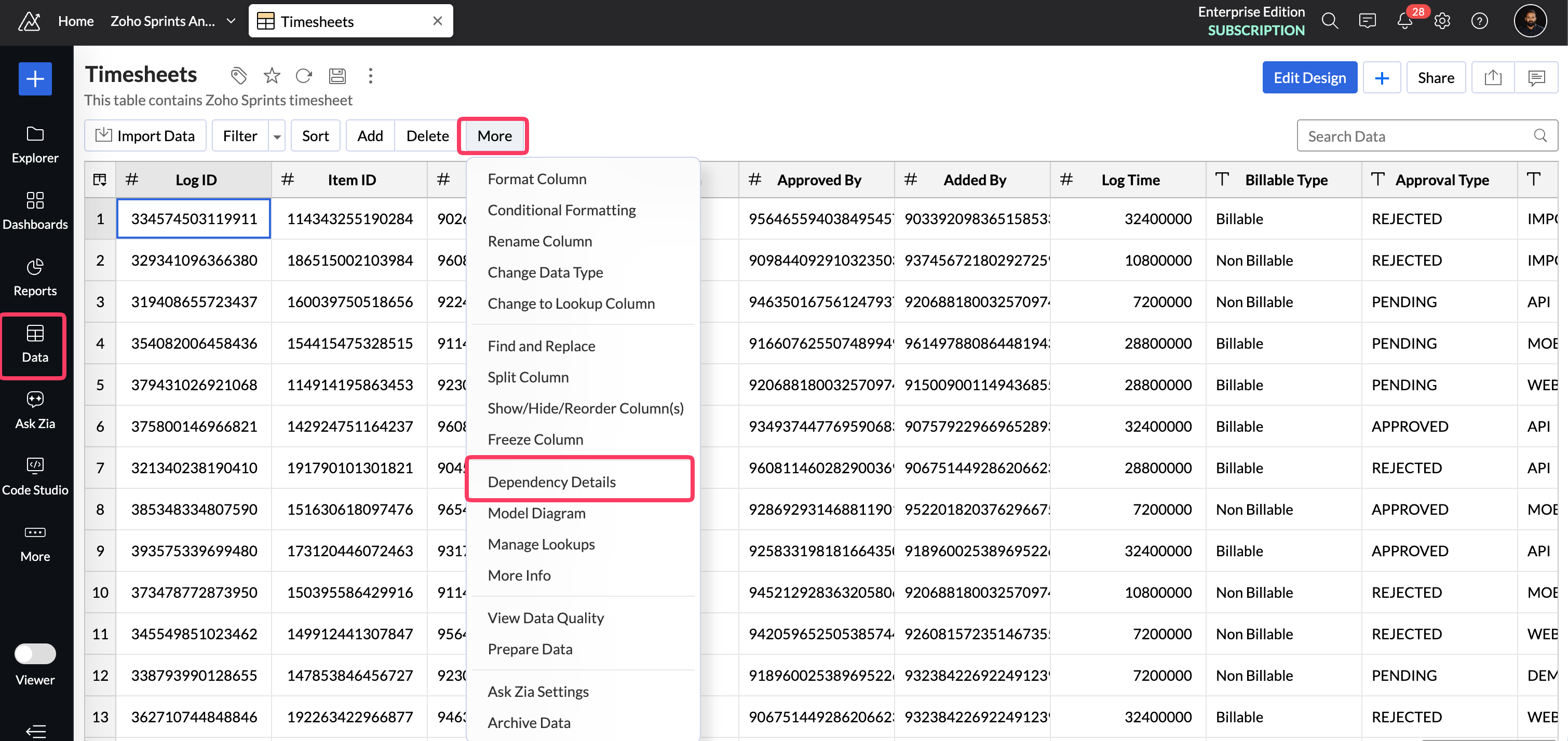
To check the dependant timespent reports: Open the TimeSheets table. Click the More options icon next to the table name and select Dependency Details. This gives you a consolidated list of all dependent reports, dashboards, and query tables.
Identify any reports that may need updated filters to separate item time and meeting time. Use the Log Type field to filter your time spent reports data.
If you have questions, feel free to write to support@zohoanalytics.com and we would be happy to help.
Regards,
Jaivin Joy Eapen
Zoho Analytics