Improved UI for a Seamless User Experience - Calls, Tasks, and Meetings
Hello all,
We are making UI unification across CRM so that the UI experience is seamless across the product. As part of that effort, we have made changes to the details page of activity-based module records—Meetings, Calls, and Tasks.
Let's look at these enhancements in detail:
Timeline tab
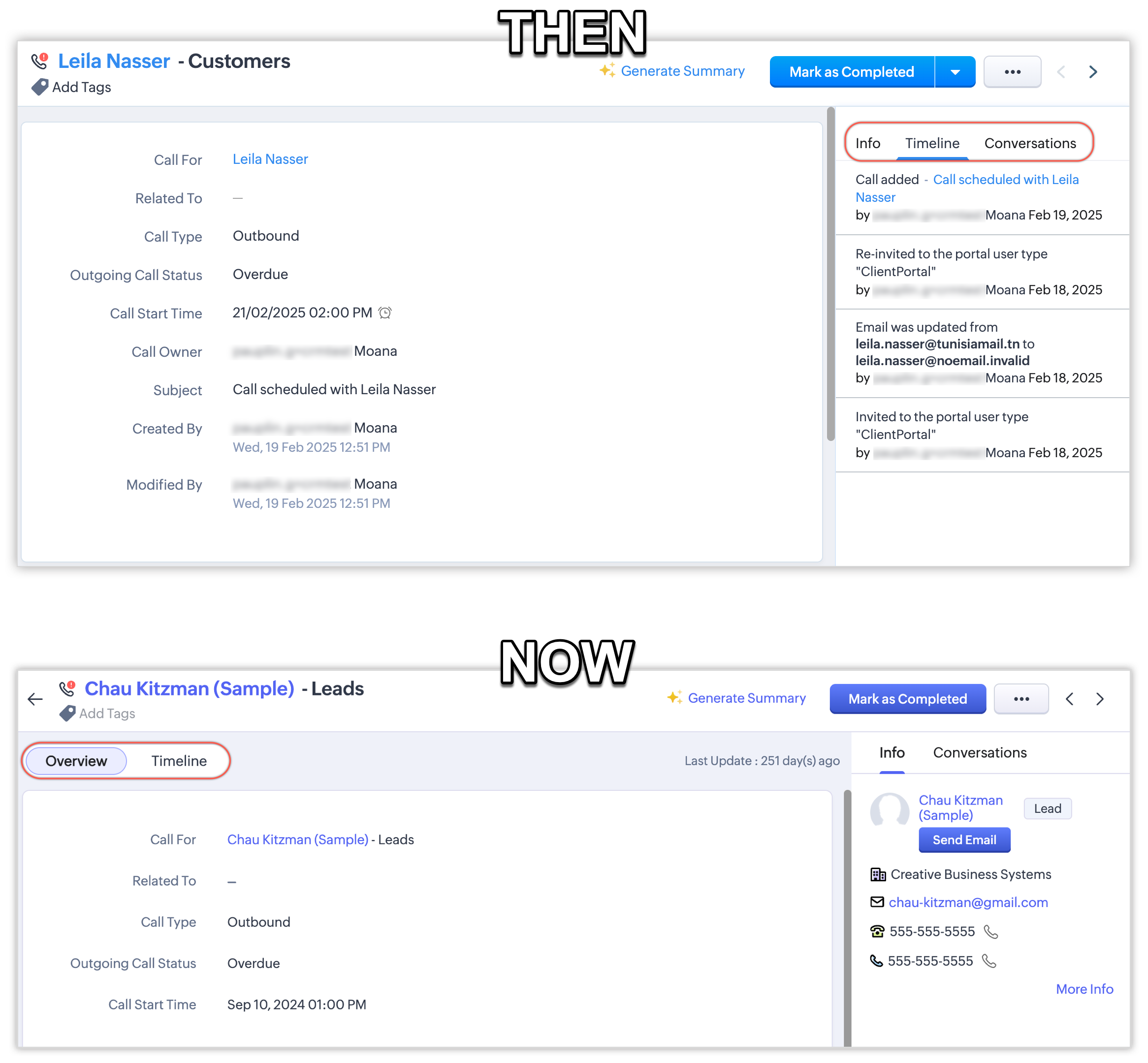
Previously, the Timeline tab in the Meetings, Calls, and Tasks modules was situated in the right panel of the record detail page, between the Info and Conversations tabs. We've moved it to the main space beside the Overview tab, like in the other modules. This applies to both records with and without contact associations.
The previousTimeline tab contained updates related to both the activity record and the associated records. Now, the Timeline tab contains only the timeline information of the activity record.
To view the timeline of a related record, users can access the Timeline tab within that record.
Meetings header title
In the record detail page of the Meetings module, the Host and Related to details—which were situated on the top panel—are now in the business card section in field vs. value format.

Meeting Information section
In the Meetings module, the new Meeting Information section will now hold all details related to meeting in a fields vs. values format to ensure consistency with other modules.

Call Reminder
Earlier, the call reminder time used to be displayed when hovering over the clock symbol beside the Call Start Time in the Calls record detail page. Now, the call reminder time will separately appear as a value against the Reminder field under the Call Information section.

RSVP Response
The meeting invitation RSVP buttons, which were previously displayed near the Participants section, are now available under a separate section named Meeting Invitation.

Task follow-up message
The location of the task follow-up message has been changed from inside the business card to a success prompt in the top panel.

Close Task button
In the Tasks record detail page, we've moved the Close Task button from inside the business card to the top panel to ensure consistency with other modules.

"Record is locked" message
In the Tasks record detail page, the "Record is locked" message—along with its details—was previously displayed inside the business card, but is now displayed in the top panel.

Business card view
In the record detail page of any module, when you click the Customize Business Card option under the ellipses (···) button, the Business Card View pops up. In this enhancement, we've redesigned the structure of the Business Card View to make it easier to customize your business card.


Availability
DC: All DCs
Editions: All editions
Release Plan: This update will be rolled out to all users across all DCs in a phased manner starting next week.
That is all about the enhancement. Please feel free to share your thoughts as comments below.