Integrations and Extensions in Zoho Mail: Manage the apps and tools that your users can access
Extensions, slash commands, and client scripts add extra capabilities to Zoho Mail for your users. The Integrations and Extensions section in the Zoho Mail Admin Console lets administrators decide which of these are available to the organization, and who can use them.
What are Integrations and Extensions in Zoho Mail?
Integrations and Extensions is a section under Other App Settings in the Admin Console. It allows administrators to view and manage the extensions available for integration with Zoho Mail. They include:
Extensions: Zoho and third-party applications that users can configure from the eWidgets section in their Zoho Mail settings. This covers the extensions listed for your organization, those submitted by your users (Org Extensions), and Marketplace extensions.
Slash Commands: Text instructions that start with a forward slash ("/") and let users perform actions without navigating through menus. These can be predefined system commands or custom commands created by users.
Client Script: JavaScript snippets that run in the user's email interface and automate actions based on predefined events.
How can administrators use Integrations and Extensions effectively?
Allow or deny extensions: Enable an extension for all users, or only for selected users and groups. To add specific users or groups, go to the Associated Users/Groups section under the respective extension.
Review user-submitted apps: Approve or reject the extensions submitted by your users under Org Extensions. If you revoke an approved extension, no one in the organization can use it, including existing users.
Restrict marketplace extensions: Manage marketplace extensions by blocking installation, allowing all extensions, or allowing only selected ones.
Monitor slash commands: Enable the system slash commands, and approve or reject the custom commands shared by users. Test run a command before approving it.
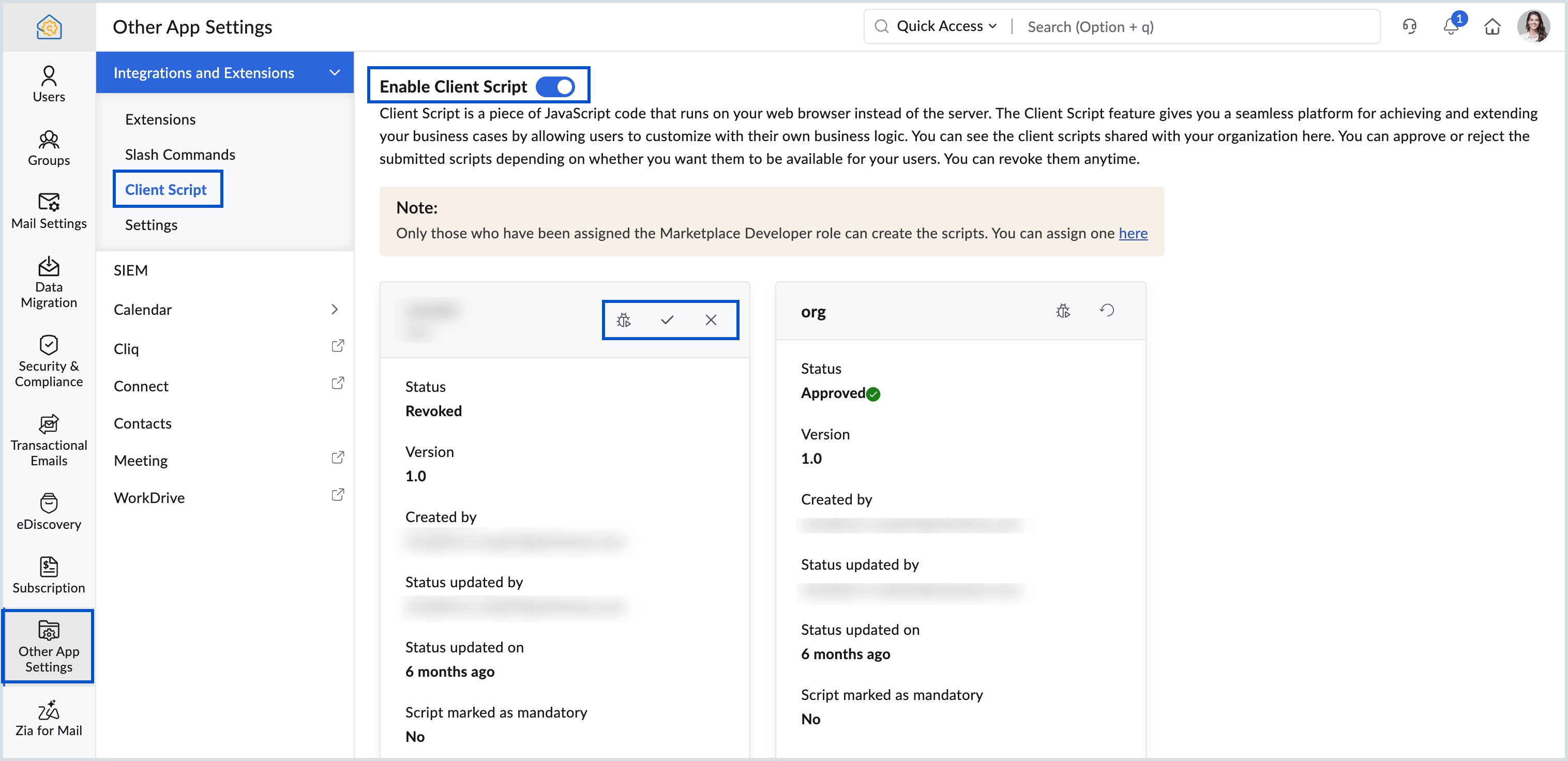
Manage client scripts: Test run, approve, reject, or revoke scripts created by users. Mandatory scripts are enabled for all users and cannot be disabled by them.
For example, an admin can use a mandatory script to apply a standard action in the compose window for everyone.
Steps to enable or disable extensions
Log in to the Zoho Mail Admin Console and select Other App Settings from the left pane.
Select Integrations and Extensions. The Extensions tab appears by default.
Turn the toggle on or off next to the required application.
Select All users or Selected users/groups from the Enable For drop-down.
For Selected users/groups, choose Users or Groups from the top menu, click Add, select the required ones, and click Submit.

Steps to enable Client Script
Log in to the Zoho Mail Admin Console and select Other App Settings from the left pane.
Select Integrations and Extensions and click Client Script.
Turn on the Enable Client Script toggle.