Maintain steady traffic to your domain: How Domain Aliasing helps
Consider this scenario: An organization has its primary domain as administrator.com. Now it wants to shorten its domain to admin.com because it's simpler and easier to remember.
Emails sent to registered but not aliased domains will be rejected with "User not found" error.
Administrators must create and maintain separate, independent accounts across different domains, instead of having a single unified user account.
Having different domains leads admins to manage different consoles, increasing the chances of misconfiguration.
Customers may be confused about your brand's authenticity.
Domains that are not managed or aliased are prime targets for cyber attackers to use similar domains for phishing and cause reputational damage to your organization.
This is where Domain Aliasing comes in handy. Instead of replacing the original domain, you can add the new domain (admin.com) as an alias to your existing primary domain (administrator.com). This allows emails sent to the alias domain to reach the corresponding accounts in your primary domain without creating new mailboxes.
Domain Aliasing is the process of mapping a new domain as an alias to the already configured domain in your email service provider.
Uses of Domain Aliasing extend to:
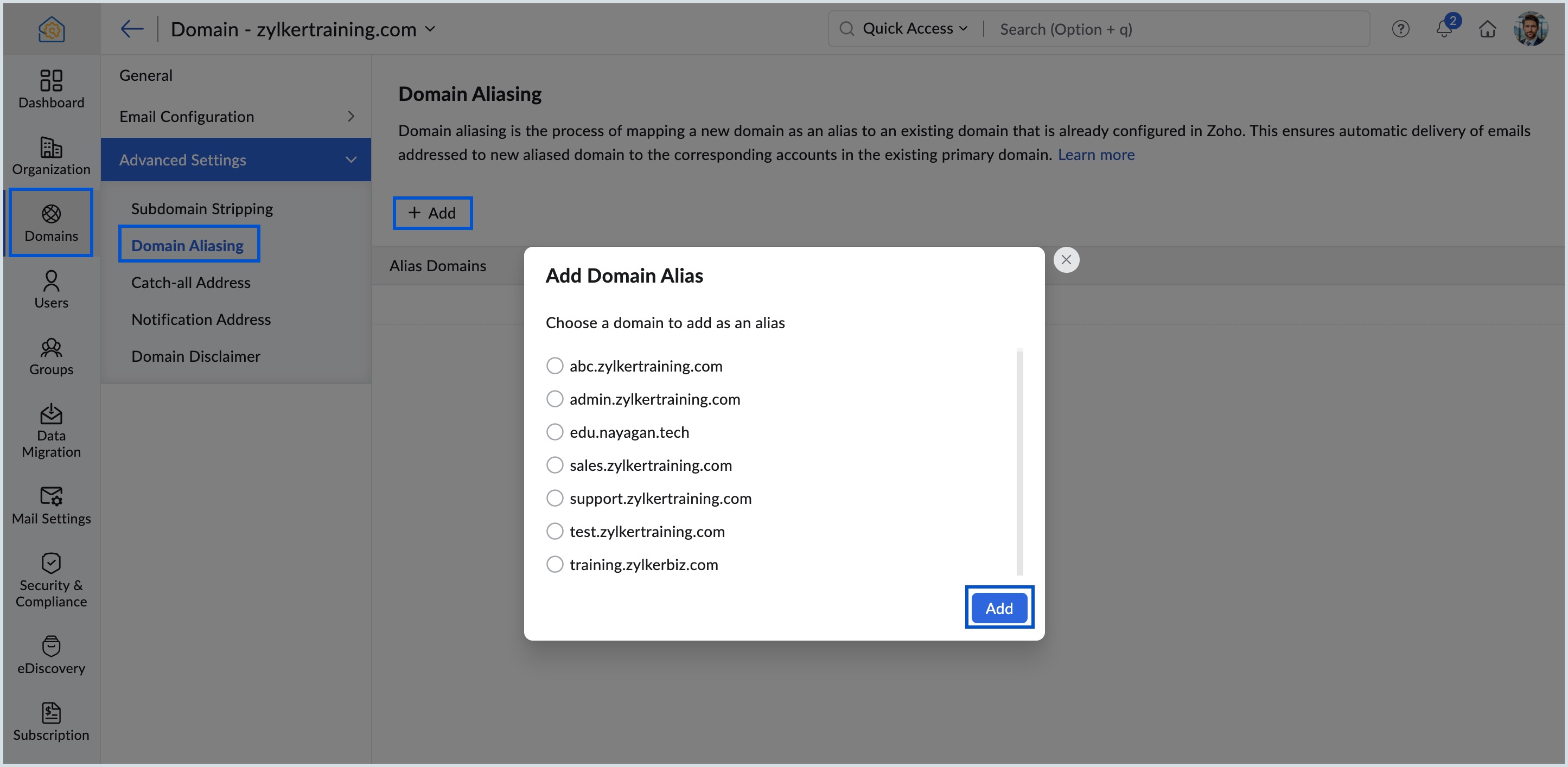
Log in to Zoho Mail Admin Console.
Under Domains section, select a domain for which you have to add Domain Aliasing.
Note:
Ensure that you have already added the domain and setup in Zoho Mail.Navigate to Domain Aliasing under Advanced Settings.
Select +Add and select a domain that you wish to add as an Alias domain under Add Domain Alias dialog box.
Review the warning message that pops up carefully and click Proceed.
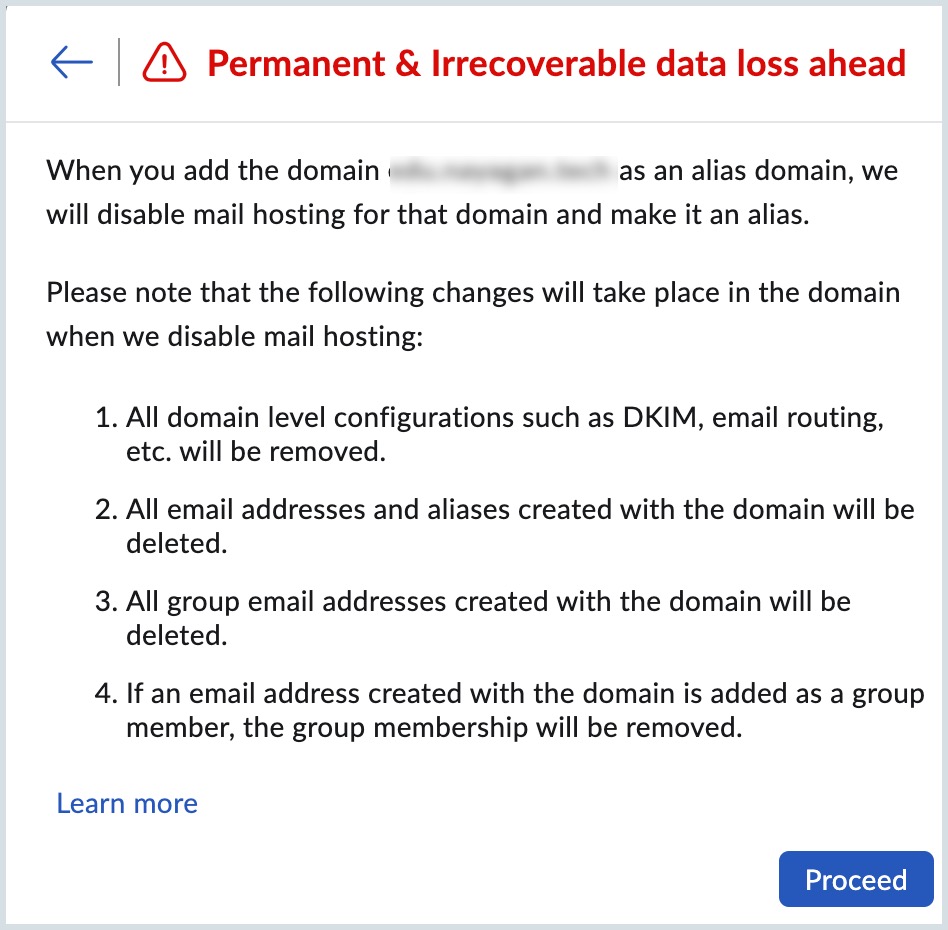
Once done, the alias domain will be linked to the primary domain and emails sent to alias domain will be delivered to corresponding primary domain accounts.
View detailed steps in the Domain Aliasing help page.