Weekly Tips : Seamlessly collaborate with Share Drafts in Zoho Mail
Ever found yourself stuck wondering how to get input on an important email draft without actually sending it? Maybe you want a teammate’s feedback or approval from your manager—without exposing sensitive info. Or perhaps you are working across different time zones and need others to review and add comments before the email goes out.
That’s where Zoho Mail’s Share Draft feature comes in, allowing you to share your email drafts safely within your team.
Share Drafts
You can use the Share Drafts feature in Zoho Mail to get your content reviewed by your teammates before you hit Send. You can get their inputs and suggestions in the form of Comments to get new ideas or make changes to your email draft. You can get real-time feedback and keep your messages private until you are ready to hit send.
How to Share Drafts
- Log into your Zoho Mail account.
- Draft the email content.
- In the email compose page, click Share Draft, available in the top right corner.
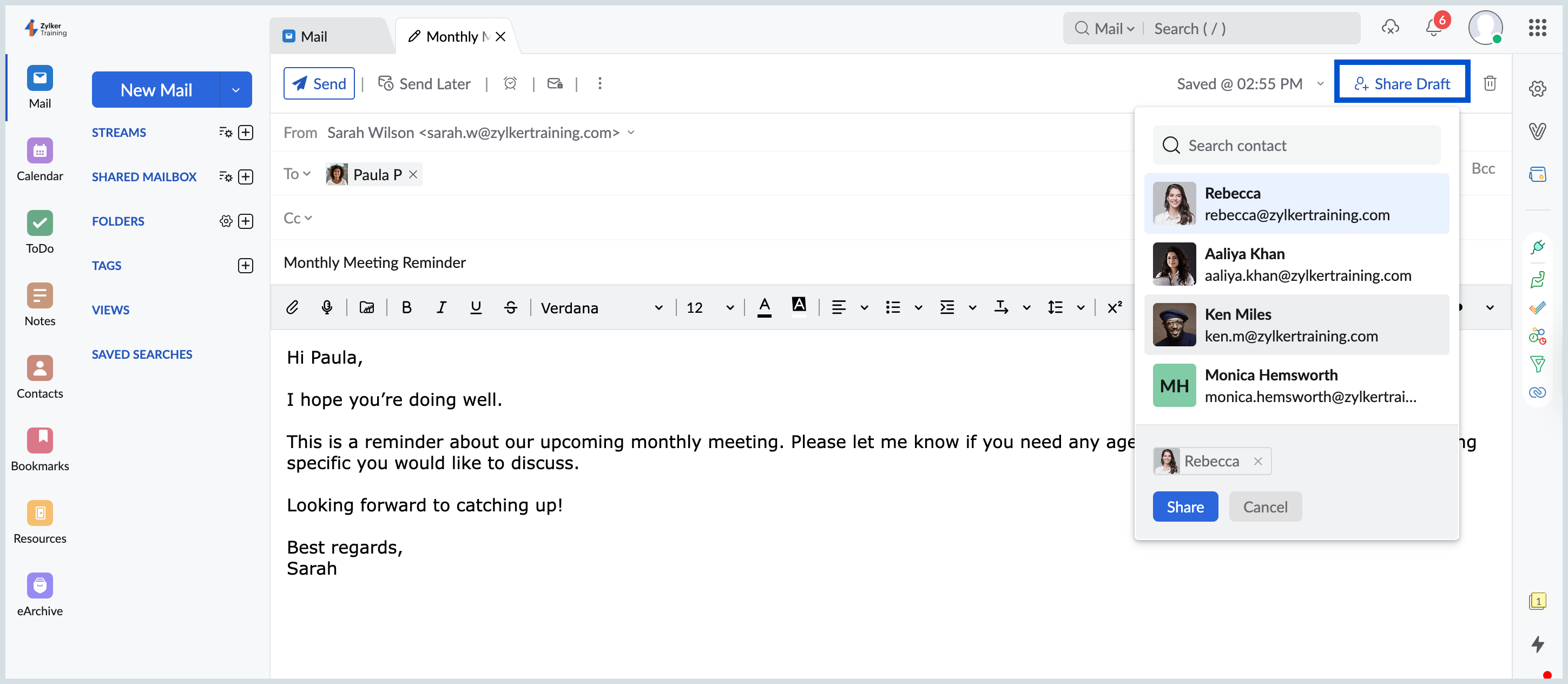
- As soon as you click Share Draft, the email draft will get automatically saved.
- Select the users you want to share the draft with from the drop-down list. You can also search for them using the search bar.
- Once done, click Share.
After clicking Share, the invitees will receive a notification alerting them that a draft has been shared. Invitees can then view the draft and share their thoughts on it.

You can view the comments added for the draft by clicking on the comments icon in the draft.

With Share Draft, collaborating on emails has never been easier—or safer.