How to add email templates to Library
Zoho Campaigns has a Templates section in the Library which allows you to save the templates that you've designed for future use, saving you a lot of time and effort.
How do I save a template to the library?
Once you're done designing your template according to your needs and requirements,
- Click Save Changes and select Save to Library button on the top right corner of the template editor.
- Your template will be saved in the Templates section of the Library.
Alternatively,
If you designed your template in the template editor:
-
Click the More icon.
-
Click Save to Library.
-
Add the template name and click Save.
Your template will be saved in the Email Templates section of the Library.
How do I create a template from the Library?
Aside from just saving your template, you can also create a template from the Library.
To create a template from the Library,
-
From the Navigation toolbar, choose Library and select Email Templates.
- Click Create Using in the top-right corner of the page.
-
From the dropdown menu, select the type of template you would like to create.
- Choose the template layout you want to use.
-
Select Save as Template to save the template in the Library, otherwise select Create Campaign to create a campaign using that template.
-
If you select Save as Template,
- Give the the template a name and click Save.
-
Design the template according to your requirement and click Save and Close.
- Give the the template a name and click Save.
-
If you select Create Campaign, you can just go ahead with the usual campaign creation flow.
-
What actions can be performed on the saved templates?
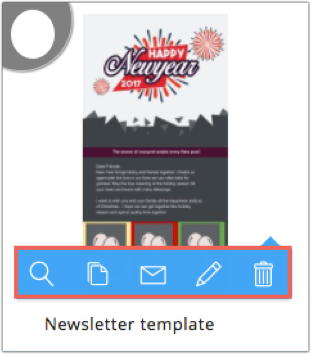
When you mouse over the thumbnail of a template stored in the library, you can see the following icons:
- Preview - Display a preview of the template.
- Clone - Clone the template.
- Create Campaign - Create a campaign using the template.
- Edit - Edit the template.
-
Delete - Delete the template.
How do I move a template to a folder?
-
Mouse over the template and check it.
-
Select the destination folder in the Move to Folder dropdown or select Create New Folder to move the template to a new folder.
- Click Go Ahead.
You can find or search previously added templates under Library -> Email templates.
 Note
Note - Saved templates can be displayed in either a card view or a list view under Library -> Email templates.
- You can edit or modify your templates by clicking the Edit icon displayed under the required template.
- You cannot modify another user's template. You can clone their template and then make changes as required.