Automate timeout chat tracking with Workflows in SalesIQ
With our feature-packed Nova release, Workflows has become one of the most powerful tools in Zoho SalesIQ. They let you automate follow-up actions when key events occur, such as when a chat ends, a visitor leaves a bad/good rating, or a lead is updated. Let's take one of the most popular use cases and solve it with Workflows.
Use case: Tagging automatically closed chats
Imagine you're handling multiple chats at once. Sometimes, chats end due to timeout, and it's hard to track what happened without manually checking each closed chat. Workflows can fix that by automatically tagging any chat that ends due to timeout.
A workflow like this helps you:
-
Easily filter all timeout‑closed chats in one view
-
Generate analytics or reporting on chat timeouts
-
Identify where visitors drop off due to chat delay or neglect
Workflow Configuration:
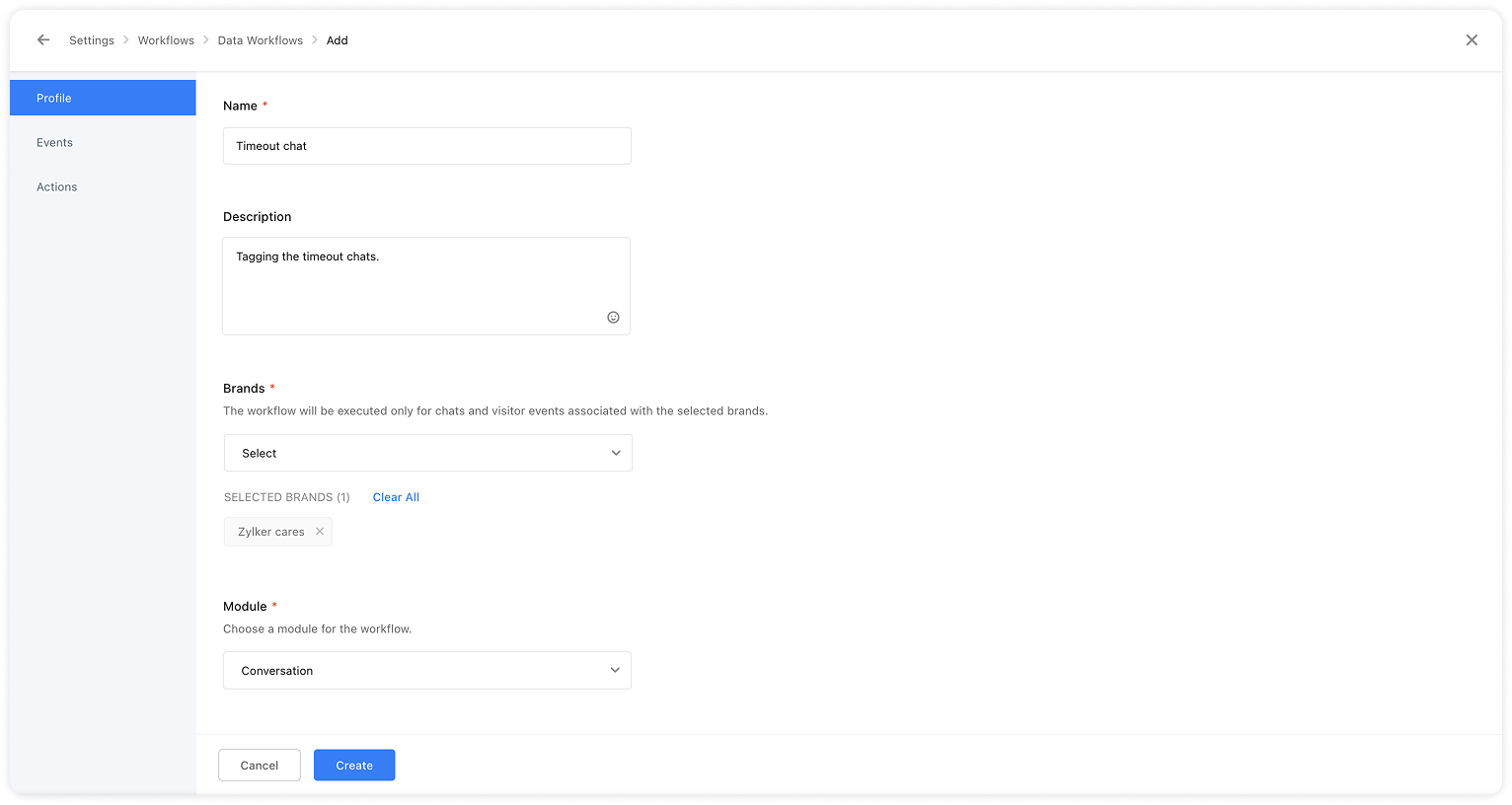
1. Create a new workflow
-
Go to Settings > Workflows > Data Workflow
-
Provide a name, description, and choose the relevant brand
2. Configure modules & events
-
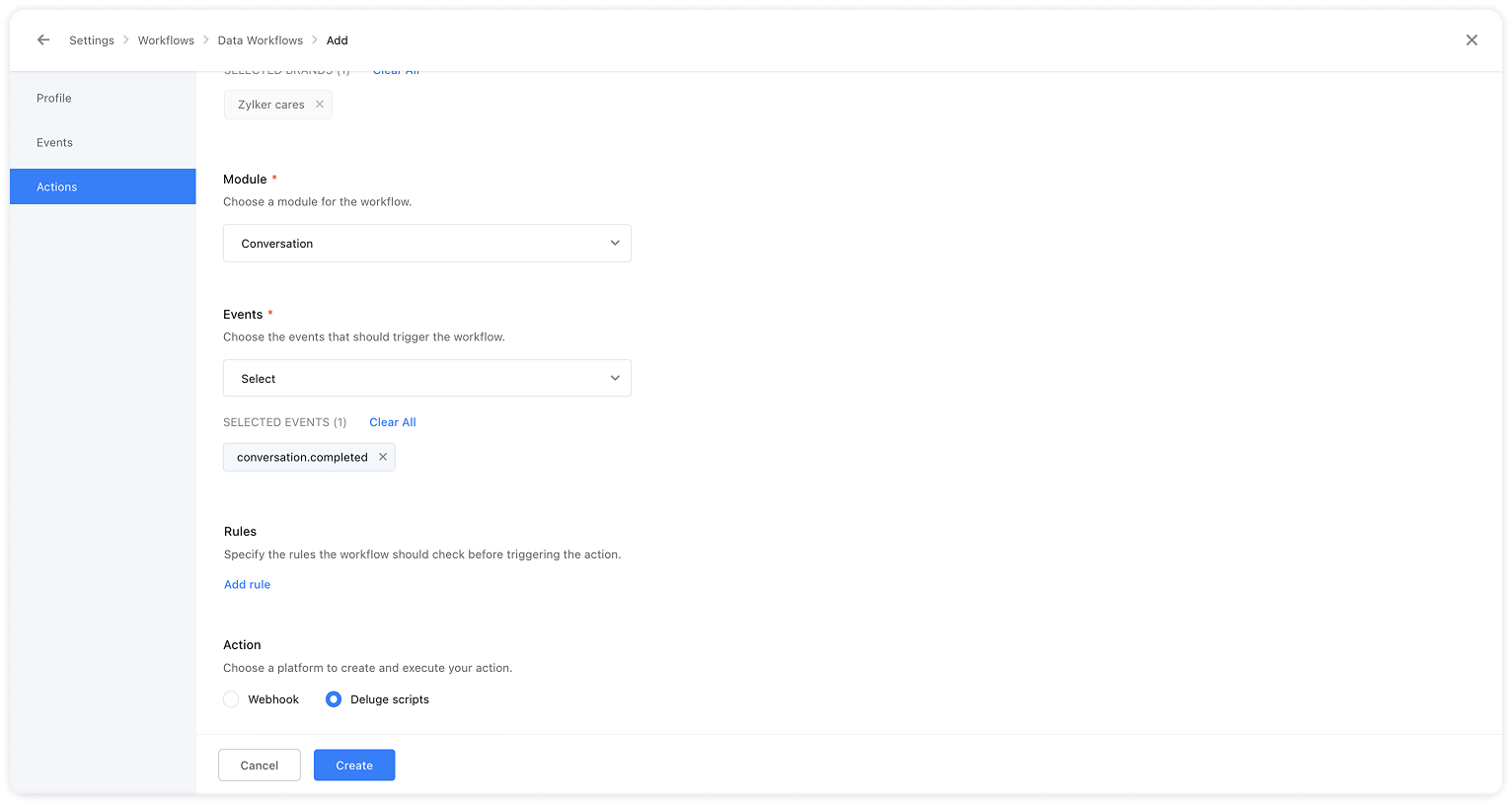
Select Module: Conversation
-
Choose Event: conversation.completed
-
Rules are options.
3. Action – Deluge Script
-
Under Actions, select Deluge Script
-
Copy and paste the script above, then edit the following:
-
Set your SalesIQ DC & Portal name:
-
Found in your dashboard URL (e.g., https://salesiq.zoho.com/com/<portalname>/liveview)
-
Use them in the script at lines #3 and #5
-
Create & add a tag:
-
Go to Settings > Personalize > Tags > Add Tag
-
Use that tag’s name in the script at line #7
-
Estabilish Connection:
-
From your workflow sctiption, click on Connections > Add Connection
-
Choose Zoho OAuth and provide the necessary scopes (alesIQ.conversations.READ, SalesIQ.conversations.UPDATE, SalesIQ.tags.READ)
-
Use the connection link name in the script at lines #14, #26, and #44
Here is a video for better understanding.
4. Save & Activate
Once the workflow is saved, it’ll automatically tag any timeout-closed conversation with your chosen tag. To get those chats, navigate to Chats > Closed chats > apply filters by tag.

 Pro Tip: Add channels to the filers to view channel based timeout chats.
We hope this walkthrough helps you get the most out of Workflows in SalesIQ! If you have any questions, drop them in the comments, we're here to help.
Already using Workflows to automate tasks? Share your favourite use cases or tips!.
Happy automating!