Kaizen 228 - Process Large-Scale Migrated Data Using Catalyst Solutions

Howdy, tech wizards!
This week’s Kaizen explores how Catalyst Solutions in the Zoho CRM Developer Hub help import large volumes of data into Zoho CRM while improving data quality and simplifying the migration process.
Why Catalyst Solutions?
Catalyst Solutions provide a library of independent, ready-to-use backend solutions called CodeLibs. The CRM Bulk Data Processor CodeLib helps handle complex data operations on large datasets. Following are the key benefits:
- Highly Scalable: Processes large datasets efficiently, supporting up to 200,000 records per API call.
- Automation Made Simple: Automate complex tasks like segmentation, data cleansing and lead scoring with minimal effort.
- Effortless Integration: Comes with pre-configured Catalyst resources such as serverless functions and data stores that integrate directly with Zoho CRM.
Business Scenario
Zylker, a manufacturing company, migrated over 3 lakh Lead records into Zoho CRM from spreadsheets.
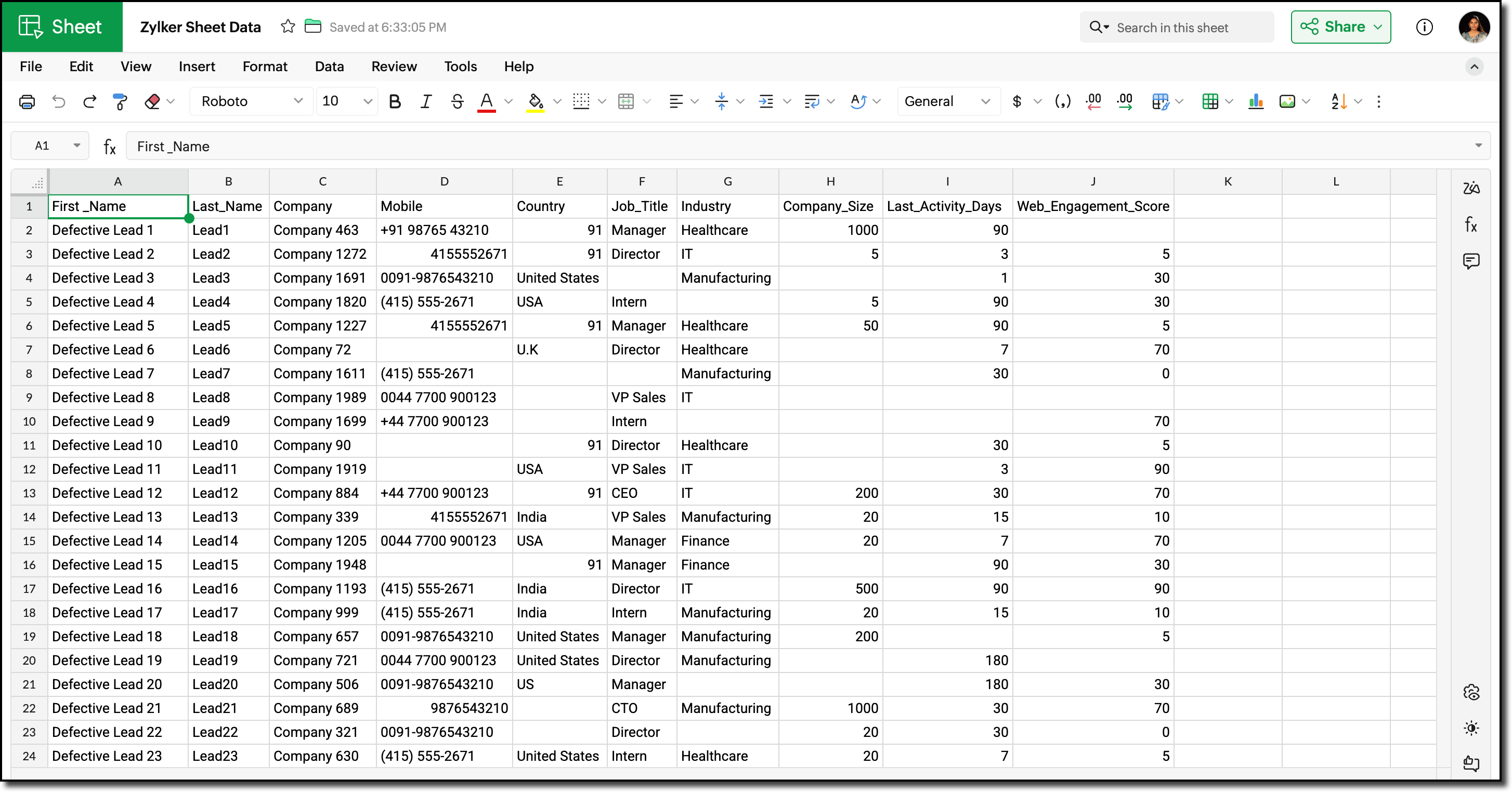
Post-migration, the Lead data showed the following inconsistencies and challenges:
- Phone number field did not include country codes, or contained incorrect country codes. This inconsistency made it difficult for sales teams to contact Leads reliably.
- Identifying potential Leads for follow-up required manual effort and marketing team has to run generic campaigns without lead segmentation.
Using workflows before record creation to fix phone numbers for this volume would result in 3 lakh individual workflow executions, which can slow imports and cause partial failures.
Solution Overview
Zylker can use the CRM Bulk Data Processor available in Catalyst Solutions to address these challenges at scale.
The solution works as follows:
- Lead records are fetched in bulk from Zoho CRM using the Bulk Read API.
- The fetched data is temporarily stored to evaluate the priority and quality of each record. Based on this evaluation, the records are also segmented accordingly.
- The Country field value is used to identify and append the correct country code to the phone number.
- The processed records are updated back into Zoho CRM using Bulk Write API.
All operations are executed using pre-configured Catalyst resources provided by the CodeLib. You can explore the Bulk Data Flow in Catalyst help page to understand how each resource participates in the processing pipeline.
Prerequisites
Before you begin, ensure the following:
1. Log into your Zoho CRM and navigate to Setup > Customization > Modules and Fields > Leads.
Create the following custom Single Line fields to map existing record data in Zoho CRM.
- Last Activity Days
- Web Engagement Score
Refer to the Working with Custom Fields help page for detailed guide.
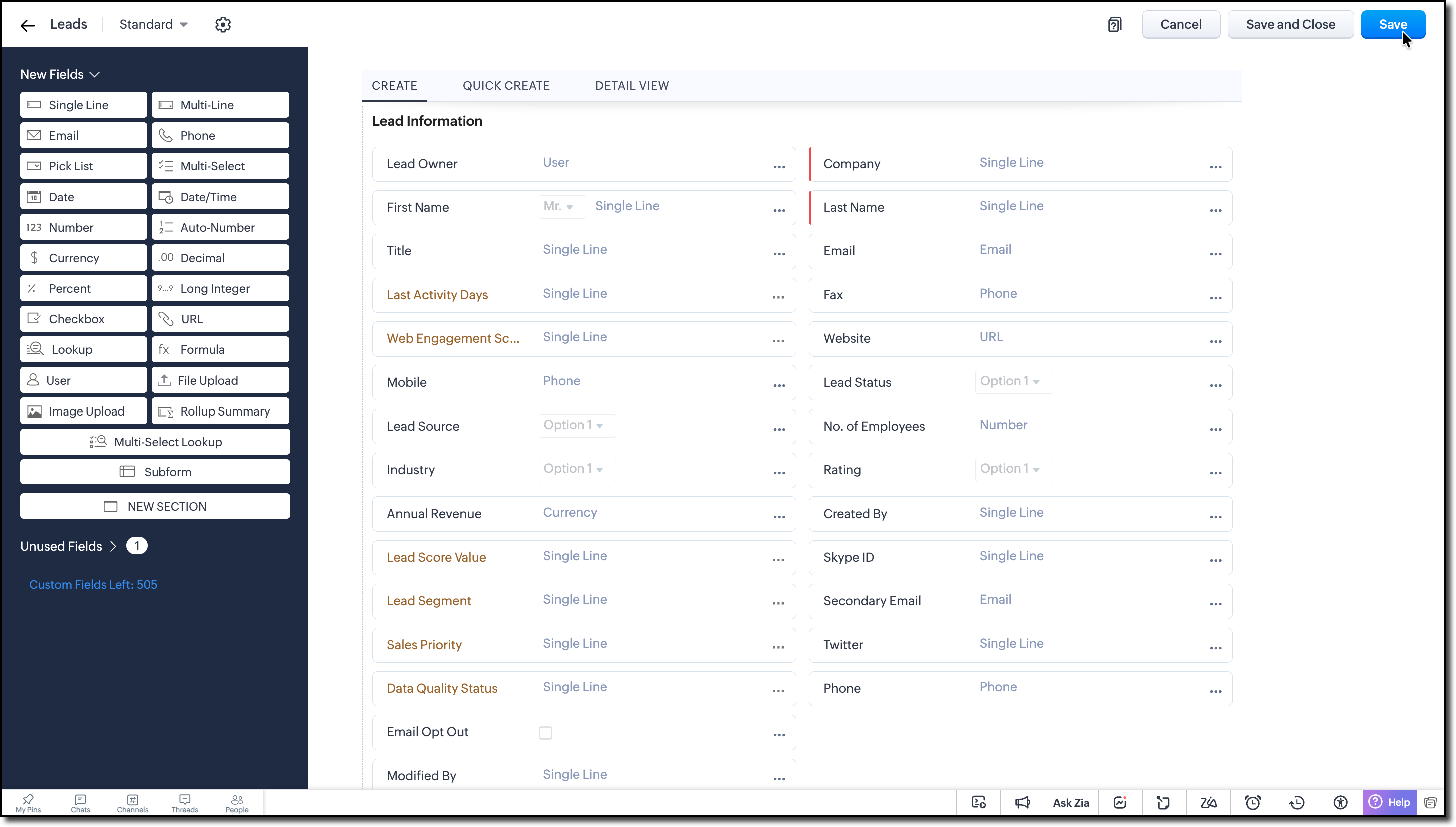
2. Create the following custom Single Line fields to store the calculated values during bulk processing:
- Lead Score Value
- Lead Segment
- Sales Priority
- Data Quality Status
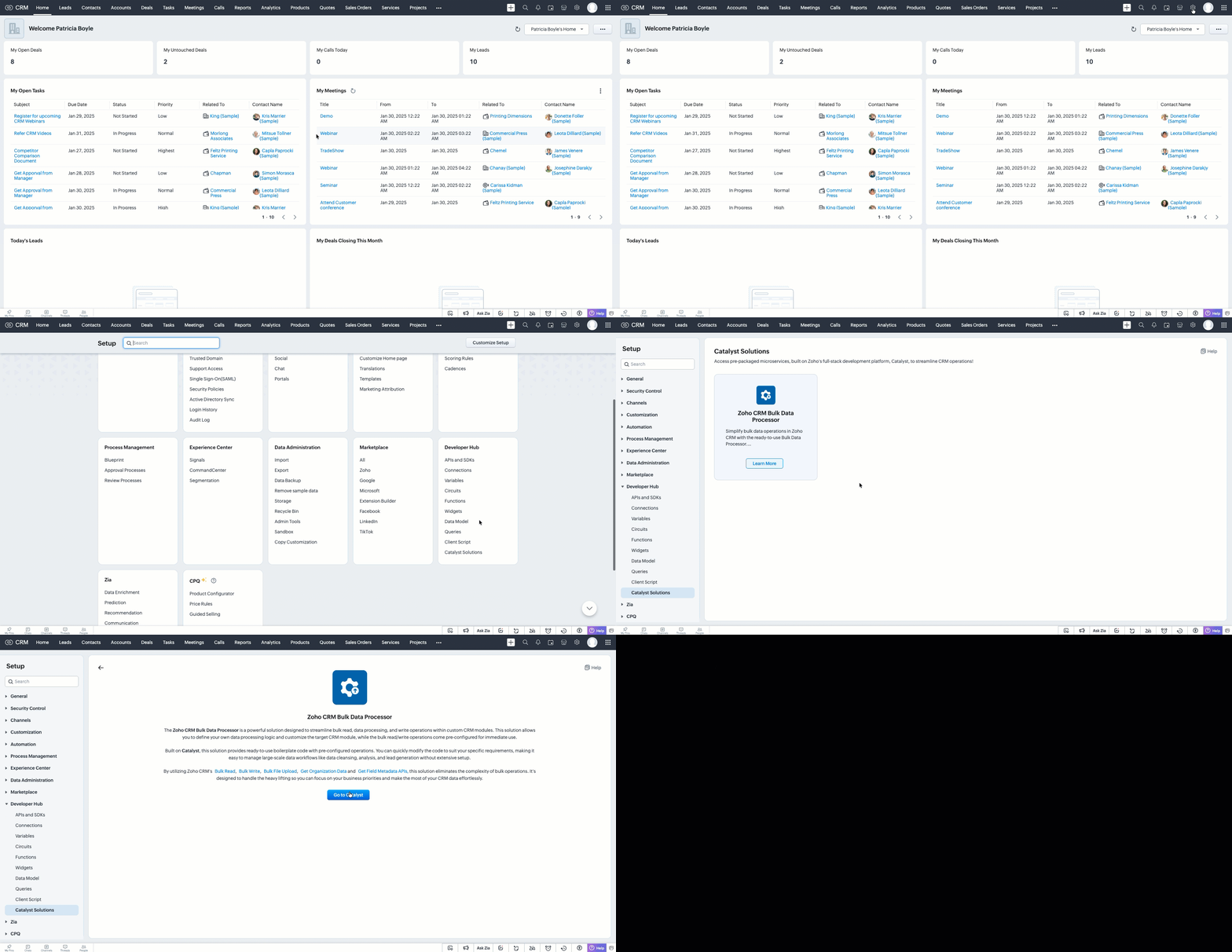
3. Go to Setup > Developer Hub > Catalyst Solutions > Zoho CRM Bulk Data Processor.
4. Click Go to Catalyst and create a Catalyst account if required.
5. Refer to the Catalyst CLI Installation Guide and install it on your local system.
6. Create a new folder on your local system, which will act as a local project directory. Use the following command:
mkdir -p <folder_name> |
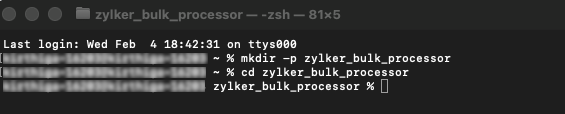
7. Navigate to the project folder in your terminal and execute the following command:
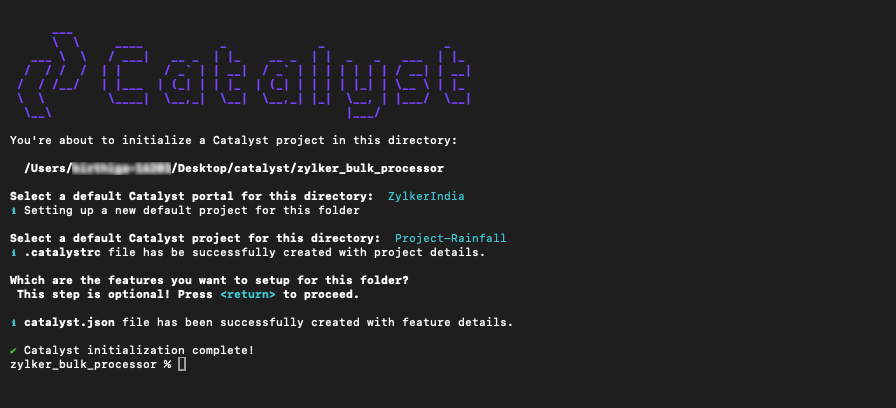
catalyst init |
8. Follow the prompts to select and initialize your desired project from the Catalyst console.
When prompted to choose a feature, press Enter and proceed without choosing any feature.
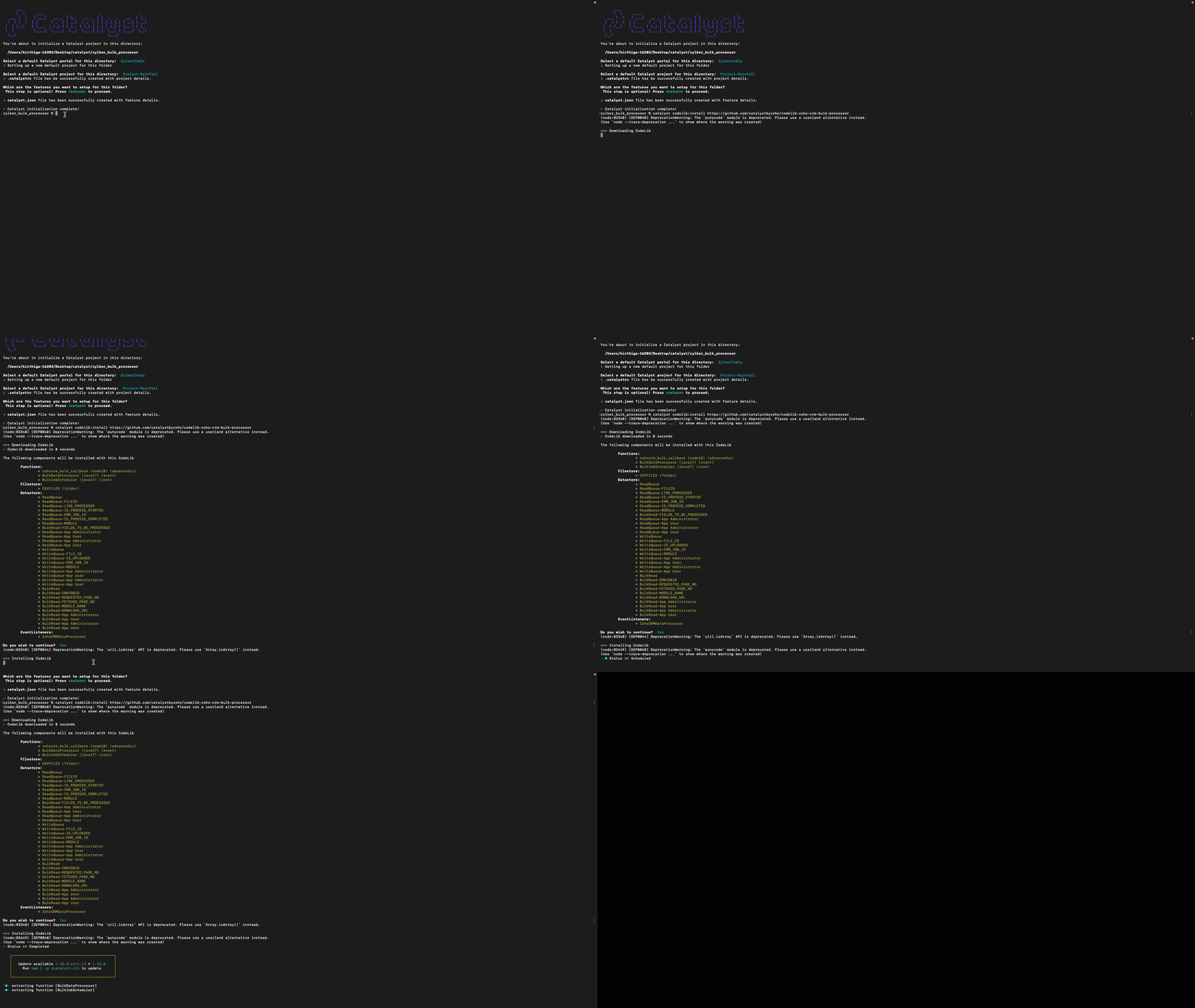
9. Run the following command to install the CRM Bulk Data Processor CodeLib.
catalyst codelib:install https://github.com/catalystbyzoho/codelib-zoho-crm-bulk-processor |
Step 1: Create a Cron Job
1. Open the Catalyst Console and navigate to the same project in which you have installed the CRM Bulk Data Processor CodeLib.
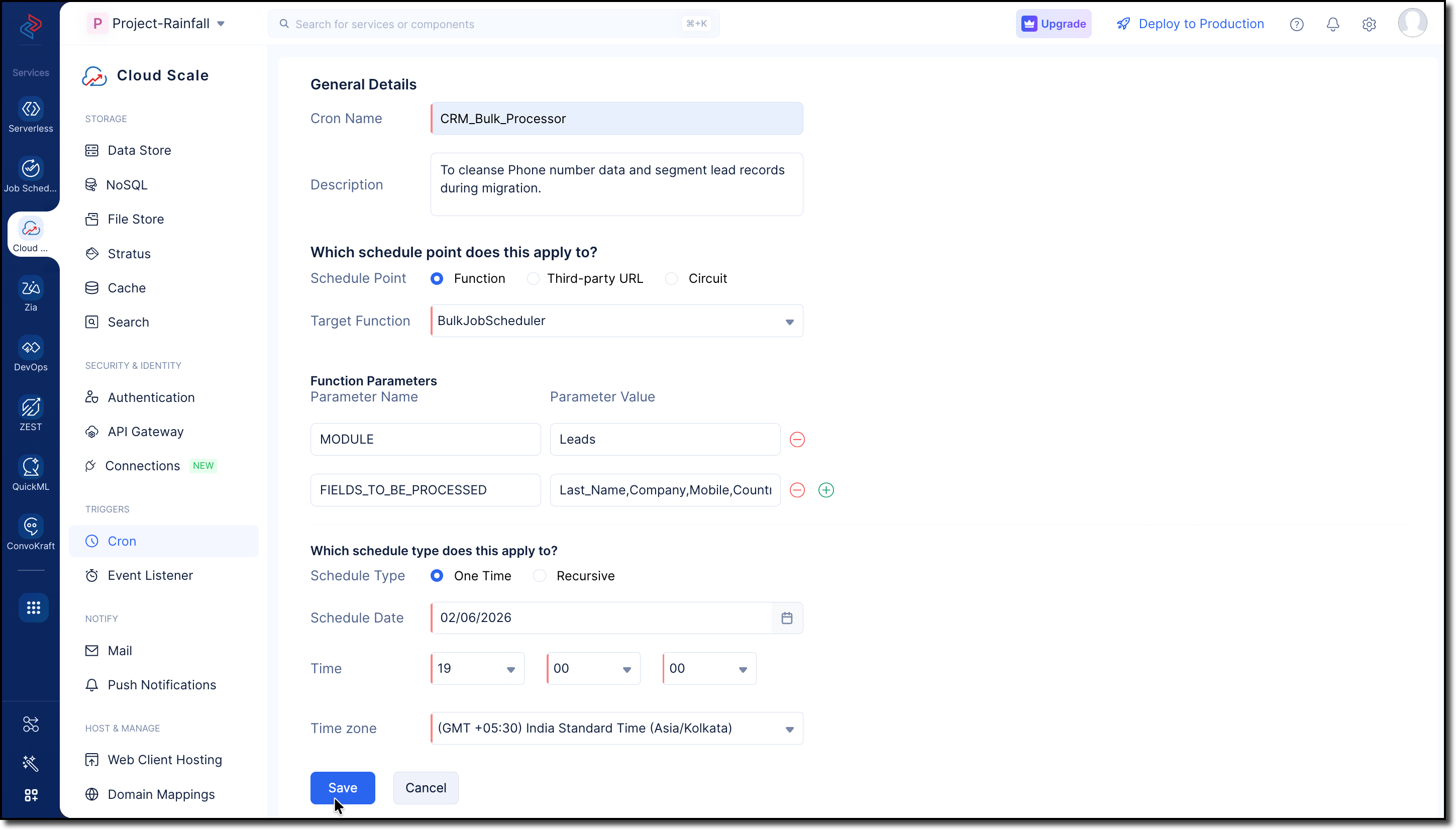
2. Go to Cloud Scale > Triggers > Cron and click Create Cron.
3. Fill in the following details:
- Provide a Name and Description for the cron job.
- Select Function and choose BulkJobScheduler from the dropdown in the Target Function field.
- Enter the following parameters and values:
MODULES -> Leads
FIELDS_TO_BE_PROCESSED -> Last_Name, Company, Mobile, Country, Designation, No_of_Employees, Web_Engagement_Score, Lead_Score_Value, Lead_Segment, Sales_Priority, Data_Quality_Status
Use GET Modules Metadata API and GET Fields Metadata API to get the API names of the required module and fields.
- Choose the Schedule Type as One Time for our use case.
Refer to the Implementing Cron Jobs Help Guide for more details.
Step 2: Configure Zoho CRM API Credentials
1. Create a self-client application in Zoho's API Console.
2. Generate a Grant Token with the following scopes:
- ZohoFiles.files.ALL
- ZohoCRM.bulk.ALL
- ZohoCRM.modules.ALL
- ZohoCRM.settings.ALL
- ZohoCRM.org.ALL

3. Follow the OAuth Help Section for a step-by-step guide to generate Access and Refresh tokens for your Zoho CRM organization.
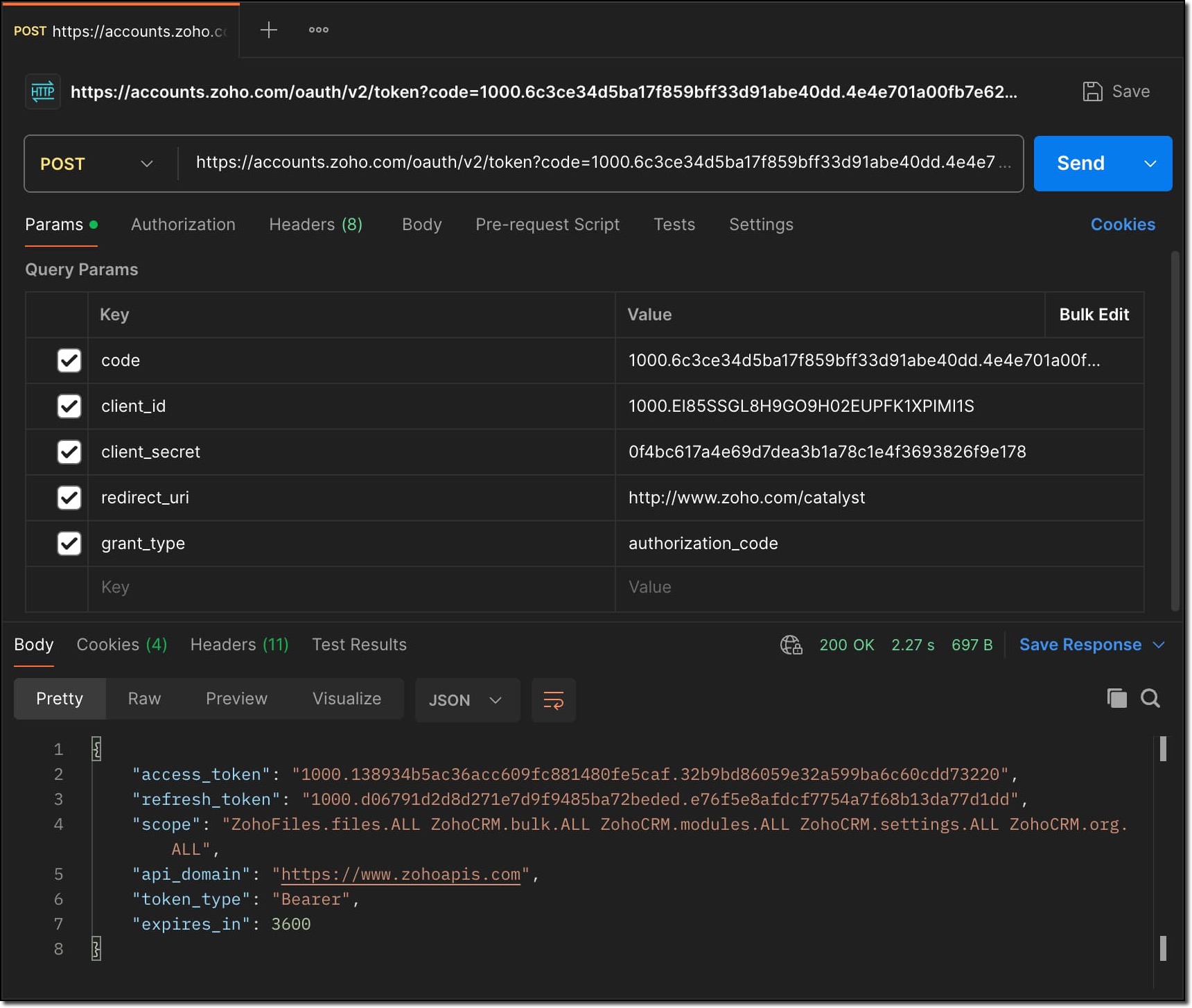
Store all the API credentials securely for later use.
4. To allow Catalyst to access Zoho CRM data, configure the stored API credentials as environment variables in the catalyst-config.json file within the BulkDataProcessor function.
For detailed guidance, refer to the Configure Function Components help guide in CRM Bulk Data Processor.

These environment variables are used by Catalyst Connectors to create access tokens for establishing secure connection between Zoho CRM and Catalyst.
Step 3: Add Business Logic
1. Go to com.processor.record.ZCRMRecordsProcessorImpl.java file of the BulkDataProcessor in the functions directory.
2. Override the ZCRMRecordsProcessor method with the business logic.
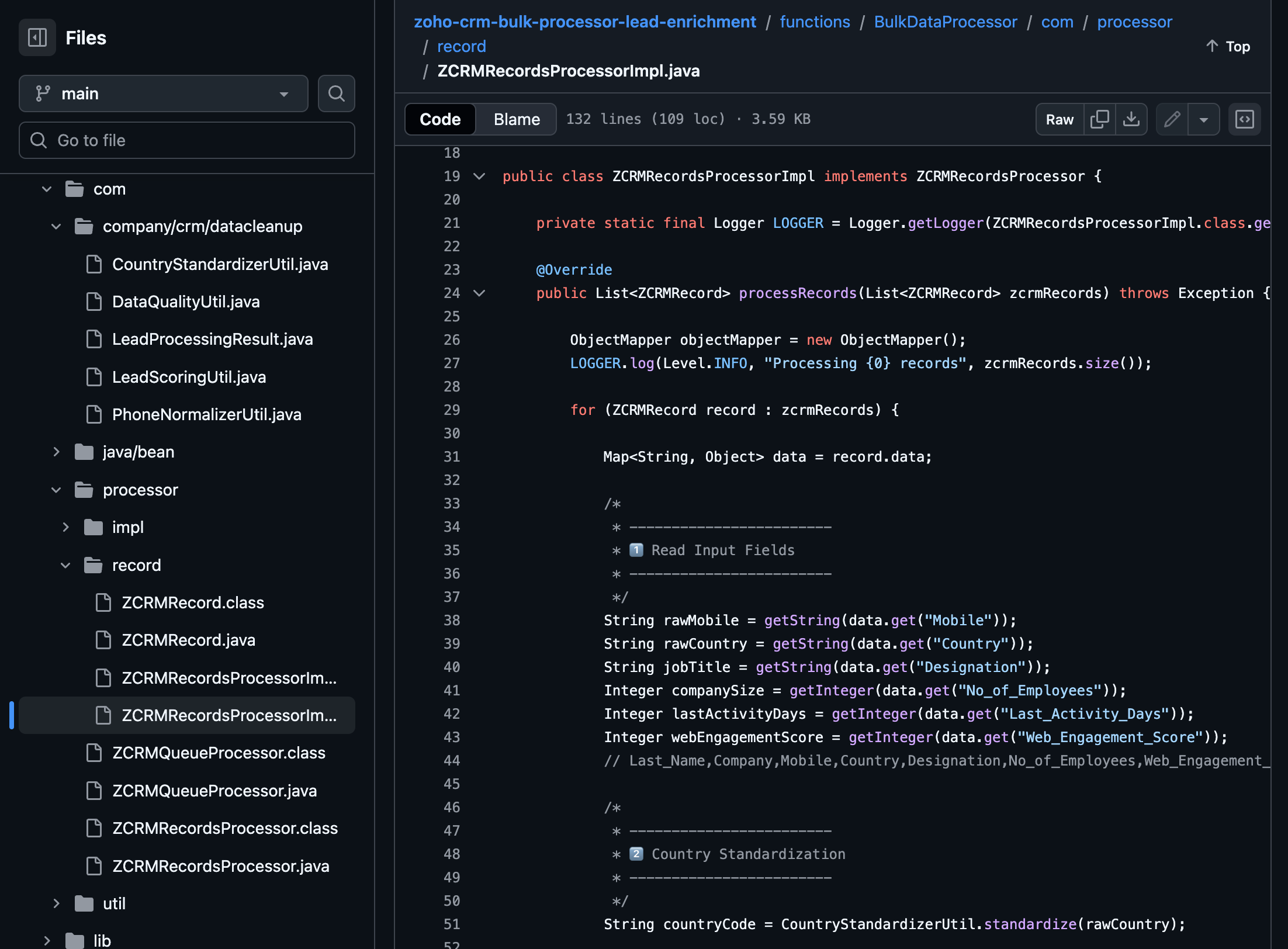
The complete code sample for this use case is available on GitHub for reference.
Following is the major custom logic used here:
Use the GET Fields Metadata API to fetch the API names of the fields required throughout the custom logic.
Phone Number Normalization:
This can be implemented in two stages, Country standardization and Phone Number formatting.
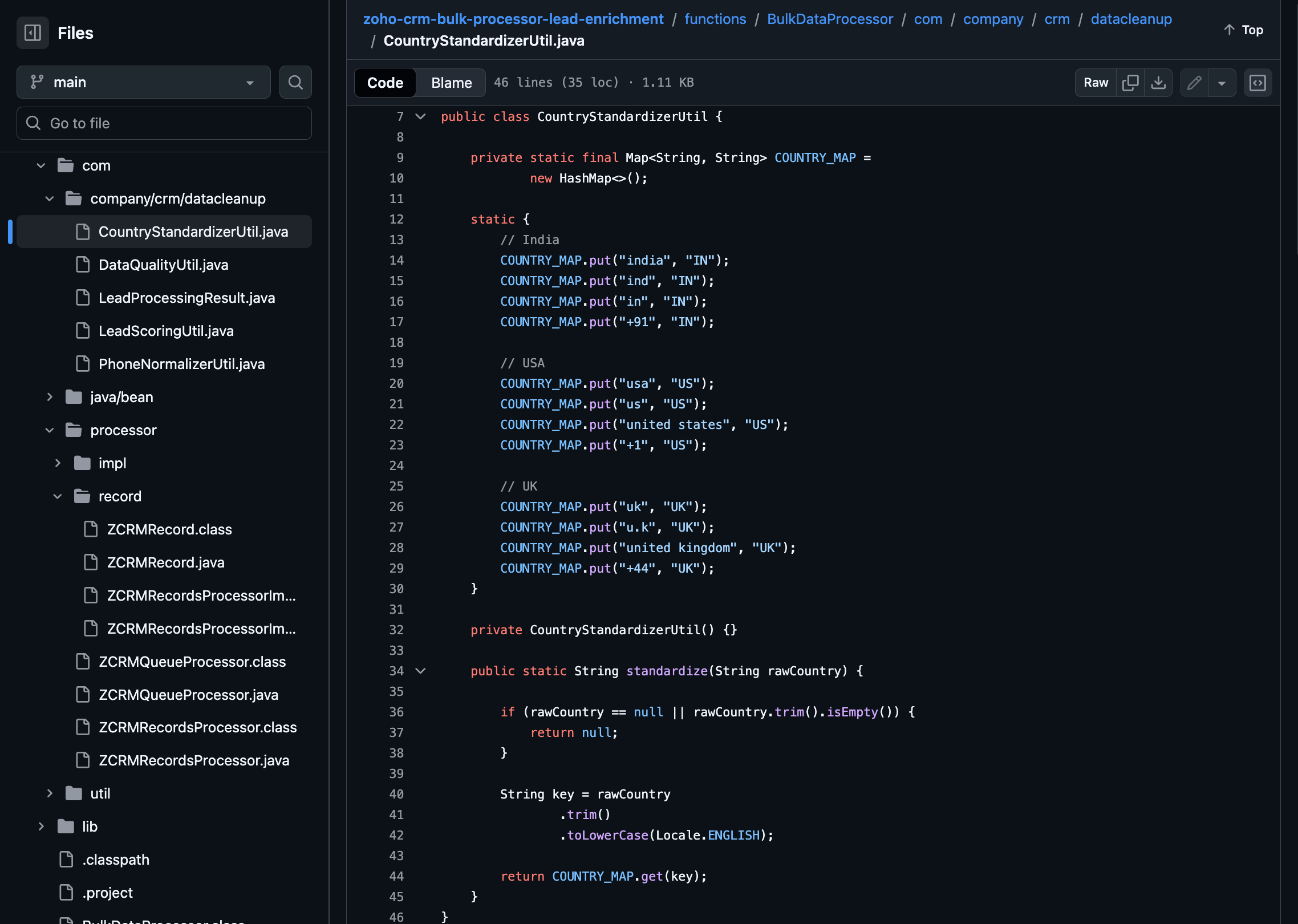
For country standardization, CountryStandardizerUtil maps different variations of the Country field in records to a single standardized country identifier. These variations may include,
- Country Names (India, Unites States, United Kingdom)
- Abbreviations (Ind, IN, USA, US, UK)
- Calling Codes (+91, +1, +44)
With this, we can ensure different interpretations of the same country are interpreted consistently during the process.
Once the country is standardized, Phone Numbers are formatted to E.164 format in the PhoneNormalizerUtil.
It removes all non-numeric characters and converts the Phone input to E.164 format with the respective country codes.
public class PhoneNormalizerUtil { private static final Pattern NON_DIGIT = Pattern.compile("[^0-9]"); public static Optional<String> normalizeToE164(String rawPhone, String countryCode) { if (rawPhone == null || rawPhone.trim().isEmpty()) { return Optional.empty(); } String digits = NON_DIGIT.matcher(rawPhone).replaceAll(""); if (rawPhone.startsWith("+") && digits.length() >= 10) { return Optional.of("+" + digits); } switch (countryCode) { case "IN": return normalizeIndia(digits); case "US": return normalizeUS(digits); case "UK": return normalizeUK(digits); default: return Optional.empty(); } } private static Optional<String> normalizeIndia(String digits) { if (digits.length() == 10) { return Optional.of("+91" + digits); } if (digits.startsWith("91") && digits.length() == 12) { return Optional.of("+" + digits); } return Optional.empty(); } private static Optional<String> normalizeUS(String digits) { if (digits.length() == 10) { return Optional.of("+1" + digits); } if (digits.startsWith("1") && digits.length() == 11) { return Optional.of("+" + digits); } return Optional.empty(); } private static Optional<String> normalizeUK(String digits) { if (digits.startsWith("44") && digits.length() == 12) { return Optional.of("+" + digits); } if (digits.length() == 10) { return Optional.of("+44" + digits); } return Optional.empty(); } } |
Lead Priority and Segmentation
The lead priority is calculated using the Title, No of employees, Last Activity Days and Web Engagement Score fields in the record.
Each field value contributes a predefined number of points:
- If the job title indicates a senior role such as CEO, CTO, Director, or VP, 25 points are added.
- If the company size is 200 employees or more, 20 points are added.
- If the Lead has been active within the last 7 days, 15 points are added.
- If the web engagement score is 70 or higher, 10 points are added.
The sum of all applicable factors is returned as an integer and based on this score the lead's priority and segmentation is assigned as follows:
- High (Hot): score ≥ 70
- Medium (Warm): score ≥ 40
- Low (Cold): score < 40
public static int calculateLeadScore( String jobTitle, Integer companySize, Integer lastActivityDays, Integer webEngagementScore) { int score = 0; // Decision Maker if (jobTitle != null) { String title = jobTitle.toLowerCase(); if (title.contains("ceo") || title.contains("cto") || title.contains("director") || title.contains("vp")) { score += 25; } } // Company Size if (companySize != null && companySize >= 200) { score += 20; } // Recency if (lastActivityDays != null && lastActivityDays <= 7) { score += 15; } // Engagement if (webEngagementScore != null && webEngagementScore >= 70) { score += 10; } return score; } public static String deriveSegment(int score) { if (score >= 70) return "Hot"; if (score >= 40) return "Warm"; return "Cold"; } public static String derivePriority(String segment) { switch (segment) { case "Hot": return "High"; case "Warm": return "Medium"; default: return "Low"; } } |
Lead Quality:
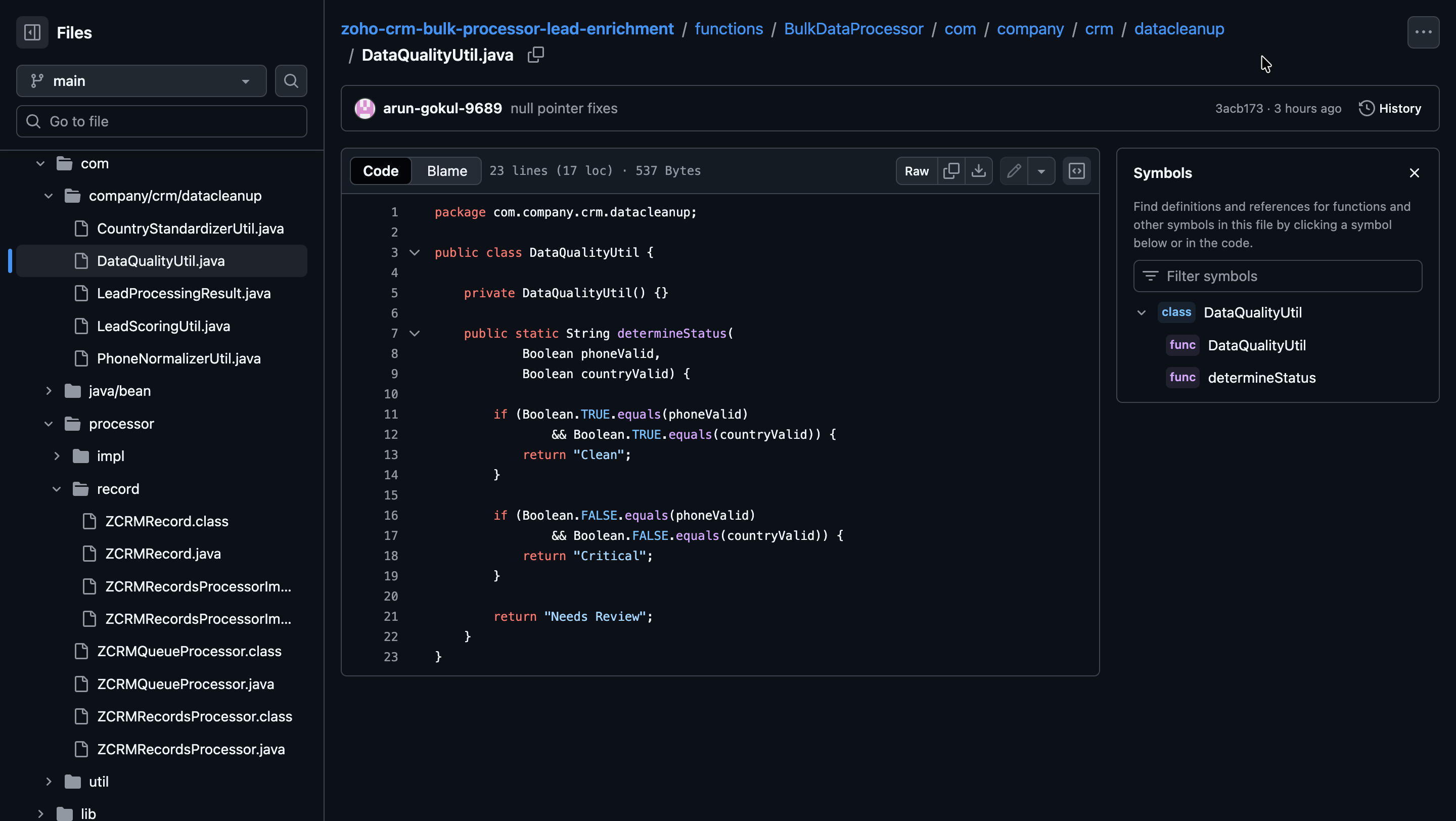
Lead quality is evaluated based on the validity of the Mobile and Country fields in the records.
- Clean: Both field values are valid.
- Critical: Both field values are invalid.
- Needs Review: Only one of the field values is invalid.
Write Back to Records:
The processed data is written back to Zoho CRM as follows:
- Mobile: Formatted phone numbers.
- Lead Score: Total score calculated from all applicable fields.
- Lead Segment: Segment derived from the lead score.
- Sales Priority: Priority assigned based on the lead segment.
- Data Quality Status: Overall quality of the Lead record.
if (normalizedMobile.isPresent()) { data.put("Mobile", normalizedMobile.get()); } data.put("Lead_Score", leadScore); data.put("Lead_Segment", leadSegment); data.put("Sales_Priority", salesPriority); data.put("Data_Quality_Status", dataQualityStatus); } |
Step 4: Deploy to Development
Run the following command to deploy your local customizations to the Development Environment of Catalyst.
catalyst deploy |

You can find the complete code sample on GitHub for reference.
Try it Out!
With the changes deployed to the Development environment, let us now test the solution.
We hope this Kaizen helps you import large volumes of data into Zoho CRM while improving data quality and lead intelligence using the CRM Bulk Data Processor.
Have questions or suggestions? Drop them in the comments or write to us at support@zohocrm.com.
We will circle back to you next Friday with another interesting topic.
On to Better Building!
--------------------------------------------------------------------------------------------------------------------------

Previous Kaizen: Client Script Support for List Page (Canvas) | Kaizen Collection: Directory
--------------------------------------------------------------------------------------------------------------------------
Topic Participants
Kiruthiga G
Sticky Posts
Kaizen #198: Using Client Script for Custom Validation in Blueprint
Nearing 200th Kaizen Post – 1 More to the Big Two-Oh-Oh! Do you have any questions, suggestions, or topics you would like us to cover in future posts? Your insights and suggestions help us shape future content and make this series better for everyone.Kaizen #226: Using ZRC in Client Script
Hello everyone! Welcome to another week of Kaizen. In today's post, lets see what is ZRC (Zoho Request Client) and how we can use ZRC methods in Client Script to get inputs from a Salesperson and update the Lead status with a single button click. In thisKaizen #222 - Client Script Support for Notes Related List
Hello everyone! Welcome to another week of Kaizen. The final Kaizen post of the year 2025 is here! With the new Client Script support for the Notes Related List, you can validate, enrich, and manage notes across modules. In this post, we’ll explore howKaizen #217 - Actions APIs : Tasks
Welcome to another week of Kaizen! In last week's post we discussed Email Notifications APIs which act as the link between your Workflow automations and you. We have discussed how Zylker Cloud Services uses Email Notifications API in their custom dashboard.Kaizen #216 - Actions APIs : Email Notifications
Welcome to another week of Kaizen! For the last three weeks, we have been discussing Zylker's workflows. We successfully updated a dormant workflow, built a new one from the ground up and more. But our work is not finished—these automated processes are
Nederlandse Hulpbronnen

Recent Topics
Tip of the Week #70 – Create common team signatures for your shared inboxes
Did you know that a small detail, such as an email signature, can make a big difference in how your brand is perceived? One simple yet smart way to enhance your team’s communication is by creating common team signatures for your shared inboxes. InsteadEnhanced data export features: XLSX format, custom character encoding, and selective record export
Greetings all, Here are a few enhancements related to exporting CRM data, including the ability to export data in XLSX file format now. The Export feature under Data Administration now offers new options that expand its flexibility and enable users toTip #42 – How to manage data security with Privacy Settings – 'Insider Insights'
Data privacy is a cornerstone of trust in remote support. Through Privacy Settings in Zoho Assist, you can set up how data is gathered, stored, and handled in your organization. These settings ensure compliance, data protection for sensitive details,Ticketbai! en el Pais Vasco
Hola a todos, En enero de 2.022 se va a implantar en el país vasco un nuevo sistema de facturación, denominado ticketbai!, ¿hay alguna previsión de realizar las adaptaciones en zoho books o zoho invoices? Ignoro la cantidad de clientes que tienen estasZoho CRM mobile app feature update: home page widgets, field tooltips and user image upload
Hello everyone! Your business doesn't pause when you're on the move, and neither should your CRM. That's why in our latest update, we've introduced a few new features to make your mobile CRM experience smoother and more efficient. Let's take a quick lookZoho CRM Plain Text Template: Line Breaks and Formatting Issue
Hello, I'm following the instructions to create email templates in Zoho CRM, but I'm having a problem with the plain text version. https://help.zoho.com/portal/en/kb/zoho-sign/integrations/zoho-apps/zoho-crm/articles/zoho-crm-email-templates#Steps_to_create_a_custom_email_templateOptimizing Task Handling: Auto-Remove Recurrence for cancelled Tasks.
Hello Everyone, A Custom function is a user-written set of code to achieve a specific requirement. Set the required conditions needed as when to trigger using the Workflow rules (be it Tasks / Project) and associate the custom function to it. Requirement:Important updates to your connectors
Hello everyone, Greeting from Zoho Creator! We're excited to announce that we'll be rolling out significant backend updates to Zoho Creator's built-in connectors to enhance security by following the latest frameworks. The existing version of some of theCreate, collaborate, and manage agreements with Zoho Sign
Agreements drive business. We launched Zoho Sign in 2017 as a simple digital signature tool to sign agreements from anywhere, at any time. Over the years, we've learned that most agreements go through last-minute changes before they're signed. Our usersFunction #25: Automatically generate purchase orders from a sales order
We kicked off the "Function Fridays" series with the goal of helping you automate your everyday accounting tasks. As we delve into today's post, I'm delighted to announce that we're here to present the 25th custom function in this series. While it ishiding a topic from all but one segment (or list)
My organization sends out a number of newsletters using Zoho Campaigns. One of those newsletters is for volunteers. In order to become a volunteer, a person has to first go through our volunteer orientation (training). After that, they can receive newslettersHow do I set up this automation correctly?
When contacts enter my Subscribers list, I want it to reference a custom field to see if it is empty. Then I want it to do two things: If empty: Assign a tag based on a different custom field. If that custom field is empty, assign a different tag. IfFunction #62: Display associated Quote on Invoice details screen
Hello everyone! Today, we are sharing a Related List script that makes it easy to view and access the quote from which an invoice was created right from the invoice details screen. This Related List displays the Quote number and Amount, allowing you toDesk x CRM Integration
Howdy! We currently use SalesIQ but we are considering moving across to Desk as it seems to have more functionality that we want. One of the pulls is the ability for our customers to self serve. But, I might be getting over excited and not actually needIssue with Save & Share Link – Works for Others but Not Creator
I’ve enabled the "Save and Share" feature in Zoho Forms, and it works correctly for all users accessing the public link—except for me (the form creator). Issue Details: When I save and share the link, recipients see a “no permission” error. The form isSave the pdf report from a registration form in a Folder
Through Zoho Forms I created a registration form with quite a lot of rules to handle different variables (TEAM types, payment in installments, etc.), and the result is pretty good. The automatic PDF that is sent to the respondent upon submission is alreadyzoho forms integration to zoho work drive
Scenario: A user fills out a Zoho Form, entering details such as email, mobile number, and other required information, and uploads supporting documents like PAN, Aadhaar, etc. Upon submission, the data is available in Zoho Forms Reports. Requirement:Zoho Forms to Zoho CRM Integration failed - can I restart it?
The integration of Zoho Form to Zoho CRM has failed. Is there a way for me to restart it for the impacted entry?insert an equation, but in document, it shows an image not available.
I'm new to Zoho writer and used Zoho writer in desktop app version . When I inserted an equation, I got an image not available sign. Any help is appreciated. Thanks, CharlesZoho Desk Android app update - Swipe action customization
Hello everyone! We have brought in support for the swipe action customization in latest version(v2.9.13) of the Zoho Desk Android app update, enabling you to configure left and right swipe gestures on tickets to carry out the actions swiftly without openingArranging Ticket Templates
Is there any way to arrange our ticket templates? It doesn't look very organised when it's just arranged according to when they were created. We want the list to look more organised, by arranging/grouping them by topics, or even just by alphabeticalWhat they mean with "Portal"?
I just downloaded this app to take my personal notes on digital art studio because it seemed to me the most comfortable app to do it, I use it very often, what do they mean by “no activity on your portal”? I have about 1 year of work here and I don'tfavorites no longer listed
Hello, I can no longer navigate to my Favorites from the pulldown at the top of my grid view (see attached screenshot). I wasn't able to find it anywhere! Please help me display my Favorites. Thank you!Notecards Disappeared
Got a new phone. Downloaded and signed in Zoho Notebook. Not finding the Note cards. Just Empty Note books. Frustrating.Table Errors
Hello, I'm new to Zoho Notebook and using it on several Mac/Apple devices. My question is regarding tables: Why do they become broken, and how to fix the error without retyping all my data? (Please see the screenshot attached.)Online Calculator with Zoho Forms?
I'd like to build a custom calculator on my website. Zoho Forms seems to offer all the fields for basic calculations performed live without pressing any "Calculate" buttons. Unfortunately, there is still that "Submit" button at the bottom. There is nothingZoho Tables instead of Zoho Creator Spreadsheet reports <3
That would make my day for sure. Zoho Creator is create, but miss data entering as AirTable/Spreadsheet can. Seeing Zoho putting effort in this makes me think maybe one day we could see a similar interface for Zoho Creator spreadsheet reports. B.Notebook Stack
Hi Everyone I Hope you´re fine, I´m sorry if this idea was posted before (I made a search but I haven´t find anything related). So, Having the possibility of stacking notebooks would be an interesting way to order notebooks that correspond to the sameWriting on sketch cards is bugged when zoomed in
When zoomed in, it writes a noticeable distance above or to the side of where you're actually trying to write. The further you're zoomed in, the more noticeable it is. Zooming is also entirely absent on the desktop version.Swipe between notes on iPhone
It'd be convenient if I could move from one note to the next in a notebook simply by swiping left to right.Sales IQ chat is not working in signed android apk
I have integrated ZOHO sales IQ support chat and i have followed each step and its working fine in my development build but when i create signed APK for it. Chat does not work in it and showing awaiting for detail. I previously asked the same query butCOQL order by COUNT not working
Dear community, I am trying to get a list of deal amounts per planner working on it and sorted to get see who has the least amount of deals. For some reason, I am unable to use sort by in combination with a COUNT. My original code was: query = "selectI want to duplicate a report and name it something else
Hi, I have created a report, and now want to reproduce it and call it something else. so that I will end up with TWO separate reports with different titles. Please tell me how do I copy / reproduce a report pleaseZoho CRM: Sales Rep Professional Certification Program on Coursera
We are happy to share that we have published the Zoho Sales Representative Professional Certificate in partnership with Coursera, a leading platform for online learning and career development that offers access to courses and degrees from leading universitiesOS X Notebook quits immediately upon launch
NoteBook for OS X (Sequoia, but also under Sonoma) always quits immediately upon launch (so I cannot use the "Attach user log" option). I've restarted my MacBook but the problem persists. If it helps, attached is a diagnostic report from Library>LogCan External users upload files or images to WorkDrive?
I want to know if it is possible for someone externally through a link and PW be able to upload files and images onto WorkDrive?Multi-line fields character limits
Is there a way to set the character limit higher on multi-line fields so that we are not losing information pasted into the field? When the text is entered or pasted, there is no error to say that the text is too large. After saving and going back to view most of the text is gone. Also, when viewing the resume, the text is not wrapped in the multi line fields and can t be read without scrolling across the page.Taz bot not working — What should I do to resolve this issue?
I am experiencing issues with the Taz bot in Zoho Cliq—not receiving responses or it does not seem to work as expected. Could you please explain why the Taz bot might not be functioning and what steps I should take to resolve this issue? Thank you!OneNote Migration
I am trying to migrate two notebooks from OneNote. For five days now I have had no notification that migration has completed and the migration page show 50% complete - one notebook completed one not finished. It just stays like this. I am unable to cancelSet various time slot reminders for task and event
Hi I would like known if there is possibility to set various time reminders for a task or event like we have the possibility to do in google calendar or google task. For example I'am creating an event or task and I want to be alerted before 30min andNext Page