Kaizen 228 - Process Large-Scale Migrated Data Using Catalyst Solutions

Howdy, tech wizards!
This week’s Kaizen explores how Catalyst Solutions in the Zoho CRM Developer Hub help import large volumes of data into Zoho CRM while improving data quality and simplifying the migration process.
Why Catalyst Solutions?
Catalyst Solutions provide a library of independent, ready-to-use backend solutions called CodeLibs. The CRM Bulk Data Processor CodeLib helps handle complex data operations on large datasets. Following are the key benefits:
- Highly Scalable: Processes large datasets efficiently, supporting up to 200,000 records per API call.
- Automation Made Simple: Automate complex tasks like segmentation, data cleansing and lead scoring with minimal effort.
- Effortless Integration: Comes with pre-configured Catalyst resources such as serverless functions and data stores that integrate directly with Zoho CRM.
Business Scenario
Zylker, a manufacturing company, migrated over 3 lakh Lead records into Zoho CRM from spreadsheets.
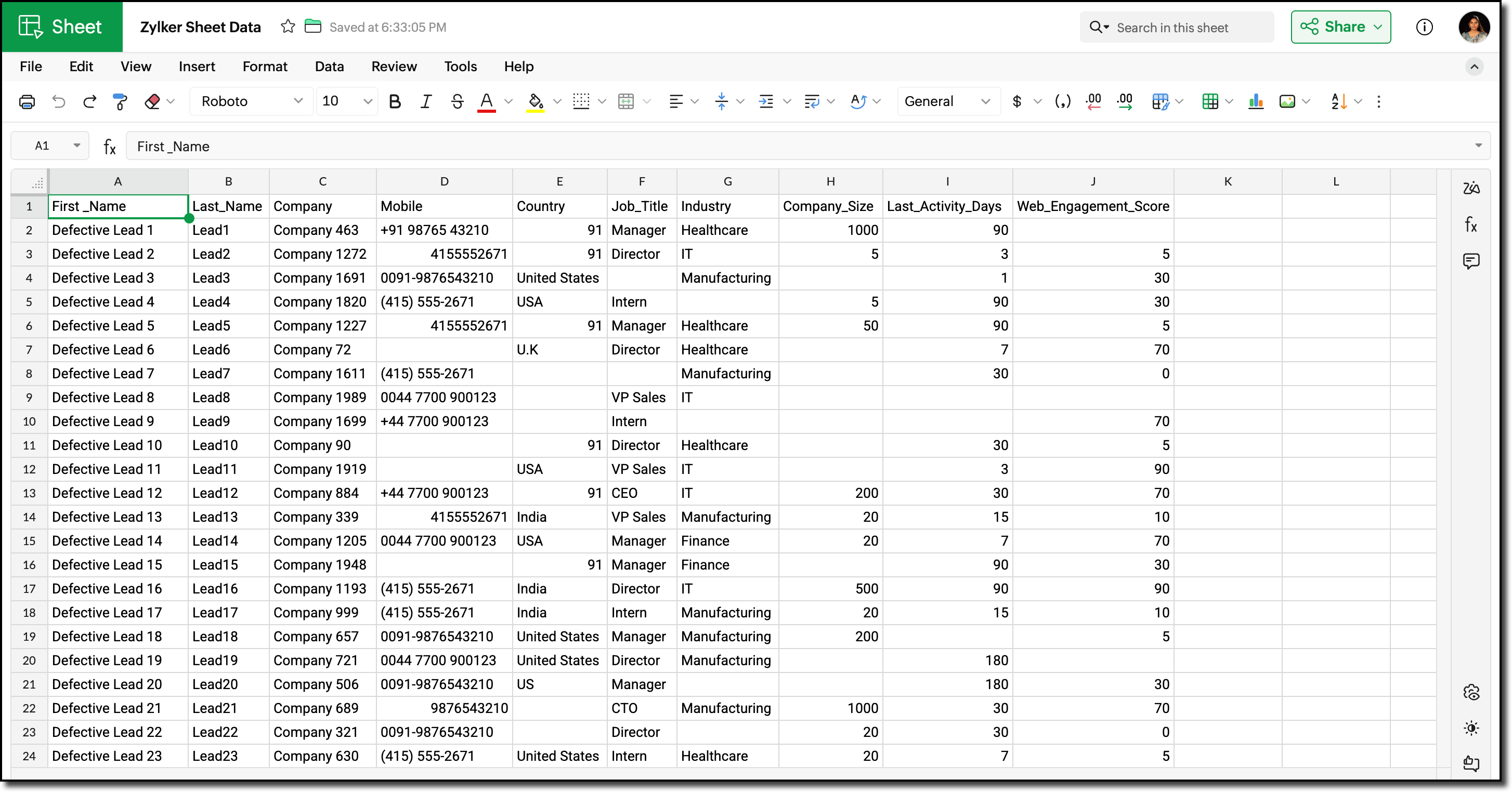
Post-migration, the Lead data showed the following inconsistencies and challenges:
- Phone number field did not include country codes, or contained incorrect country codes. This inconsistency made it difficult for sales teams to contact Leads reliably.
- Identifying potential Leads for follow-up required manual effort and marketing team has to run generic campaigns without lead segmentation.
Using workflows before record creation to fix phone numbers for this volume would result in 3 lakh individual workflow executions, which can slow imports and cause partial failures.
Solution Overview
Zylker can use the CRM Bulk Data Processor available in Catalyst Solutions to address these challenges at scale.
The solution works as follows:
- Lead records are fetched in bulk from Zoho CRM using the Bulk Read API.
- The fetched data is temporarily stored to evaluate the priority and quality of each record. Based on this evaluation, the records are also segmented accordingly.
- The Country field value is used to identify and append the correct country code to the phone number.
- The processed records are updated back into Zoho CRM using Bulk Write API.
All operations are executed using pre-configured Catalyst resources provided by the CodeLib. You can explore the Bulk Data Flow in Catalyst help page to understand how each resource participates in the processing pipeline.
Prerequisites
Before you begin, ensure the following:
1. Log into your Zoho CRM and navigate to Setup > Customization > Modules and Fields > Leads.
Create the following custom Single Line fields to map existing record data in Zoho CRM.
- Last Activity Days
- Web Engagement Score
Refer to the Working with Custom Fields help page for detailed guide.
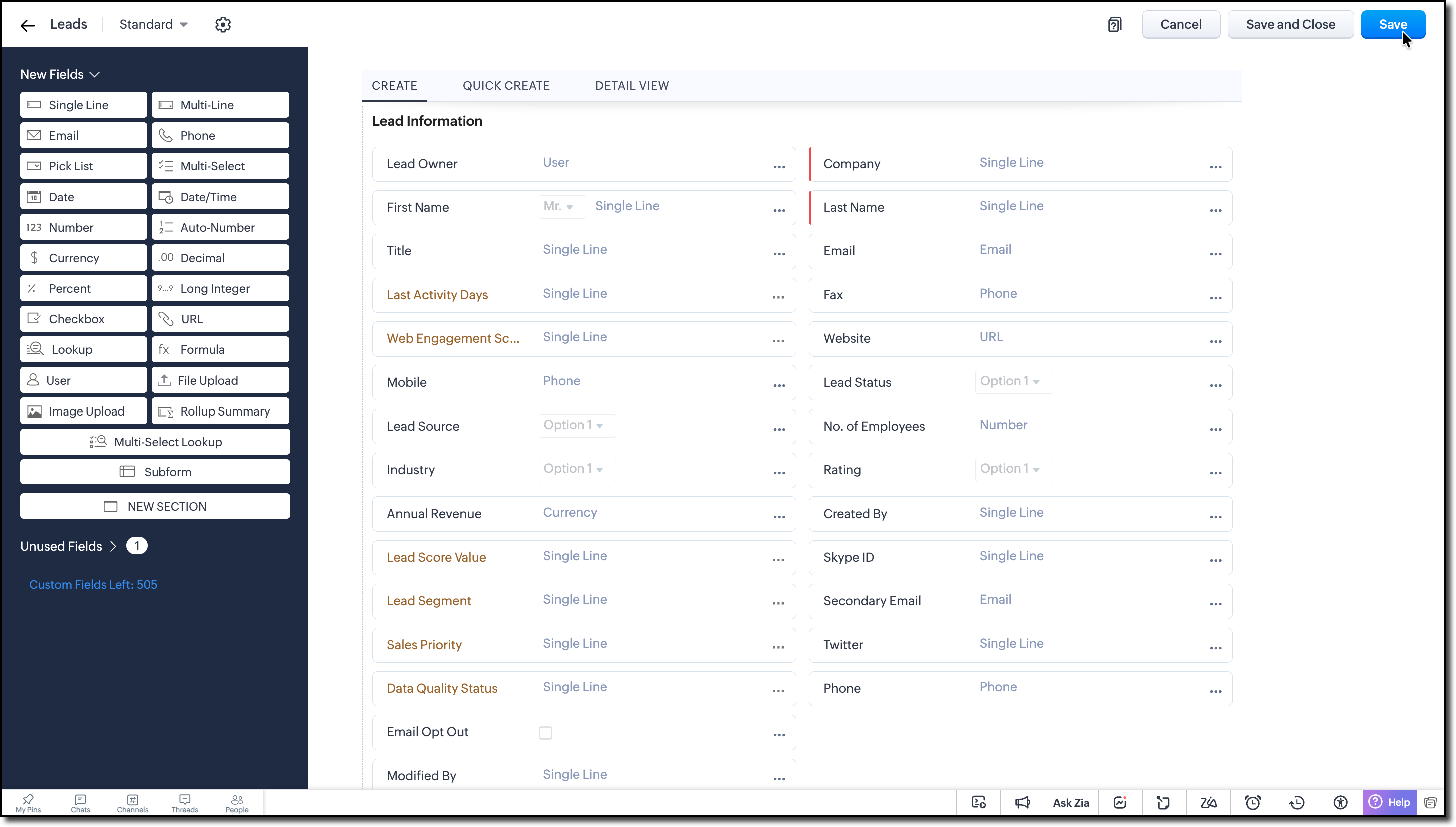
2. Create the following custom Single Line fields to store the calculated values during bulk processing:
- Lead Score Value
- Lead Segment
- Sales Priority
- Data Quality Status
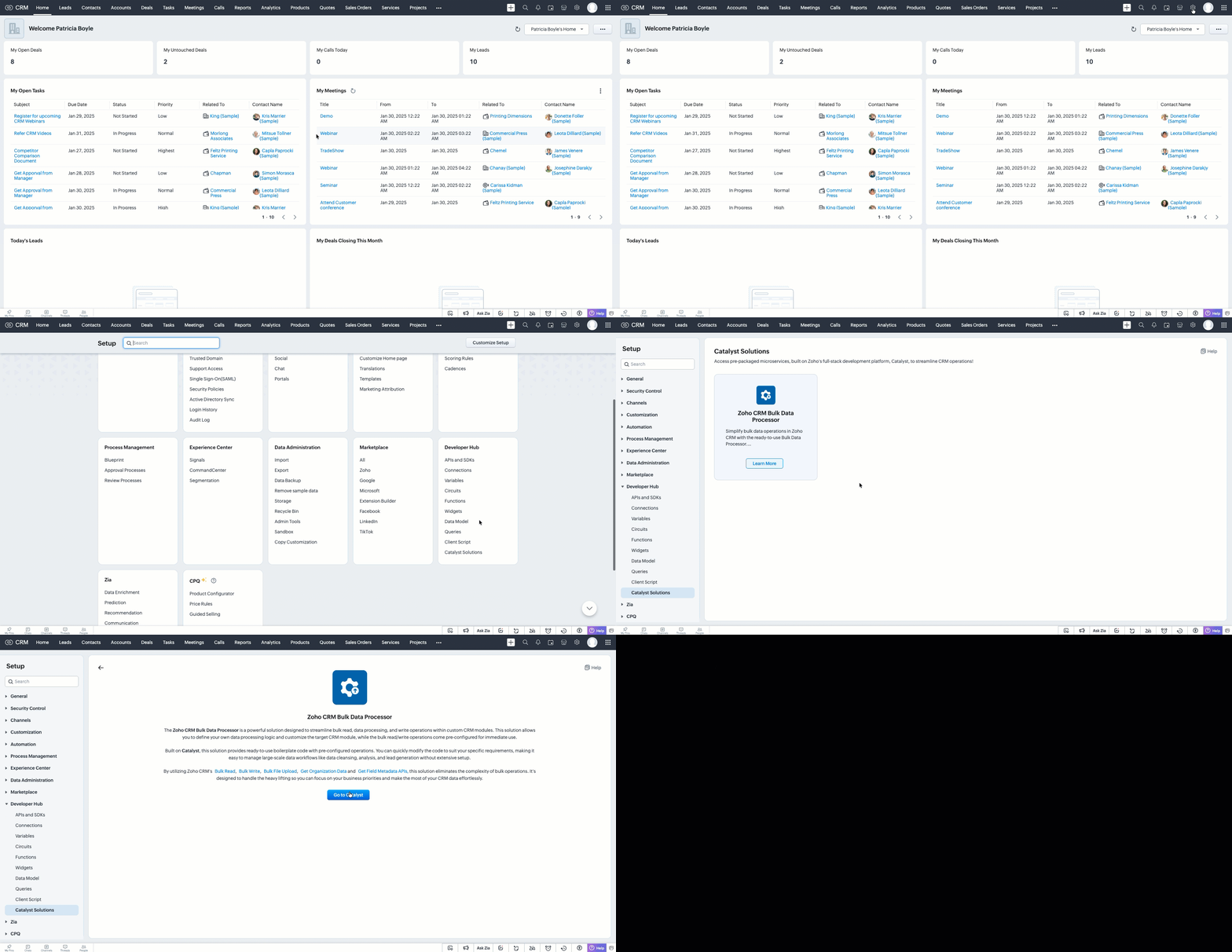
3. Go to Setup > Developer Hub > Catalyst Solutions > Zoho CRM Bulk Data Processor.
4. Click Go to Catalyst and create a Catalyst account if required.
5. Refer to the Catalyst CLI Installation Guide and install it on your local system.
6. Create a new folder on your local system, which will act as a local project directory. Use the following command:
mkdir -p <folder_name> |
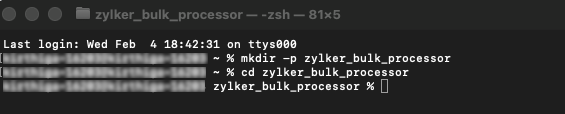
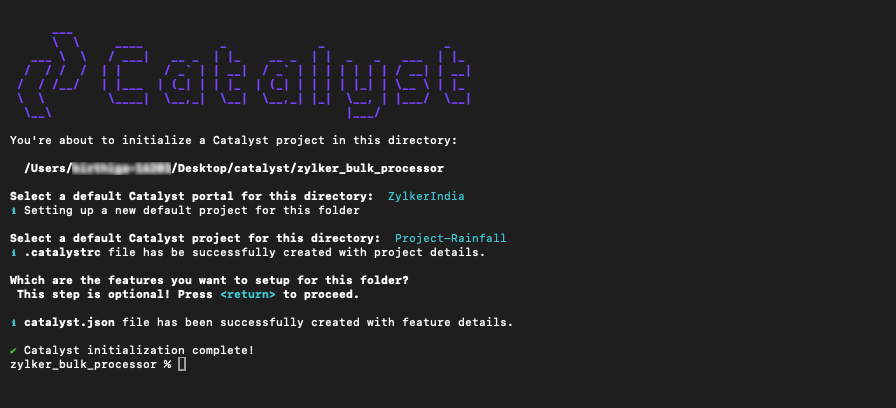
7. Navigate to the project folder in your terminal and execute the following command:
catalyst init |
8. Follow the prompts to select and initialize your desired project from the Catalyst console.
When prompted to choose a feature, press Enter and proceed without choosing any feature.
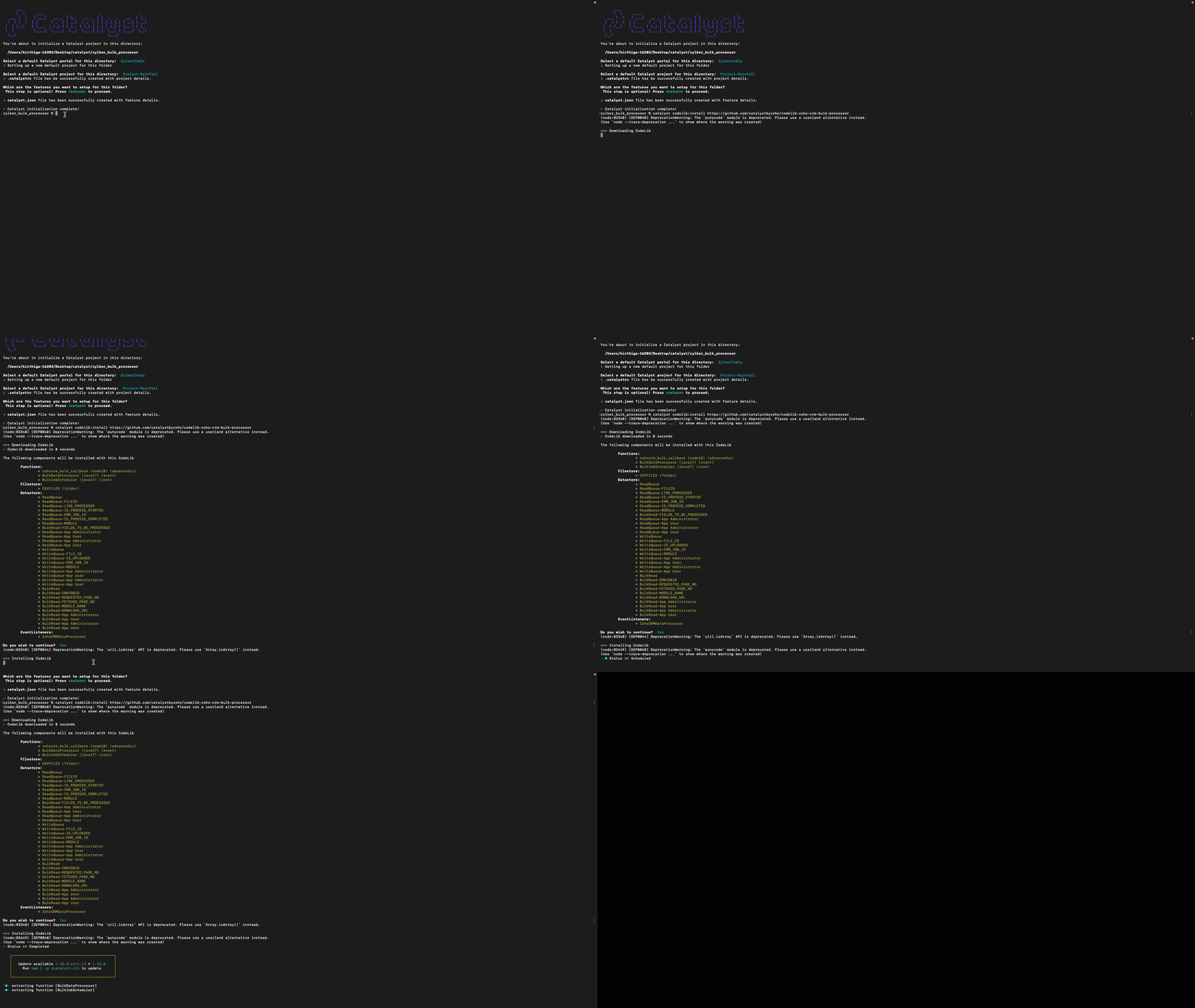
9. Run the following command to install the CRM Bulk Data Processor CodeLib.
catalyst codelib:install https://github.com/catalystbyzoho/codelib-zoho-crm-bulk-processor |
Step 1: Create a Cron Job
1. Open the Catalyst Console and navigate to the same project in which you have installed the CRM Bulk Data Processor CodeLib.
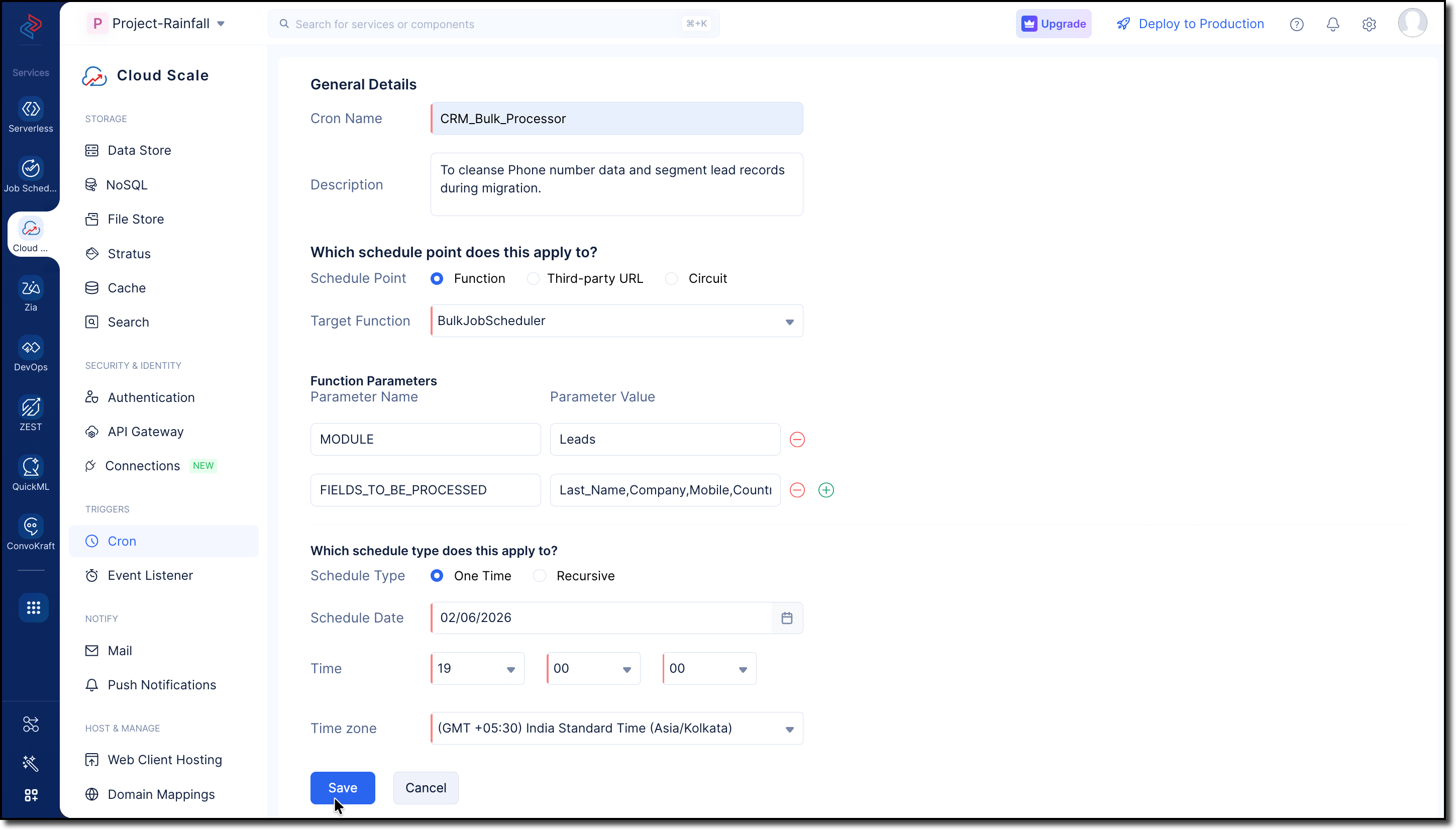
2. Go to Cloud Scale > Triggers > Cron and click Create Cron.
3. Fill in the following details:
- Provide a Name and Description for the cron job.
- Select Function and choose BulkJobScheduler from the dropdown in the Target Function field.
- Enter the following parameters and values:
MODULES -> Leads
FIELDS_TO_BE_PROCESSED -> Last_Name, Company, Mobile, Country, Designation, No_of_Employees, Web_Engagement_Score, Lead_Score_Value, Lead_Segment, Sales_Priority, Data_Quality_Status
Use GET Modules Metadata API and GET Fields Metadata API to get the API names of the required module and fields.
- Choose the Schedule Type as One Time for our use case.
Refer to the Implementing Cron Jobs Help Guide for more details.
Step 2: Configure Zoho CRM API Credentials
1. Create a self-client application in Zoho's API Console.
2. Generate a Grant Token with the following scopes:
- ZohoFiles.files.ALL
- ZohoCRM.bulk.ALL
- ZohoCRM.modules.ALL
- ZohoCRM.settings.ALL
- ZohoCRM.org.ALL

3. Follow the OAuth Help Section for a step-by-step guide to generate Access and Refresh tokens for your Zoho CRM organization.
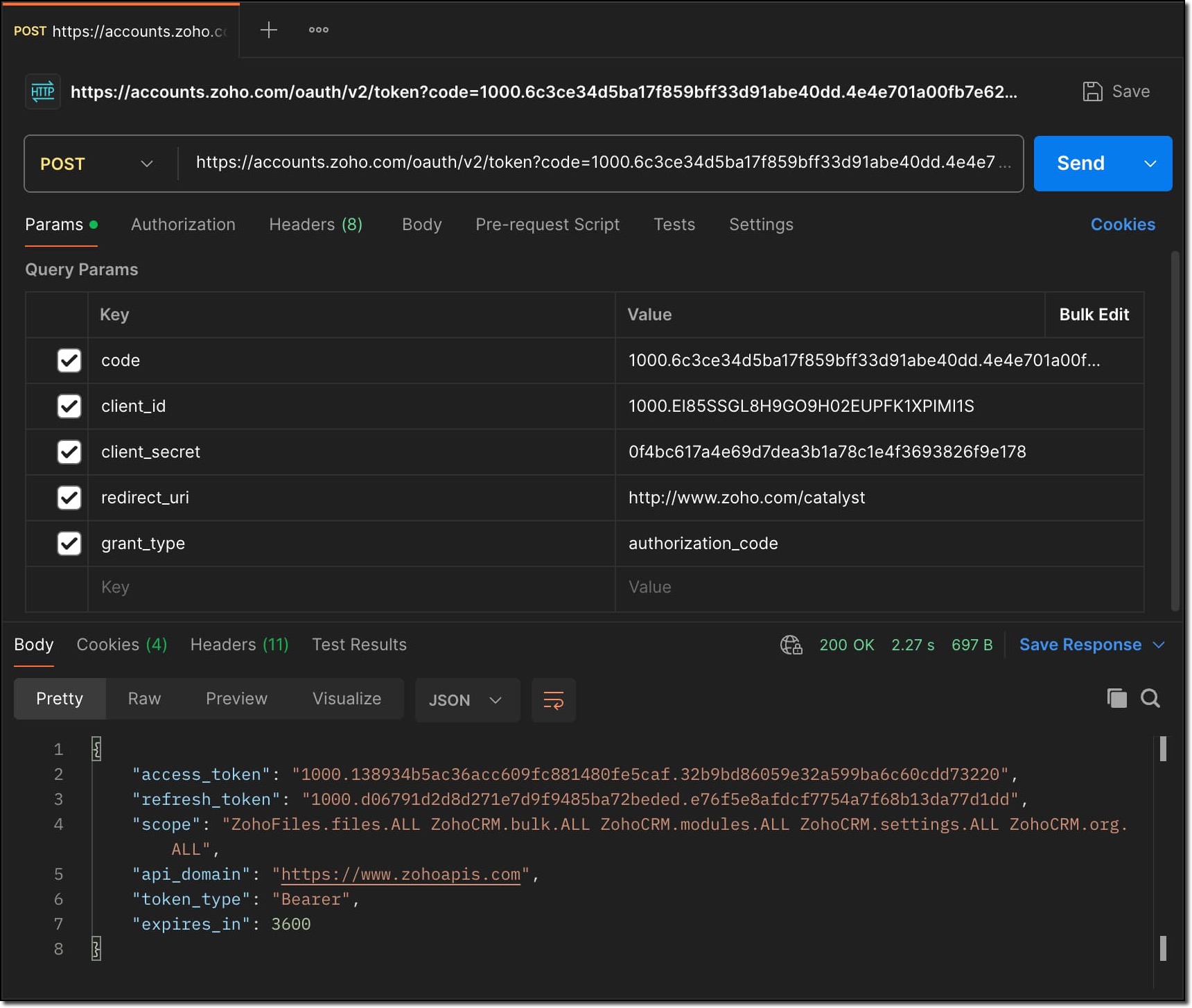
Store all the API credentials securely for later use.
4. To allow Catalyst to access Zoho CRM data, configure the stored API credentials as environment variables in the catalyst-config.json file within the BulkDataProcessor function.
For detailed guidance, refer to the Configure Function Components help guide in CRM Bulk Data Processor.

These environment variables are used by Catalyst Connectors to create access tokens for establishing secure connection between Zoho CRM and Catalyst.
Step 3: Add Business Logic
1. Go to com.processor.record.ZCRMRecordsProcessorImpl.java file of the BulkDataProcessor in the functions directory.
2. Override the ZCRMRecordsProcessor method with the business logic.
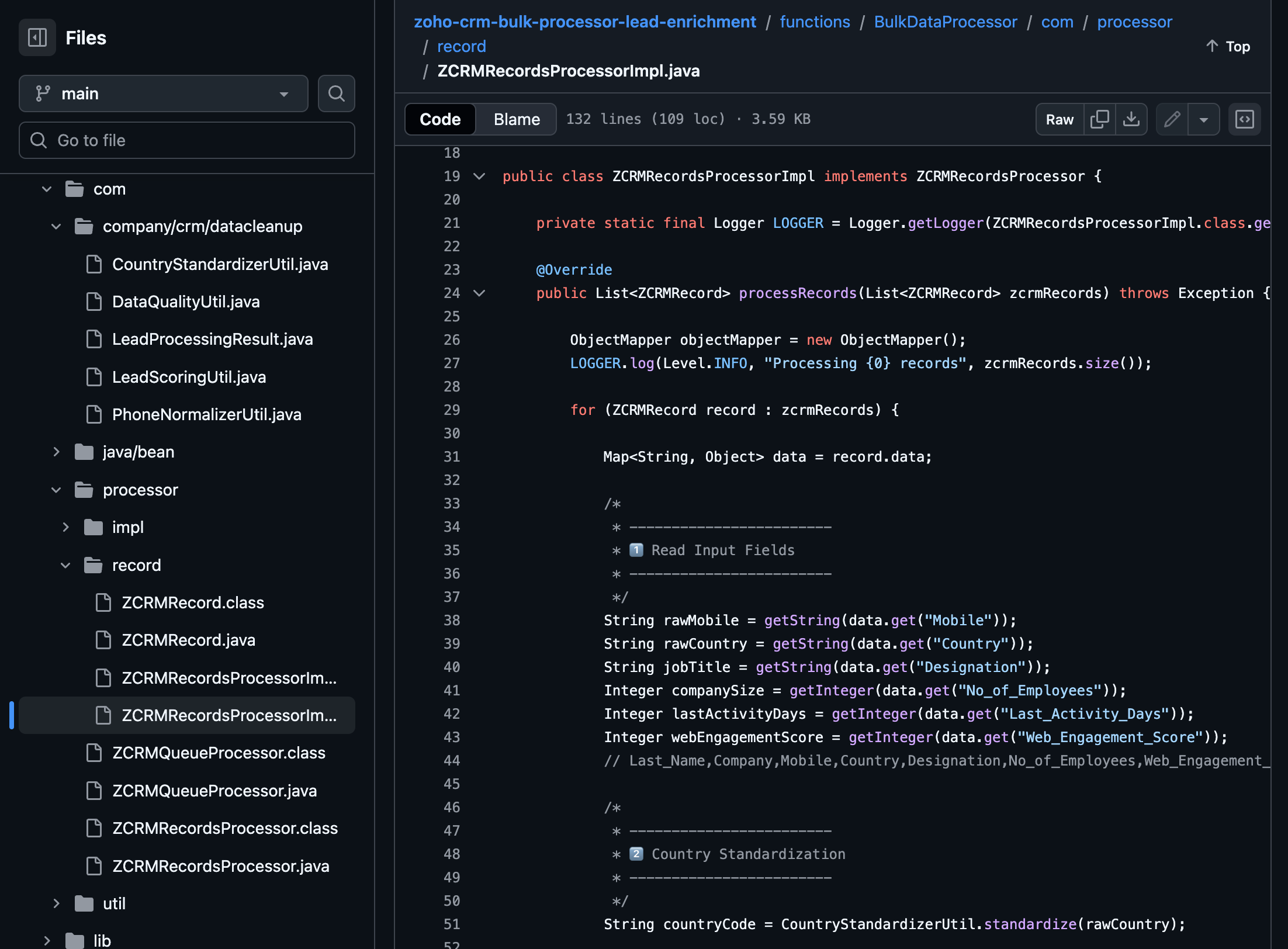
The complete code sample for this use case is available on GitHub for reference.
Following is the major custom logic used here:
Use the GET Fields Metadata API to fetch the API names of the fields required throughout the custom logic.
Phone Number Normalization:
This can be implemented in two stages, Country standardization and Phone Number formatting.
For country standardization, CountryStandardizerUtil maps different variations of the Country field in records to a single standardized country identifier. These variations may include,
- Country Names (India, Unites States, United Kingdom)
- Abbreviations (Ind, IN, USA, US, UK)
- Calling Codes (+91, +1, +44)
With this, we can ensure different interpretations of the same country are interpreted consistently during the process.
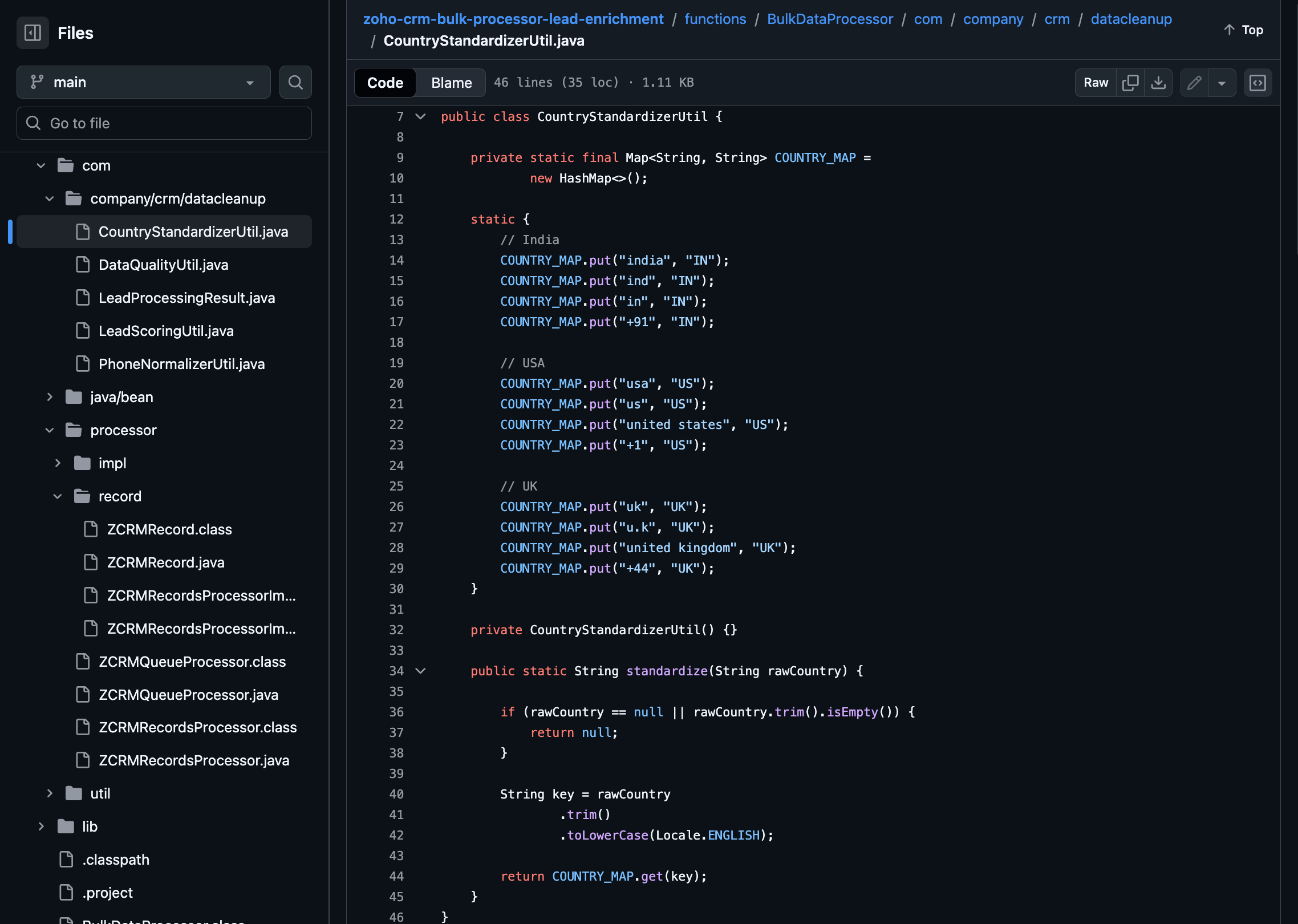
Once the country is standardized, Phone Numbers are formatted to E.164 format in the PhoneNormalizerUtil.
It removes all non-numeric characters and converts the Phone input to E.164 format with the respective country codes.
public class PhoneNormalizerUtil { private static final Pattern NON_DIGIT = Pattern.compile("[^0-9]"); public static Optional<String> normalizeToE164(String rawPhone, String countryCode) { if (rawPhone == null || rawPhone.trim().isEmpty()) { return Optional.empty(); } String digits = NON_DIGIT.matcher(rawPhone).replaceAll(""); if (rawPhone.startsWith("+") && digits.length() >= 10) { return Optional.of("+" + digits); } switch (countryCode) { case "IN": return normalizeIndia(digits); case "US": return normalizeUS(digits); case "UK": return normalizeUK(digits); default: return Optional.empty(); } } private static Optional<String> normalizeIndia(String digits) { if (digits.length() == 10) { return Optional.of("+91" + digits); } if (digits.startsWith("91") && digits.length() == 12) { return Optional.of("+" + digits); } return Optional.empty(); } private static Optional<String> normalizeUS(String digits) { if (digits.length() == 10) { return Optional.of("+1" + digits); } if (digits.startsWith("1") && digits.length() == 11) { return Optional.of("+" + digits); } return Optional.empty(); } private static Optional<String> normalizeUK(String digits) { if (digits.startsWith("44") && digits.length() == 12) { return Optional.of("+" + digits); } if (digits.length() == 10) { return Optional.of("+44" + digits); } return Optional.empty(); } } |
Lead Priority and Segmentation
The lead priority is calculated using the Title, No of employees, Last Activity Days and Web Engagement Score fields in the record.
Each field value contributes a predefined number of points:
- If the job title indicates a senior role such as CEO, CTO, Director, or VP, 25 points are added.
- If the company size is 200 employees or more, 20 points are added.
- If the Lead has been active within the last 7 days, 15 points are added.
- If the web engagement score is 70 or higher, 10 points are added.
The sum of all applicable factors is returned as an integer and based on this score the lead's priority and segmentation is assigned as follows:
- High (Hot): score ≥ 70
- Medium (Warm): score ≥ 40
- Low (Cold): score < 40
public static int calculateLeadScore( String jobTitle, Integer companySize, Integer lastActivityDays, Integer webEngagementScore) { int score = 0; // Decision Maker if (jobTitle != null) { String title = jobTitle.toLowerCase(); if (title.contains("ceo") || title.contains("cto") || title.contains("director") || title.contains("vp")) { score += 25; } } // Company Size if (companySize != null && companySize >= 200) { score += 20; } // Recency if (lastActivityDays != null && lastActivityDays <= 7) { score += 15; } // Engagement if (webEngagementScore != null && webEngagementScore >= 70) { score += 10; } return score; } public static String deriveSegment(int score) { if (score >= 70) return "Hot"; if (score >= 40) return "Warm"; return "Cold"; } public static String derivePriority(String segment) { switch (segment) { case "Hot": return "High"; case "Warm": return "Medium"; default: return "Low"; } } |
Lead Quality:
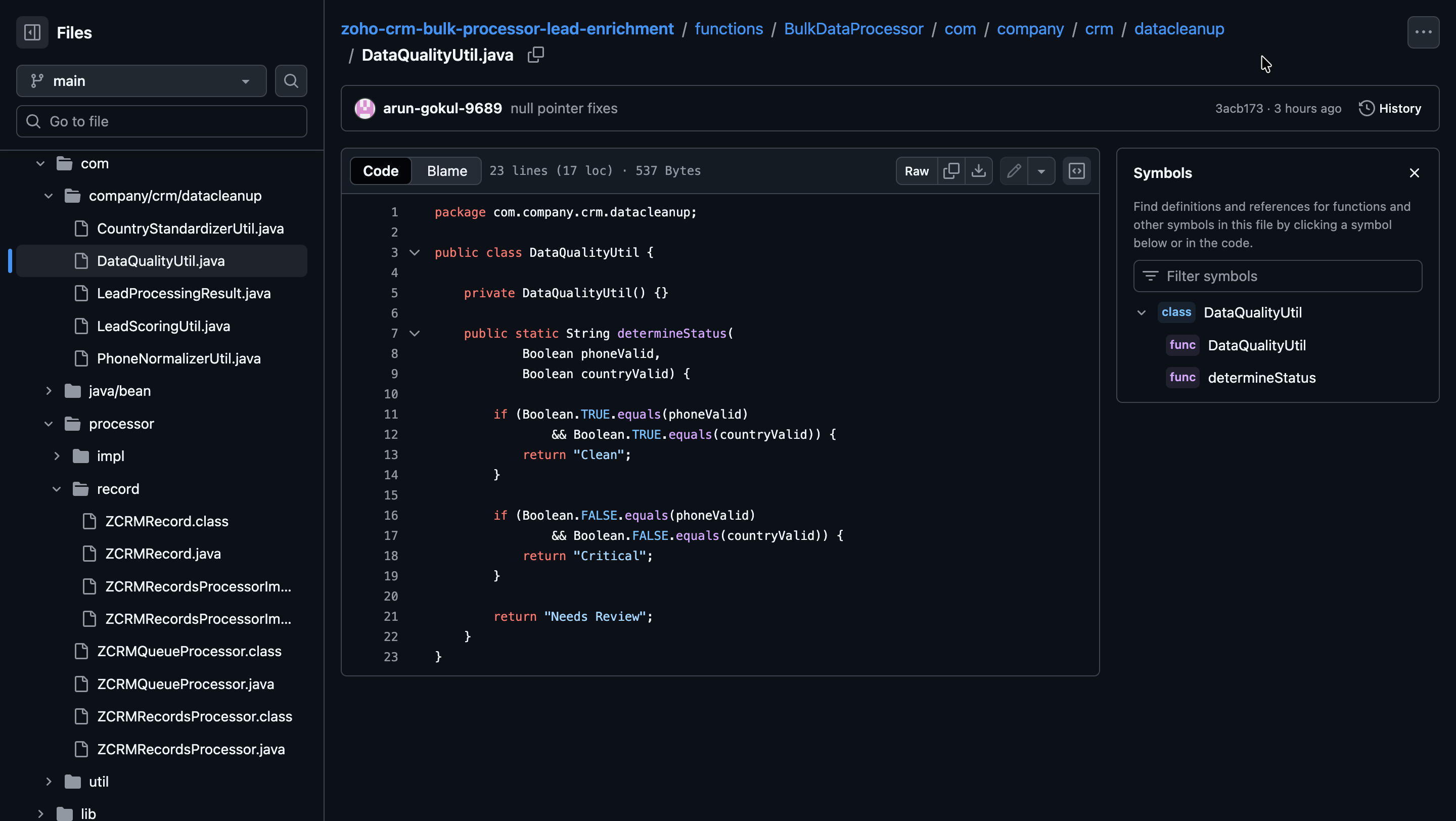
Lead quality is evaluated based on the validity of the Mobile and Country fields in the records.
- Clean: Both field values are valid.
- Critical: Both field values are invalid.
- Needs Review: Only one of the field values is invalid.
Write Back to Records:
The processed data is written back to Zoho CRM as follows:
- Mobile: Formatted phone numbers.
- Lead Score: Total score calculated from all applicable fields.
- Lead Segment: Segment derived from the lead score.
- Sales Priority: Priority assigned based on the lead segment.
- Data Quality Status: Overall quality of the Lead record.
if (normalizedMobile.isPresent()) { data.put("Mobile", normalizedMobile.get()); } data.put("Lead_Score", leadScore); data.put("Lead_Segment", leadSegment); data.put("Sales_Priority", salesPriority); data.put("Data_Quality_Status", dataQualityStatus); } |
Step 4: Deploy to Development
Run the following command to deploy your local customizations to the Development Environment of Catalyst.
catalyst deploy |

You can find the complete code sample on GitHub for reference.
Try it Out!
With the changes deployed to the Development environment, let us now test the solution.
We hope this Kaizen helps you import large volumes of data into Zoho CRM while improving data quality and lead intelligence using the CRM Bulk Data Processor.
Have questions or suggestions? Drop them in the comments or write to us at support@zohocrm.com.
We will circle back to you next Friday with another interesting topic.
On to Better Building!
--------------------------------------------------------------------------------------------------------------------------

Previous Kaizen: Client Script Support for List Page (Canvas) | Kaizen Collection: Directory
--------------------------------------------------------------------------------------------------------------------------
Topic Participants
Kiruthiga G
Sticky Posts
Kaizen #198: Using Client Script for Custom Validation in Blueprint
Nearing 200th Kaizen Post – 1 More to the Big Two-Oh-Oh! Do you have any questions, suggestions, or topics you would like us to cover in future posts? Your insights and suggestions help us shape future content and make this series better for everyone.Kaizen #226: Using ZRC in Client Script
Hello everyone! Welcome to another week of Kaizen. In today's post, lets see what is ZRC (Zoho Request Client) and how we can use ZRC methods in Client Script to get inputs from a Salesperson and update the Lead status with a single button click. In thisKaizen #222 - Client Script Support for Notes Related List
Hello everyone! Welcome to another week of Kaizen. The final Kaizen post of the year 2025 is here! With the new Client Script support for the Notes Related List, you can validate, enrich, and manage notes across modules. In this post, we’ll explore howKaizen #217 - Actions APIs : Tasks
Welcome to another week of Kaizen! In last week's post we discussed Email Notifications APIs which act as the link between your Workflow automations and you. We have discussed how Zylker Cloud Services uses Email Notifications API in their custom dashboard.Kaizen #216 - Actions APIs : Email Notifications
Welcome to another week of Kaizen! For the last three weeks, we have been discussing Zylker's workflows. We successfully updated a dormant workflow, built a new one from the ground up and more. But our work is not finished—these automated processes are
Nederlandse Hulpbronnen

Recent Topics
Shared calendar issues and duplications
Apparently there was a calendar update? Now when I schedule an event for a team member that has shared his calendar with me, the event makes me the organizer and adds the event to my calendar as well. Previous to this "update" I would scheduled an eventSubscribed Calendar
Hi i have subscribed to a calendar for Holidays in Canada it shows all the holidays perfectly but every one of them has the word Canada before the rest of the name is there a way to remove that word Canada? It takes up a lot of space in the square onThe year that was at Zoho Calendar 2023- Part 1
Hello, amazing community members! Happy new year from all of us here at Zoho Calendar. As we begin the new year, we'd like to thank each and everyone of our community members for your unwavering support and love that you have shown for Zoho Calendar.Zoho Calendar 2024: A Year in Review
Hello, community members! Happy new year from all of us here at Zoho Calendar. As we turn the page to a new year, we extend our heartfelt gratitude to every member of our Zoho Calendar community for your continued support and enthusiasm. Your feedbackZeptomail API error 500 internal server error
Hi Everyone, getting this eror continuously! Can anyone please guide around the same! Zeptomail API error 500 internal server error Best RegardsWaiting multiple days to buy credits, causing my website to suffer
So I own a fairly large website that gets a lot of registered users. I use transmail send activation emails, and also forgot password emails. I sent an email to zoho's presales team when I was only at 4K/10K emails sent, hoping to buy more credits beforeFollow up
Hello, I sent a message 2 days ago but I don't receive any response and I cannot find my ticket here. this is the ticket: Your ticket has been created with the ticket ID 68925465 and subject "Fwd: Fishing-alert" looking forward to seeing your response.What's new in TransMail!
Note: TransMail is now ZeptoMail. Click here to know more. Hello again, everyone! We've recently crossed the 6 months mark of TransMail's launch. In this time post our launch, we have been constantly working on updating our platform and adding new featuresJune 2021 in TransMail!
Note: TransMail is now ZeptoMail. Click here to know more. Hello again, everyone! Hope you and your loved ones are doing well. If you're doing less than fine, we truly hope that things only get better for you. We've had a few updates in the past monthTransMail has a new name—ZeptoMail!
Tried navigating to TransMail's community forum but see a different name now? That's because TransMail has a new name. TransMail is now ZeptoMail! As we’ve grown from an internal service used mainly by other Zoho products to an up-and-coming competitorJuly 2021 in ZeptoMail!
Note: TransMail is now ZeptoMail. Click here to know more. Hello again, everyone! Hope you and your loved ones are doing well. We've had a few updates in the past month in ZeptoMail—some new features and some important announcements. Take look at whatSend Email From the ZeptoMail BY API
What is Zeptomail:- Transactional email service with reliable and fast delivery How we can Create a Connection for Zeptomail in Zoho CRM Go to the Setup Click on Connection Enter Connection Details:- Generate Consumer Key & Consumer Secret Using ZohoCustomer email on Opencart 3
When I place an order, 2 emails are sent: 1) administrator 2) to the user The administrator receives a beautiful letter, but the user receives a damaged letter (see screenshot). What could be the problem?[Announcement] Insert image from URL changes in Zoho Writer
Hi Zoho Writer users! We'd like to let you know that we've changed the behavior of the Insert image from URL option in Zoho Writer for security reasons. Earlier behavior Once you inserted an image URL in a Writer document, the image would be fetched fromWriter sing up problom
Zoho writer sing up prolom faceUnable to copy into a new document
Whe I create a new Writer doc and attemp to copy and past I get this message. The only way to copy into a document is I duplicate an existing document, erase the text and save it under a different name and then paste the information. Not ideal. Can you[Webinar] Live demos and user Q&A with Zoho Writer product experts
Join us on June 12, 2025 for live demos based on your use cases and real-world scenarios raised via form. This is also an opportunity to get your questions answered directly by product experts from the Zoho Writer team. Webinar agenda Live demos basedZoho Writer's built-in citation and bibliography generator
Hey researchers and writers! Do you manually format citations and bibliographies, spending hours jumping between apps and tabs? If so, then check out Zoho Writer's built-in "Citations and Bibliography" feature. Imagine you're writing a thesis on the futureSingle and group checkboxes in Zoho Writer's fillable forms
Hey Writer Fam, Are you making the most out of single and group checkboxes in fillable forms in Zoho Writer? Here is a handy tip to optimize your use of checkboxes, both single and group, and enhance your data collection process. Single checkboxes: SingleCollaborate efficiently with Zoho Writer's track changes feature
Hi Zoho Writer Community, Zoho Writer's track changes feature is a simple, built-in solution that helps you and your team work together efficiently. Instead of juggling multiple versions of a document or building up a long email chain of comments, eachZoho Writer's WordPress extensions
Hey Zoho Writer users! Say goodbye to all your WordPress content publishing woes with Zoho Writer's WordPress extensions. Publish content with all your formatting and images, republish content when you update a document, and more—from a single windowTime-saving table hacks
Hey Zoho Writer Community, Do you find yourself using a lot of tables in your documents? We're here to share some of our time-saving hacks that will help you work more efficiently, organize your data, and make your documents look neat and professional.Automating document approval and signing with Zoho Writer and Zoho Sign
Hey Zoho Writer Community! Here's another automation tip to make your processes more efficient! Question: Can I send a document for client approval first, then automatically send it for signing with Zoho Sign if they approve? Since it's the same personCustomization hacks in Zoho Writer - Part 2
Hey community, We're back with some more tricks to personalize your documents, save time, and get in the zone when you work in Writer. Check out part 1 of this post if you haven't already. Let's dive right in! Document ruler units Imagine you're creatingSimplify your tax calculations with Zoho Writer
Hello Zoho Writer Community! Tax season can be stressful, but with Zoho Writer, managing your income tax calculations becomes straightforward and efficient. Here’s an example of how you can use the tables and formulae of Zoho Writer to calculate incomeEnhance document navigation with headings and TOC
Hey Zoho Writer Community! We're back with some useful features in Zoho Writer that can simplify your document creation and navigation process. Let's dive right in! Check out our video on how to make the most of Zoho Writer's heading and table of contentsUse and download in PDF format of Zoho wirter Merge template using deluge
Hello Zoho Developers. Here is some information about Zoho Writer. Writer is not just another online word processor, it's a powerful tool for editing, collaboration, and publishing. Even with its wide range of features, Writer's pared-down user interfaceCustomization hacks in Zoho Writer - Part 3
Hello everyone, Welcome back to Part 3 of our customization tips in Zoho Writer! In this third installment, we'll be diving into some essential customization settings that can enhance your document creation experience. Sender email address in mail mergeDaytime saving timezones messing up writer pdf
Hi, I need help for something I can't figure out. I created a Form to collect data and it is set up with my current Daylight Saving Time (GMT-3). This form is used to generate a contract (pdf Writer) with dates from an event that is being held in 4 monthsIssue with locked content in Writer
Hi, I have seen the documentation which outlines how to lock specific content within a Writer document so that it can't be modified by collaborators, but I have come across an issue. When the editor locks a paragraph for example, then a collaborator can'tDeprecation of certain URL patterns for published Zoho Writer documents
Hi Zoho Writer users! We'd like to let you know that we have deprecated certain URL patterns for published and embedded documents in Zoho Writer due to security reasons. If the published or embedded documents are in any of these URL patterns, then theirUsing Mail Merge Template to Print Documents with One Subform Record's Fields per Document
Hello, We have a Mail Merge template created in Zoho Writer which is not able to perform the functionality which is currently required to automate the documentation task portion of our process. The CRM module we are primarily using is based on a "Loans"Problem with Writer and Workdrive
Hi team, I’m the super admin for our Zoho One org. WorkDrive is active, and Zoho Docs is deprecated for our org. However, Zoho Writer cannot connect to WorkDrive at all — we’ve cleared cache, tried incognito, and restarted several times. I was able toSet to Review for all
We are testing the use of Writer as part of an internal review process for statement of work documents and have found that when the document is changed from Compose to Review by one person, that is not reflected for all others who view the document. IsI’ve noticed that Zoho Sheet currently doesn’t have a feature similar to the QUERY formula in Google Sheets or Power Query in Microsoft Excel.
These tools are extremely helpful for: Filtering and extracting data using simple SQL-like queries Combining or transforming data from multiple sheets or tables Creating dynamic reports without using complex formulas Having a Query-like function in Zohostock
bom/bse : stock details or price =STOCK(C14;"price") not showing issue is #N/A! kindly resolve this problemSOME FEATURES ARE NOT IN THE ZOHO SHEET IN COMPARISION TO ZOHO SHEET
TO ZOHO sir/maam with due to respect i want to say that i am using ZOHO tool which is spreadsheet i want to say that some features are not there in zoho sheet as comparison to MS EXCEL like advance filter and other Features which should be there in ZOHOZoho sheet for desktop
Hi is zoho sheets available for desktop version for windowsTip #18: 6 Trendlines and when to use them in your spreadsheet data?
Charts are a great tool for visualizing and interpreting large chunks of data in spreadsheets. Zoho Sheet offers you 35+ chart options, along with AI-powered chart recommendations based on the data set you select. There are various chart elements thatPerform customized calculations with the new LAMBDA functions!
We released the LAMBDA function in Zoho Sheet in 2021, enabling customized calculations inside predefined functions. Now, we're extending LAMBDA's capabilities with six new functions. Each of these functions applies LAMBDA to the given input, performsNext Page