Tip #28: Pin the top row of a table as a header
Hello!
When you're viewing and analyzing data in tables, it can be challenging to remember which data each column contains or represents. This is especially true when your table takes up multiple pages. You have to scroll to the top of the table every time you need to view the top row.
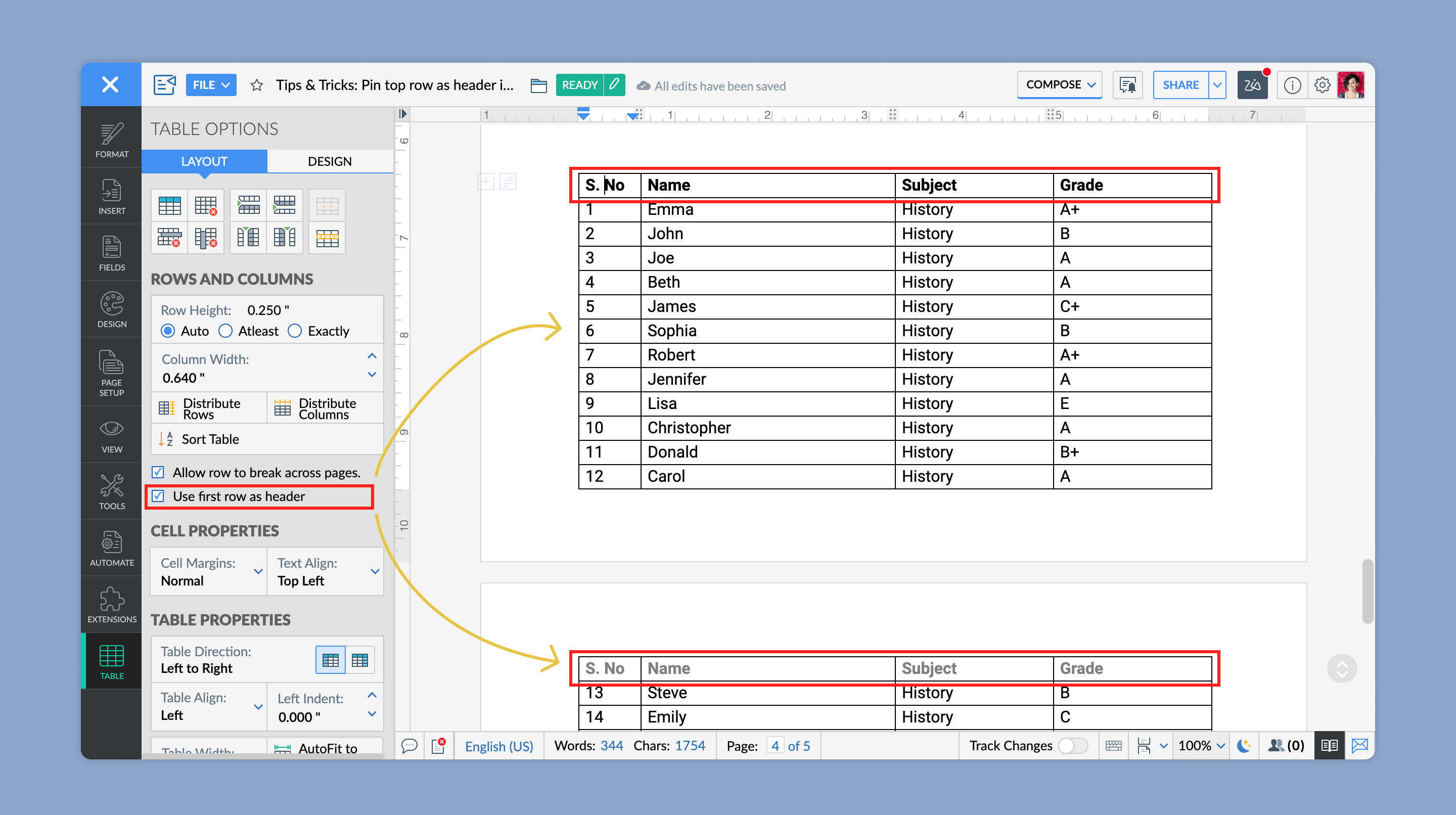
Writer helps you overcome this challenge with the option to set the top row as your header. The header is displayed on all pages of the table, making it easier for you to view and understand the data.
How to set the top row of a table as a header
- Open your document in Writer.
- To add a table to the document:
a. Click the menu in the top left corner of your window.
b. Click Insert --> Table --> Select your desired number of rows and columns. Use the Specify Rows and Columns option if you know the exact number of rows and columns needed. - Click anywhere on the table, and then click the
 icon. Or, click the table icon on the left band.
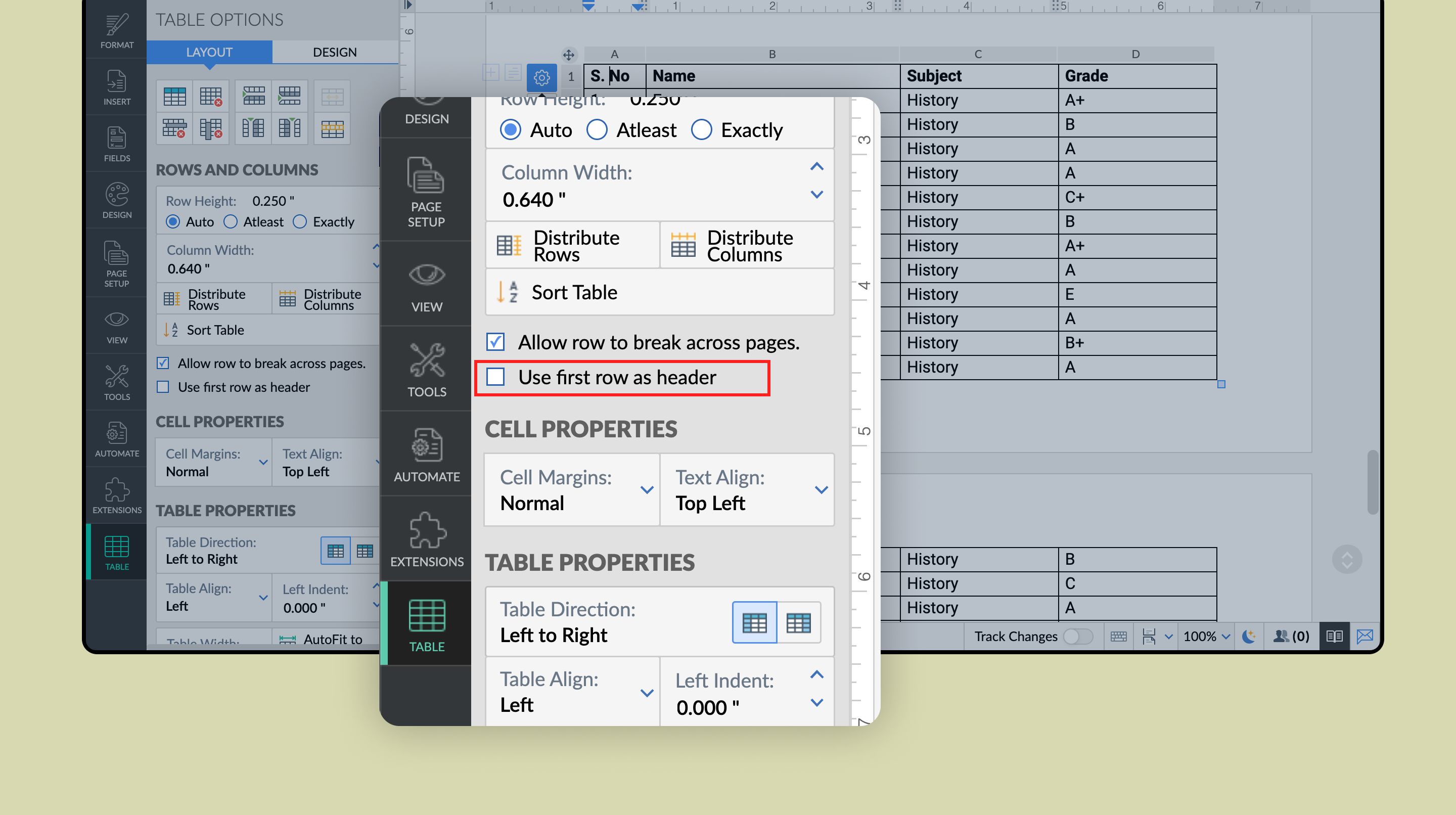
- In the Table Options pane on the left side of your screen, enable the Use first row as header option.
This will set the first row as your header. The header will be displayed on all pages that the table is spread across.
Follow this space for more articles on the many helpful features and options in Writer. If you need any assistance or additional information, simply write to support@zohowriter.com
Happy writing!