Tip #54- Exploring the Files Icon in Zoho Assist- 'Insider Insights'
As we’re already in mid-December, it’s a good time to take a closer look at one of the most useful options in the Zoho Assist remote support dashboard—the Files icon.
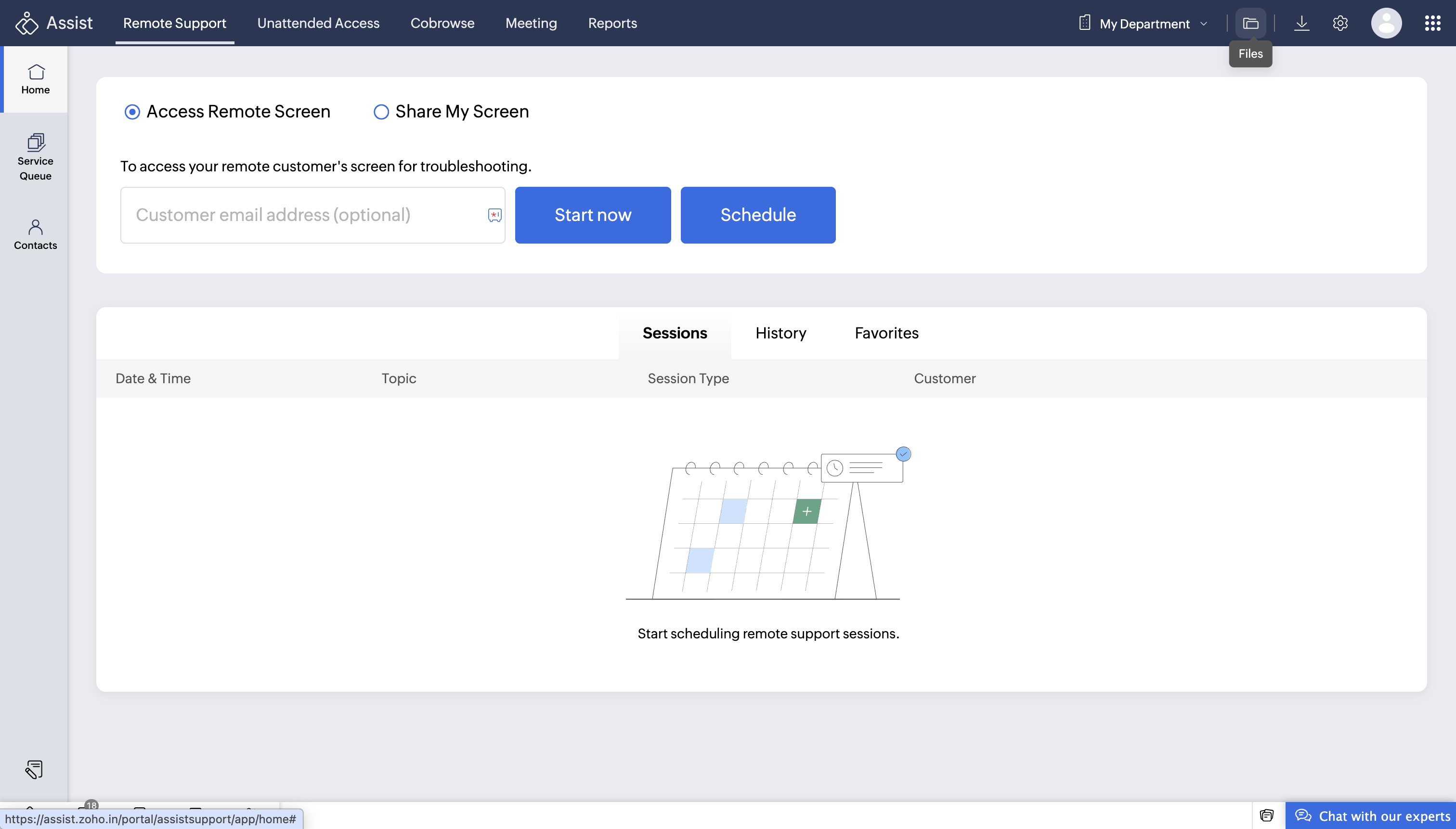
To get started, log in to Zoho Assist using your credentials. Once you’re in, navigate to the Files icon located in the top-right corner of the dashboard and select it. This section gives you quick access to all your session recordings in one place.
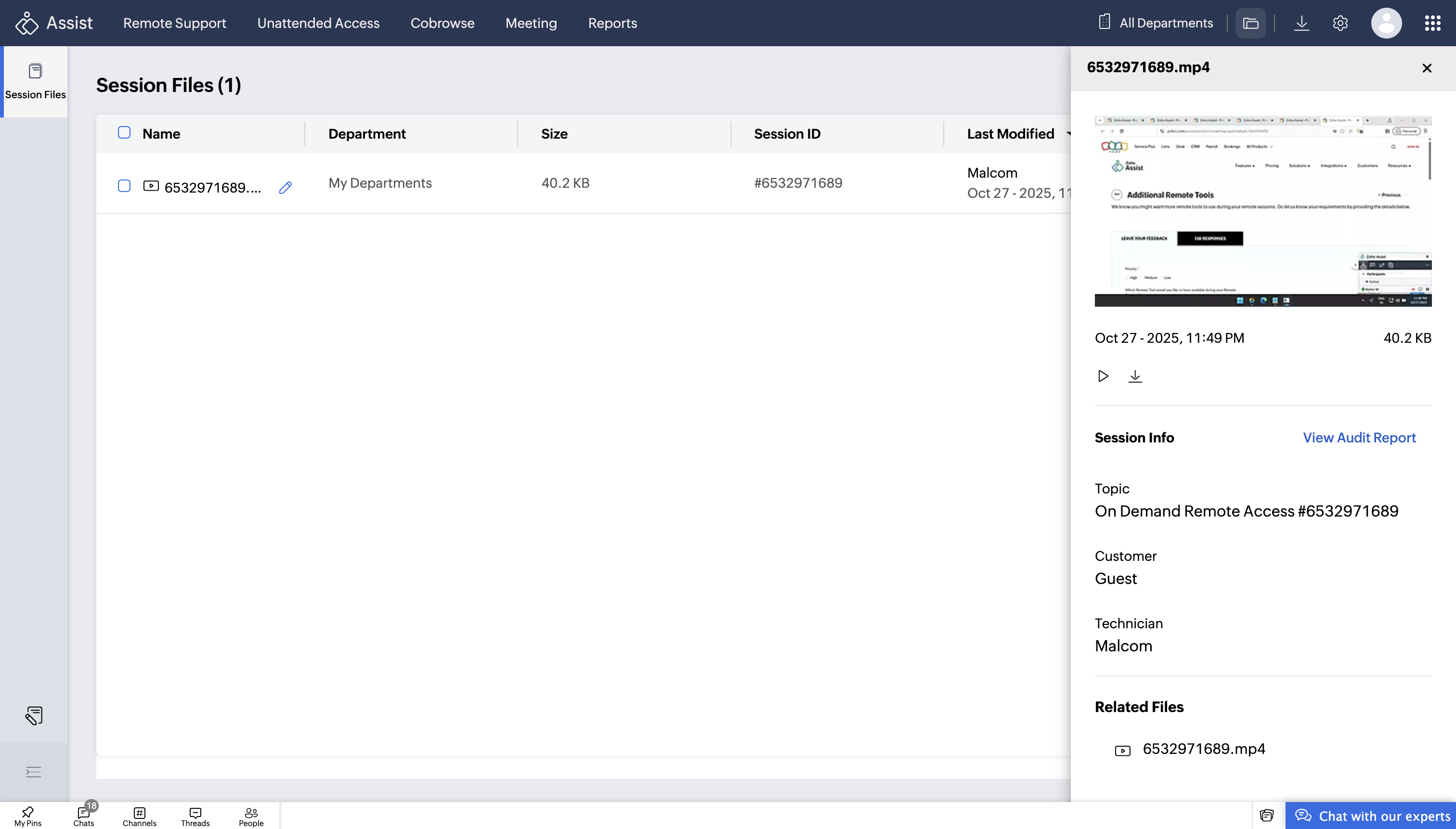
Each recording is listed with key details such as:
File name
Department
File size
Session ID
Last modified date
Session type
You can easily edit the name of a recording to make it more recognizable for future reference.
Next to each file, you’ll notice the three-dot (⋯) menu on the right. Clicking this opens additional options where you can view detailed session information, including:
Session info
Audit report
Topic
Customer
Technician
Other related files

Additionally, selecting the Preview option from the three-dot menu allows you to quickly review the session recording without downloading it. If needed, you can also download the file from the preview screen.
Try it out and let us know how it’s helping your team! If you need help setting up or have any questions, feel free to reach out to us at support@zohoassist.com — we’re here to help.