Tip #55- Accessibility Controls in Zoho Assist: Exploring Vision Settings- 'Insider Insights'
As we approach the end of the year, it’s a good moment to reflect on how we can make our tools more inclusive and easier to use for everyone. Remote support often involves long hours in front of screens, varied lighting conditions, and users with different visual needs. This is where Accessibility Controls in Zoho Assist play an important role, helping reduce eye strain, improve focus, and ensure a comfortable experience for every technician and user.
How to access Accessibility Controls
To get started, log in to Zoho Assist using your credentials. From the dashboard, navigate to your Profile located in the top-right corner and select Accessibility.
Within Accessibility Controls, you’ll find four key categories:
Vision
Hearing
Mobility
Learning
In this post, let’s take a closer look at the Vision settings.
Vision Settings
Reading Mask
The Reading Mask helps eliminate distractions by highlighting the text you’re currently reading while masking the rest of the screen. This makes it easier to stay focused during longer sessions. You can customize the Reading Mask using:
Gap Height – Adjusts the vertical focus area
Gap Width – Controls the horizontal focus area
Mask Opacity – Changes how much the background is dimmed
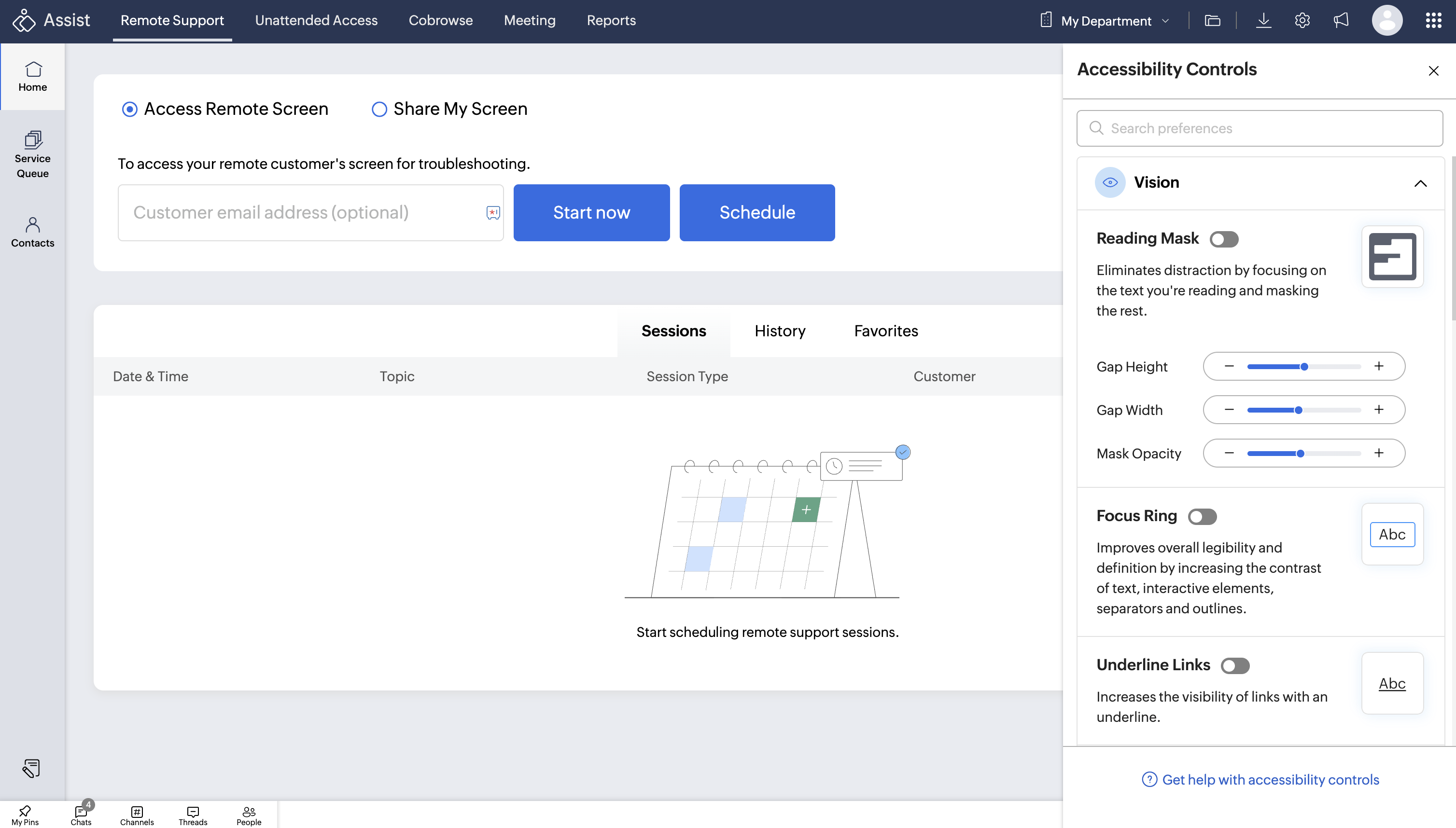
Focus Ring
The Focus Ring improves overall legibility by increasing contrast around text, interactive elements, separators, and outlines, making on-screen actions easier to follow.
Underline Links
This option increases the visibility of links by underlining them across the interface, helping users quickly identify clickable elements.
Text Enhancer
Text Enhancer refines text elements by improving letter and word spacing. These adjustments follow WCAG accessibility guidelines, making content easier to read.
Display Font Size
The default display font size is set to 100%, but you can adjust it based on your preference. Increase or decrease the font size until the interface feels comfortable and easy to read.
These Vision accessibility options allow teams to personalize their Zoho Assist experience and reduce visual strain during remote support sessions. Try them out and let us know how they’re helping your team.
If you need help setting up accessibility controls or have any questions, feel free to reach out to us at support@zohoassist.com—we’re here to help!