Tip #67- Exploring technician console: Disable Input Devices- 'Insider Insights'
Hello Zoho Assist Community!
Picture this: you are in the middle of a critical remote session, carefully configuring a system or running an important update, and the customer accidentally clicks somewhere or types something that undoes your progress. Frustrating, right?
That's exactly the situation the Disable Input Devices feature in Zoho Assist is designed to prevent. With just a couple of clicks from the Technician Console, you can temporarily block the customer's keyboard and mouse input and work without any interruptions.
What is the Disable Input Devices feature?
The Disable Input Devices option in Zoho Assist allows technicians to temporarily block the customer's keyboard and mouse input during an active remote support session. It is accessible directly from the Session menu in the Technician Console. When enabled, the technician gains complete and uninterrupted control over the remote machine. Once the task is complete, the technician can re-enable input devices at any time, immediately restoring control to the customer.
Note: The remote device user can revoke this feature at any time by pressing Alt+Ctrl+Del on their keyboard.
How to disable input devices during a session
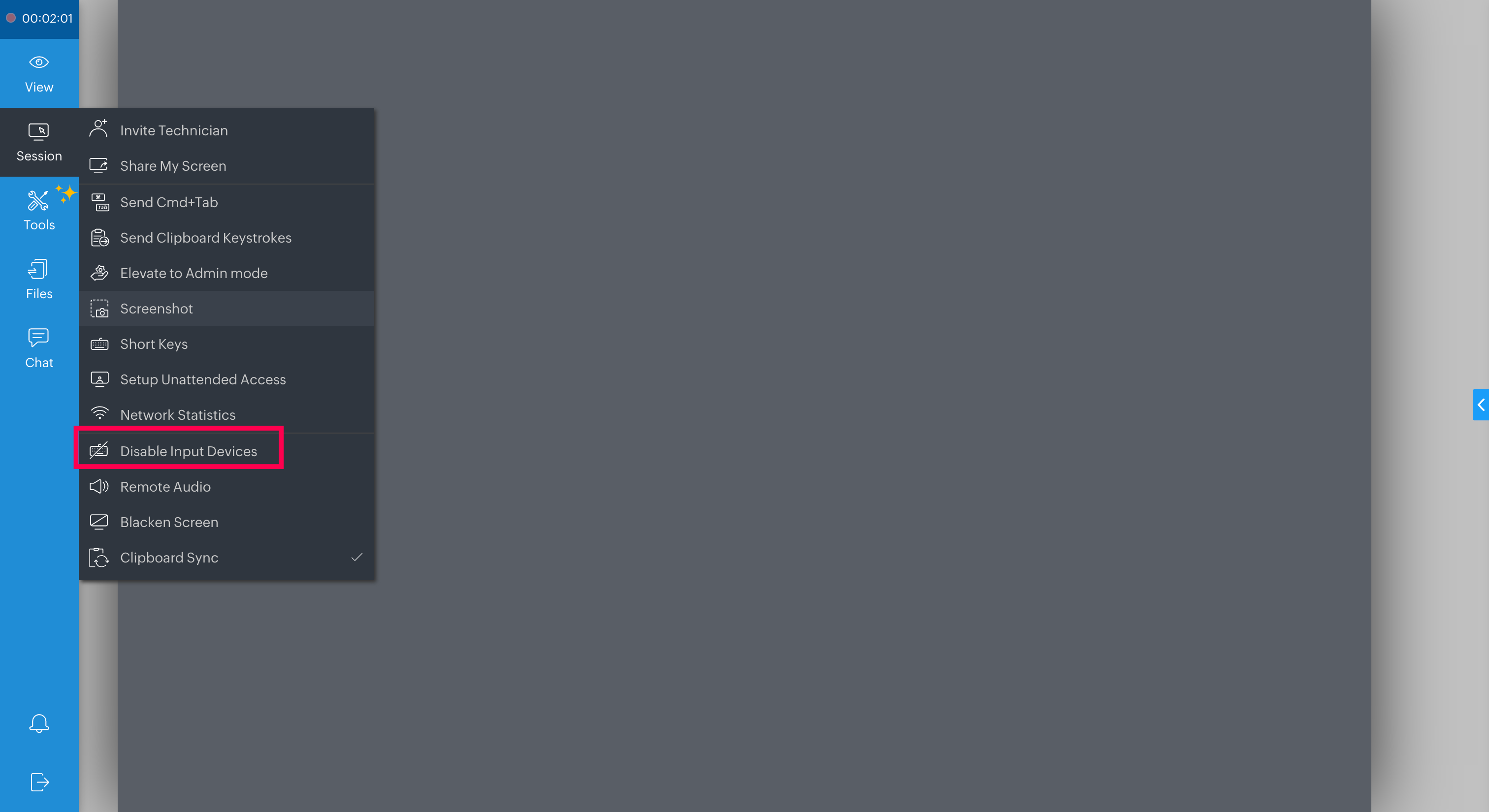
Start a remote support session and navigate to the Technician Console. Click on Session in the left sidebar and select Disable Input Devices from the dropdown menu. The customer's keyboard and mouse input will be restricted immediately, allowing you to work without any interference.
Why is this feature useful?
Disable Input Devices is a practical tool that gives technicians the confidence to handle complex tasks without worrying about unintended interference. Here's why it matters:
Uninterrupted workflow: Work through sensitive configurations or repairs without the risk of accidental input from the customer's side.
Faster resolution: Focus on the task at hand without pausing to undo accidental changes caused by customer input.
Better session control: Ideal for situations where precision and concentration are critical, such as software installations, system configurations, or data migrations.
Improved customer experience: Customers are less likely to accidentally disrupt the session, leading to a smoother and faster resolution.
If you have used the Disable Input Devices feature during a remote session, whether to handle a critical task, prevent accidental interference, or simply work more efficiently, we would love to hear how it fits into your workflow!
Drop your experience, tips, or questions in the comments below. And if you ever need help or have questions about the feature, feel free to reach out to us at support@zohoassist.com. We are always here to help!