Tip #89 – Access, print, and manage remote files from your local printer with Remote Printing – 'Insider Insights'
A team member working from home urgently needs a document that's sitting on the office system. The office is locked and nobody is around to access it. Emailing the file means routing a sensitive document through external channels, and that's not something the compliance team will sign off on. They're stuck waiting until someone can physically get to the office to retrieve and print it.
There's a faster, safer way to handle this.
What is Remote Printing?
Remote Printing in Zoho Assist lets you access, print, and manage files located on a remote computer from your local printer, regardless of your physical location. Whether you're working from home, traveling, or supporting a client on the other side of the world, you can print documents from a remote desktop to any printer connected to your local machine, without transferring files or leaving the session.
To enable Remote Printing navigate to Settings > Preferences > Technician Console and then enable Native Viewer by selecting it. Once enabled, connect to your remote desktop.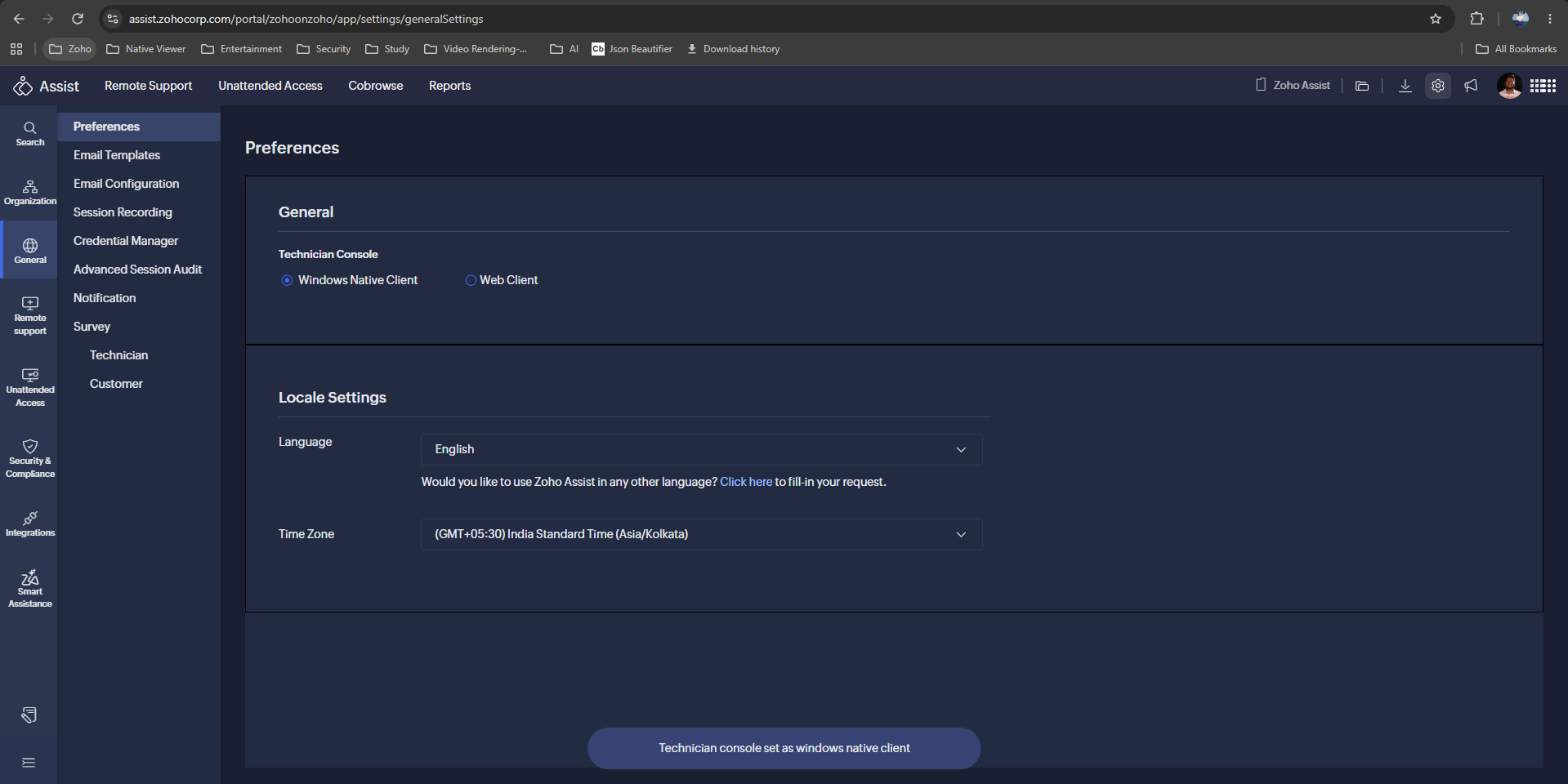
How to print from a remote session
Launch a remote support or unattended access session via the Native Viewer viewer.
Select the Remote Print option from the Session tab.
Download and run the remote printing driver.
Open the document you want to print, choose your preferred remote printer, and print.

The need for physical documents hasn't disappeared, but the need to be physically present to print them has. Remote Printing in Zoho Assist bridges that gap without adding complexity to your workflow.

Note: Remote Printing is currently supported only on Windows-to-Windows devices and is available exclusively when using the Native Viewer.
Have you used Remote Printing in your sessions? We'd love to hear how it's helping your team. Share your experience in the comments below!
For help or questions, reach out to us at support@zohoassist.com. We're always happy to help!