Weekly Tips : Master Keyboard Shortcuts in Zoho Mail
If you spend a lot of time managing emails, switching between your mouse and keyboard can slow you down. Whether you are replying to clients, organizing your inbox, or searching for messages, every second counts. So, how can you streamline your email workflow without constant movement between your mouse and keyboard?
That’s where Keyboard Shortcuts in Zoho Mail come in handy — they help you navigate, compose, and manage emails faster without lifting your hands off the keyboard.
Keyboard Shortcuts
Zoho Mail offers a wide range of Keyboard Shortcuts that let you perform common actions quickly. You can enable or disable them from the settings and even view the complete list of keyboard shortcuts to customize if needed.
Access Keyboard Shortcuts
- Login to your Zoho Mail account.
- Navigate to Settings > Keyboard Shortcuts.
- You can see the list of pre-defined keyboard shortcuts with the corresponding descriptions on the screen.
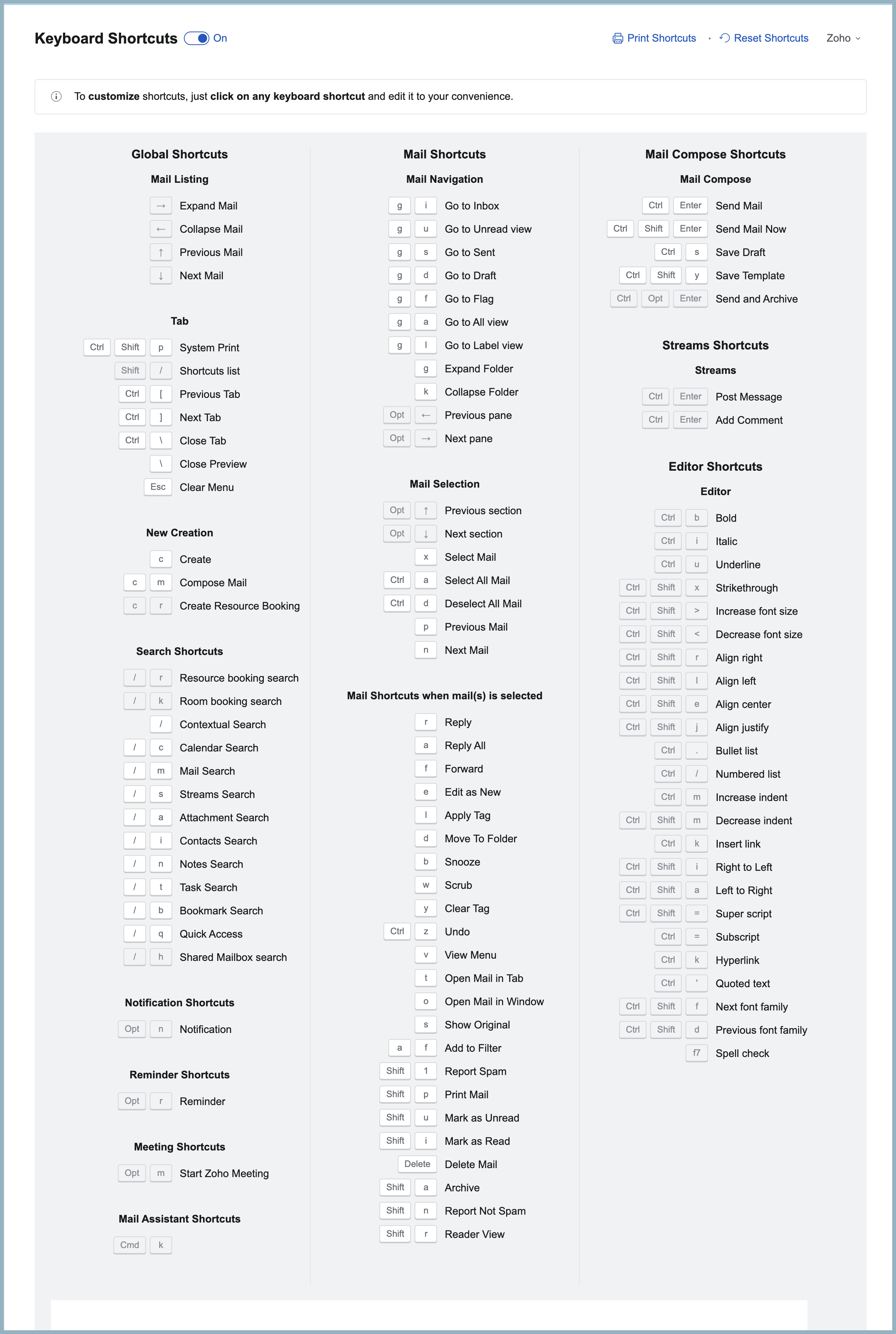
- You can also edit the shortcuts that are in bold in the keyboard shortcut list.
- On clicking on any of these shortcuts, a text box will appear. Enter the desired shortcut key combination and click on the tick icon.
You can choose to switch to a different keyboard shortcut layouts used in other popular email services like Gmail or Outlook. This makes it easier to work seamlessly if you are already familiar with those keyboard shortcuts and don't want to relearn a new set of shortcuts.