What's New in Zoho Billing | February 2026
February brings a powerful set of updates to Zoho Billing, from smarter subscription management and flexible payment options to better reporting and more control over your hosted pages. Here's everything that's new this February.
Create Subscriptions for Items
You can now create subscriptions for items in Zoho Billing. You can pause, resume, cancel, or reactivate these subscriptions just like any other subscriptions. Zoho Billing applies unused credits automatically when generating invoices from these subscriptions.

Note: This feature is available only on certain Zoho Billing plans.
To create subscriptions for items, go to Subscriptions > create or edit a subscription > then select Items in the Create Subscription For option.

Create Subscriptions with Days as Billing Frequency [Early Access]
You can now create subscriptions that renew based on a specific number of days, such as every 18 or 90 days, or even daily. This gives you flexibility to match your customers' billing preferences precisely.
To set this up, go to Plans or Addons, create or edit a record, then set the Billing Frequency to Days and specify the number of days. When creating the subscription, specify the number of renewal cycles in the Billing Cycles field.
Generate Renewal Payment Links for Manual Renewals
You can now generate advance renewal payment links for manual or offline subscriptions. Share these links with customers to collect renewal payments proactively instead of waiting for the next billing cycle.By default, the link expires one day before the Next Billing Date, but you can adjust this if needed.
Note: This feature is available only on certain Zoho Billing plans.
To generate a renewal payment link, go to the subscription and click Renew Subscription, then select Generate Renewal Payment Link.

Disable Advance Invoice Failure Alerts
You can now disable notifications when Advance Invoices fail to generate due to subscription configuration conflicts.
Note: This preference applies only to Advance Invoices.
To disable the alerts, go to Settings > Subscriptions > Advance Billing and enable the Disable Advance Invoice Failure Emails preference.

Save Payment Method on Hosted Payment Pages
Your customers can now save their payment method directly from your Hosted Payment Pages so future invoices are collected automatically. Configure the Save Payment Method checkbox in your Hosted Payment Page template. Payment method saving behaviour varies by gateway.
To enable this, go to Settings > Hosted Payment Pages, edit your template, and configure the preference.

Download Invoices from Thank You Pages
Customers can now download their invoice directly from the Thank You Page after a successful subscription purchase on your Hosted Payment Pages.
To enable this, go to Settings > Hosted Payment Pages, edit your template, and under the Thank You Page settings, check Allow customers to download invoice. Optionally, customize the button label to match your brand.
Configure Multi-Currency Discount Values in Coupons
You can now configure currency-specific discount values for flat-rate coupons. When a coupon is applied to a subscription, Zoho Billing automatically uses the discount amount that matches the customer's billing currency.
Note: This feature is available only for organizations with Advanced Coupons enabled
To set this up, go to Product Catalog > Coupons, create a coupon and set Discount By to Flat Rate. Click Add Currency to define discount values for each currency.

Add Quick Reply Buttons to WhatsApp Messages for Quotes
When sending quotes via WhatsApp, you can now include quick reply buttons that let customers accept or reject the quote in a single tap.
To enable this, go to Settings > Quotes > General and enable the quick reply button preference. The quick reply buttons will appear on your WhatsApp message templates automatically once enabled.

Mark Projects as Completed
You can now mark projects as Completed in Zoho Billing to easily differentiate them from active ones. To mark a project as Completed, go to Time Tracking > Projects, select the project, click the More option, and select Mark as Completed.

View Activity History for Reports
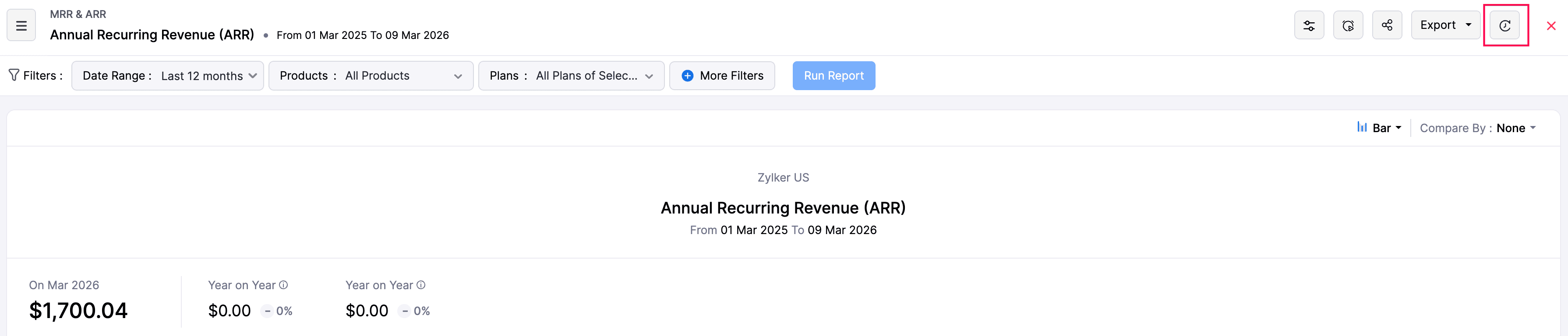
You can now view a full activity history for your reports. Zoho Billing automatically captures actions like Print, Export, Share, Create/Edit (for custom reports), and Schedule, giving you a clear audit trail.
To view the history, open any report and click the Show History icon at the top.

Toggle Net and Gross Revenue Retention Metrics
The Revenue Retention Rate report now lets you toggle between Net and Gross retention metrics in a single view. Net retention shows revenue from existing customers; Gross retention excludes expansion revenue. This lets you see whether growth comes from expansion or retention.
To access it, go to Reports > Retention > Revenue Retention Rate and select the metric from the Retention Type dropdown.

Ready to dive in? Start exploring these updates today and let us know how they transform your workflow. Have questions? Our support team at support@zohobilling.com is here to help every step of the way!