Automating leave alerts in Zoho Cliq


How to obtain the bot unique name?
- Create a bot with channel participation settings enabled to allow users to add the bot to any channel, send messages, listen to messages, and auto-follow threads.
- Click on the bot to open its details on the right-hand side. Locate the bot's incoming endpoint, and find the unique name of the bot in the URL after /bots.

The unique name of the bot is 'leavealerts'.
- Add the bot to the preferred channel of your choice where you want the alerts to be posted.
Implementation :
Setting up the Zoho Cliq Scheduler
Open Zoho Cliq, click your profile picture, select Bots & Tools, and navigate to Schedulers.
Under Schedulers, create a new scheduler with the recurring period set to weekly and choose the days from Monday to Friday.
Specify the time name, description, and time of execution according to your needs.
ⓘ Document for reference : Schedulers

Sample Leave alerts script
- currentDate = zoho.currentdate;
- currentDateString = currentDate.toString("dd-MMM-yyyy");
- info currentDateString;
- note = "";
- isRestrictedHoliday = "false";
- try
- {
- holidayResponse = invokeurl
- [
- url :"https://people.zoho.com/people/api/leave/v2/holidays/get?shift=General&employee=1&from=" + currentDateString + "&to=" + currentDateString + "&dateFormat=dd-MMM-yyyy"
- type :GET
- connection:"getemployeeinfo"
- ];
- info holidayResponse;
- holidayResponse = holidayResponse.toMap();
- if(holidayResponse.containsKey("data"))
- {
- holidayResponseData = holidayResponse.get("data").toList();
- if(holidayResponseData.size() > 0)
- {
- currentDayStatus = holidayResponseData.get(0);
- isRestrictedHoliday = currentDayStatus.get("isRestrictedHoliday");
- if("true".endsWithIgnoreCase(isRestrictedHoliday))
- {
- name = currentDayStatus.get("Name");
- note = "\nOptional holiday - " + name;
- }
- }
- }
- }
- catch (ex)
- {
- exceptionString = "exception occurred during restricted holiday check: " + ex.toString();
- info exceptionString;
- }
- response = invokeurl
- [
- url :"https://people.zoho.com/api/v2/leavetracker/leaves/records?from=" + currentDateString + "&to=" + currentDateString + "&dateFormat=dd-MMM-yyyy&approvalStatus=[APPROVED]"
- type :GET
- connection:"getemployeeinfo"
- ];
- //info response;
- members = response.get("records");
- leaveMembers = "";
- membersSize = 0;
- for each member in members
- {
- membersSize = membersSize + 1;
- leaveMembers = leaveMembers + "[" + member.get("Employee") + "](zohoid:" + member.get("ZUID") + ")\n";
- }
- info "leave members : " + leaveMembers;
- if(leaveMembers.length() > 0)
- {
- data = {"card":{"theme":"7","title":"Team mates on leave (" + membersSize + ")" + note,"thumbnail":"https://thesoftwarepro.com/wp-content/uploads/2019/12/outlook-out-of-office.jpg"},"text":leaveMembers.trim(),"bot":{"name":"Leave Alerts","image":"https://www.pngfind.com/pngs/m/220-2200933_portfolio-alert-bot-by-symphony-alert-bot-hd.png"}};
- info data;
- }
- else
- {
- data = {"card":{"theme":"7","title":"Team mates on leave 0" + note,"thumbnail":"https://thesoftwarepro.com/wp-content/uploads/2019/12/outlook-out-of-office.jpg"},"text":"All Present Today.","bot":{"name":"Leave Alerts","image":"https://www.pngfind.com/pngs/m/220-2200933_portfolio-alert-bot-by-symphony-alert-bot-hd.png"}};
- }
- zoho.cliq.postToChanneAsBotl("CHANNEL_UNIQUE_NAME","BOT_UNIQUE_NAME",data);
Customize and deploy
Utilizing the data received from the invoke URL task (i.e., leavetracker/leaves/records GET request), construct a leave report card with Cliq's message builder and post it in the preferred chat or channel.
How to obtain the channel unique name?
Go to the channel where you want the alerts to be posted.
Hover over the three dots in the top right corner of the channel and select "Channel Info."
In the Channel Info menu, go to the "Connectors" section to find the Channel Unique Name.

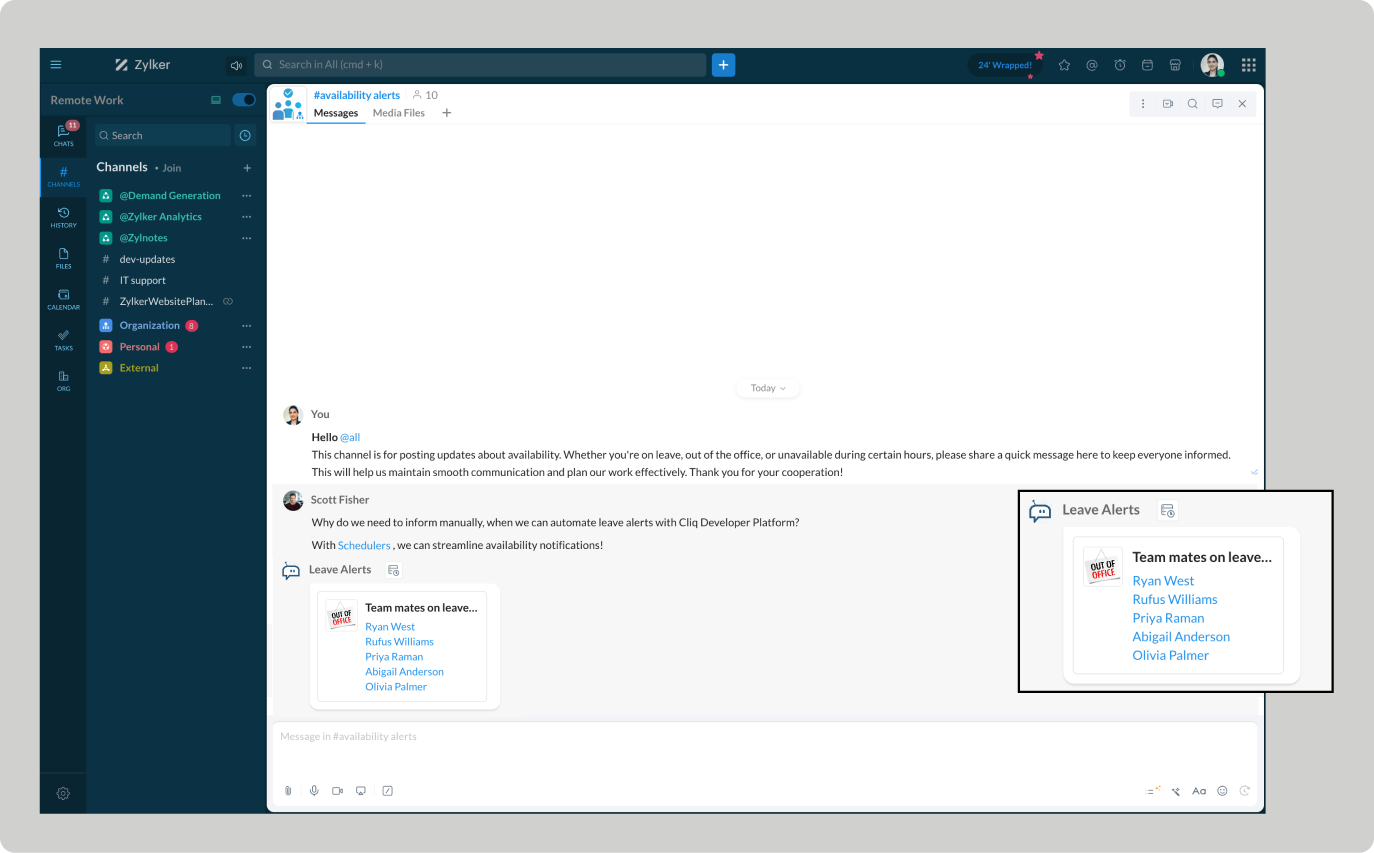
Troubleshooting :
Ensure your Zoho People pricing plan includes access to employee leave details.
Verify whether the necessary administrative permissions are granted. Limited access can result in "Permission Denied" errors.
Empower automated workflows and stay ahead of absences
Automating leave alerts in Zoho Cliq boosts efficiency by minimizing disruptions from employee absences. Teams can benefit from real-time leave updates, allowing them to adjust plans, reassign tasks, and maintain the continuity of the project schedule.