Workflows vs Macros in Zoho Desk: Key Differences, Use Cases & Best Practices
 This post is part of the "Desk Automation Series," Chapter 1. Through this series, we will help you choose the right automation type in Zoho Desk by comparing commonly confused automations through real scenarios and business processes, so you can clearly see what to use, when, and why.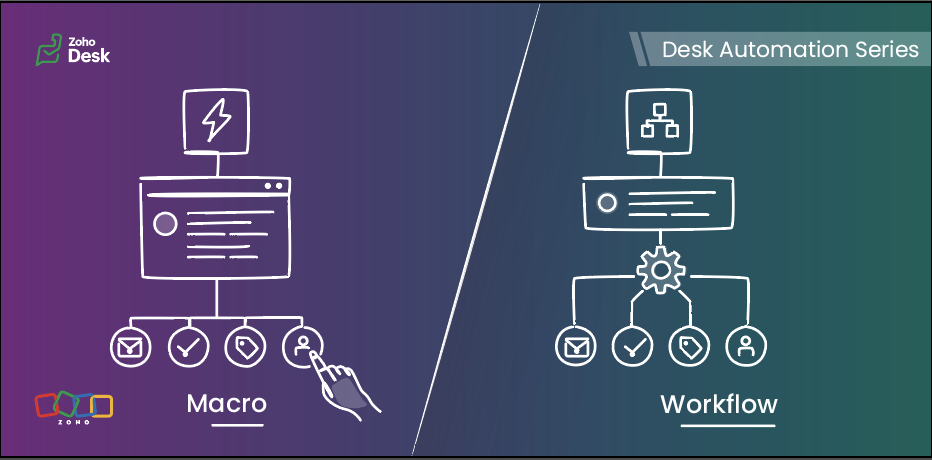
In simple terms, workflows are meant for automatic actions based on ticket data, whereas macros help agents complete repeated actions faster after reviewing the ticket.
This guide will help you understand the difference between the two, so you can decide:
- what your system should handle automatically
- what your agents should trigger while working on a ticket

Workflows run automatically when defined criteria are met, while macros are applied by agents as they work on a ticket.
Workflows
Workflows help businesses bring structure, accountability, and momentum to support operations. When defined conditions are met, Zoho Desk executes actions automatically in the background, enabling teams to handle volume with more control, fewer process gaps, and stronger execution quality.
How workflows work :
A workflow consists of three parts:
When — the trigger
(ticket created, ticket edited, field update, etc)
If — the criteria
(The criteria used to filter records that meet specific conditions)
Then — the actions
(update fields, assign tickets, send notifications, change status, call custom functions)
Once active, the workflow runs for tickets that meet its criteria.
When to use workflows
Use workflows when:
- An action must run whenever specific conditions are met
- The action should not depend on an agent remembering to do it
- Needs to be ensured that the same action is taken for every similar scenario
- Trigger actions the moment conditions are met, without waiting for manual input
- Reduce operational load and keep processes moving without adding effort
- Keep critical actions running reliably in the background
Typical examples:
- Assigning tickets based on category or department
- Setting priority for specific customer types
- Updating fields when a ticket is modified
- Reassigning tickets to another team based on defined rules
- Using Zia actions in the workflow to predict field values from ticket context or extract details such as order IDs, dates, or product names and map them to ticket fields.
Macros
Macros allow agents to perform multiple actions on a ticket in a single click. They are available inside the ticket and are applied manually. These operations can be performed on mass tickets as well.
Macros help your agents complete repeated actions quickly, with better speed and consistency, once they know what the ticket needs.
How macros work
A macro can:
- Update fields
- Send an alert
- Add tasks
- Execute custom functions
- Move ticket to specific department
When to use macros
Use macros when:
- Agents need to perform the same manual actions across similar tickets
- The ticket needs to be reviewed before any action is applied
- The same set of actions needs to be applied to multiple tickets at once
- The next set of actions depends on a deeper understanding of the ticket context
Typical examples:
- Applying a follow-up response after troubleshooting
- Ticket transfer to a different department based on agent’s manual interpretation
- Sending emails and updating ticket fields in a single manual action
- Creating follow-up tasks while updating ticket details after review
- Applying the same set of field updates across similar tickets
Macros help agents complete routine updates without performing each step manually.
Key differences at a glance
Feature | Workflows | Macros |
Primary purpose | Automate actions based on predefined conditions to reduce manual effort and standardize processes. | Enable agents to execute a set of actions (emails, tasks, field updates) together after reviewing a ticket. |
Triggered by | System-driven events such as ticket creation, updates, replies, or specific field changes. | Manually triggered by agents from within tickets or in bulk view. |
Agent involvement | Not required | Required for every execution |
How actions are executed | Runs automatically in the background when conditions are met | Runs as per manually selected action |
Best suited for | Routing tickets, updating fields, sending alerts, and handling rule-based or event-driven actions | Applying repeated actions such as sending acknowledgement emails, creating tasks, and updating fields during ticket handling |
Decision basis | Based on ticket data, conditions, and system events | Based on agent review and ticket context |
Choosing the right automation tool
Use a workflow when:
- The action must always run for certain tickets
- The criteria matches the ticket context
- The action is triggered by ticket events such as creation, updates, or replies
Use a macro when:
- Agents perform the same set of actions frequently
- The action is applied after reviewing the ticket
- The update depends on agent confirmation before execution
A practical scenario
Let’s look at how both tools work together in a realistic business scenario using a fictional organization, Zylker Travel.
Zylker Travel handles support for hotel bookings, holiday packages, cancellations, airport transfers, and special stay requests.
New ticket created for a booking with check-in within 24 hours
Use: Workflow
When the ticket is created and the check-in date falls within the next 24 hours, the workflow:
- Sets the priority to High
- Assigns the ticket to the urgent reservations team
- Sends an internal notification
This happens automatically based on ticket data.
Customer asks to cancel a reservation
Use: Macro
The agent:
- Reviews the booking type
- Confirms eligibility
- Applies the cancellation macro
The macro:
- Send an email alert to the customer
- Update the ticket status
- Update a refund-related field, such as refund percentage, if that is available as a ticket field
- Move the ticket to the Finance department for the next step
Special request completed (late check-out, airport transfer, or room upgrade)
Use: Macro
After confirming the request is fulfilled, the agent applies a closure macro that:
- Sends the confirmation message
- Updates the status to Closed
Refund request crosses a defined value threshold
Use: Workflow
When a ticket is created or updated and the refund amount exceeds a defined threshold, the workflow can:
- Set the priority to High
- Assign the ticket to a senior support or finance queue
- Notify the relevant internal team
This is a workflow because the action is based on ticket data and should happen consistently without waiting for agent action.
Manual transfer after review
Use: Macro
Sometimes, the right department cannot be determined from the initial ticket data alone. After reviewing the conversation, the agent can apply a macro that:
- then moves the ticket to the right department
- creates a follow-up task
Booking upgrade request
A customer asks to upgrade a confirmed booking.
Use: Workflow and Macro
Workflow:
When the ticket is created with upgrade or booking modification, the workflow can:
- Assign it to the booking changes team
- Set priority based on travel date
- Add or update tags for categorization (for example, “Upgrade request”)
- Send an internal notification to the team
- Update initial ticket fields such as request type or category
Macro:
After the agent checks availability and pricing, they can apply a macro to:
- Send the upgrade response
- Update the ticket status to Waiting for customer confirmation
- Update review-based ticket fields such as upgrade status
- Move the ticket to the next department if required
Why both:
The workflow handles routing and priority automatically. The macro helps the agent complete the response after review.
Workflows vs Macros in common business scenarios
Scenario | Best-suited automation | Why |
Order status replies in e-commerce | Macro | The agent selects the reply after reviewing the ticket |
Internal approval escalation for refunds | Workflow | Based on defined criteria |
Closing resolved tickets with a standard note | Macro | Triggered when the agent confirms resolution |
Follow-up message after troubleshooting | Macro | Sent after agent confirmation |
Guidelines for quick selection
- A rule must always run when defined conditions are met → Workflow
- Routing based on ticket data or ticket events → Workflow
- The action is triggered by ticket events such as creation, update, or reply → Workflow
- Repeated manual ticket actions → Macro
- An action needs to be applied after the agent reviews the ticket → Macro
- The next step depends on agent judgment or confirmation → Macro
Best practices
For workflows
- Keep conditions specific and business-driven
- Avoid multiple workflows updating the same field unless required
- Document the purpose of each workflow
- Test in a limited scope before enabling for all tickets
- Review workflows after process changes
For macros
- Create team-specific macros
- Keep response templates easy to edit
- Use clear naming so agents can find them quickly
- Remove unused macros periodically
- Do not use macros for actions that must run automatically
The verdict
In Zoho Desk, workflows bring control. Macros bring speed.
Put them together, and you get the best of both worlds: structured automation for your business, effortless execution for your teams, and a smoother experience for every customer.