Email Forwarding: Maintain business continuity
As an administrator, ensuring uninterrupted email communication is critical when a role-based employee is unavailable due to extended leave or a temporary role change. Emails from customers, partners, and internal teams must continue to be received and addressed without compromising security or access controls.
When this is not addressed:
- Important emails may go unanswered during the employee’s absence.
- Granting direct login access to another user poses security risks.
- Manually tracking or redirecting emails can lead to delays or missed messages.
- The organization may require a temporary solution without altering the mailbox structure.
To overcome this, administrators can configure email forwarding from the user’s mailbox through the Zoho Mail Admin Console.
Once enabled, all incoming emails to the original user’s address are automatically forwarded to a designated mailbox. This ensures uninterrupted communication, allows timely responses, and maintains secure, controlled access while the primary user is unavailable.
Practical scenarios where Email Forwarding can be used effectively
Managing inactive or archived mailboxes
When a mailbox is no longer active but continues to receive important emails, email forwarding ensures messages reach an active user. This allows necessary action to be taken without granting full access to the old mailbox.
Ensuring continuity during role transitions or exits
When an employee leaves the organization or moves to a different role, email forwarding helps redirect incoming emails to the appropriate owner. This ensures business communication continues smoothly while responsibilities are reassigned.
Journaling and centralized archiving at org-level
In addition to the above, organizations can configure automated rules to forward copies of all incoming and outgoing emails to a central archive. This supports compliance requirements like HIPAA and GDPR by ensuring data retention for audit and disaster recovery purposes.
Steps to configure Email Forwarding from Zoho Mail Admin Console
- Log in to Zoho Mail Admin Console.
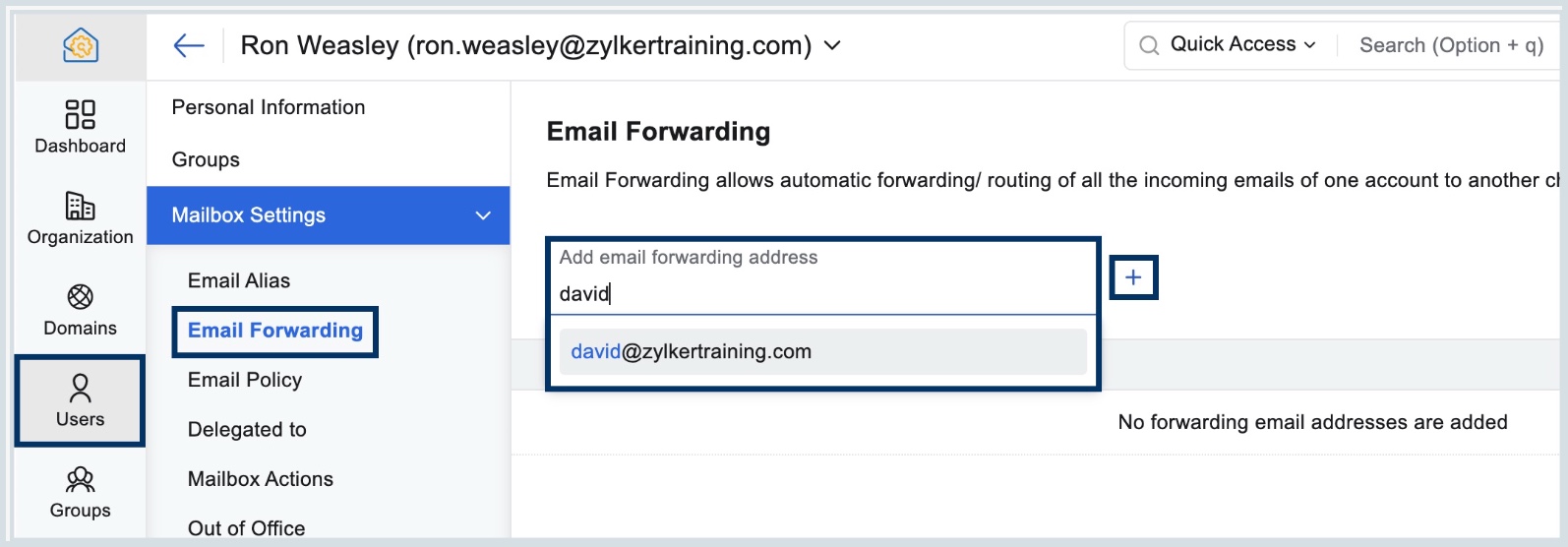
- Navigate to Users in the left pane, and click on the user you want to configure email forwarding.
- Select Mailbox Settings on the left pane and choose Email Forwarding.
- Enter the email address you want the user's emails to be forwarded to, and click the + button.
Note:
A verification process is required for external email addresses. But, verification will not be required if the email forwarding address is from within your organization. - Click Add in the confirmation dialog that appears.
- Select Delete Zoho Mail's copy, to move the email to the primary user's Trash folder after forwarding the email.

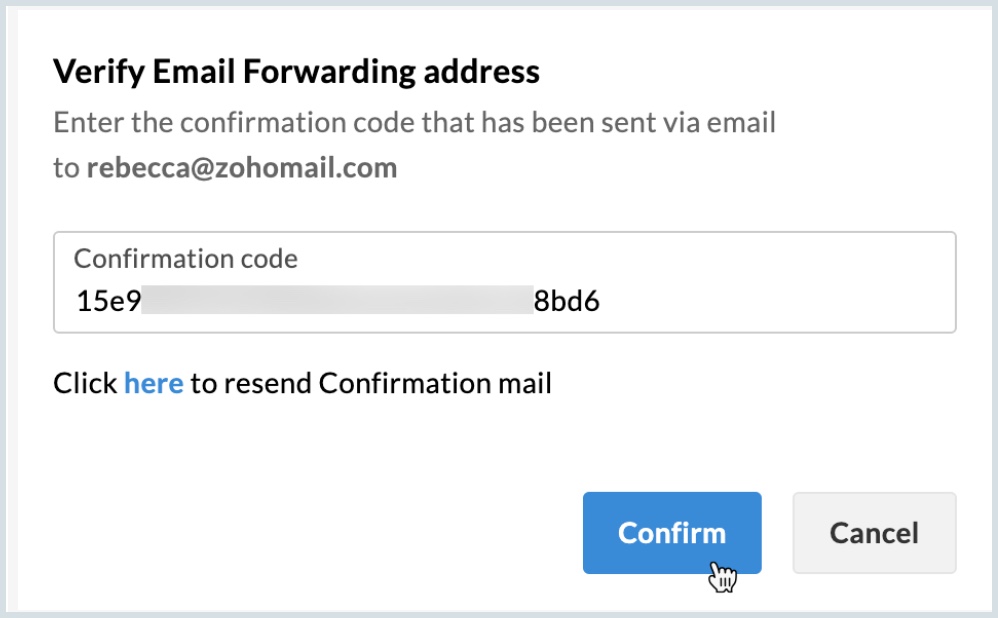
- If you have configured an external email address, you would have received an email with a Verification Code.
- Click Verify and enter the Verification Code.

- After entering the verification code, click Confirm.