Shared Mailbox: Collaborate and manage team emails efficiently in Zoho Mail
Shared Mailbox: Collaborate and manage team emails efficiently in Zoho Mail
When multiple teams share responsibility for a common email address, like support@org.com, info@org.com, or billing@org.com, managing replies individually leads to duplication, missed emails, and lack of accountability.
Zoho Mail's Shared Mailbox addresses this by providing a centralized email space accessible to all designated members, ensuring organized collaboration without duplicating emails across individual inboxes.
What is a Shared Mailbox in Zoho Mail Admin Console?
A Shared Mailbox is a group with a common email address shared by a set of users within your organization. Unlike a Distribution List, emails sent to a shared mailbox do not appear in each member's individual inbox. Instead, they appear in a dedicated shared space visible to all members. This avoids email duplication while keeping the entire team in sync.
Admins can control who can send emails to the mailbox by choosing from four access levels:
Everyone (public group)
Organization Members
Group Members (private group)
Only Moderators (restricted group)
How can admins efficiently use Shared Mailbox?
Shared Mailbox in Zoho Mail enables administrators to set up and manage team email coordination effectively. It provides a centralized space where multiple users can access, monitor, and respond to emails sent to a common address. This ensures structured communication, clear ownership of responses, and reduced duplication across individual inboxes.
Centralized team inbox: All emails sent to the shared address land in one place, visible to all members; no duplication, no missed messages.
Flexible access control: Choose who can send to the mailbox; everyone, only org members, only group members, or only moderators.
Role management: Assign specific members as Moderators to oversee email flow and handle moderation for restricted groups.
Block or unblock controls: Temporarily restrict incoming and outgoing permissions for a shared mailbox when needed, and re-enable them with a single click.
Bulk export: Export all shared mailboxes, with or without member details. This is especially useful for audits, backups, or org-wide reviews, with optional password encryption.
Steps to create Shared Mailbox in Zoho Mail Admin Console
Log in to Zoho Mail Admin Console and select Groups in the left pane.
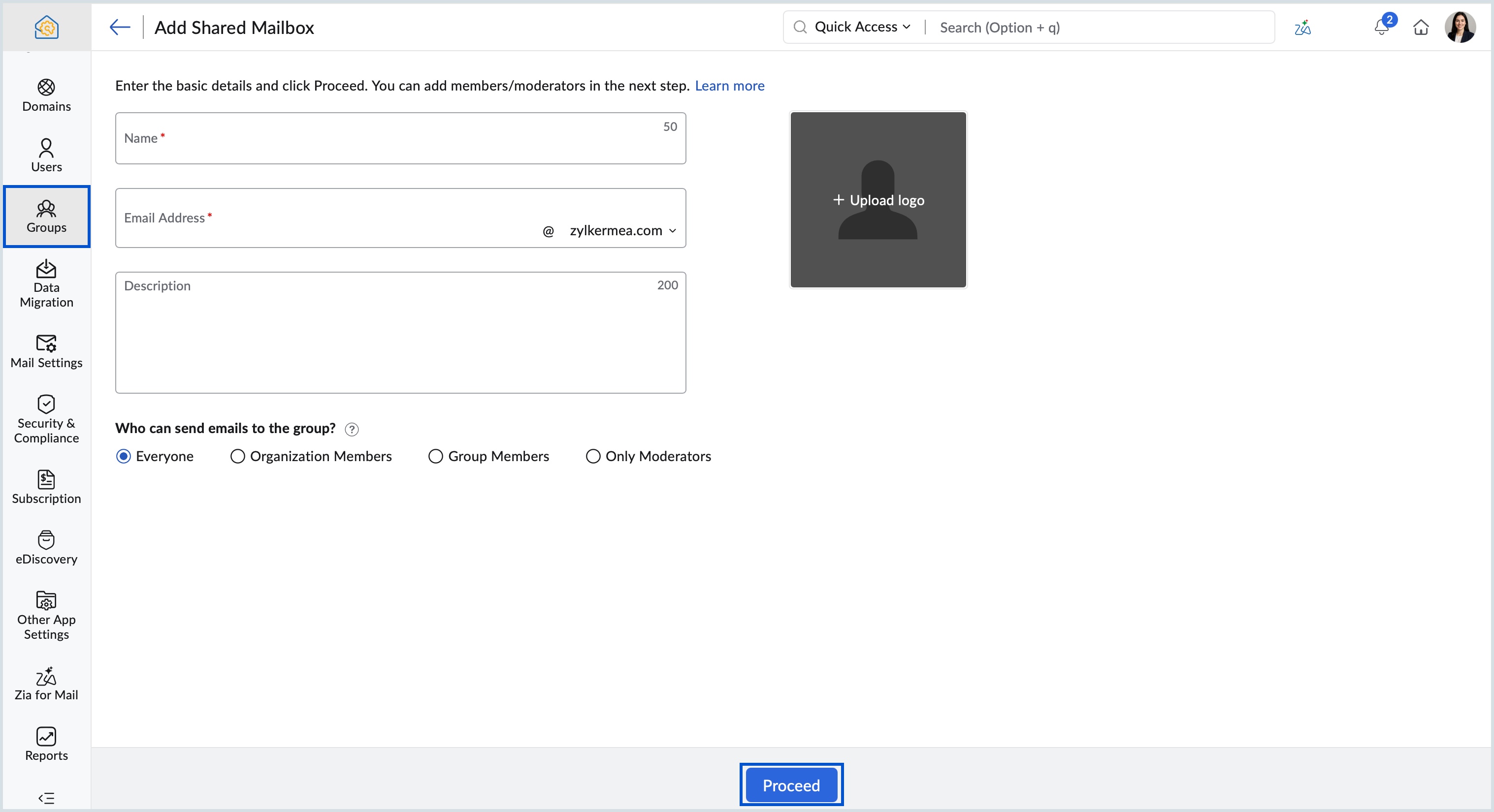
Select Shared Mailbox and click +Create. The Add Shared Mailbox page appears.
Enter a group name and email address of your choice. You can also add a description and profile picture.
Select the mailbox type under the Who can send emails to your group section.
Once done, click Proceed. The Select Members page appears in which you can add members to the shared mailbox.
Click + Add and select the preferred method to add members of your organization to be part of your shared mailbox:
Search and add organization users
Add all organization users
If required, change the role of one or more users to Moderator and click Create.
Know more about Shared Mailbox in Zoho Mail Admin Console.