Tip #9: Best integration for support teams
Are back-and-forth emails taking up more of your support team's time than resolving the tickets themselves? Communication gaps, manual processes, and a lack of centralized data can cause a number of challenges, but there is a feature that can speed up the entire workflow.
The power duo: scheduler + remote support tool
Imagine utilizing the combined capabilities of Zoho Bookings and Zoho Assist. Zoho Bookings is a scheduler, while Zoho Assist is a remote support software. This integration not only simplifies scheduling with customers but also makes sharing of remote support and screen sharing session links quicker. As a result, support agents can get started with troubleshooting in no time.
Benefits of this integration:
Time efficient: Improves the ticket turnaround time and productivity, as the time taken to coordinate and administrative tasks is reduced.
Streamlined workflow: Simply provide the customer with your booking page link; once they book with you, the scheduling and generation of remote session links will be seamlessly established, creating a well-structured workflow.
Enhanced customer experience: Integrating these products can create a seamless and user-friendly experience for customers. They can schedule appointments, receive confirmations, and join remote support sessions all within a unified system, leading to higher customer satisfaction.
Requirements:
Zoho Bookings paid plan (Basic/Premium)
Zoho Assist Professional/Enterprise
How to integrate Zoho Bookings with Zoho Assist
Step 1: Enable the integration
Log in to your Zoho Bookings account. Navigate to Integration > Others > Zoho Assist. Click Connect Zoho Assist. Now log in to your Zoho Assist account and allow access to Bookings.

Step 2: Map services to create remote session or screen sharing session

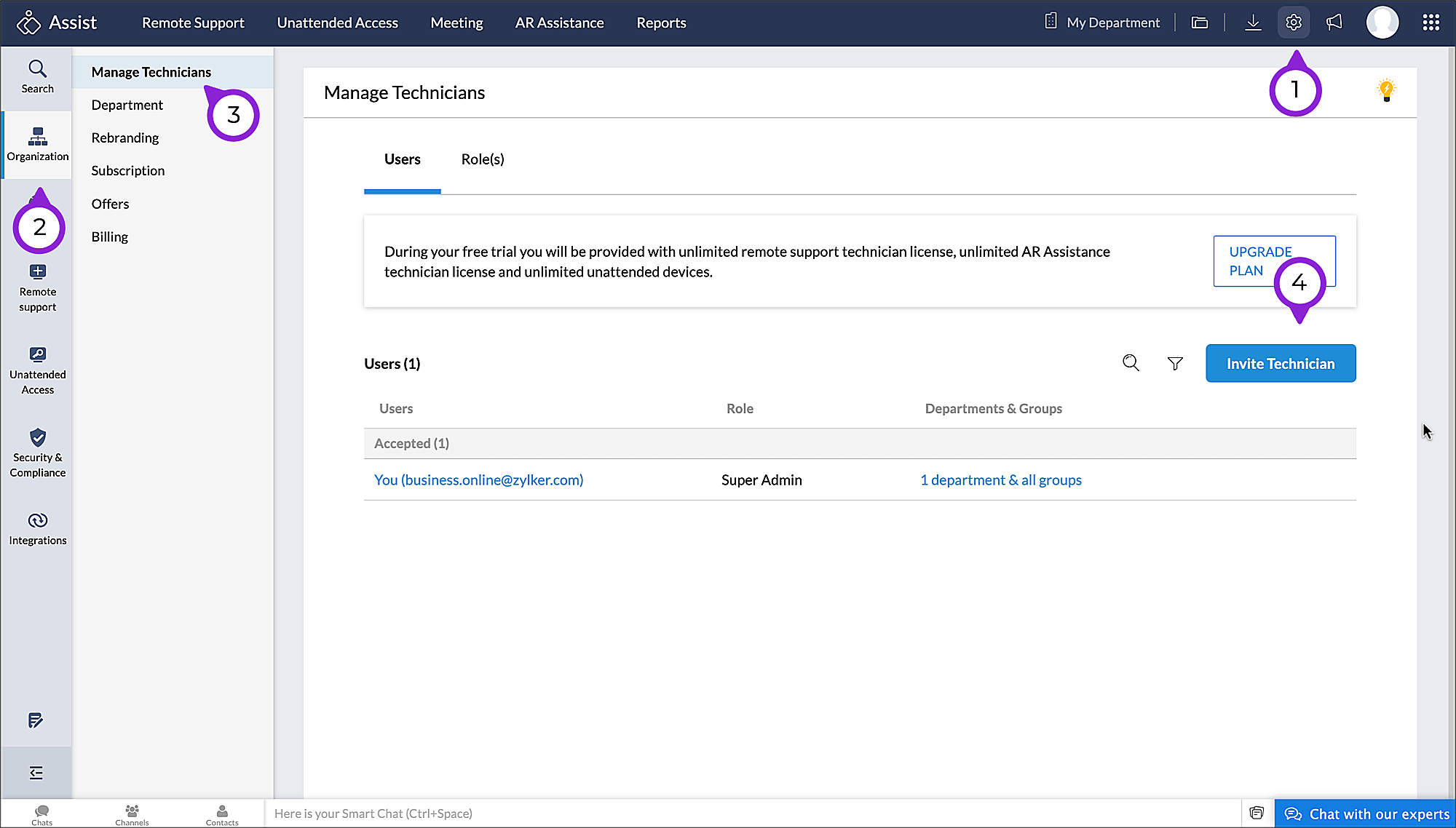
Log in to Zoho Assist.
Navigate to the Settings icon
 > Organization > Manage Technicians > Invite Technicians.
Add the staff email address and click Invite Technicians.
See how it works
Once an appointment is booked:
Customers can view the Zoho Assist session link in the confirmation message and booking summary.
Staff members can access the Zoho Assist session link in the appointment summary.
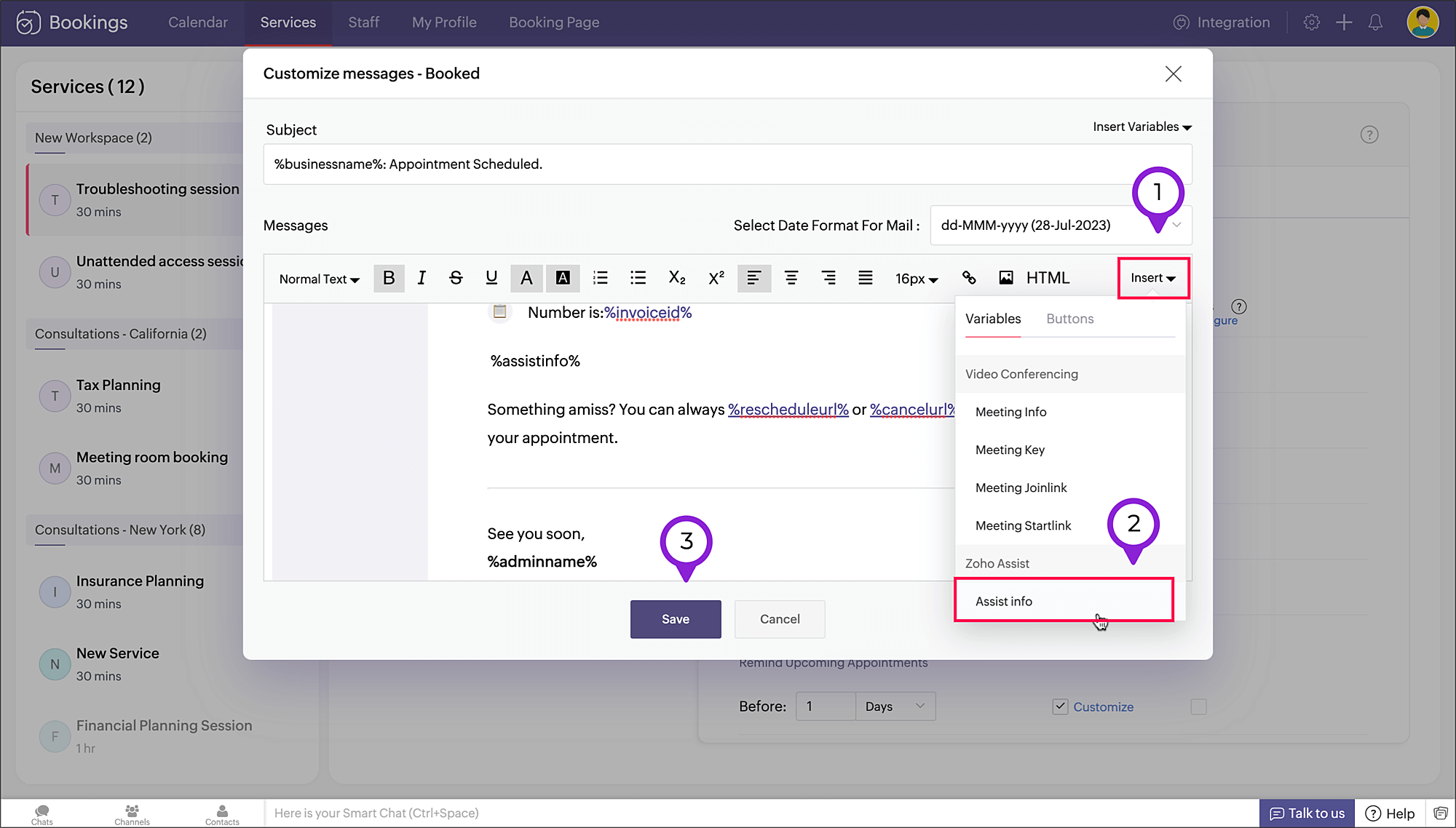
- The session links are sent along with the email notifications to the staff and customer (if Assist info variable is added in the notification).
We hope you find this tip useful. Do share your feedback in the comments section or write to us at support@zohobookings.com.
Have a great day!
Related Articles
Zoho Assist Integration