Weekly Tips : Save Time with Saved Search
Let's assume your work requires you to regularly check emails from important clients that have attachments and were sent within a specific time period. Instead of entering the same conditions every time—like sender, date range, and attachments included—you want a quick way to access this exact group of emails immediately when you log in. This helps you save time and ensures you never miss urgent messages or important documents.
Use the Saved Search feature in Zoho Mail to avoid the extra hassle of entering email search filters every time you want to view a specific set of emails.
Saved Search
Zoho Mail provides you with an option to save such 'Searches' for future use using the Saved Search feature. You can name the Search, and such saved searches are listed as a separate section. This feature is particularly useful in cases where you want emails with specific search criteria to be available for accessing easily without undergoing the same set of searches.
How to Save a Search
- Log into your Zoho Mail account.
- Type in the keywords relating to your search in the search box.
- After setting your search conditions, the relevant emails get listed on your screen.
- Click the Save this Search option on the top of the screen.
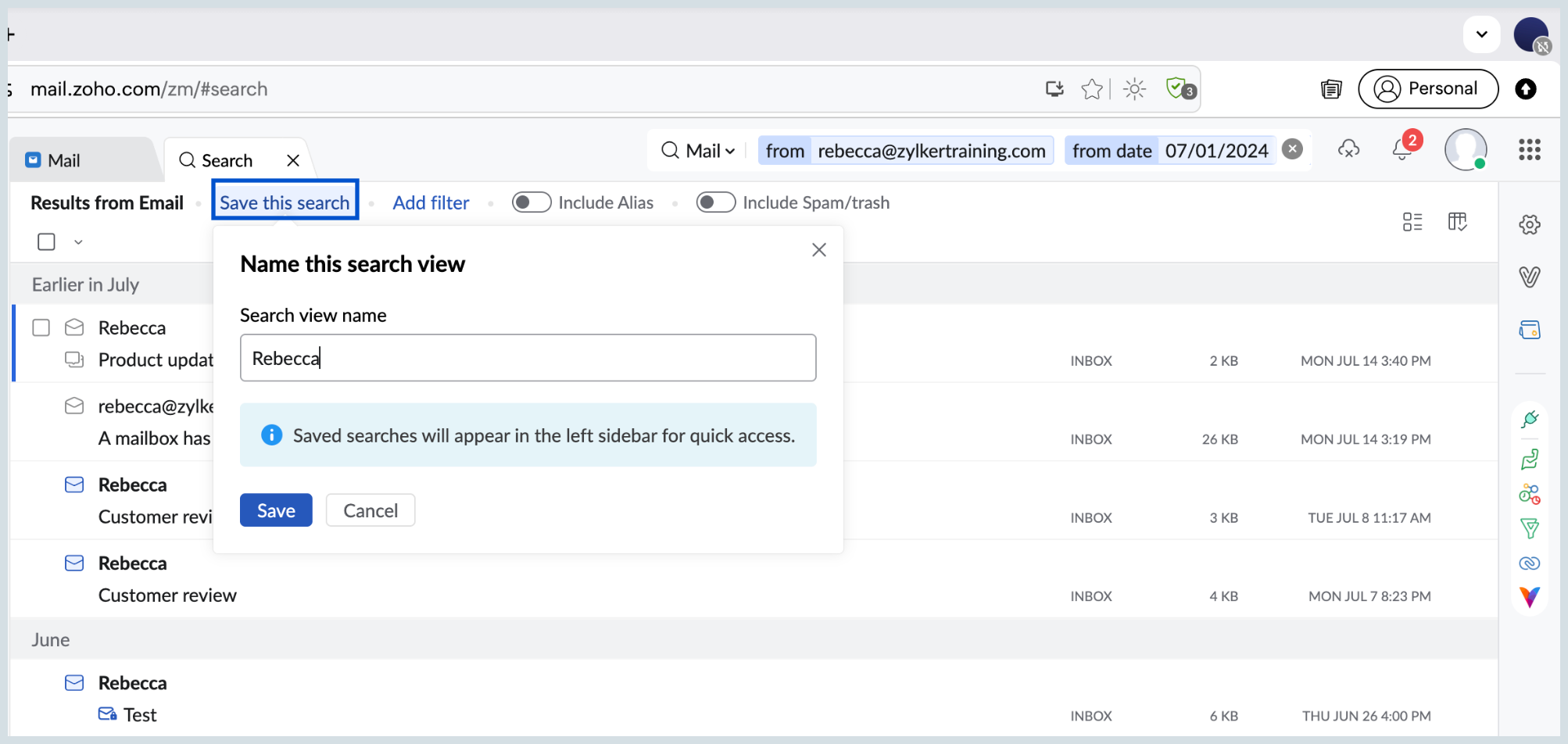
- Enter the Search View name and click Save.
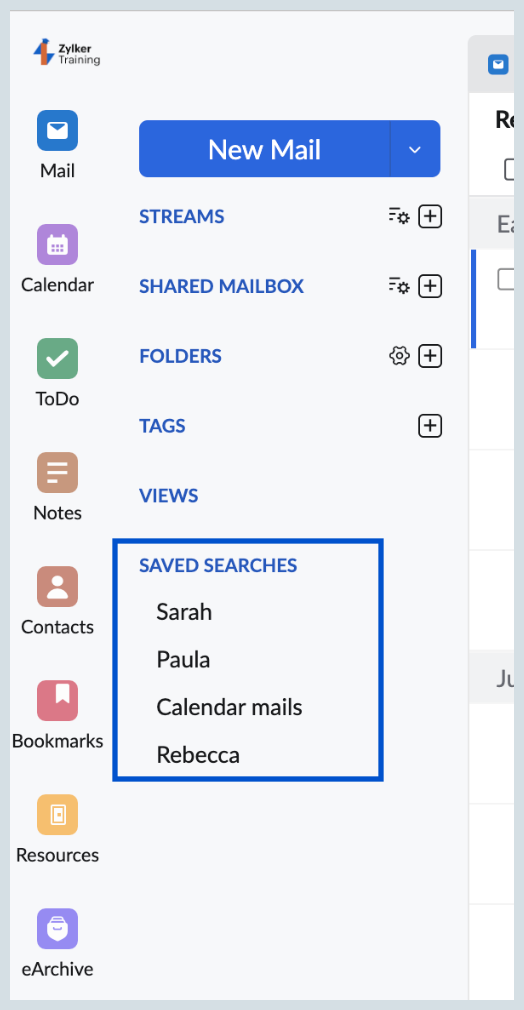
Once you have saved the search, you can easily access those saved searches in the 'Saved Searches' section in the left pane. Every time you select the Search Condition, a new search is performed, and the results would include the newer emails also.