What's New in Zoho Invoice | January - March 2025
Hello everyone!
We're excited to meet you with the latest set of feature updates and enhancements made to Zoho Invoice from January to March 2025.
In this, you will learn more about the following features:
Leave Organization
We've introduced the option to leave an organization from the Manage Organizations page. If you're an admin and have enabled any integrations in the organization, you'll need to disable them before leaving. However, if you're the admin who created the organization or the only admin, you will need to delete the organization.

Pin Columns in List Pages
You can now pin up to 2 columns to the left of a module's list page if you have more than 8 columns in the list page. The pinned columns stay fixed while scrolling horizontally through the table, making it easier to compare values with other columns while keeping the important columns in sight.
Here's how to pin columns in a list page:
- Go to any module from the left sidebar.
- Click the Toggle icon below the Filters dropdown.
- Select Customize Columns and pin the columns you want.
- Click Save.

Multi-Factor Authentication (MFA) in the Customer Portal
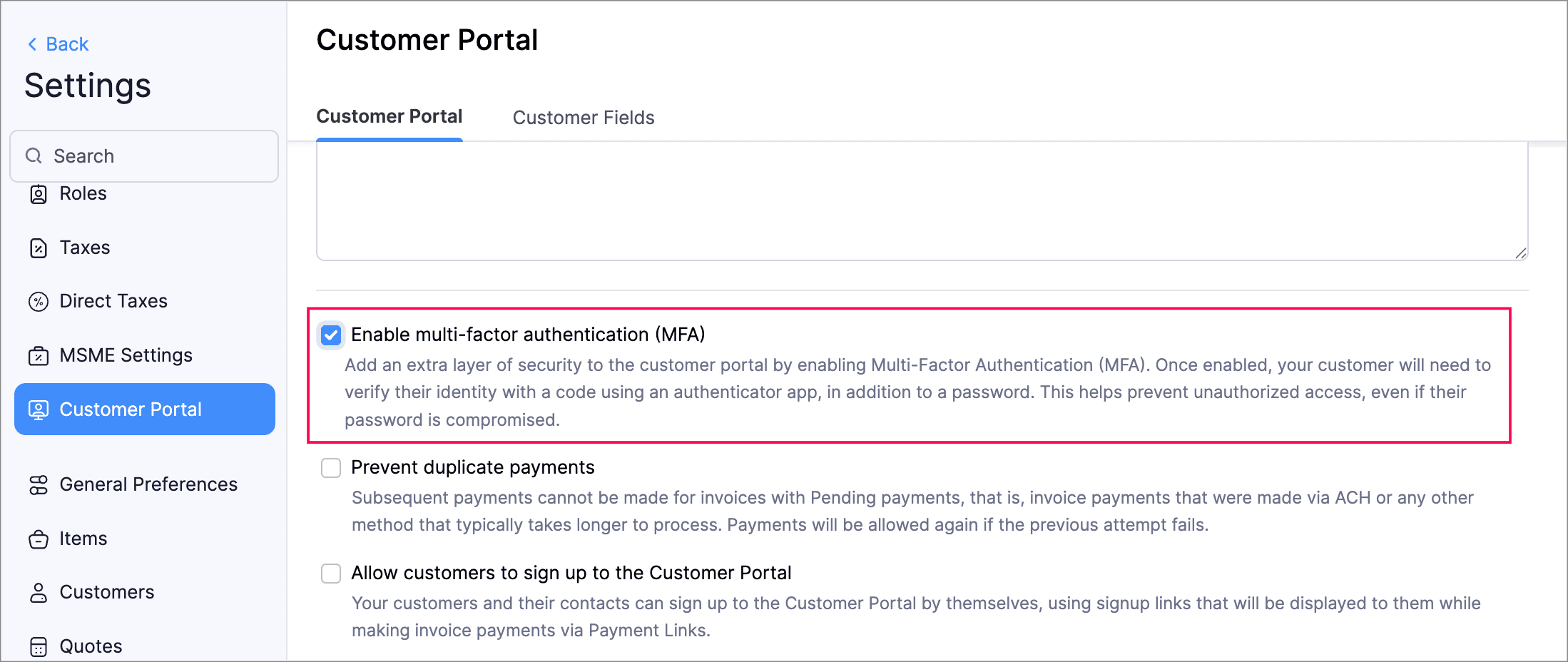
We’ve enhanced security of your customers' accounts with Multi-Factor Authentication (MFA) in the Customer Portal. MFA adds an extra layer of protection by requiring a Time-Based One-Time Password (TOTP) in addition to the login credentials Admins can enable MFA in the Customer Portal settings, making it mandatory for customers to configure it via an authenticator app. After setup, your customers must enter a TOTP code to log in. Admins can reset MFA if needed.

Your customers who have set up MFA must still enter the TOTP for logging into the Customer Portal, even if the MFA is disabled by the admins of your organization. If your customers lose access to their authenticator app, they should contact admins of your organization for resetting MFA.
Here's how to enable multi-factor authentication for your customer:
- Go to Settings > Customer Portal.
- Mark Enable multi-factor authentication (MFA).
- Click Save.
Income TCS Settings under Direct Taxes
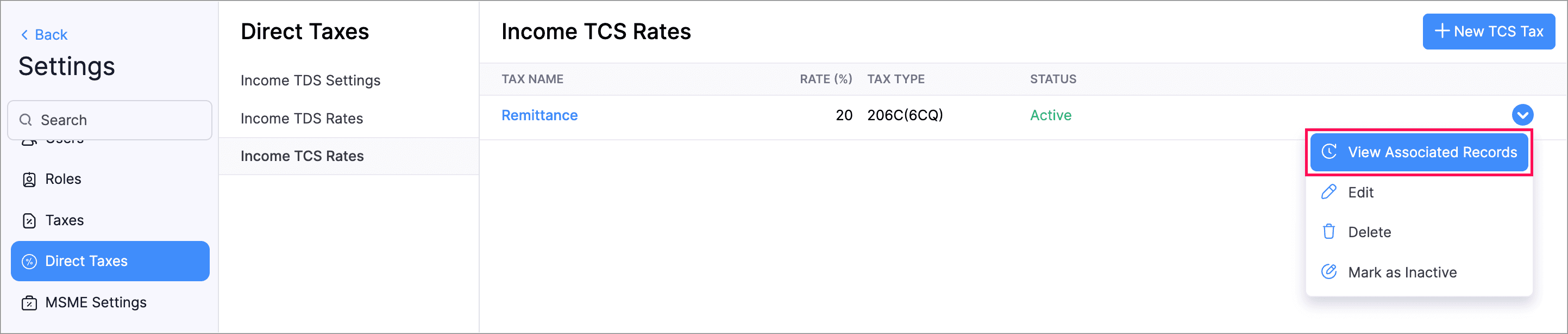
Zoho Invoice now allows you to create, edit, and view TCS rates in Direct taxes under Settings. Additionally, you can also view the number of associated transactions in View Associated Entities by clicking the dropdown next to the Income TCS rate.
Here's how to manage your income TCS rates:
- Go to Settings > Direct Taxes > Income TCS Settings.
- Make the required changes.
Page Number Customization
We've introduced new options to customize page numbers in your PDFs. Previously, you could only enable or disable them, but now you can choose from three formats: Numeric, Fraction (Page X / Y), or Page X of Y.
Additionally if you need a custom format, you can select Custom and use placeholders like ${CurrentPageNumber} and ${TotalPages}. You can also adjust the position of the page numbers to the Right, Left, or Center.
Here's how to customize the page numbers:
- Go to Settings > PDF Templates.
- Create a new template or edit an existing one.
- Select Footer under the Header & Footer section.
- Select the required option in the dropdown next to Page Number Format and Page Number Position.
- Click Save.

Organization Logo in Reports
We've added support for including your organization's logo in PDF exports and prints. You can add the logo in two ways: display it in the header section of the PDF or use the Watermark option to apply it to every page. Additionally, you can customize the watermark by adjusting its position, intensity, and size to match your preferences.
Here's how you can add your organization's logo to reports:
- Go to Reports and select the report which you want to export.
- Click Export > PDF.
- Click the dropdown Customize the details in the export file.
- Mark Logo Watermark or Organization Logo.
- Make the necessary changes and click Export.

Other Feature Enhancements
- You can now mark the default filters of modules as your favourites. This allows you to quickly access the relevant filters without having to search them every time. These changes will only be visible to you and will not affect other users in the organization.
- You can now add a name for your exported file when exporting a report. Additionally, you can also choose to display column headers in each page of the PDF and display report data in separate pages based on the Group By field.
We regularly update our mobile and windows apps, so visit the App Store, Google Play, or Microsoft Store to ensure you're using the latest version.
That's all for our latest product updates! We hope the latest enhancements are beneficial for your business. You can also visit the What's New timeline for byte-sized information about all our feature updates and enhancements.
We'd love to know what you think of the latest features! Let us know in the comments below. If you require any assistance or need clarifications, feel free to write to us at support@zohoinvoice.com, we'd be happy to help!
Best regards,
The Zoho Invoice Team