{Action Required} Re-authenticate your Google Accounts to Continue Data Sync
Hello Users!
To align with Google’s latest updates on how apps access files in Google Drive, we’ve enhanced our integration to comply with the updated security and privacy standards, ensuring safer and more reliable access to your data.
With this update, Zoho Analytics will only access files that you explicitly select, giving you greater control and transparency over your data.
This update has been rolled out across all data centers, including US, IN, EU, JP, AU, UAE, SA, and CA. Please follow the steps mentioned below to authenticate your Google account.
Required Action - Re-authentication
To ensure uninterrupted data sync, please re-authenticate each of your connected Google accounts. The last date for re-authentication is April 30, 2026.
What happens if you don’t re-authenticate
- Please note that any action such as modifying the sync schedule or immediate sync can only be done after re-authentication.
- After April 30, 2026, all scheduled syncs will fail, and you will need to sync data for all tables manually.
Steps to Re-authenticate your Google Account
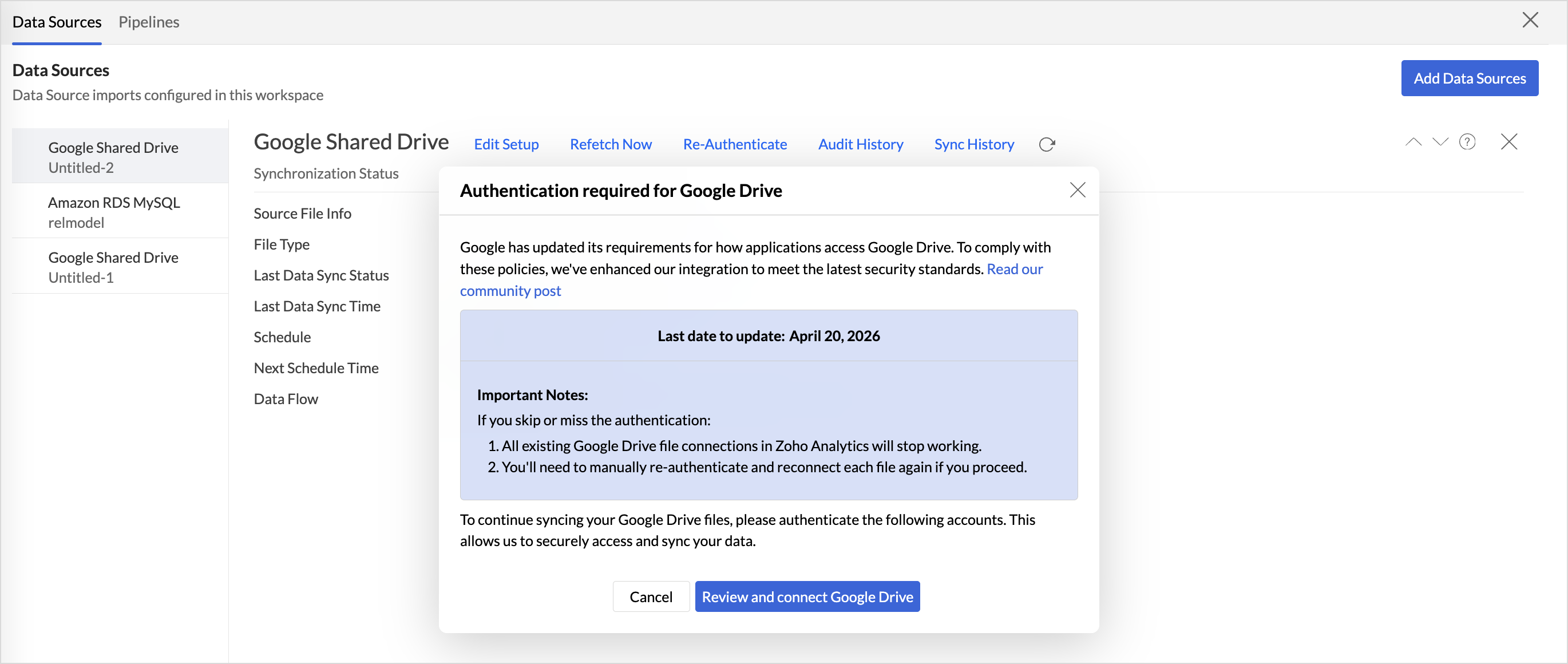
- Access the Data Sources tab and click Refetch now
- In the Authentication Required for Google Drive dialog, click Review and Connect Google Drive.
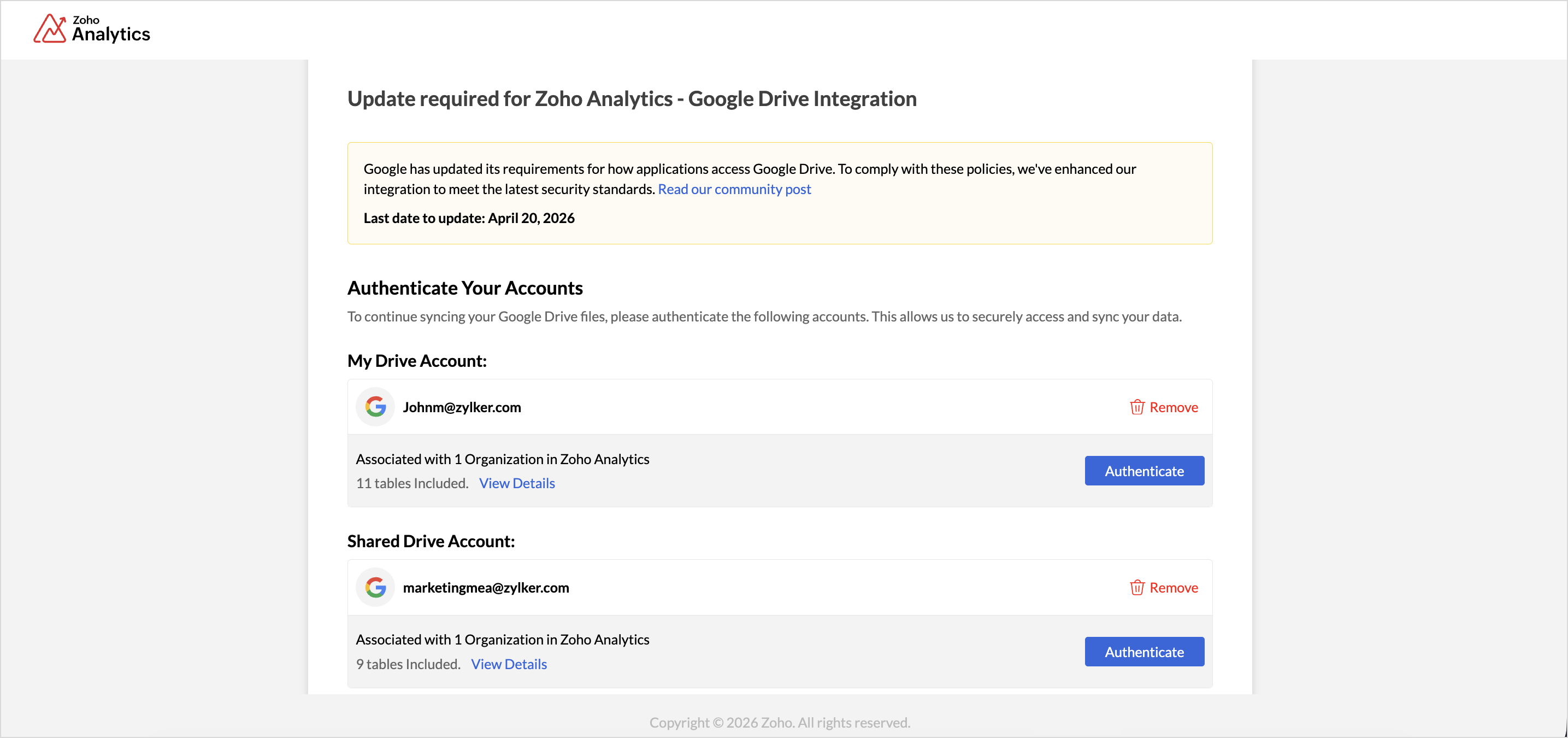
- All integrated Google accounts will be listed. Authenticate each account, or remove accounts that are no longer required.
- Once all accounts are authenticated, the Grant Access to Files button will be enabled. Click it to proceed with selecting the files.
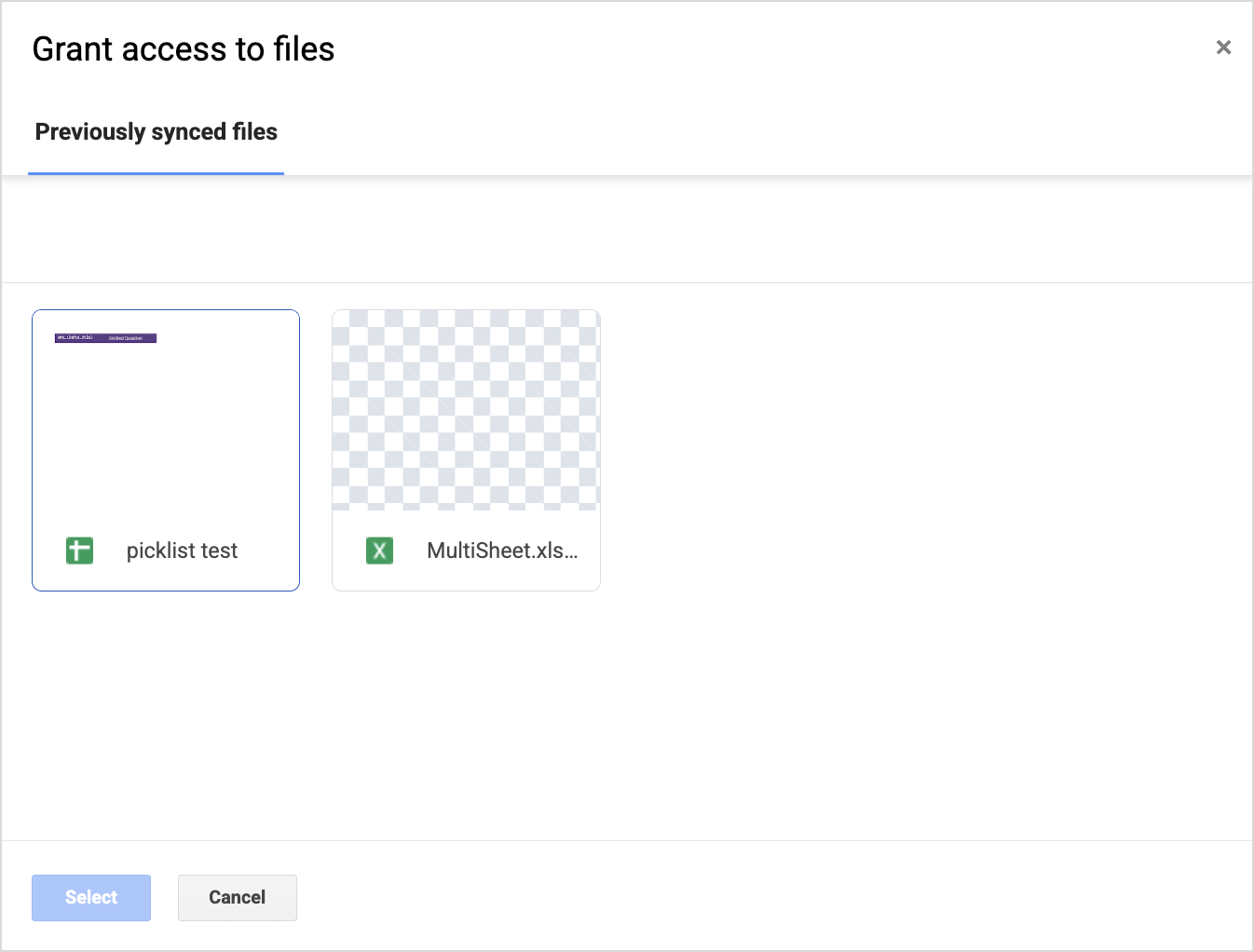
- The File Access Required dialog will appear. Click Grant Access to select the files or tables for each authenticated accounts.

- All previously synced files will be listed. Select the ones you want to continue syncing.
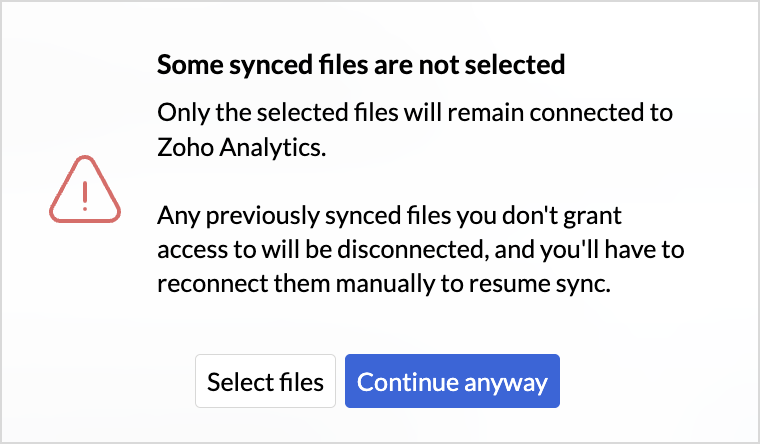
- If any previously synced files are not selected, an alert message will appear prompting you to review your selection. Click Continue to complete the process.
- An Authentication Complete dialog will appear. Click Go to Zoho Analytics to continue analyzing your data.

Thank you for your cooperation as we continue to improve security and data protection.If you have any questions, please contact our support team at [support@zohoanalytics.com]