Visualize your data with a new set of charts: Treemap, Butterfly, Sankey, and Cluster charts in Zoho CRM
Dear customers,
When it comes to analytics, it's not just about the numbers; it's about understanding the story behind them.
With that philosophy in mind, we’re excited to introduce a line of representations to the existing array of chart types in Zoho CRM: Treemap, butterfly, sankey and cluster charts. Let's go!
Treemaps
Treemap charts are used to visually represent hierarchical datasets in a rectangular layout. It aligns its parent categories as larger tiles with their sub-categories nested within them. The size of each tile is proportional to its corresponding value, making it easy to compare different segments within the hierarchy.
This is how a treemap chart looks:

These structured data representations help you understand overall performance and contributions, as well as compare participating entities at a glance.
Unlike traditional bar charts or pie charts, treemaps can be used if your datasets are large and exhibit parent-child relationships.
Here are some examples to better understand their usage:
Comparing revenue distribution between functions
A company's revenue is distributed among its functions before it gets further disbursed to its employees. Treemap charts can be used to depict this distribution and compare it between functions. As you can see below, the hierarchy can be represented as a treemap to compare it directly with other functions:

The hierarchy at the top shows just the numbers and levels, but the treemap chart represents the numbers proportionally, allowing leaders to visualize the difference in distribution.
Interpretation: As you can easily see in the treemap, sales and marketing receive the same amount of revenue, while engineering is given significantly more than the other two.
Likewise, with treemap charts, you can:
- Compare popular lead sources with lead counts is the measure and lead source being the participating entity—a classic single-grouping configuration.
- View cost savings achieved across departments. With the departments as the grouping parameters and the cost saved as the measured amount, the chart lays out all the departments as tiles in proportion, based on money saved.
- Compare ad spends across channels, where channels are the parent grouping and ad spend is the measured unit.
Butterfly
Butterfly charts are used to compare two related datasets side-by-side, resulting in a representation that looks like a butterfly or tornado.
Now, how does it differ from bar charts?
The standard bar chart can compare two entities for a given measure. Say, you are comparing the performance of Mary and Charles. The two users' data is represented using bars, and the length will denote their performances. But, when it comes to comparing their performances over a period or their contribution across different stages, a bar chart is not sufficient.


With butterfly charts, you can:
- Compare revenue between two of your branches each month. With branches being compared for sum of sales revenue, grouped by closing date.
- Compare the performance of two reps in a given quarter. Compared between two users for average of amount of deals, grouped by closing date until today.
In addition to the user-based comparison above, butterfly charts are well-suited to visualizing other types of data comparisons, like:
- Picklist-based comparisons
- Duration-based comparisons
- Aggregate-based comparisons
Business scenario
Comparing the number of deals closed for each lead sources: Duration-based comparison
You can identify the productive lead source by comparing the number of deal closures for every lead source in your organization based on their closing week.

Analyzing effective sales methodology, inbound vs. outbound: Picklist-based comparison
Businesses use both inbound and outbound lead generation strategies, and each of these methods can reap different results based on the season and occasion. By comparing inbound versus outbound each month, you can identify which works best at what time.

Analyze the amount versus the expected revenue between accounts: Aggregate-based comparison
Expected revenue is a result of a deal's progression in the sales pipeline. Comparing the amount versus their expected revenue will not only help visualize the expected revenue of participating accounts but also indicate the accounts' stage in the sales pipeline.

Sankey
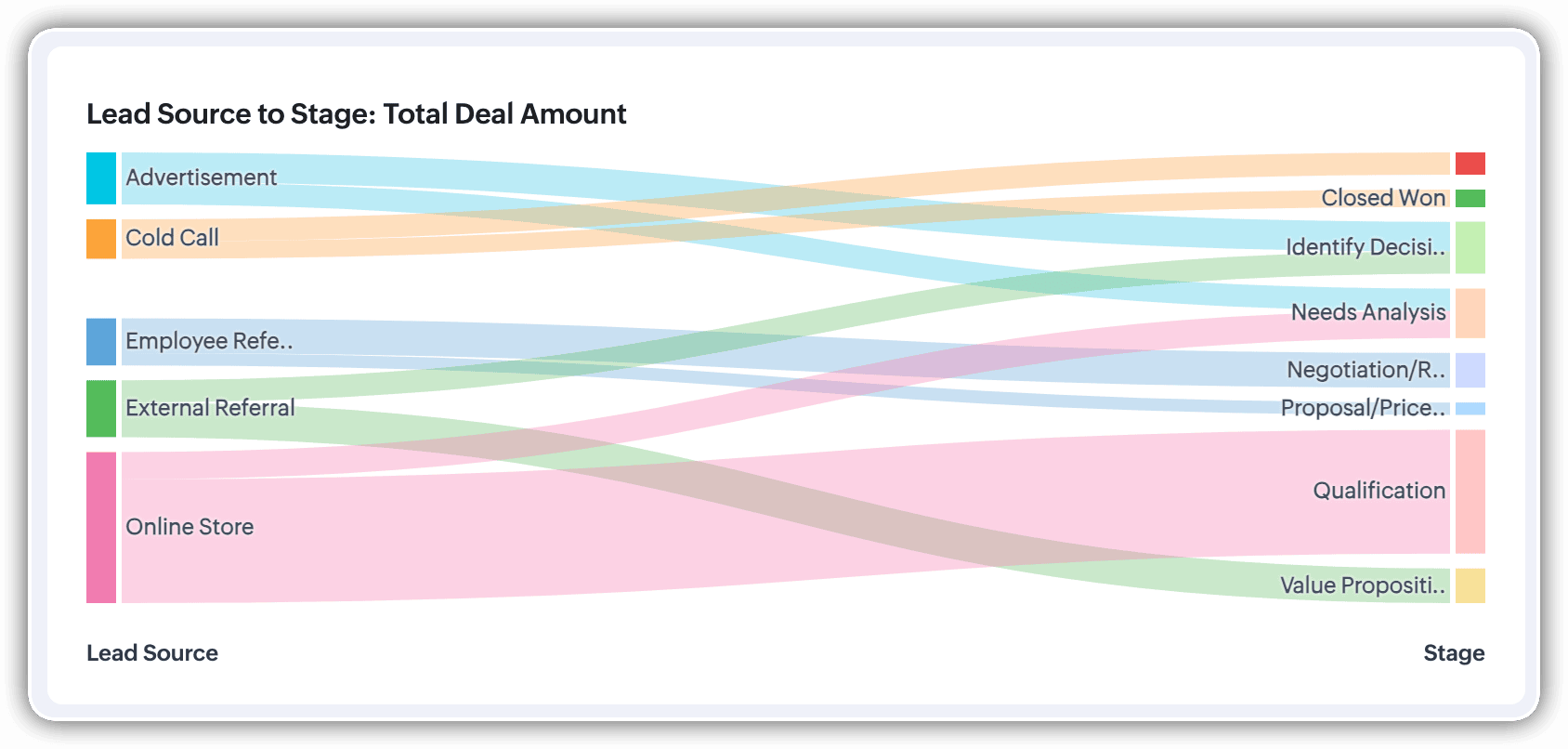
A Sankey Chart is designed to visualize the movement of data across different data groups. Unlike traditional charts—such as bar, column, pie, or donut—that mainly provide a static distribution of values, the Sankey Chart focuses on illustrating the flow between multiple segments or grouping fields. This makes it an ideal choice when you want to track how values (like lead counts, revenue, or deal statuses) move from one category to the next.

Key features
- Flow visualization: With the Sankey Chart, you can observe the movement of data between different groups.
- Multiple grouping fields: This chart works best when you have at least two grouping fields. You can go even further and add a third grouping to see an even more detailed mapping of your data flow.
- Simple configuration: The configuration for the Sankey Chart is as simple as any other chart type in Analytics.
Business scenarios:
Imagine you’re a sales manager trying to get a better handle on your team’s performance and your company’s pipeline. You want to understand not just how many deals are coming in, but also which sources are contributing the most value—and how those deals are progressing through different sales stages.
Let’s say you want to understand which lead sources are driving the most deal activity and how those deals progress through the pipeline. You can create a Sankey chart that maps the count of deals from Lead Source to Stage.

After analyzing the chart, you might notice that Online Store brings in a high volume of early-stage deals, while sources like External Referral contribute fewer deals that are more likely to reach advanced stages like Proposal or Negotiation.
This insight helps you prioritize nurturing the most profitable channels.
Sankey charts can also be helpful in other operational scenarios where understanding transitions across stages or teams is essential:
- Regional revenue distribution: Visualize how revenue flows across different regions, product categories, and their corresponding annual revenue. This helps you compare which regions contribute the most to each product line and where your high-value segments lie.
- Ticket handling flow: Visualize the flow of support tickets from their origin channel to internal departments and finally to resolution statuses. This can reveal workload imbalances or common points of delay in your support process.
Cluster
A cluster chart is similar to stacked column charts, but instead of stacking horizontally, the data is represented as vertical bars. As you create a column chart with multiple groupings, you can change the type of column chart to a cluster chart to achieve this representation.

In the above image, you can see the stacked column chart compares the number of lead conversions based on popular sources between countries. The stacks appearing on top of existing stacks ask you to calibrate the record count (y-axis) based on the previous stacks, which can lead to inaccurate interpretations. In this case, a cluster representation will paint a clearer picture of the analyses.
Other minor enhancements:
In addition to the three charts we mentioned above, we've also made the following minor changes:
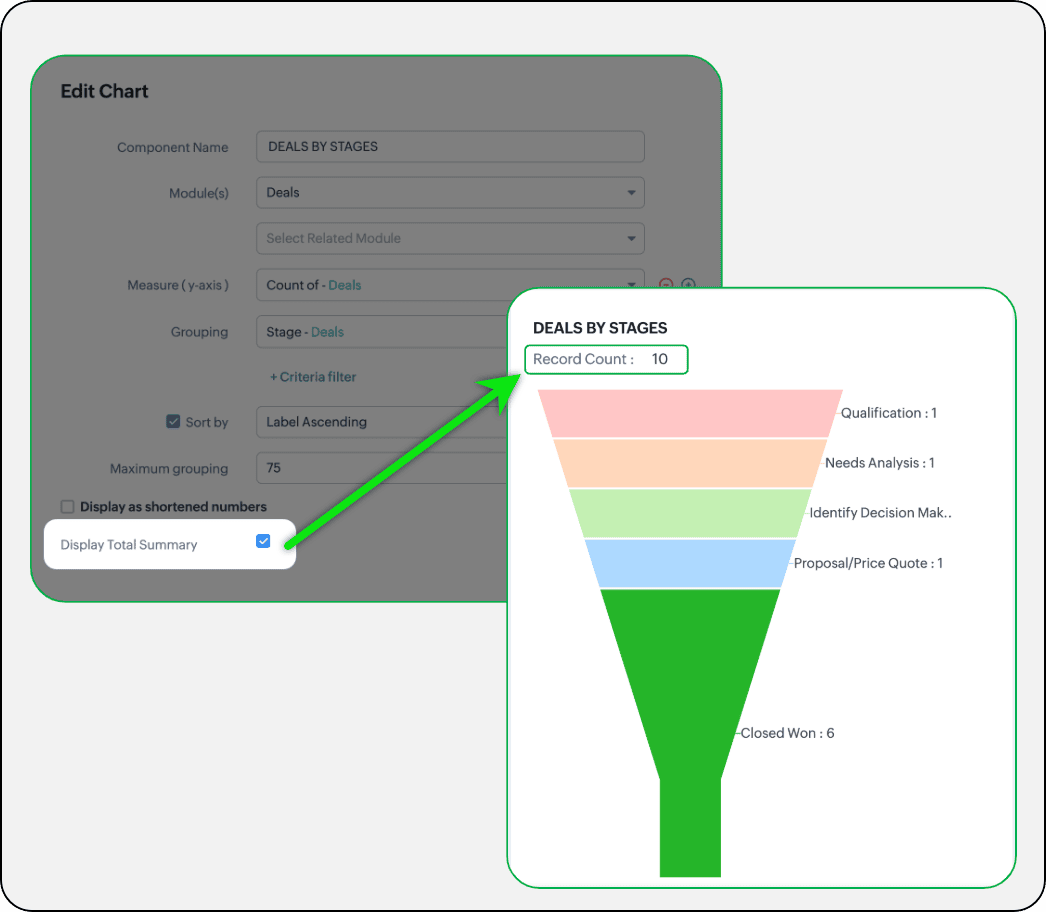
- Display total summary: Thus far, for all charts, each participating measure included labels. Now, to better understand overall contributions, a check box to display the total summary is provided under More options on the Chart Configuration page. Based on the configuration, the total revenue or the rolled-up quantities will be prominently displayed.
- Merge Y-axis: For charts that use two y-axis measurements, the intention is to view the progression of one entity against these two measures. Despite the scale, if the y-axis on the left is disproportionate to the values of the y-axis on the right, the plotted graph will result in a graphically and logically incorrect representation.
As you can see in the image below, the plot area of the sum of amount bar and the sum of expected revenue aligns close together, while, the difference between $700,000 and $40,500 is drastic, creating inaccurate interpretations.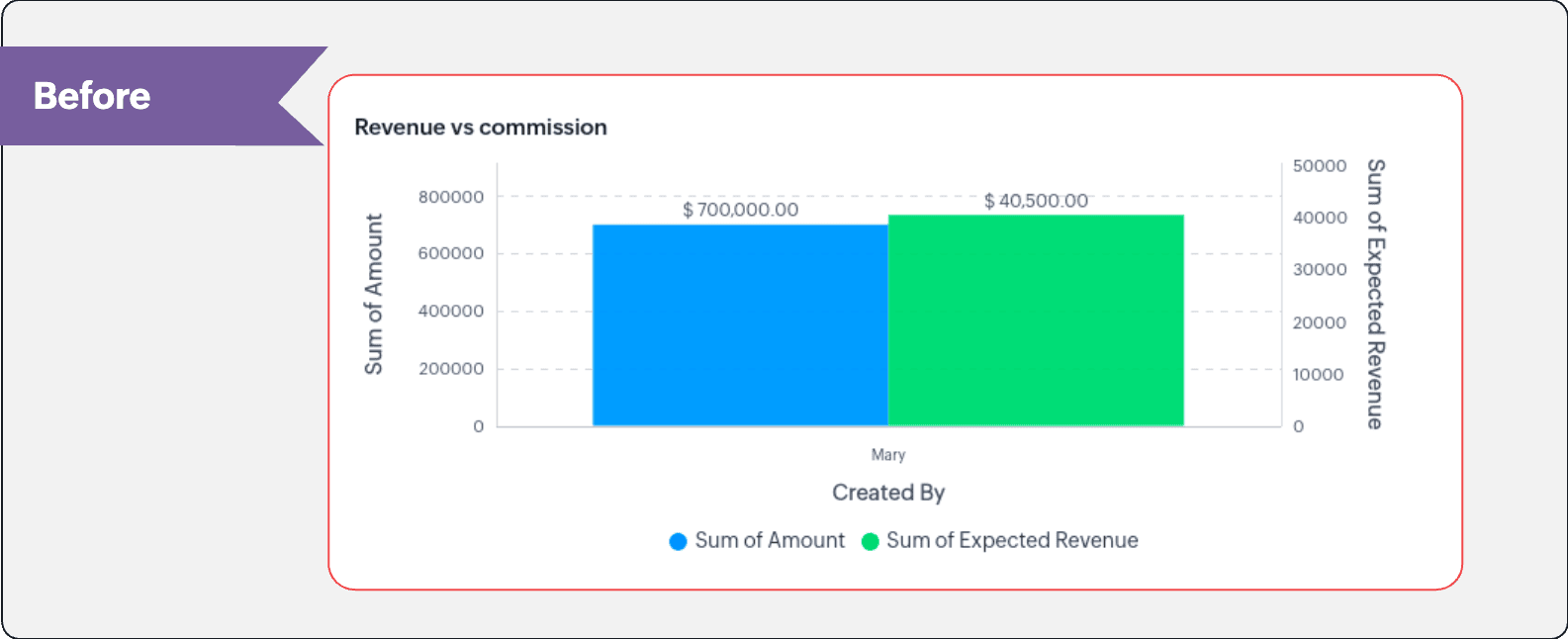
In this enhancement, we're allowing neighboring values of measures to merge so that the interpretation can be more visually accurate.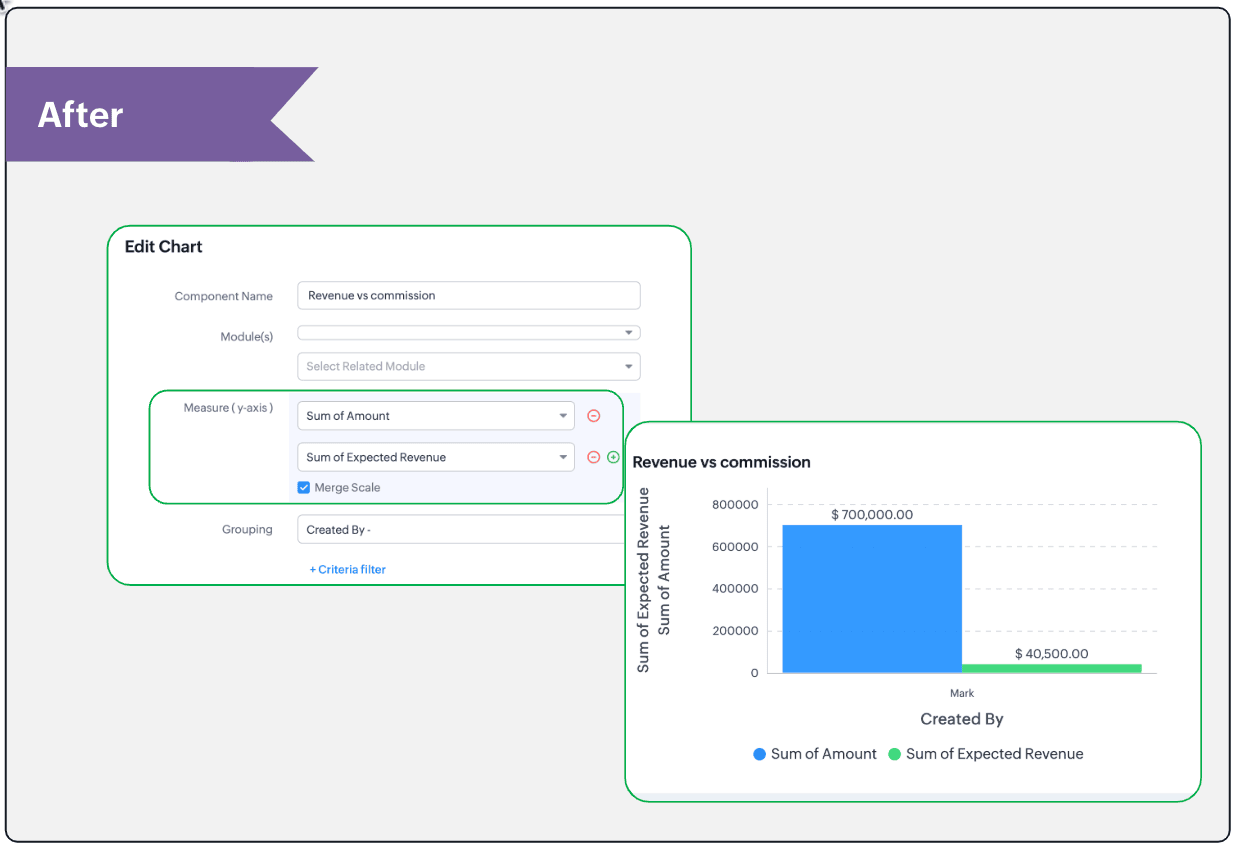
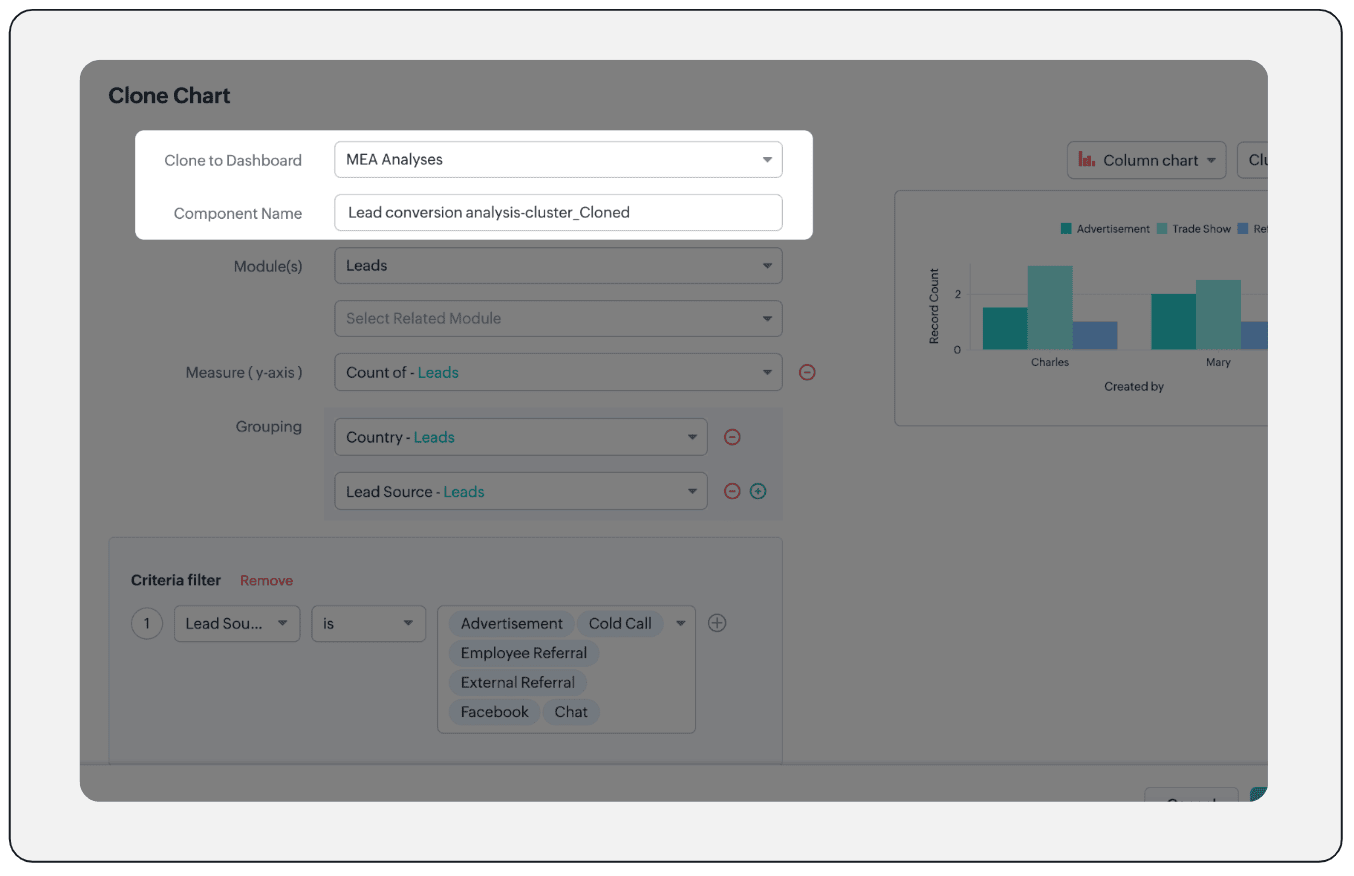
- Clone components to a different dashboard: Dashboards in Analytics serve in unique ways for various audiences—there can be separate dashboards for the sales team, marketing team, engineering team, and so on, and the chances of using the same measure for reference is common. Thus, when you clone a chart, you can now determine the target dashboard in which the cloned chart can be placed.
Resource: Help document
Thanks and have a good one!
Kind regards,
Saranya Balasubramanian
Saranya Balasubramanian
Topic Participants
Saranya Balasubramanian
Sticky Posts
Zoho CRM's sales trend and sales follow-up trend dashboards are now customizable
Dear Customers, We're here with good news! Sales trend and sales follow-up trend are two system-defined dashboards that help you understand trends and anomalies in your sales outreach and conversion efforts. They use Zia's intelligence to identify patternsIntroducing Multiple Sandbox Types and Support for Module's Data Population
Register here for the upcoming Focus Group webinar on Multiple Sandbox | Help documentation to learn more about the new enhancements Hello everyone, Sandbox in CRM is a testing environment for users to create and test new configurations like workflowGood news! Calendar in Zoho CRM gets a face lift
Dear Customers, We are delighted to unveil the revamped calendar UI in Zoho CRM. With a complete visual overhaul aligned with CRM for Everyone, the calendar now offers a more intuitive and flexible scheduling experience. What’s new? Distinguish activitiesVoC in Zoho CRM is now data savvy: Explore response drilldown, summary components and participation in CRM criteria
VoC has all the goods when it comes to customer intelligence—which is why we're constantly enhancing it. We recently added the following: A customer drilldown component that shows you the list of prospects and customers behind a chart's attribute ExpandedWrapping up 2025 on a high note: CRM Release Highlights of the year
Dear Customers, 2025 was an eventful year for us at Zoho CRM. We’ve had releases of all sizes and impact, and we are excited to look back, break it down, and rediscover them with you! Before we rewind—we’d like to take a minute and sincerely thank you
Recent Topics
Inquiry regarding auto-save behavior for Zoho Sign Embedded Sending
Dear Zoho Support Team, I am currently integrating Zoho Sign's Embedded Sending functionality using iframes on my website. I would like to know if there is a way to ensure that the document state (including any added fields) is automatically saved asIntroducing Connected Records to bring business context to every aspect of your work in Zoho CRM for Everyone
Hello Everyone, We are excited to unveil phase one of a powerful enhancement to CRM for Everyone - Connected Records, available only in CRM's Nextgen UI. With CRM for Everyone, businesses can onboard all customer-facing teams onto the CRM platform toAutomation#17: Auto-Create Tasks in Zoho Projects Upon Ticket Creation in Zoho Desk
Hello Everyone, This edition delivers the solution to automatically create a task in Zoho Projects when a ticket is created in Zoho Desk. Zylker Resorts uses Zoho Desk for bookings and handling guest requests. Zylker resorts outsources cab bookings toAutomation#20 : Auto-Add Ticket Tags based on Keywords
Hello Everyone! Welcome to unveiling custom functions on our Community series. This week's post lets you add tags to your tickets automatically based on the keywords in the ticket subject and the ticket thread. Discover how this custom function helpsAutomation#21: Track Ticket Transfers Across Departments
Hello Everyone! With Halloween just around the corner, we'd like to let you know the Zoho Desk team is always there to sweep away your customer service troubles! This week, we’re excited to introduce a custom function that tracks tickets moved betweenEmail Integration - Zoho CRM - OAuth and IMAP
Hello, We are attempting to integrate our Microsoft 365 email with Zoho CRM. We are using the documentation at Email Configuration for IMAP and POP3 (zoho.com) We use Microsoft 365 and per their recommendations (and requirements) for secure email we haveHomepage not assignable to group
MS Teams for daily call operations
Hello all, Our most anticipated and crucial update is finally here! Organizations using Microsoft Teams phone system can now integrate it effectively with Zoho CRM for tasks like dialling numbers and logging calls. We are enhancing our MS Teams functionalityAutomation#22 Track Ticket Duration at Specific Status
Hello Everyone! Welcome back to the Community Learning Series! Today, we explore how Zylker Techfix, a gadget servicing firm, boosted productivity by tracking the time spent at a particular ticket status in Zoho Desk. Zylker Techfix customized Zoho Desk’sAutomation#23: Automate Guided Conversations in Zoho Desk with Business Hours
Hello Everyone, This week's edition introduces a custom function designed to automate Guided Conversations in Zoho Desk, based on your business hours. With this feature, you can align the bot's behavior with your business schedule, ensuring a smooth andAddress changes in quote form
When entering a quote, the first piece of information required is the Account, which properly populates the billing and shipping address fields. Then I use the lookup function to select a contact, and when I do, the billing and shipping addresses areAutomation#24: Auto-Update custom field from Accounts to Tickets
Hello Everyone! Welcome back to the Community Learning Series! This episode dives into how Zylker Techfix streamlines account-related ticket references. Previously, employees had to manually check account details to retrieve specific customer information,Kaizen #227 : Client Script Support for List Page (Canvas)
Hello everyone! Welcome to another week of Kaizen. In today's post lets see how Client Script can be used in Canvas List Page to mask sensitive information from specific roles and add colors to Canvas List Page records based on custom criteria.This useAutomation#25: Move Tickets to Unassigned When the Owner Is Offline
Hello Everyone, Welcome to this week's Community Series! 'Tis the holiday season—a time when work often takes a brief pause. The holiday spirit is in full swing at Zylker Techfix too, with employees taking some well-deserved time off. During this period,Automation#27: Retain Ticket Owner on Moved Tickets
Hello Everyone! This week, we present to you a custom function that retains the ticket owner when a ticket is moved from one department to another. Here’s more to help you understand the custom function: At Zylker Techfix, Alex, the Support Engineer managesAutomation#28 Notify Agents on Article Expiry
Hello Everyone! This week, we’re bringing you a feature that notifies your team when articles in the Knowledge Base are set to expire to keep your content relevant and helpful for customers. The Zoho Desk's Knowledge Base is an asset for customers toAutomation#29 Retain ticket status on moved tickets
Hello Everyone, Hear out Zylker Techfix’s Success Story on Smoother Ticket Transitions! Zylker Techfix, a gadget servicing firm committed to quick repairs and timely deliveries, faced a challenge when ticket statuses changed automatically while movingAutomation#32:Auto Add New Portal Users to the Help Center User Groups
Hello Everyone, Introducing a custom function that automates the process of adding new portal users to Help Center user groups, making user management effortless! By default, Zoho Desk allows you to assign new portal users to groups manually. But withAutomation#34 : Automate Email threading for Ticket notification
Hello Everyone, It's been a while since we've presented an automation. However, our community has been buzzing with ideas, use cases, and discussions with our community experts and Ask the Experts session. So, here we are again, presenting an automationAutomation#35 : Auto-Add Comments under the Owner's Name in Tickets via Macros
Hello Everyone, This week's custom function provides simple steps to configure a Macro for adding comments to tickets with the name of the Comment owner. When managing tickets, you can use the Comment feature to communicate internally with your team andAutomation#36: Auto-create time-entry after performing the Blueprint transition
Hello Everyone, This week’s edition focuses on configuring a custom function within Zoho Desk to streamline time tracking within the Blueprint. In this case, we create a custom field, and request the agent to enter the spending time within the singleAutomation#33: Automate Splitting Names for Existing Contact Records
An organized directory – who doesn't love one? Previously, we explored how to split contact names into First Name and Last Name for new contacts in Zoho Desk. But what about existing contacts already in your database? This week, we bring you a customWorkqueue
I really like the idea of the Workqueue generally - it will be really useful. What it seems to lack however, is the ability to customise it properly. I want to be able to show a custom view rather than just "My Leads" and "Leads Assigned in Last 3 hours".Webform & spam
Hi, We set up 2 webform on our website, fowarding the content to Zoho CRM. Since it has been opened up, we are getting lot of spam message (for now about 20 a day). To lower the amount of false new leads we added the captcha field and new enquieries areZoho CRM Web form page URL
Hi there, I am getting quite a bit of spam through my Zoho CRM Web form and want to restrict the URLs it is submittable from. I can see that I can add Location URLs but I need to be able to just add a domain so can I enter mydomain.com/* to cover allReceiving too many Spam Leads. Why?
I am receiving so many junk leads from web forms created by zoho's platform. The junk queries are increasing day by day and are affecting our business. I am continuously following up with zoho team from the past one year but not getting any satisfactoryMail Merge is not working properly as far as the AUTOMATE section is concerned
Hi there, I created a Mail Merge template for the Deal module. I would like Deal owners to mail merge their Deal records, download the Mail Merge document as a Word doc and make a few changes before sending it to the customer. Thing is, neither the "MergeCanvas Detail View Related List Sorting
Hello, I am having an issue finding a way to sort a related list within a canvas detail view. I have sorted the related list on the page layout associated with the canvas view, but that does not transfer to the canvas view. What am I missing?project name field issue- n8n
Hey guys, I have a question. I want to create a new product using the workflow. The problem is with the product name field; I don't know how to fill it in. The workflow starts with retrieving information from the leads table, retrieving links to scrapeCritical:- Eneble TDS filing for 26Q from the zoho book
We currently extract TDS data from Zoho Books and manually input it into a separate TDS software to generate the FUV file and file returns. Previously, while using Tally, we benefited from an integrated feature that seamlessly recorded transactions andHow to track repeat customers?
I own a food business and every order is entered into Zoho with: a unique Customer ID total order amount date of order With this information, I want to be able to see a list of my "best" customers. In other words, descending lists arranged according to:Zoho Books - Breaking A Working App
We've been using Zoho for many years now. Across all apps, entering phone numbers in standard formats was enabled in all apps. These formats are: xxx.yyy.zzzz xxx-yyy-zzzz (xxx) yyy-zzzz and we were able also to add extension numbers in these formats:Build data protection into your support
At Zoho, privacy is our principle. Every Zoho product is built with privacy as the foundation and the finishing touch, guiding every decision we make. Security, privacy, and compliance are woven into the software development lifecycle, starting from howConditional formatting: before/after "today" not available
When setting conditional formatting, it only allows me to set a specific calendar date when choosing "Before" or "After" conditions. Typing "today" returns the error "Value must be of type date". Is there a workaround? Thanks for any help!Display Client Name in Zoho Creator Client Portal Dashboard
Hello Zoho Creator Team, We hope you are doing well. Zoho Creator recently introduced the option to set a client’s display name in the Client Portal settings, which is very helpful for providing a personalized portal experience. However, there is currentlyCustomizable UI components in pages | Theme builder
Anyone know when these roadmap items are scheduled for release? They were originally scheduled for Q4 2025. https://www.zoho.com/creator/product-roadmap.htmlAmazon.in FBA multiple warehouse integration with Zoho Inventory
My organisation subscribed to Zoho One looking at the opportunity to integrate Amazon.in with Inventory. But during the configuration, we understood the integration has severe limitations when it involves multiple warehouses in the same Organisation.Feature Request - Set Default Values for Meetings
Hi Zoho CRM Team, It would be very useful if we could set default values for meeting parameters. For example, if you always wanted Reminder 1 Day before. Currently you need to remember to choose it for every meeting. Also being able to use merge tagsAbility for admin to access or make changes in zoho form without asking for ownership
Currently in zoho form only form owner can make the changes in the form and if someone else has to make changes then we have to transfer the ownership to them and even admin also cant access it . So i think admin must have the ability or option to accessIssue with WhatsApp Template Approval and Marketing Message Limit in Zoho Bigin
We are facing issues while creating and using WhatsApp message templates through Zoho Bigin, and we request your clarification and support regarding the same. 1. Utility Template Approval Issue Until December, we were able to create WhatsApp templatesNext Page