Function #23: Early payment discounts in invoices
Consider John, a retail business owner who offers discounts on invoices if customers pay before the due date. However, keeping track of the payments before the due date and adjusting invoice amounts manually can be quite a chore. If you're a business owner like John, offering early payment discounts, then today's custom function is tailored precisely for you.
Here's how the function works: You create an invoice with the discount and send it to your customers. If they settle the invoice before the due date, they only pay the discounted amount. But once that due date slips by, the custom function kicks in, removing the discount and ensuring that the customer is bound to make the complete payment.
Let's see an example of this scenario:
Invoice date: 1.1.2023
Due date: 30.1.2023
Invoice amount: $100
Discount to be applied: $10
In this case, you'd create an invoice for $100 and apply $10 discount during its creation. Then, the invoice total becomes $90. Now, if the customer makes a payment before the due date, they'll only pay the discounted amount. But, once the due date passes, the custom function removes the discount automatically, requiring the customer to pay the full invoice amount of $100.
Prerequisites:
1. Create a Connection named "zbooks" to successfully execute the function. You can watch the GIF attached below to know how to create the connection.
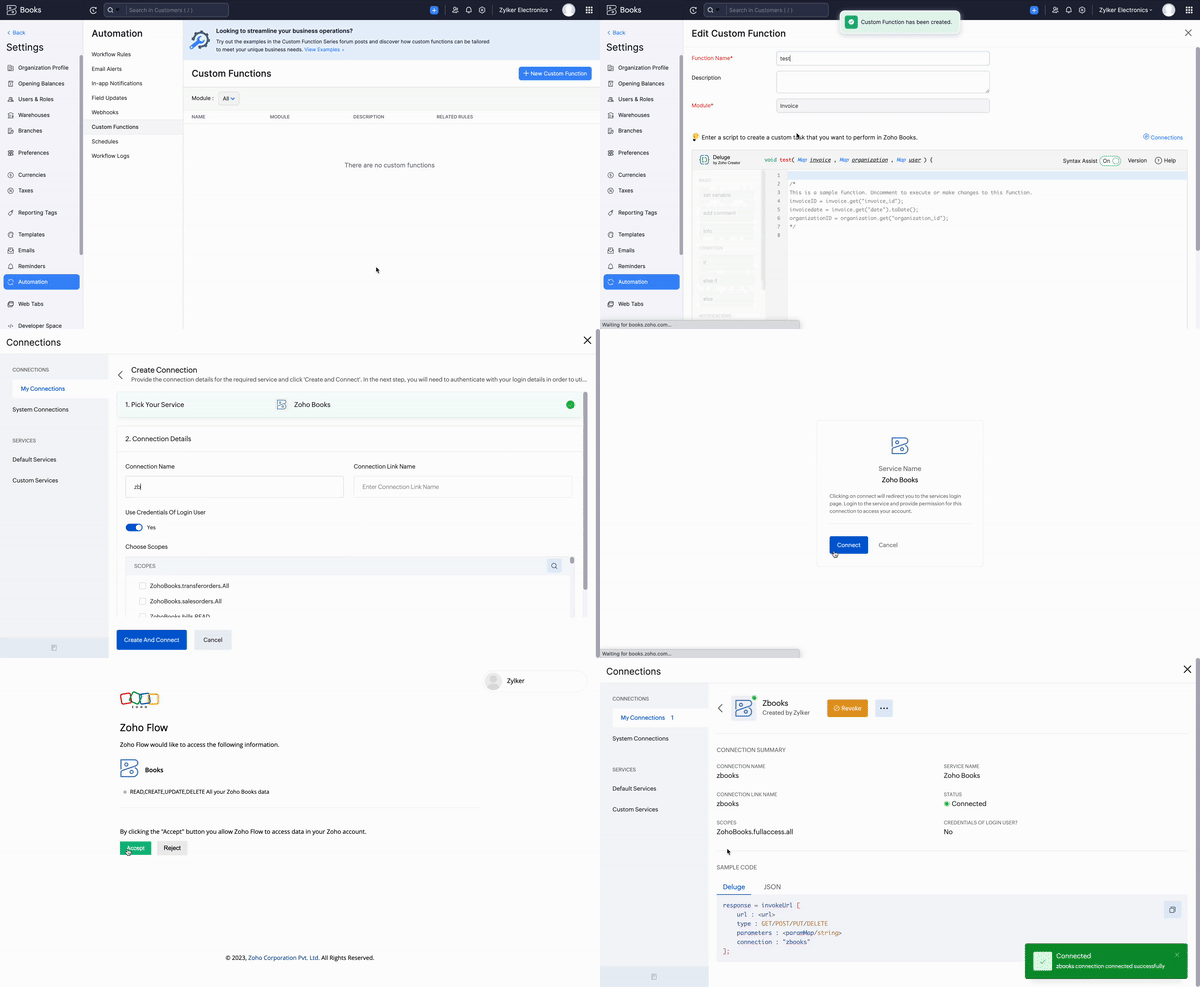
Custom Function:
Navigate to Settings -> Automation -> Custom Functions -> +New Custom Function > Add the function code from this GitHub link.
Note: Once the function removes the discount, the updated invoice will get automatically sent to the customer. You have the flexibility to associate an email template for sending these updated invoices. Simply create a new invoice email template as required. Then, copy its ID from the URL of the webpage and replace the template ID in line 20 of the script with this new ID. This will ensure that the correct email template is used when sending the updated invoices.


Note: Once the function removes the discount, the updated invoice will get automatically sent to the customer. You have the flexibility to associate an email template for sending these updated invoices. Simply create a new invoice email template as required. Then, copy its ID from the URL of the webpage and replace the template ID in line 20 of the script with this new ID. This will ensure that the correct email template is used when sending the updated invoices.
Workflow Rule:
Go to Settings -> Automation -> Workflow Rules -> +New Workflow Rule and set up the workflow rule as shown below:-
In the final step of this workflow rule, associate the custom function you created and then hit Save.
Note: This function will work for both line item level and transaction level discounts. Also, employ this function if editing of sent invoices is allowed in your region.
If you require any additional customizations to this function, don't hesitate to reach out to us at support[at]zohobooks[dot]com. We're here to provide assistance and make it work perfectly for your needs!
Feel free to share your thoughts in the comments section regarding how our Function Fridays are helping you in automating your business workflows. We'd greatly appreciate hearing your feedback and insights!
Regards,
Shireen Farhana S
Zoho Books