Function #24: Automatically display deal name from Zoho CRM on quotes in Zoho Books
Deals allow businesses to organize and visualize their sales pipeline. This provides a clear overview of all potential opportunities and helps in making informed decisions. Zoho CRM empowers you to create deals or potentials for your clients and monitor their progress through various stages. By integrating Zoho CRM and Zoho Books these deals can be seamlessly associated with your sales transactions.
When you create a quote or estimate for a customer in Zoho Books, you have an option called "CRM Actions" from where you can associate a specific deal. If you wish to display the name of this linked deal on the PDFs of the quotes you send to your customers, you can do so by utilizing today's custom function.
When you create a quote or estimate for a customer in Zoho Books, you have an option called "CRM Actions" from where you can associate a specific deal. If you wish to display the name of this linked deal on the PDFs of the quotes you send to your customers, you can do so by utilizing today's custom function.
Prerequisites:
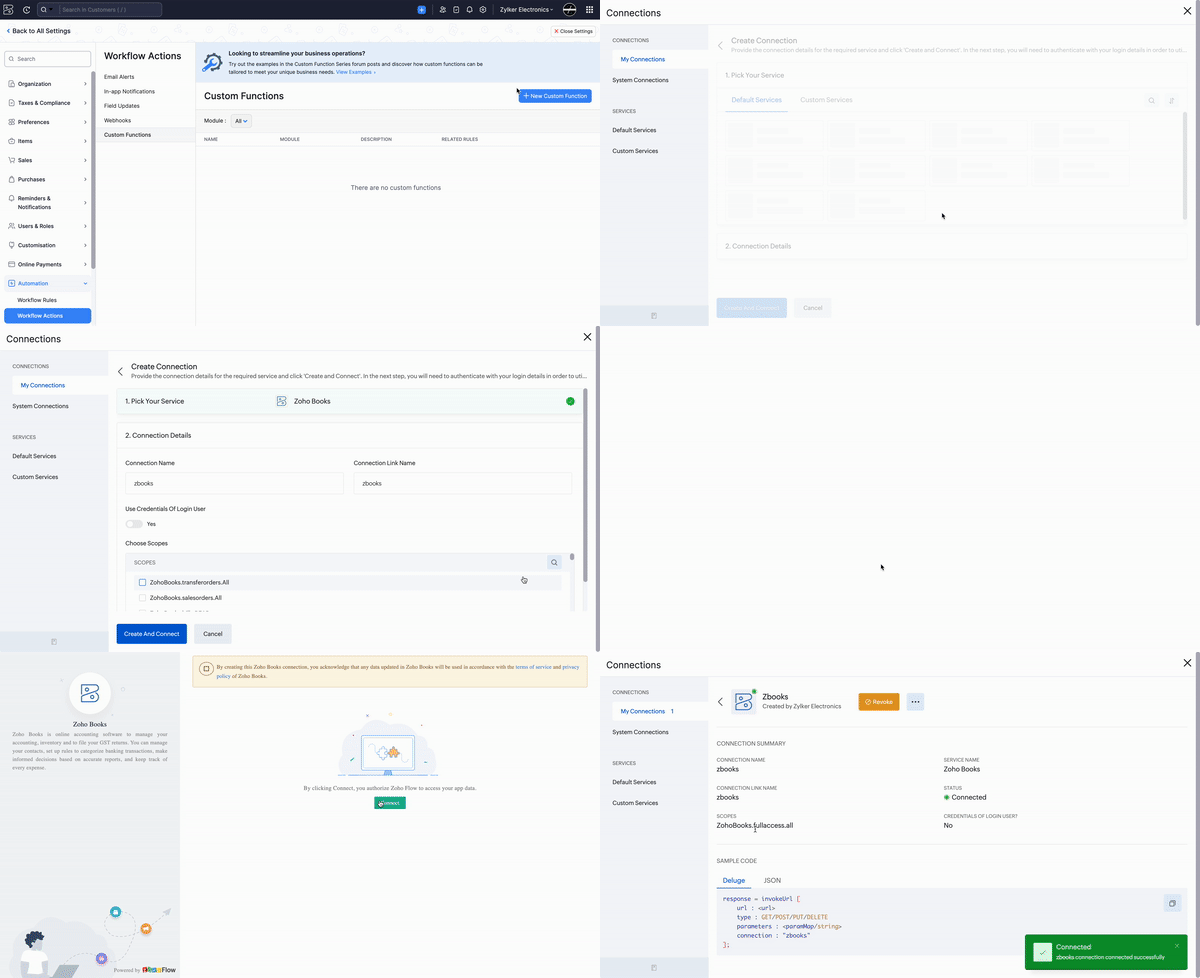
1. Create a Connection named "zbooks" to successfully execute the function. You can watch the GIF attached below to know how to create the connection.
2. Create a custom field with the label "Deal name" for the Quotes module of Zoho Books. The custom function will automatically populate this field with the name of the deal linked to the quote.

Custom Function:
Go to Settings -> Automation -> Workflow Actions > Custom Functions -> +New Custom Function > Add the function code from this GitHub link.
Workflow Rule:
Go to Settings -> Automation -> Workflow Rules -> +New Workflow Rule and set up the workflow rule as shown below:-


In the final step of this workflow rule, associate the custom function you created and then hit Save.
Note: The function will be executed once the quote is saved. Therefore, it's essential to initially create the quote in "Draft" status. After the function has successfully updated the deal name in the custom field, you can then proceed with sending the quote to your customer. The deal name will also be automatically updated in the quotes generated within the Zoho Finance tab in Zoho CRM.
If you require any assistance with setting up this function, please don't hesitate to contact us at support[at]zohobooks[dot]com. We will be happy to help you.
Regards,
Shireen Farhana
Zoho Books
Regards,
Shireen Farhana
Zoho Books