Function #38: Charge rush fees for invoices

Hello everyone!
Rush fees are additional charges that businesses add to invoices when customers request expedited or prioritized services, compensating for the extra resources and effort. The method for calculating these fees can vary across industries and businesses. One commonly used method is the percentage-based approach, in which rush fees are calculated as a percentage of the item rate.
Consider Zylker Designs, a graphic design firm that typically delivers designs with a standard turnaround time of 5 days. ABC Corporation urgently requires a logo and promotional banners within 48 hours for an upcoming product launch, prompting Zylker Designs to implement rush fees. The standard fees are $1,000 for logo design and $800 for promotional banners, with rush fees set at 30% and 20%, respectively.
Rush fees for the logo and banners are calculated as follows:
Logo Rush Fee = $1,000 * 30% = $300
Banners Rush Fee = $800 * 20% = $160
Logo Rush Fee = $1,000 * 30% = $300
Banners Rush Fee = $800 * 20% = $160
Thus, the total fee for the rush order = $1,000 + $800 + $300 + $160 = $2,260
Today's custom function can help automate this process of calculating and applying rush fees to item rates. When creating an invoice, users can enter the percentage of rush fees for each item in the item-level custom field (created specifically for this purpose). After saving the invoice, the custom function is executed, calculating the revised item rates.
1. Create a Connection named "zbooks" to successfully execute the function. You can watch the GIF attached below to know how to create the connection.

Pre-requisites:
1. Create a Connection named "zbooks" to successfully execute the function. You can watch the GIF attached below to know how to create the connection.
2. Create a custom field called "Rush Fees (Percent)" to be displayed in the item table of invoices. The percentage of the item rate to be charged as rush fees should be entered in this field.

3. Create another custom field called "Unit Rate" to be displayed in the item table of invoices. The purpose of this custom field is to store the original sales rate of the line item.

4. Create a Check Box-type custom field by the name "Add Rush fees ?" for Invoices. Only when this field is ticked, the function will be executed.

Custom Function:
Navigate to Settings -> Automation -> Custom Functions -> +New Custom Function > Add the function code from this GitHub link -> Hit Save.
Workflow Rule:
Go to Settings -> Automation -> Workflow Rules -> +New Workflow Rule and set up the workflow rule as shown below:-
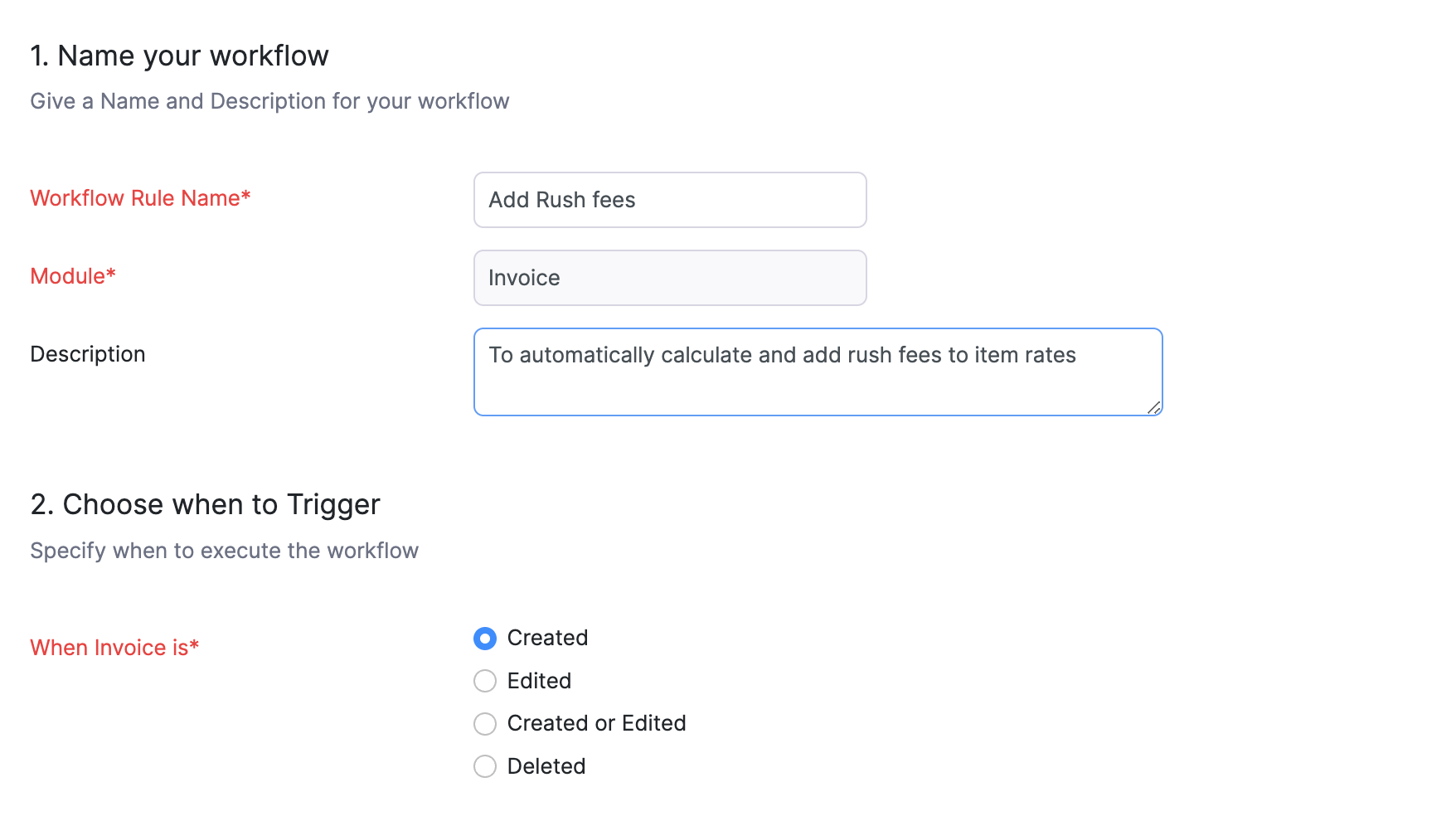

In the final step of this workflow rule, associate the custom function you created and then hit Save.
Here's how it works:

Here's how it works:
After creating and saving the invoice as draft, the custom function will be executed. Initially, it copies the original sales rate to the Unit Rate (Custom) field. Then, it calculates the rush fees and adds it to the value in the Unit Rate field. The resultant is displayed in the Rate (Default) field. Following this, Zoho Books performs the calculation of Rate (Default field) * Quantity and fills the result in the Amount field.
Note: If you wish to hide the "Rate" - default field at the template level, go to Settings > Customisation > PDF Templates > Invoices > Edit > Table > Disable the checkbox for Rate field > Save. Now the invoice templates will only display the Unit Rate (Custom field), Rush Fees (Percent), Quantity field, and the Amount field.
If you wish to set up an alternative method for calculating rush fees, kindly send an email outlining your requirements to support[at]zohobooks[dot]com. We will be happy to help you.
See you next week with another interesting custom function!
Regards,
Shireen Farhana
Zoho Books