Function #44: Notify admin users when expense accounts exceed the safe limit

Hello everyone, and welcome back to our series!
Are you finding yourself consistently overspending in certain areas? Do you need a system to keep track of your expenses and receive alerts when specific accounts go over their limit?
Today, we bring you a Schedule that checks your account balances daily and upon exceeding the specified limit, sends an email to alert the admin users.
For example, reports show that your marketing expenses are regularly exceeding the allocated budget, prompting you to monitor the Marketing Spends account. Alternatively, if you're focused on maintaining a healthy cash flow, keeping a close eye on the Bad Debt account is important. In both scenarios, you can implement today's schedule to stay informed about the account balances.
Prerequisites:
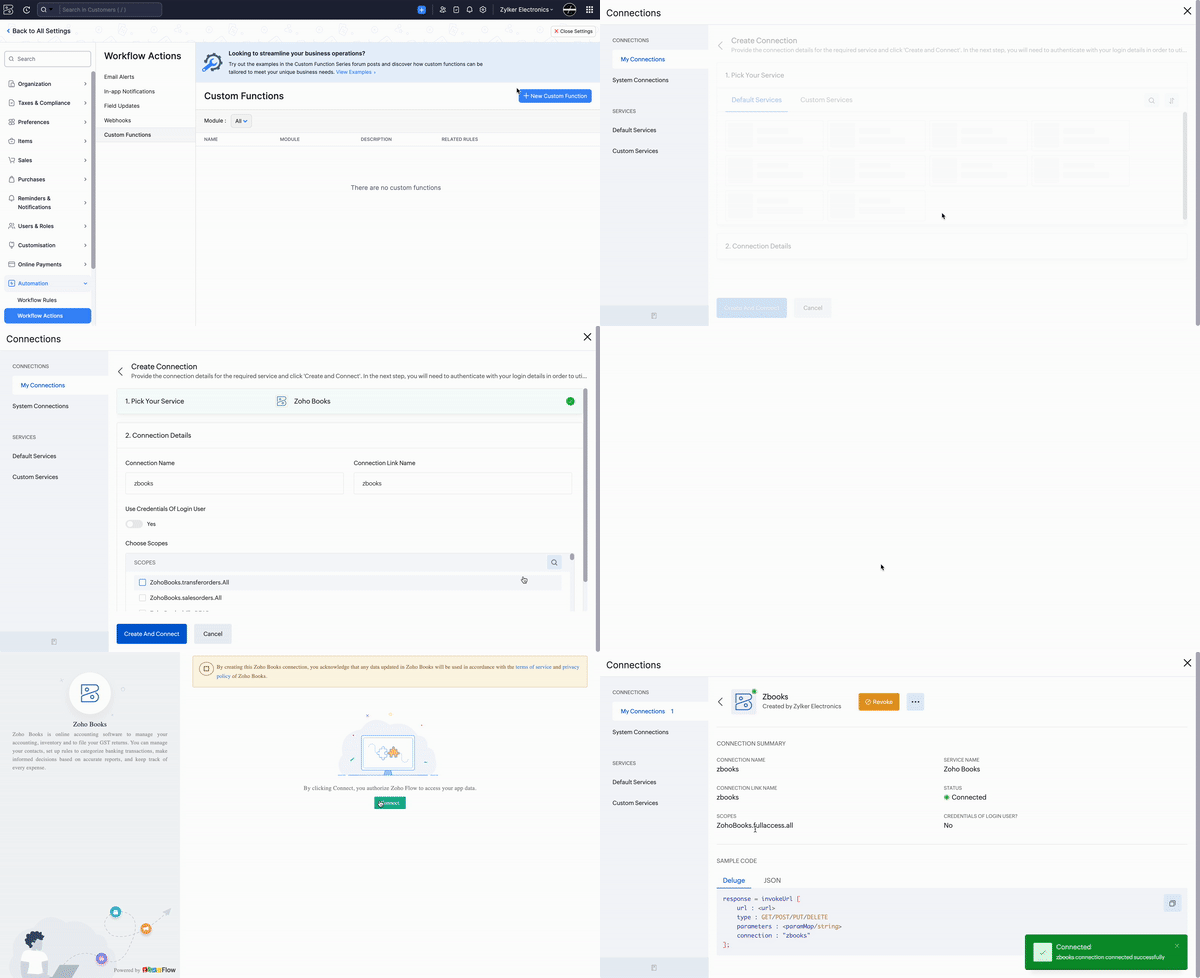
1. Create a Connection named "zbooks" to successfully execute the function. You can watch the GIF attached below to know how to create the connection.
2. Create a custom field called "Safe Limit" for the Chart of Accounts section. Here, you'll define the limit for the required expense accounts. Upon surpassing this limit, an email alert will be sent to the admin users. To create the field, go to Settings > Preferences > Accountant > Chart of Accounts Custom Fields, then select +New Custom field, input the details, and save.

2. Create a custom field called "Safe Limit" for the Chart of Accounts section. Here, you'll define the limit for the required expense accounts. Upon surpassing this limit, an email alert will be sent to the admin users. To create the field, go to Settings > Preferences > Accountant > Chart of Accounts Custom Fields, then select +New Custom field, input the details, and save.
3. Create another custom field called "Current Balance" for the Chart of Accounts section. This field serves as a reference point for the scheduler to determine whether an account balance has changed since the last notification.
For instance, let's consider the Marketing Spends account with a Safe Limit of $100. If an expense of $200 is recorded, exceeding the limit, the scheduler will send an email to the admin users at the scheduled time. However, the next day, the scheduler will run again and potentially send another email for the same account. To prevent this redundancy, the "Current Balance" field stores the balance of the expense account after each email notification is sent. When the scheduler runs the following day, it compares the closing balance with the balance stored in the custom field. If they match, no email notification is sent. However, if there's a difference and the account balance exceeds the safe limit, the email is triggered.

Setting up the Scheduler:
Navigate to Settings -> Automation -> Schedules -> +New Schedule > Set up the schedule according to your preference > Add the code from this GitHub link > Save.

Here is a sample screenshot of the notification email that will be sent to the admin users:

Here is a sample screenshot of the notification email that will be sent to the admin users:
Implementing this schedule in your Zoho Books organization is a proactive way to stay on top of your spending and manage your finances more effectively. If you found this helpful, let us know in the comments section. For any assistance, feel free to reach out to us at support[at]zohobooks[dot]com. We're here to help.
Scheduled another function for next week :) Stay tuned!
Regards,
Shireen Farhana
Zoho Books