Geo-Powered Retail Intelligence with Zoho Analytics
In today’s highly competitive retail landscape, data-driven decisions are no longer optional — they’re essential. While businesses collect vast volumes of data across regions, stores, and customer segments, the real value lies in how effectively this data is visualized and interpreted.
Geo Maps in Zoho Analytics bring location intelligence to the forefront of decision-making. With powerful spatial analytics capabilities, retail businesses can now visualize store performance, identify untapped opportunities, and track customer behavior trends with a simple glance at a map.

This solution demonstrates how Zoho Analytics' Geo Maps can be leveraged to solve real retail business problems, using a step-by-step approach grounded in a practical, ready-to-use dataset.
- Business scenario
- Dataset Overview
- Problem Description
- Why Geo Maps Become a Game-Changer
- Solution Implementation – Report Creation
- Store Performance Analysis (Map – Bubble)
- Revenue-to-Traffic Ratio with Ghost Zone Detection (Map - Filled + Scatter)
- Competitor Pressure Zones (Map – Scatter)
- Customer Gender Distribution (Map - Pie)
- Summary
Business scenario
Imagine you're a retail chain operating hundreds of stores across the United States. Each store generates data—sales, visitor footfall, customer satisfaction, marketing spend—but these numbers alone don’t explain why some stores succeed while others under-perform.
Key challenges include:
- Identifying stores that are struggling before sales drop significantly.
- Understanding whether poor performance is due to location, low visibility, or intense competition.
- Evaluating which regions offer true expansion potential—and which are over-saturated.
With no visual correlation between location and business KPIs, many decisions remain reactive instead of proactive. This is where Geo Maps make all the difference—by transforming isolated data into contextual geographic insights.
Dataset Overview
To power this solution, we’ve created a comprehensive and realistic retail dataset that mirrors how actual store data behaves across geographies.
The dataset includes:
- Store-level performance data: revenue, average purchase value, and satisfaction.
- Customer insights: foot traffic, age, gender distribution.
- Market context: competitor presence and market share, population density, and economic growth rate.
- Geospatial data: zip code, city, state, latitude, and longitude of each store location.
Problem Description
Retail chains often operate on thin margins, and even minor under-performance at store level can have significant impacts across the organization. While dashboards provide revenue and performance trends, they often miss one critical dimension—geography.
Without geographic context, businesses face several recurring challenges:
- Underperforming stores go unnoticed until major losses occur.
- Ghost zones—areas with low store presence but high potential—remain unexplored.
- Marketing budgets get wasted in regions where returns are consistently low.
- Competitor pressure is misjudged due to lack of visibility on regional saturation.
- Store closures become reactive decisions, made after performance has already declined.
In short, data without location awareness leaves decision-makers blind to spatial trends and risks. Businesses need a smarter, more intuitive way to analyze store performance with geographical clarity—before it’s too late.
Why Geo Maps Become a Game-Changer
Geo Maps in Zoho Analytics address this gap by unlocking a visual layer of intelligence that traditional charts can’t offer.

Here’s what makes them a game-changer:
- Location-first insights: Instantly identify how store performance varies across the map - by city, state, or neighborhood.
- Visual correlation of multiple KPIs: Compare revenue, satisfaction, and foot traffic geographically to detect hidden patterns.
- Clutter-free, customizable visuals: Choose the right map type - bubble, filled, pie, or scatter - to match the data you want to analyze.
Unlike static dashboards, Geo Maps enable you to see the problem, context, and opportunity—all in one frame. Whether it's spotting trends, reallocating marketing spend, or planning expansion, this spatial layer puts decision-makers back in control.
Solution Implementation – Report Creation
This section walks through the step-by-step creation of four key Geo Map reports that reveal business insights from store-level data.
1. Store Performance Analysis (Map – Bubble)
To identify how stores are performing across different regions in terms of revenue and customer satisfaction, using a clean, visual-first map representation.
This helps uncover:
- High-performing stores in key zones
- Underperforming regions needing intervention
- Patterns related to location-based store success
Why Map - Bubble?
The Map - Bubble chart is ideal for visualizing store-level metrics using geolocation.
- Size indicates magnitude (e.g., Monthly Revenue)
- Color indicates health or quality (e.g., Customer Satisfaction)
- Each store appears as a distinct bubble based on its lat/long.
Procedure
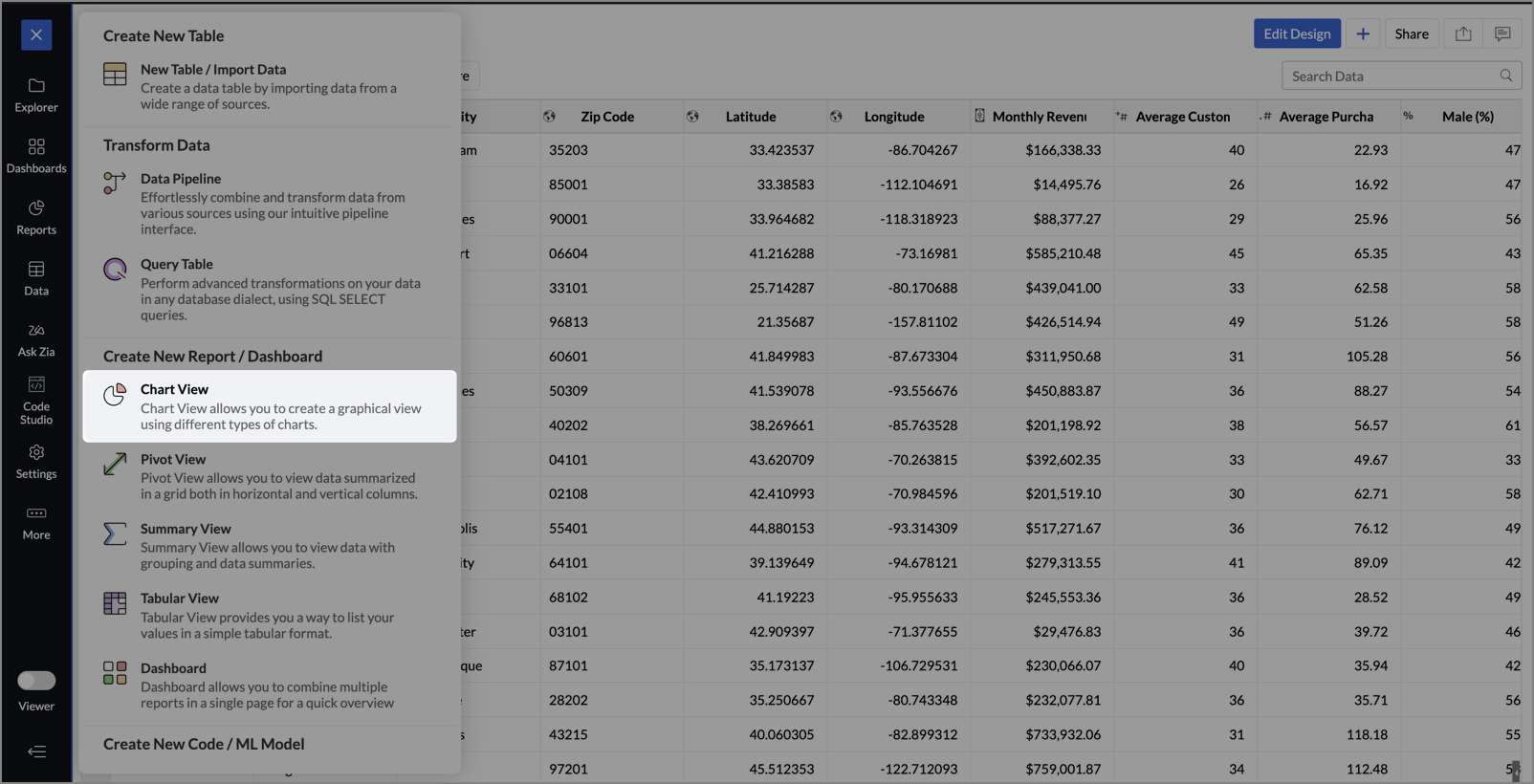
- From the dataset, click the Create icon and select Chart View.
- On the designer page, drag and drop the following columns into their respective shelves:
- Latitude → X-Axis
- Longitude → Y-Axis
- Customer Satisfaction (out of 10) → Color
- Monthly Revenue (USD) → Size
- Store ID, Store Type, City → Tooltip
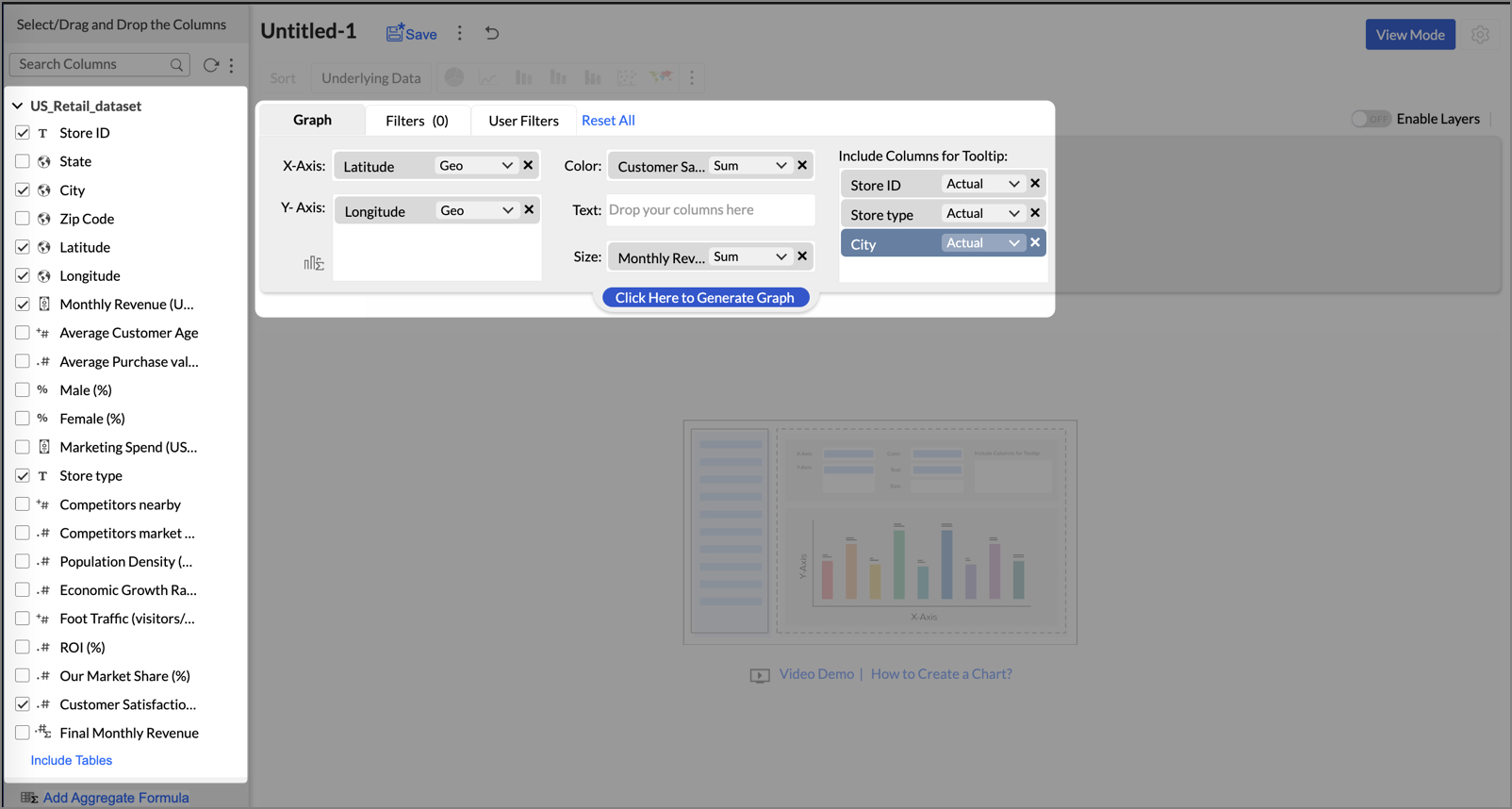
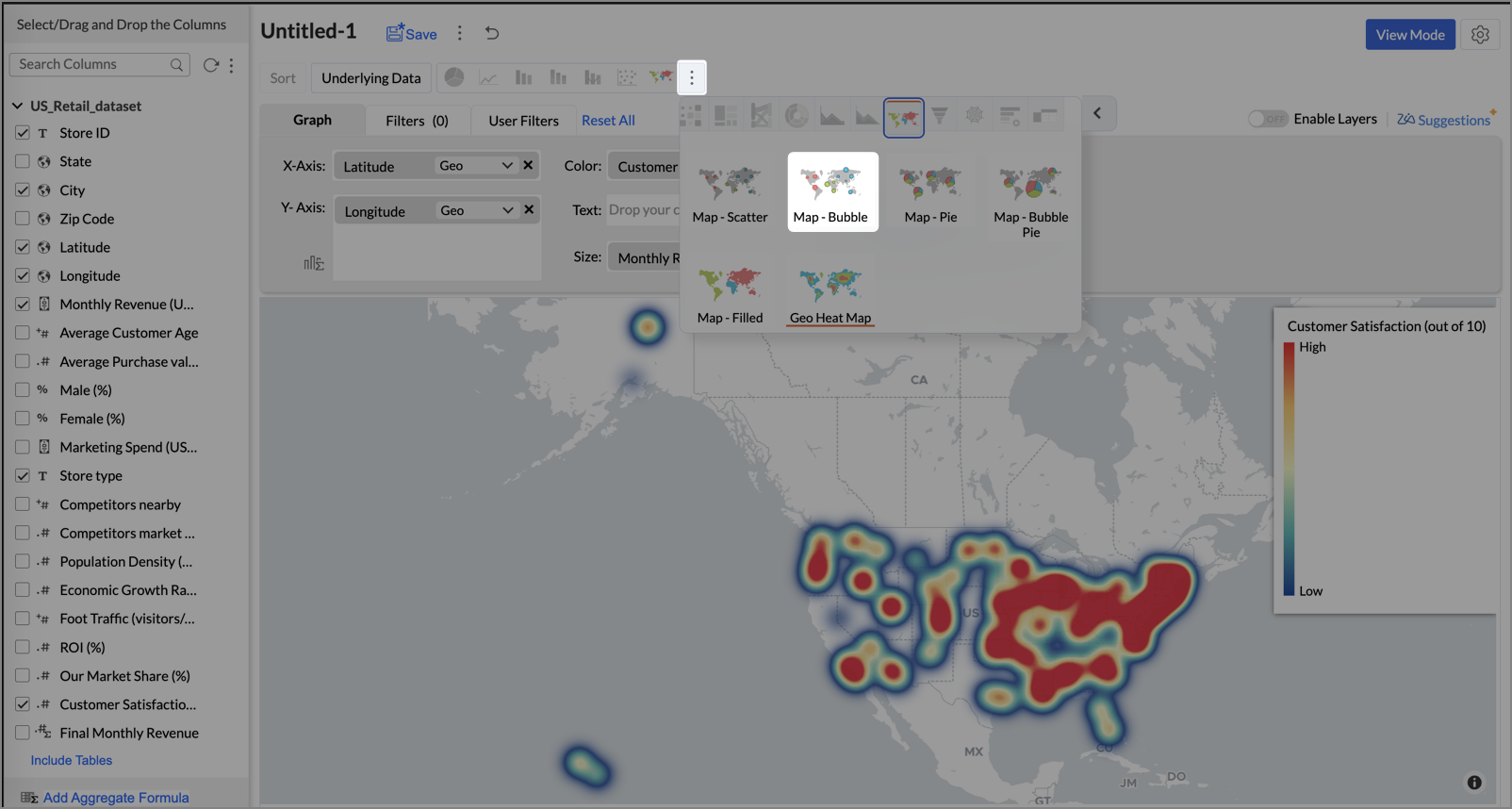
- Click Generate Graph.
- Click on the ellipsis icon and select the chart type as Map - Bubble.
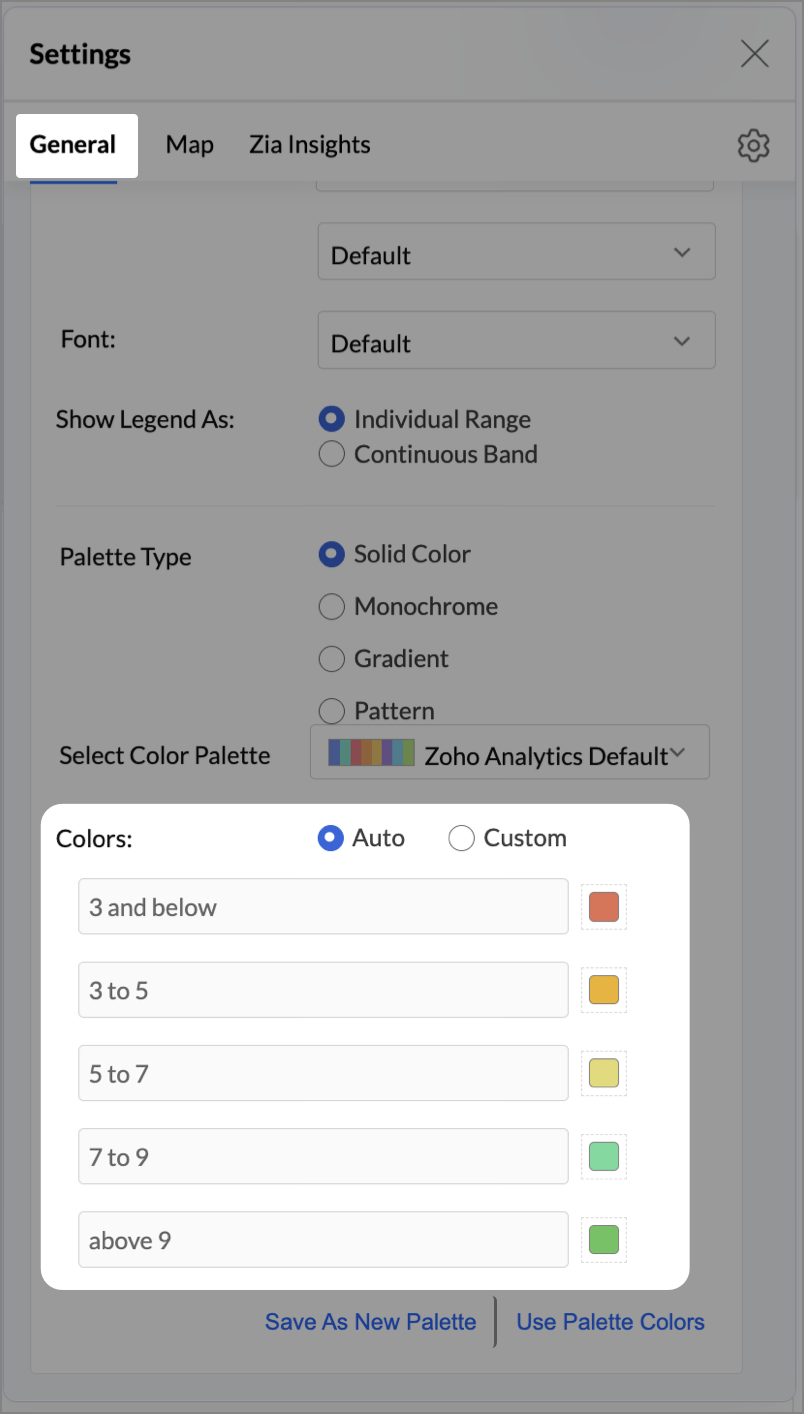
- Click the Settings icon, and under the General tab, click Legend.
- In the Colors section, customize the color scale from red to green to represent satisfaction ranges.
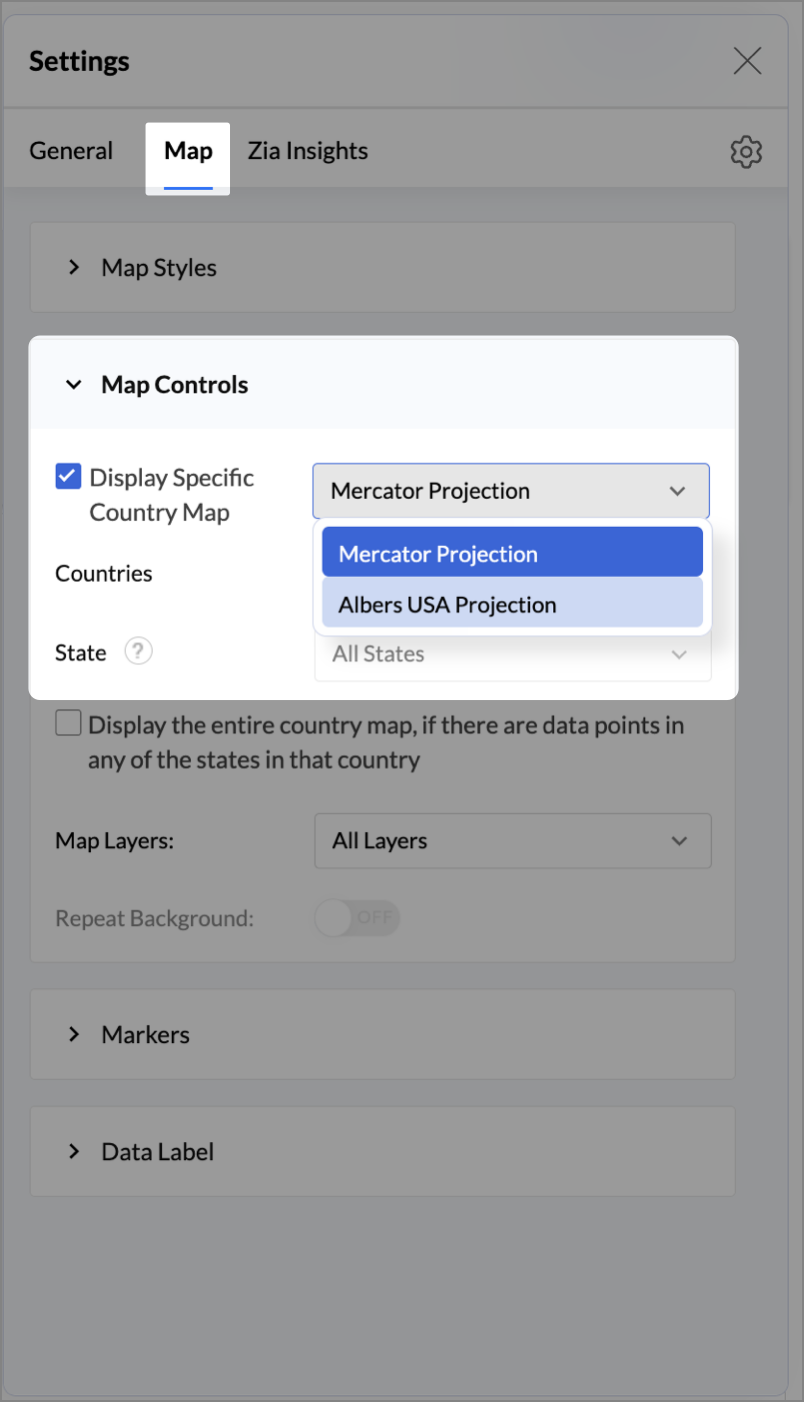
- Under the Map tab, click Map control and enable Display Specific Country Map.
- From the drop-down, select Albers USA Projection. This displays the USA map by placing Alaska and Hawaii below the mainland USA on a single map.
- Rename the report as Store Performance and click Save.
Tip:
Add a User filter such as Store type or State to analyze performance by segment.
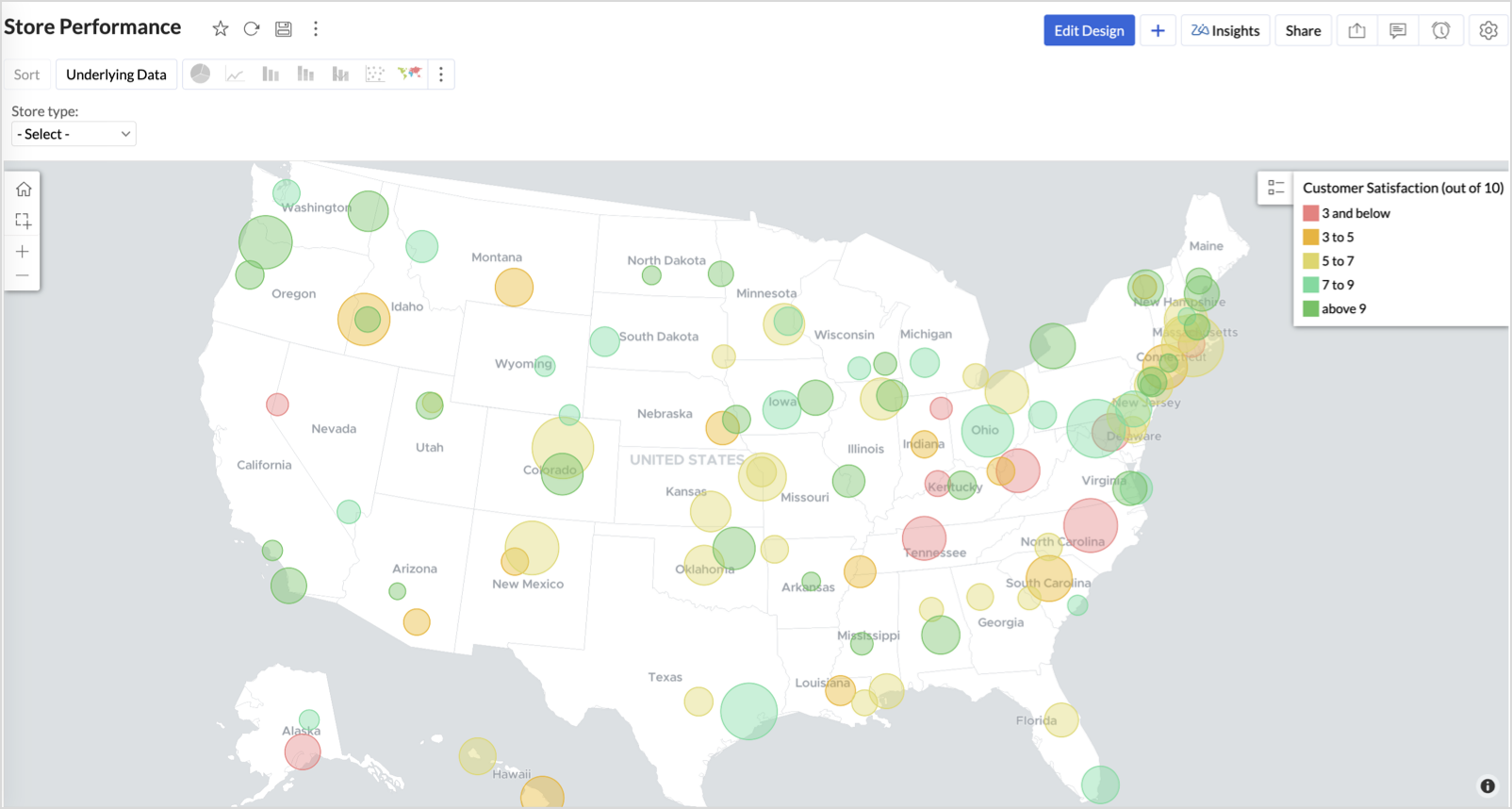
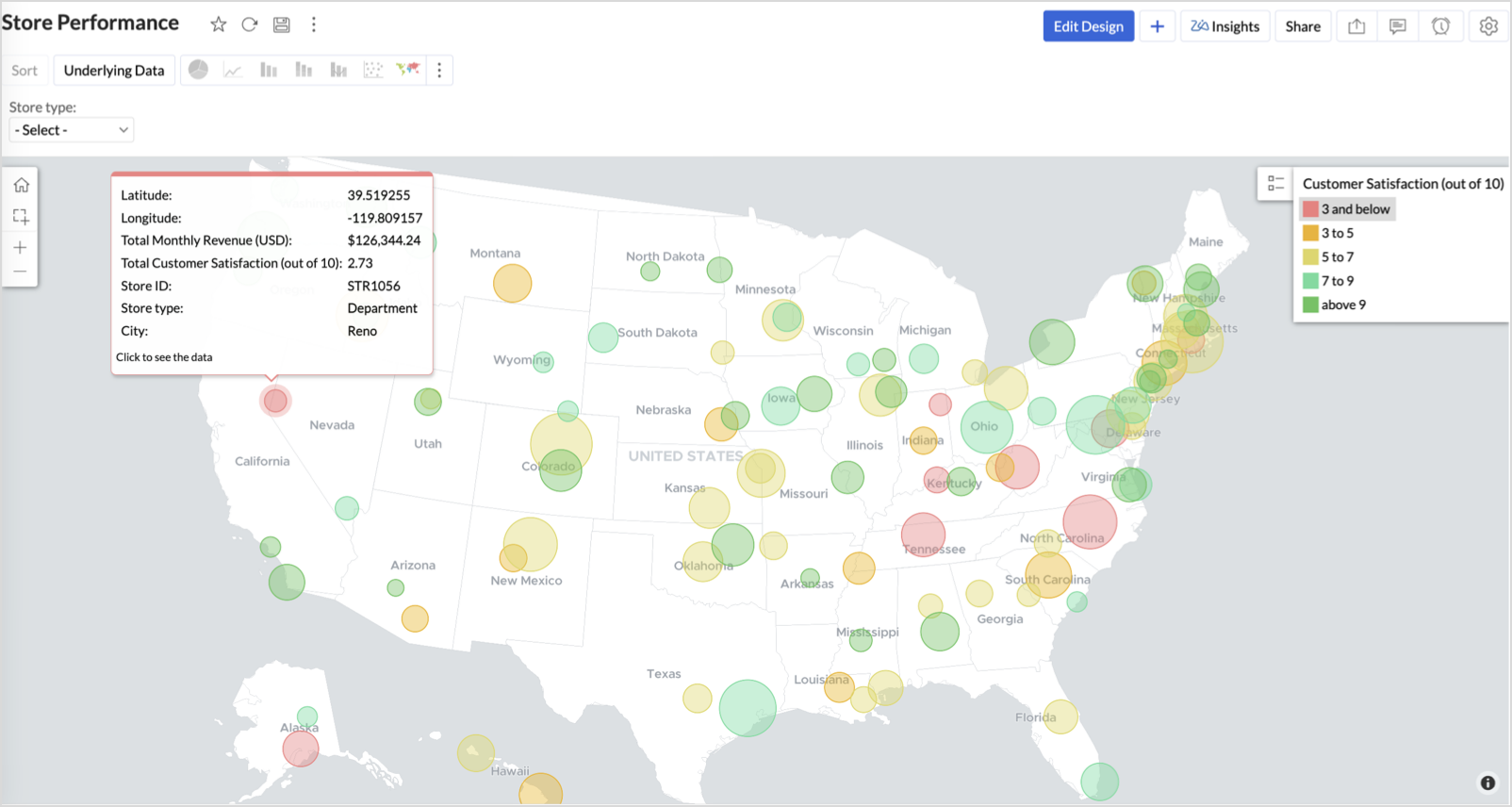
This configuration creates a bubble for every store, sized by its revenue and colored by customer satisfaction — instantly showing how happy customers are in high- or low-revenue zones.
Key Insights
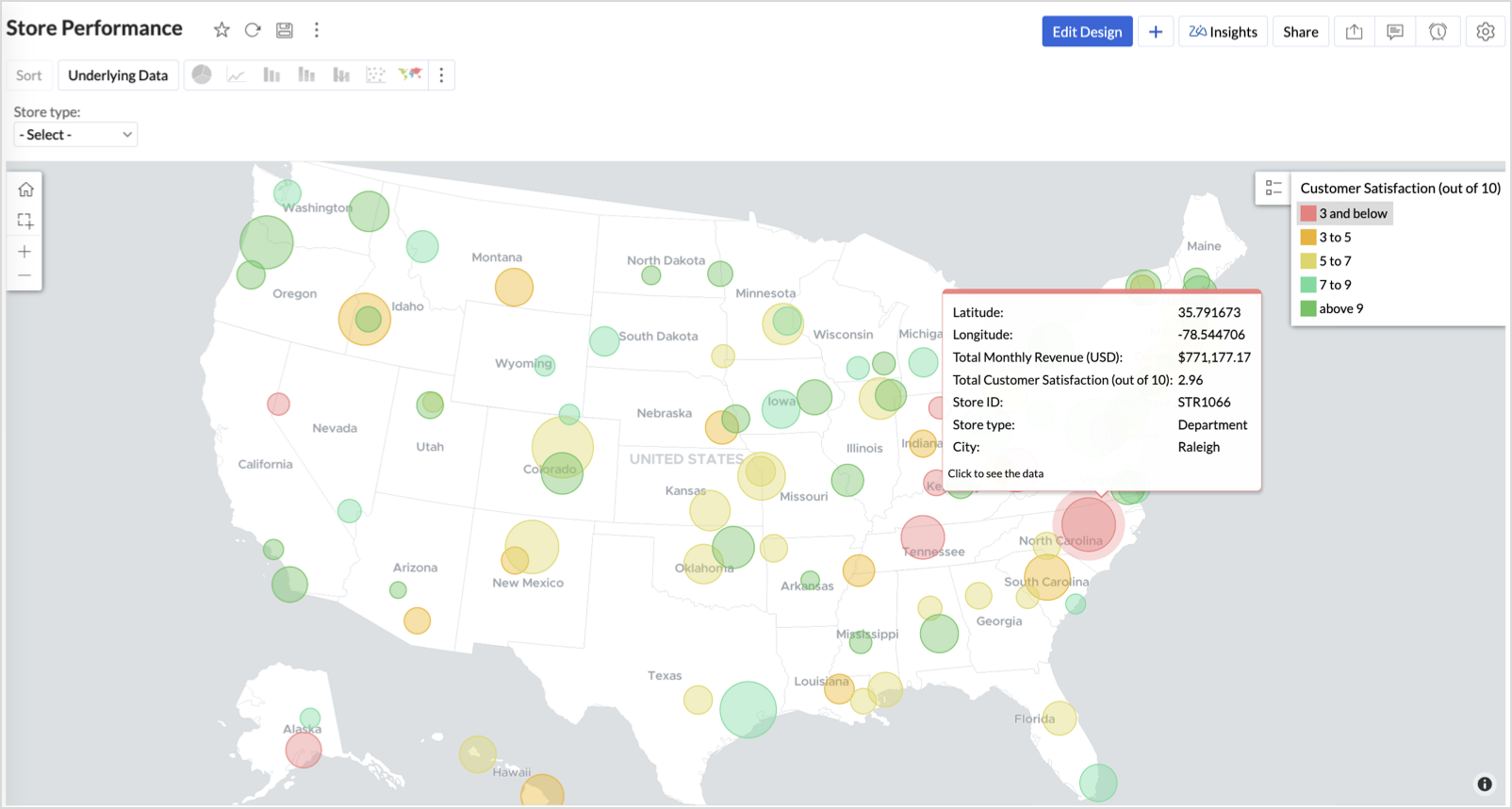
Large bubble + Red color - High revenue but poor satisfaction — risk of churn!
Small bubble + Green color - Low revenue but high satisfaction — possibly underserved
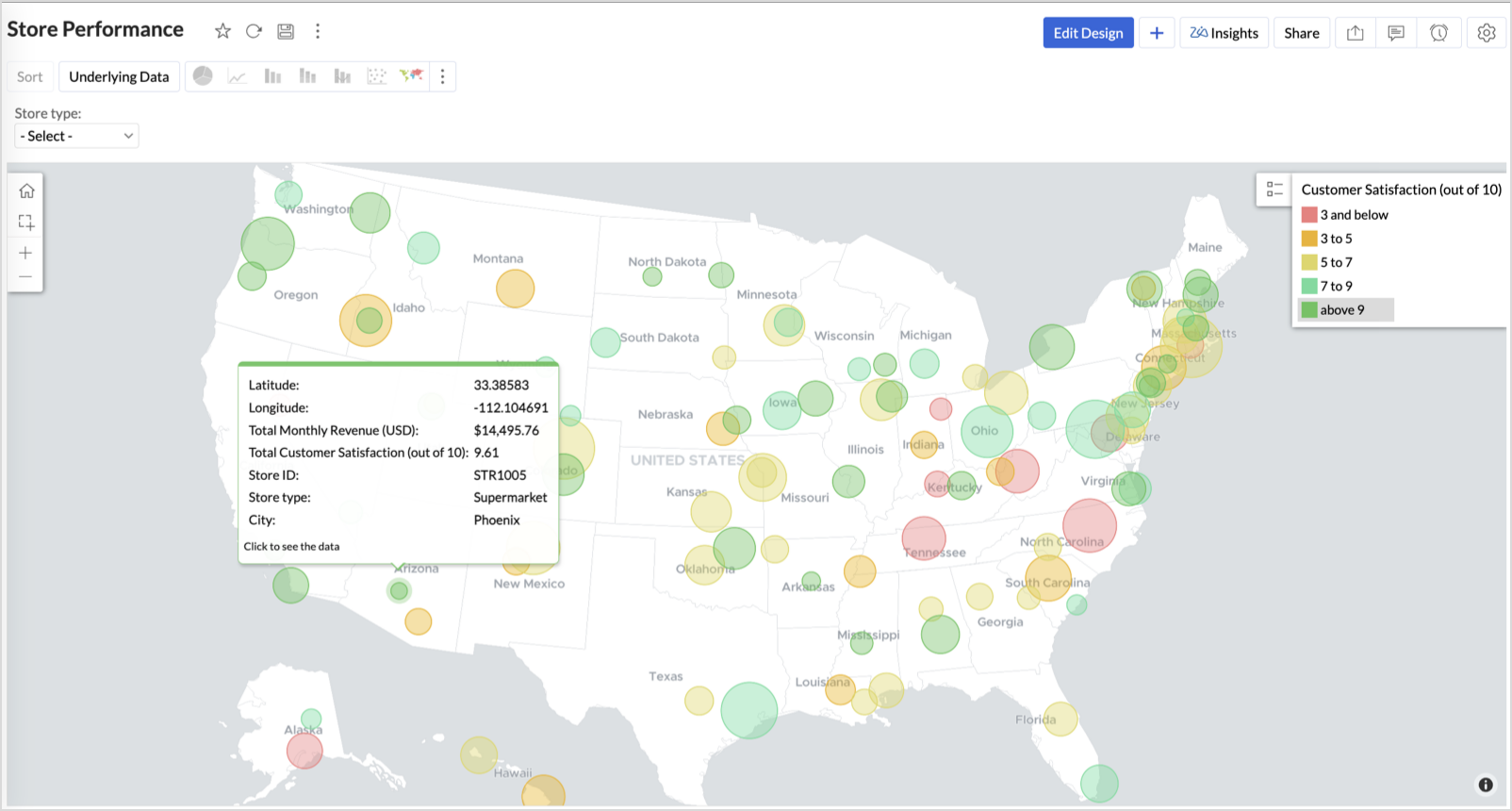
Large bubble + Green color - Healthy performers — consider replicating success
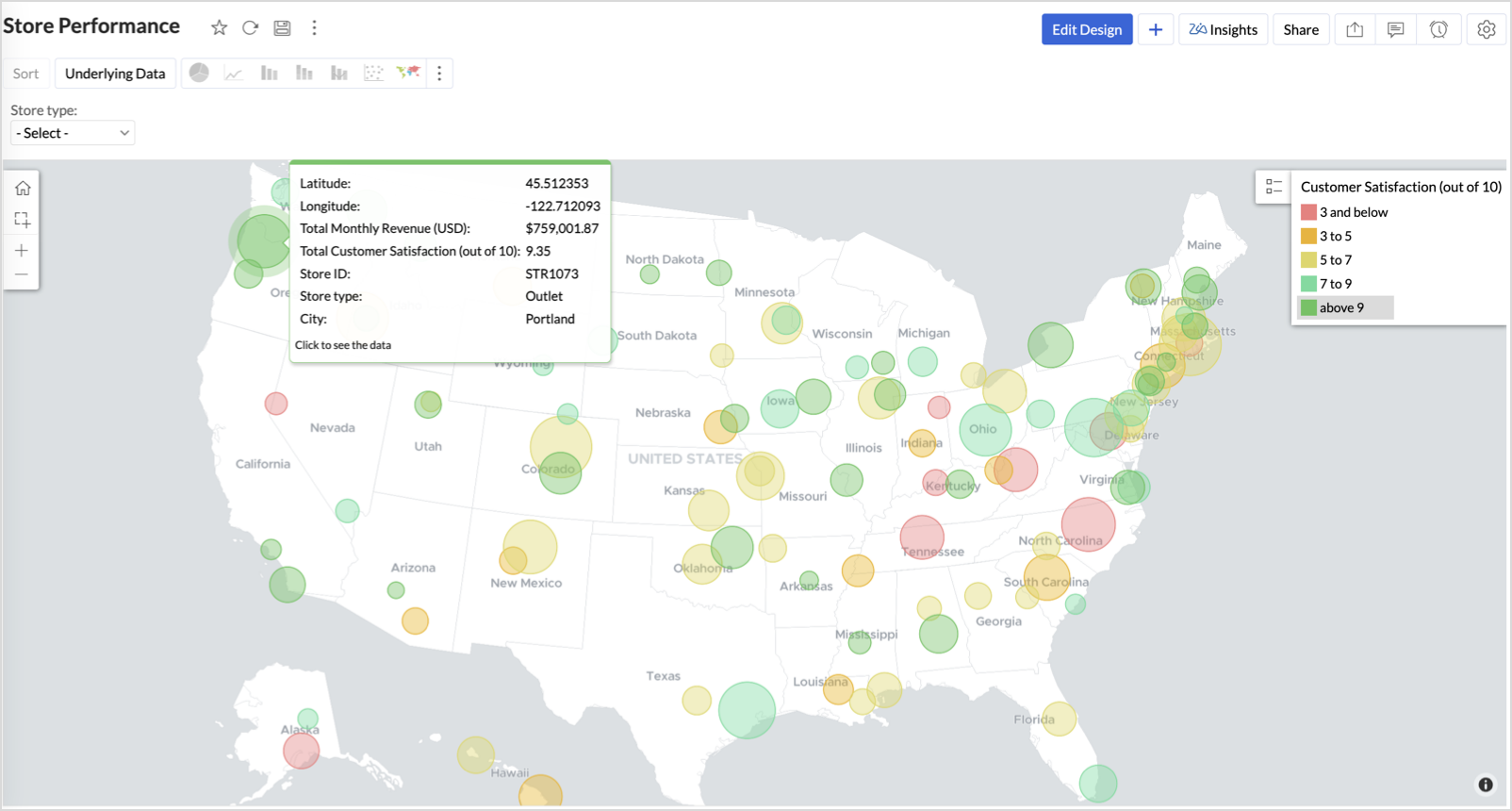
Small bubble + Red color - Low performers — review for possible closure or revamp.
Business Interpretation
This chart acts as a live performance map for executives and analysts. Instead of scanning through tables or KPIs, stakeholders can instantly spot outliers, prioritize investments, and plan corrective actions by just glancing at the map.
2. Revenue-to-Traffic Ratio with Ghost Zone Detection (Map - Filled + Scatter)
To evaluate how efficiently each state is converting foot traffic into store revenue — and more importantly, to identify high-footfall regions without store presence, often referred to as ghost zones.
This chart helps:
- Compare state-level foot traffic against actual revenue
- Spot underutilized or over-performing regions
- Discover untapped markets with high visitor potential but less to no physical stores
Why Map - Filled + Scatter?
- The Map - Filled chart provides a regional perspective of traffic density and revenue generation.
- The Scatter layer overlays actual store locations based on latitude and longitude.
This powerful combo allows you to measure performance where you’re active and spot opportunities where you're not.
Procedure
- From the dataset, click the Create icon and select Chart View.
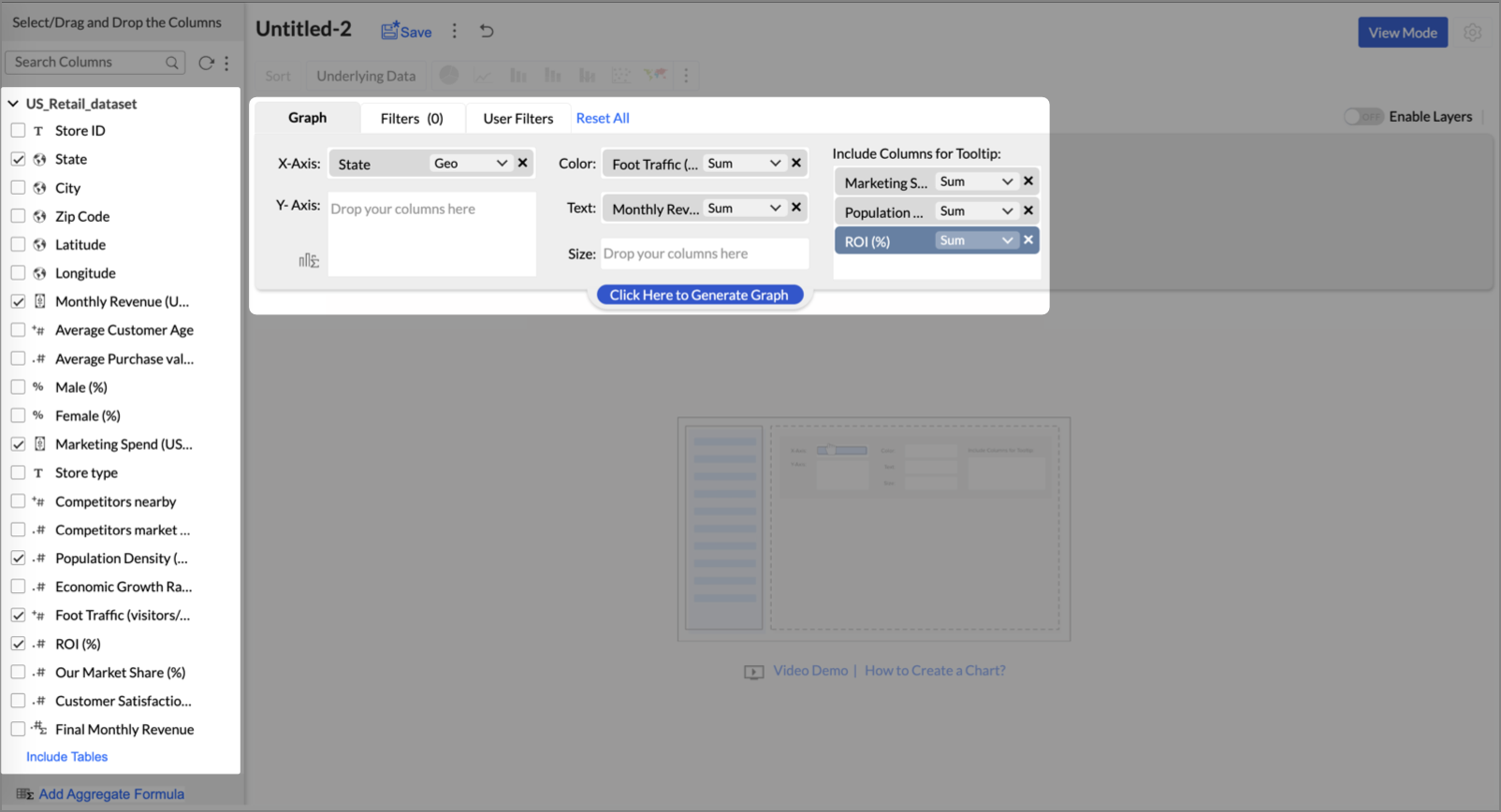
- On the designer page, drag and drop the following columns into their respective shelves:
- State → X-Axis
- Foot Traffic (visitors/month) → Color
- Monthly Revenue (USD) → Text
- Marketing Spend (USD), Population Density (people/sq km), ROI (%) → Tooltip
- Click Generate Graph.
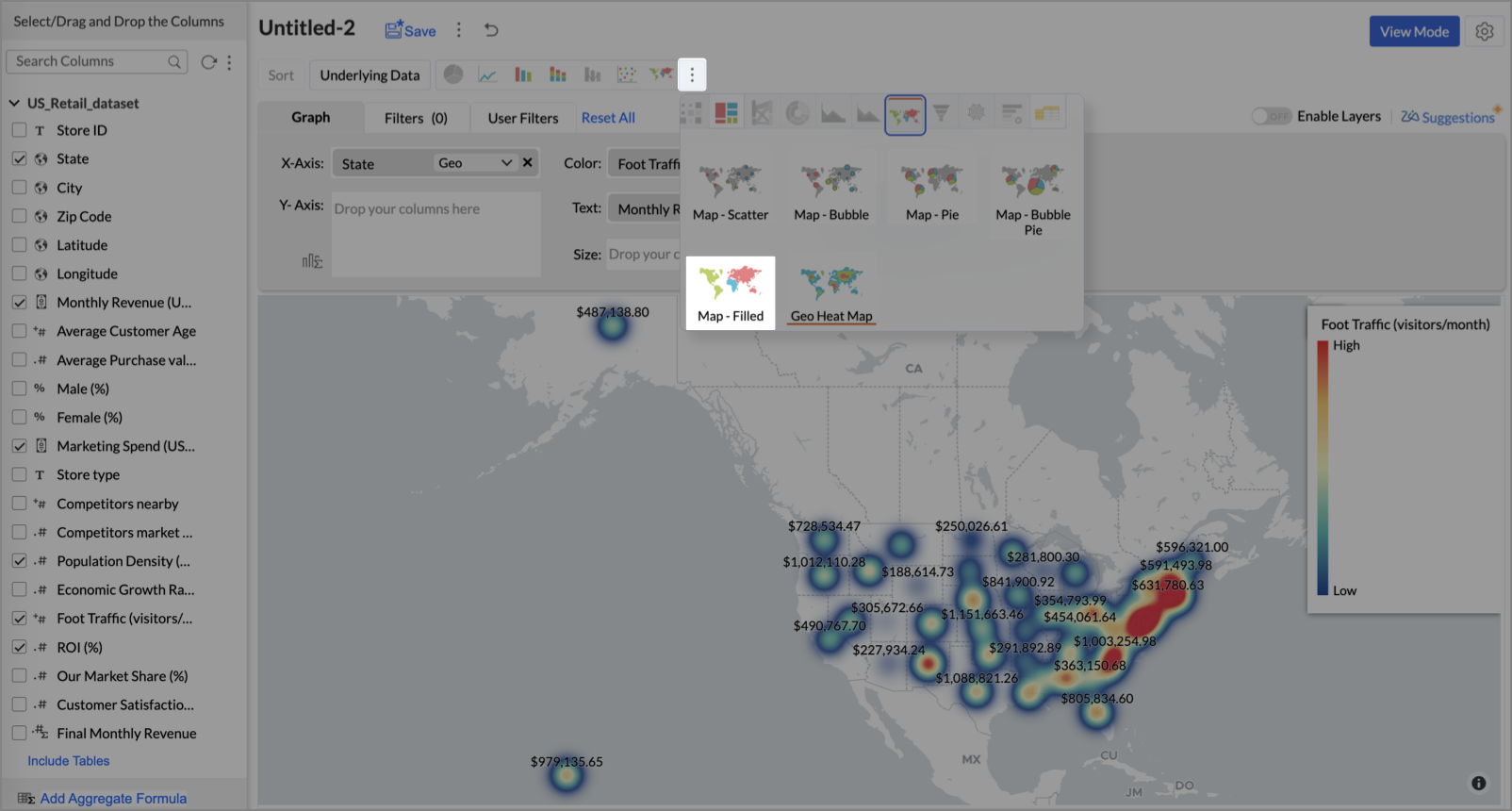
- Click on more option and select the chart type as Map-Filled.
- Click the Settings icon, then click Legend.
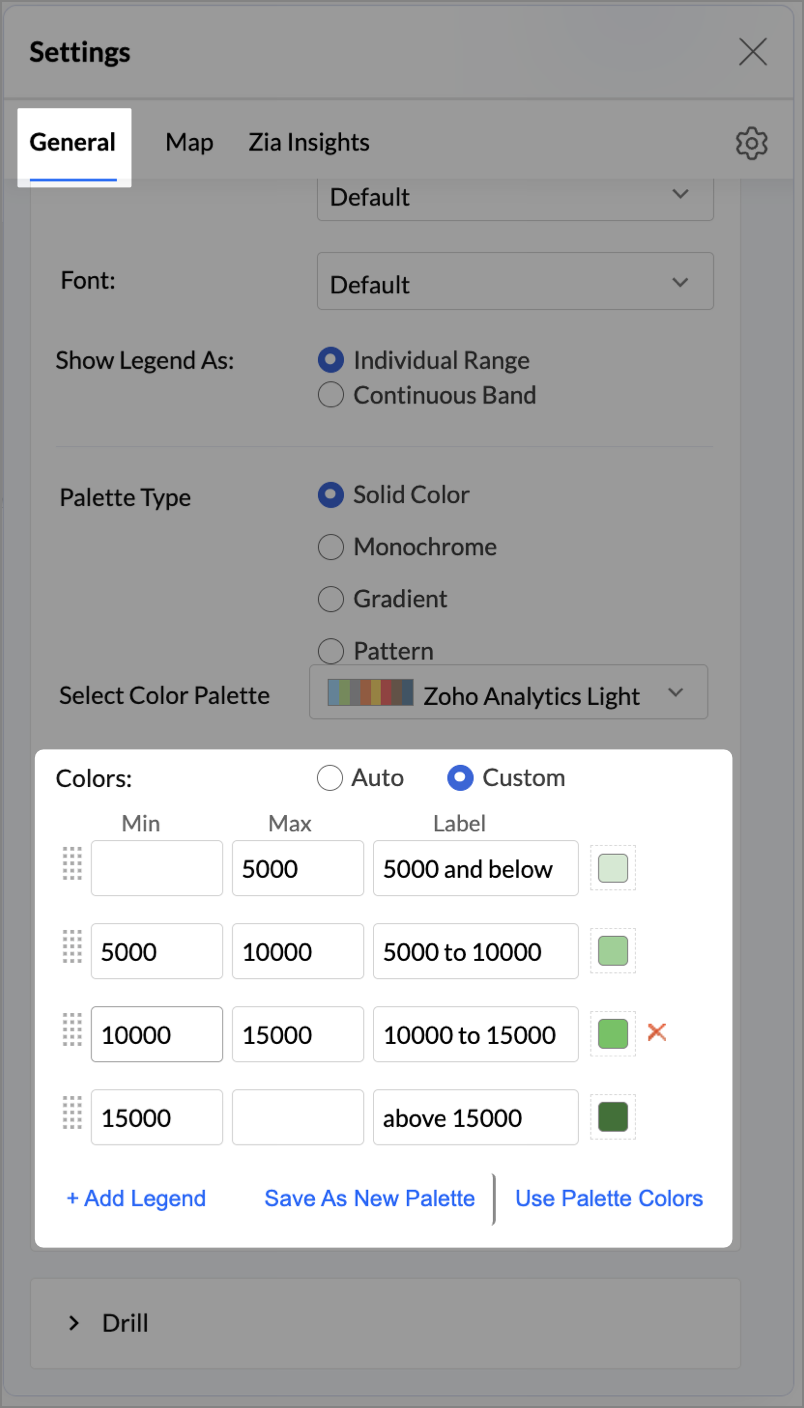
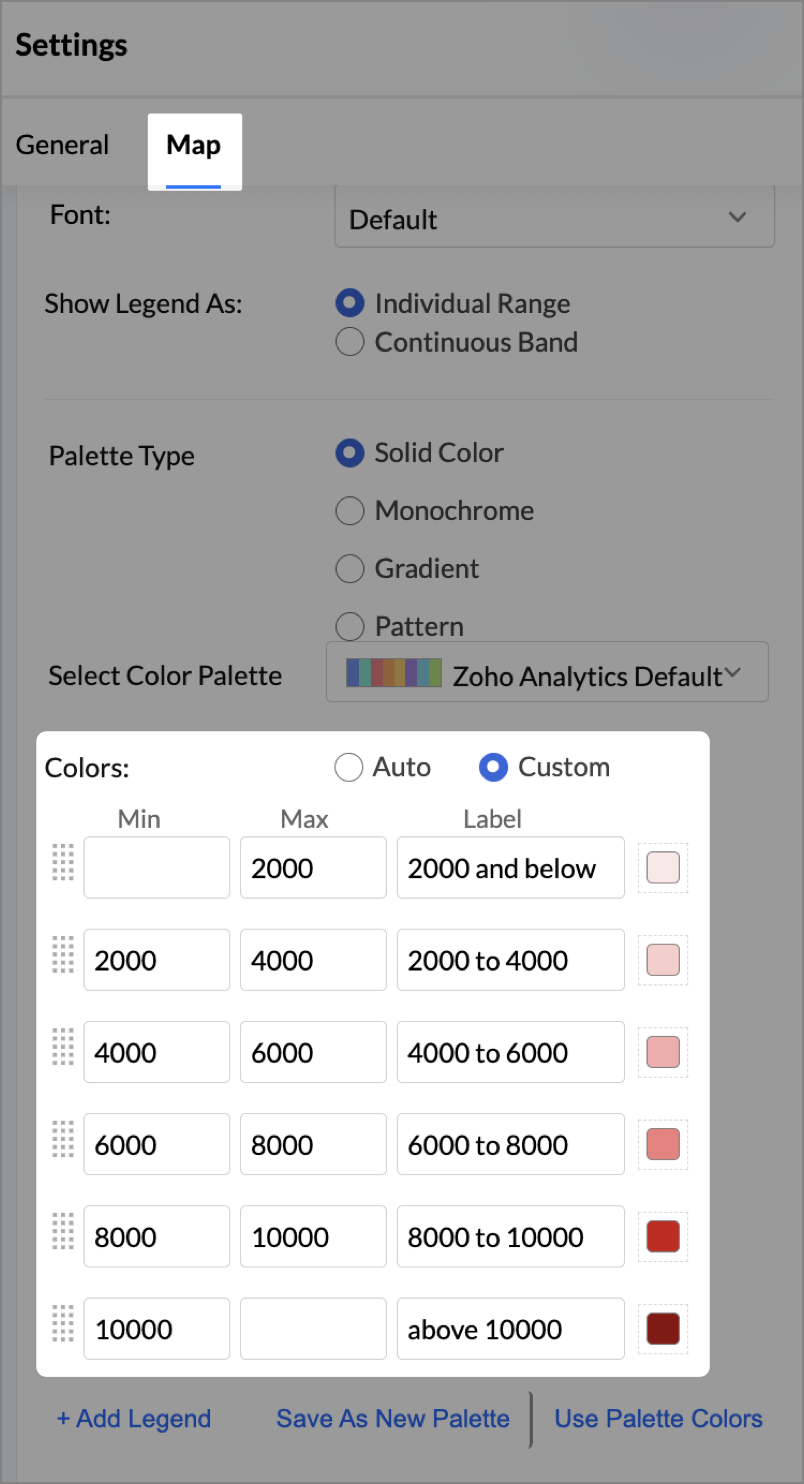
- In the Colors section, assign from light to dark green colors for the below range of foot traffic:
- Below 5,000
- 5,000–10,000
- 10,000–15,000
- Above 15,000
- Under the Map tab, change the map to Albers USA Projection.
This filled layer highlights traffic and revenue across states.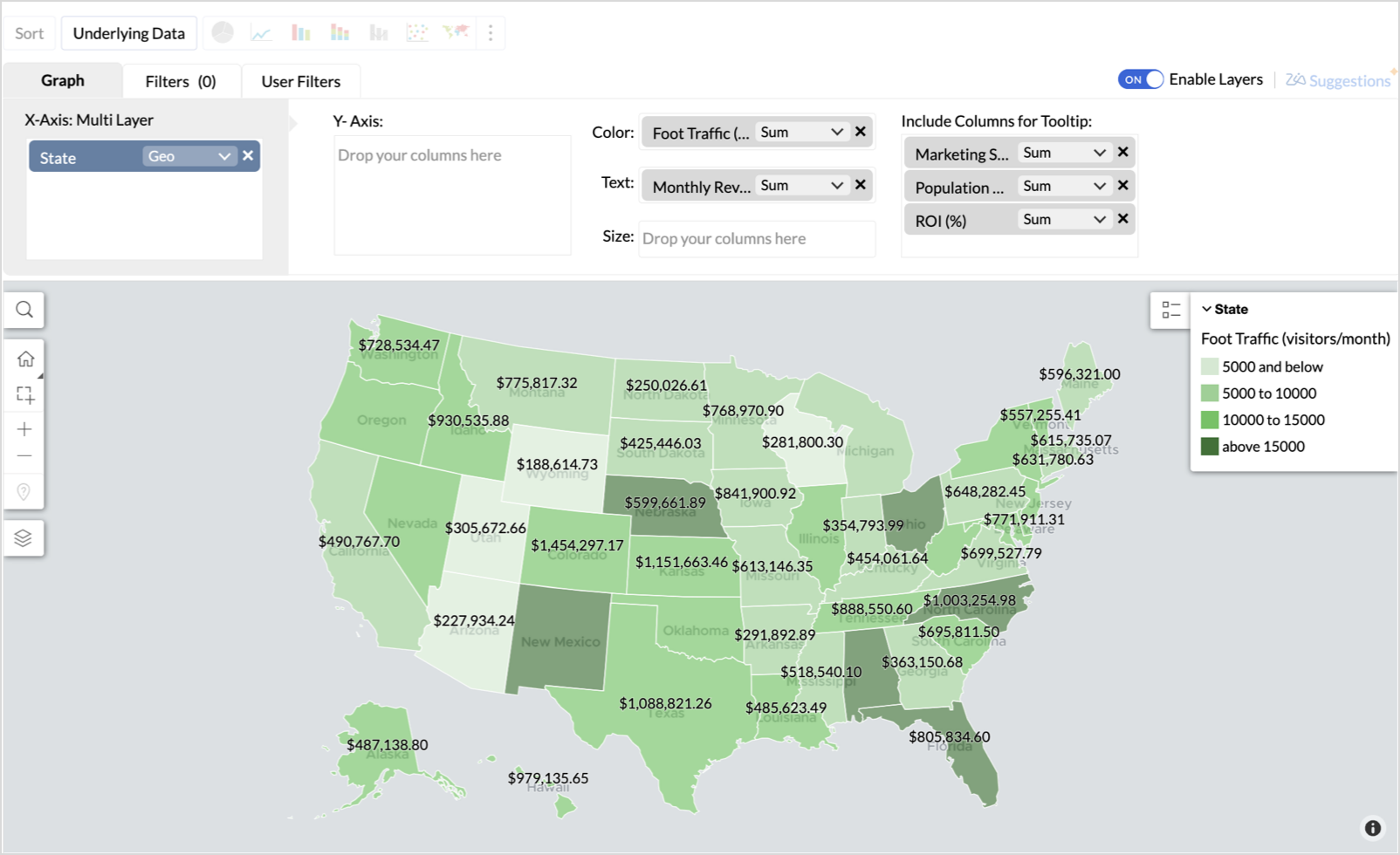
- Toggle Enable Layers to add a second layer.

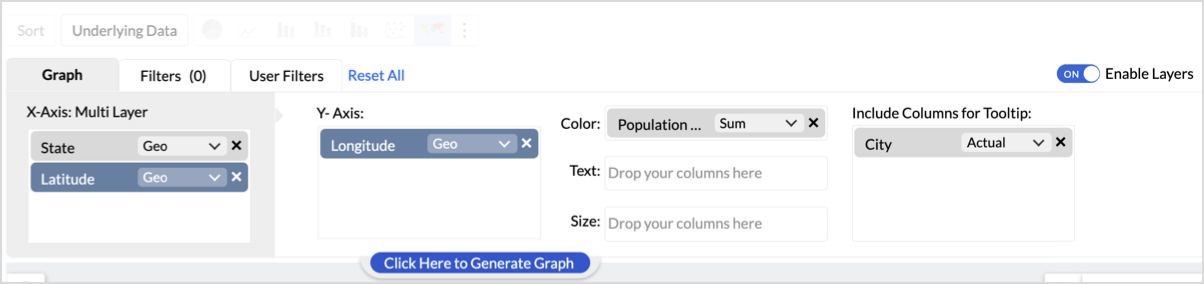
- In the new layer, drag and drop Latitude and Longitude into the X-Axis and Y-Axis respectively, Population density into the Color shelf, and click Generate Graph.
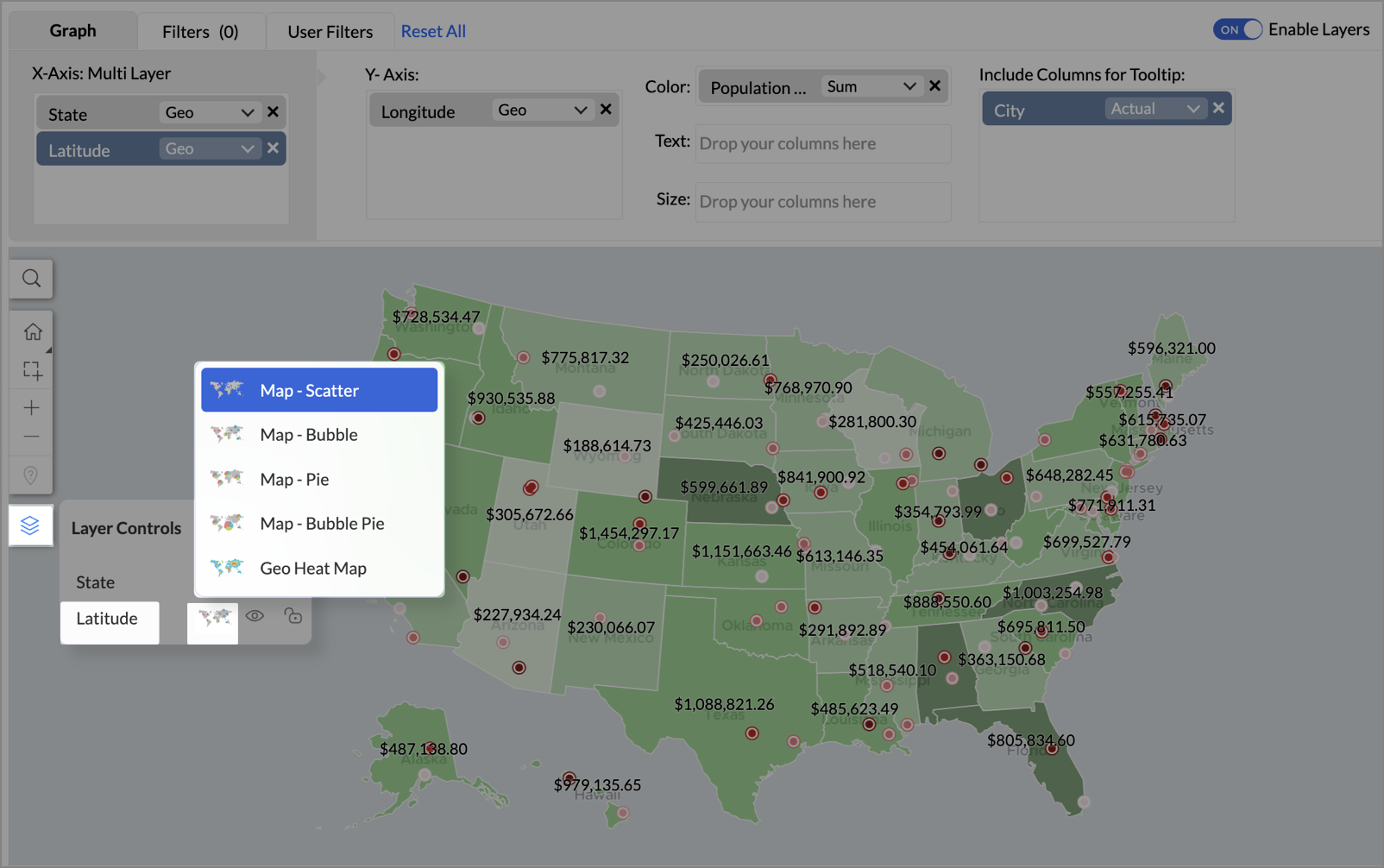
- Click Layer Controls, select Chart Chooser besides Latitude and choose the map as Map - Scatter from the list.
- To customize the second layer, go to Settings → Map → Latitude → Legend, and assign from light to dark red colors for the below range of population density:
- Below 2,000
- 2,000-4,000
- 4,000-6,000
- 6,000-8,000
- 8,000-10000
- Above 10,000
- Rename the report as Revenue-to-Traffic Ratio with Ghost Zone Detection and click Save.
This scatter layer marks the exact store locations, allowing visual correlation with high-traffic regions, revenue, and population density.

Key Insights
Dark green filled (high traffic) + Low revenue - Poor conversion - evaluate strategy or in-store experience
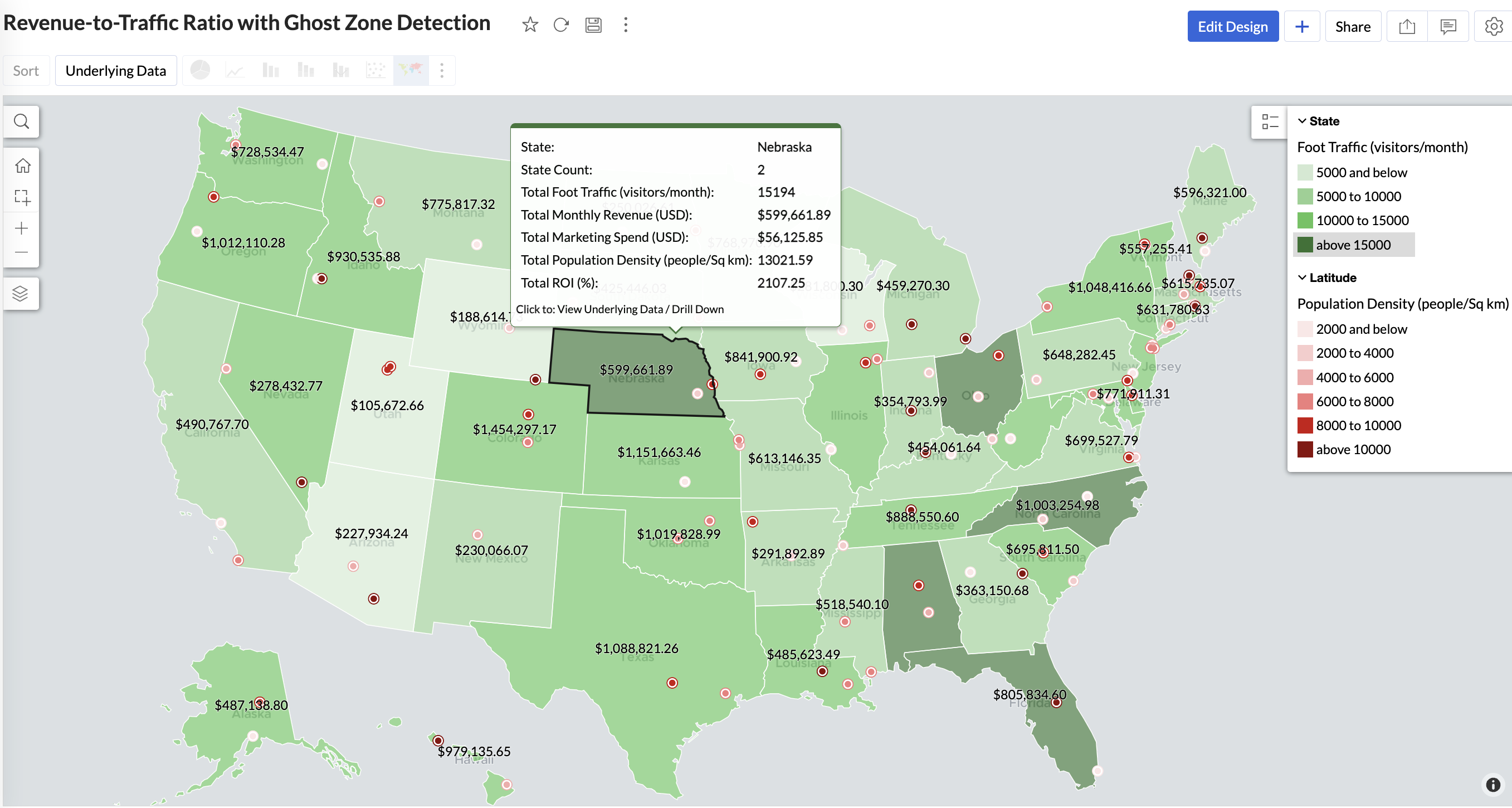
Mid to Dark green filled (high to mid traffic) + balanced revenue - Efficient zones — consider scaling efforts
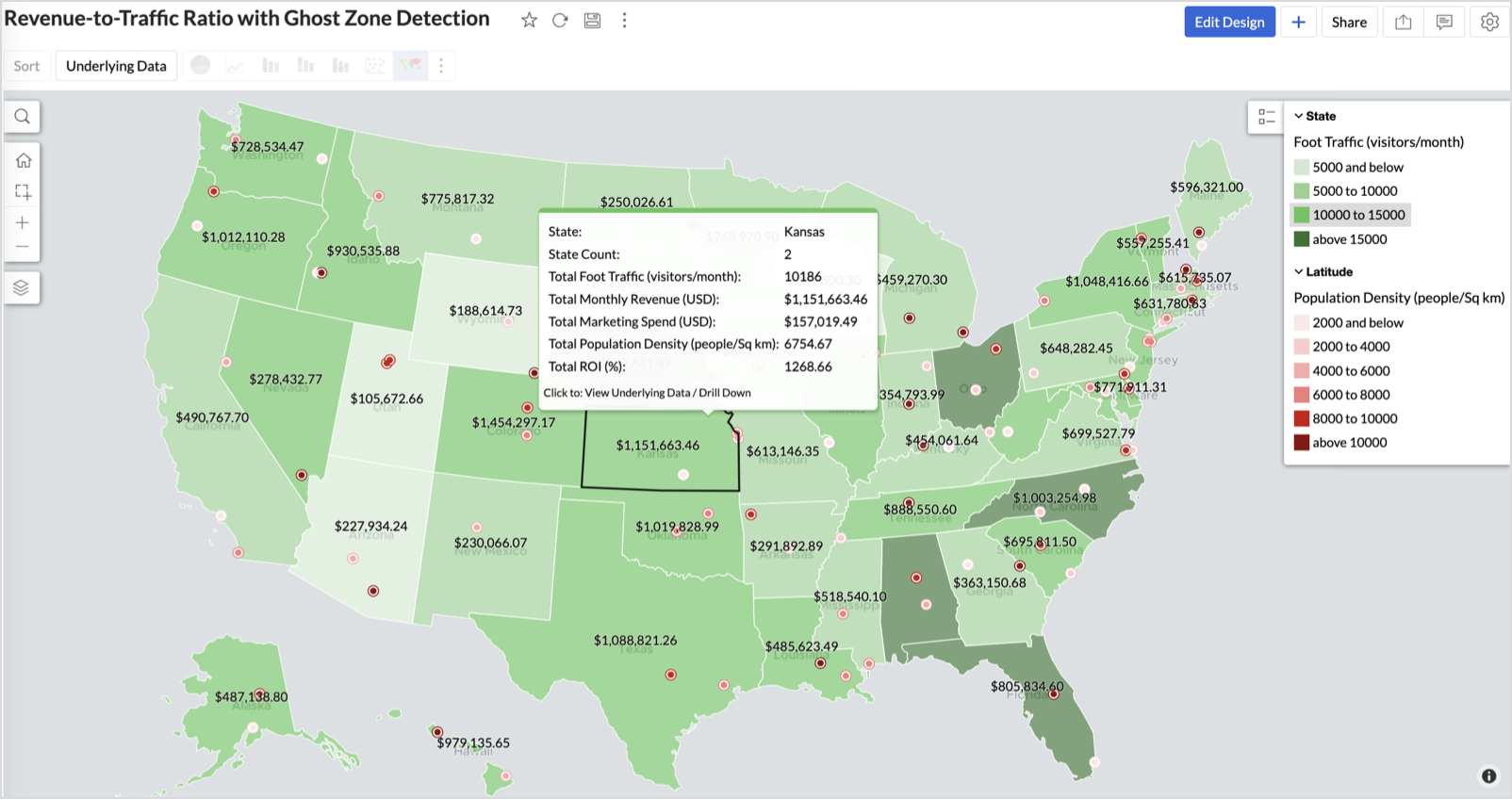
Light green filled (low traffic) + high marketing spend (from tooltip) - Budget drain — reduce spend or re-evaluate targeting
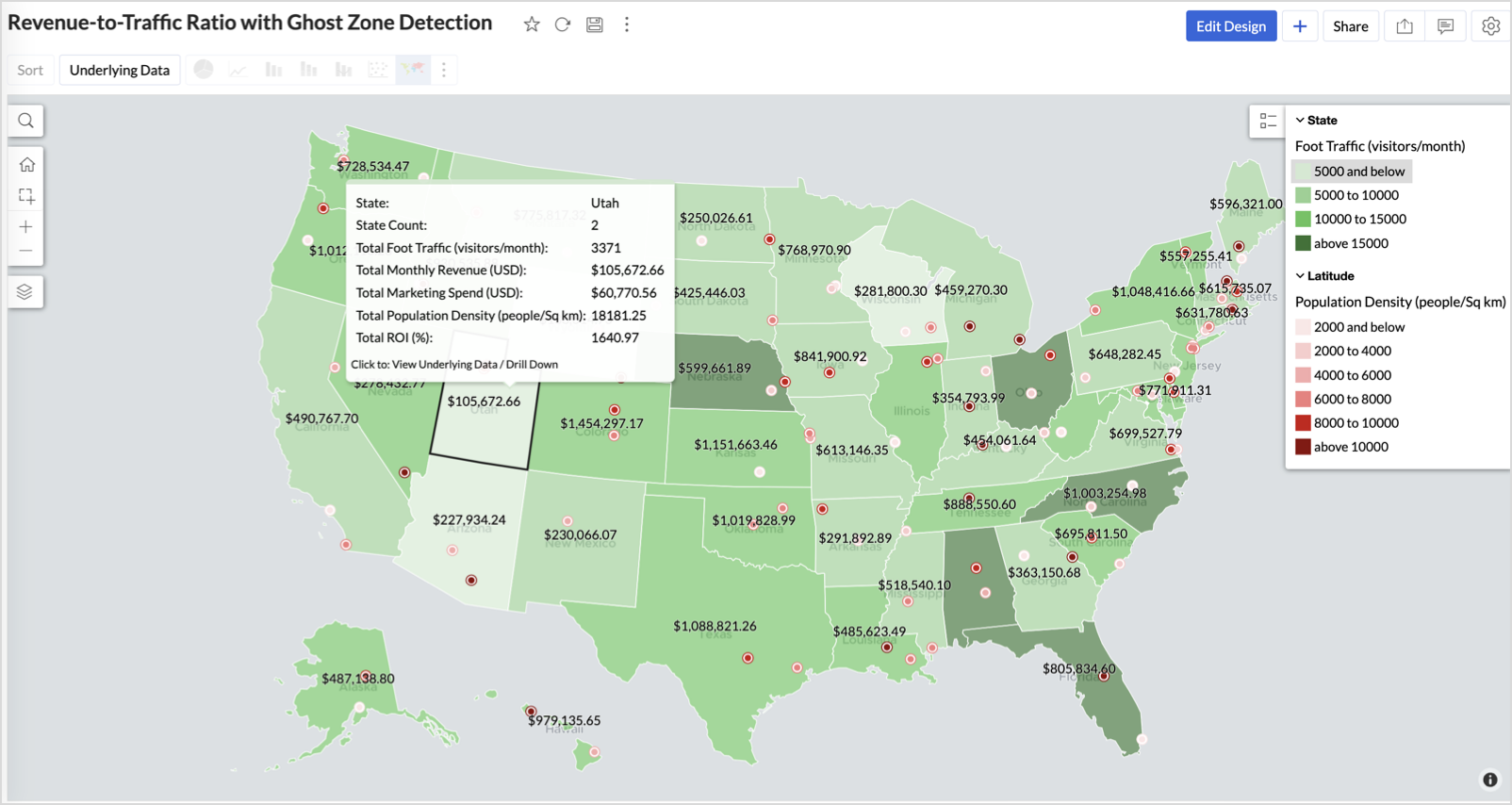
Dark red marker (high population density) + less to no store markers - Ghost Zones — high opportunity areas for expansion
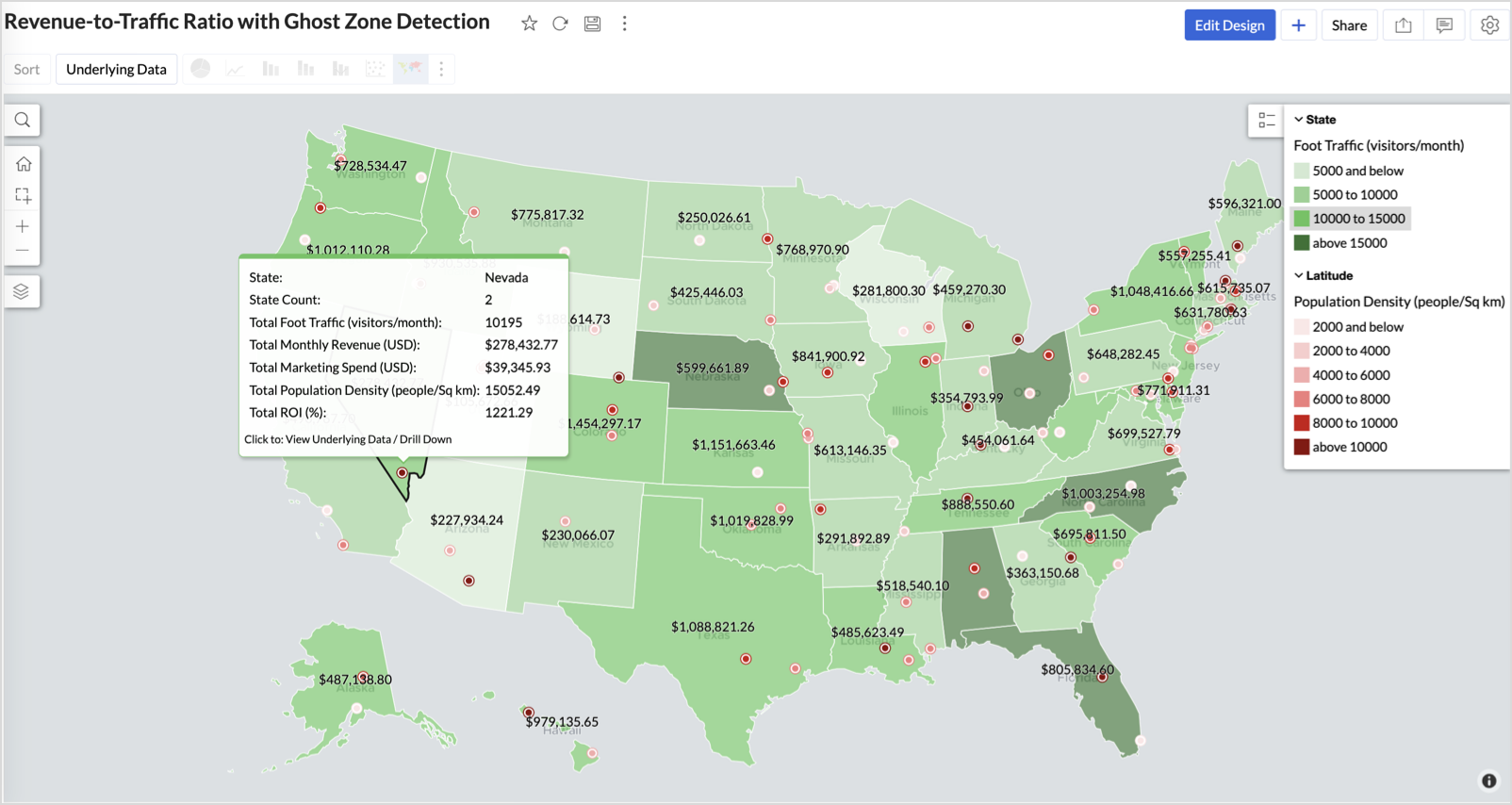
Example: In Las Vegas from Nevada, with a population density of 10,428 people/sq km and only two stores handling 10K–15K visitors/month, monthly revenue of the state remains modest at ~$278K. This indicates a high-opportunity zone for expansion, with strong footfall but untapped revenue potential.
Interpretation & Use
This map is designed for marketing and expansion teams who need to:
- Justify where to open new stores
- Optimize existing resource allocation
It visually answers the question:
Are we generating revenue where people are actually showing up?
Also, with the scatter layer:
Where are we not present — but should be?
3. Competitor Pressure Zones (Map – Scatter)
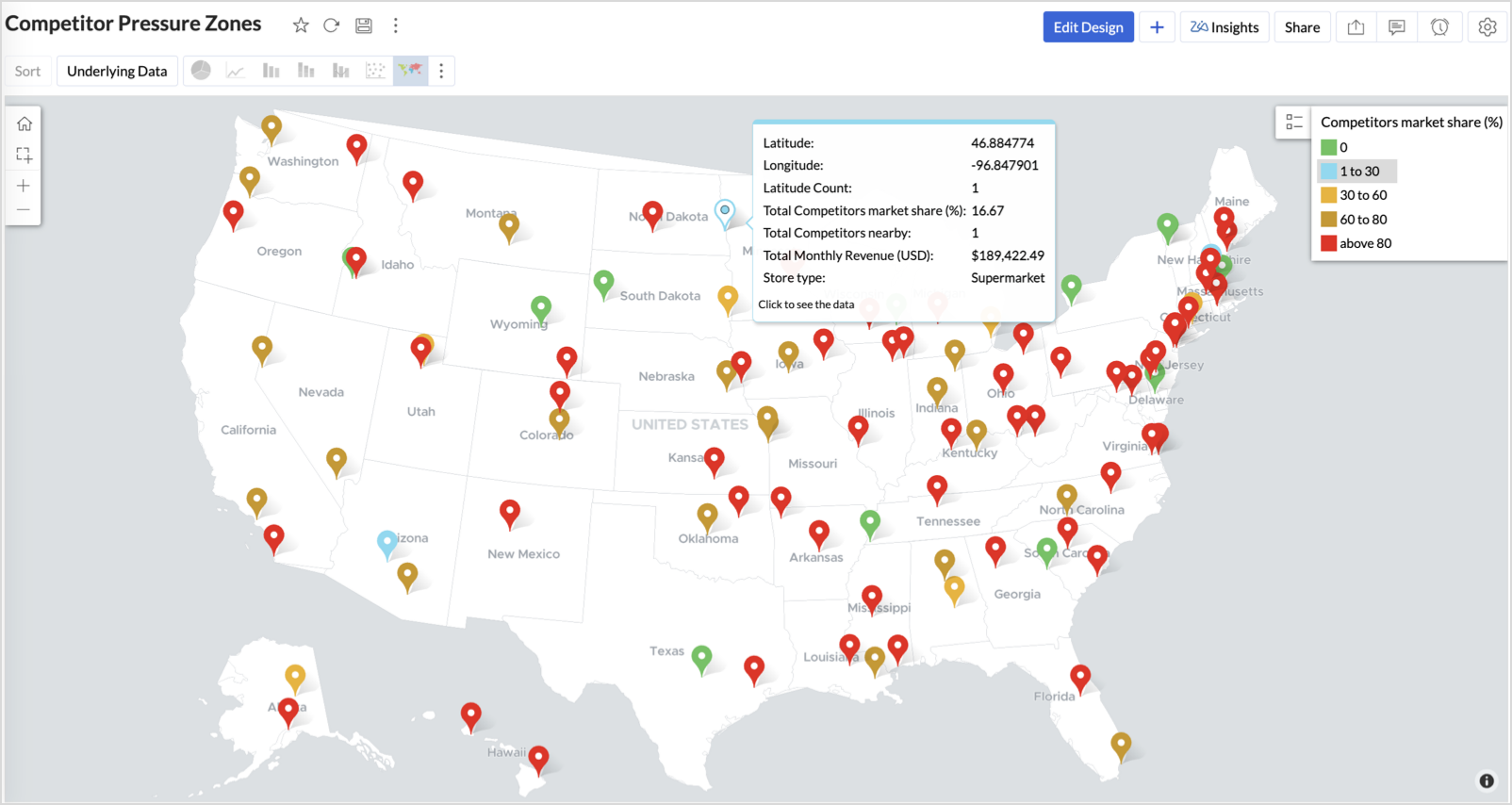
To evaluate how store performance is impacted by nearby competition, using a scatter map that plots every store across the U.S. and reflects competitor market share through color intensity.
This view helps:
- Detect locations under competitive stress
- Identify high-risk zones where your market share is at risk
- Correlate competitor presence with satisfaction and store performance
Why Map - Scatter?
Map - Scatter offers a clean and lightweight visual that plots each store based on its exact coordinates. By encoding competitor market share as color and overlaying other attributes via tooltip, this chart becomes a competitive pressure radar.
Procedure
- From the dataset, click the Create icon and select Chart View.
- In the chart designer, drag and drop the following columns into their respective shelves:
- Latitude → X-Axis
- Longitude → Y-Axis
- Competitors market share → Color
- Competitors nearby, Monthly Revenue, and Store Type → Tooltip
- Click Generate Graph.
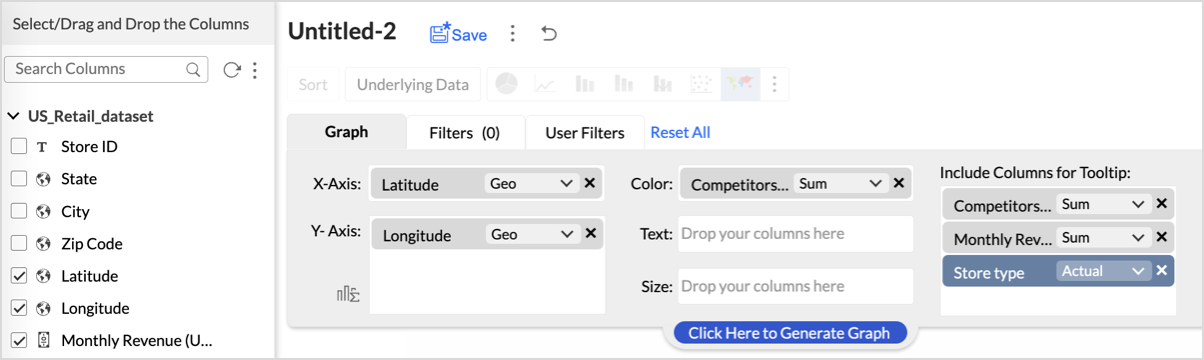
- Click on the more option and select the chart type as Map-Scatter.
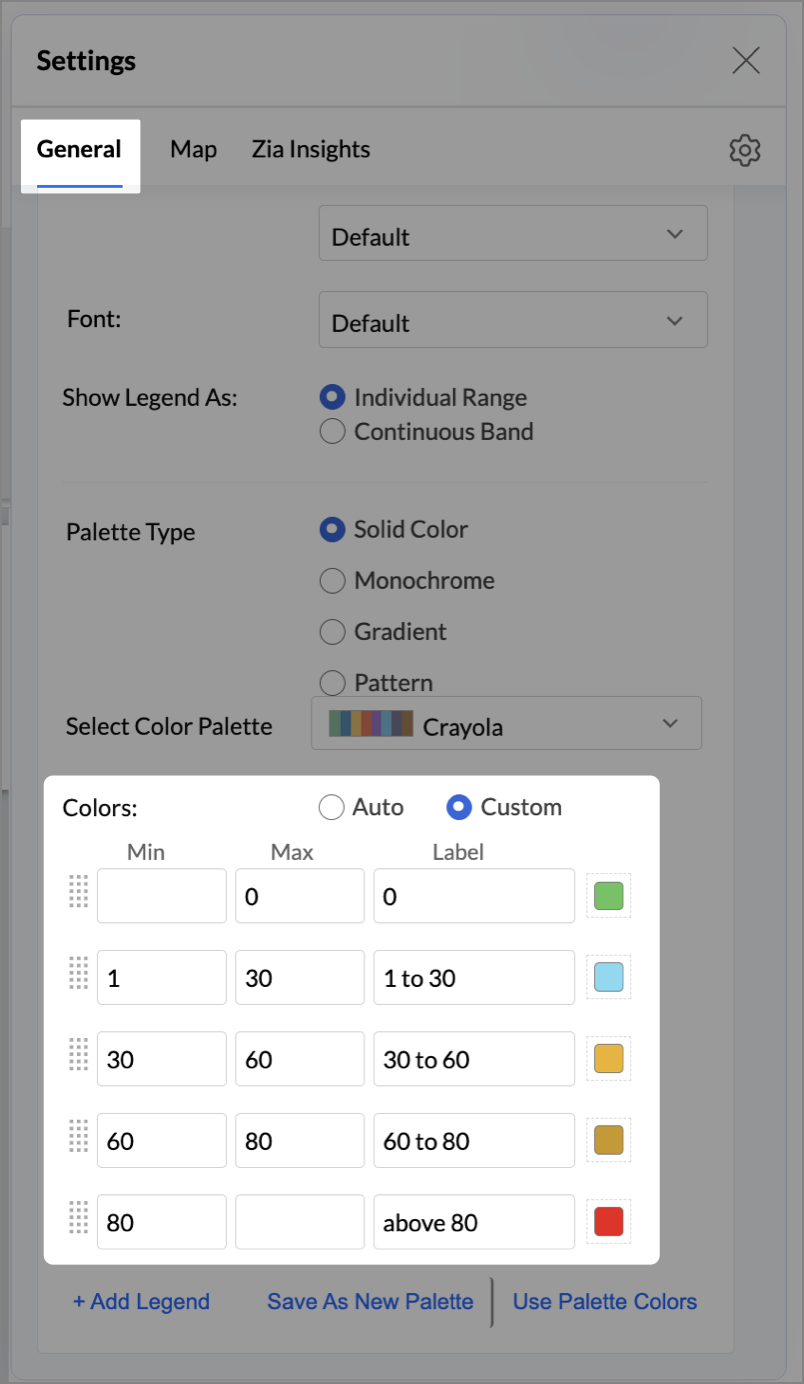
- In the Settings panel, adjust the color gradient to reflect pressure levels
- 0 → Green
- 1-30 → Cyan
- 30-60 → Orange
- 60-80 → Pale red
- Above 80 → Red
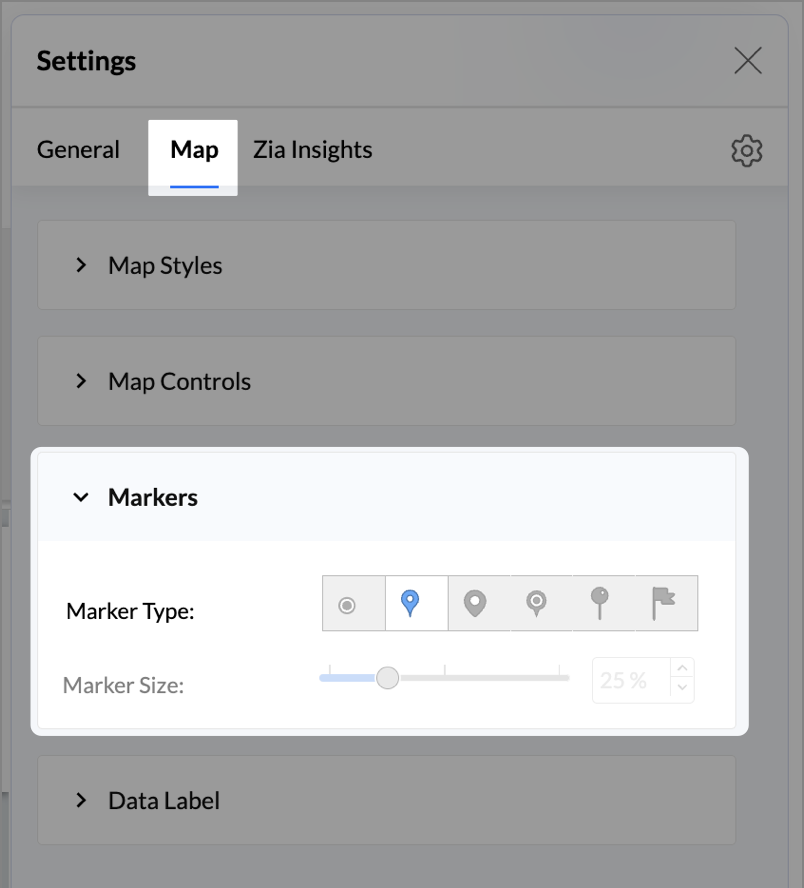
- Change the Marker type under Maps → Marker tab.
- Under the Map tab, change the map to Albers USA Projection.
- Rename the report as Competitor Pressure Zones and click Save.
The resulting chart uses color to signal competitive heat around each store, allowing you to scan pressure zones across all regions visually.
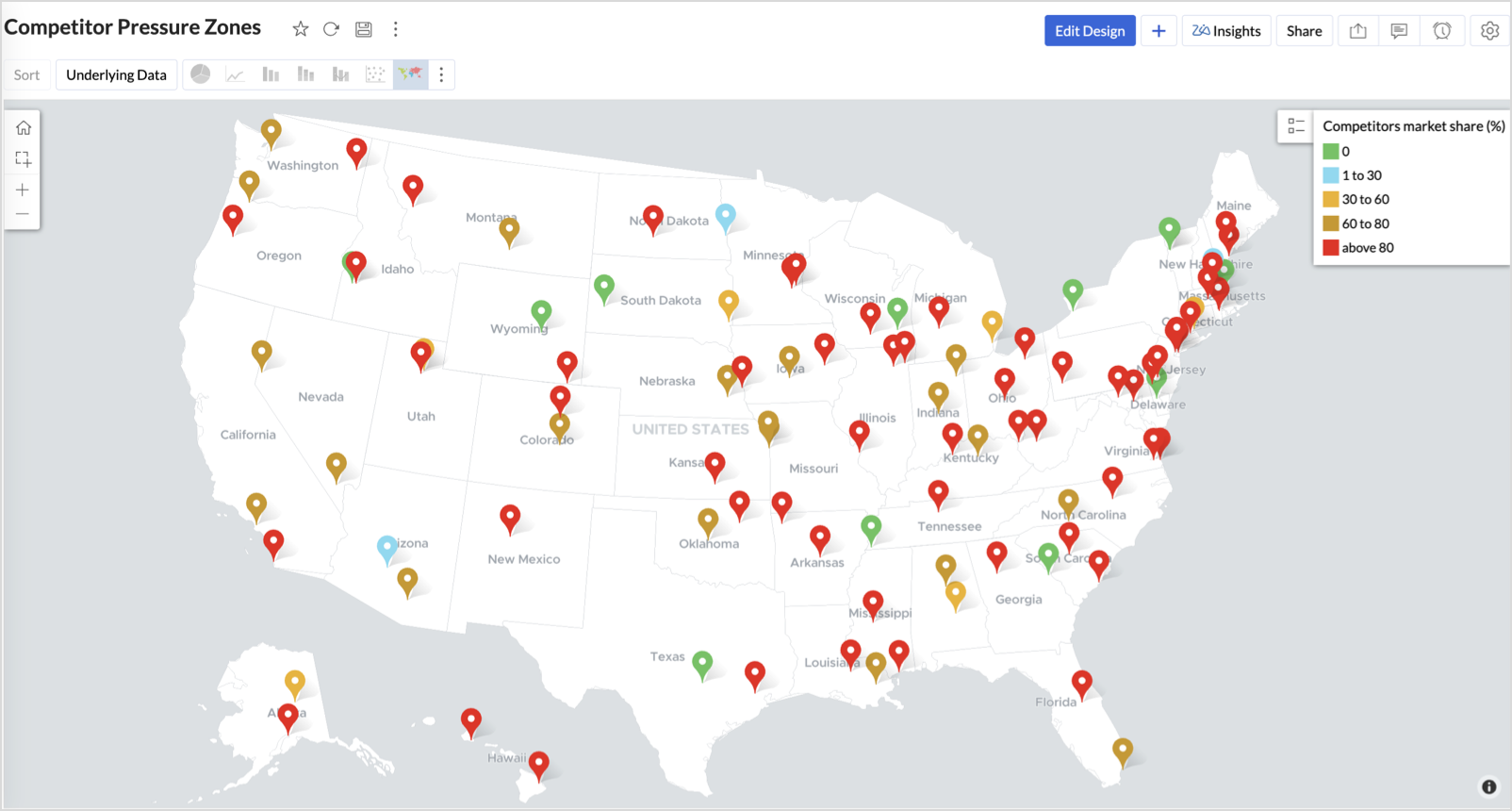
Key Insights
Red (80-100%) - High competitor dominance — urgent intervention zone
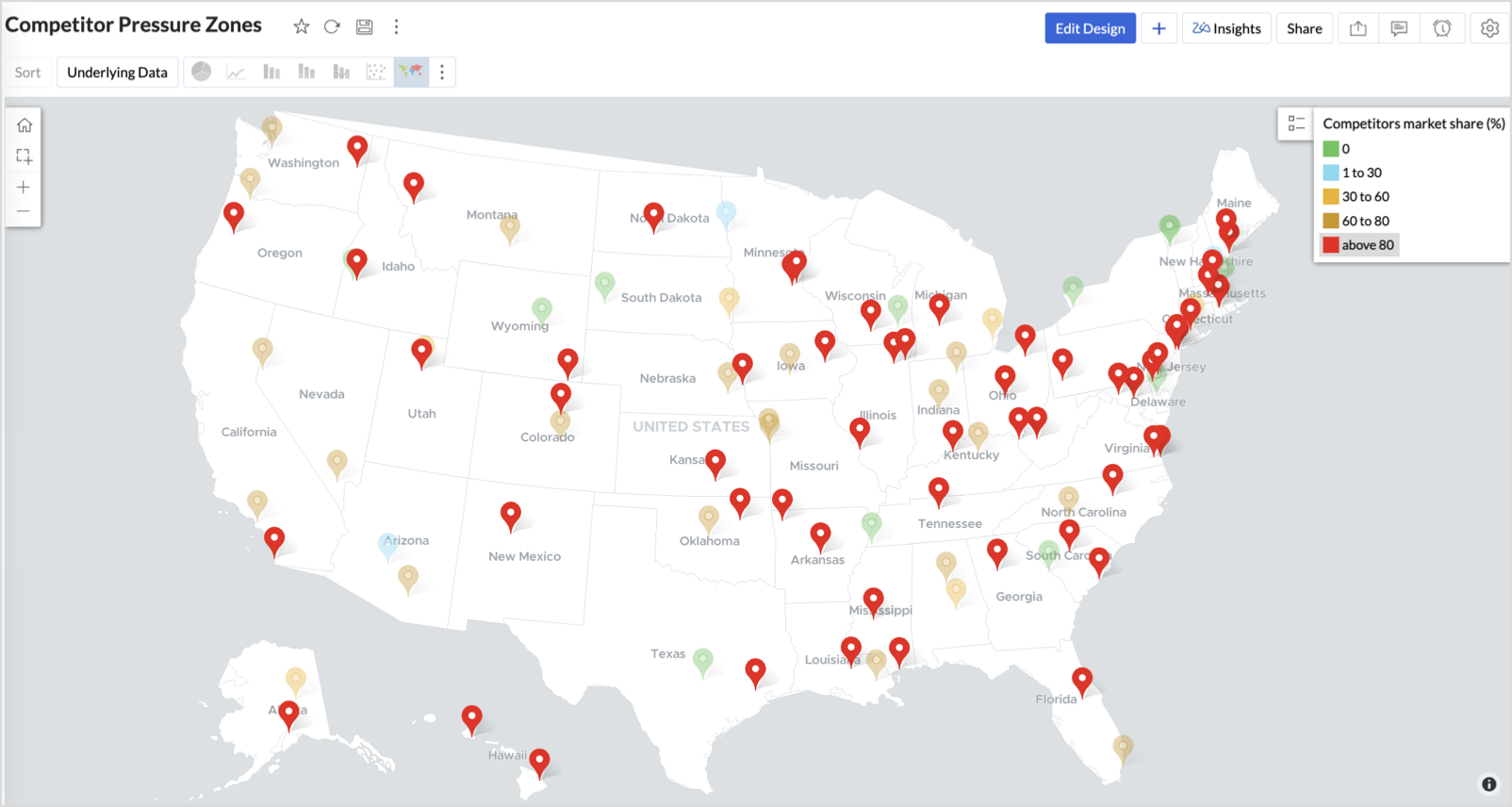
Orange (30-60%) + low revenue - Growing pressure — performance risk emerging
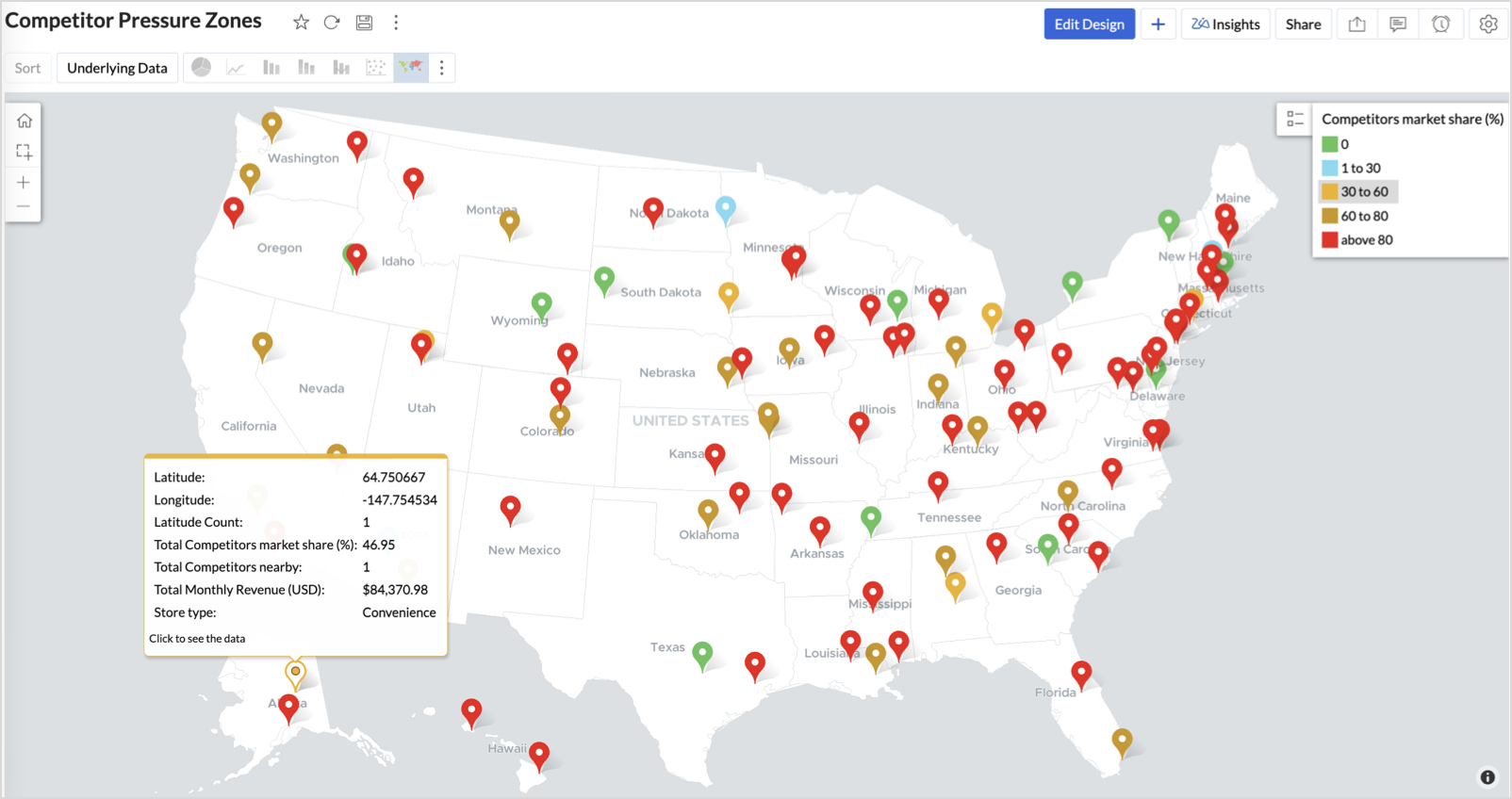
Green (0%) + strong revenue - Market leader — low competition, strong position
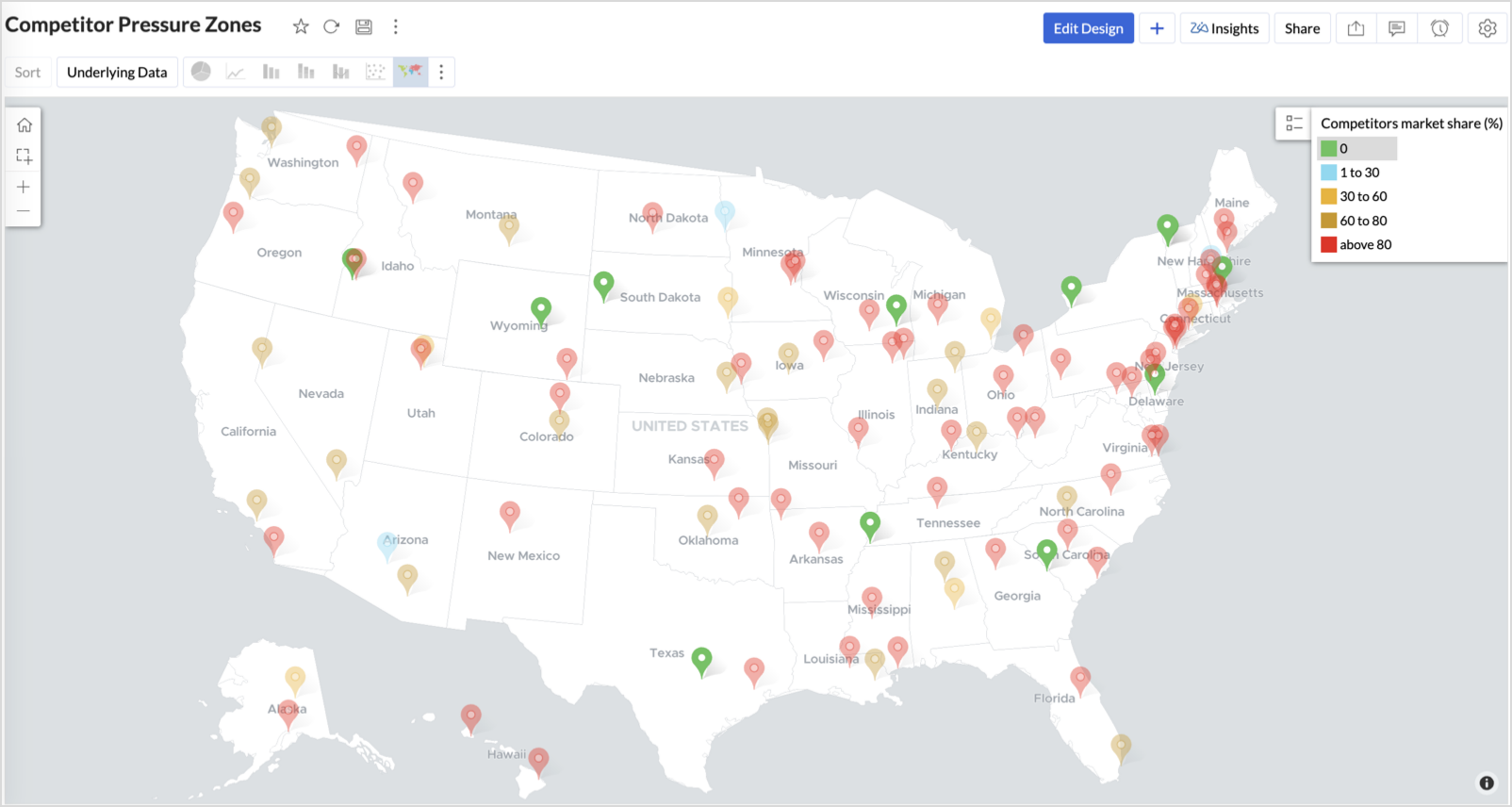
Cyan (1-30%) + moderate revenue - Mild competition — possible opportunity to scale further
Business Interpretation
This chart empowers regional and strategy teams to:
- Detect overcrowded areas where stores are losing share
- Identify safe zones where your brand leads the market
- Spot emerging competitor influence before it cuts into your margins
It acts as a competitive intelligence dashboard, mapping how your store network stands against external threats.
4. Customer Gender Distribution (Map - Pie)
To visualize how the gender distribution of customers varies across store locations. This helps identify stores with significant demographic skews, allowing for more personalized marketing, product selection, and in-store experience.
Why Map - Pie?
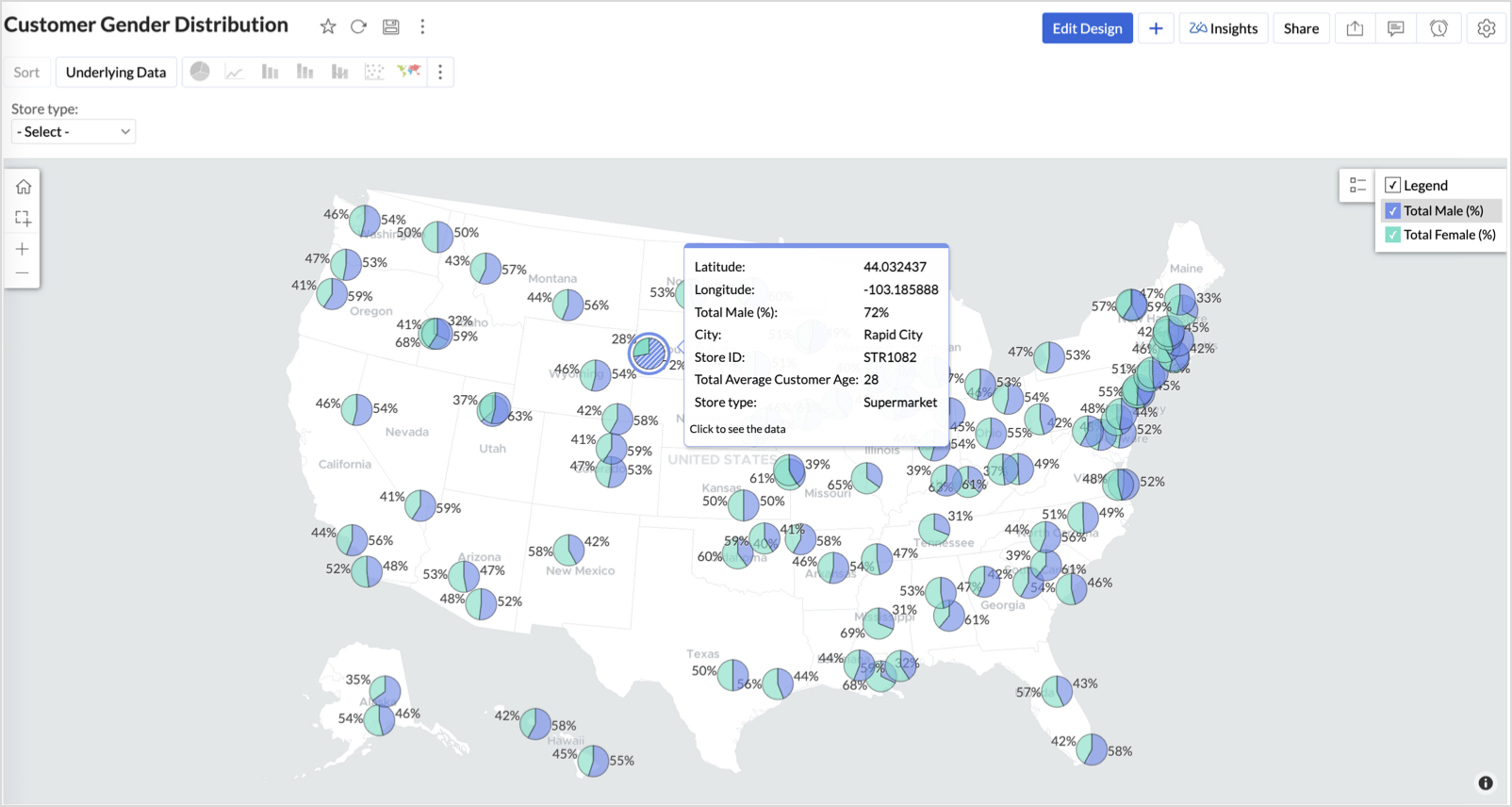
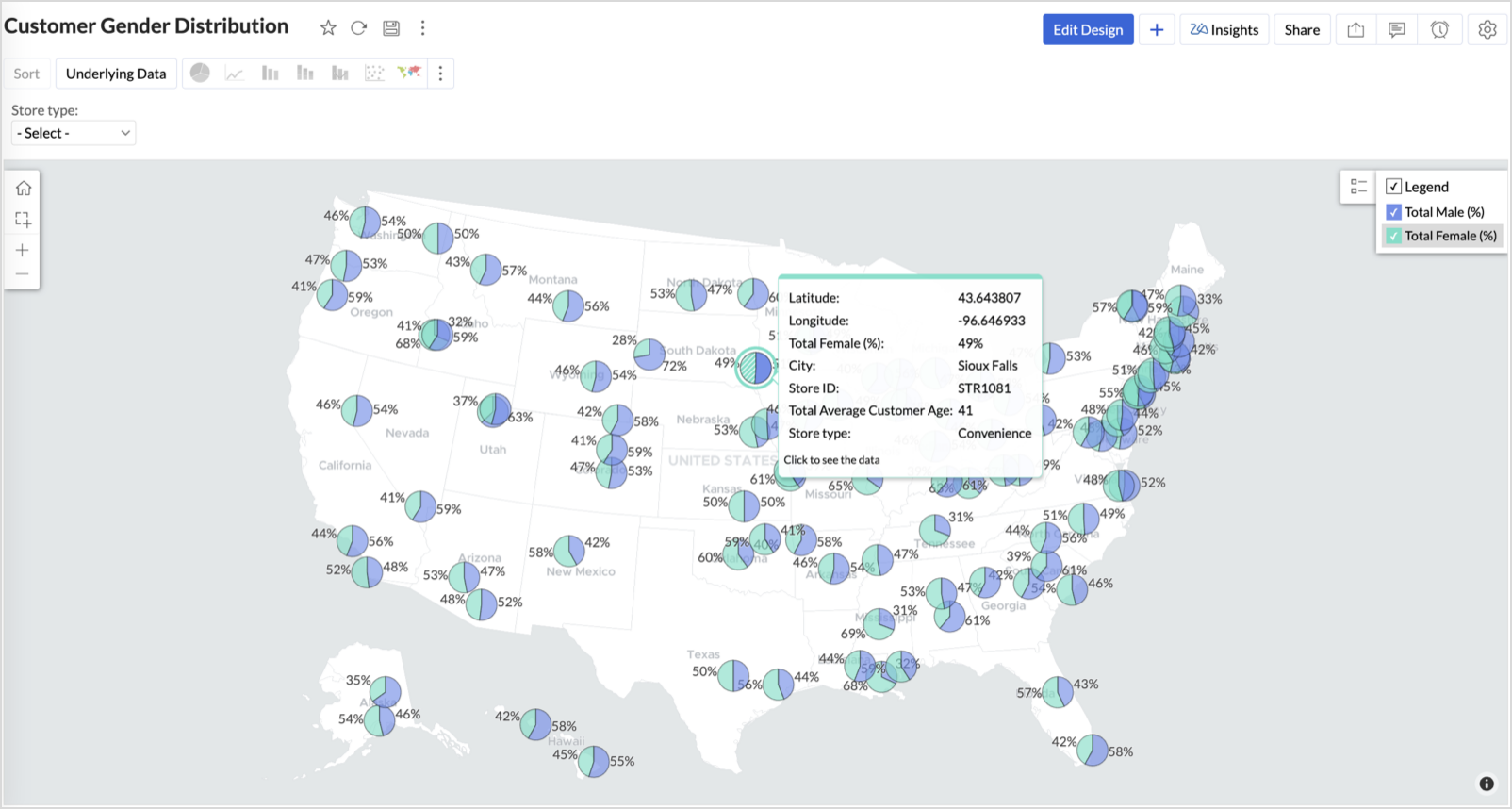
The Map - Pie chart is ideal for visualizing data composition across geographical locations.By breaking down each store’s customer base into Male (%) and Female (%) segments, this chart reveals who your customers are and where gender-targeted strategies might work best.
Procedure
- From the dataset, click the Create icon and select Chart View.
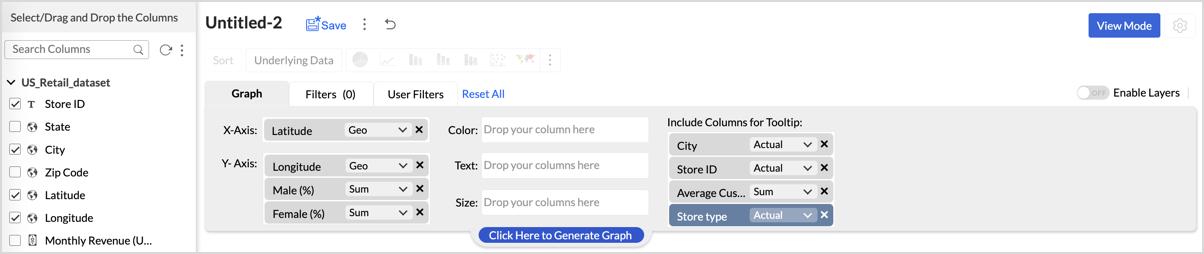
- In the chart designer, drag and drop the following columns into their respective shelves:
- Latitude → X-Axis
- Longitude, Male (%), Female (%) → Y-Axis
- City, Store ID, Average Customer Age, Store Type → Tooltip
- Click Generate Graph.
- In Settings, under the Map tab, change the map to Albers USA Projection.
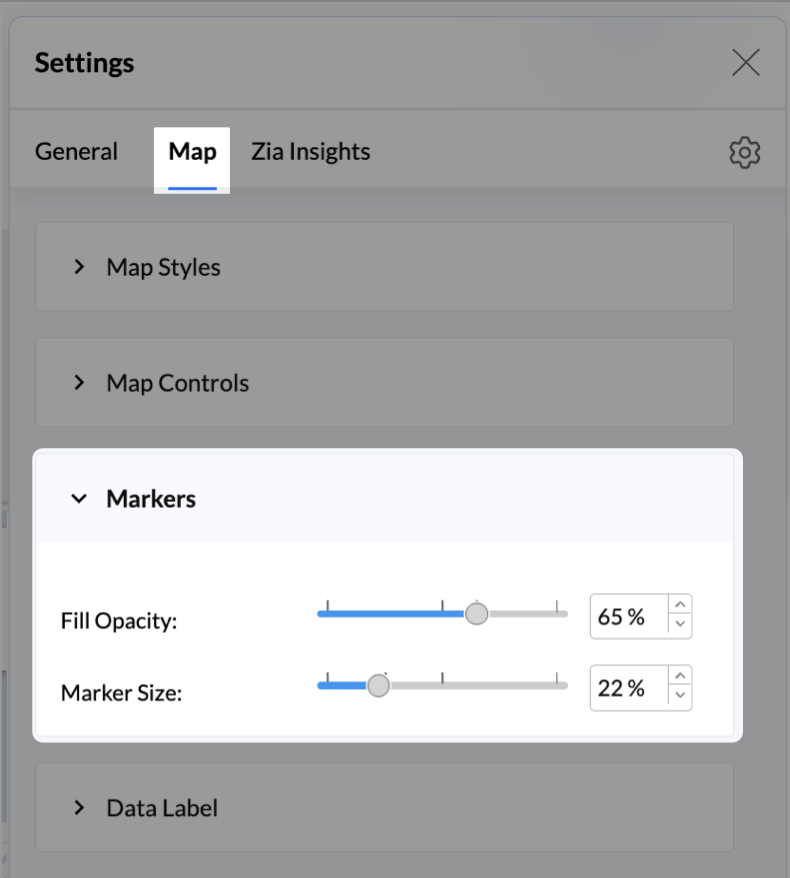
- Click on Markers, adjust the Marker Size as shown.
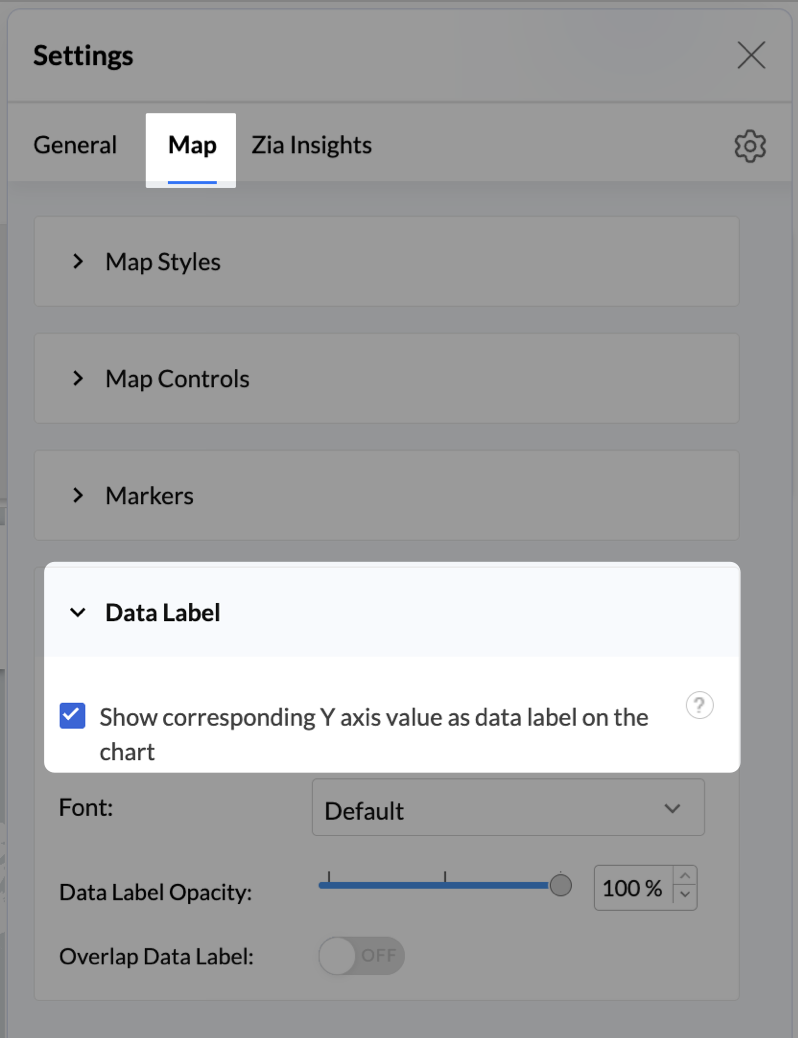
- Click on Data Label, and enable the Show corresponding Y axis value as data label on the chart to display the percentage values on the map.
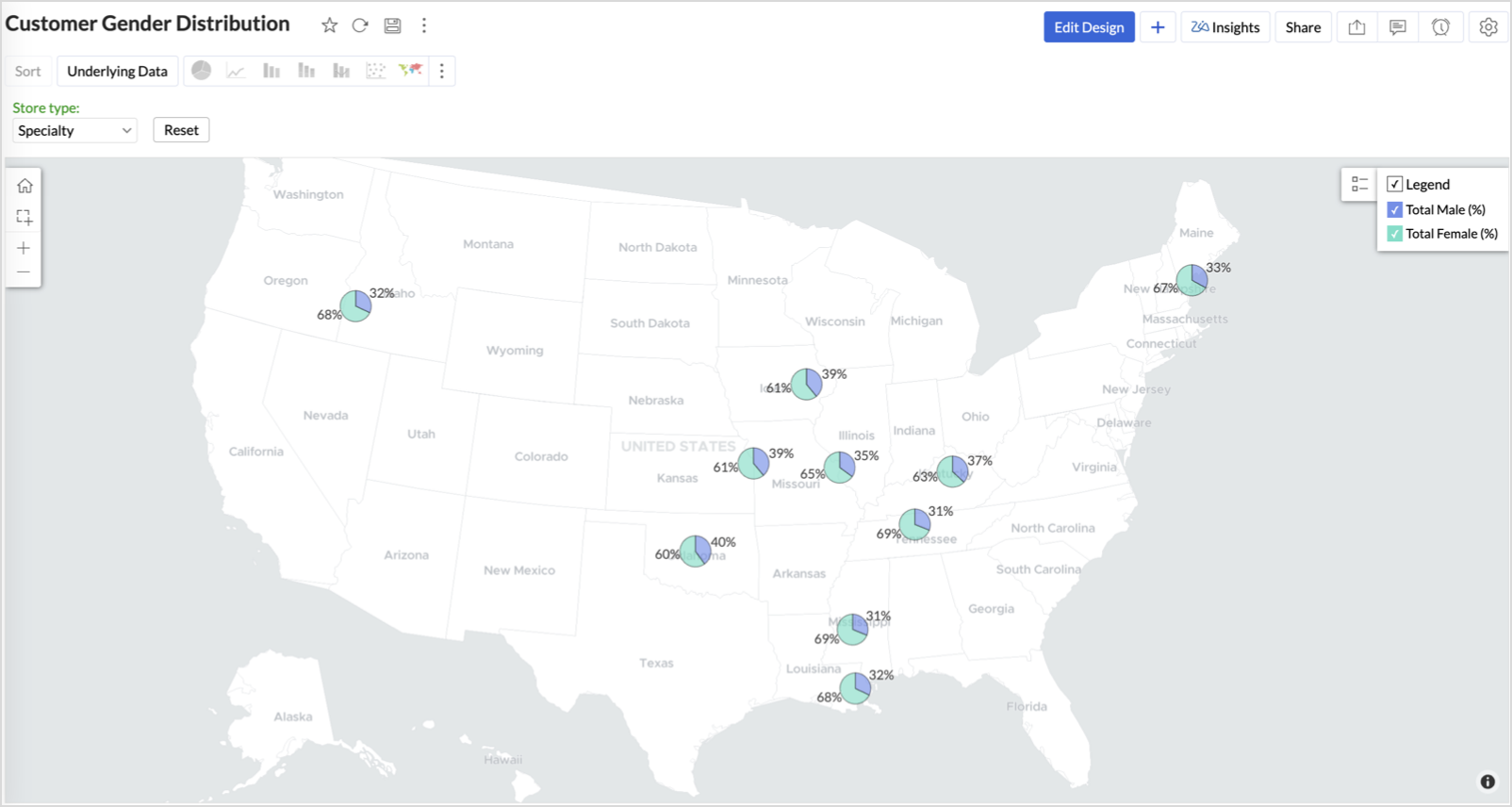
- Add Store Type as User Filters to slice down store-wise gender distribution.
- Rename the report as Customer Gender Distribution and click Save.
Each store will now display a pie chart representing the gender split among its customers, directly on the map.

Key Insights
Uneven gender split (e.g., 70% Male) - Potential to tailor offerings, branding, or promotions for the dominant gender
Balanced split (≈50/50) - Opportunity to run inclusive or diversified campaigns
High female ratio + specialty store - Indicates demand for niche products — expand category offerings
Business Interpretation
This chart allows marketing and merchandising teams to:
- Understand gender-based customer clustering across regions
- Launch targeted campaigns (e.g., loyalty programs, promotions)
- Refine product assortments to suit local preferences
For example: A store with 70% female shoppers may benefit from deeper investment in lifestyle categories, while a balanced store could serve as a testing ground for unisex offerings.
Summary
In this phase, we laid the foundation for geo-powered retail intelligence using Zoho Analytics. Through a single, well-structured dataset and four powerful geo map visualizations, we transformed raw store data into real, actionable business insights.
Here’s what we achieved:
|
Report
|
Business Insights
|
|
Store Performance (Bubble)
|
Identified stores that are over performing or at churn risk based on revenue and satisfaction.
|
|
Revenue-to-Traffic Ratio (Filled + Scatter)
|
Detected ghost zones and optimized marketing ROI by comparing traffic and revenue.
|
|
Competitor Pressure Zones (Scatter)
|
Mapped out competitor dominance and spotted at-risk or saturated regions.
|
|
Customer Gender Distribution (Pie)
|
Uncovered demographic patterns to tailor product, marketing, and in-store experience.
|
Click here to access the sample workspace.
These visualizations brought spatial awareness into every performance metric — turning maps into a strategic business tool.
And this... is just the beginning.
Stay tuned for Phase 2 — where Multi-Layer Geo Maps and Network Charts come together to supercharge your business strategy with even deeper spatial insights.
Topic Participants
Pradeepkumar R
Sticky Posts
What's New in Zoho Analytics - November 2025
We're thrilled to announce a significant update focused on expanding your data connectivity, enhancing visualization capabilities, and delivering a more powerful, intuitive, and performant analytics experience. Here’s a look at what’s new. Explore What'sWhat's New in Zoho Analytics - October 2025
Hello Users! We're are back with a fresh set of updates and enhancements to make data analysis faster and more insightful. Take a quick look at what’s new and see how these updates can power up your reports and dashboards. Explore What's New! ExtremeWhat’s New in Zoho Analytics – September 2025
Hello Users!! In this month’s update, we’re raising the bar across multiple touchpoints, from how you bring in data, plan and track projects to how you design and brand your dashboards. We’ve added the all-new Gantt chart for project visualization, expandedAnnouncing Agentic AI - Ask Zia!
We are delighted to roll out the new agentic AI capabilities in Ask Zia, where every stage of the BI workflow is assisted by AI. With a human-in-the-loop approach, Ask Zia ensures that you’re in command of the decision, while AI handles the complexity.Invitation-Based User Access in Zoho Analytics
Hello everyone, We’re rolling out an important update on how users are added to your Zoho Analytics Organization and Workspaces. Previously, when admins added users, they were automatically added to the organization. Moving forward, to improve security
Recent Topics
Validation function not preventing candidates under 18 or over 30 from submitting the web form
Hello everyone, I’m trying to create a validation rule for the Candidate Webform in Zoho Recruit. I added a custom field called “Date of Birth”, and I want to make sure that candidates cannot submit the form unless their age is between 18 and 30 years.Report to know the history of certain Tickets on Desk
Hi there guys, As the title implies we're wondering if there's any way to get some kind of Report that allows us to check the History of various Tickets at the same time since as of today if we want to know that we have to check them 1 by 1 which is notAdvanced Usage Billing: Prepaid with Drawdown
Picture yourself at your favourite coffee shop, Bean & Brew. You come by every morning for your usual cappuccino, and occasionally you get an extra cold brew and a muffin or two in the afternoon. Interestingly, Bean & Brew has a new idea of offering aZoho Commerce in multiple languages
When will you be able to offer Zoho Commerce in more languages? We sell in multiple markets and want to be able to offer a local version of our webshop. What does the roadmap look like?Urgent Zoho Creator down!!!???
Now my zoho creator faced this issue. Anyone has idea? Urgent!!!The Social Wall: September 2025
Hello everyone, As we step into the fall season, some major updates are on the horizon. Meanwhile, here are the exciting updates we rolled out this September. Approvals in iOS Managing approvals just got more seamless on mobile. With this update, theIntroducing Detailed View for Candidates in Vendor Portal
We’ve added a new Details sub-tab inside the Vendor Portal to help vendors easily view complete candidate information after submission. With this update, vendors can now access all candidate details, from personal information to associated job openings,Zoho One Down
Zoho Team, Checking if when the services up - currently Zoho One is downHow can I track which zoho users are actively using Zoho CRM
I have several licenses of Zoho CRM. We now need to add a new user. I could purchase a new license, but before I do, I would like to see if any of our existing users are not actively using the license assigned to them. How can I determine the activityAccess to Detail View From HTML Snippet
Zoho Creator displays a detail view that slides out from the right onClick of a record in a report. Am I able to access that detail view from an html snippet, e.g. click a record in a list and display the detail view? The zc_LoadIn dialog is a bit clunky,Billing Management: #10 Solving Common Mistakes in Billing
Over the past few weeks, we have explored different facets of billing, from the simplicity of traditional one-time billing to the evolving landscape of subscriptions, retainers, and usage-based models. We've unpacked how billing isn't just about sending【開催間近 - 10/17】東京 ユーザー交流会 Vol.3 参加登録 受付中!(参加無料)
ユーザーの皆さま、こんにちは。コミュニティチームの藤澤です。 10/17(金)に、東京・新橋で「東京 ユーザー交流会 Vol.3」を開催します! ZOHOLICSよりも小規模なイベントですので、「リアル開催はちょっと緊張する…」という方も、安心してご参加いただけます✨ 当日は、初公開の事例を2つご紹介予定です! なお、セッション映像のアーカイブ配信は予定していないため、会場にお越しいただいた方だけが、登壇者へ直接質問したり、リアルな声を聞いたりできる貴重な機会となっています。 ーーーーーーーーーーーーーーーーーーーーーーーーーーーーーーーーーーーーーーーーーーLoading CSS Stylesheets into HTML Snippet
Combining html/css into a single snippet can grow quite large for a UI that has a lot of functionality/styling. To keep things tidy, are we able to pull files into an html snippet using a <link> tag? If so, what are some best practices?Notes Attachments
Two things it would be nice to have the attachment size the same as the attachments sections and it would be nice to be able to attach links like you can in the attachments section. Thank youCanvas: empty images
Hello. If I add an image field like contact photo in a Canvas design, and the field is empty, there is an ugly placeholder in its place. This doesn't happen in the standard view. In the standard view, if the contact photo is empty, nothing appears inGoogle enhanced conversions not working
Hi guys, I've connected Zoho CRM through Google Ads interface with the goal to setup the enhanced conversion tracking in Google Ads. I have to Zoho related conversion goals which you can see in the images below: For the conversion goal above I've setupSync Contacts with iPhone
Is syncing the Zoho Personal Mail contacts with the iPhone (or other mobile devices) in the works? I just dumped Yahoo & then found out that contacts sync is missing. Importing is only a stop gap and a step backwards for me.MS Teams Meeting to Zoho CRM
Has anyone figured out a good way to push MS Teams meeting info on a trigger of "meeting end" to Zoho CRM? We're looking for a way to take attendees of a meeting and meeting duration and push it into Zoho CRM after the meeting has ended. If I can justHow do I move a section or element from one page to another in the NEW Zoho Sites UI
I have a section on my home page with numerous elements within it and I'd like to move the entire section to a different page on my site so I don't have to recreate it from scratch. Is there a way for me to do that easily? I could use a quick answer on this please.Zoho Projects app update: Global Web Tabs support
Hello everyone! In the latest version(v3.10.10) of the Zoho Projects app update, we have brought in support for Global Web Tabs. You can now access the web tabs across all the projects from the Home module of the app. Please update the app to the latestExport as MP4 or GIF
Hi, Just wondering if there's a way to export/convert a presentation to an MP4 video file or even a GIF. One use case would be to use the animation functionality to create social media graphics/charts/gifs/videos. Thanks for a great tool... Rgds JonPage Layout- Horizontal Rule
When editing the layout of, for instance, the Potentials page, is there a way to insert a horizontal rule or white space in between fields? I'd like to keep a group of fields in the same Section, but would like to create some seperation in order to further group together certain fields within the Section. If this is not possible, does anybody have any other suggestions on how to create this same effect? Thank you!Zoho Books will discontinue support for older browser versions soon
Hello users, Starting from May 15, 2024, Zoho Books will no longer support the following browser versions: Browsers Version Restrictions Firefox Browser Versions older than 100 Google Chrome Versions older than 100 Microsoft Edge Versions older than 100Zoho Projects - Q3 Updates | 2025
Hello Users, The final quarter of the year 2025 has begun, and we at Zoho Projects are all set with a plan. New targets to achieve and new milestones to reach, influenced by the lasting imprint of the past quarter. 2025's Q3 saw some new features andZoho Sheet - Printing - Page Breaks and Printing Customization
I think the title is descriptive enough in that I cannot find help documentation on a simple task of adding in page brakes for separating pages on print. ThanksIssue with Trident exe file
Hello Team, Exe Setup file It's showing harmful for user pc please check and do needful. this message for developer team. Thanks Bhargav PurohitDifferent languages for users
Hello, Do you plan to enable individual users to select their languages for interface? Currently language can be changed for everyone - it looks like a settings for a whole portal, which is not good when you are working internationally. Best regards,Transaction Locking with the dynamic date
Is it possible to dynamically update dates on transaction locking. We want to lock transaction x days from todayUnable to change sales_order status form "not_invoiced" to "invoiced"
I am automating process of creating of invoice from sales_orders by consolidated sales_orders of each customer and creating a single invoice per customer every month. I am doing this in workflow schedule custom function where i create invoice by gettingApply Vendor Credits Automatically
We are bulk importing Vendor credits in Zoho Books!!! Is there a way to apply vendor credits automatically to the first UNPAID bill of the Vendor?Apply Vendor Credit Automatically
Hello!!! Is there a way where in we can apply vendor credits automatically on the FIRST OUTSTANDING BILL of the vendor?? We have lots of VENDOR CREDITS ISSUES mostly!!! Applying it manually is a pain for us. Would be great if we have a way to apply theNeed Easy Way to Update Item Prices in Bulk
Hello Everyone, In Zoho Books, updating selling prices is taking too much time. Right now we have to either edit items one by one or do Excel export/import. It will be very useful if Zoho gives a simple option to: Select multiple items and update pricesCreator problem: Edit form View not displaying whole form
I'm having problems with the form in my database. The edit view is not showing the whole form: This is how it looks in the normal view: As you can see, there is a whole section in the bottom right of the form which is not displaying in the Edit View. This means that I can't change or delete any of these fields... Anybody had a similar problem or know a solution? Any help would be appreciated. Cheers,Vendor Master Enhancements for Faster Purchase Entry
I’d like to suggest a few features that will improve accuracy and speed during purchase voucher entry: Automated Item Tax Preference in Vendor Master Add an option to define item tax preference in the vendor master. Once set, this preference should automaticallyQuick Item Search & Auto-suggestion for Invoices
Hi Team, I am facing an issue while creating invoices in Zoho Books. Currently, I have to type the full item name in the correct sequence and spelling for it to appear. For example, my item name is: "Distemper Acri Silk Special White 10kg" If I type somethingIntegrating Chatbot with Zoho Creator Application
Is it possible to integrate a chatbot with a Zoho Creator application?Average Costing / Weighted Average Costing
Hello fellow maadirs. I understand Zoho Books uses FIFO method of dealing with inventory costing, but do you guys have any plans to introduce average costing? We indians need average costing. It's part of our culture. Please. I beg thee. Thanks.'Add Tax To Amount' not reflected in Invoice
Hi Zoho Support, I'm experiencing an issue with tax calculation display in my invoice template. Despite having "Add tax to amount" box checked in the template settings, the Amount column is not showing the tax-inclusive total for line items. Current behaviour:"Subject" or "Narration"in Customer Statement
Dear Sir, While creating invoice, we are giving in "Subject" the purpose of invoice. For Example - "GST for the month of Aug 23", IT return FY 22-23", "Consultancy", Internal Audit for May 23". But this subject is not coming in Customer Statement. OnlyA real WYSIWYG field instead of the limited rich text
Hi to everyone A "real" WYSIWYG or HTML field that outputs good HTML code when accessed through the API would be excellent. I tried to use the rich text field, but the styling options are limited. For example, there are no heading tags (h1 to h6), andNext Page