Introducing LiveCast in Zoho Show
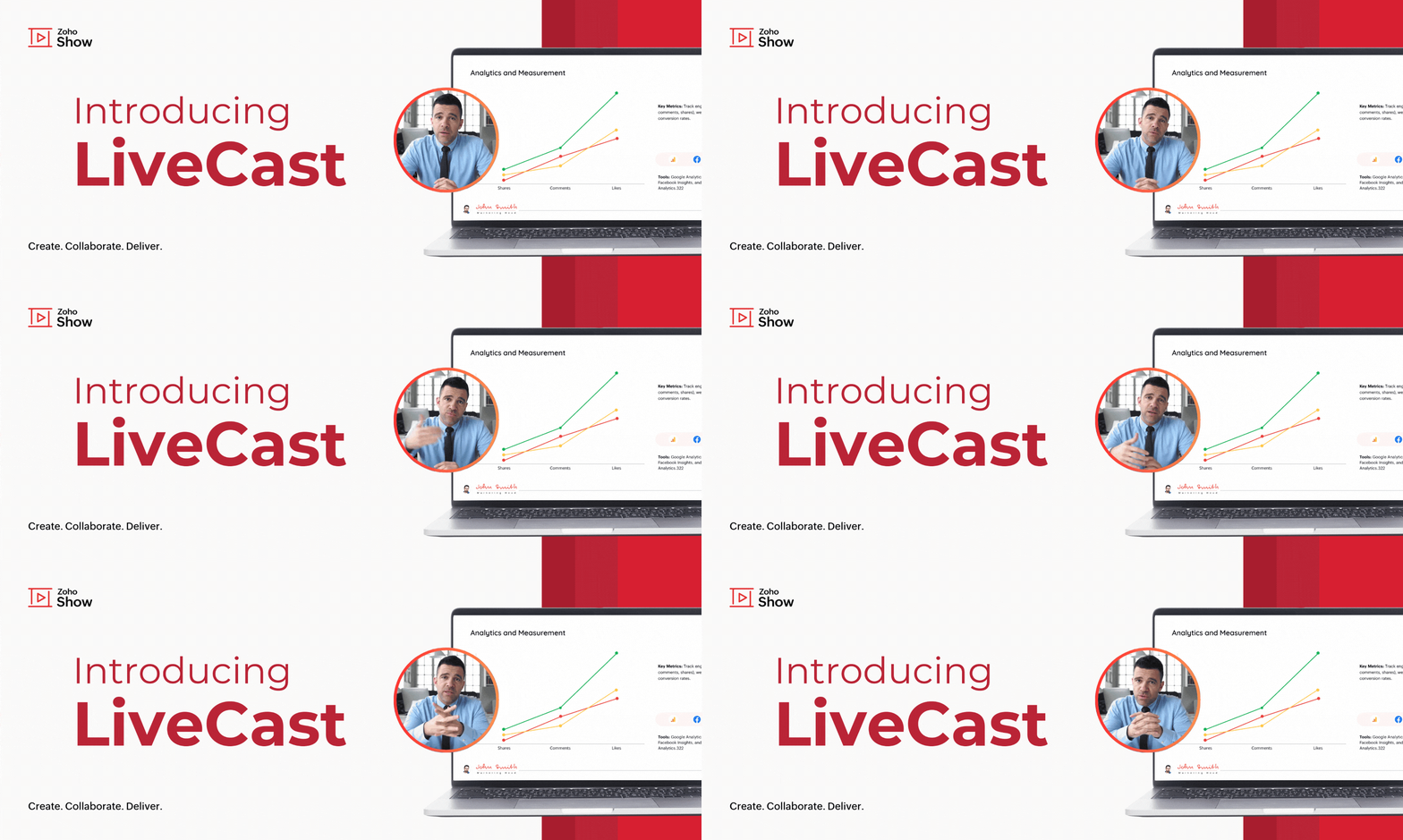
As the world goes digital, the human touch in how we do things often fades away. In such a scenario, personal connections can make all the difference—whether you're pitching your next big idea, conducting team training, or delivering a client presentation.
One way to build these connections is by letting your audience see you while you present. To make this possible, we’re excited to introduce LiveCast in Zoho Show!
This feature enables you to display your live video in slides, ensuring your audience will be able to view your presence as well as your content.
To get this done, you first need to insert a camera shape into your slide.
How to insert a camera shape into your slide
Find this option under Media in the Insert pane at the top of your screen.
You'll also be able to customize the shape and background in this window before adding it to your slides. Click Insert to insert the camera shape into your slide.

You can modify these options later by clicking on the camera shape. This will open the Media tab under formatting options by default, where you can change the frame shape and background image.

When you start your slideshow, your video will be automatically displayed to the audience once you present the slide. This will be useful especially during the intro,
Q&A sessions, conclusions, and other slides with complex information.
Transform your presentations into interactive experiences using LiveCast. From now on, your audience won't just be looking at slides—they’ll see you, engage with your message, and connect on a personal level. Try it out and let us know what you think in the comments section below.
Refer to this help article to learn more about this feature.