Tip #71 - Exploring Technician Console: Send Clipboard Keystrokes - 'Insider Insights'
Hello Zoho Assist Community!
Say you are helping a customer remotely and need to log into a system on their machine. You have the password ready on your end, but the moment you try to paste it into the login field, nothing happens. The remote screen just sits there, unresponsive to your clipboard. So you end up reading the password out loud, character by character, hoping nothing gets mistyped along the way.
That is exactly the gap that Send Clipboard Keystrokes in Zoho Assist closes.
Most remote sessions restrict standard copy-paste at login screens and credential fields, because those fields are designed to block direct clipboard input for security reasons. Send Clipboard Keystrokes works around this by simulating the keystrokes of your copied content rather than attempting a traditional paste. The result? Your clipboard content gets entered into the remote field just as if it were typed, even where a regular paste would fail.
How to use Send Clipboard Keystrokes during a session
Navigate to assist.zoho.com and ensure the Clipboard permission is enabled for the site in your browser settings. During an active remote support session, copy the text you want to send, a password, license key, or access token.
Open the Session menu on the left panel of the Technician Console and click Send Clipboard Keystrokes. The copied content is instantly entered into the selected field on the remote machine, just as if it were typed manually. 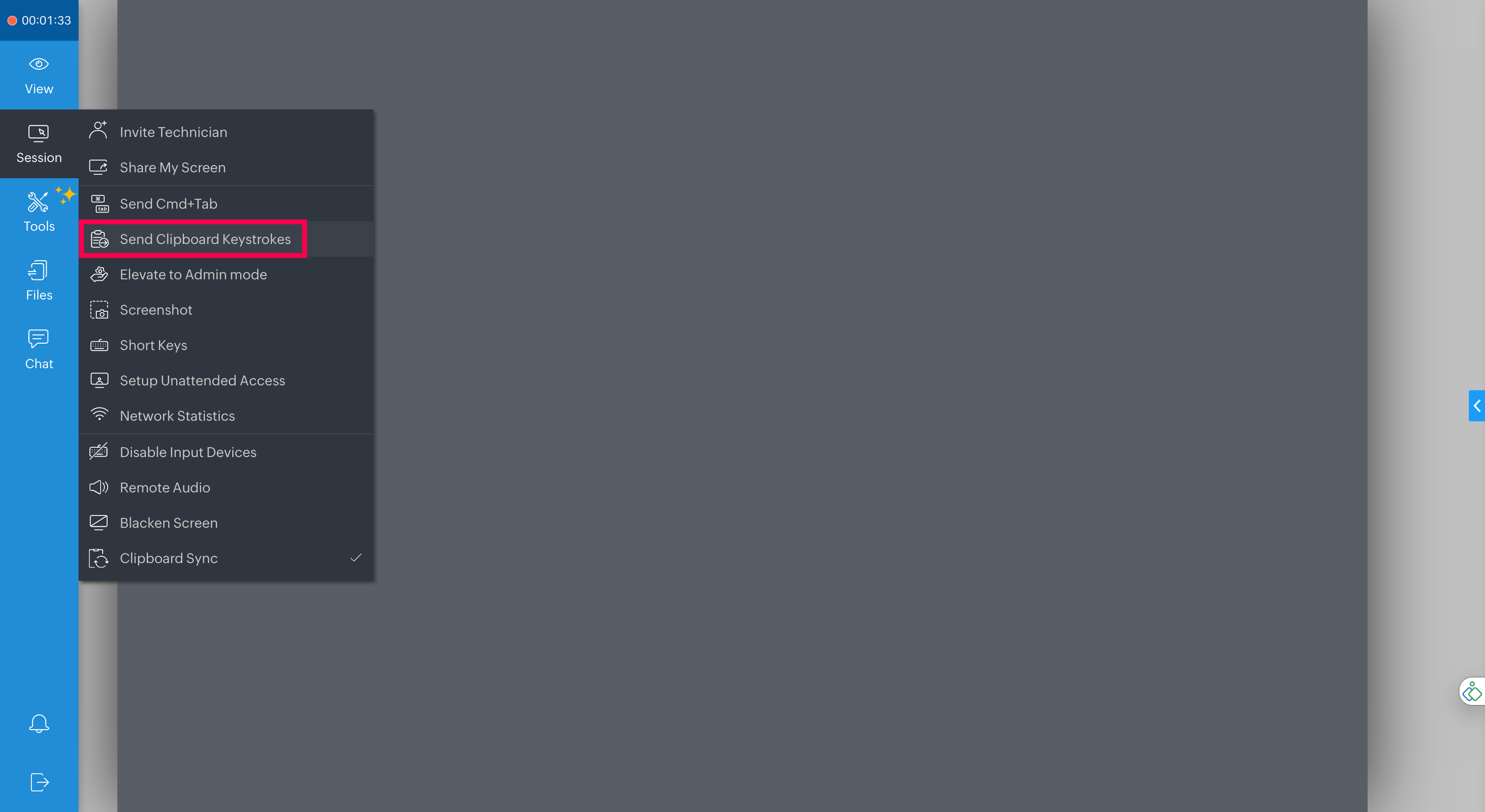
Why does this matter?
Works where paste does not: Login screens and secure fields that block clipboard input are no longer a barrier.
No manual typing: Passwords, license keys, and access tokens go in exactly as copied, with zero transcription errors.
Faster, cleaner sessions: Spend less time navigating credential hurdles and more time actually resolving the issue.
Available on mobile too: Send clipboard content from your phone or tablet during a session, not just from desktop.
Whether you are handling a UAC prompt, entering credentials on a customer's login screen, or filling in a product key during software installation, Send Clipboard Keystrokes keeps things moving without the fumbling.
Have you used Send Clipboard Keystrokes during a session? Share your experience, tips, or questions in the comments below — we would love to hear how it fits into your workflow!
For any questions or support, reach out to us at support@zohoassist.com. We are always happy to help!