Tip #85 – Never Lose Track of What Happened in a Session with Session Recording – 'Insider Insights'
Tip #85 – Never Lose Track of What Happened in a Session with Session Recording – 'Insider Insights'
Hello Zoho Assist Community!
A technician wraps up a complex remote session. The issue is fixed, the customer is happy, and everyone moves on. But three days later, a question comes up: what exactly was done during that session? Was a specific setting changed? Which steps were followed? Without a record, piecing that together means relying on memory, scattered notes, or nothing at all.
For teams that handle compliance requirements, conduct training, or simply want accountability across their support operations, that's not good enough.
That's where Session Recording comes in.
What is Session Recording?
Session Recording in Zoho Assist lets you record remote support, screen sharing, and unattended access sessions seamlessly in the background. Recordings are processed automatically and stored for whenever you need them, whether that's for an internal audit, a training demonstration, or a session review. Saved recordings can be downloaded or deleted at any time.
Navigate to Settings > General > Session Recording to get started. From here you can:
Choose which session types to record: Remote Support Sessions, Screen Sharing Sessions, and Unattended Access Sessions.
Set the recording to happen automatically for every session, or opt for manual recording to record only when needed.
Select your preferred recording quality.
Manage storage by choosing to either delete older recordings automatically or stop recording new sessions when storage is full.
In multi-monitor setups, choose to record only the active monitor under your cursor or record across multiple monitors.
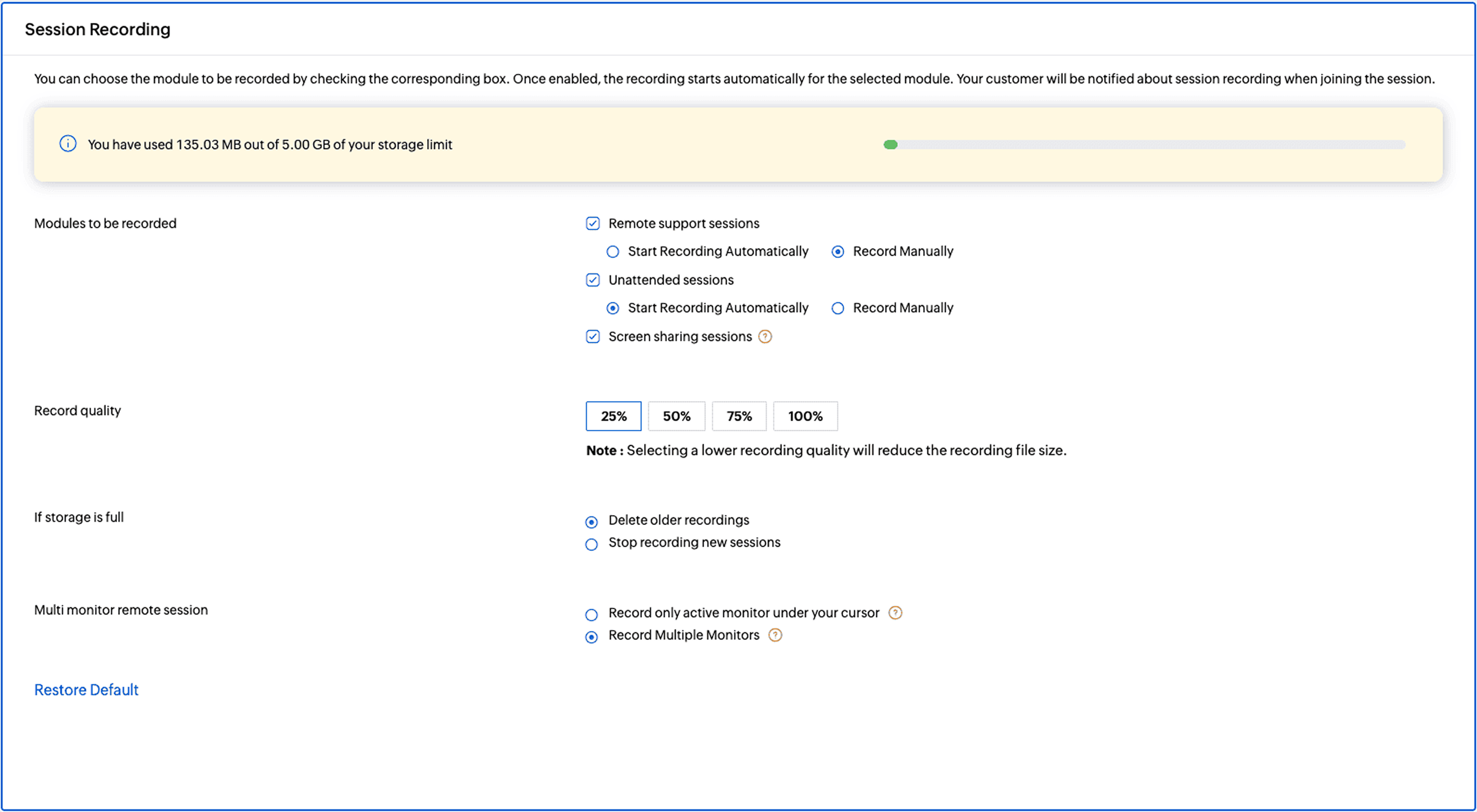
Automatic vs. Manual Recording
With automatic recording enabled, the entire session is captured and stored under Reports without any action needed from the technician. If manual recording is preferred, technicians can start, pause, and resume recording anytime during the session from the left menu under SESSION. All recorded segments are saved as a single file under Reports.
Accessing, Downloading, and Deleting Recordings
Go to Reports > Custom Reports, click the video button next to the session, and select Download to save or Delete to remove the recording.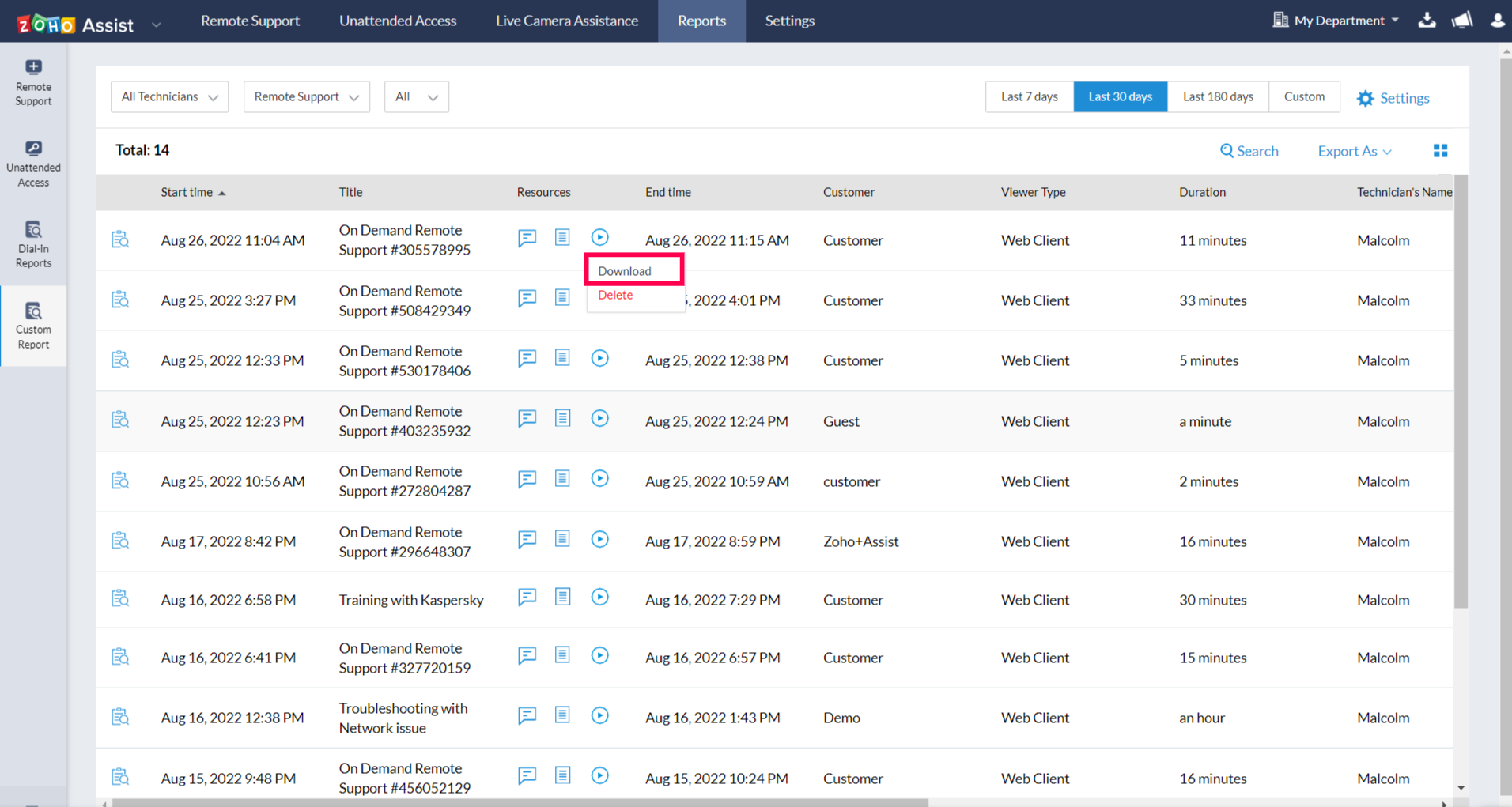
Additionally, you can access Session Recording by clicking the Files icon located in the top-right corner of the dashboard and selecting it. This section gives you quick access to all your session recordings in one place. You can play the session recording directly or download it for offline access or documentation purposes.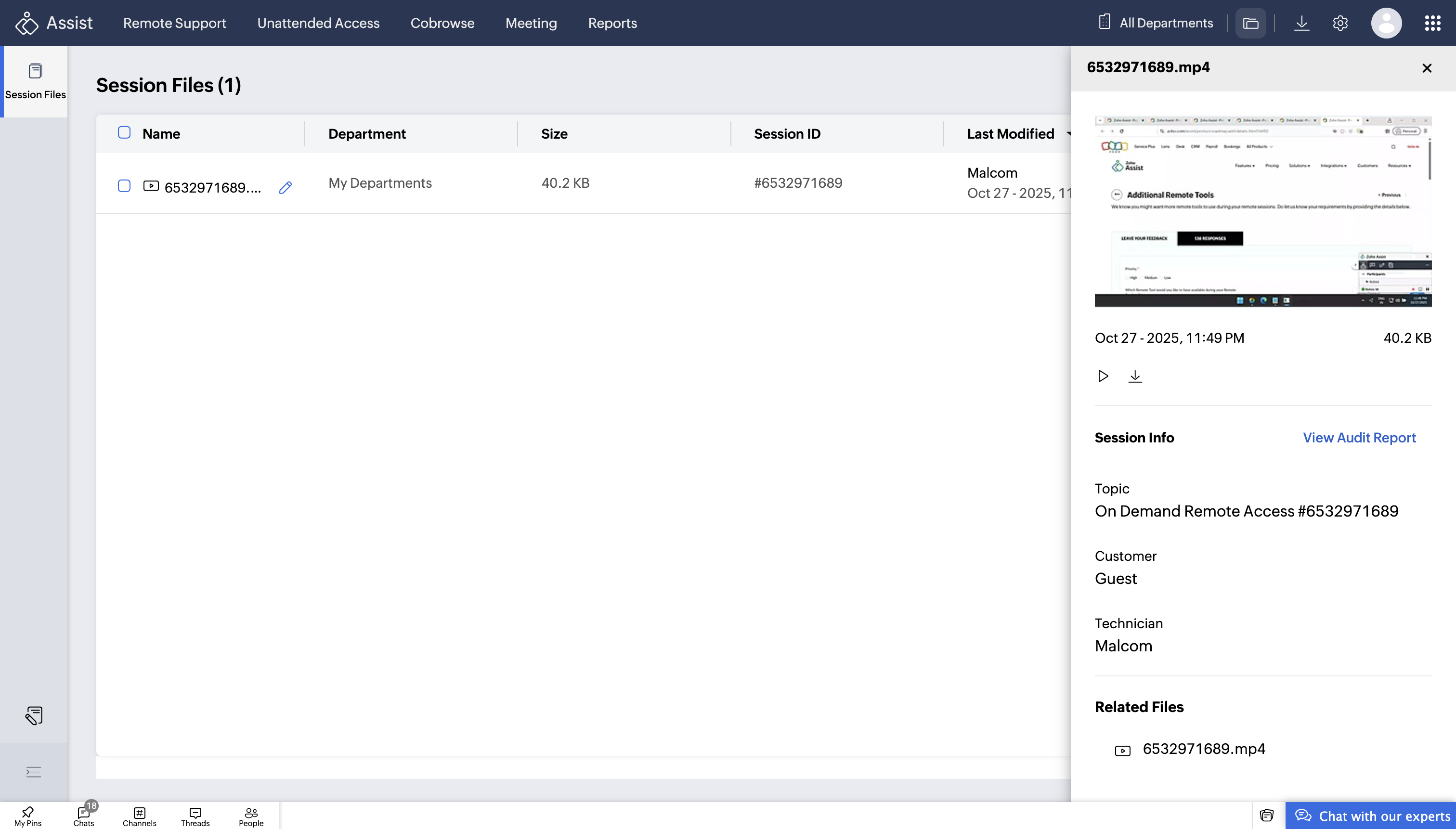
Whether your team uses recordings for compliance, training new technicians, or reviewing complex cases, Session Recording ensures there's always a reliable reference for every session that matters.
Have you been using Session Recording in your workflow? We'd love to hear how your team is putting it to use. Share your experience in the comments below!
For help or questions, reach out to us at support@zohoassist.com. We're always happy to help!