UI issue with Organize Tabs

UI issue with Organize Tabs

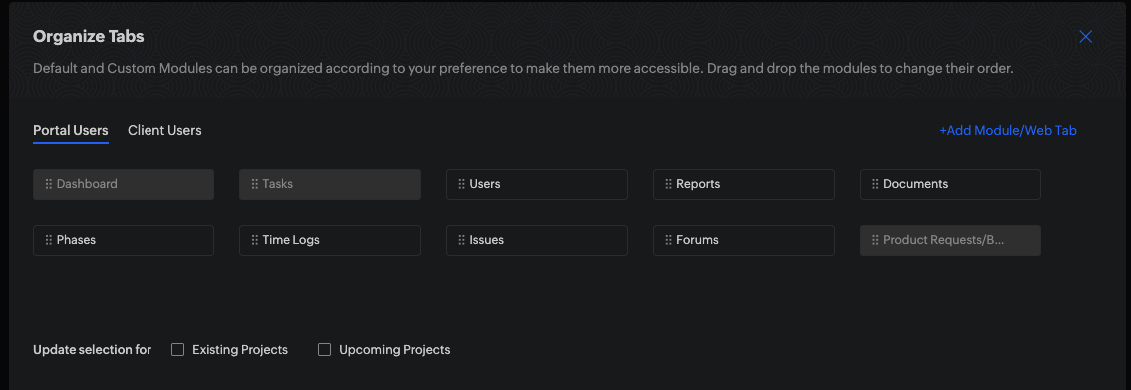
When looking at the organize Tabs window (bellow) you can see that some tabs are grayed out. there is also a "Add Module/Web Tab" button. When looking at this screen it's clear that the grayed out tabs can not be removed from the portal user's screen while the other's can be. When removed, they will be available in the "Add Module/Web Tab" menu to re-add if needed.

Interestingly enough the last tab/module "Product Requests/B.." is a custom module that I have created which can't be removed from the view.

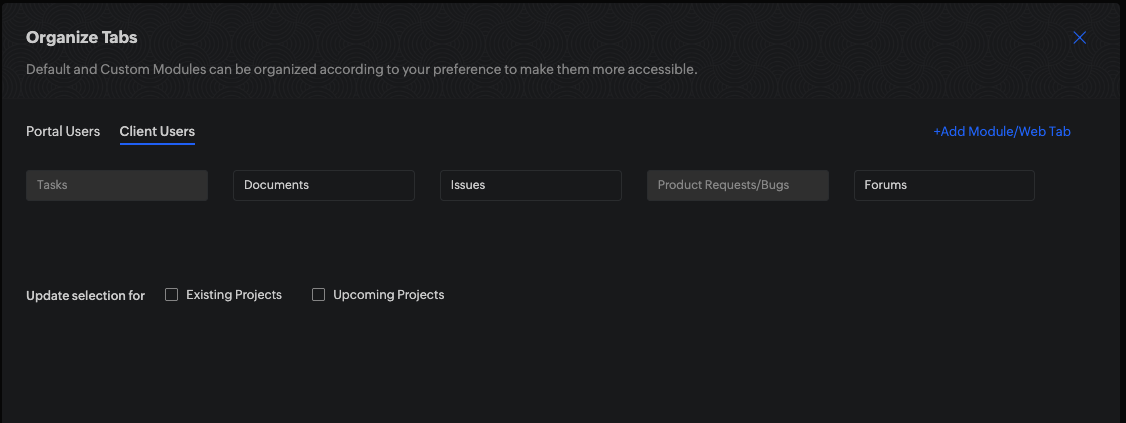
If I switch over to the Client users you can see that the UI looks the same however in this case the grayed-out box means 2 different things i'm told by support. For system modules i.e. "Tasks" it continues to mean that the module/tab can not be removed however for custom modules now being grayed-out means it's not visible to the client user. Which is confusing because there is also a list of not visible modules in the "Add Module/Web Tab" menu. 
 
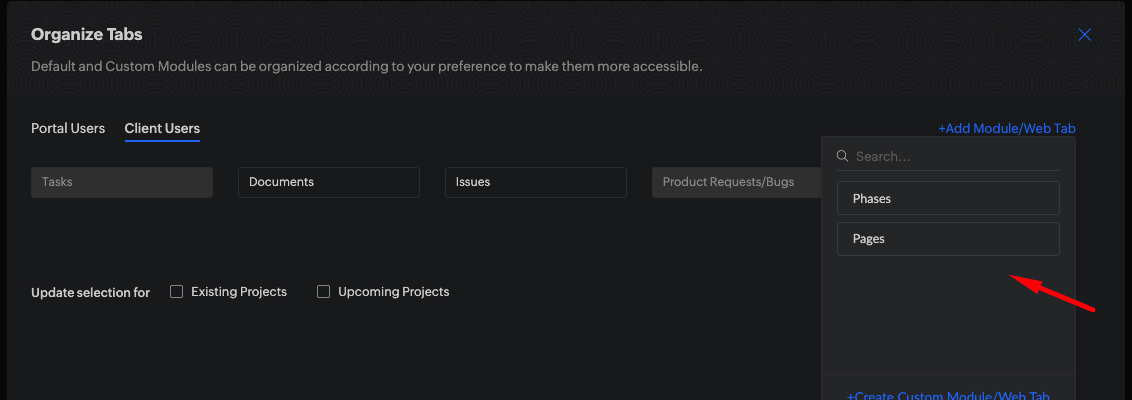
IMHO if the module/tab is not visabile it should not be displayed on this view and be part of the menu displayed when you mouse over "Add Module/Web Tab" as shown here. And if custom modules are not able to be added for client users then they should be grayed out on this sub menu under "Add Module/Web Tab" 
    • Sticky Posts

    • Four types of task dependencies

      "Nothing is particularly hard if you divide it into small jobs."                                                                                                                  - Henry Ford Projects, small or large, are driven by simple work units called tasks. Monitoring standalone tasks might look simple but as the workflow becomes elaborate, tasks may start relying on one another. In project management, this relationship between tasks is termed as "Task Dependencies". Dependency between tasks arise
    • Tip: How to print the Gantt View

      Though we move from the traditional project management system (using papers) to an online project management system, we still prefer to have a printed copy of the activities/tasks that are to be done in the project. This way, we can carry the to-do lists with us for the meetings and refer when we are offline. The print option, available at the right side of the page, allows the users to print the project information across all the modules. However, this option failed to print all the tasks & milestones
    • Task and Project numbering

      Zoho Projects now generates a unique number for each project, task, and issue added. The auto-generated ID is a combination of a prefix and a number which is assigned by Zoho Projects. The unique IDs for projects, tasks, and issues will be useful to track, identify, and search easily. You can modify the settings to enable or disable the Project and Task IDs.  Learn more on how to modify Prefix & ID settings for projects and tasks. Issue IDs cannot be disabled, only its prefix can be changed (tasks
    • Task Inline Editing Enhancement

      Hi All, Today, we have made an enhancement in task inline editing. In 4.0, task edit is moved in a single screen in a pop-up. We designed this in-order to make the task edit across the product to be the same. Let it be in Feeds, Tasks & My Tasks tab, Calendar & My Calendar tab, a click on the task title will open the popup and user can edit the values. Customers pointed us the inline editing was very useful to them & how much they miss that in 4.0. Based on the feedback, we have rolled out this enhancement.
    • Blueprint in Zoho Projects

      Often, we stumble upon tasks having the same status workflow. Repetitive task processes are tedious to handle, right? That’s why we have introduced Blueprint for task automation. Blueprint is a tool to organize tasks and automate them based on the workflow you design and the criteria you define.    How do I associate tasks with a blueprint? You can set the criteria while creating the blueprint such that when you publish a blueprint, the tasks that satisfy the criteria will be associated with the