Automation Series: Auto-update Budget When Time is Logged
In Zoho Projects, Summary fields enable instant budget sync by capturing Actual Cost and showcases it at project-level when a time log is added. This allows real-time budget visibility and helps teams stay within financial thresholds.
Consider an event management firm planning to conduct a global summit on a fixed budget spread across venue deposits, speaker fees, Audio/Video production, and catering. Costs add up from different teams throughout the day and the available budget shifts with every time log. In this case, an outdated balance can lead to cost overrun.
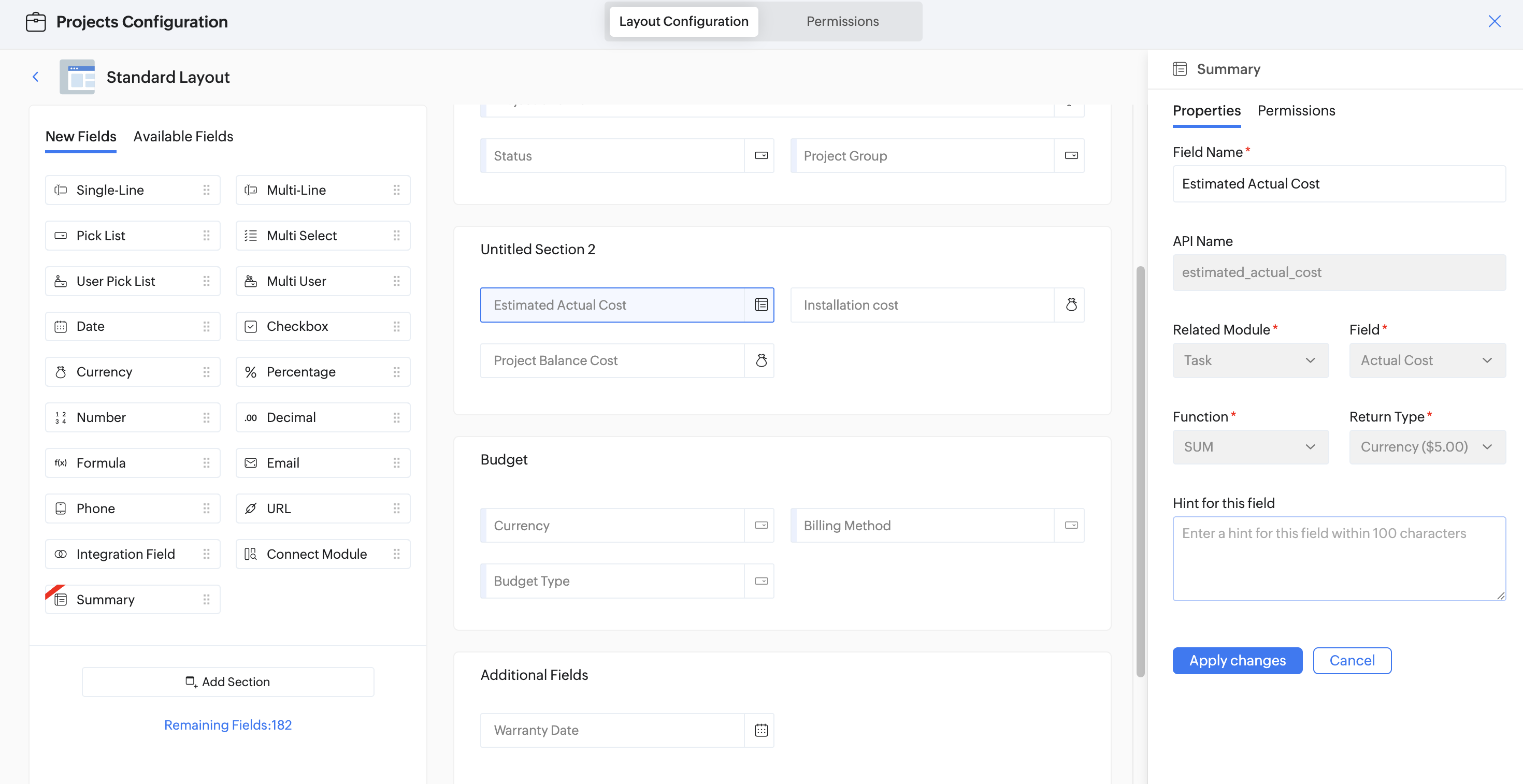
With Summary field, whenever a team member logs time against a task, the Actual Cost updates the total spend automatically. This triggers the Workflow Rule, and executes the associated Custom Function. The function reads the updated Actual Cost Summary field, subtracts it from the Installation Cost, and writes the remaining balance back to the Project Balance Cost field. This keeps the team informed of the latest budget updates.
To configure this flow in your Zoho Projects portal,
1. Navigate to the upper-right corner of the page.
2. Click  in the upper-right corner of the top navigation bar.
3. Navigate to Customization → Layouts and Fields → Projects.
4. Click the required layout, and create a Custom Summary Field as shown below.
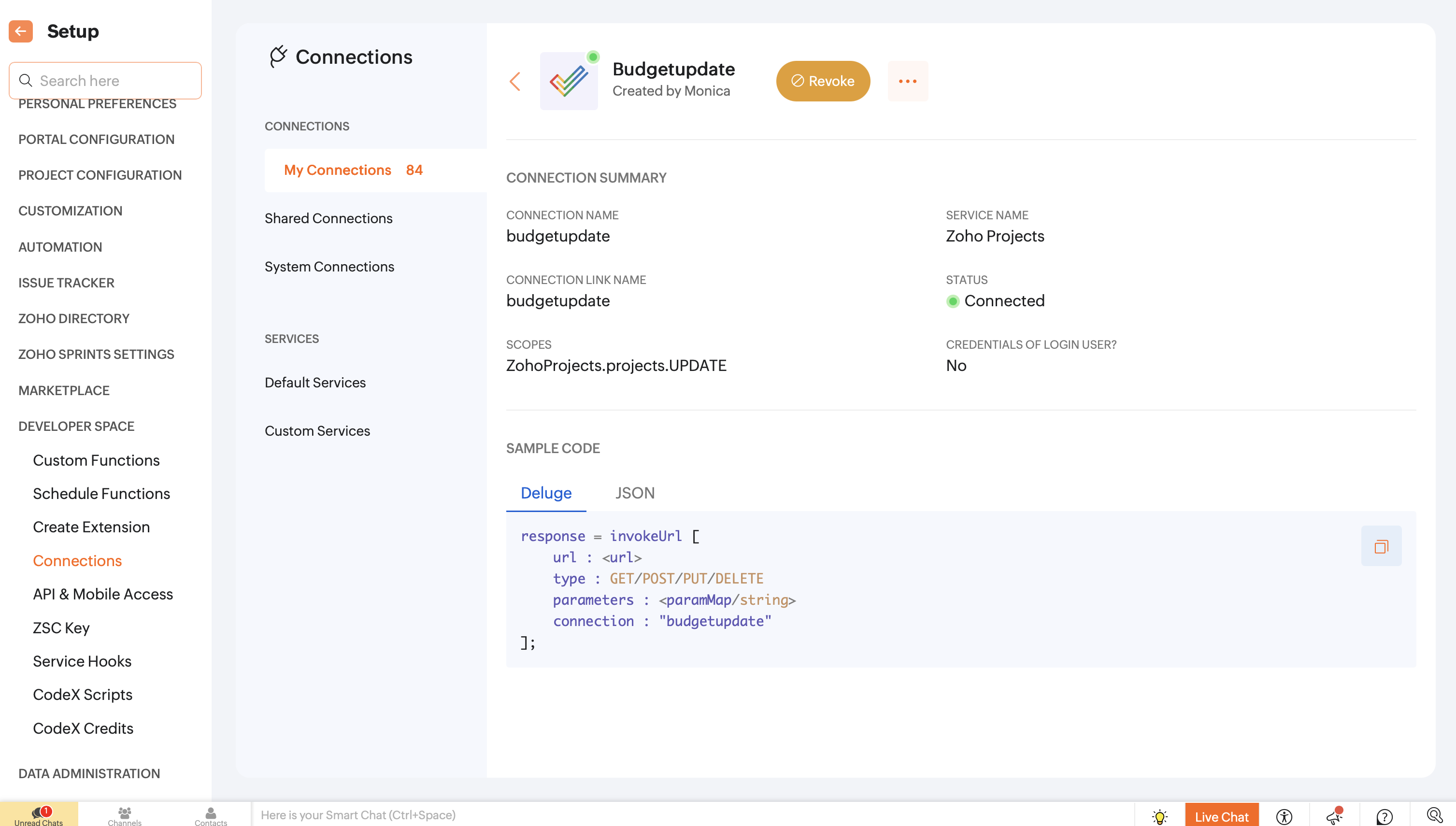
6. Click Create Connection, choose Zoho Projects as the service, and add the following scope: ZohoProjects.projects.UPDATE
7. Navigate to Custom Functions under Developer Space.
8. Click the Projects tab in the upper navigation panel.
9. Create a new custom function and add the following Deluge script.

Ensure that the portal URL aligns with your data centre. If not, the function may not execute as expected.
- projectBalanceCostAPIName = "project_balance_cost";
- projectBalanceCost = installationCost.toDecimal().round(2) - summaryActualCost.toDecimal().round(2);
- params = Map();
- params.put(projectBalanceCostAPIName,projectBalanceCost);
- updateProject = invokeurl
- [
- url :"https://projects.zoho.in/api/v3/portal/" + portalId + "/projects/" + projectId
- type :PATCH
- parameters:params.toString()
- connection:"connectionprojects"
- ];
- return "success";

Line 1: Add API name for "Project Balance Cost" field from Layouts
Line 4: Modify the data centre URL to match your Zoho Projects portal. Replace https://projects.zoho.in with the appropriate domain for your region.
Line 10: Replace "connectionprojects" with your Zoho Projects connection name.
10. Add the following arguments during configuration.

11. Click Save.
12. Navigate to → Automation → Workflow Rules.
13. Click the Projects tab in the upper navigation panel and click New Workflow Rule.
14. Select Based on User Action as the execution condition when the Summary Field is Updated. Choose the relevant Summary field from the dropdown.
15. Associate the previously created Custom Function.
16. Click Add Criteria+ and set the trigger as Actual Cost is Updated.
17. Click +Add Action and select Associate Custom Function. Select the custom function created in the previous step.
18. Click Save Rule.
19. Toggle the Workflow Rule Status on to enable it.
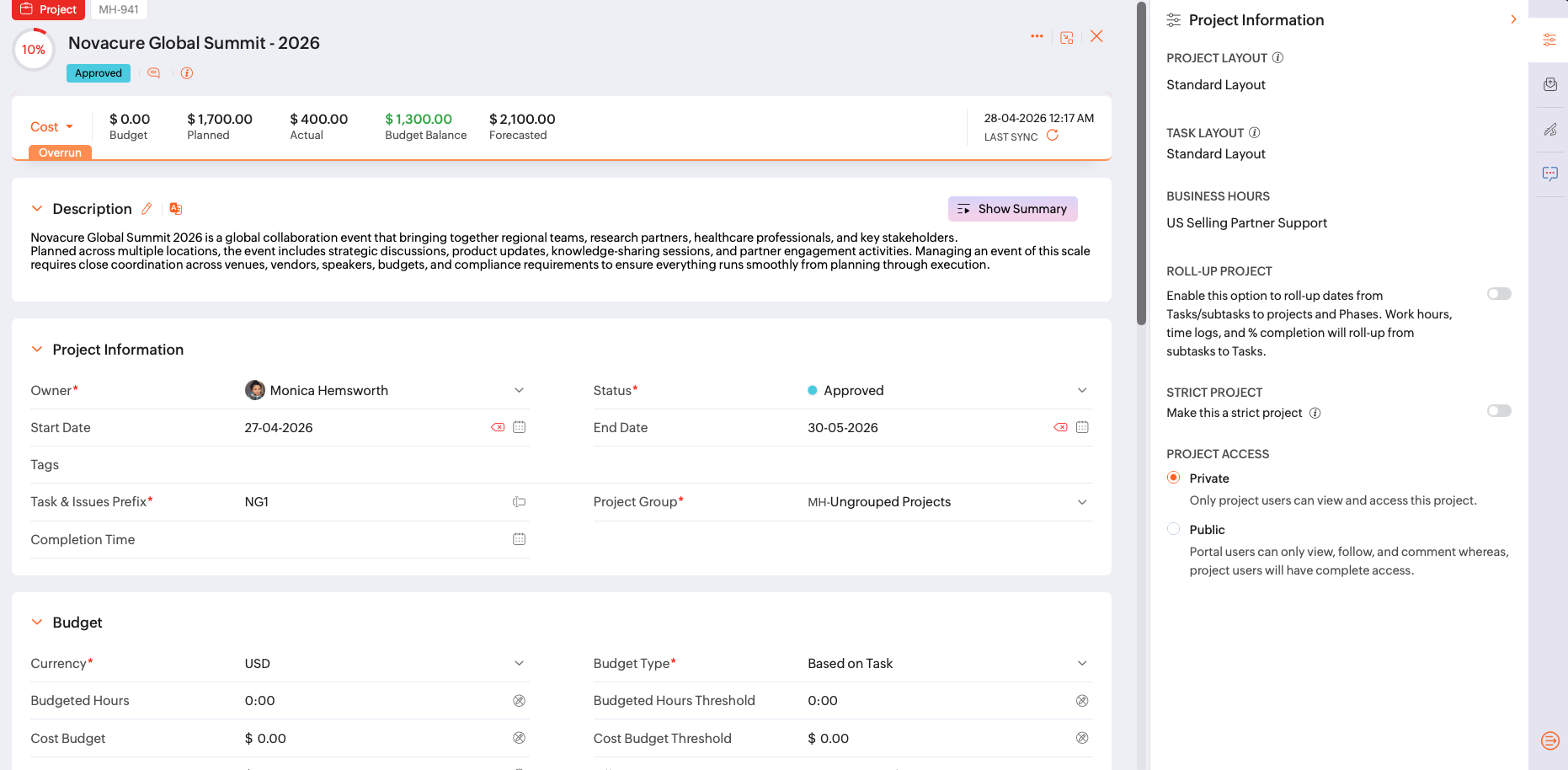
With this automation in place, the project balance reflects actual spend as entries come in throughout the day.
If you have any questions, feel free to drop a comment below or reach out to us at support@zohoprojects.com.