Kaizen 215 - Workflow APIs - Part 3

Kaizen 215 - Workflow APIs - Part 3


Welcome back to another week of Kaizen!

Over the last couple of weeks, we’ve joined Zylker Cloud Services as they review and improve their workflows. In Part 1, we discovered and audited their sprawling workflow landscape. In Part 2, we learned how to use the Configuration API to understand valid triggers and actions, preventing errors before they happen.

Now, it is time to take action. Zylker has identified the "VP Alert - High Value Deal" workflow as a prime candidate for an update. It is old, has never run, and its logic might be too narrow. We will also explore how to create a new workflow from scratch to handle a new business requirement.

 STEP 5: Update an Existing Workflow 

From our audit in Step 2, we know that the existing ‘VP Alert - High Value Deal’ workflow (id: 4876876000016390024) hadn’t triggered even once. The original $50,000 threshold missed many valuable deals. Most winning opportunities actually land above $30,000. It has never executed, suggesting the criteria are too strict.

Let us use the Update Workflow Rule API to fix it. We'll change the criteria to trigger for deals greater than or equal to $30,000 and add an additional email notification.

 What you can and cannot update 

When working with the Update Workflow Rule API, not every field in a workflow is open for modification. Think of it like editing an existing automation blueprint. Some foundations are fixed, while others are flexible.

You can update:

  • Name and Description

  • Trigger : You can update triggers, but only within the same trigger type. For example, you can change a Record Action trigger from create to edit, but not from a Record Action trigger to a Score-based trigger. For more details on this, please refer to our detailed help documentation here.

  • Conditions and Criteria : add, remove, or refine them.

  • Actions : add new ones, remove existing ones, or update their configuration.

  • Status : activate or deactivate a workflow rule. 

What cannot be updated

There are a few key restrictions to remember:

  • You cannot change the module associated with the workflow.

  • You cannot switch trigger categories (e.g., from Record Action to Email Trigger).

  • You cannot retain unsupported actions when changing to a trigger that doesn’t support them. For instance, if you change a trigger from Edit to Delete, but keep an Assign Owner action, the update will fail, because “Assign Owner” isn’t valid for Delete triggers.

Updating an existing workflow is not about replacing everything. it is about editing precisely what needs to change.

Here is how to do it:

  • Fetch the workflow details using the Get Workflow Rule API. This gives the full structure,  including condition IDs, action IDs, and trigger details.

  • Identify what needs to change.

In this case, to fix the  “VP Alert - High Value Deal” workflow, we can update the Workflow rule to:

  • lower the threshold to $300,000

  • change the comparator to greater_than. 

To make the workflow more useful, Zylker has also decided to add a few new actions.

But before doing that, the developers needed to confirm which actions are supported for this workflow’s trigger type. That is where last week’s Configuration API comes in handy. Since we already know this is a Record Action trigger (create_or_edit), we can refer to the configuration response we explored in Part 2 to see which actions are valid. 

  {

                "api_name": "create_or_edit",

                "deprecated": false,

                "name": "CreateorEdit",

                "scheduled_actions_supported": true,

                "actions": [

                    "field_updates",

                    "assign_owner",

                    "add_tags",

                    "remove_tags",

                    "email_notifications",

                    "tasks",

                    "create_record",

                    "create_connected_record",

                    "add_meeting",

                    "webhooks",

                    "functions",

                    "circuits",

                    "flow"

                ]

},


The response clearly shows that email notifications, field updates, and tags are all supported for this trigger type. With that confidence, in addition to updating the condition, we can also add a 'Priority' tag to those records that trigger the Workflow. This makes the workflow more visible and actionable across the sales hierarchy.

Sample Request:

PUT {{api-domain}}/crm/v8/settings/automation/workflow_rules/4876876000016390024

{

    "workflow_rules": [

        {

            "description": "Notify sales leadership and track strategic opportunities",

            "name": "VP Alert - High Value Deal.",

            "conditions": [

                {

                    "sequence_number": 1,

                    "criteria_details": {

                        "criteria": {

                            "group_operator": "AND",

                            "group": [

                                {

                                    "comparator": "greater_than", // change in comparator operator

                                    "field": {

                                        "api_name": "Amount"

                                    },

                                    "value": "300000"   // Lowered threshold

                                },

                                {

                                    "comparator": "equal",

                                    "field": {

                                        "api_name": "Stage"

                                    },

                                    "value": "Negotiation/Review"

                                }

                            ]

                        }

                    },

                    "instant_actions": {

                        "actions": [

                            {

                                "type": "add_tags",

                                "module": "Deals",

                                "details": {

                                    "tags": [

                                        {

                                            "name": "Priority"

                                        }

                                    ],

                                    "overwrite": true

                                }

                            }

                        ]

                    },

                    "id": "4876876000016390025" // id of the condition to be updated

                }

            ]

        }

    ]

}


After this update, the workflow now triggers for any deal worth more than $300,000 in the Negotiation/Review stage. Apart from sending the email notifications and adding the follow up task, it also tags these deals as Priority.

 Edit vs Add: 

To edit an existing condition or action, include its existing id in your update payload. Zoho CRM will recognize it as an update to that object.

To add a new condition or action, simply omit the id. CRM treats any object without an ID as a new addition.

 STEP 6: Create a new Workflow Rule 

With the VP Alert - High Value Deal workflow now fixed and performing as expected, Zylker’s sales team quickly began to see results.
But their sales team noticed that deals often stall after proposals are sent, with no systematic follow-up. Zylker has hence refined the requirements for a new Workflow.

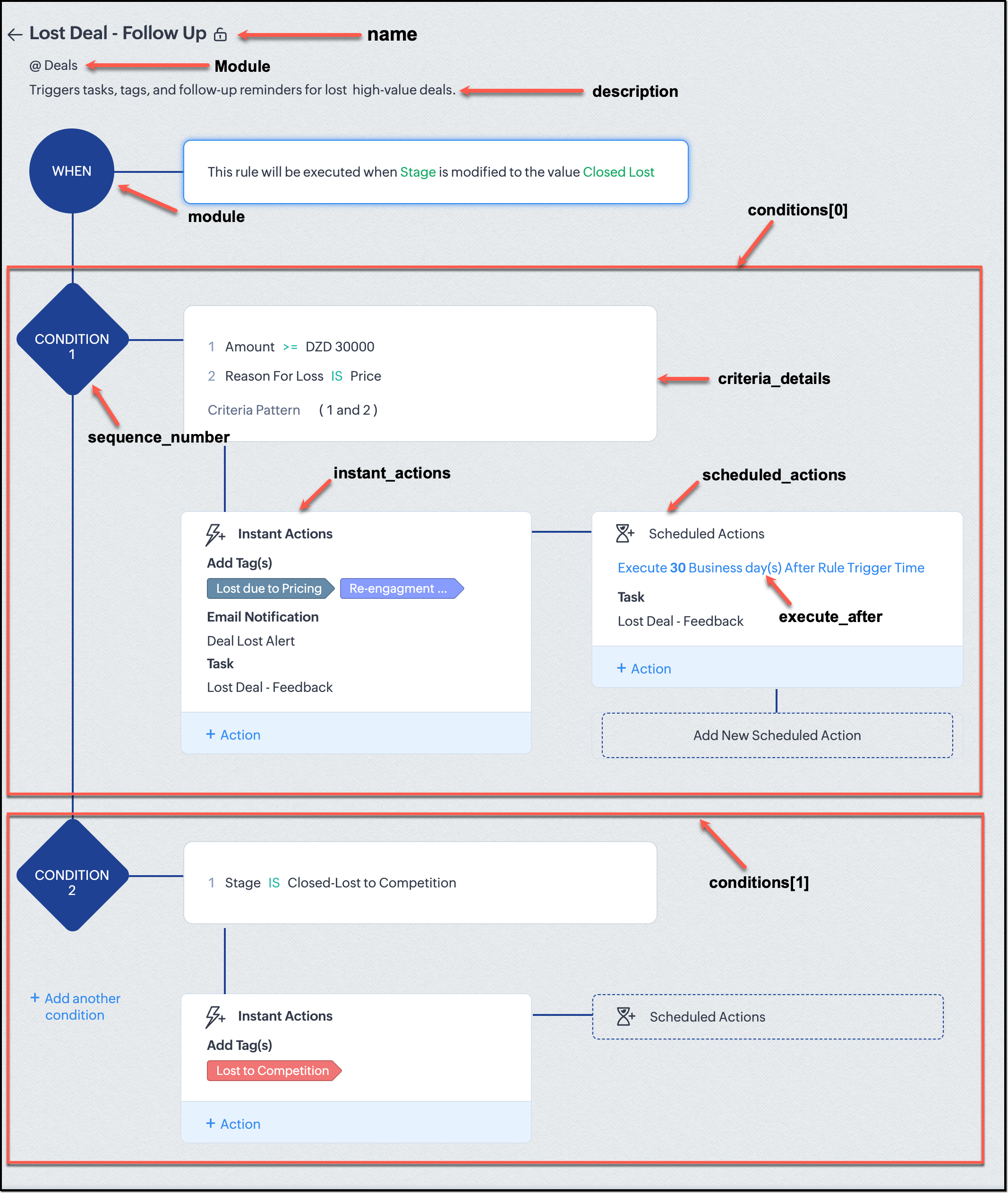
They want to automatically trigger follow-up actions when a high-value deal (above ₹30,000) is marked “Closed Lost” due to pricing reasons. This workflow must ensure that every lost opportunity is reviewed, tagged, and re-engaged after a cooling-off period. To achieve this, they want to create a workflow to be triggered whenever a deal’s Stage is updated to Closed Lost. It must perform the following actions:

  • Add tags Lost due to Pricing and Re-engagement Pending.

  • Send an email alert to the Sales team, with the details of the failed Deal, so they can look into the reasons.

  • After 30 business days, automatically create another “Lost Deal - Feedback” task to remind the owner to re-contact the customer for feedback, and for future opportunities. 

Before proceeding, Zylker makes an API call to the Workflow Configuration endpoint. This ensures that their chosen trigger type and actions are supported. From the response snippet below, it is clear that a field_update trigger supports scheduled actions and the required action types.

  {

                "api_name": "field_update",

                "deprecated": false,

                "name": "FieldUpdate",

                "scheduled_actions_supported": true,

                "actions": [

                    "field_updates",

                    "assign_owner",

                    "add_tags",

                    "remove_tags",

                    "email_notifications",

                    "tasks",

                    "create_record",

                    "create_connected_record",

                    "add_meeting",

                    "webhooks",

                    "functions",

                    "circuits",

                    "flow"

                ]

}


With these details validated, we can now move on to adding a new workflow for Zylker using the Create Workflow Rule API request.

Understanding the input JSON structure 

Every workflow definition follows the same hierarchy - defining when the rule runs, what conditions it checks, and which actions it performs.

The top-level input object contains a workflow_rules array. You must include just one workflow rule object per request. Each workflow rule defines its name, trigger type, and one or more condition blocks, each with its own criteria and actions.

Here is a breakdown of what is inside a single workflow rule:

{

  "workflow_rules": [

    {

      "name": "VP Alert - High Value Deal.",   //name of the workflow rule

      "description": "Notify leadership when high-value deals are lost due to pricing.",

      "module": { "api_name": "Deals" },   //module to which the workflow applies

      "execute_when": { ... },         //trigger configuration (e.g., on record edit, field update, etc.)

      "conditions": [

        {

          "sequence_number": 1,          // order of execution. this is the first condition

          "criteria_details": { ... },           // condition logic (criteria group)

          "instant_actions": { "actions": [ ... ] },  //instant actions executed instantly

          cheduled_actions": [              // schedules actions executed after a delay

            {

                      "execute_after": { ... },              // delay period for the scheduled action

                        "actions": [ ... ]

            }

          ]

        },

        {

          "sequence_number": 2,                      // second condition

          "criteria_details": { ... },

          "instant_actions": { "actions": [ ... ] }

        }

      ]

    }

  ]

}


Associative vs. Non-Associative Actions 

Every workflow rule performs one or more actions like sending an email, creating a task, or updating a field, etc. These actions fall into two broad categories: associative and non-associative.

Type

Description

Example Actions

Non- Associative Actions

These are defined inside the workflow rule itself. They do not need to exist beforehand. You can configure their details directly within the workflow payload.

Create record, schedule a call, add a meeting, convert records, social actions, create record on email received, assign owner,

Associative Actions

These are reusable actions created separately in CRM and referenced by their IDs. They can be used across multiple workflows and other automation tools.

Field updates, Email notifications, tasks, Webhooks, Add/Remove tags


When you create or update a workflow via API, the associative actions require you to pass their existing action IDs. These IDs can be fetched using the corresponding Actions APIs : Field Updates, Email Notifications, Webhooks, and Tasks. In the coming weeks of Kaizen, we will take a closer look at each of these Actions APIs. We will see how to create, manage, and delete them within your workflow automation strategy.

Sample Request:

POST {{api-domain}}/crm/v8/settings/automation/workflow_rules

{

    "workflow_rules": [

        {

            "execute_when": {

                "details": {

                    "trigger_module": {

                        "api_name": "Deals",

                        "id": "4876876000000002181"

                    },

                    "criteria": {

                        "comparator": "equal",

                        "field": {

                            "api_name": "Stage",

                            "id": "4876876000000002565"

                        },

                        "type": "value",

                        "value": "Closed Lost"

                    },

                    "repeat": false,

                    "match_all": false

                },

                "type": "field_update"

            },

            "module": {

                "api_name": "Deals",

                "id": "4876876000000002181"

            },

            "description": "Triggers tasks, tags, and follow-up reminders for high-value deals lost due to pricing",

            "name": "Lost Deal due to Pricing - Follow Up",

            "conditions": [

                {

                    "sequence_number": 1,

                    "instant_actions": {

                        "actions": [

                            {

                                "name": "Lost Deal - Feedback",

                                "id": "4876876000016794047",

                                "type": "tasks"

                            },

                            {

                                "details": {

                                    "module": {

                                        "api_name": "Deals",

                                        "id": "4876876000000002181"

                                    },

                                    "over_write": false,

                                    "tags": [

                                        {

                                            "name": "Lost due to Pricing",

                                            "id": "4876876000016794071",

                                            "color_code": "#658BA8"

                                        },

                                        {

                                            "name": "Re-engagement pending",

                                            "id": "4876876000016794075",

                                            "color_code": "#879BFC"

                                        }

                                    ]

                                },

                                "type": "add_tags"

                            },

                            {

                                "name": "Deal Lost Alert",

                                "id": "4876876000016794062",

                                "type": "email_notifications"

                            }

                        ]

                    },

                    "scheduled_actions": [

                        {

                            "execute_after": {

                                "period": "business_days",

                                "unit": 30

                            },

                            "actions": [

                                {

                                    "name": "Lost Deal - Feedback",

                                    "id": "4876876000016794047",

                                    "type": "tasks"

                                }

                            ]

                        }

                    ],

                    "criteria_details": {

                        "criteria": {

                            "group_operator": "AND",

                            "group": [

                                {

                                    "comparator": "greater_equal",

                                    "field": {

                                        "api_name": "Amount",

                                        "id": "4876876000000002557"

                                    },

                                    "type": "value",

                                    "value": "30000"

                                },

                                {

                                    "comparator": "equal",

                                    "field": {

                                        "api_name": "Reason_For_Loss__s",

                                        "id": "4876876000002440001"

                                    },

                                    "type": "value",

                                    "value": "Price"

                                }

                            ]

                        }

                    }

                }

            ]

        }

    ]

}


The execute_when defines when the workflow should fire.

  • type = field_update means this rule runs when a field’s value changes.

  • criteria : Stage = Closed Lost so the rule triggers whenever the Stage field is updated to Closed Lost.

  • repeat = false ensures it will not trigger multiple times for the same record. 

In simple terms: “Whenever a deal is marked as Closed Lost, run this workflow.” The criteria_details section refines the trigger. The workflow only runs when the Amount ≥ ₹30,000 AND Reason for Loss = Price.

The instant_actions section inside the conditions array has the actions to be executed immediately when the criteria are met.

  • Add Tags : labels the record for easy filtering and reporting.

  • Send Email Alert : notifies the sales team instantly about the lost deal.

The scheduled_actions defines what happens after some time has passed. In this case, after 30 business days. Here, the workflow automatically creates a “Lost Deal - Feedback” task, reminding the deal owner to follow up with the customer to get feedback, and for future opportunities.

The criteria_details defines which records the workflow applies to. In this case, the rule applies to the records that satisfy the following conditions:
  1. The Amount is greater than or equal to ₹30,000, and  

  2. The Reason for Loss is “Price.”  

By combining these elements, this workflow achieves a full closed-loop follow-up system.

Conclusion:  

Zylker’s updated and new workflows make their automation smarter and more responsive. They are now able to spot key deals and ensure lost opportunities are revisited.  

And this is just the beginning. There are countless use cases you can build with workflows. We have included many examples in our Postman collection. Please check them out to get more out of the Workflow APIs. If you have a unique scenario you would like us to address, or a specific automation challenge you are facing, please let us know! We will address them in the upcoming weeks.


We hope you are now well on your way to mastering Workflow APIs. Share your thoughts in the comments or write to us at support@zohocrm.com.

Additional Reading:

  1. Workflow APIs - Part 1 - Auditing Workflows
  2. Workflow APIs - Part 2 - Find out what actions and triggers are supported for each module


    • Sticky Posts

    • Kaizen #217 - Actions APIs : Tasks

      Welcome to another week of Kaizen! In last week's post we discussed Email Notifications APIs which act as the link between your Workflow automations and you. We have discussed how Zylker Cloud Services uses Email Notifications API in their custom dashboard.
    • Kaizen #216 - Actions APIs : Email Notifications

      Welcome to another week of Kaizen! For the last three weeks, we have been discussing Zylker's workflows. We successfully updated a dormant workflow, built a new one from the ground up and more. But our work is not finished—these automated processes are
    • Kaizen #152 - Client Script Support for the new Canvas Record Forms

      Hello everyone! Have you ever wanted to trigger actions on click of a canvas button, icon, or text mandatory forms in Create/Edit and Clone Pages? Have you ever wanted to control how elements behave on the new Canvas Record Forms? This can be achieved
    • Kaizen #142: How to Navigate to Another Page in Zoho CRM using Client Script

      Hello everyone! Welcome back to another exciting Kaizen post. In this post, let us see how you can you navigate to different Pages using Client Script. In this Kaizen post, Need to Navigate to different Pages Client Script ZDKs related to navigation A.
    • Kaizen #210 - Answering your Questions | Event Management System using ZDK CLI

      Hello Everyone, Welcome back to yet another post in the Kaizen Series! As you already may know, for the Kaizen #200 milestone, we asked for your feedback and many of you suggested topics for us to discuss. We have been writing on these topics over the
    • Recent Topics

    • Unusual activity detected from this IP. Please try again after some time.

      Hello Zoho admin and IT team We are a registered website in Eloctronic services and we been trying to add our users to the zoho system but this issue faced us ,, hope you unlocked us please.
    • Alert if a field is ticked.

      Hi There, We have two modules named Opportunities (Deals) and End Users (CustomModule1), as per the image below. Within Opportunities, we have a lookup field that looks up from the End Users Module. We are looking to get an alert either via email or another
    • CRM x WorkDrive: We're rolling out the WorkDrive-powered file storage experience for existing users

      Release plan: Gradual rollout to customers without file storage add-ons, in this order: 1. Standalone CRM 2. CRM Plus and Zoho One DCs: All | Editions: All Available now for: - Standalone CRM accounts in Free and Standard editions without file storage
    • Syncing with Google calendar, Tasks and Events

      Is it possible to sync Zoho CRM calendar, task and events with Google Calendar's tasks and events. With the increasing adoption by many major tool suppliers to sync seamlessly with Google's offerings (for instance I use the excellent Any.do task planning
    • Zoho CRM Analytics - Allow To Reorder Dashboards

      I would like to suggest that you add the ability to reorder dashboards in the Analytics Module. I can see that this has been requested some time ago, the latest 9 years ago. I am not sure if this is a big or small endeavor, but such a small fix can go
    • Plans to allow more columns of monitoring, and monitoring not only your own channels?

      Are their any plans to allow more columns of monitoring, and monitoring not only your own channels? Here's why - I'm sure I'm not alone in that we sell other brands products, so not only am I interested in my own brand social channels, but also the social
    • Managing functions

      Can someone let me know if there are any plans to improve the features for managing functions in CRM? I have lots of functions and finding them is hard. The search only works on the function name and the filter only works on function type. I have created
    • Kaizen #194 : Trigger Client Script via Custom buttons

      Hello everyone! Welcome back to another interesting and useful Kaizen post. We know that Client Scripts can be triggered with Canvas buttons and we discussed this with a use case in Kaizen#180. Today, let us discuss how to trigger Client Script when a
    • Adding Choices in a Sub-Form Dropdown

      Hi, Has anybody tried Adding Choices to a Dropdown in a Zoho Creator Sub-Form programmatically? My Deluge code adds rows to a subform with 2 fields A and B. A - text field. B - dropdown. My Deluge script adds the row and displays A successfully. For the
    • Zoho CRM Email Templates 100% Width No Background How?

      Hi, On the Zoho CRM Email Templates in setup > customization > templates > new templates > I choose blank template, but still it puts in a gray background and a max width for the email. I just want to make an email that looks like an email I would send from gmail that has no background or max width. How do you do this? 
    • Checking client unsubscribe details

      Hi team, Can you please let me know where we can check if a client has unsubscribed, along with the date and time it was done? If this information is not available at our end, please help confirm the unsubscribe date for the below email ID from the backend:
    • Email forwarding setup fails

      I'm trying to set up email forwarding from my Zoho email to my gmail address. I followed the directions to set up email forwarding here: https://www.zoho.com/mail/help/email-forwarding.html. I did only steps 1-6. After doing this, rather than setting
    • Integration with...

      Dear Zoho Commerce team, Please could you consider the integration within Zoho Commerce / Inventory and Qapla'? (https://www.qapla.it/en/) This app is better than Aftership in many ways: - Aftership integration require PRO plan and price start from more
    • Scan and Fill CRM Lookup Field

      Not sure if there is a reason why this isn't possible or if I'm just missing it. But I would like to be able to use the scan and fill feature on the mobile app to prefill the CRM lookup field and fetch the rest of the data in the form.
    • Customer Management: #2 Organize Customers to Enhance Efficiency

      When Ankit started his digital services firm, things felt simple. A client would call, ask for a website or a one-time consultation, Ankit would send an invoice, get paid, and move on. "Just one client, one invoice. Easy.", he thought. Fast forward a
    • Zoho Mail and Zoho Flow integration to automatically create ToDo tasks from outbound emails

      How do i setup Zoho Mail and Zoho Flow integration to automatically create ToDo tasks from outbound emails
    • Attachments between Zoho and Clickup, using Flow.

      Olá suporte Flow, tudo bem ? Estamos usando o flow para integrar Zoho Desk com o clickup. Não localizamos a opção de integrar anexos entre do zoho Desk para o clickup. Gostaríamos de saber se migrando para o plano pago, teremos suporte para fazer a integração
    • Adding an Account on Zoho Mail Trigger in Zoho Flow

      I'm trying to create a flow using the zoho mail trigger "Email Receive". My problem is that when I select this trigger, it only shows one account from the account dropdown. I'm planning to assign it on a different email. How can I add other email ad
    • Linnworks

      Unless I am missing something, the Linnworks integration is very basic and limited. I have reached out to support but the first response was completely useless and trying to get a reply in a timely manner is very difficult. Surely I should be able to
    • Test data won't load

      I am using a Flow to receive orders from WooCommerce and add them to a Zoho Creator app. I recently received an order which failed, and when attempting to test the order I found that it just shows a loading animation and shows up in the history as "queued."
    • AddHour resets the time to 00:00:00 before adding the hour.

      Based on the documentation here: https://www.zoho.com/deluge/help/functions/datetime/addhour.html Here's my custom function: string ConvertDateFormat(string inputDate) { // Extract only the date-time part (before the timezone) dateTimePart = inputDate.subString(0,19);
    • WhatsApp Report in Bigin CRM

      Reporting feature for Bigin CRM’s integrated WhatsApp that provides insights such as: Number of WhatsApp conversations closed Number of messages sent and received Number of conversations replied to Response and closure metrics for WhatsApp chats More
    • How to Hide System-DefinedTemplates in Service Report

      Is there any option available to hide system-defined templates? these templates are causing confusion for field users.
    • auto close automated alert tickets which are similar

      Hello ZOHO Community, we are using ZOHO Desk to process automated monitoring alerts. Scenario: Our monitoring system creates a ticket when a threshold is exceeded, e.g. Subject: Computer 1 – CPU usage 100% – Error A few minutes later, once the issue resolves
    • WhatsApp Link is not integrating

      Hello, I am using zoho flow. when new row added in google sheet it sends email to respected person. In email body I have a text "Share via WhatsApp". behind this text I putted a link. But when the recipient receives email and wants to share my given info
    • Zoho flow - Webhook

      If I choose an app as a trigger in Zoho Flow, is it still possible to add a webhook later in the same flow?
    • Zoho Flow + Bigin + Shopify

      We are testing Zoho Flow for the first time and want to create a flow based in first purchases. When a client makes his first order, we're going to add the "primeiracompra" (first order) tag to his account in Shopify (it's not efficient, but that's the
    • Adding multiple Attendee email addresses when adding a Zoho Calendar event in Zoho Flow

      I am trying to integrate Notion and Zoho Calendar via Zoho Flow. However, the Attendee email address supported by Zoho Calendar - Create event only supports one email address, so I am having difficulty implementing automation to automatically register
    • Is it The Flow? Or is it me?

      I want to do some basic level stuff, take two fields from a webhook, create a zsheet from a template using one field with date appended, create a folder using both fields as the name, and put the zsheet into that folder. I was going to elaborate - but
    • Having problem with data transferring from Google sheet to ZMA

      When connecting Google sheet with Zoho marketing automation it is having the email as a mandatory field. Can I change it as non-mandatory field or is there any other way to trasnfer data from google sheet to ZMA. I have leads which we get from whatsapp,
    • Ability for admin to access or make changes in zoho form without asking for ownership

      Currently in zoho form only form owner can make the changes in the form and if someone else has to make changes then we have to transfer the ownership to them and even admin also cant access it . So i think admin must have the ability or option to access
    • Dropbox to Workdrive synchronisation

      I want to get all the files and folders from Dropbox to Workdrive and each time a new file or folder is added in dropbox i want it to be available in Workdrive and wise versa. Sync Updates to Files Trigger: "File updated" (Dropbox). Action: "Upload file"
    • Microsoft Planner Task to Service Desk Plus Request - error n4001

      Hi there. I'm trying to create a flow that will create a new request in ServiceDesk Plus when a new task is created in Microsoft Planner. I have succesfully connected both Planner and ServiceDesk Plus, and have configured the 'create request' section
    • Trailing Space in "Date and time scheduled "

      I am trying to use the Zoho Projects - Create event action in a flow. It is failing with the output error as: "Action did not execute successfully due to an unknown error. Contact support for more details." The input is: { "Duration - Minutes": 30, "Project":
    • Project name by deal name; project creation via flow

      Hello, I want to create a project in zoho projects using flow by a trigger at the crm. My trigger is the update of a deal (stage). The project name should be the account name/ deal name. But I dont find the solution to it. Can you please give me the answer
    • Slack / Zoho Flow; Repl

      I am trying to add a comment in a zoho ticket when someone reply's to a message in a thread. The Message posted to public channel trigger doesn't seem to pick up thread messages. I also cannot use the thread_ts field as it doesn't seem to pull that in.
    • Get Holiday ready with Zoho Mail's Templates

      As the holiday season approaches, it’s time to step away from work and unwind. You may not be able to respond to every email or send individual messages to wish everyone holidays greetings—but It is still important to stay connected. How do you send thoughtful
    • Maintain knowledge base integrity by moderating article comments

      Hello everyone, A knowledge base provides a self-service platform where customers can refer to articles, user manuals, and other resources to learn about the company's products or services and troubleshoot problems. Often, readers leave a comment on the
    • Customize folder permissions in a Team Folder in a Team Folder via zoho Flow

      HI All, on the nth level folder of a team folder I would like to Customize folder permissions when it's created in the flow of Creating folders. That last level I only want to grant access to a specific group, goup ID 201XXXXXXXX. Can you help with a
    • Associating a Candidate to a Job Listing

      Hello, I am trying to use Zoho Forms embedded on my website for candidates to apply for a job opening. I want the form then to tie directly with zoho recruit and have the candidate be automatically inputed into Recruit as well as associated with the specific
    • Next Page