Kaizen 215 - Workflow APIs - Part 3

Welcome back to another week of Kaizen!
Over the last couple of weeks, we’ve joined Zylker Cloud Services as they review and improve their workflows. In Part 1, we discovered and audited their sprawling workflow landscape. In Part 2, we learned how to use the Configuration API to understand valid triggers and actions, preventing errors before they happen.
Now, it is time to take action. Zylker has identified the "VP Alert - High Value Deal" workflow as a prime candidate for an update. It is old, has never run, and its logic might be too narrow. We will also explore how to create a new workflow from scratch to handle a new business requirement.
STEP 5: Update an Existing Workflow
From our audit in Step 2, we know that the existing ‘VP Alert - High Value Deal’ workflow (id: 4876876000016390024) hadn’t triggered even once. The original $50,000 threshold missed many valuable deals. Most winning opportunities actually land above $30,000. It has never executed, suggesting the criteria are too strict.
Let us use the Update Workflow Rule API to fix it. We'll change the criteria to trigger for deals greater than or equal to $30,000 and add an additional email notification.
What you can and cannot update
When working with the Update Workflow Rule API, not every field in a workflow is open for modification. Think of it like editing an existing automation blueprint. Some foundations are fixed, while others are flexible.
You can update:
Name and Description
Trigger : You can update triggers, but only within the same trigger type. For example, you can change a Record Action trigger from create to edit, but not from a Record Action trigger to a Score-based trigger. For more details on this, please refer to our detailed help documentation here.
Conditions and Criteria : add, remove, or refine them.
Actions : add new ones, remove existing ones, or update their configuration.
Status : activate or deactivate a workflow rule.
What cannot be updated
There are a few key restrictions to remember:
You cannot change the module associated with the workflow.
You cannot switch trigger categories (e.g., from Record Action to Email Trigger).
You cannot retain unsupported actions when changing to a trigger that doesn’t support them. For instance, if you change a trigger from Edit to Delete, but keep an Assign Owner action, the update will fail, because “Assign Owner” isn’t valid for Delete triggers.
Updating an existing workflow is not about replacing everything. it is about editing precisely what needs to change.
Here is how to do it:
Fetch the workflow details using the Get Workflow Rule API. This gives the full structure, including condition IDs, action IDs, and trigger details.
Identify what needs to change.
In this case, to fix the “VP Alert - High Value Deal” workflow, we can update the Workflow rule to:
lower the threshold to $300,000
change the comparator to greater_than.
To make the workflow more useful, Zylker has also decided to add a few new actions.
But before doing that, the developers needed to confirm which actions are supported for this workflow’s trigger type. That is where last week’s Configuration API comes in handy. Since we already know this is a Record Action trigger (create_or_edit), we can refer to the configuration response we explored in Part 2 to see which actions are valid.
{ "api_name": "create_or_edit", "deprecated": false, "name": "CreateorEdit", "scheduled_actions_supported": true, "actions": [ "field_updates", "assign_owner", "add_tags", "remove_tags", "email_notifications", "tasks", "create_record", "create_connected_record", "add_meeting", "webhooks", "functions", "circuits", "flow" ] }, |
The response clearly shows that email notifications, field updates, and tags are all supported for this trigger type. With that confidence, in addition to updating the condition, we can also add a 'Priority' tag to those records that trigger the Workflow. This makes the workflow more visible and actionable across the sales hierarchy.
Sample Request:
PUT {{api-domain}}/crm/v8/settings/automation/workflow_rules/4876876000016390024
{ "workflow_rules": [ { "description": "Notify sales leadership and track strategic opportunities", "name": "VP Alert - High Value Deal.", "conditions": [ { "sequence_number": 1, "criteria_details": { "criteria": { "group_operator": "AND", "group": [ { "comparator": "greater_than", // change in comparator operator "field": { "api_name": "Amount" }, "value": "300000" // Lowered threshold }, { "comparator": "equal", "field": { "api_name": "Stage" }, "value": "Negotiation/Review" } ] } }, "instant_actions": { "actions": [ { "type": "add_tags", "module": "Deals", "details": { "tags": [ { "name": "Priority" } ], "overwrite": true } } ] }, "id": "4876876000016390025" // id of the condition to be updated } ] } ] } |
After this update, the workflow now triggers for any deal worth more than $300,000 in the Negotiation/Review stage. Apart from sending the email notifications and adding the follow up task, it also tags these deals as Priority.
Edit vs Add:
To edit an existing condition or action, include its existing id in your update payload. Zoho CRM will recognize it as an update to that object.
To add a new condition or action, simply omit the id. CRM treats any object without an ID as a new addition.
STEP 6: Create a new Workflow Rule
With the “VP Alert - High Value Deal” workflow now fixed and performing as expected, Zylker’s sales team quickly began to see results.
But their sales team noticed that deals often stall after proposals are sent, with no systematic follow-up. Zylker has hence refined the requirements for a new Workflow.
They want to automatically trigger follow-up actions when a high-value deal (above ₹30,000) is marked “Closed Lost” due to pricing reasons. This workflow must ensure that every lost opportunity is reviewed, tagged, and re-engaged after a cooling-off period. To achieve this, they want to create a workflow to be triggered whenever a deal’s Stage is updated to Closed Lost. It must perform the following actions:
Add tags Lost due to Pricing and Re-engagement Pending.
Send an email alert to the Sales team, with the details of the failed Deal, so they can look into the reasons.
After 30 business days, automatically create another “Lost Deal - Feedback” task to remind the owner to re-contact the customer for feedback, and for future opportunities.
Before proceeding, Zylker makes an API call to the Workflow Configuration endpoint. This ensures that their chosen trigger type and actions are supported. From the response snippet below, it is clear that a field_update trigger supports scheduled actions and the required action types.
{ "api_name": "field_update", "deprecated": false, "name": "FieldUpdate", "scheduled_actions_supported": true, "actions": [ "field_updates", "assign_owner", "add_tags", "remove_tags", "email_notifications", "tasks", "create_record", "create_connected_record", "add_meeting", "webhooks", "functions", "circuits", "flow" ] } |
With these details validated, we can now move on to adding a new workflow for Zylker using the Create Workflow Rule API request.
Understanding the input JSON structure
Every workflow definition follows the same hierarchy - defining when the rule runs, what conditions it checks, and which actions it performs.
The top-level input object contains a workflow_rules array. You must include just one workflow rule object per request. Each workflow rule defines its name, trigger type, and one or more condition blocks, each with its own criteria and actions.
Here is a breakdown of what is inside a single workflow rule:
{ "workflow_rules": [ { "name": "VP Alert - High Value Deal.", //name of the workflow rule "description": "Notify leadership when high-value deals are lost due to pricing.", "module": { "api_name": "Deals" }, //module to which the workflow applies "execute_when": { ... }, //trigger configuration (e.g., on record edit, field update, etc.) "conditions": [ { "sequence_number": 1, // order of execution. this is the first condition "criteria_details": { ... }, // condition logic (criteria group) "instant_actions": { "actions": [ ... ] }, //instant actions executed instantly cheduled_actions": [ // schedules actions executed after a delay { "execute_after": { ... }, // delay period for the scheduled action "actions": [ ... ] } ] }, { "sequence_number": 2, // second condition "criteria_details": { ... }, "instant_actions": { "actions": [ ... ] } } ] } ] } |
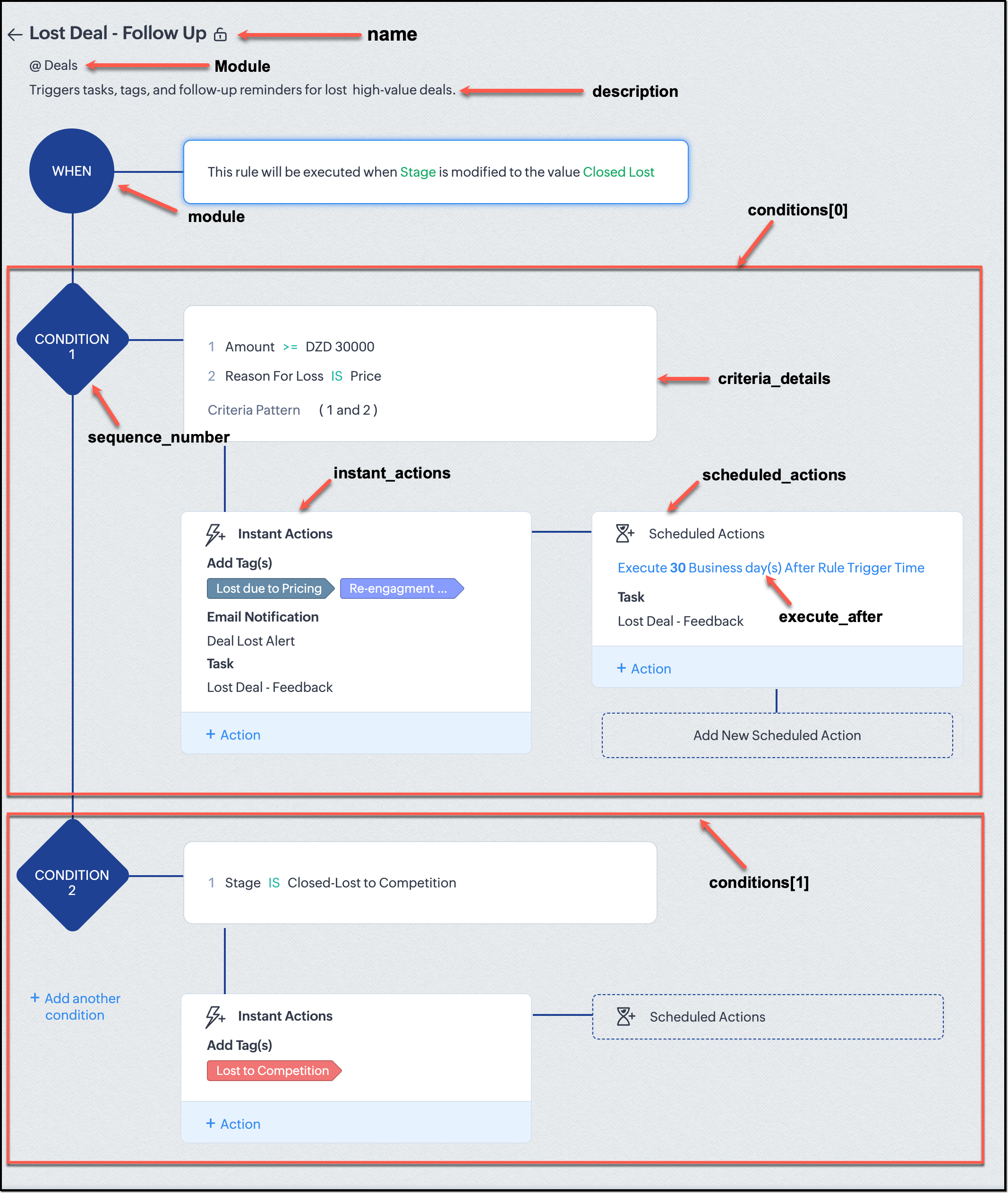
Associative vs. Non-Associative Actions
Every workflow rule performs one or more actions like sending an email, creating a task, or updating a field, etc. These actions fall into two broad categories: associative and non-associative.
Type | Description | Example Actions |
Non- Associative Actions | These are defined inside the workflow rule itself. They do not need to exist beforehand. You can configure their details directly within the workflow payload. | Create record, schedule a call, add a meeting, convert records, social actions, create record on email received, assign owner, |
Associative Actions | These are reusable actions created separately in CRM and referenced by their IDs. They can be used across multiple workflows and other automation tools. | Field updates, Email notifications, tasks, Webhooks, Add/Remove tags |
When you create or update a workflow via API, the associative actions require you to pass their existing action IDs. These IDs can be fetched using the corresponding Actions APIs : Field Updates, Email Notifications, Webhooks, and Tasks. In the coming weeks of Kaizen, we will take a closer look at each of these Actions APIs. We will see how to create, manage, and delete them within your workflow automation strategy.
Sample Request:
POST {{api-domain}}/crm/v8/settings/automation/workflow_rules
{ "workflow_rules": [ { "execute_when": { "details": { "trigger_module": { "api_name": "Deals", "id": "4876876000000002181" }, "criteria": { "comparator": "equal", "field": { "api_name": "Stage", "id": "4876876000000002565" }, "type": "value", "value": "Closed Lost" }, "repeat": false, "match_all": false }, "type": "field_update" }, "module": { "api_name": "Deals", "id": "4876876000000002181" }, "description": "Triggers tasks, tags, and follow-up reminders for high-value deals lost due to pricing", "name": "Lost Deal due to Pricing - Follow Up", "conditions": [ { "sequence_number": 1, "instant_actions": { "actions": [ { "name": "Lost Deal - Feedback", "id": "4876876000016794047", "type": "tasks" }, { "details": { "module": { "api_name": "Deals", "id": "4876876000000002181" }, "over_write": false, "tags": [ { "name": "Lost due to Pricing", "id": "4876876000016794071", "color_code": "#658BA8" }, { "name": "Re-engagement pending", "id": "4876876000016794075", "color_code": "#879BFC" } ] }, "type": "add_tags" }, { "name": "Deal Lost Alert", "id": "4876876000016794062", "type": "email_notifications" } ] }, "scheduled_actions": [ { "execute_after": { "period": "business_days", "unit": 30 }, "actions": [ { "name": "Lost Deal - Feedback", "id": "4876876000016794047", "type": "tasks" } ] } ], "criteria_details": { "criteria": { "group_operator": "AND", "group": [ { "comparator": "greater_equal", "field": { "api_name": "Amount", "id": "4876876000000002557" }, "type": "value", "value": "30000" }, { "comparator": "equal", "field": { "api_name": "Reason_For_Loss__s", "id": "4876876000002440001" }, "type": "value", "value": "Price" } ] } } } ] } ] } |
The execute_when defines when the workflow should fire.
type = field_update means this rule runs when a field’s value changes.
criteria : Stage = Closed Lost so the rule triggers whenever the Stage field is updated to Closed Lost.
repeat = false ensures it will not trigger multiple times for the same record.
In simple terms: “Whenever a deal is marked as Closed Lost, run this workflow.” The criteria_details section refines the trigger. The workflow only runs when the Amount ≥ ₹30,000 AND Reason for Loss = Price.
The instant_actions section inside the conditions array has the actions to be executed immediately when the criteria are met.
Add Tags : labels the record for easy filtering and reporting.
Send Email Alert : notifies the sales team instantly about the lost deal.
The scheduled_actions defines what happens after some time has passed. In this case, after 30 business days. Here, the workflow automatically creates a “Lost Deal - Feedback” task, reminding the deal owner to follow up with the customer to get feedback, and for future opportunities.
- The Amount is greater than or equal to ₹30,000, and
The Reason for Loss is “Price.”
By combining these elements, this workflow achieves a full closed-loop follow-up system.
Conclusion:
Zylker’s updated and new workflows make their automation smarter and more responsive. They are now able to spot key deals and ensure lost opportunities are revisited.
We hope you are now well on your way to mastering Workflow APIs. Share your thoughts in the comments or write to us at support@zohocrm.com.

Additional Reading:
- Workflow APIs - Part 1 - Auditing Workflows
- Workflow APIs - Part 2 - Find out what actions and triggers are supported for each module
Topic Participants
Anu Abraham
Sticky Posts
Kaizen #198: Using Client Script for Custom Validation in Blueprint
Nearing 200th Kaizen Post – 1 More to the Big Two-Oh-Oh! Do you have any questions, suggestions, or topics you would like us to cover in future posts? Your insights and suggestions help us shape future content and make this series better for everyone.Kaizen #226: Using ZRC in Client Script
Hello everyone! Welcome to another week of Kaizen. In today's post, lets see what is ZRC (Zoho Request Client) and how we can use ZRC methods in Client Script to get inputs from a Salesperson and update the Lead status with a single button click. In thisKaizen #222 - Client Script Support for Notes Related List
Hello everyone! Welcome to another week of Kaizen. The final Kaizen post of the year 2025 is here! With the new Client Script support for the Notes Related List, you can validate, enrich, and manage notes across modules. In this post, we’ll explore howKaizen #217 - Actions APIs : Tasks
Welcome to another week of Kaizen! In last week's post we discussed Email Notifications APIs which act as the link between your Workflow automations and you. We have discussed how Zylker Cloud Services uses Email Notifications API in their custom dashboard.Kaizen #216 - Actions APIs : Email Notifications
Welcome to another week of Kaizen! For the last three weeks, we have been discussing Zylker's workflows. We successfully updated a dormant workflow, built a new one from the ground up and more. But our work is not finished—these automated processes are
Recent Topics
Zoho Help Desk - Not receiving emails
Hello… I am on your trial version of help desk… and I am having trouble getting emails from Zoho Help Desk to my MS Outlook Exchange Server… So when a customer sends ticket request I am not getting an email with a notification? I have read your articlesAlmost all Flows are being queued
A few days ago I saw one of my Flows status was Queued. This was the first time this had ever happened. Now, almost every Flow that triggers is Queued for at least a few minutes. If I re-trigger the Flow (which causes separate problems) they sometimesEmployment Contract / HRMS Documents - Zoho People
How do I create customized HR documents for disbursal from Zoho People ? Example, say offer letters ? appointment letters ? Memos ? We want to be able to preset these in one or ther other form and issue them to employees who are in Zoho People.Live webinar: Craft and deliver impactful slides with Show’s desktop apps
If you love the comfort of working on your desktop and want a setup that keeps you focused and uninterrupted, this session is made for you. We’re excited to invite you to our upcoming live webinar: "Craft and deliver impactful slides with Show's desktopEnhancements to Bigin's forms
Greetings, I hope all of you are doing well. We're happy to announce a few recent enhancements we've made to Bigin's forms. We'll go over each one in detail. Merge field support in auto-filled forms The auto-fill option in Bigin's forms lets you predefineTable dimensions
I try changing the dimensions of the table on my computer but it doesn't change. Do I have to be a premium member or does it only work on the app?Direct link to Record Summary
Hi everyone, In one of my reports, I have built a Record Summary template to display the details of one record. I would like to be able to link directly to this Record Summary once I submit a new record, without having to go to the list of records first and click on View. Is there a possibility to do so ? Should I use the URL by passing some parameters ? Thank you very much for your help ! GuillaumeAmendment effective date
Hi everyone, I noticed that the amendment effective date mentionned in my amendment is not right. Indeed, when a contract is amended several times, it states the previous amendment and their effective date. However, the effective date stated is alwaysShow both Vendor and Customers in contact statement
Dear Sir, some companies like us working with companies as Vendor and Customers too !!! it mean we send invoice and also receive bill from them , so we need our all amount in one place , but in contact statement , is separate it as Vendor and Customer,STOCK history in zohosheets
is it possible to get historical stock value using stock function in zoho sheets? i could not see from and to period in the helper document.Auto sync Photo storage
Hello I am new to Zoho Workdrive and was wondering if the is a way of automatically syncing photos on my Android phone to my workdrive as want to move away from Google? ThanksAgent password reset
Hi Zoho support, I would like to ask if there is a way the admin can reset a password of an agent? RegardsCan receive but not send messages in Zoho Mail
Hello! I was able to configure my email client successfully in that I can receive messages just fine. However, when I send messages out, they seem to go out fine (I don't receive any errors or anything), but the recipient does NOT receive those messages.Mail is sent twice!
Been using Zoho for a while now. Installed Zoho for someone else and some weird things are happening. Mails are being sent twice. He is using Thunderbird as an email client. I already read about email being duplicated in the sent folder. But in my caseCan't login IMAP suddenly
Since this evening I'm getting the error: You are yet to enable IMAP for your account. Please contact your administrator... IMAP always been enabled in my account and was workign fine for the past 7 years. Already tried turning IMAP off and on again.Sending of username did not succeed: Mail server pop.zoho.com responded: User already specified
I am having issues receiving emails from Zoho in Thunderbird. I am getting the above error. The first error tells me Authentication failed, and prompts me to enter in my password. Then I get the above error. I can receive emails when I log in online toBug tracking
Hi, does anyone know how to track errors during picking or packing? This way I can keep track and see how to improve and prevent errors in this area.Migration of corporate mail environment from Yandex 360 to Zoho mail
I have to migrate a corporate mail environment with an existing domain from Yandex 360 to Zoho mail. It is vital to migrate all users with all the data. I have read the article on this topic using MacMister Email Backup Software just now and have someI'm unable to send mail pthrough Zoho SMTP programmatically
This has been working for years, but today it's been offline all day long. I see nothing anywhere on your site about this. I'm not the only one experiencing this. Downdetector has a spike of reports todayCan no longer send email via Django site
This was working fine as of 11/7/25. Now I am unable to send user verification emails from a Django site on a AWS lightsail sever. When a user attempts to register the following error occurs. I have also attempted to send a test email via the shell andunable to send email but able to receive email
my email address is info@securityforceservices.caLogin to server failing
When trying to retrieve my mail, I am getting this error message -- Login to server pop.zoho.com with username (my email address) failed. It gives me the option to retry, enter password, or cancel. Then I get this message -- Sending of username did notConfiguration failed: 200 response not received for POST request.
Hello, I am trying to set up a webhook to connect with an Salesforce but I receive the following error from Zoho: Configuration failed: 200 response not received for POST request I have tried testing it on webhook.site as well and receive the same errorZoho Migration Assistant not working
Hello, I am trying to use you Migration assistant to migrate emails from Rediff to Zoho. I am stuck in the first step. After downloading the migration tool, I copied the link to verify user credentials, however, after pasting the link in the browser,Contacts Missing — PeopleSync/Zoho Mail
English: In our company we use ManageEngine Mobile Device Manager (MDM), Free edition, to manage corporate mobile devices. Our usage policy does not allow personal Google accounts on these devices; therefore, Google account sync is blocked through MDM.Best way to integrate Zoho with mobile app for managing customer requests with real-time notifications?
Hello, I'm building a solution for a travel company where customers submit requests through a website, and the sales team manages these requests through a mobile app. The Requirement: Customers fill a form on the website (name, email, number of children,Kaizen #57 - Mass Update API in Zoho CRM
Hello everyone! Welcome back to yet another post in the Kaizen series. This week, we will discuss the Mass Update API in Zoho CRM. In this post, we will cover the following: 1. Introduction 2. Mass Update Records API 3. Schedule Update and Get StatusGetting Attachments in Zoho Desk via API
Is there a way to get attachments into Zoho Desk via an API? We have a process by which a zoho survey gets sent to the user as a link in a notification. The survey has several upload fields where they can upload pdf documents. I've createdPincode based Product Restriction
we have different types of products. 1) Very bulky items like plywood. 2) Too delicate items like glass These type of products we want to sell to local customers. Other products we want to supply all over India. There should be an option to restrict productsRelated Lists filter
I have Contacts showing in our Accounts module. I customized the Contacts module with an Employment Status field, with the following picklist options: "Primary Contact", "Secondary Contact", "Active Staff(not a main contact)", and "No longer employed".Standalone custom function not generating logs
Why dont't standalone custom functions generate logs when the're called from another function? I have some functions (workflow, buttons and blueprint) that have common parts, so I put that part in a standalone function which is called from the others.Urgent Security Feature Request – Add MFA to Zoho Projects Client Portal Hello Zoho Projects Team,
Hello Zoho Projects Team, We hope you are doing well. We would like to submit an urgent security enhancement request regarding the Zoho Projects Client Portal. At this time, as far as we are aware, there is no Multi-Factor Authentication (MFA) availableCreator HTML page refresh
Hi, I have added around 5 different html snippets in single creator page. I understand, I can refresh the entire page from page script using Navigational URLs https://help.zoho.com/portal/en/kb/creator/developer-guide/others/url-patterns/articles/navigational-urlsZoho Desk - Custom Module Related List Columns on Tickets
I have a custom module in Zoho Desk called Asana Tasks, each task has a lookup to a Ticket. On the Ticket I want to see the columns of the Asana Tasks in the related list . Is there a way to do this? Right now it just has the name of the record and IWhat is your opinion of the new UI?
Hi Everyone, I would like to see what everyone thinks of the new Zoho One Dashboard. I don't get it, but perhaps I'm missing something. What are your thoughts?What are the OAuth scopes needed to access the Zoho MCP server?
I think I'm authenticating with the MCP server endpoint successfully using a bearer token but I can't successfully initialize an MCP session. I'm using the official MCP Python sdk (https://github.com/modelcontextprotocol/python-sdk). I get as far as here"Temporary Error" in Zoho CRM Data Source sync
I edited my setup for the Zoho CRM to Zoho Analytics Data Source Import configuration to add some new fields. After I saved the changes, I clicked the (Sync Now) link. After a few minutes I got a Sync failure error. The only reason given is "A temporaryAccount blocked for IMAP use
Hello, My email client (Evolution) can't sync mail anymore. It gives the error: "Your account is temporarily blocked for IMAP use. This may happen if you exceed the maximum number of simultaneous IMAP connections allowed. Kindly try again after some time."Is SMTP included in the free plan?
My client has a Zoho Mail Free 14 day trial that ends tomorrow. She has set up a domain email address with SMTP on a third party app and is wondering if it will continue working once her plan downgrades to the free forever plan. ThanksZoho mail issue.
I have verified my domain ohhoexpress.online by adding necessary TXT and MX records. But when I am sending email to any external email id, it is showing as zohomail.com. Also while I am sending mail to internal mail id, it is saying user not found whereasNext Page