Kaizen 245 - Real Time Signal Alerts for High-Value Abandoned Checkouts

Howdy, Tech Wizards!
Welcome back to another week of Kaizen.
In this post, we will build a real-time abandoned checkout notification system using Stripe, Zoho CRM Functions, Sales Signals, and Widgets.
When a customer abandons a high-value purchase, Zoho CRM instantly notifies the record owner through a Signal. Selecting the Signal opens a widget that displays checkout details and direct links to the associated products, enabling sales teams to engage with customers while purchase intent is still fresh.
Business Scenario
Businesses that sell high-value products often lose potential revenue when customers abandon the checkout process before completing a purchase. Although the products added to the cart clearly indicate purchase intent, sales teams often discover abandoned purchases too late through reports or manual reviews, reducing the chances of recovering the opportunity.
Solution
To address this challenge, we will use Stripe Checkout events together with Zoho CRM Functions, Sales Signals, and Widgets.
When a Stripe Checkout Session expires without a successful purchase, Stripe sends a webhook event to a Zoho CRM Standalone Function. The function extracts checkout details from the event payload and invokes the Signals Integration Task to generate a real-time notification associated with the customer record.
When the user selects the Signal, a widget opens and displays the checkout details, including the cart value, checkout timeline, and abandoned products. The widget also provides direct navigation to the corresponding product records in Zoho CRM.
This enables sales teams to quickly identify abandoned high-value purchases and take timely action.
Prerequisites
Before proceeding, ensure the following components are available:
- A Stripe account with Checkout configured.
- An e-commerce application that creates a Stripe Checkout Session when customers proceed to checkout.
- Cart details, including product names and quantities, stored as metadata when creating the Checkout Session.
- A Zoho CRM Standalone Function with REST API access enabled. We will code this function in the upcoming steps.
- A Stripe webhook configured for the checkout.session.expired event, with the Zoho CRM Standalone Function’s REST API endpoint set as the destination URL.
- Product records available in the Zoho CRM Products module.
- Customer records available in the Zoho CRM Contacts module.
I. Create a CRM Sales Signals
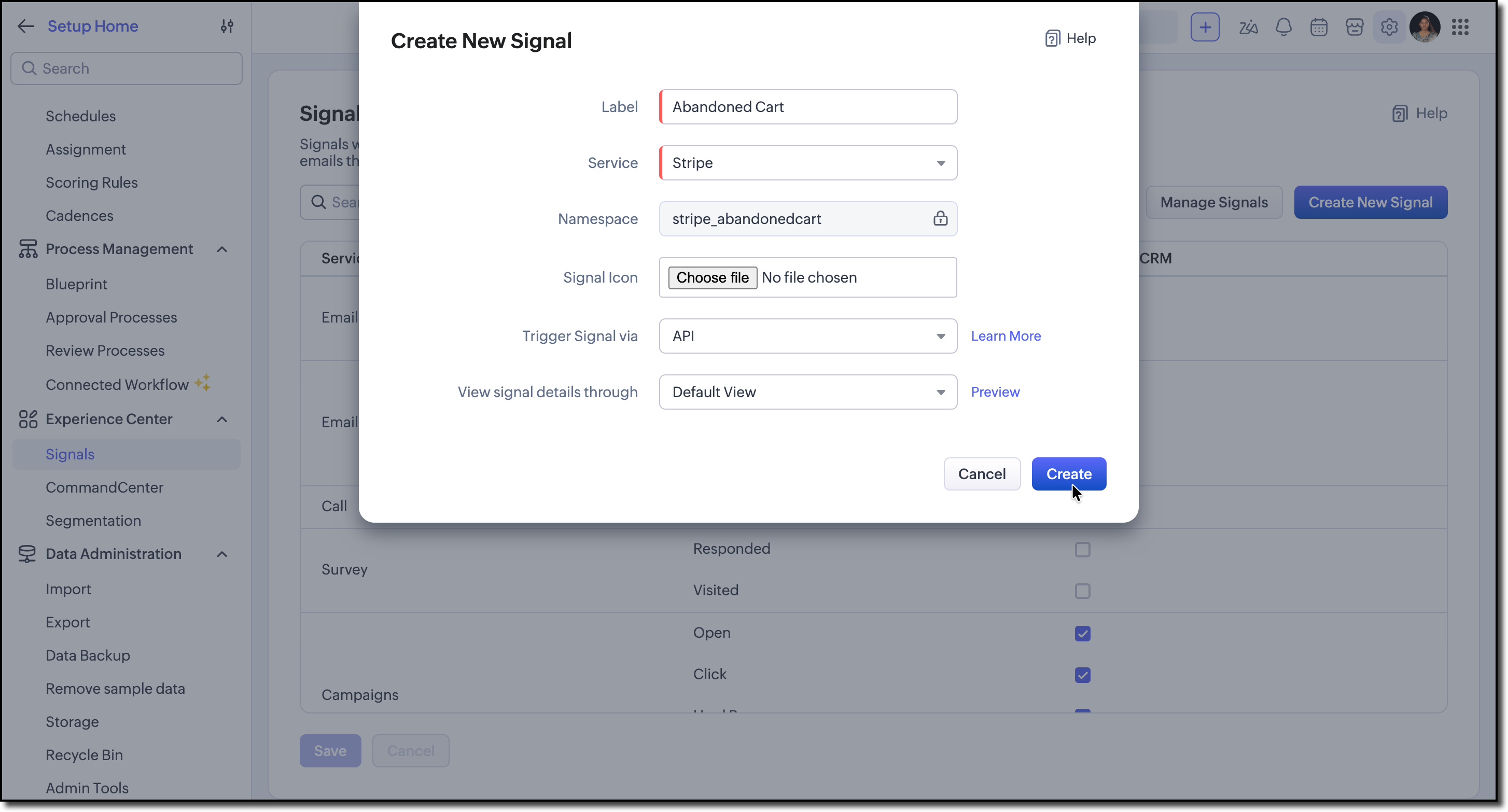
1. Go to Setup > Experience Centre > Signals and click Create New Signal.
2. Provide a label for the Signal. When the label is entered, Zoho CRM automatically generates a namespace for the Signal.
Make a note of this namespace. We will use it later while invoking the Signals API.
3. Configure the Signals using the following settings:
- Service: Stripe
- Trigger Type: API
- View Type: Default
4. Click Save.
II. Build the Standalone Function
Stripe sends the checkout expiration event to the Standalone Function through the configured webhook endpoint.
The event payload is available in the crmAPIRequest parameter.
1. From the event object, extract the following details:
- Customer email address
- Checkout Session creation time
- Checkout Session expiration time
- Cart total amount
- Cart item metadata
payload = crmAPIRequest.get("body"); sessionData = payload.get("data").get("object"); amountTotal = sessionData.get("amount_total"); customerEmail = sessionData.get("customer_email"); metadataMap = sessionData.get("metadata"); metadata = metadataMap.get("cart_items"); createdTime = sessionData.get("created"); expiresAt = sessionData.get("expires_at"); |
2. Add a validation step to generate a Signal only when the cart value exceeds USD 50,000.
if(amount_Total > 50000) { //Construct Signals Payload } |
3. Construct the Signals API payload using the extracted values and the Signal namespace created earlier. Set the open_in property to popup so that the Signal can open an associated widget.
For this implementation, pass the cart metadata in the data object of the Signal payload so that it can be accessed by the widget during page load.
4. Use the Deluge Integration Task to invoke the Signal.
resp = zoho.crm.raiseSignal(signalMap); |

Refer to the complete Standalone Function code in the crm-kaizen GitHub repository.
III. Build the Signals Widget
1. Create a new widget project in your local using Zoho CLI.
2. When the widget loads, Zoho CRM passes the Signal payload through the on PageLoad event.
3. Convert the Unix timestamps into a readable date and time format.
4. Display the checkout start time, expiration time, cart value, and cart items in a structured table.
5. Use the product names received through the metadata to query the Products module using COQL and retrieve the corresponding Product IDs.
6. Embed a redirection link to the product record pages using the record IDs.
This allows sales representatives to quickly access product information while following up with the customer.
Check out the crm-kaizen GitHub repository for the Signals Widget code.
IV. Upload the Widget and Associate it with the Signal
1. Follow the widget help guide to Validate and pack the widget.
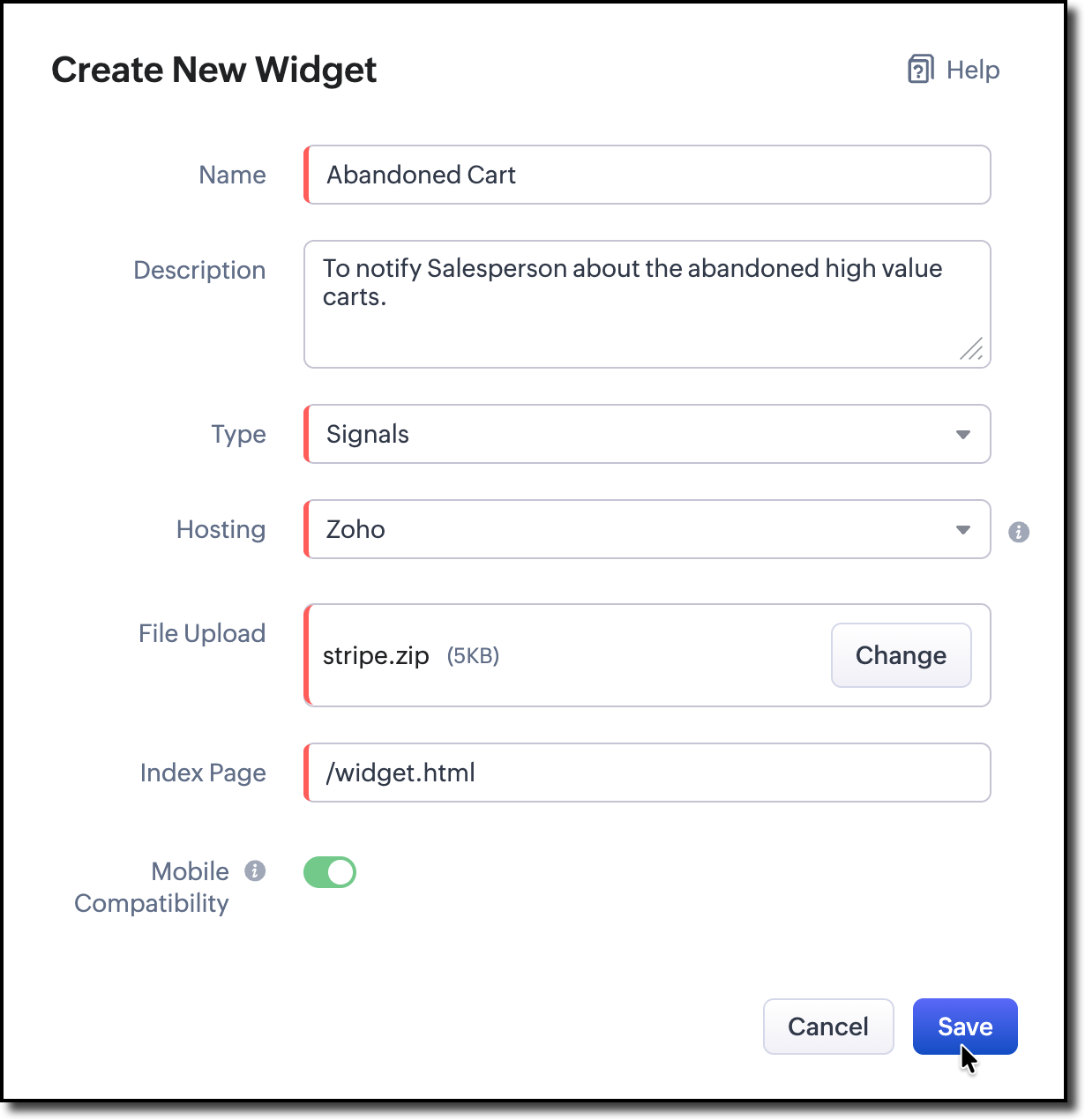
2. Go to Setup > Developer Hub > Widget and click Create New Widget.
3. Configure the widget and select Signals as the widget type.
4. Upload the packaged widget and click Save.
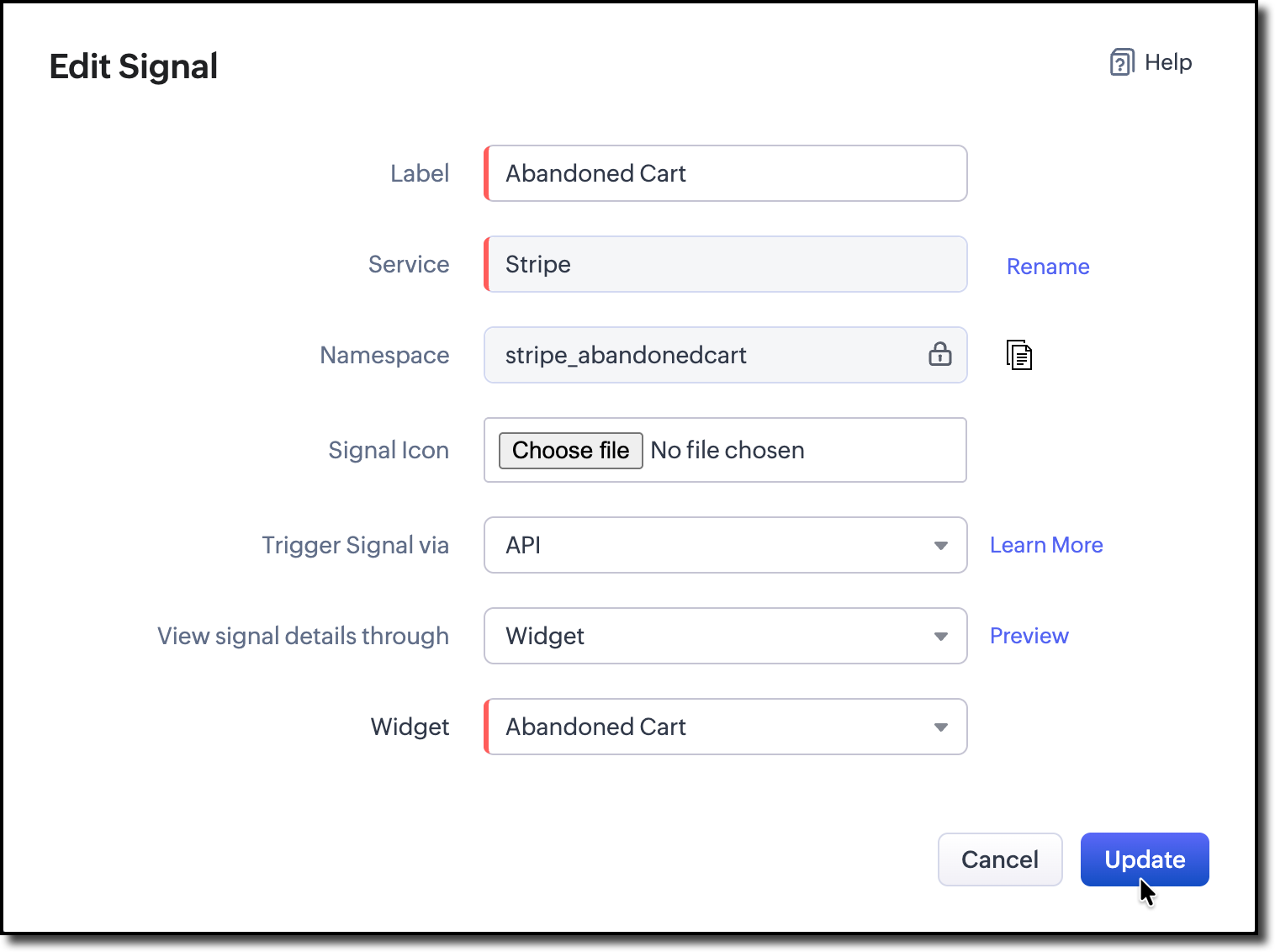
5. Next, navigate to Experience Centre > Signals > Manage Signals and open the Stripe checkout Signal created earlier.
6. Update the Signal view type to Widget and associate the uploaded widget.
7. Click Update.
Try it Out!
Create a Stripe Checkout Session using the Stripe API and allow it to expire without completing the purchase.
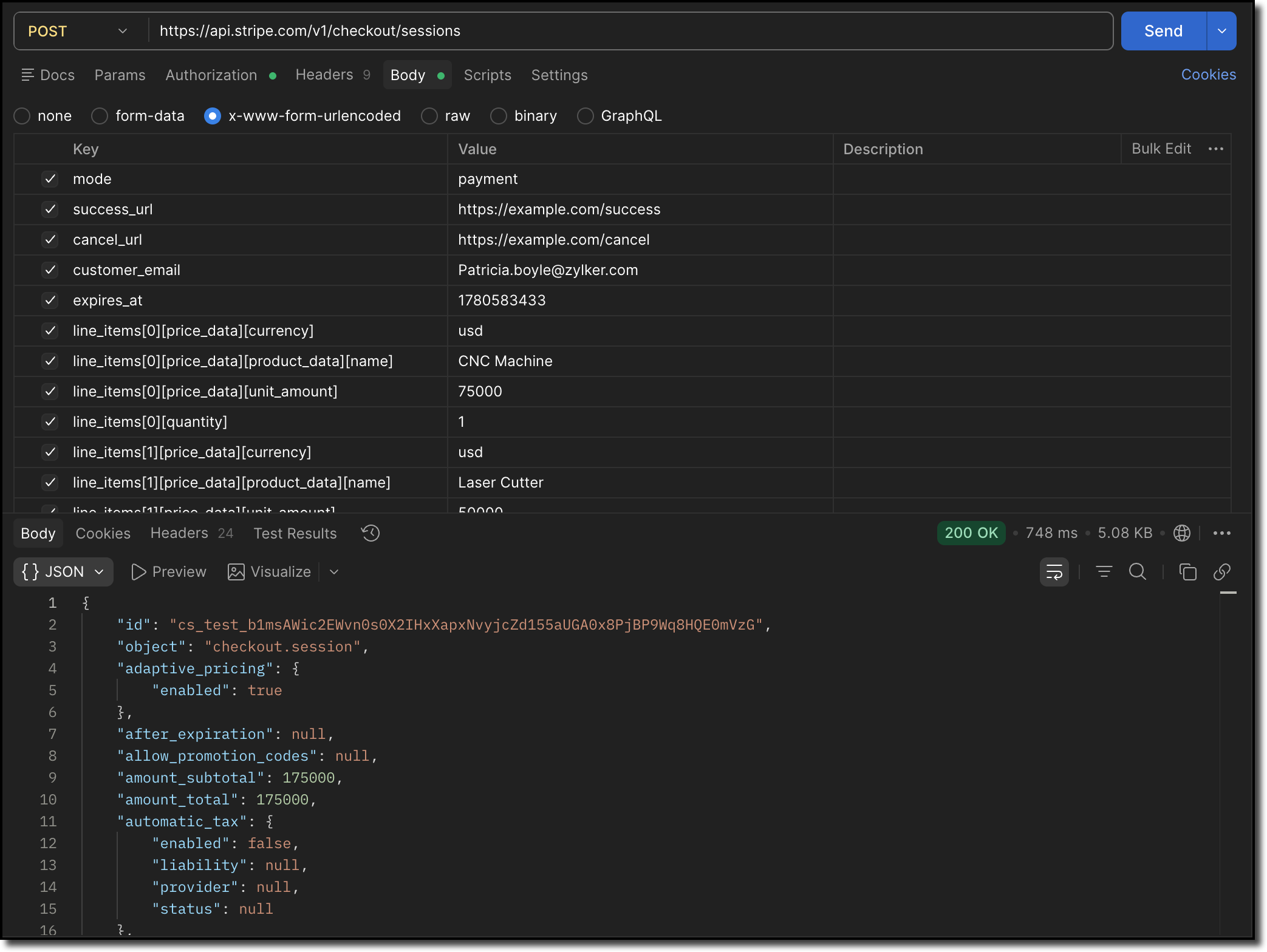
When the Checkout Session expires:
1. Stripe sends the webhook event to the Standalone Function.
2. The function invokes the Signals API and generates a Signal for the record owner.
3. Selecting the Signal opens the widget.
4. The widget displays the cart value, checkout timeline, and abandoned products with direct links to their CRM records.
This enables the record owner to quickly review the abandoned purchase and reach out to the customer.
The Zoho CRM mobile application also delivers the Signal as a push notification, ensuring that salespeople are alerted even when they are away from the web interface.
Hope you found this post useful.
We will circle back at you with a different topic next week.
If you have questions or suggestions, leave a comment below or write to us at support@zohocrm.com.
On to better building!
------------------------------------------------------------------------------

Previous: Kaizen #244 Visualizing Blueprint Transition Criteria Using Zoho CRM REST API Queries | Kaizen Collection: Home
------------------------------------------------------------------------------