Tip #42 – How to manage data security with Privacy Settings – 'Insider Insights'
Data privacy is a cornerstone of trust in remote support. Through Privacy Settings in Zoho Assist, you can set up how data is gathered, stored, and handled in your organization. These settings ensure compliance, data protection for sensitive details, and transparency to your customers.
For example, say a team provides remote support for employees across multiple locations. In this case, the admin configures role-based access where only limited technicians can start unattended sessions, enables confirmation prompts to notify customers when a session starts, and sets up breach notifications to inform essential stakeholders. When an employee departs, the admin uses Right to Erasure to erase his or her data with security and compliance in mind. With these controls in place, organizations can confidently manage data privacy while maintaining smooth and secure remote support.
To get started, log in to Zoho Assist, go to Settings > Security & Compliance > Privacy Settings, and configure the options that best suit your organization’s needs.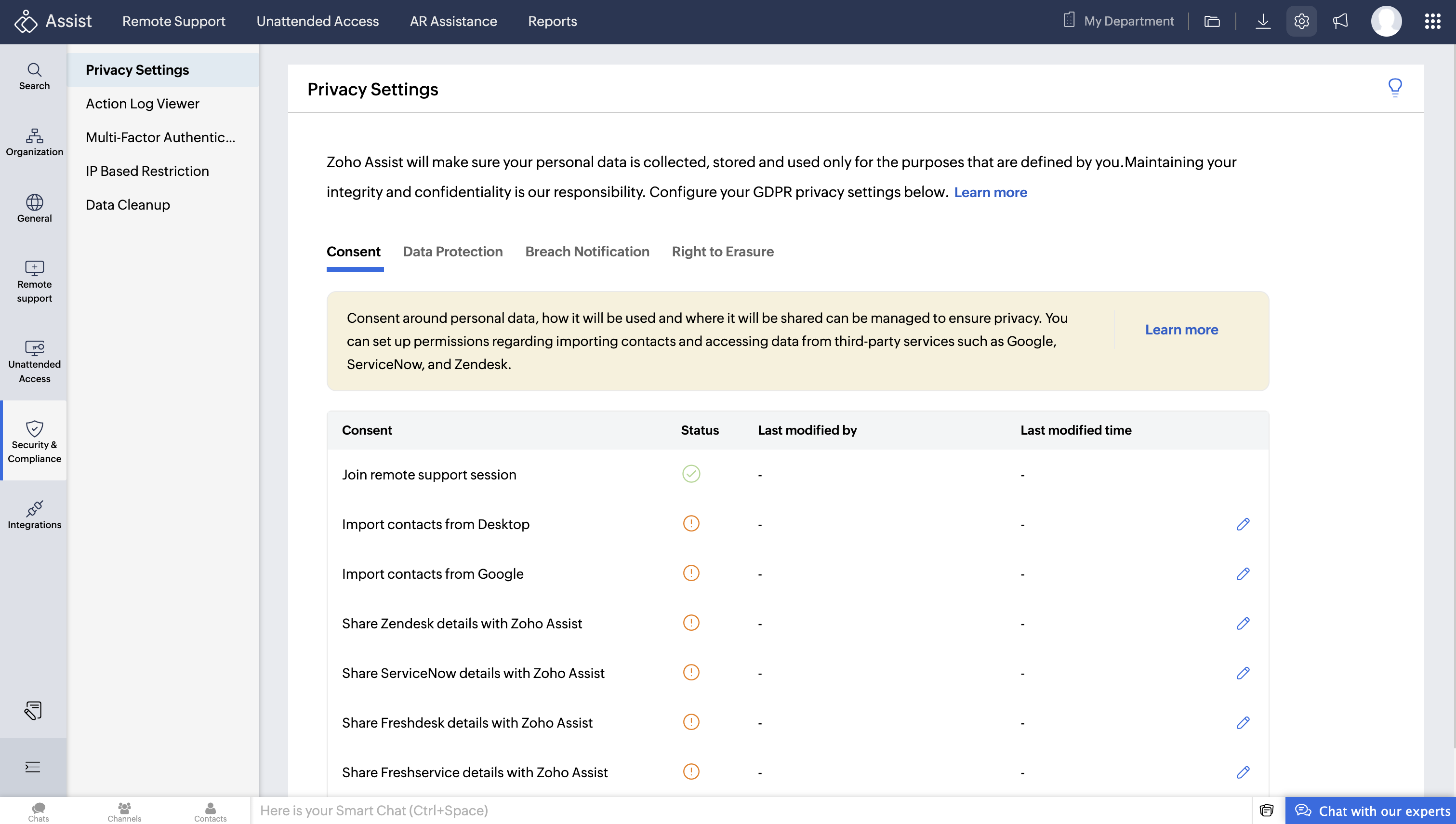
Here’s what you can do with Privacy Settings:
Consent – Control when, how, and why data is collected. Admins can set up or revoke permissions for third-party integrations like Zendesk, ServiceNow, and Google.
Data Protection – Strengthen security with unattended access confirmation, role-based access, and customizable notification prompts for customers.
Breach Notification – Get notified within 72 hours if critical data is compromised. Super Admins receive alerts by default, and you can add more users to the notification list.
Right to Erasure – Delete or anonymize all data related to specific users, including personal details, action logs, and usage reports, ensuring compliance with privacy regulations.
By setting up Privacy Settings, you build a stronger foundation for compliance, protect customer trust, and maintain accountability in every remote session.
Topic Participants
Amali Steffi Raj J
Recent Topics
Weekly Tips : Teamwork made easy with Multiple Assignees
Let's say you are working on a big project where different parts of a single task need attention from several people at the same time—like reviewing a proposal that requires input from sales, legal, and finance teams. Instead of sending separate remindersCannot give public access to Html Snippet in Zoho Creator Page
Hi, I created a form in Zoho Creator and published it. The permalink works but I want to override the css of the form. (style based URL parameters is not good enough) So I created a page and added an Html snippet. I can now override the css, which isWeekly Tips : Customize your Compose for a smoother workflow
You are someone who sends a lot of emails, but half the sections in the composer just get in your way — like fields you never use or sections that clutter the space. You find yourself always hunting for the same few formatting tools, and the layout justAccounting on the Go Series-43:Enhancing Your Reporting Efficiency with Dashboard Filter State Retention
Hello everyone! Welcome back to our series on Zoho Books mobile app features. Today, we will talk about a feature that yet again helps you focus on work that really matters-Dashboard Filter State Retention. Imagine you're working on your Zoho Books dashboard,Zoho books/payroll tax payment
I accidentally made a second payment to my taxes for $300 which is reflected in my bank account and therefore on Zoho books but I can not match it to any transactions because its not reflected in payroll as a tax payment. Is there a way to add an extraI can't renew the Finance Plus subscription
I tried to renew the Finance Plus subscription but it keeps reloading the same page over and over when ever I click on "Renew Subscription" buttonEstimate vs Quote
they are different. Quote is for 1 piece price + other charges. Estimate is for total quantity to be ordered. The gross total amount of the Estimate is the amount payable. Replacing Estimate as Quote is not understandable because they are different. InAccounting on the Go Series-47: Effortless GSTIN Management- Auto Populate TaxPayer Details in Zoho Books Mobile App
Hello everyone, Welcome back! Today, we're focusing on a feature specifically designed for our Indian users in the Zoho Books-Indian edition, particularly those who deal with GST compliance regularly. We understand the importance of accurate and efficientAccounting on the Go Series-48: Enhance Accuracy with Custom Work Week Start Days in Zoho Books iOS app
Hello everyone, Welcome back! We’re here with another feature spotlight that might seem small but can have a big impact on your daily routine: setting the first day of the work week in the Zoho Books iOS app. Imagine this: You’re a business owner whoTime to Get Paid Report in ZBooks
Hello, One of our customers who has 25 different companies around the world gets 60 days to make payments. Unfortunately, the subject report does not report an average time to get paid (in days) or the ability to look at a custom period of time. CurrentlyHow to prepare a balance sheet for a company that has no operations yet?
.Project Billing Method from Zoho People
Normaly our customers use Zoho Projects to manage projects and timesheet that are being charge to the customer. Using the integration from Zoho Project we can have projects base on different billing method. For example most of our customer use HourlyZoho Books-Accounting on the Go Series!
Dear users, Continuing in the spirit of our 'Function Fridays' series, where we've been sharing custom function scripts to automate your back office operations, we're thrilled to introduce our latest initiative – the 'Zoho Books-Accounting on the Go Series'.Zoho Books | Product updates | July 2025
Hello users, We’ve rolled out new features and enhancements in Zoho Books. From plan-based trials to the option to mark PDF templates as inactive, explore the updates designed to enhance your bookkeeping experience. Introducing Plan Based Trials in ZohoZoho Books | Product updates | August 2025
Hello users, We’ve rolled out new features and enhancements in Zoho Books. From the right sidebar where you can manage all your widgets, to integrating Zoho Payments feeds in Zoho Books, explore the updates designed to enhance your bookkeeping experience.Update or Upsert Records Using Unique Custom Fields
Hello customers, We've enhanced the process of updating records via API. You can now: Update records using unique custom fields Upsert records using unique custom fields Note: Both the features are available in the Zoho Books and Zoho Inventory apps.[Webinar] Understanding the New Invoice Management Systems
Join industry expert CA Pritam Mahure as he discusses the importance of the new Invoice Management System (IMS) and its impact on taxpayers. Topics Covered: - Concept of IMS and pre-requisites - Applicability and Restrictions on Invoices/Records for IMSAccounting on the Go Series-51: Effortless Transactions: Create and Manage Directly from Uploaded Documents
Hello everyone, We’re back with another useful feature that makes working with Zoho Books even easier! This time, we’re simplifying the process of creating transactions directly from uploaded documents. Imagine you’re out meeting clients, and you receive[WEBINAR] Effortless migration to the VAT-ready South Africa edition of Zoho Books
Hello there, If you are one of our early users from South Africa using the older edition of Zoho Books, this webinar is for you! We have now launched a new South Africa edition with VAT support, to which you can migrate your existing data. Join this session,Accounting on the Go Series-52: Capture Receipts on the Go, Right from Your Lock Screen.
Hello everyone, We’re excited to introduce a feature that will make your life so much easier—especially for those constantly on the move! With iOS 18, Zoho Books now allows you to capture receipts directly from your lock screen using Locked Camera Capture.AT - Austrian Accountant familiar with ZOHO
Hello, as I have just migrated to ZOHO and unfortunately have to change my accountant next year, I am looking for an accountant (for Austria) who already has experience with Zoho or who already manages clients using Zoho books. Is there anyone here fromZoho Workflow issue
Dear Zoho Users, I have Zoho Books premium subscription, I have created a email alerts workflow for Invoices and following are the configurations for the same: 1. Workflow for Invoice module 2. Choose when to tigger - created or edited 3. Filter the triggersAccounting on the Go Series-53: Swift Transactions at Your Fingertips-Zoho Books in Your Control Center
Hello again, We’ve all had those moments where you need to get something done quickly, but the process of unlocking your phone, finding the app, and navigating through menus slows you down. Now, with Zoho Books integrated into the iOS 18 Control Center,Update on PDF Download Issues Caused by Antivirus Software
Hello users, Antivirus software is designed to protect your computer from malicious software and threats. However, they may mistakenly identify legitimate files and software as threats at times. This is known as a false positive. We have received reportsAccounting on the Go Series-54: Effortlessly Find Your Zoho Books Customers in Your Phone’s Contact List
Hello Zoho Books users! How are you all ? We’re happy to share a handy new feature in Zoho Books mobile app. Now, you can access your Zoho Books customers right from your phone's contact list, making it easier to stay connected on the go. How this canIntegration of Phase 2 -e-invoicing- KSA
Zoho Team, I want to get a training of integration of phase 2 invoicing KSA in zoho step by step.I can not save new invoice
Hello Now I am trying to save a new invoice but I can not save it because showing unpaid invoice warning which are not overdue. Please let me know how to skip unpaid invoice warning letter and save new invoice. Thank youADD CONDITIONS FOR FIELD IN ZOHO BOOKS TEMPLATE CUSTOMAZATION
HELLO I WANT TO ADD CONDITIONS FOR FIELD IN ZOHO BOOKS TEMPLATE CUSTOMAZATION FOR SALES ORDER . I HAVE SET %StatusStamp% IF APPROVAL I WANT THAT TEXT TO BE DISPLAYED WITH GREEN COLOR OTHERWISE OF OTHERR STATUS RED COLOR AS SHOWN IN CODE BELOW . BUT ITAccounting on the Go Series-55: Seamlessly Add New Vendors While Creating Transactions from Scanned Documents
Hi there! We’ve made handling documents and vendors in Zoho Books even simpler. Now, when you upload a document and scan it, if the app detects a vendor that isn’t already in your organization, you don’t have to leave the page to add them manually. WithAccounting on the Go Series-57: Effortlessly Add and Manage Bank Accounts from the Zoho Books Mobile App
Hi all, Great news for our users in the US and Canada! Managing your finances just got a whole lot easier. Zoho Books has always made it seamless to integrate bank accounts and fetch feeds automatically. Now, we’re taking it up a notch—directly from theAccounting on the Go Series:58-Effortless Compliance: Download XML for Invoices & Credit Notes on Mobile
Hi there! In Mexico, XML files are crucial for electronic invoicing and fulfilling SAT (Tax Administration Service) requirements. These files ensure your transactions are accurately recorded and tax-compliant. Now, you don’t need to rely on the web appAuto Generated Invoice number YEAR
Auto Generated Invoice number shows transaction year as 25 even though it's 24 still.Books generiert keine valide XRechnung
Hallo zusammen, ich möchte hier ein Problem ansprechen, das mir aktuell bei der Nutzung von Books erhebliche Schwierigkeiten bereitet, und hoffe auf Austausch oder Lösungsansätze von anderen Nutzern. Bei der Erstellung von XRechnungen mit Books tretenWHEN UPDATE ORGANIZATION INFO OLD INVOICES ALSO CHANGE INVOICING DATA
Hi We have updated our tax information because we have become a company, up until now we were an individual. The problem is that when updating the data in the zoho books profile all the old invoices change their tax information as well. Is there a wayInvoice import error - duplicate customer name column - there are no duplicates
It is not allowing the importing of any rows because of a duplicate customer name problem, but there are no duplicates in the custoemr name row. Has anyone dealt with this issue before?[WEBINAR][Feb 2025] Automate your entire financial operations from receipts to reconciliation with Zoho Books & Zoho Expense integration
Hello there, We are hosting a free, live webinar on the importance of travel and expense management solutions for businesses, and how Zoho Expense automatically syncs with Zoho Books to simplify your accounting even further. The webinar is on FebruaryCustomize Layout
I am using "Customize Layot" for customize Quotation template but I try to add logo into the header by "%ScaledLogoImage%" code but dont add logo into header. what is problem?Problem - cant add Users (i.e. Zoho one / CRM Users) to BCC or CC in email, i.e. Sales orders or Retainers
I can go to zoho books email templates, and select any email template, and automatically include any Zoho One user, i.e. member of staff. However in the context of sending an email, it will not let us add a member of staff from the user list, insteadUK MTD ITSA
UK Making Tax Digital for Income Tax I have had notice this is to apply from April 2026. What is Zoho doing about this? I will need to start planning to implement this in the next months so need an update as to what I will and will not be able to do inZoho Books Roadshows are back in the UAE!
Hello there, Business owners and accounting professionals of the UAE, we’re coming to your cities! FTA accredited Zoho Books is now officially one of the Digital Tax Integrators in the UAE. With the newly launched direct VAT filing capabilities, we'reNext Page