Boost collaboration in your sales process with Team Selling and Deal revenue's Split—empowering your Zoho CRM for smarter teamwork!
 This feature has been released for a majority of users in all DCs. It will be released in a phased manner for the remaining users.
Hello everyone,
As you may all know, closing a deal is rarely a one-person effort. It often involves multiple teams - from pre-sales and marketing to legal and customer success - all working together to close a deal. However, traditional CRM structures only recognized the deal owner, which limited visibility and collaboration for all the other key contributors. Besides, there was no structured way to fairly attribute revenue among all the contributing members as well.
It is to address these challenges that we are excited to introduce Team Selling and Deal Split in the Deals Module. These features make teamwork easier by giving everyone involved access to important deal details while also making sure that their contributions get the credit they deserve.
Let's first look into Team Selling.
Team Selling allows organizations to bring together multiple contributors on a deal, providing them with appropriate access and visibility. Instead of relying solely on the deal owner, teams can now work together efficiently, adding notes, tracking progress, and also sharing important updates within the CRM.
Let's look at how it works for Zylker Inc, a leading SaaS company that specializes in cloud-based software solutions.
So generally, when closing high-value deals, multiple teams are involved, from sales and pre-sales to legal and customer success.
Let’s say the company is working on a huge deal with a large enterprise client. Traditionally, only the sales representative (who is the deal owner) would have access to all deal-related information. However, in reality, closing such a deal would require contributions from multiple teams.
So here’s how Team Selling would help Zylker Inc. streamline collaboration.
Pre-Sales Engineer - They provide technical expertise and demonstrate the workings of the product to the client. They help the client customize their CRM system to ensure it meets their needs and solves their problems.
Sales Engineer -They offer insights on integrations with the client’s existing systems and address any concerns that the client may have with regards to technical feasibility.
Marketing Specialist - They share use cases, case studies, and ROI data with the client in order to support the value proposition during discussions.
Legal and Compliance Advisor - They review and negotiate contract terms to meet the client’s compliance requirements.
Customer Success Manager - They ensure the client is confident about onboarding and also of long-term support post-sale.
To start with, the Account Executive sets up the deal in their CRM system. They then configure their preferred team in their personal settings. They assign roles and access levels based on each member's involvement, ensuring that each of them can view and contribute to the process of closing the deal as required.
The Pre-Sales Engineer gathers the client's requirements and shares insights with the team. The Sales Engineer demonstrates technical integrations, while the Marketing Specialist provides the client with material to reinforce the pitch. The Legal Advisor works closely with the client’s legal team in order to address compliance concerns. And as the deal approaches closure, the Customer Success Manager outlines a tailored onboarding plan to instill client confidence.
It is important to note that all team members log their notes, updates, and tasks in the CRM’s deal record. The Account Executive monitors the deal's progress, assigns follow-ups, and ensures everyone is aligned on the next steps.
- Navigate to Settings
—Go to: Settings > Customization > Modules and Fields > Deal Management. - Configure Team Selling
—Select the layout.
—Add team roles such as pre-sales, consultants, or marketers.
—You can enable the preferred Deal Team option (if required).
—Save configuration.
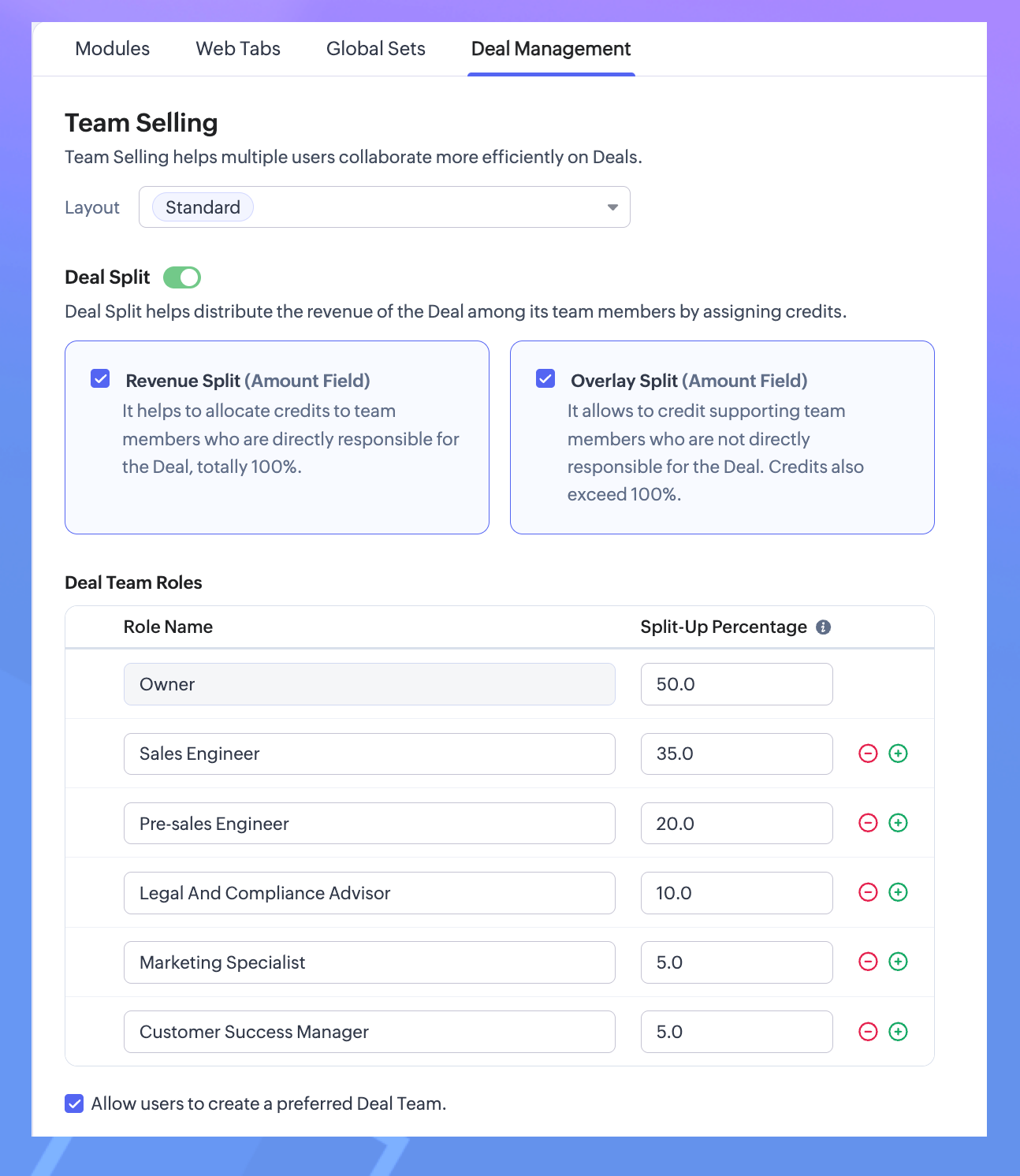
3. Configure Preferred Deal Team.
—Go to: Settings > General > Personal Settings.
—Scroll down to Preferred Deal Team.
—Add Members.
Note. You can edit your preferred deal team - including adding or removing a member -or revoke the team altogether.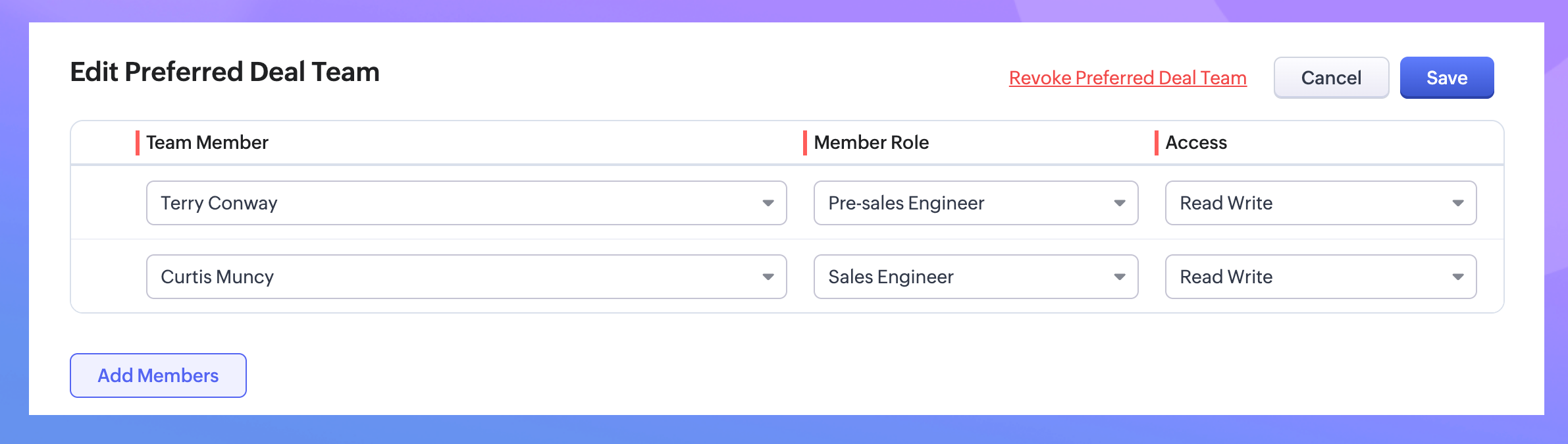
4. Add Team Members to a Deal.
—Go to the Deals Module.
—Open a deal record and locate the "Deal Team" related list under the stage history.
—Click Add Members, select users, assign roles (as configured earlier), and set access permissions.
—Another option would be to add the Preferred Deal Team (that you had previously created).
—Save your changes.
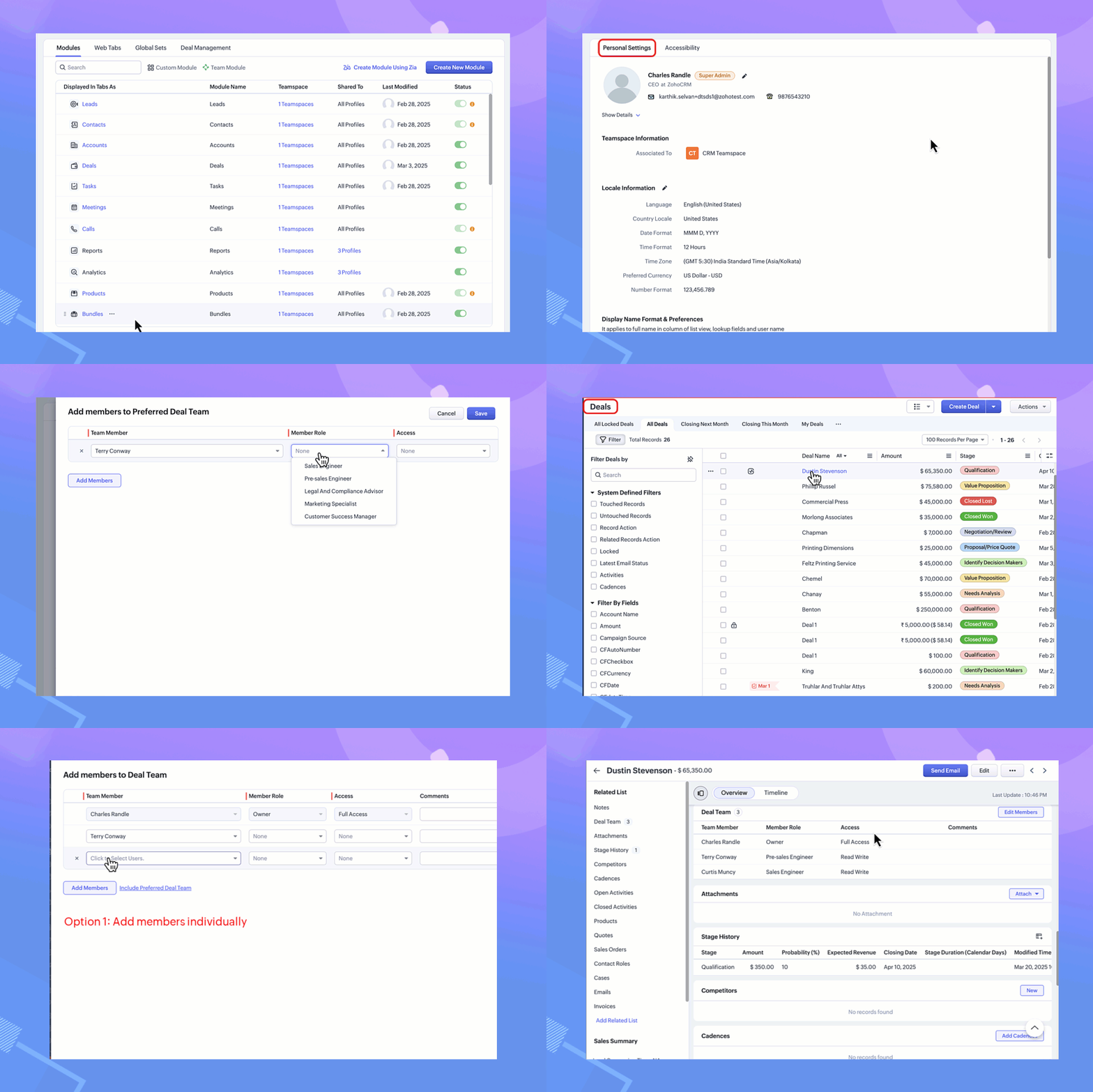
With these steps, team members can access the deal record based on their assigned roles and permissions.
Next, let us look at the second enhancement - Deal Split.
What is Deal Split?
Here again, the contributions of various team members involved in closing a deal are taken into consideration. Deals Split allows you to allocate the revenue that a company gets from a deal proportionally among team members based on their roles and efforts.
It is important to note here that there are two types of deals splits:
Revenue split: Members who contribute directly to the closure of the deal are included under revenue split. They will have their credits allocated directly based on the deal amount.
For example, the pre-sales engineer would get 10% for converting the cold call to a lead as they are directly contributing to the deal amount.
Note. As the maximum percentage revenue split is 100, the splits of all contributors can add to 100. Overlay split: Members who have an indirect influence on the deal are included under the overlay split.
Note. Here, their credits can be allocated as a percentage or the split amount itself. Since they do not contribute to the deal amount directly, their credits do not depend on the deal amount. Hence, the split up can amount up to 1000 per cent.
For example, a consultant who provides research or critical information on the customer. Another example of someone who comes under this category could be a legal team member who helps in drawing up the contract.
Note. As they probably work on fixed charges per hour, the overlay split can be entered as a percentage or an amount.- Navigate to Settings
Go to: Settings > Customization > Modules and Fields > Deal Management. - Toggle on the Deal Split
Select the type of split you would prefer for your organization.Revenue Split - It must add to a total of 100 per cent.Overlay Split - It can add up to 1000 per cent. - Customize your Deal Team roles with their split percentage.
- Save your changes.
- Go to the Deals Module.
- Open a deal record and locate the "Deal Team" related list.
- Click Add Members (to Revenue Split or Overlay Split) and select users, assign roles (as configured earlier), and set access permissions.
- Save your changes.
Note.The existing Deal Team related list records of the above selected layouts will now have the Deal Split records available.
If either one of the splits is enabled, the existing Deal Team members will be added to the enabled split automatically.
In case both the splits are enabled, the existing Deal Team members will be included to the Revenue Split. The user can proceed to edit and reassign the members to their required split.

Why use Team Selling and Deal Split?
- Improved Collaboration: Ensures seamless teamwork by involving all contributors in a deal.
- Transparency: Gives team members appropriate access to deal records for better coordination.
- Fair Recognition: Distributes revenue based on individual contributions, enhancing accountability.
You can now create forecasts based on the splits configured
The introduction of Revenue Split and Overlay Split in Forecast Configuration can help organizations allocate credit fairly among team members who contribute to closing deals.
When a deal’s value is distributed among deal team members using the Revenue Split or Overlay Split, these allocations are automatically reflected in the forecast reports when a split-based forecast is created. By factoring in deal split, organizations get a clearer picture of individual and team contributions and thus can set more realistic targets, track sales team performance, and also distribute incentives effectively.
Since we have already defined the deal split, we can enable it in the configuration of Forecasts.

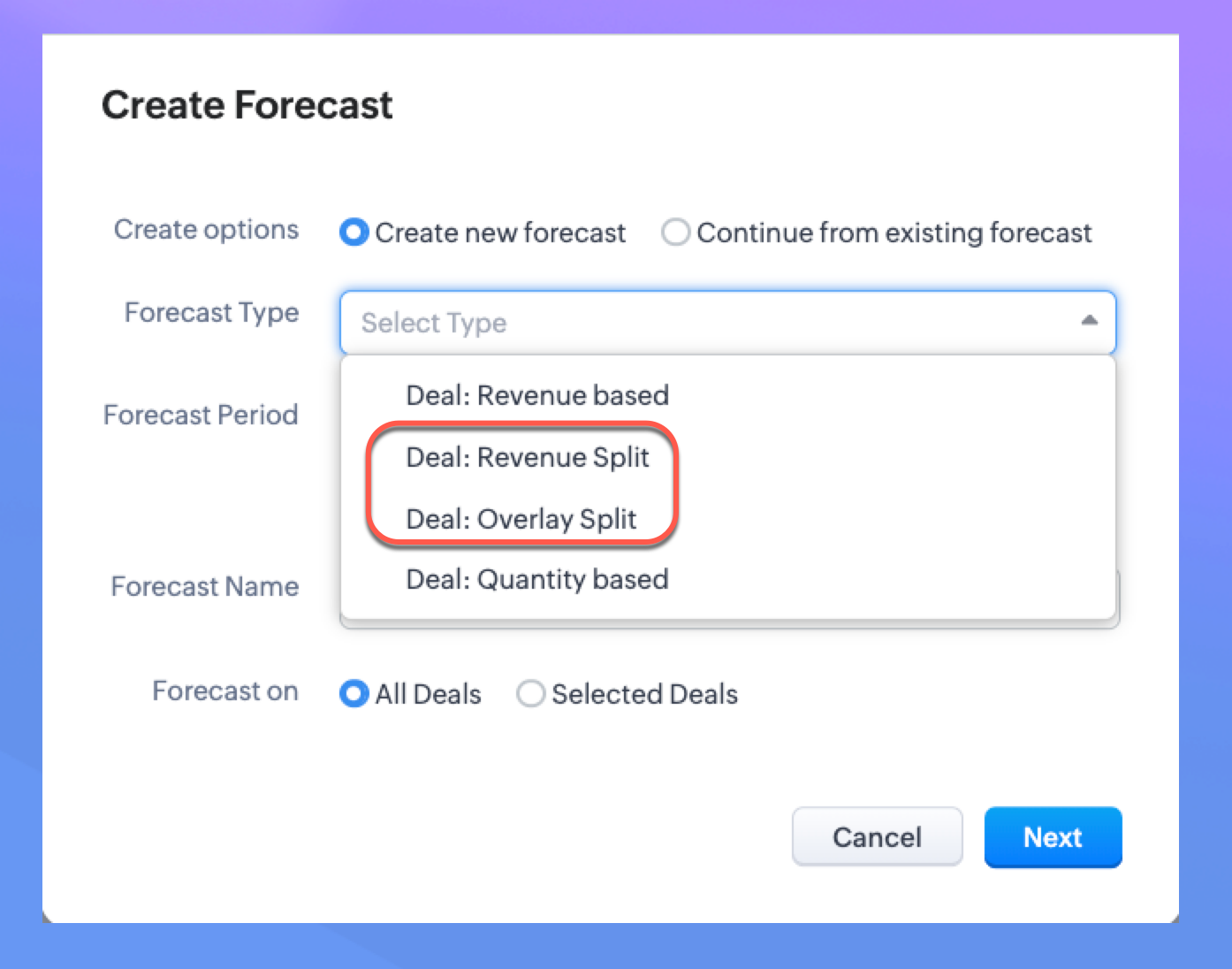
Note. Only the user with Module Customization can configure the Team Selling settings. Once configured, the users with Manage Deal Team profile permission can manage Deal Team related list and Preferred Deal Team (under Personal Settings).
Please check our help doc for more information on Team Selling and Deal Split.
Availability: Enterprise, Ultimate, CRMPlus, and Zoho One Enterprise editions.
Topic Participants
Anna Sakhi John
Subhash Kumar
Anna Sakhi
Sticky Posts
Presenting ABM for Zoho CRM: Expand and retain your customers with precision
Picture this scenario: You're a growing SaaS company ready to launch a powerful business suite, and are looking to gain traction and momentum. But as a business with a tight budget, you know acquiring new customers is slow, expensive, and often deliversGood news! Calendar in Zoho CRM gets a face lift
Dear Customers, We are delighted to unveil the revamped calendar UI in Zoho CRM. With a complete visual overhaul aligned with CRM for Everyone, the calendar now offers a more intuitive and flexible scheduling experience. What’s new? Distinguish activitiesCreate and populate a record in an instant: Introducing zero-shot field prompting to Zia's ICR
A couple of months ago, we upgraded our in-house AI image detection and validation tool, Zia Vision, with intelligent character recognition (ICR). By training Zia with sample images, you could create and enrich CRM records with data extracted from standardIn-person ZUG Meetups for Real Estate Professionals - US Q1 2026
The Real Estate Zoho User Group is going on a multi-city, in-person meetup tour across the US, and we’d love to see you there! These meetups are a great opportunity to: Connect with fellow real estate professionals using Zoho Share challenges and discoverNimble enhancements to WhatsApp for Business integration in Zoho CRM: Enjoy context and clarity in business messaging
Dear Customers, We hope you're well! WhatsApp for business is a renowned business messaging platform that takes your business closer to your customers; it gives your business the power of personalized outreach. Using the WhatsApp for Business integration
Recent Topics
Calendly One-way sync- Beta Access
Hello Community, Many of our Zoho Calendar users have expressed their interests in Zoho Calendar and Calendly integration. We've been tightly working on with Calendly team to provide a two-way sync between Calendly and Zoho Calendar. However, there haveThe year that was at Zoho Calendar 2023- Part 2
In continuation with our previous post on all the exciting updates and improvements that have shaped Zoho Calendar over the past 12 months, Lets delve into more: Bring your calendars together- Introducing Zoho Calendar and Outlook calendar synchronisationTip of the week #18: Change the event organizer in Zoho Calendar.
We cannot always be available to conduct an event when we organise one. In these circumstances, you can use Zoho Calendar to change the event organizer at any moment before the event begins. This way, you can avoid cancelling the event while still takingTip of the week #20: Create and manage multiple personal calendars.
Zoho Calendar provides users with the facility to create and manage as many calendars as required. All these calendars can be managed and edited as per user requirements. You can alter the calendar view, make changes to the calendar theme, share the calendarTip of the week #24: Subscribe to the calendars of a Zoho Calendar user.
Calendars that are created by Zoho Calendar users can also be added to your Zoho calendar. All public calendars listed by the users will be available when you enter the email address. You can choose the calendar you need to subscribe to. Once the emailTip of the week #26: Import/ Export calendars in Zoho Calendar.
Any calendar on the web or calendars that you create in any other calendar application can be imported in to Zoho Calendar. This will help you to add the events from the calendars that you import to your Zoho Calendar. You also have the option to exportRemoving calendar for zoho email group
How do I make it so that an email group created in Zoho Mail does NOT have a calendar? I have a couple groups for our phone systems voicemails - one for each department. Voicemail recordings are sent to this groups email address so they have access toTip of the week #27: Edit personal calendars in Zoho Calendar.
In Zoho Calendar, the personal calendars you create can be edited to make changes you need to make. Edit a Personal Calendar The following changes can be made to the personal calendar by editing it: Calendar title Calendar color Reminders and DescriptionTip of the week #28: Show/ hide, enable/ disable and empty/ delete your calendars in Zoho Calendar.
The popularity of online calendars has soared in recent years. It's used both for personal and professional reasons. Calendars have evolved into an effective productivity tool in our lives, from creating events for birthdays and anniversaries to schedulingTip of the week #30: Share calendars publicly in Zoho Calendar.
In Zoho Calendar, calendars that are created under My Calendars can be shared publicly. Making your calendar public allows others to view it. When you need to share your calendar with a larger group, public sharing can help. You can restrict others fromTip of the week #31: Share your personal calendars within organization.
Keep your Organization members aware of what's happening. In Zoho Calendar, you can share your personal calendar with all the members in your organization using the Share with org option.When you enable org sharing for a particular personal calendar,Tip of the Week #33: Appointment scheduler in Zoho Calendar.
In Zoho Calendar, you can use the Schedule Appointment option to share your appointment request form with the public, allowing people to fill out the form to request an appointment with you. This form can be embedded on your website or blog. VisitorsTip of the Week #34: Embed Calendars using Zoho Calendar
You can make your calendars public and visible to the general public by embedding them in your websites/blogs using Zoho Calendar. You can use the embed code to add your own calendars to your website's/ blog's HTML code, and the calendar will appear onTip of the week #35: Migrate to Zoho Calendar from Google Calendar.
If you are looking to move your Google Calendar events to Zoho Calendar, never worry about missing out the events from your Google Calendar. You can migrate the events from Google Calendar using the export option and import it to Zoho Calendar and manageTip of the week #36: Migrate to Zoho Calendar from Outlook Calendar.
If you've been using Outlook calendar and looking to migrate to Zoho Calendar, you can seamlessly export your calendars from Outlook and import them into Zoho Calendar without losing any events, participants, and the reminders set for each event. To migrateShared calendar issues and duplications
Apparently there was a calendar update? Now when I schedule an event for a team member that has shared his calendar with me, the event makes me the organizer and adds the event to my calendar as well. Previous to this "update" I would scheduled an eventSubscribed Calendar
Hi i have subscribed to a calendar for Holidays in Canada it shows all the holidays perfectly but every one of them has the word Canada before the rest of the name is there a way to remove that word Canada? It takes up a lot of space in the square onThe year that was at Zoho Calendar 2023- Part 1
Hello, amazing community members! Happy new year from all of us here at Zoho Calendar. As we begin the new year, we'd like to thank each and everyone of our community members for your unwavering support and love that you have shown for Zoho Calendar.Zoho Calendar 2024: A Year in Review
Hello, community members! Happy new year from all of us here at Zoho Calendar. As we turn the page to a new year, we extend our heartfelt gratitude to every member of our Zoho Calendar community for your continued support and enthusiasm. Your feedbackZoho Calendar not syncing correctly with personal Google Calendar
Coming to this forum as Zoho Calendar support team is not responding, any more. For the past 8 weeks, I have been having an issue with Zoho Calendar not syncing with my personal Google Calendar correctly. I subscribed to Zoho Calendar iCal in my personalZeptomail API error 500 internal server error
Hi Everyone, getting this eror continuously! Can anyone please guide around the same! Zeptomail API error 500 internal server error Best RegardsWaiting multiple days to buy credits, causing my website to suffer
So I own a fairly large website that gets a lot of registered users. I use transmail send activation emails, and also forgot password emails. I sent an email to zoho's presales team when I was only at 4K/10K emails sent, hoping to buy more credits beforeFollow up
Hello, I sent a message 2 days ago but I don't receive any response and I cannot find my ticket here. this is the ticket: Your ticket has been created with the ticket ID 68925465 and subject "Fwd: Fishing-alert" looking forward to seeing your response.What's new in TransMail!
Note: TransMail is now ZeptoMail. Click here to know more. Hello again, everyone! We've recently crossed the 6 months mark of TransMail's launch. In this time post our launch, we have been constantly working on updating our platform and adding new featuresJune 2021 in TransMail!
Note: TransMail is now ZeptoMail. Click here to know more. Hello again, everyone! Hope you and your loved ones are doing well. If you're doing less than fine, we truly hope that things only get better for you. We've had a few updates in the past monthTransMail has a new name—ZeptoMail!
Tried navigating to TransMail's community forum but see a different name now? That's because TransMail has a new name. TransMail is now ZeptoMail! As we’ve grown from an internal service used mainly by other Zoho products to an up-and-coming competitorJuly 2021 in ZeptoMail!
Note: TransMail is now ZeptoMail. Click here to know more. Hello again, everyone! Hope you and your loved ones are doing well. We've had a few updates in the past month in ZeptoMail—some new features and some important announcements. Take look at whatSend Email From the ZeptoMail BY API
What is Zeptomail:- Transactional email service with reliable and fast delivery How we can Create a Connection for Zeptomail in Zoho CRM Go to the Setup Click on Connection Enter Connection Details:- Generate Consumer Key & Consumer Secret Using ZohoCustomer email on Opencart 3
When I place an order, 2 emails are sent: 1) administrator 2) to the user The administrator receives a beautiful letter, but the user receives a damaged letter (see screenshot). What could be the problem?[Announcement] Insert image from URL changes in Zoho Writer
Hi Zoho Writer users! We'd like to let you know that we've changed the behavior of the Insert image from URL option in Zoho Writer for security reasons. Earlier behavior Once you inserted an image URL in a Writer document, the image would be fetched fromDynamic Signature - Record owner
Hi everyone, I’m using Zoho Writer merge templates from Zoho CRM and have two questions: Owner signature: How can I automatically insert the CRM record owner’s signature in the merged document? I’m not sure where this signature is stored or how to referenceWriter sing up problom
Zoho writer sing up prolom faceUnable to copy into a new document
Whe I create a new Writer doc and attemp to copy and past I get this message. The only way to copy into a document is I duplicate an existing document, erase the text and save it under a different name and then paste the information. Not ideal. Can you[Webinar] Live demos and user Q&A with Zoho Writer product experts
Join us on June 12, 2025 for live demos based on your use cases and real-world scenarios raised via form. This is also an opportunity to get your questions answered directly by product experts from the Zoho Writer team. Webinar agenda Live demos basedZoho Writer's built-in citation and bibliography generator
Hey researchers and writers! Do you manually format citations and bibliographies, spending hours jumping between apps and tabs? If so, then check out Zoho Writer's built-in "Citations and Bibliography" feature. Imagine you're writing a thesis on the futureSingle and group checkboxes in Zoho Writer's fillable forms
Hey Writer Fam, Are you making the most out of single and group checkboxes in fillable forms in Zoho Writer? Here is a handy tip to optimize your use of checkboxes, both single and group, and enhance your data collection process. Single checkboxes: SingleCollaborate efficiently with Zoho Writer's track changes feature
Hi Zoho Writer Community, Zoho Writer's track changes feature is a simple, built-in solution that helps you and your team work together efficiently. Instead of juggling multiple versions of a document or building up a long email chain of comments, eachZoho Writer's WordPress extensions
Hey Zoho Writer users! Say goodbye to all your WordPress content publishing woes with Zoho Writer's WordPress extensions. Publish content with all your formatting and images, republish content when you update a document, and more—from a single windowTime-saving table hacks
Hey Zoho Writer Community, Do you find yourself using a lot of tables in your documents? We're here to share some of our time-saving hacks that will help you work more efficiently, organize your data, and make your documents look neat and professional.Automating document approval and signing with Zoho Writer and Zoho Sign
Hey Zoho Writer Community! Here's another automation tip to make your processes more efficient! Question: Can I send a document for client approval first, then automatically send it for signing with Zoho Sign if they approve? Since it's the same personNext Page