Geo-Powered Retail Intelligence with Zoho Analytics
In today’s highly competitive retail landscape, data-driven decisions are no longer optional — they’re essential. While businesses collect vast volumes of data across regions, stores, and customer segments, the real value lies in how effectively this data is visualized and interpreted.
Geo Maps in Zoho Analytics bring location intelligence to the forefront of decision-making. With powerful spatial analytics capabilities, retail businesses can now visualize store performance, identify untapped opportunities, and track customer behavior trends with a simple glance at a map.

This solution demonstrates how Zoho Analytics' Geo Maps can be leveraged to solve real retail business problems, using a step-by-step approach grounded in a practical, ready-to-use dataset.
- Business scenario
- Dataset Overview
- Problem Description
- Why Geo Maps Become a Game-Changer
- Solution Implementation – Report Creation
- Store Performance Analysis (Map – Bubble)
- Revenue-to-Traffic Ratio with Ghost Zone Detection (Map - Filled + Scatter)
- Competitor Pressure Zones (Map – Scatter)
- Customer Gender Distribution (Map - Pie)
- Summary
Business scenario
Imagine you're a retail chain operating hundreds of stores across the United States. Each store generates data—sales, visitor footfall, customer satisfaction, marketing spend—but these numbers alone don’t explain why some stores succeed while others under-perform.
Key challenges include:
- Identifying stores that are struggling before sales drop significantly.
- Understanding whether poor performance is due to location, low visibility, or intense competition.
- Evaluating which regions offer true expansion potential—and which are over-saturated.
With no visual correlation between location and business KPIs, many decisions remain reactive instead of proactive. This is where Geo Maps make all the difference—by transforming isolated data into contextual geographic insights.
Dataset Overview
To power this solution, we’ve created a comprehensive and realistic retail dataset that mirrors how actual store data behaves across geographies.
The dataset includes:
- Store-level performance data: revenue, average purchase value, and satisfaction.
- Customer insights: foot traffic, age, gender distribution.
- Market context: competitor presence and market share, population density, and economic growth rate.
- Geospatial data: zip code, city, state, latitude, and longitude of each store location.
Problem Description
Retail chains often operate on thin margins, and even minor under-performance at store level can have significant impacts across the organization. While dashboards provide revenue and performance trends, they often miss one critical dimension—geography.
Without geographic context, businesses face several recurring challenges:
- Underperforming stores go unnoticed until major losses occur.
- Ghost zones—areas with low store presence but high potential—remain unexplored.
- Marketing budgets get wasted in regions where returns are consistently low.
- Competitor pressure is misjudged due to lack of visibility on regional saturation.
- Store closures become reactive decisions, made after performance has already declined.
In short, data without location awareness leaves decision-makers blind to spatial trends and risks. Businesses need a smarter, more intuitive way to analyze store performance with geographical clarity—before it’s too late.
Why Geo Maps Become a Game-Changer
Geo Maps in Zoho Analytics address this gap by unlocking a visual layer of intelligence that traditional charts can’t offer.

Here’s what makes them a game-changer:
- Location-first insights: Instantly identify how store performance varies across the map - by city, state, or neighborhood.
- Visual correlation of multiple KPIs: Compare revenue, satisfaction, and foot traffic geographically to detect hidden patterns.
- Clutter-free, customizable visuals: Choose the right map type - bubble, filled, pie, or scatter - to match the data you want to analyze.
Unlike static dashboards, Geo Maps enable you to see the problem, context, and opportunity—all in one frame. Whether it's spotting trends, reallocating marketing spend, or planning expansion, this spatial layer puts decision-makers back in control.
Solution Implementation – Report Creation
This section walks through the step-by-step creation of four key Geo Map reports that reveal business insights from store-level data.
1. Store Performance Analysis (Map – Bubble)
To identify how stores are performing across different regions in terms of revenue and customer satisfaction, using a clean, visual-first map representation.
This helps uncover:
- High-performing stores in key zones
- Underperforming regions needing intervention
- Patterns related to location-based store success
Why Map - Bubble?
The Map - Bubble chart is ideal for visualizing store-level metrics using geolocation.
- Size indicates magnitude (e.g., Monthly Revenue)
- Color indicates health or quality (e.g., Customer Satisfaction)
- Each store appears as a distinct bubble based on its lat/long.
Procedure
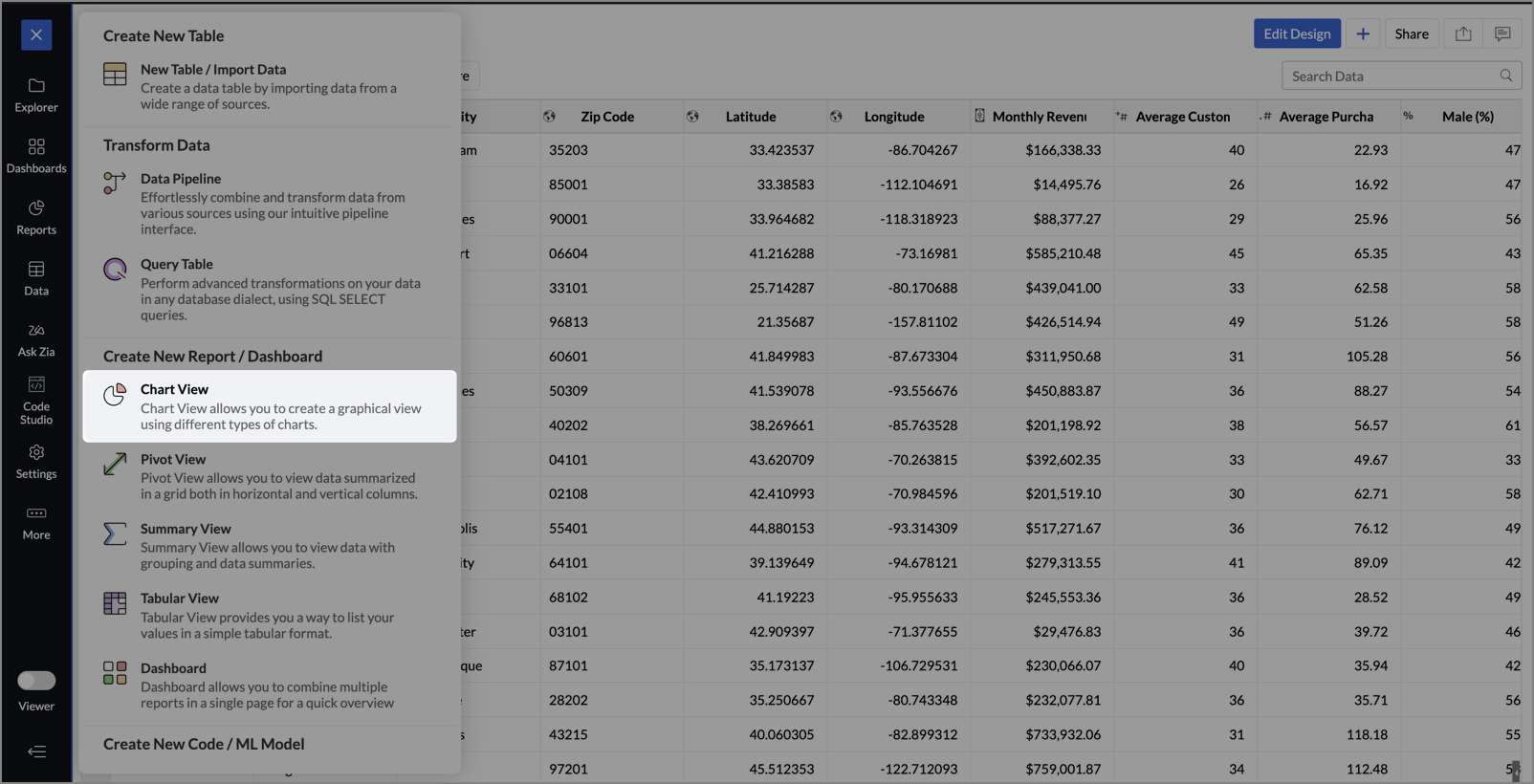
- From the dataset, click the Create icon and select Chart View.
- On the designer page, drag and drop the following columns into their respective shelves:
- Latitude → X-Axis
- Longitude → Y-Axis
- Customer Satisfaction (out of 10) → Color
- Monthly Revenue (USD) → Size
- Store ID, Store Type, City → Tooltip
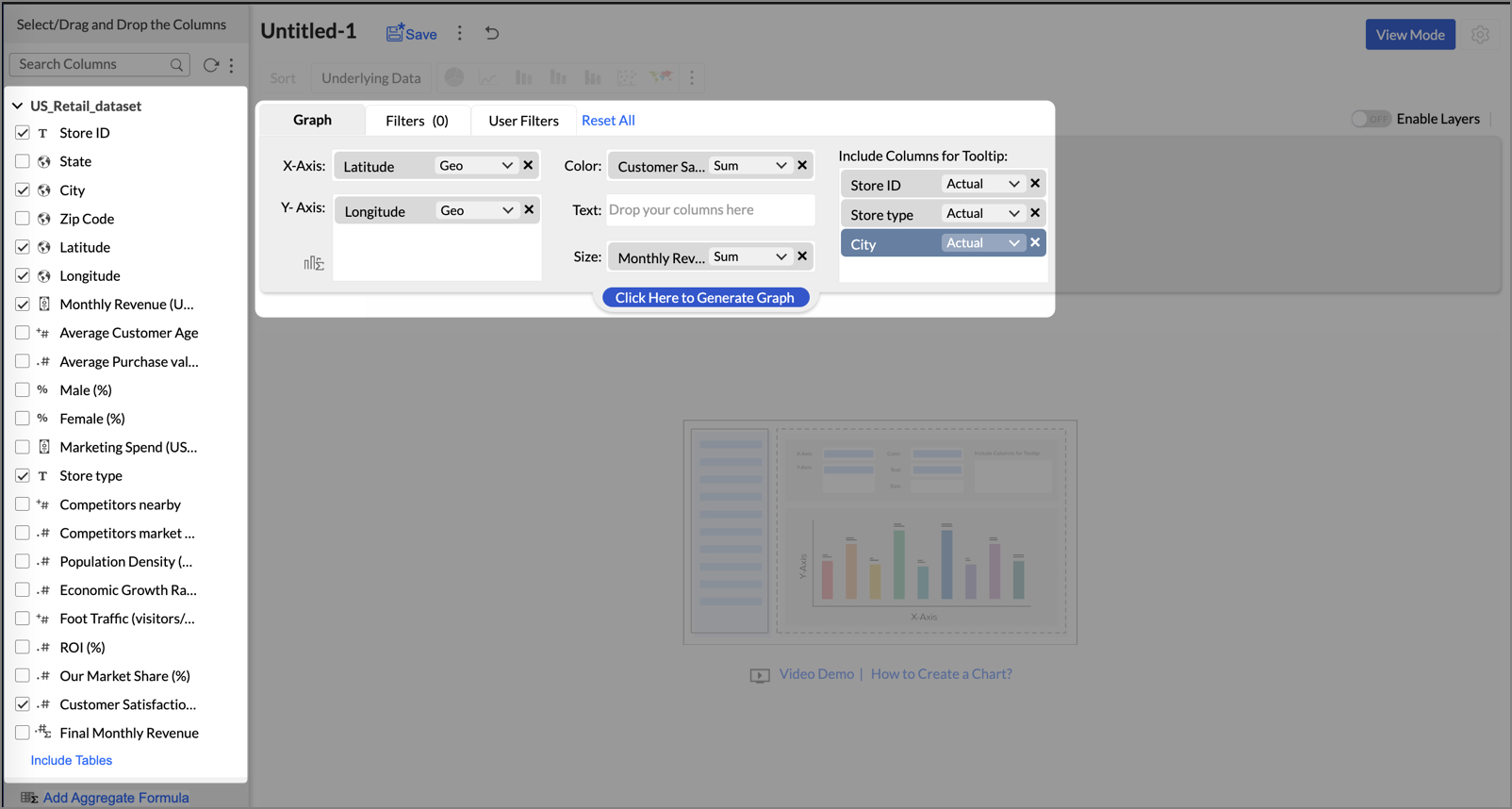
- Click Generate Graph.
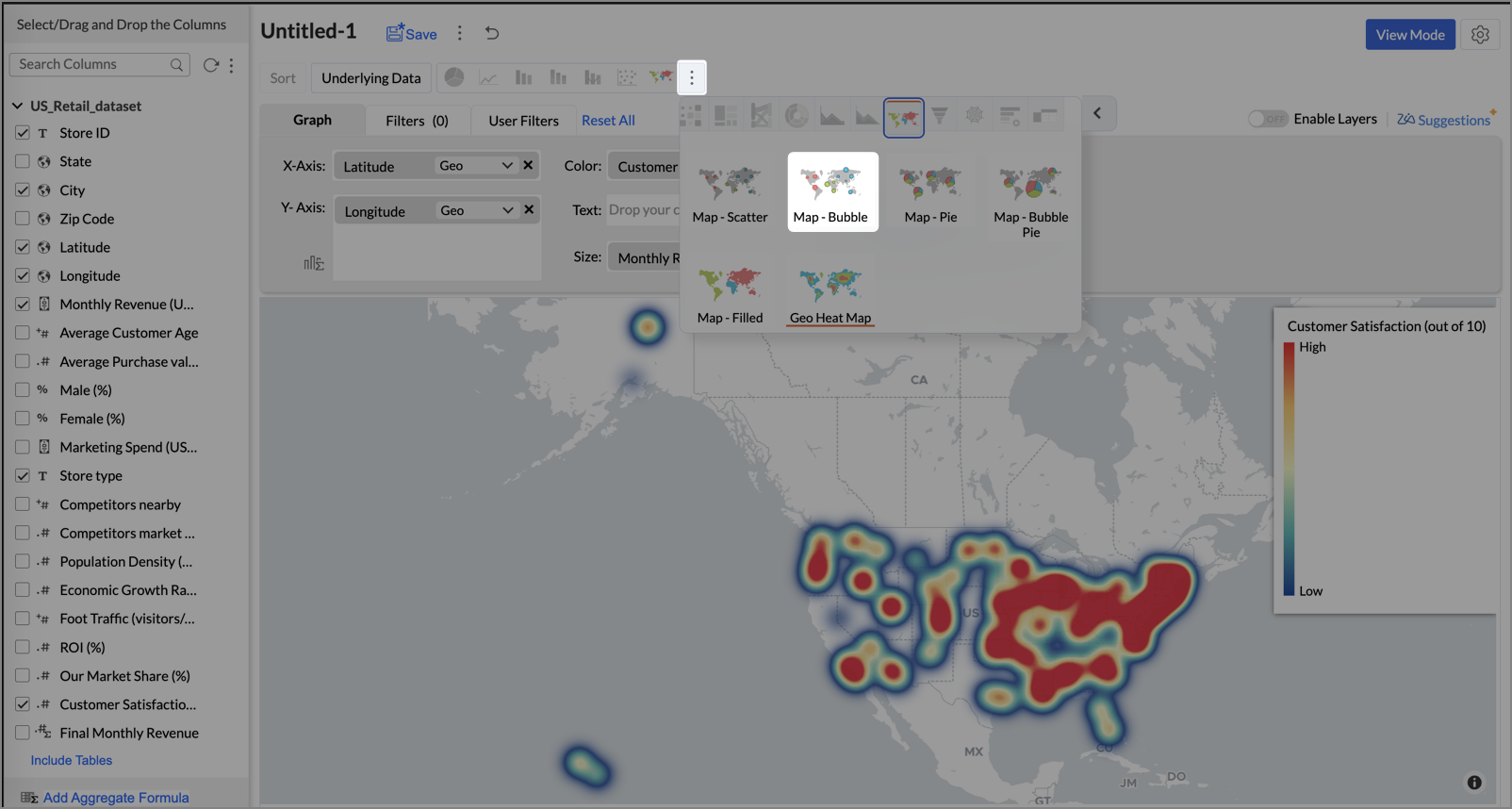
- Click on the ellipsis icon and select the chart type as Map - Bubble.
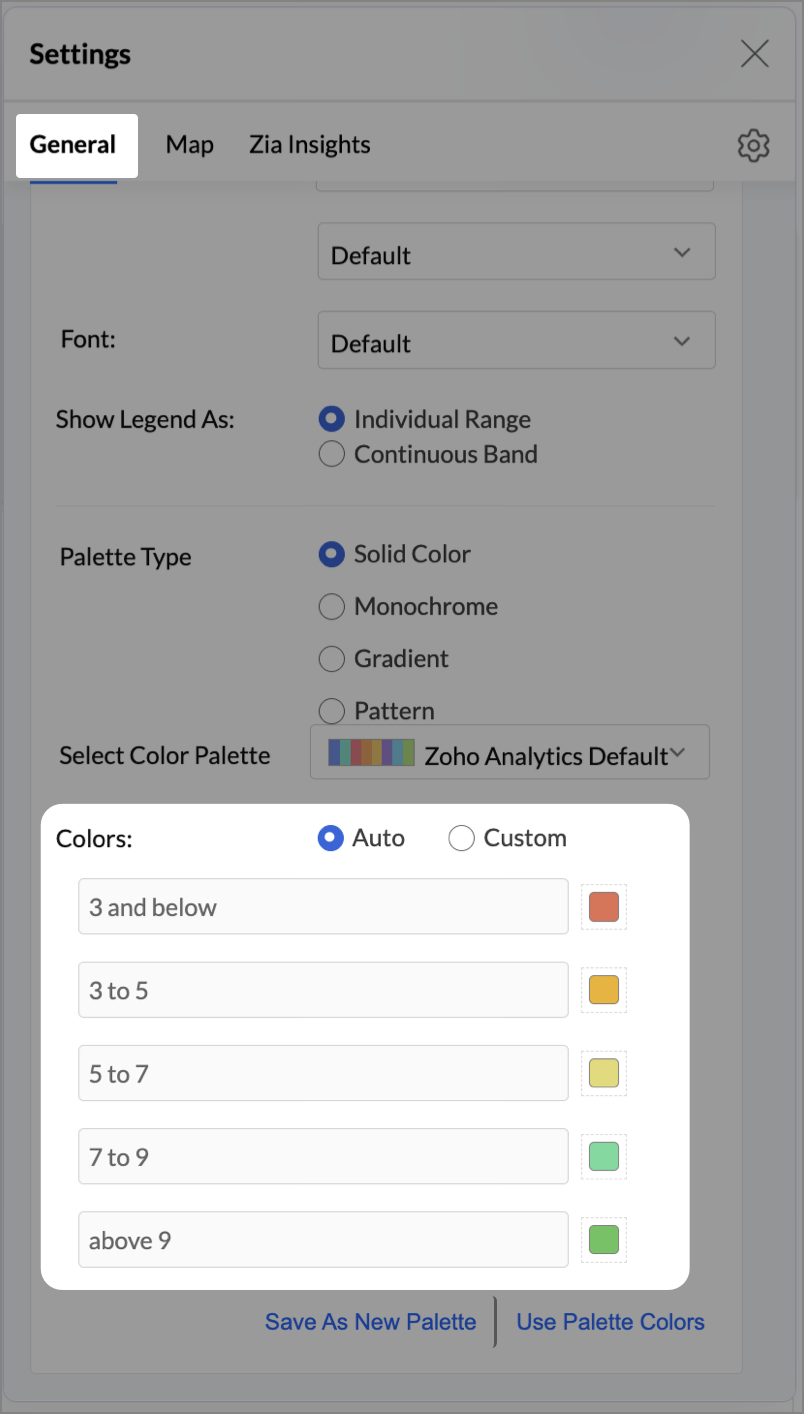
- Click the Settings icon, and under the General tab, click Legend.
- In the Colors section, customize the color scale from red to green to represent satisfaction ranges.
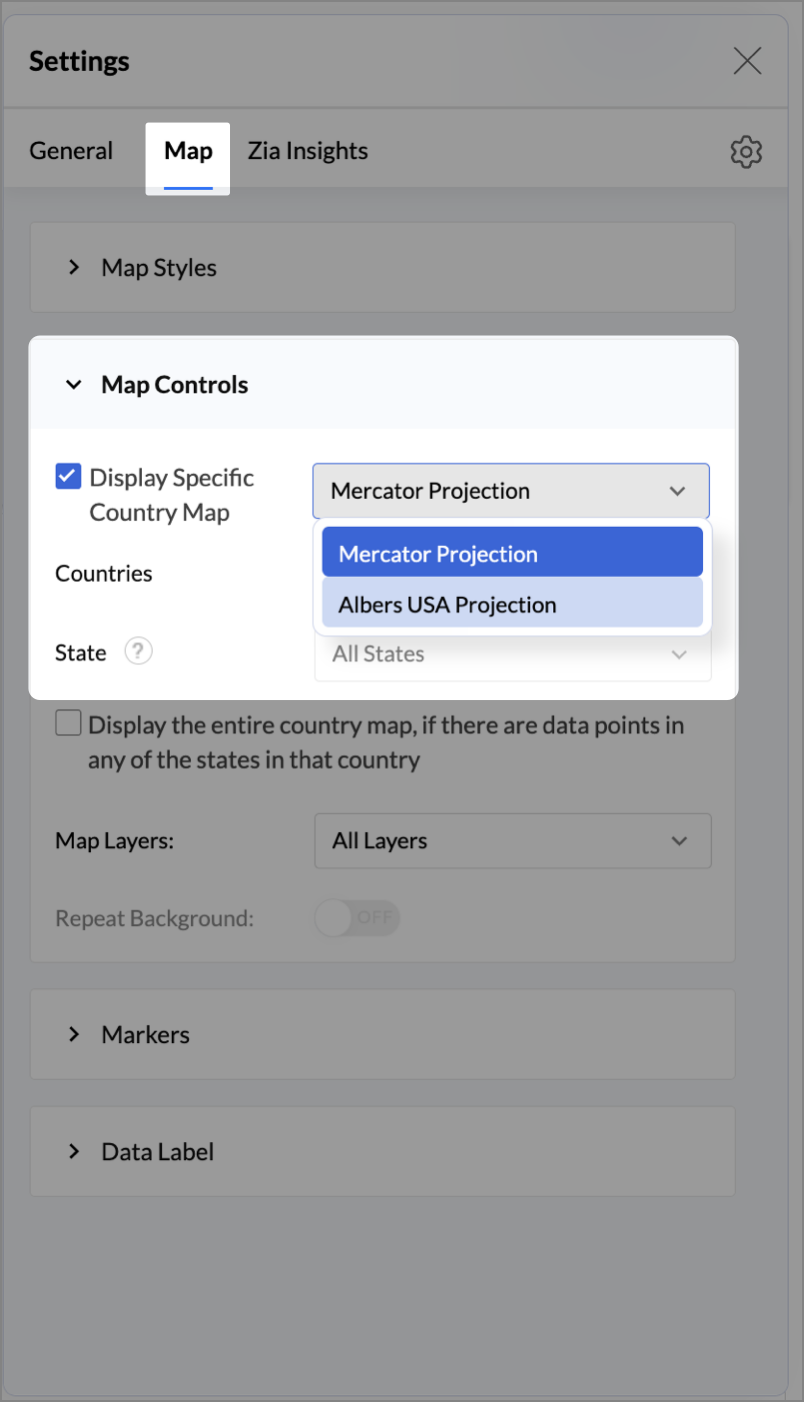
- Under the Map tab, click Map control and enable Display Specific Country Map.
- From the drop-down, select Albers USA Projection. This displays the USA map by placing Alaska and Hawaii below the mainland USA on a single map.
- Rename the report as Store Performance and click Save.
Tip:
Add a User filter such as Store type or State to analyze performance by segment.
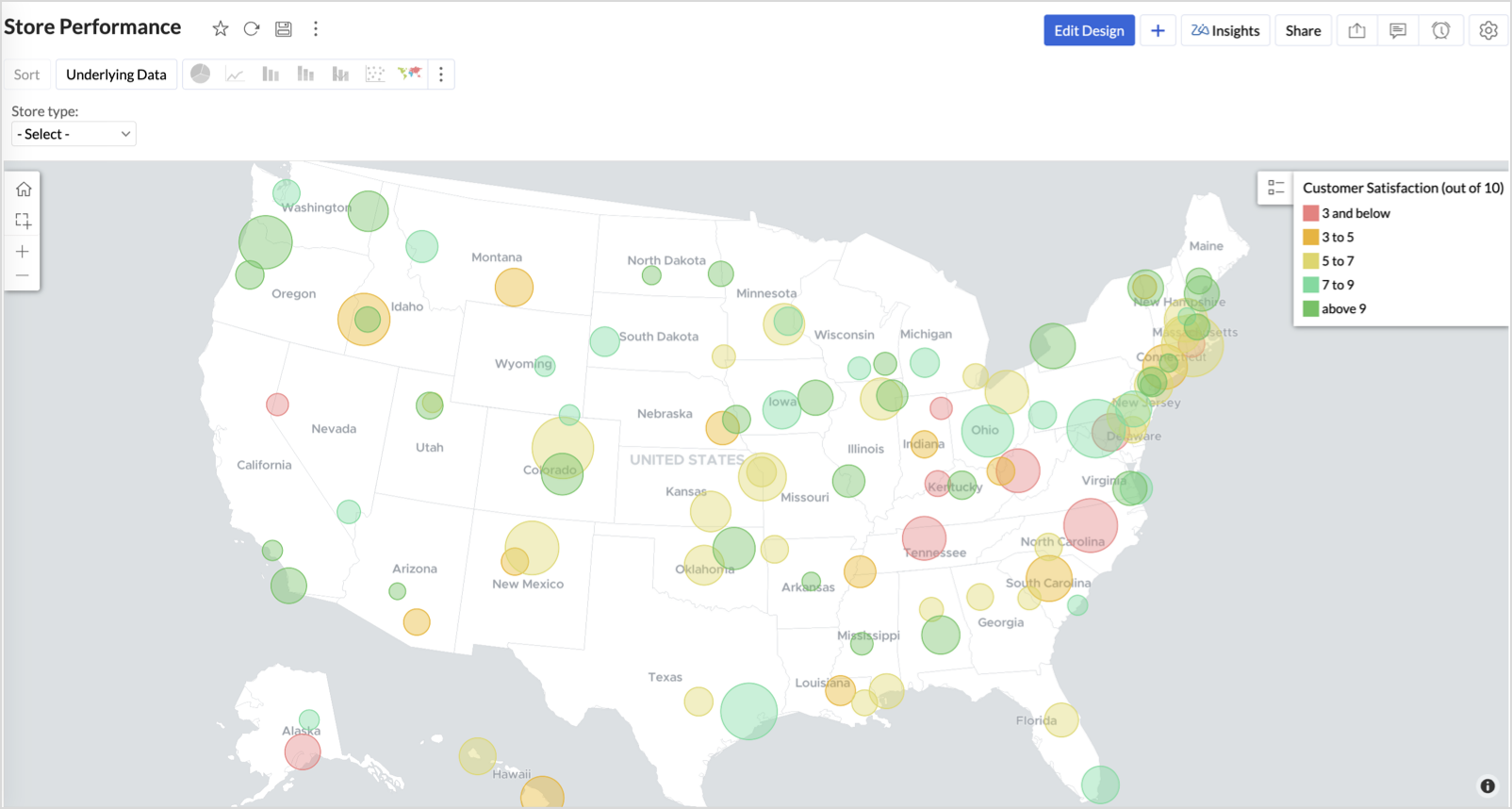
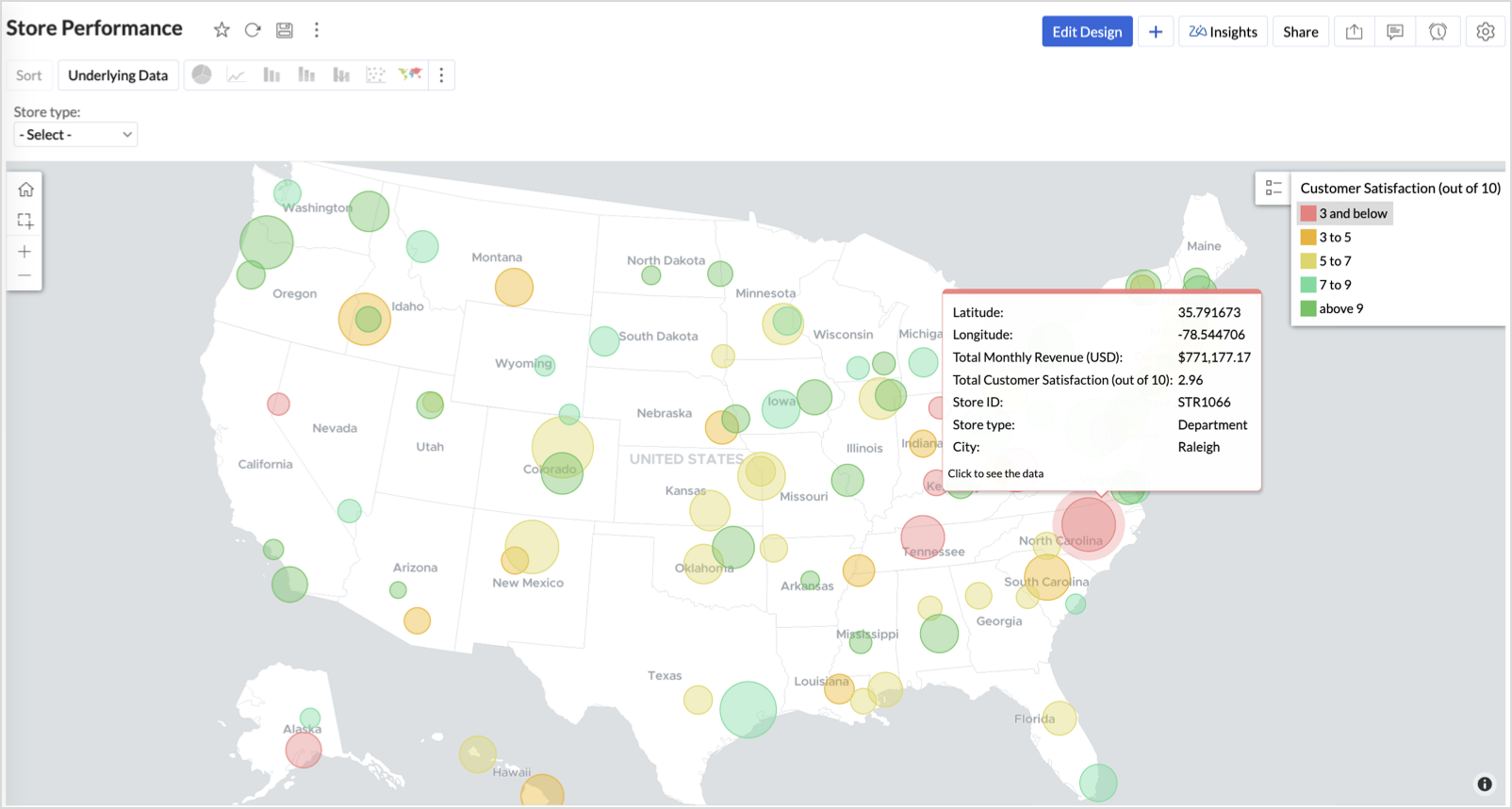
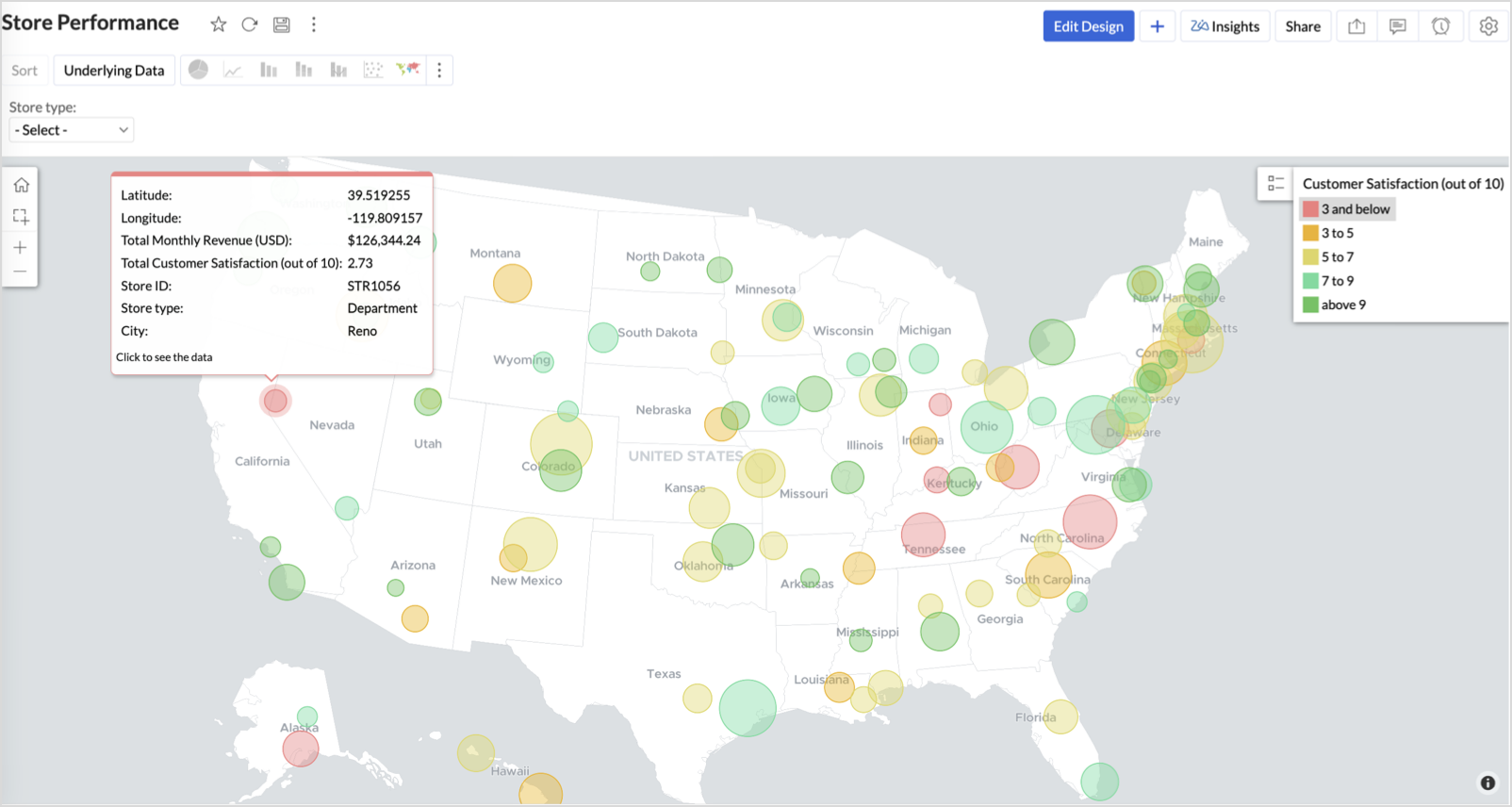
This configuration creates a bubble for every store, sized by its revenue and colored by customer satisfaction — instantly showing how happy customers are in high- or low-revenue zones.
Key Insights
Large bubble + Red color - High revenue but poor satisfaction — risk of churn!
Small bubble + Green color - Low revenue but high satisfaction — possibly underserved
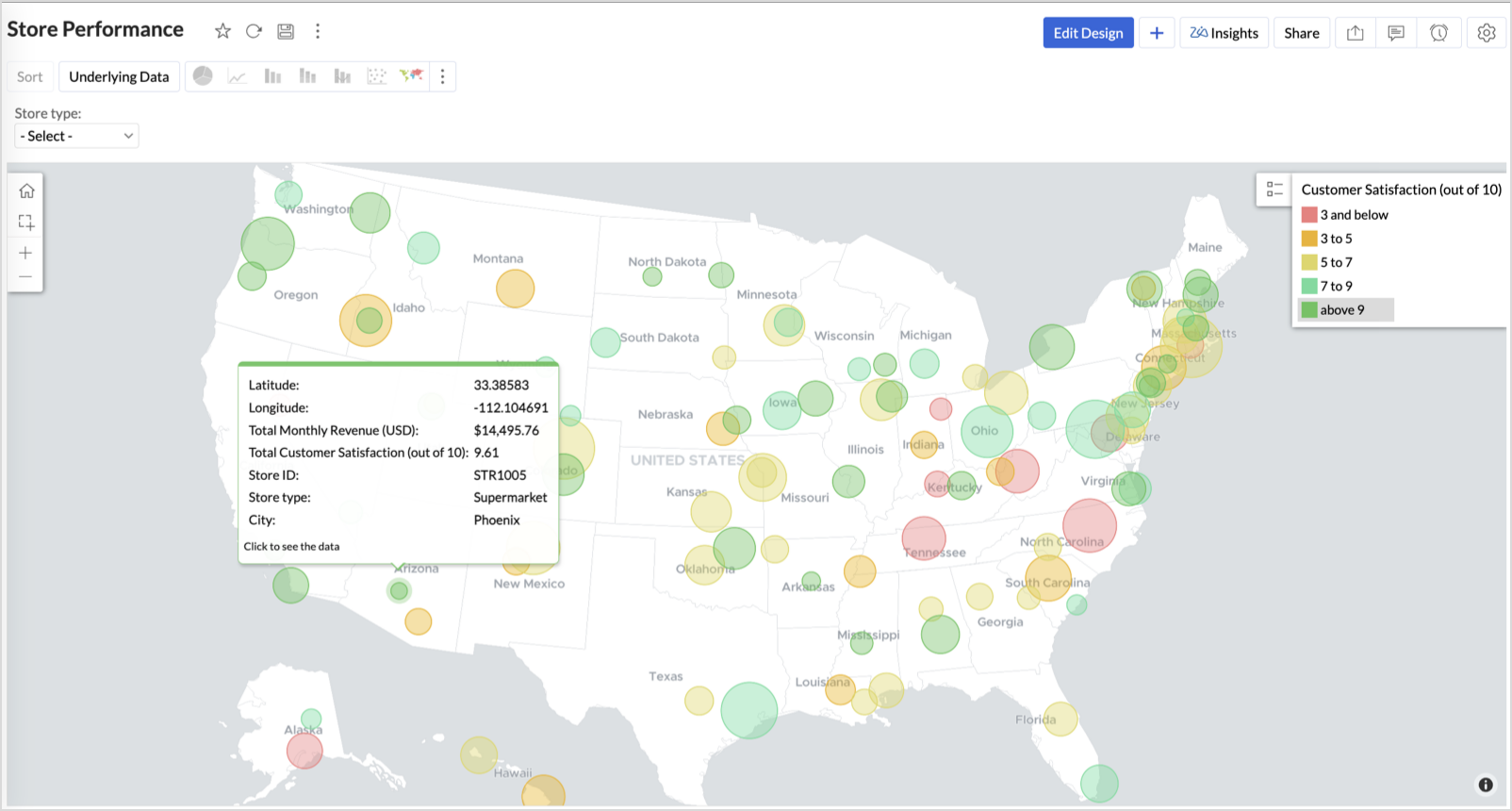
Large bubble + Green color - Healthy performers — consider replicating success
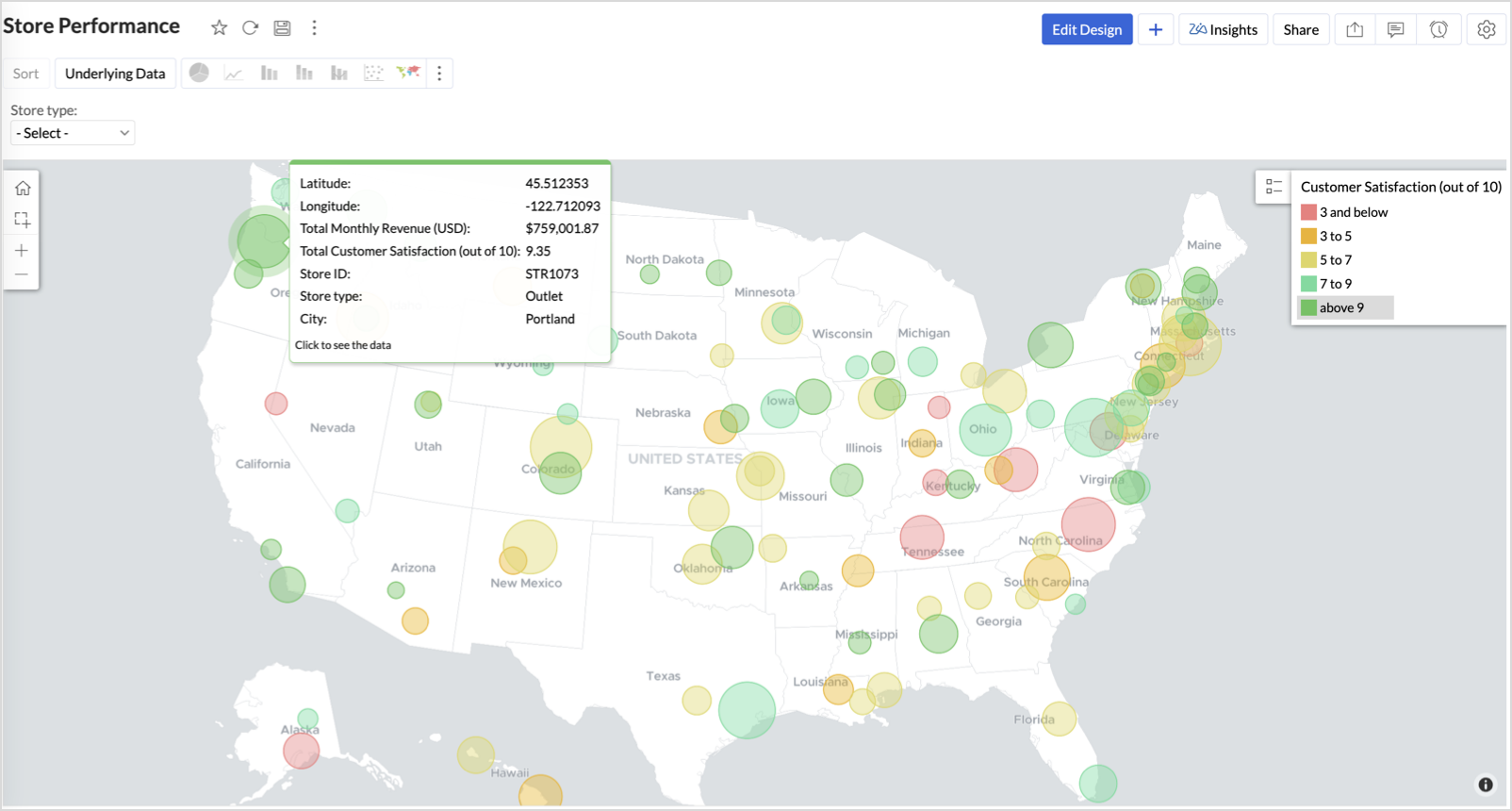
Small bubble + Red color - Low performers — review for possible closure or revamp.
Business Interpretation
This chart acts as a live performance map for executives and analysts. Instead of scanning through tables or KPIs, stakeholders can instantly spot outliers, prioritize investments, and plan corrective actions by just glancing at the map.
2. Revenue-to-Traffic Ratio with Ghost Zone Detection (Map - Filled + Scatter)
To evaluate how efficiently each state is converting foot traffic into store revenue — and more importantly, to identify high-footfall regions without store presence, often referred to as ghost zones.
This chart helps:
- Compare state-level foot traffic against actual revenue
- Spot underutilized or over-performing regions
- Discover untapped markets with high visitor potential but less to no physical stores
Why Map - Filled + Scatter?
- The Map - Filled chart provides a regional perspective of traffic density and revenue generation.
- The Scatter layer overlays actual store locations based on latitude and longitude.
This powerful combo allows you to measure performance where you’re active and spot opportunities where you're not.
Procedure
- From the dataset, click the Create icon and select Chart View.
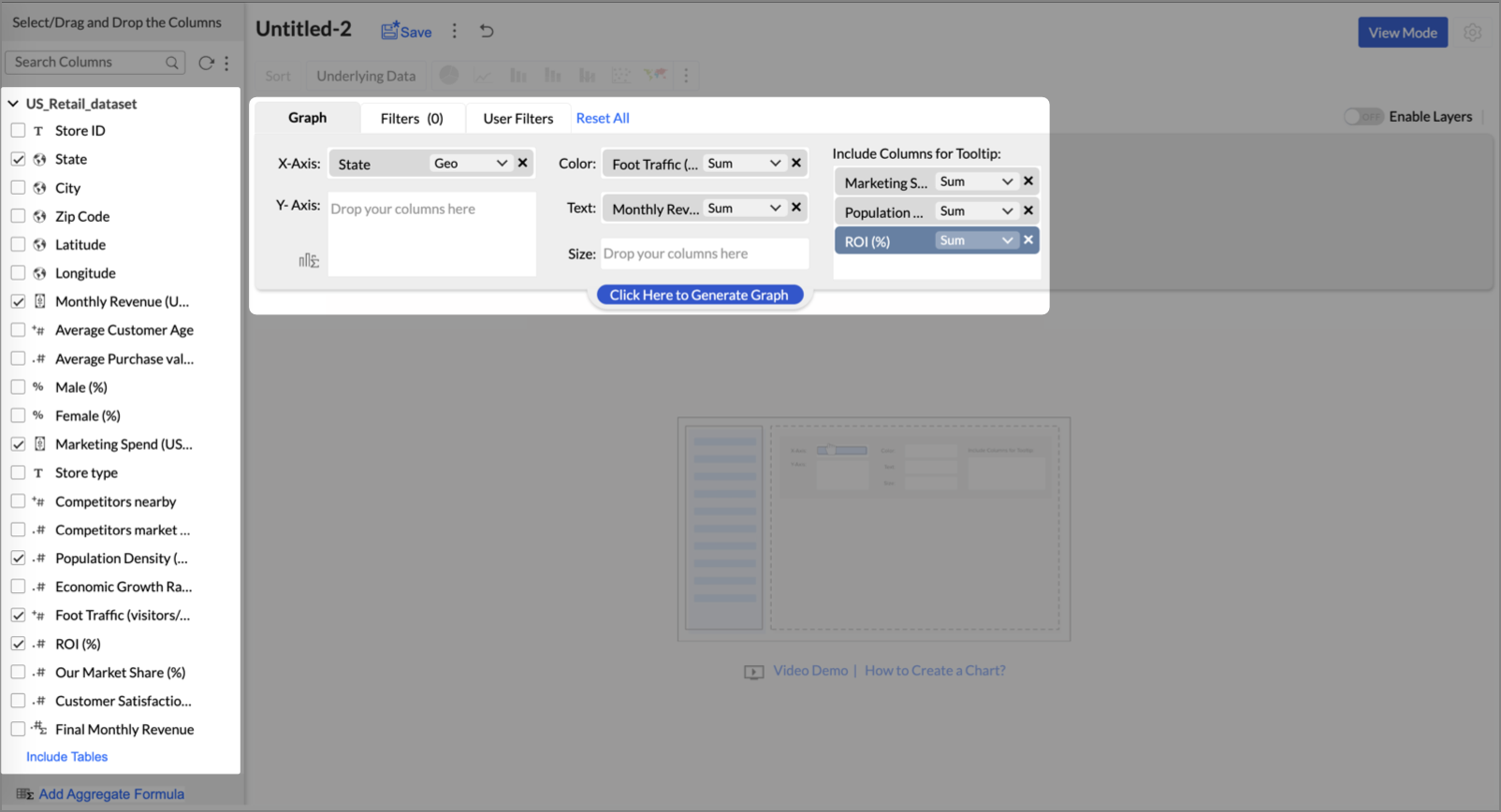
- On the designer page, drag and drop the following columns into their respective shelves:
- State → X-Axis
- Foot Traffic (visitors/month) → Color
- Monthly Revenue (USD) → Text
- Marketing Spend (USD), Population Density (people/sq km), ROI (%) → Tooltip
- Click Generate Graph.
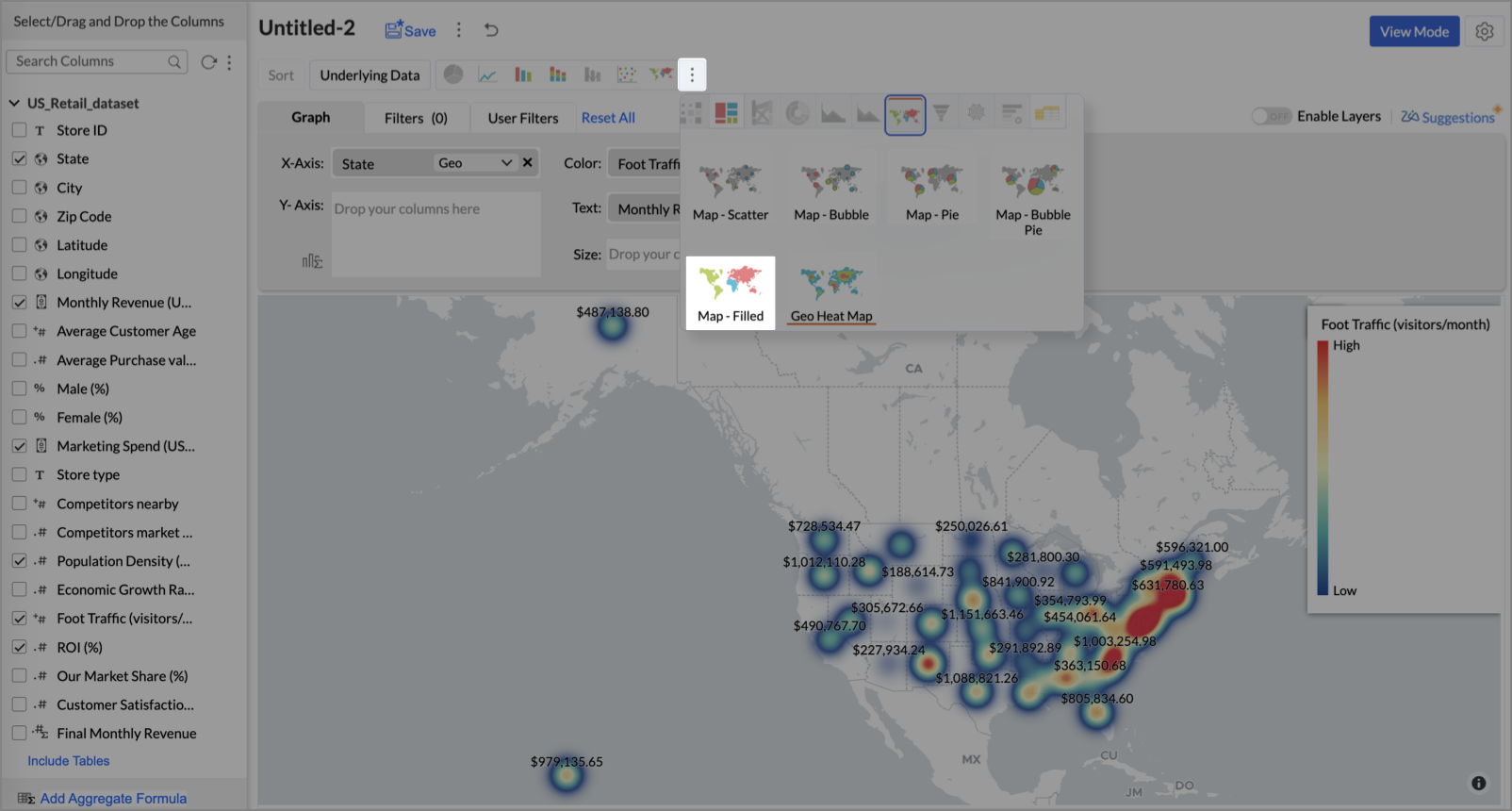
- Click on more option and select the chart type as Map-Filled.
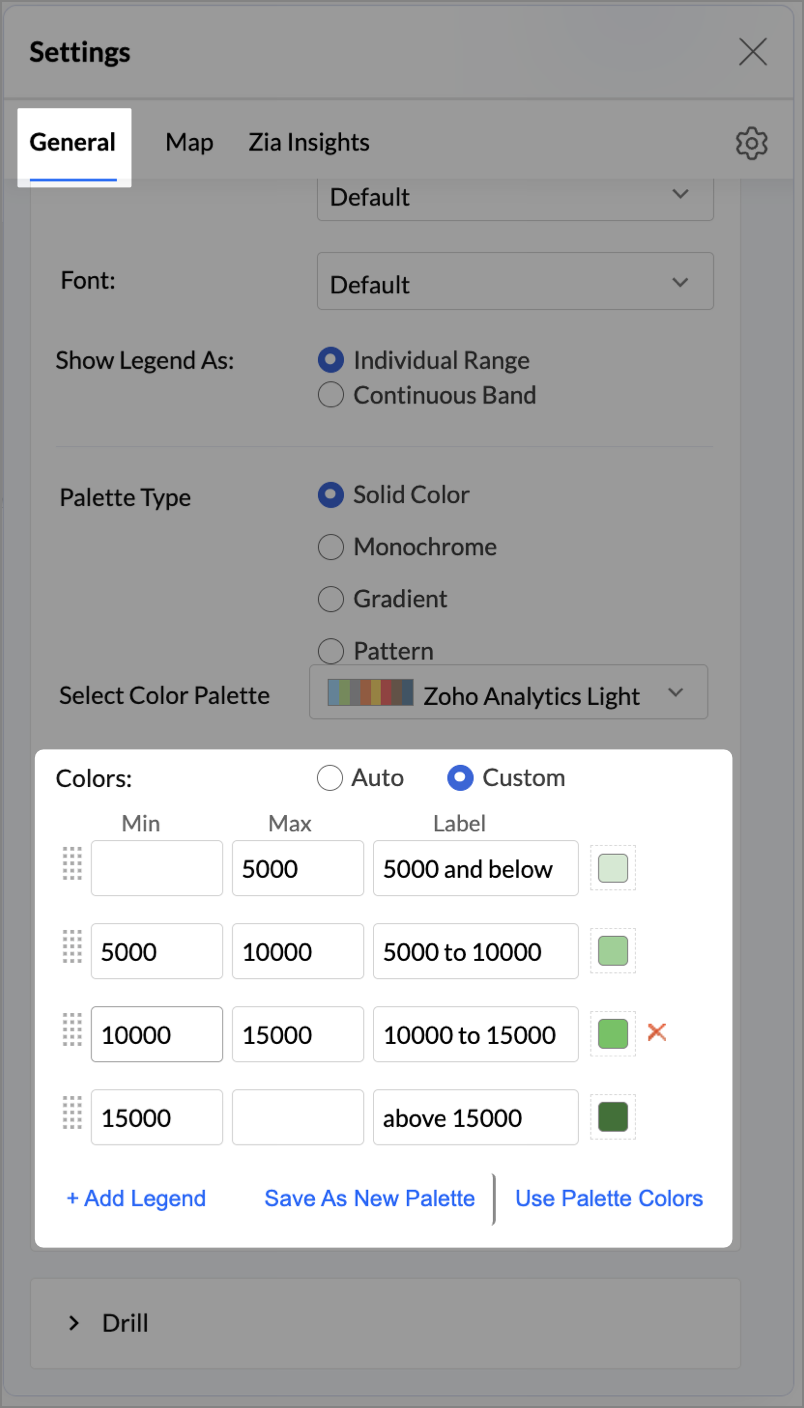
- Click the Settings icon, then click Legend.
- In the Colors section, assign from light to dark green colors for the below range of foot traffic:
- Below 5,000
- 5,000–10,000
- 10,000–15,000
- Above 15,000
- Under the Map tab, change the map to Albers USA Projection.
This filled layer highlights traffic and revenue across states.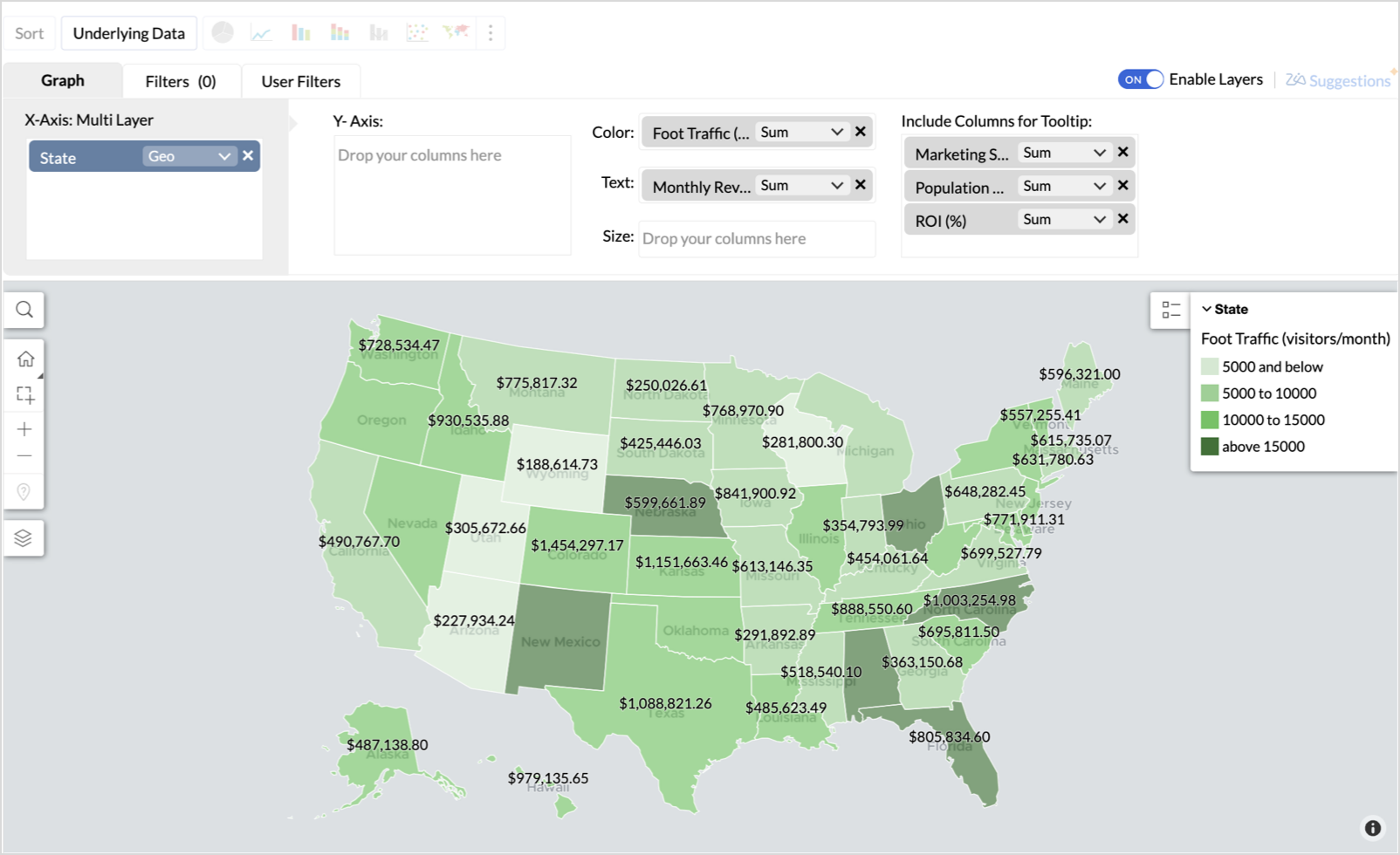
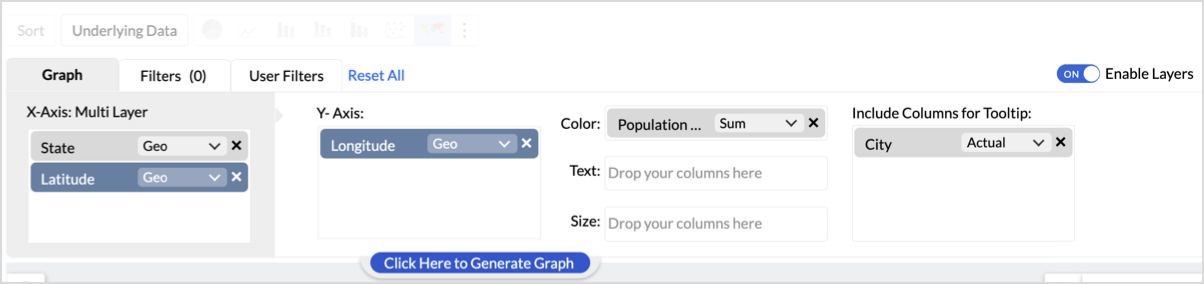
- Toggle Enable Layers to add a second layer.

- In the new layer, drag and drop Latitude and Longitude into the X-Axis and Y-Axis respectively, Population density into the Color shelf, and click Generate Graph.
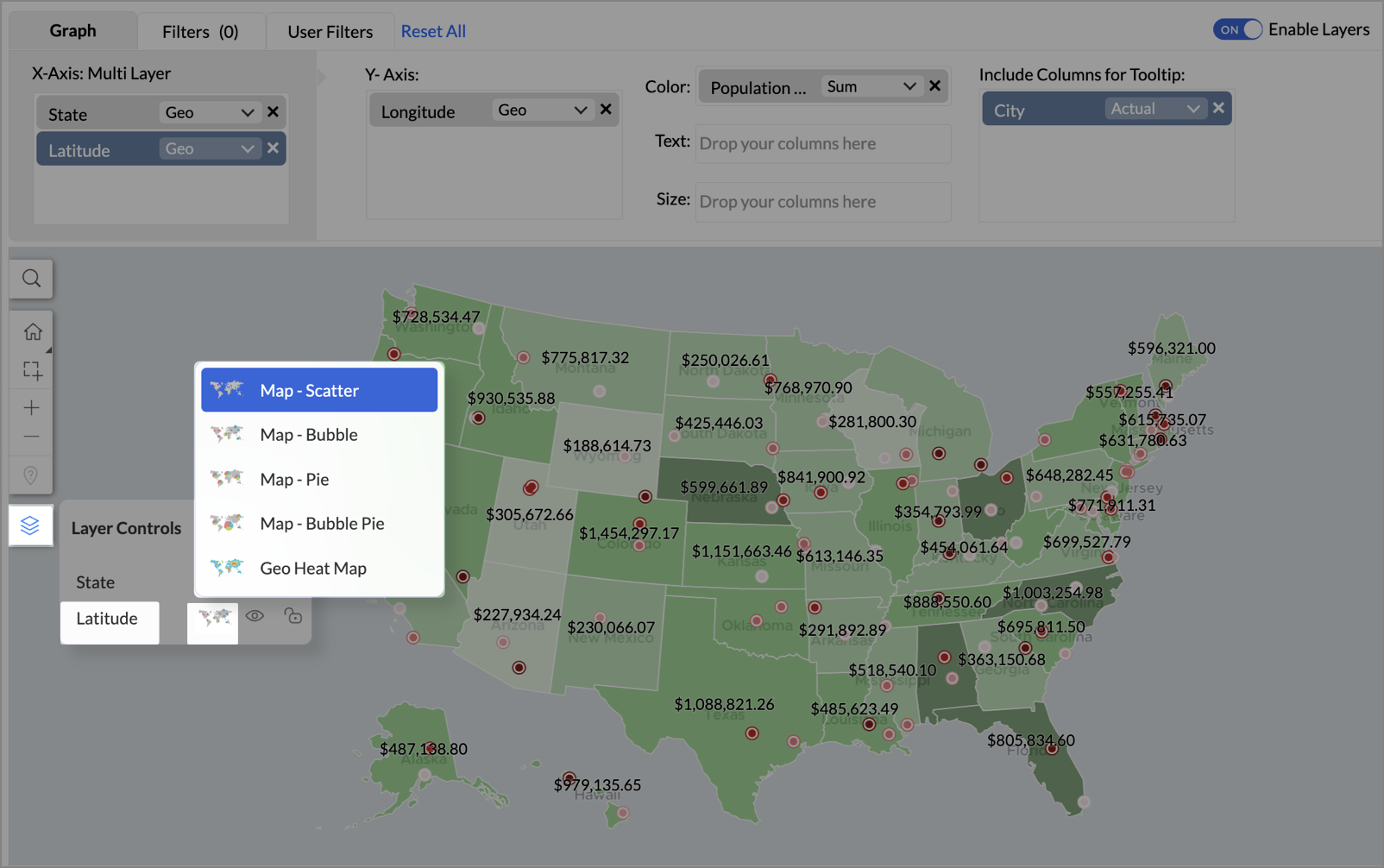
- Click Layer Controls, select Chart Chooser besides Latitude and choose the map as Map - Scatter from the list.
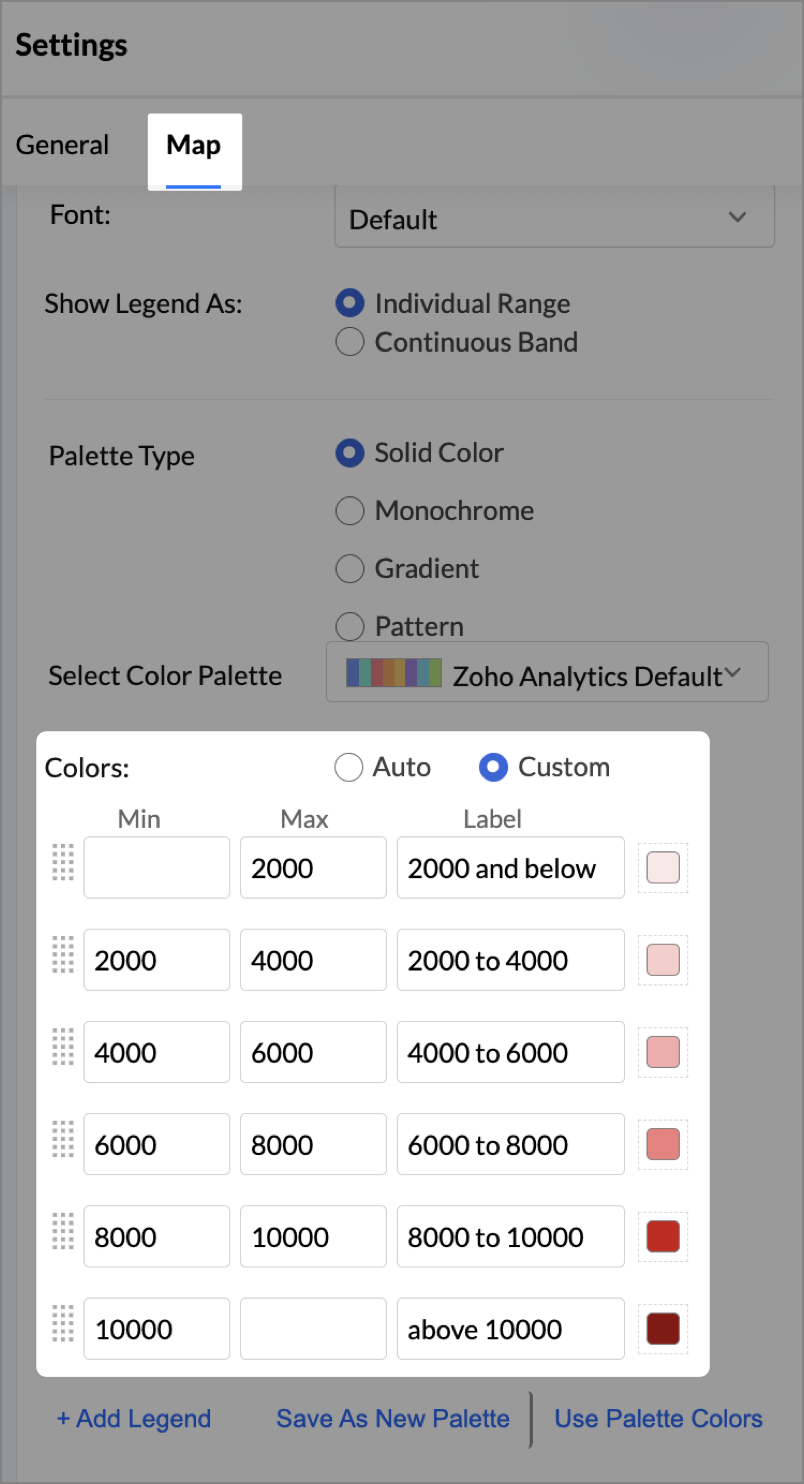
- To customize the second layer, go to Settings → Map → Latitude → Legend, and assign from light to dark red colors for the below range of population density:
- Below 2,000
- 2,000-4,000
- 4,000-6,000
- 6,000-8,000
- 8,000-10000
- Above 10,000
- Rename the report as Revenue-to-Traffic Ratio with Ghost Zone Detection and click Save.
This scatter layer marks the exact store locations, allowing visual correlation with high-traffic regions, revenue, and population density.

Key Insights
Dark green filled (high traffic) + Low revenue - Poor conversion - evaluate strategy or in-store experience
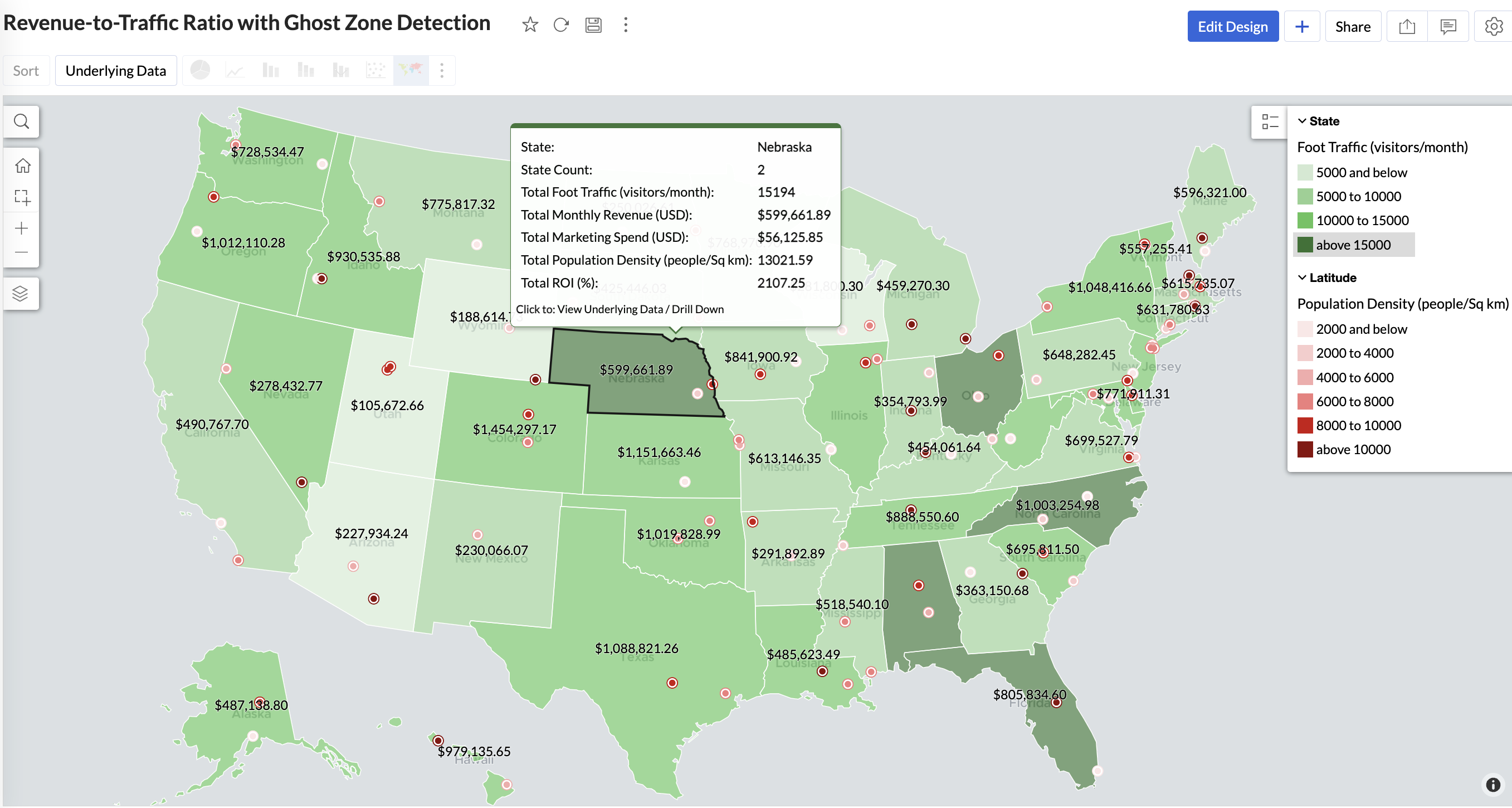
Mid to Dark green filled (high to mid traffic) + balanced revenue - Efficient zones — consider scaling efforts
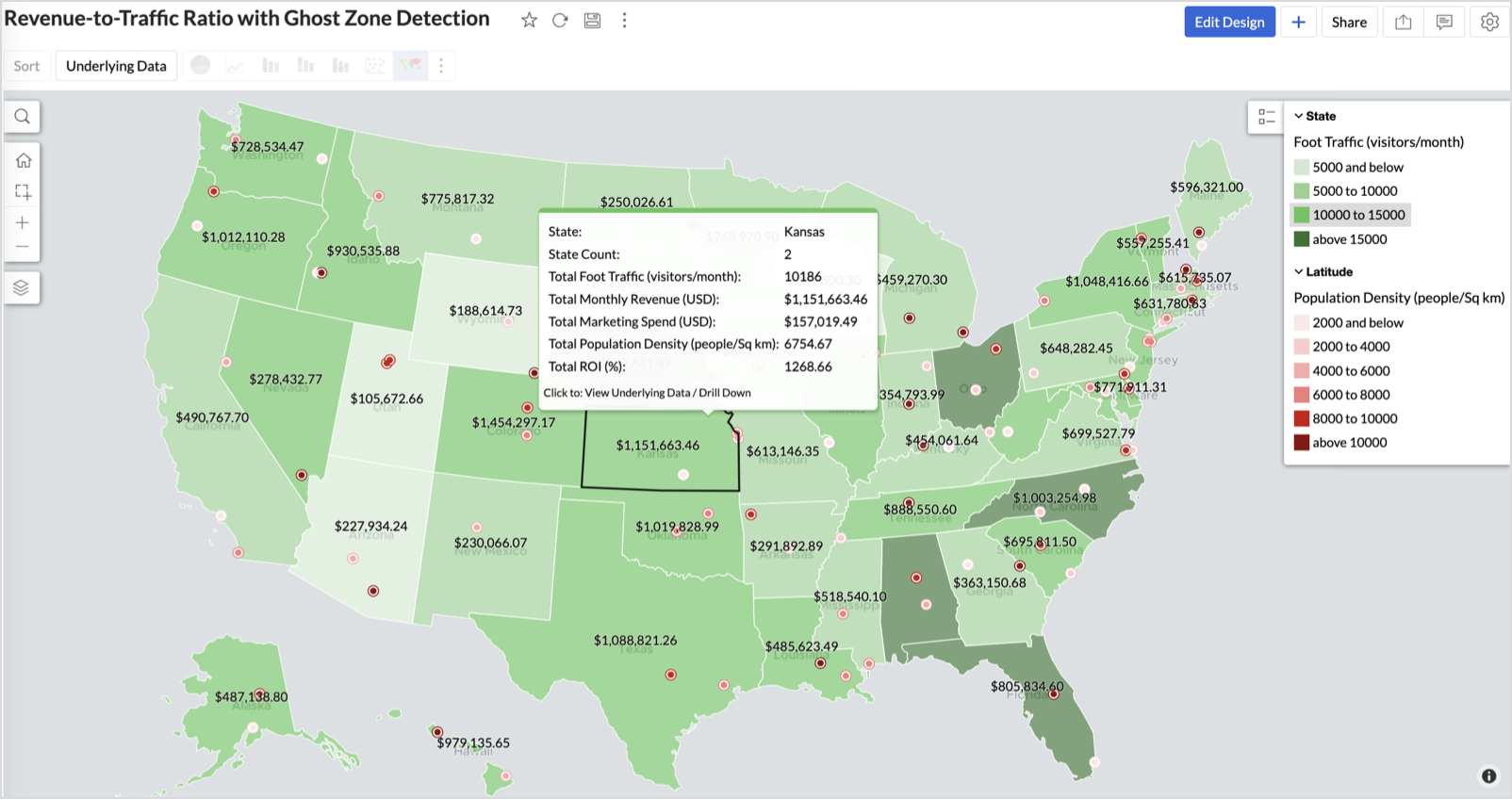
Light green filled (low traffic) + high marketing spend (from tooltip) - Budget drain — reduce spend or re-evaluate targeting
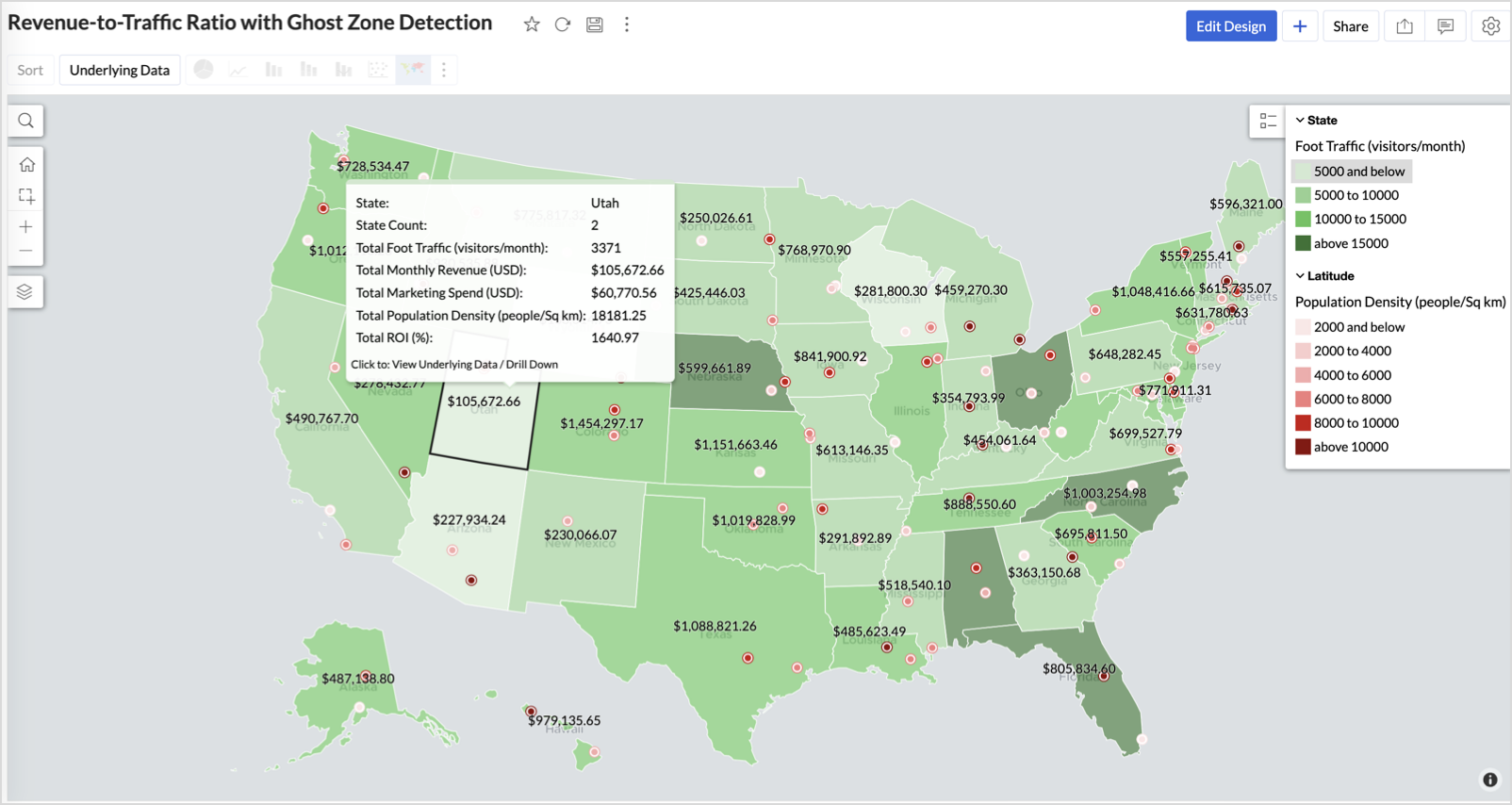
Dark red marker (high population density) + less to no store markers - Ghost Zones — high opportunity areas for expansion
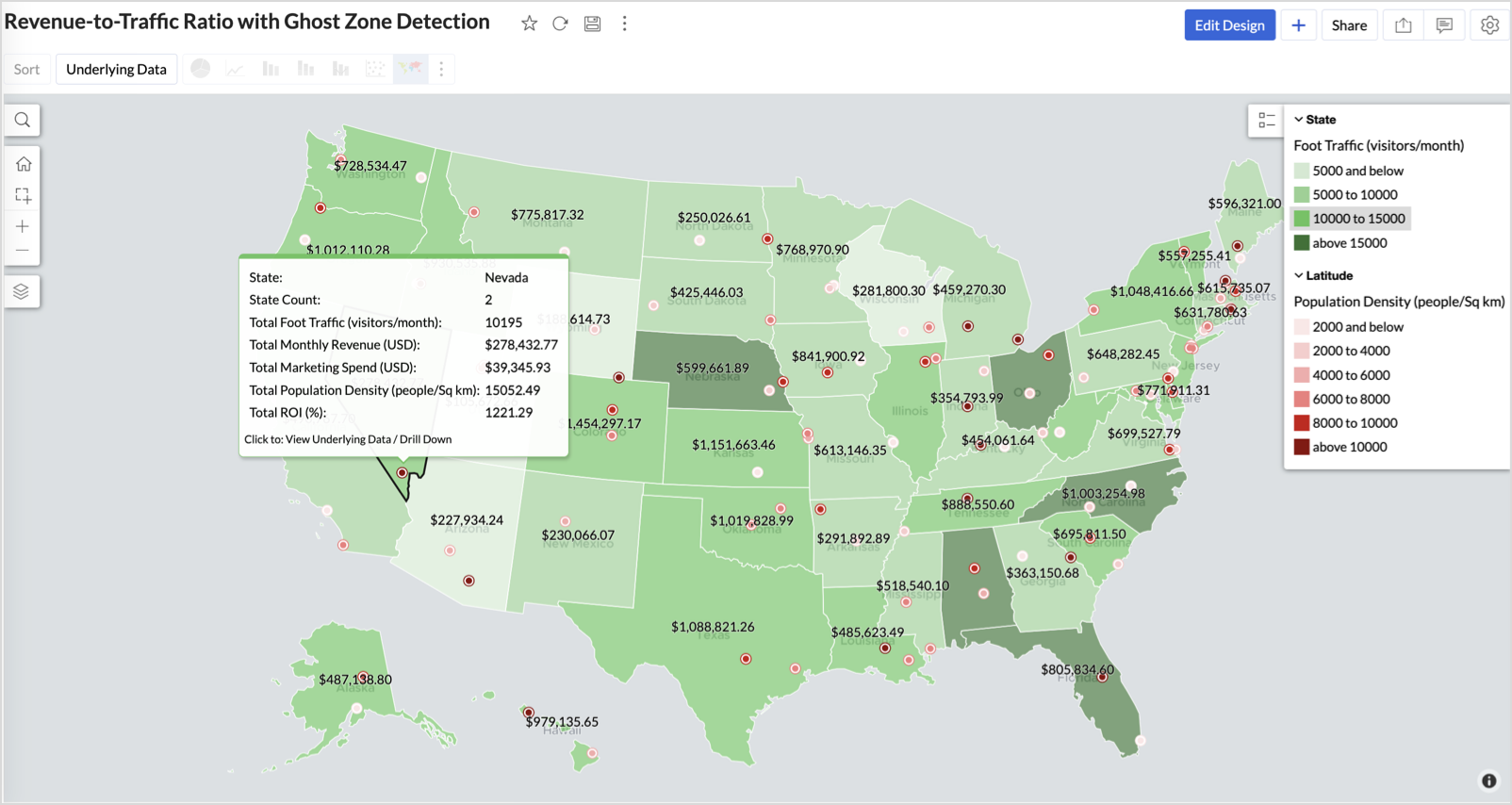
Example: In Las Vegas from Nevada, with a population density of 10,428 people/sq km and only two stores handling 10K–15K visitors/month, monthly revenue of the state remains modest at ~$278K. This indicates a high-opportunity zone for expansion, with strong footfall but untapped revenue potential.
Interpretation & Use
This map is designed for marketing and expansion teams who need to:
- Justify where to open new stores
- Optimize existing resource allocation
It visually answers the question:
Are we generating revenue where people are actually showing up?
Also, with the scatter layer:
Where are we not present — but should be?
3. Competitor Pressure Zones (Map – Scatter)
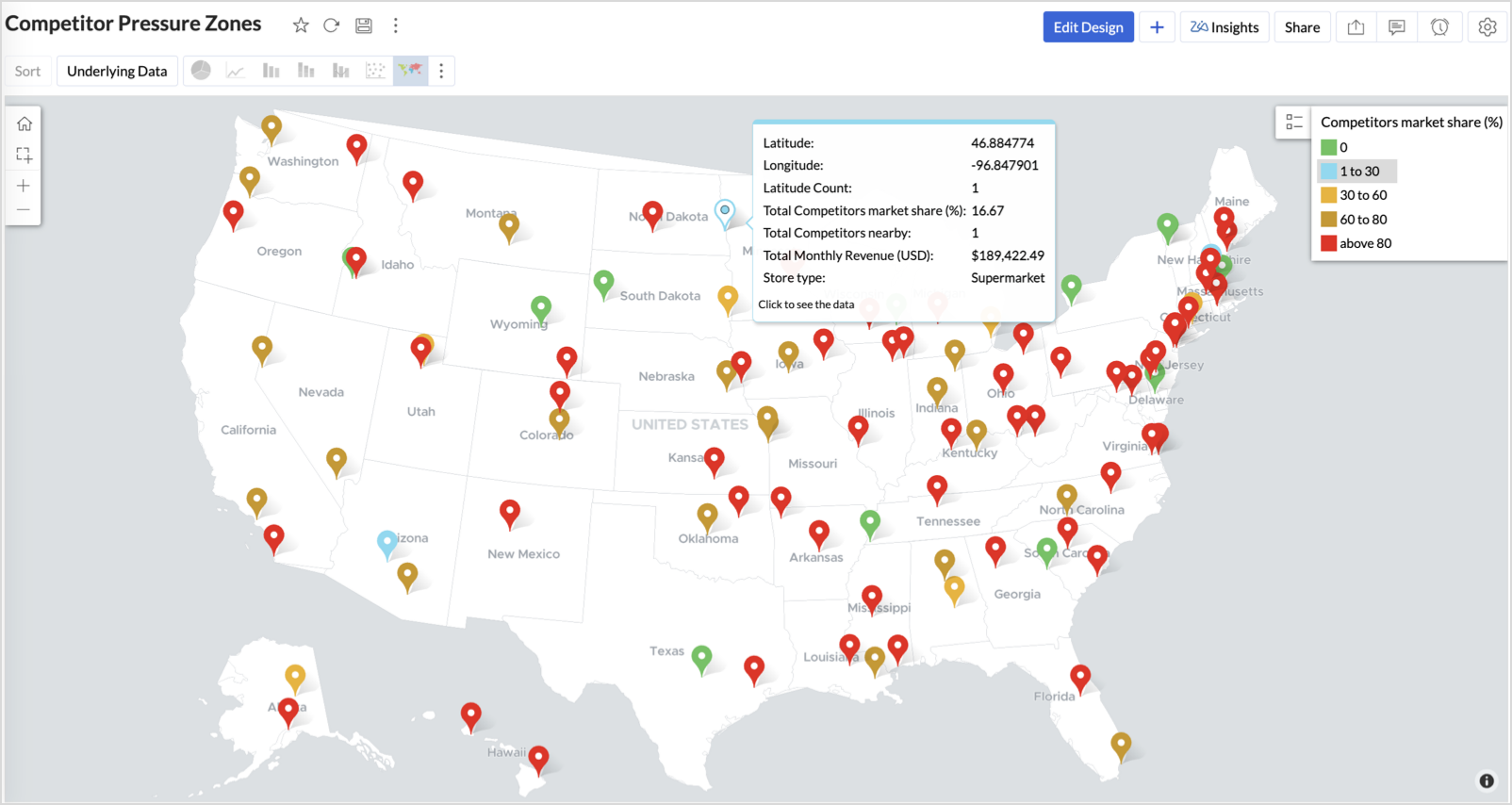
To evaluate how store performance is impacted by nearby competition, using a scatter map that plots every store across the U.S. and reflects competitor market share through color intensity.
This view helps:
- Detect locations under competitive stress
- Identify high-risk zones where your market share is at risk
- Correlate competitor presence with satisfaction and store performance
Why Map - Scatter?
Map - Scatter offers a clean and lightweight visual that plots each store based on its exact coordinates. By encoding competitor market share as color and overlaying other attributes via tooltip, this chart becomes a competitive pressure radar.
Procedure
- From the dataset, click the Create icon and select Chart View.
- In the chart designer, drag and drop the following columns into their respective shelves:
- Latitude → X-Axis
- Longitude → Y-Axis
- Competitors market share → Color
- Competitors nearby, Monthly Revenue, and Store Type → Tooltip
- Click Generate Graph.
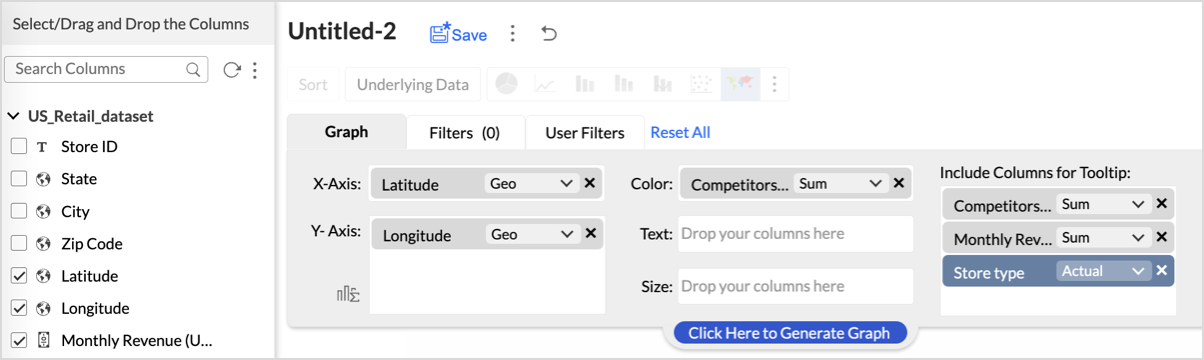
- Click on the more option and select the chart type as Map-Scatter.
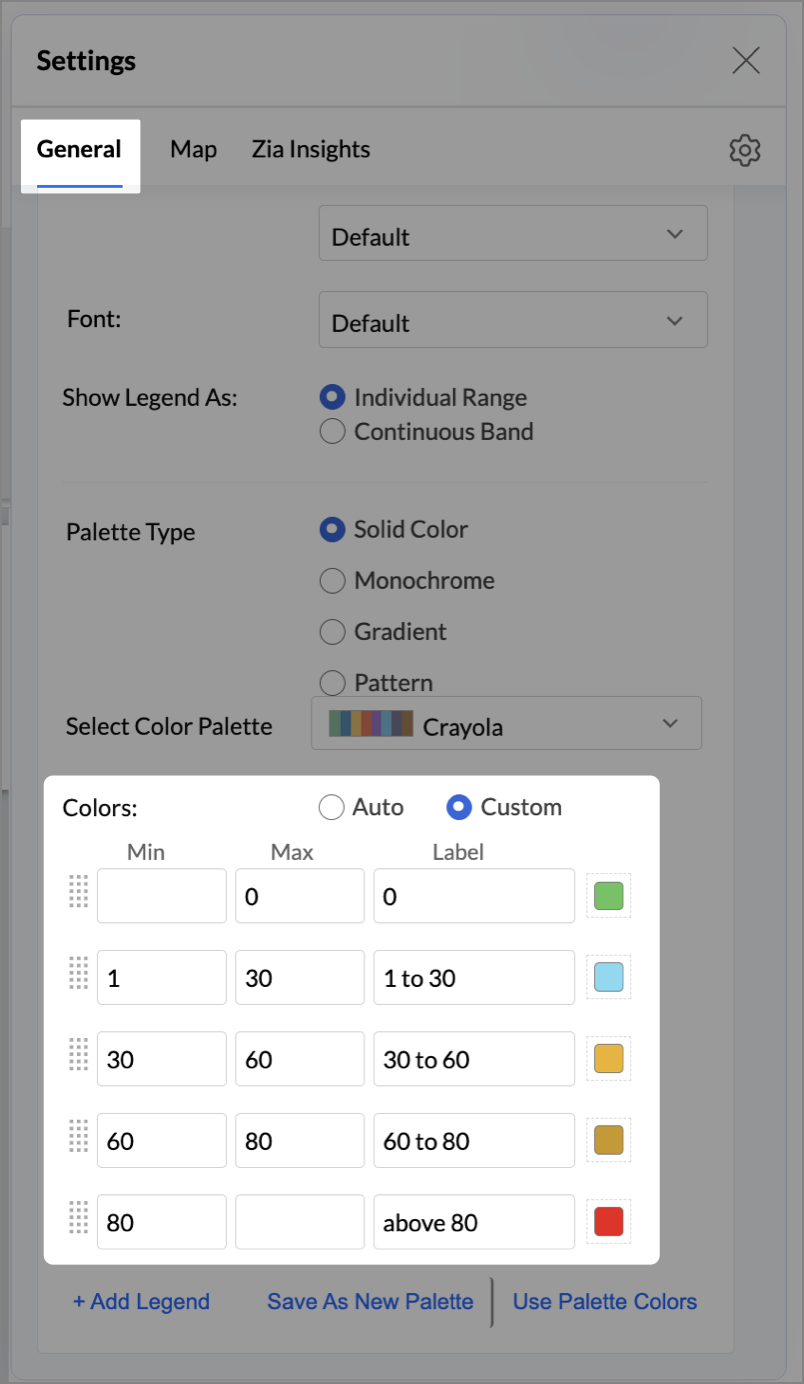
- In the Settings panel, adjust the color gradient to reflect pressure levels
- 0 → Green
- 1-30 → Cyan
- 30-60 → Orange
- 60-80 → Pale red
- Above 80 → Red
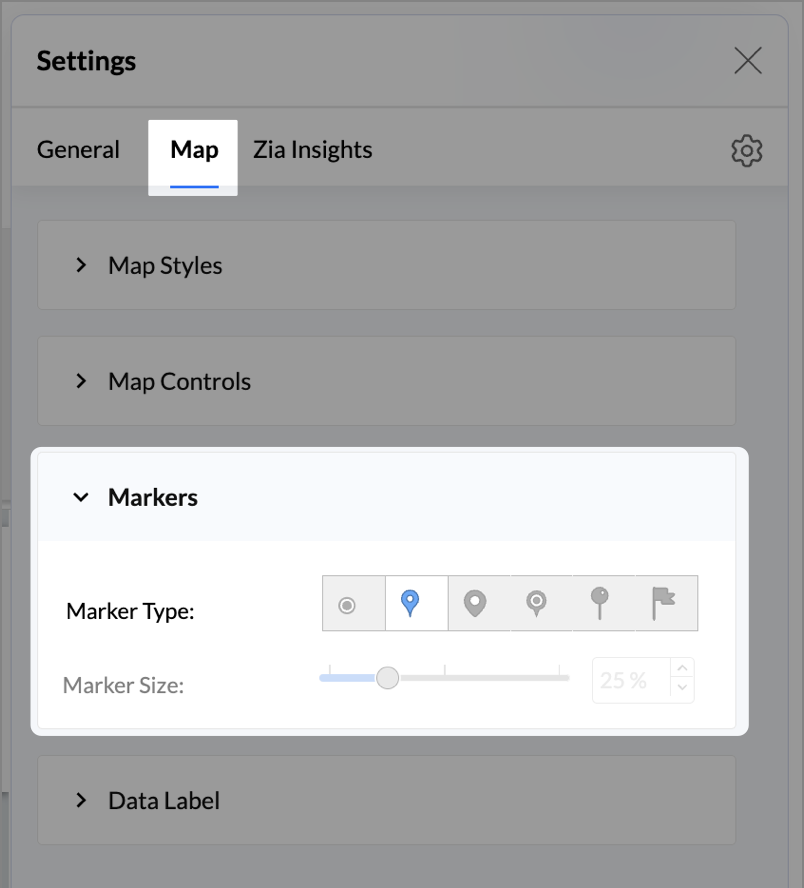
- Change the Marker type under Maps → Marker tab.
- Under the Map tab, change the map to Albers USA Projection.
- Rename the report as Competitor Pressure Zones and click Save.
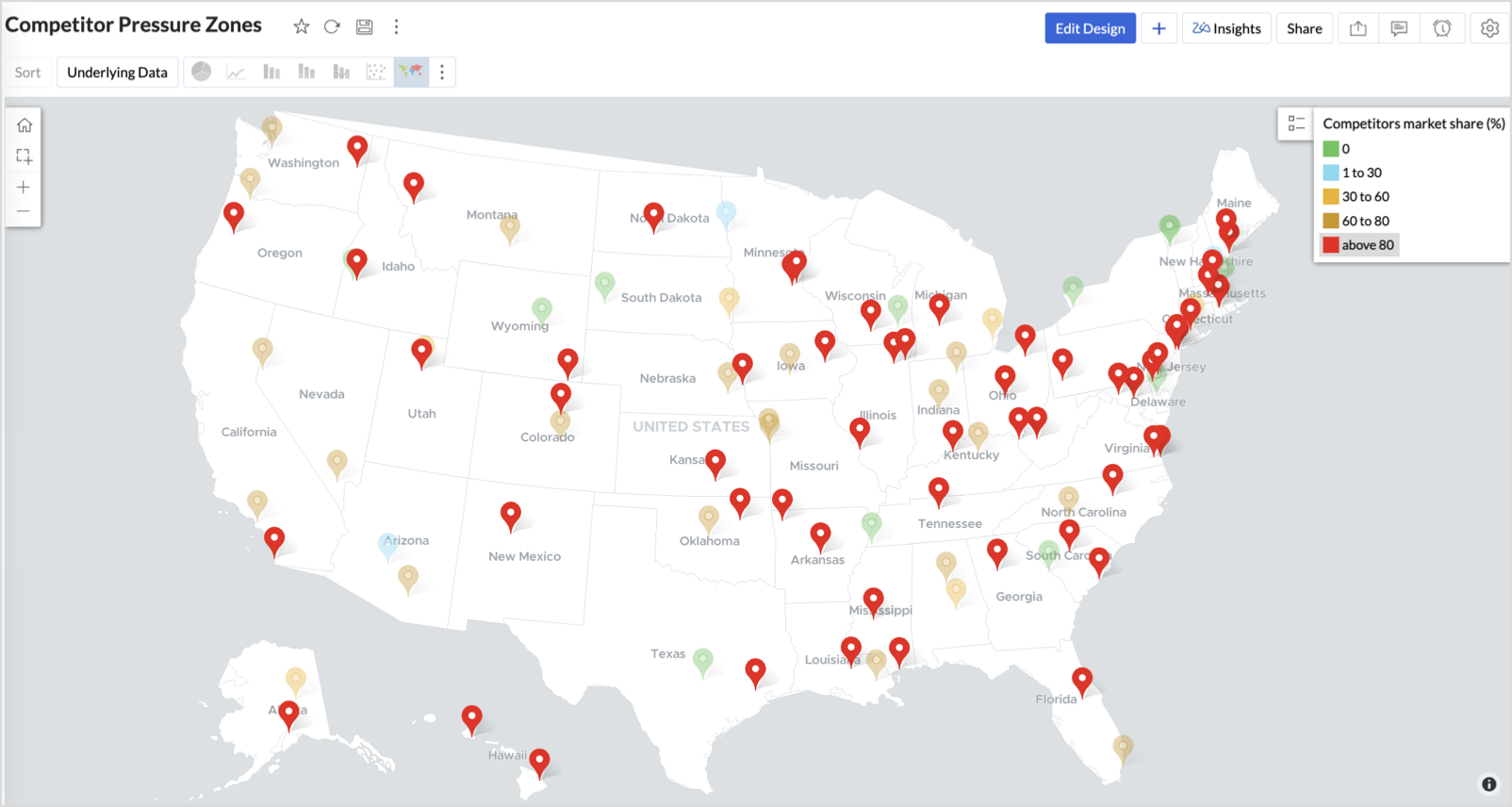
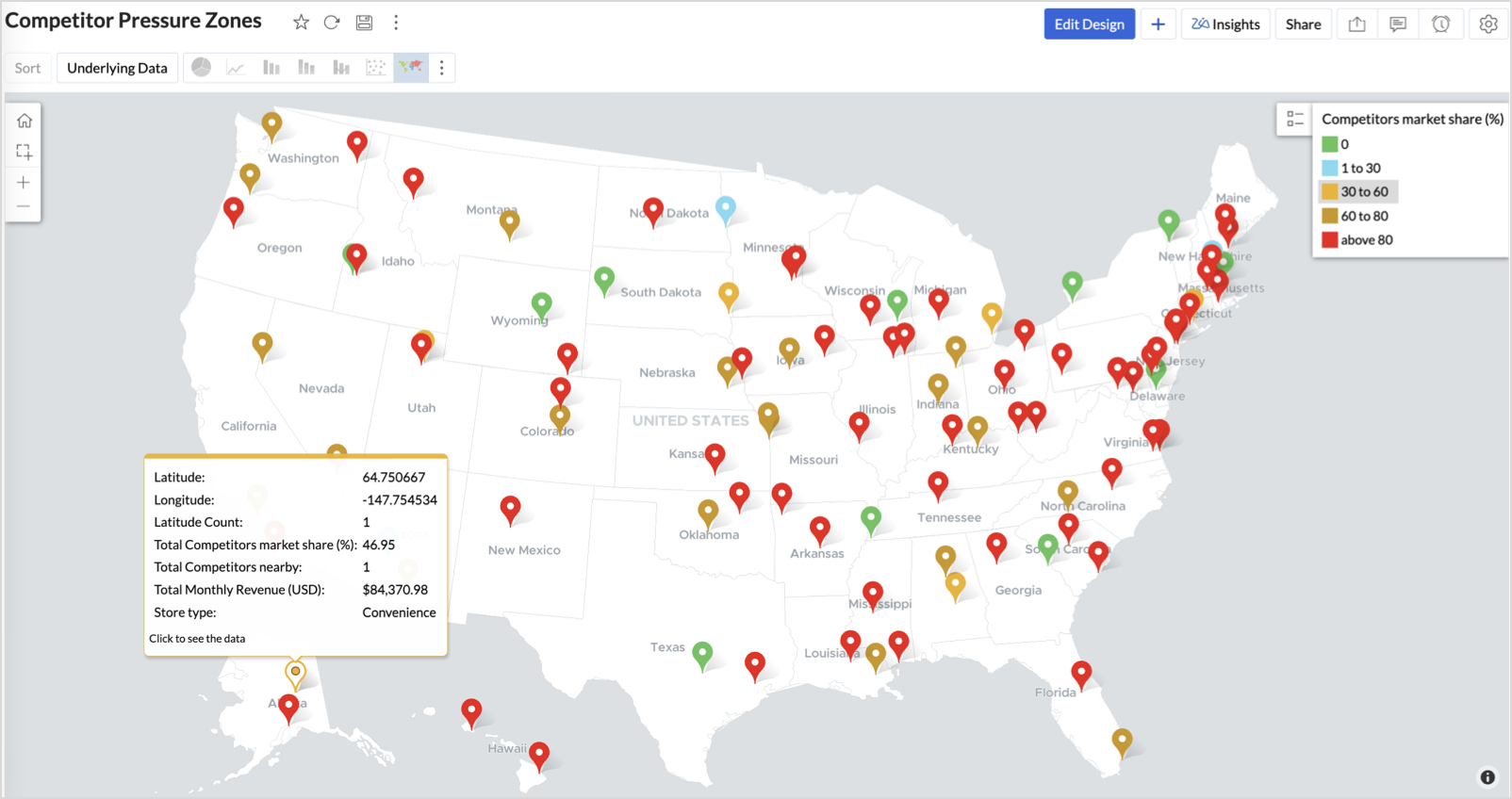
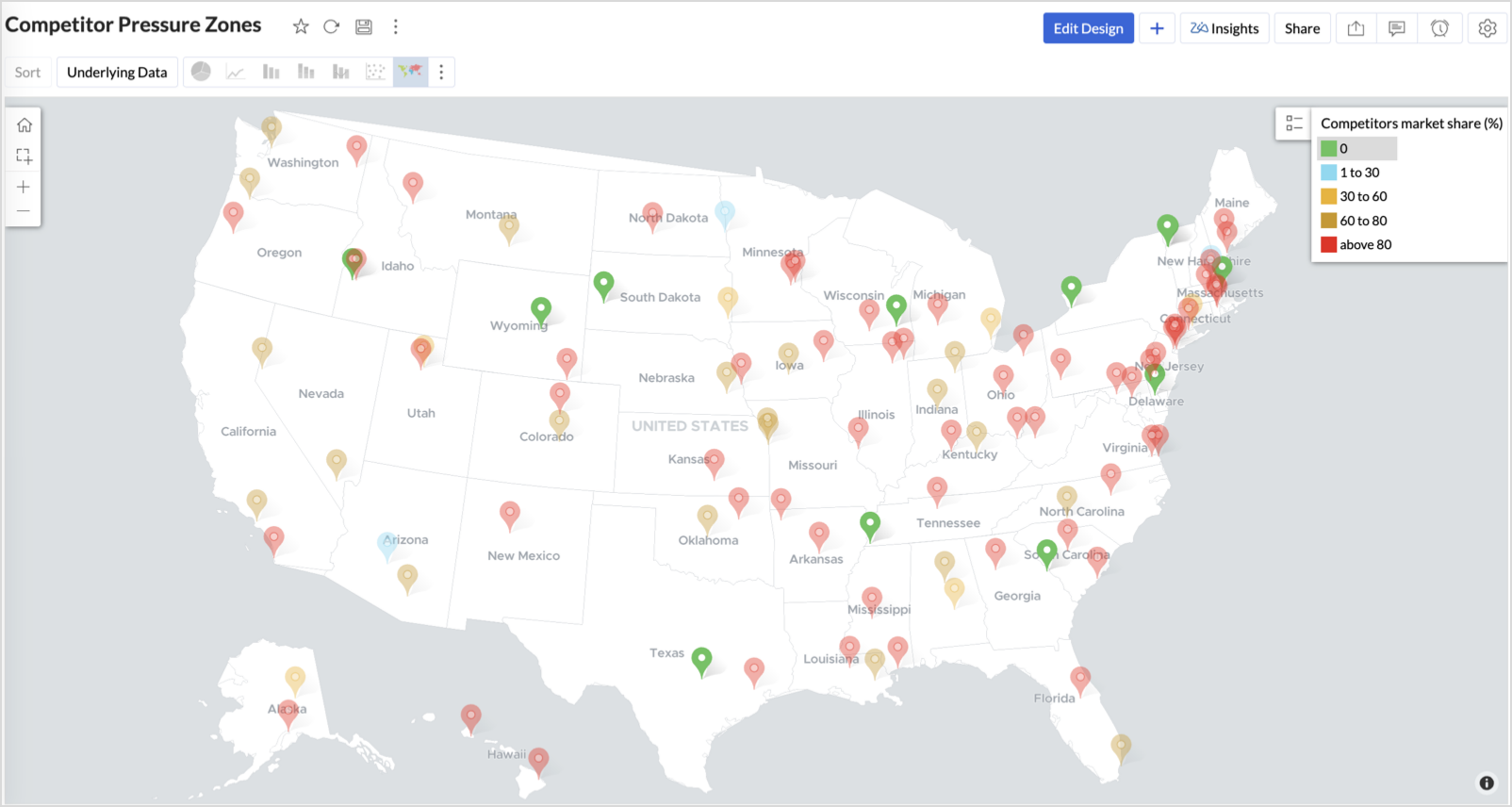
The resulting chart uses color to signal competitive heat around each store, allowing you to scan pressure zones across all regions visually.
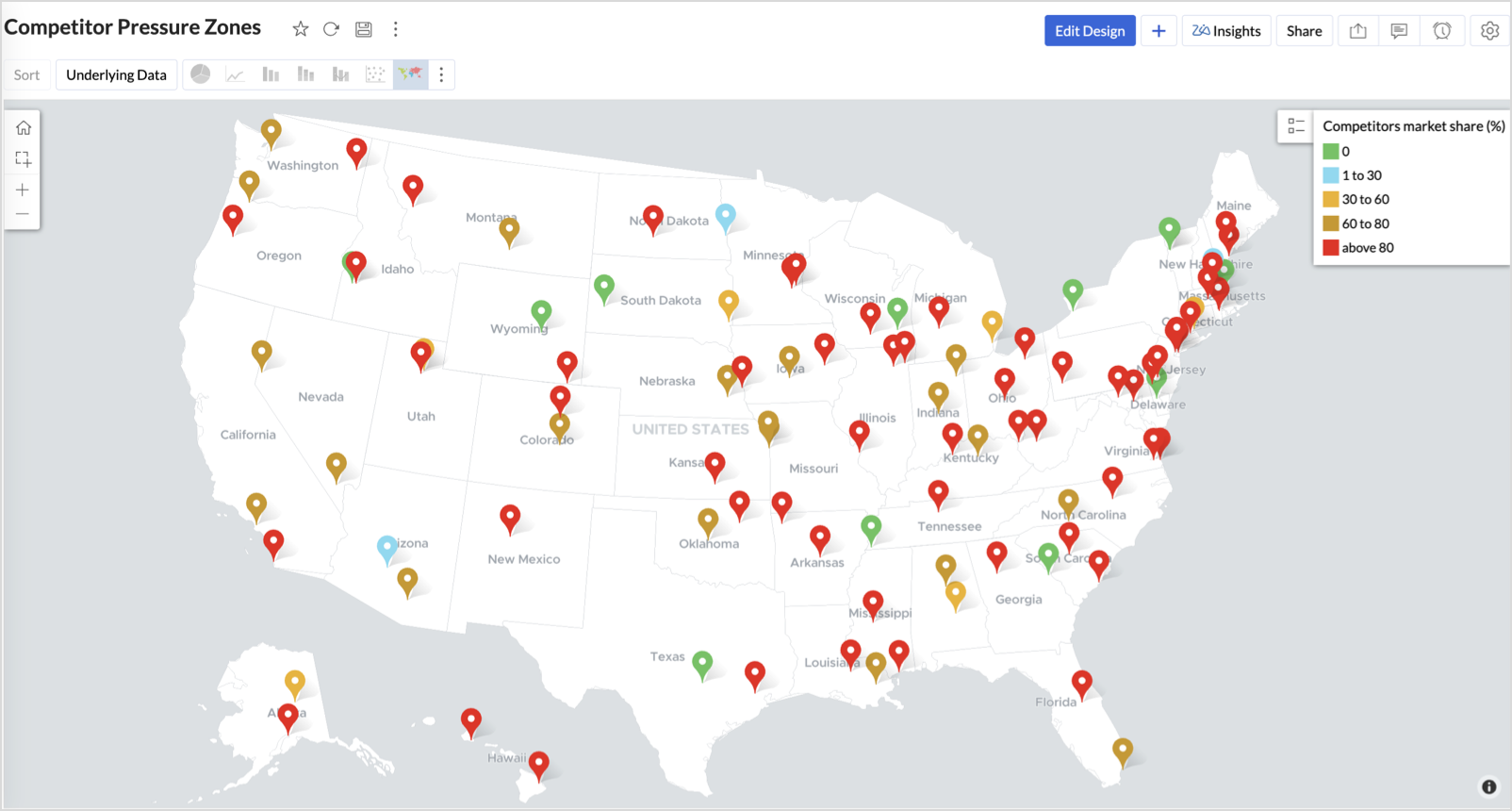
Key Insights
Red (80-100%) - High competitor dominance — urgent intervention zone
Orange (30-60%) + low revenue - Growing pressure — performance risk emerging
Green (0%) + strong revenue - Market leader — low competition, strong position
Cyan (1-30%) + moderate revenue - Mild competition — possible opportunity to scale further
Business Interpretation
This chart empowers regional and strategy teams to:
- Detect overcrowded areas where stores are losing share
- Identify safe zones where your brand leads the market
- Spot emerging competitor influence before it cuts into your margins
It acts as a competitive intelligence dashboard, mapping how your store network stands against external threats.
4. Customer Gender Distribution (Map - Pie)
To visualize how the gender distribution of customers varies across store locations. This helps identify stores with significant demographic skews, allowing for more personalized marketing, product selection, and in-store experience.
Why Map - Pie?
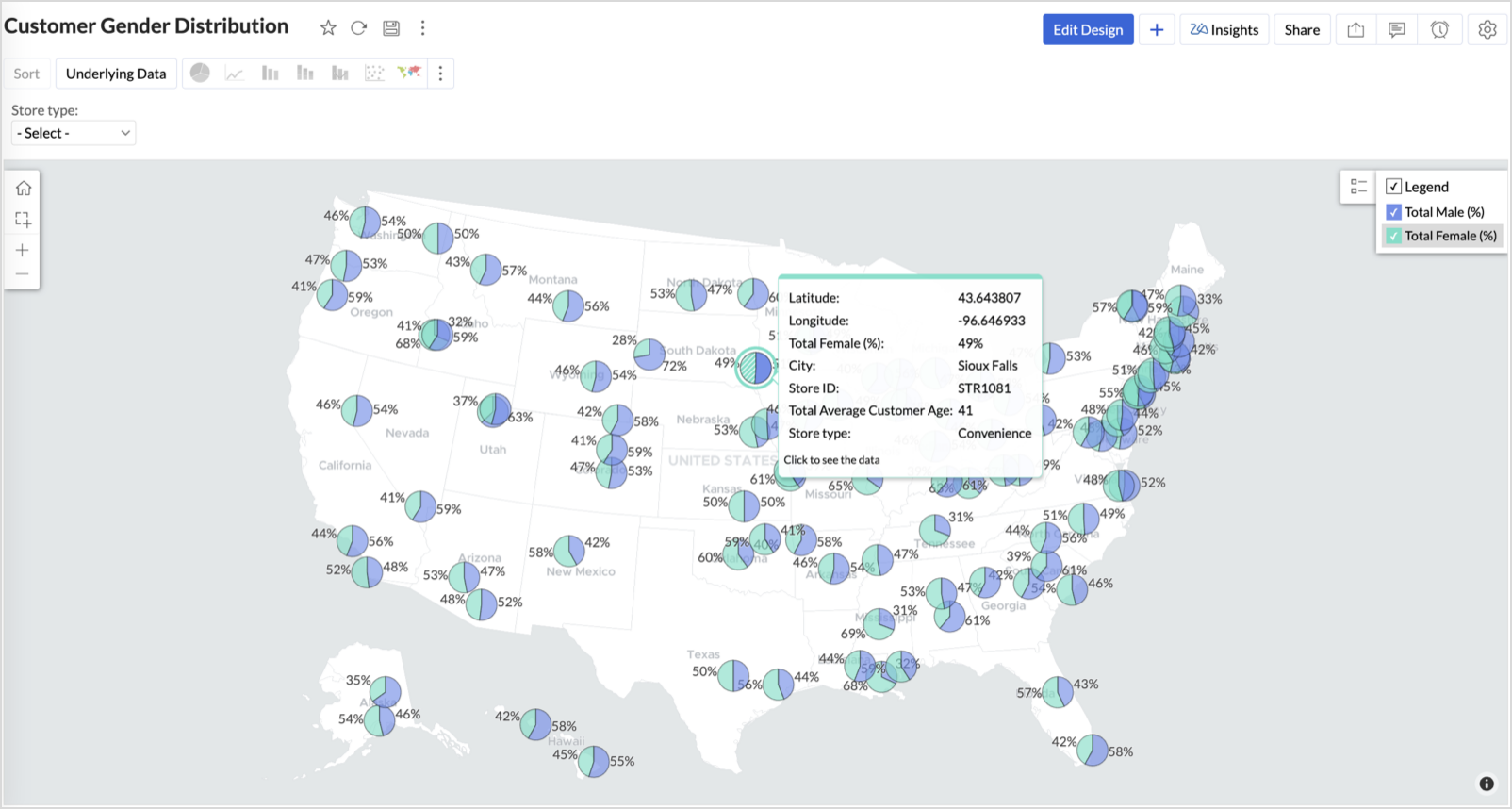
The Map - Pie chart is ideal for visualizing data composition across geographical locations.By breaking down each store’s customer base into Male (%) and Female (%) segments, this chart reveals who your customers are and where gender-targeted strategies might work best.
Procedure
- From the dataset, click the Create icon and select Chart View.
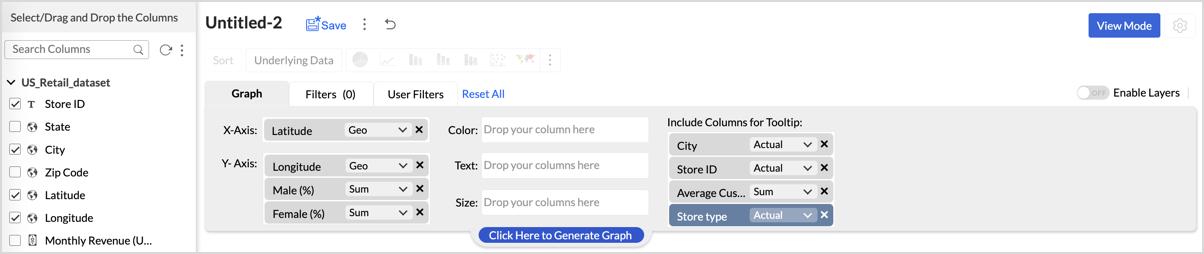
- In the chart designer, drag and drop the following columns into their respective shelves:
- Latitude → X-Axis
- Longitude, Male (%), Female (%) → Y-Axis
- City, Store ID, Average Customer Age, Store Type → Tooltip
- Click Generate Graph.
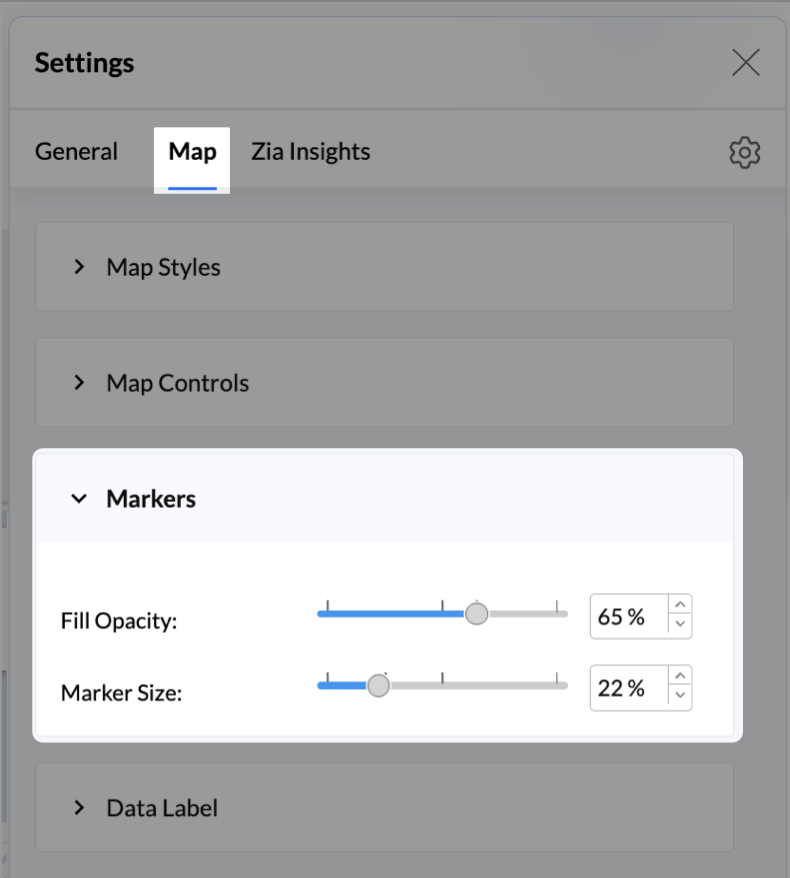
- In Settings, under the Map tab, change the map to Albers USA Projection.
- Click on Markers, adjust the Marker Size as shown.
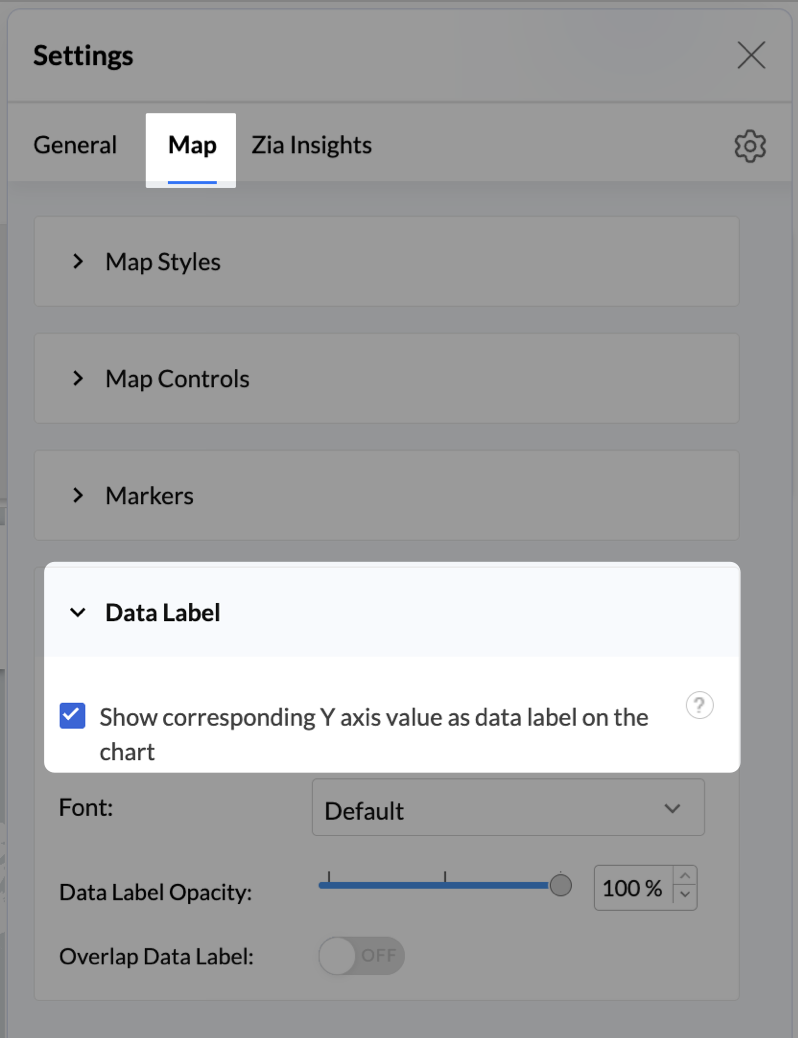
- Click on Data Label, and enable the Show corresponding Y axis value as data label on the chart to display the percentage values on the map.
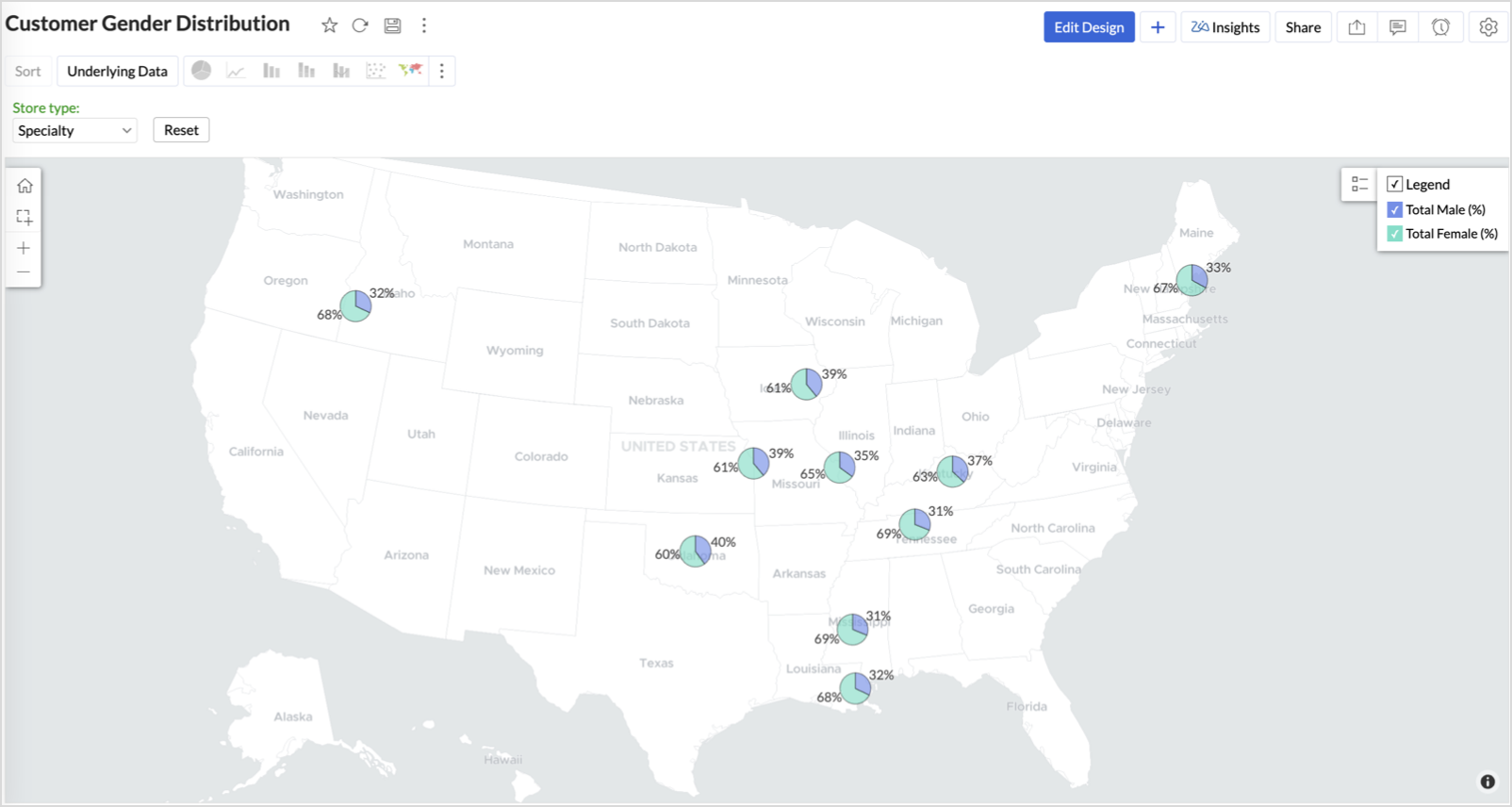
- Add Store Type as User Filters to slice down store-wise gender distribution.
- Rename the report as Customer Gender Distribution and click Save.
Each store will now display a pie chart representing the gender split among its customers, directly on the map.

Key Insights
Uneven gender split (e.g., 70% Male) - Potential to tailor offerings, branding, or promotions for the dominant gender
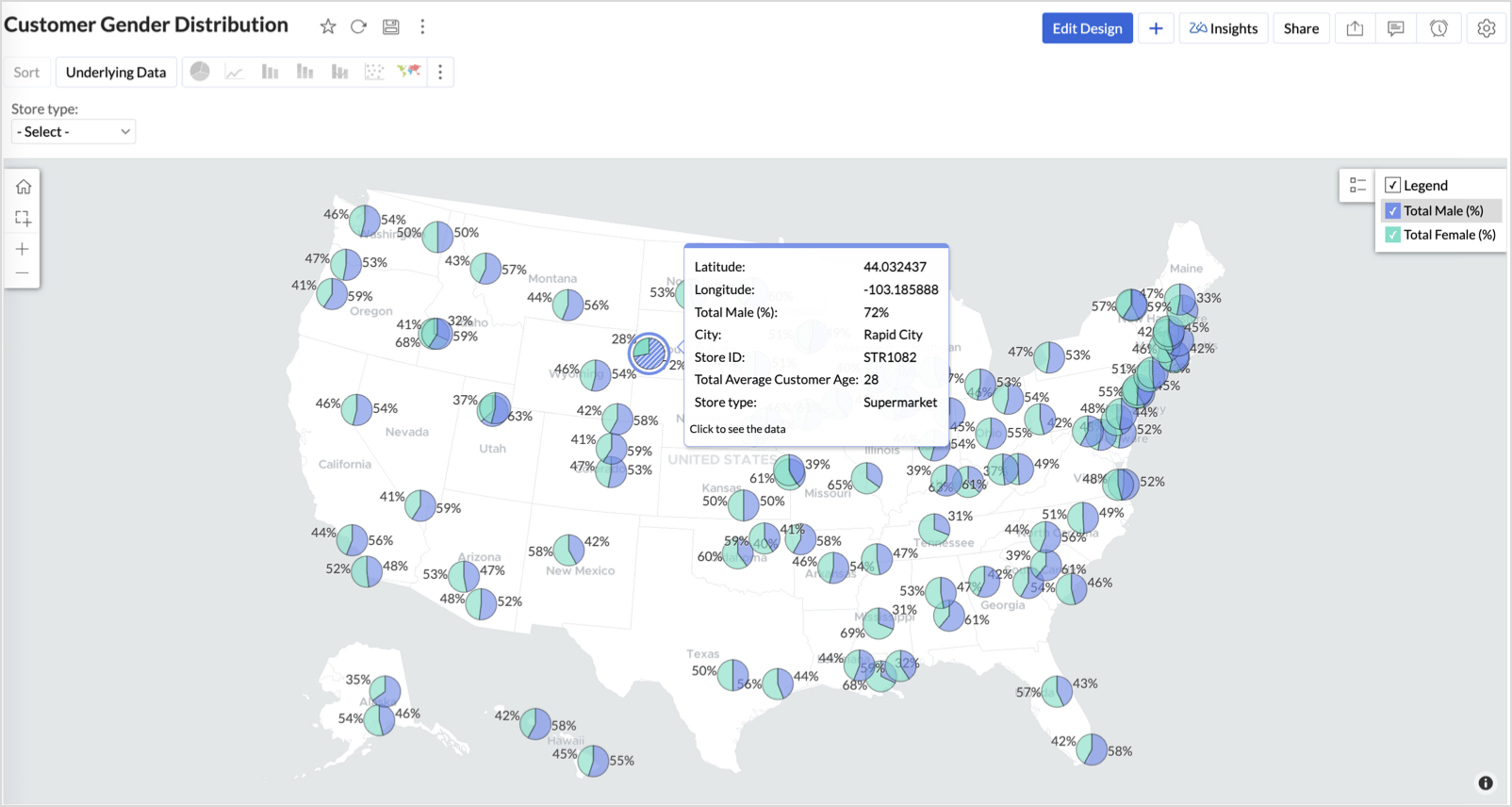
Balanced split (≈50/50) - Opportunity to run inclusive or diversified campaigns
High female ratio + specialty store - Indicates demand for niche products — expand category offerings
Business Interpretation
This chart allows marketing and merchandising teams to:
- Understand gender-based customer clustering across regions
- Launch targeted campaigns (e.g., loyalty programs, promotions)
- Refine product assortments to suit local preferences
For example: A store with 70% female shoppers may benefit from deeper investment in lifestyle categories, while a balanced store could serve as a testing ground for unisex offerings.
Summary
In this phase, we laid the foundation for geo-powered retail intelligence using Zoho Analytics. Through a single, well-structured dataset and four powerful geo map visualizations, we transformed raw store data into real, actionable business insights.
Here’s what we achieved:
|
Report
|
Business Insights
|
|
Store Performance (Bubble)
|
Identified stores that are over performing or at churn risk based on revenue and satisfaction.
|
|
Revenue-to-Traffic Ratio (Filled + Scatter)
|
Detected ghost zones and optimized marketing ROI by comparing traffic and revenue.
|
|
Competitor Pressure Zones (Scatter)
|
Mapped out competitor dominance and spotted at-risk or saturated regions.
|
|
Customer Gender Distribution (Pie)
|
Uncovered demographic patterns to tailor product, marketing, and in-store experience.
|
Click here to access the sample workspace.
These visualizations brought spatial awareness into every performance metric — turning maps into a strategic business tool.
And this... is just the beginning.
Stay tuned for Phase 2 — where Multi-Layer Geo Maps and Network Charts come together to supercharge your business strategy with even deeper spatial insights.
Topic Participants
Pradeepkumar R
Sticky Posts
What's New in Zoho Analytics - January 2026
Hello Users! We are starting the year with a strong lineup of updates, marking the beginning of many improvements planned to enhance your analytics experience. Explore the latest improvements built to boost performance, simplify analysis, and help youWhat's New in Zoho Analytics - November 2025
We're thrilled to announce a significant update focused on expanding your data connectivity, enhancing visualization capabilities, and delivering a more powerful, intuitive, and performant analytics experience. Here’s a look at what’s new. Explore What'sWhat's New in Zoho Analytics - October 2025
Hello Users! We're are back with a fresh set of updates and enhancements to make data analysis faster and more insightful. Take a quick look at what’s new and see how these updates can power up your reports and dashboards. Explore What's New! ExtremeWhat’s New in Zoho Analytics – September 2025
Hello Users!! In this month’s update, we’re raising the bar across multiple touchpoints, from how you bring in data, plan and track projects to how you design and brand your dashboards. We’ve added the all-new Gantt chart for project visualization, expandedAnnouncing Agentic AI - Ask Zia!
We are delighted to roll out the new agentic AI capabilities in Ask Zia, where every stage of the BI workflow is assisted by AI. With a human-in-the-loop approach, Ask Zia ensures that you’re in command of the decision, while AI handles the complexity.
Recent Topics
CRM verify details pop-up
Was there a UI change recently that involves the Verify Details pop-up when changing the Stage of a Deal to certain things? I can't for the life of me find a workflow or function, blueprint, validation rule, layout rule ect that would randomly make itDoes Zoho Writer have Dropdowns
I want to add a drop down field in Zoho writer. Is this possible?openUrl in blueprints
My customer wants to open a URL at the end of a blueprint transition. Seems this isn't possible right now but it would be very useful. In this thread, https://help.zoho.com/portal/en/community/topic/openurl-not-working the Zoho agent said that it's logicallyDropshipping Address - Does Not Show on Invoice Correctly
When a dropshipping address is used for a customer, the correct ship-to address does not seem to show on the Invoice. It shows correctly on the Sales Order, Shipment Order, and Package, just not the Invoice. This is a problem, because the company beingPrepayment of a sales order
How does everyone handle this common (at least it is common for us!) situation? We require all our orders to be fully prepaid before shipment since we manufacture made to order, custom products. Since ZOHO does not allow a sales order to be prepaid, we are forced to create an invoice at the time an order is placed to allow the customer to pay it. Our sales category is therefore skewed, since the sale was actually booked at the time an order was placed, rather then at the time it is shipped, whichAccess to Specific Zoho Desk layout for external parties
Hi, We have a partner who handles for us sales requests from specific markets. He is not a Zoho Desk user. But we want him to b part of a specific Zoho Desk layout to handle inquiries. How to achieve it in the easiest way possible?Deposit on a Sales Order
Good day, 100% of my business is preorders, no inventory. I am trying to run away from QB for one of my businesses, but I require two options that I don't seem to find with Zoho Books. 1 - If there is a way to apply a deposit on a sales order, as withHow Does Knowledge Base Search and Article Recommendation Work?
Hello, I would like to understand how the Knowledge Base search engine works. Specifically, does it search based on: The article title only? The full article content? Both, the article and the content? Keywords? Tags? Also, how does the system determineBulk Delete Attachments
Is there a way to bulk delete attachments on the form entries? our storage is full and deleting files one by one is pain taking process.How do I sync multiple Google calendars?
I'm brand new to Zoho and I figured out how to sync my business Google calendar but I would also like to sync my personal Google calendar. How can I do this so that, at the very least, when I have personal engagements like doctor's appointments, I canAbility to Disable System Banner Messages in Chat Flow Control
Dear Zoho SalesIQ Team, Greetings, We would like to request an enhancement related to the system banner messages in Zoho SalesIQ chat flow control. Current Behavior: SalesIQ allows configuring various automatic banner/system messages such as: WaitingIdle Chat Reminders for Agent-Handled Conversations
Dear Zoho SalesIQ Team, Greetings, We would like to request an enhancement to the Idle Chat Handling functionality in Zoho SalesIQ—specifically for chats that are handled by human agents after a bot-to-agent transfer. Current Behavior: In Zobot settings,Snapchat
Are there any plans to add Snapchat to Zoho Social or is there any API that we can use to integrate into Zoho.Zoho Sign "An unexpected error occured" when clients trying to sign documents
We are unable to have clients sign our documents. When attempting to complete the process an error appears saying "an unexpected error occured" and in the document history just shows "signing failure." We are at a complete standstill with no response¡Vuelven los Workshops Certificados de Zoho a España!
¡Hola usuarios de Español Zoho Community! Hace ya unos días que hemos dado la bienvenida al 2026, y promete ser un año de lo más emocionante. Y es que nos gustaría haceros nuestro particular regalo de Reyes, aunque lleguemos un poco tarde. 🎁 ¡Nos gustaríaHow to list services on quote instead of products
I need to create a customer facing estimate that displays our services. The default quote layout only allows products to be listed. Is there a way to correct this?Syncing calendar with Google Calendar doesn't work when events are sent to auto repeat
Hi... The ZOHO CRM -- GOOGLE CALENDAR sync is broken. If I create a single event on either side, sync works, but if I create an event with auto repeat on either side it doesn't work. Furthermore, events created before the sync don't show up in the calendar.Invoice status on write-off is "Paid" - how do I change this to "Written off"
HI guys, I want to write off a couple of outstanding invoices, but when I do this, the status of the invoices shows as "Paid". Clearly this is not the case and I need to be able to see that they are written off in the customer's history. Is there a wayZoho Books - France
L’équipe de Zoho France reçoit régulièrement des questions sur la conformité de ses applications de finances (Zoho Books/ Zoho Invoice) pour le marché français. Voici quelques points pour clarifier la question : Zoho Books est un logiciel de comptabilitéCreating meetings from an email
Hi. Similar to Outlook, it would be helpful if a meeting can be scheduled from an email so that the attendees need not be manually entered every time it's created.Please, make writer into a content creation tool
I'm tired of relying on Google Docs. I'm actually considering moving to ClickUp, but if Writer were a good content creation tool instead of just a word processor, I would finally be able to move all my development within the Zoho ecosystem, rather thanZohoSalesIQ.Chat cannot send messages
Chat cannot send messages. Our app implements the customer service chat window functionality by integrating the Mobilisten SDK. Recently, we encountered an issue: after successful SDK initialization and visitor registration, when the `startWithQuestion`Missed chats on WhatsApp closing after one minute
Hi, we have added WhatsApp as a channel. However, if a chat is not picked up within 2mins, the chat is marked as missed and is closed within a minute. Why are they not staying in our "missed" queue for 24 hours as per our WhatsApp preference settings?Feature Request: Add Tax ID Display on Event Tickets
Hello Backstage Team, I’ve had several clients bring up an issue regarding tax compliance when creating events. For tax purposes, they are required to show their Tax ID on the event tickets. Currently, this isn’t an option, so they have to manually generateRelease Notes | January 2026
We have rolled out a set of powerful new enhancements across Zoho Vertical Studio that bring several long-awaited capabilities to your applications. These updates focus on deeper customization, smarter automation, better reporting, and improved usabilityEmail Alias: To keep emails flowing without disruption
Email Alias acts like a nickname for a user’s primary email address, allowing multiple email addresses to deliver messages into the same mailbox. Consider the scenario where an employee manages multiple responsibilities, such as responding to sales inquiries,Archive Option in Conversation View
Hello, I have a suggestion\request to add an "Archive Thread" button in conversation view of Zoho Mail. The best suggestion I have is to put an "Archive Thread" button next to the "Label Entire Thread" button in conversation view. Most users don't justInventory "Bulk Actions" button - add more fields to "Bulk Update > Select a field"
Can we not get a lot more actions that are commonly used by customers into the "More Actions" button on the Inventory list? More fields listed in the Bulk Update > Select A Field? Possible Bulk update Fields Preferred Supplier ( to quickly move itemsBulk upload image option in Zoho Commerce
I dont know if I am not looking into it properly but is there no option to bulk upload images along with the products? Like after you upload the products, I will have to upload images one by one again? Can someone help me out here? And what should I enterFunction #11: Apply unused credits automatically to invoices
Today, we bring you a custom function that automatically applies unused credits from excess payments, credit notes, and retainer payments to an invoice when it is created. Prerequisites: Create a Connection named "zbooks" to successfully execute the function.Tip #60- Exploring Technician Console: Screen Resolution- 'Insider Insights'
Hello Zoho Assist Community! Have you ever started a remote session and felt the screen quality wasn’t sharp enough for detailed work? A new user recently explored Zoho Assist after installing the trial version and running a few initial tests. While theRight Moment, Right Message, Right Operator: Never Miss a High-Intent Lead
Ever been on a website or app, thinking “Should I buy this or not?” and suddenly a friendly message “Hi! How can I help you?” pops up at the perfect moment? That’s not luck. That’s timing done right. Engaging right visitors at the right moment, with theCRM x WorkDrive: We're rolling out the WorkDrive-powered file storage experience for existing users
Release plan: Gradual rollout to customers without file storage add-ons, in this order: 1. Standalone CRM 2. CRM Plus and Zoho One DCs: All | Editions: All Available now for: - Standalone CRM accounts in Free and Standard editions without file storageZoho CRM Workflow Automation: Activate & Deactivate Workflows Using API
Zoho has now enabled: ✅ Activate / Deactivate workflows using API ✅ Schedule workflow activation & deactivation This is extremely useful for real-world automation use cases 💡 🧩 My Use Case I created a scheduled automation that: ☀️ Activates workflows{Action Required} Re-authenticate your Google Accounts to Continue Data Sync
Hello Users! To align with Google’s latest updates on how apps access files in Google Drive, we’ve enhanced our integration to comply with the updated security and privacy standards, ensuring safer and more reliable access to your data. With this update,Function #53: Transaction Level Profitability for Invoices
Hello everyone, and welcome back to our series! We have previously provided custom functions for calculating the profitability of a quote and a sales order. There may be instances where the invoice may differ from its corresponding quote or sales order.Project-Based Inventory Consumption and Proforma Invoice in Zoho ERP
While working with customers across different industries, we have identified a few functional questions and gaps that commonly arise—especially for project-based and service-oriented businesses. Many organizations, such as those in shipping, construction,[Free Webinar] Zoho RPA - OCR, PDF Automation, & More
Hello Everyone! Greetings from the Zoho RPA Training Team! We’re excited to invite you to our upcoming webinar on the latest release updates for Zoho RPA, where we’ll unveil powerful new capabilities designed to make your automation journey smarter, faster,Zobot Execution Logs & Run History (Similar to Zoho Flow)
Dear Zoho SalesIQ Team, We would like to request an enhancement for Zoho SalesIQ Zobot: adding an execution log / run history, similar to what already exists in Zoho Flow. Reference: Zoho Flow In Zoho Flow, every execution is recorded in the History tab,Global Search Settings
I'd love a way to remove some modules from being included in the global search. This would allow use to provide a better user experience, limiting the global search to only those modules that are regularly used removing any models used for backgroundNext Page