Conditional branching in Zoho Desk with Automation Studio
Hello everyone,
We are introducing conditional branching that will allow businesses to manage complex, multi-condition workflows for customer service processes using Automation Studio.
The primary goal is to create multi-branched logic in a single rule.

We are opening Automation Studio on a request basis for Professional and Enterprise edition users across all DCs.
Kindly raise a request through this Early Access Form.
What is conditional branching?
Branched logic or conditional branching allows an automation rule to follow different execution paths according to data, events, business rules, or earlier outcomes. In branched logic the system evaluates a condition - such as amount > 10,000, country = "India", or approval_status = "rejected" and when either both or one of the conditions are met, it routes the work to the appropriate sequence of actions.
Businesses that require multi-step workflows with stricter logic-based rules to govern their processes would benefit from Zoho Desk's Automation Studio.
What is Automation Studio?
Automation Studio helps organizations build and manage complex workflows by connecting multiple conditions and actions in a single rule. Instead of creating several standalone rules, a single workflow can be triggered by an event and move ticket to subsequent steps such as assigning it, updating its status, automating notifications, and follow-ups at specific intervals.
Components in the Automation Studio Builder
An easy-to-use drag and drop builder makes the interface intuitive and user friendly. Building and customizing the rule requires the following components:
1. Triggers
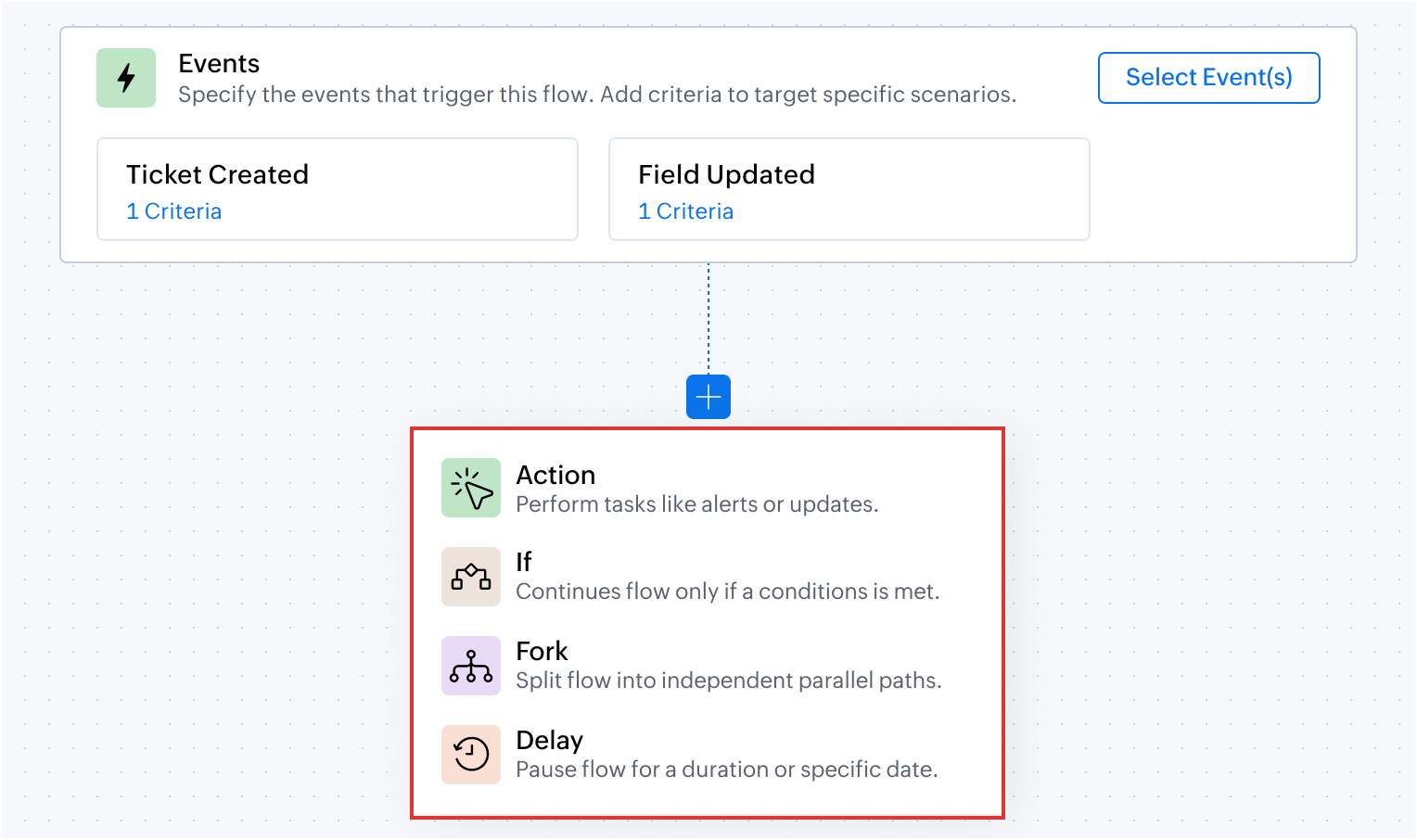
Defines the event that initiates a workflow, such as ticket creation, task created, field updated, calls created, accounts created, or comments updated based on the module selected.

On selecting Field Updated, a criteria must be provided on when the rule must be triggered. For example, the rule must be triggered only when the Ticket Status is updated from Open to Escalated, this will prevent action from triggering whenever the status is updated. It will happen only when the status changes from open to escalated.


2. Criteria
Controls the flow and determines when specific actions should be executed. For example, when the trigger is set to Ticket Created, the rule is triggered every time a ticket is created.
However, if the rule must be triggered only when the Priority is High or Classification is Problem, these conditions can be specified as criteria. This ensures that the rule is not triggered for every ticket that is created, but only when either of the specified conditions is met.

3. Blocks
Defines conditional logic using one or a combination of pre-built blocks.
- Action block: Performs a specific action such as updating a field, assigning a ticket, sending an alert, sending an email, generate content using Zia, adding tags and followers, or notifying via IM. For example, when a ticket is created, the Assign ticket action will assign it to a team or a support representative based on the product type and send a WhatsApp message to the customer that the ticket is assigned to person 'X'
- If block: Defines conditions to determine which path the workflow should follow. Actions are executed only when the specified condition is met. For example, a ticket related to zPad is assigned to the zPad support team.
- Fork block: Creates multiple paths in a workflow to handle different conditions or outcomes. For example, when the customer requests for onboarding, they are assigned to the respective team based on their subscription plan: Standard, Advanced or Ultimate. Using the Fork block, separate paths with specific actions and conditions can be created for each plan.
- Delay block: Pauses the workflow for a specified duration before proceeding to the next step. For example, a support representative sends an email to the customer for additional information. But if there is no response for 3 days, a Delay block can automatically send a reminder email to follow-up with the customer on the 4th day. If there is no response for another 3 days, another reminder along with a WhatsApp message can be sent. Finally the ticket can be closed without manual decision-making, if there is no response from the customer after the 3rd reminder email.
4. Action chaining
Action chaining is the process of using one action's output as the next action's input. For example, if the first action generates a summary of a ticket conversation. The next Action can then use this generated summary (input) and add it as a comment to the ticket (output).

Output:

5. Dot walking
Dot walking allows to access and fetch fields from related modules while creating a rule, without requiring additional custom functions or actions.
For example, from a Ticket record, contact details such as the email address can be accessed during the configuration. This makes it easier to use related data in conditions, actions, and notifications without manually fetching records from another module.

Automation Studio in action: Use cases
Managing conditional requests in order returns and refunds
An e-commerce platform manages order returns through a dedicated Returns and Refunds module. Upon receiving a customer's email request for a return, a ticket is generated in the tickets module. If the email's subject or description includes an Order ID, the system automatically links this ticket to the relevant existing record in the Returns and Refunds module.
In the Returns and Refunds module, each request type is categorized differently for each ticket. For example, after validating the return request, the quality assurance team may approve the refund, reject it after inspection, or may need additional information from the customer on why they want to return the product.
Also, for the approved return requests, the organization waits for 3 days before closing the ticket, giving the customer time to respond if there are any issues with the refund.
The entire process of what happens next after approving or rejecting the return requests can be configured in Automation Studio.
Flow configuration

Dot walking: Using the Dot walking method, the associated record from the Tickets module is accessed and updated when changes occur in the Return Requests custom module, without using any custom function or query.
Action chaining: Using the Action Chaining method, once when the ticket status is changed to Refund Processing, the delay is added for three days.
Deliver personalized campaigns and onboarding plan based on Contact attributes
Businesses can send relevant campaigns and onboarding materials based on a contact's subscription plan, business vertical, and number of user licenses. For example, free and paid users can receive different communications, while larger teams can receive onboarding resources and session reminders based on their requirements. A prospect from financial institution can be sent specific use cases and case studies to impact lead conversion.
Another advantage of setting up multiple conditions in a single workflow, is that the system will pick the criteria and dynamically change the operation to suit the existing contact property. For example, if the free plan user moves to a paid plan the marketing collaterals sent henceforth will automatically pitch for the paid user without manual decision-making.
Likewise, onboarding journey for a team of 20 user licenses can be sent implementation guidelines and supporting materials along with weekly remote session reminders pre-designed to suit their business use case.
Flow configuration

AI-driven summarization and automated ticket routing based on product type
An e-commerce company can use Zia's Generate Content to summarize customer requests, send an acknowledgement based on the generated summary, and automatically route tickets to the appropriate support team based on the product involved.
Flow configuration

Prevent SLA breach with time sensitive escalations
An IT helpdesk team can identify unresolved tickets that are closer to the SLA due time and automatically escalate them by updating the ticket priority and notifying the appropriate team.
Flow configuration

The above use cases are some of the possibilities that you can get started with. We encourage you to try Automation Studio and share your use cases with us.
Here are the resources you would need to setup and understand the use cases where Automation Studio would be useful.
- Automation Studio - An Overview
- Building Blocks Using Automation Studio
- Creating a Rule using Automation Studio
To try the feature kindly raise a request using the Early Access form.
PM: @Akhil Vijayakumar
Thanks and regards,
B. Akshaya | Zoho Desk - User Education