Files in Teamspaces: keep your team's documents where the work happens
Release Note: This feature is available for all accounts across all DCs
Hello Everyone,
A Teamspace is built around a specific team and a shared objective, and it holds the modules and projects that team works with every day. The document that team depends on is just as specific to it: the sales team runs on its own price list and battle cards, the marketing team on its campaign briefs and launch decks, the operations team on the process documents it follows.
But those documents don't live in the Teamspace. They sit in the Documents tab, in folders and team folders of their own, away from the modules and projects they actually belong to. Access was never the problem; permissions already made sure each document reached the right people. Distance was. Every time the sales team needed its price list or the marketing team its launch deck, they had to step out of the space where the work was happening and go looking for it somewhere else.
Files in Teamspaces closes that gap. Users can now add documents, spreadsheets, and presentations directly to a Teamspace, so the material a team relies on sits right alongside the work itself, available to the members of that Teamspace based on what each of them is allowed to do. The team now has everything in one place: its modules, its projects, and the documents that go with them.
What's New?
Add files specific to a Teamspace for easy access and support.

One-time setup
Zoho WorkDrive stores every file you add in CRM. Whether you attach a file to a Teamspace or to a record, it lands in your organization's WorkDrive account the single storage layer behind files in CRM. The first time you add a file to a Teamspace, CRM checks whether WorkDrive is enabled for your account; if it isn't, you turn it on in one step, with nothing further to configure. From then on, you can add them straight from the + (Add) menu, start from a blank file, a WorkDrive template, an existing WorkDrive file, another connected cloud drive (such as Google or Microsoft), or an upload from your device.

Note:
- For each Teamspace, WorkDrive creates a folder under the same name and keeps that Teamspace's files together inside it.
- You can add PDF, XLS, CSV, PPTX, DOCX, and more.

Working with your files
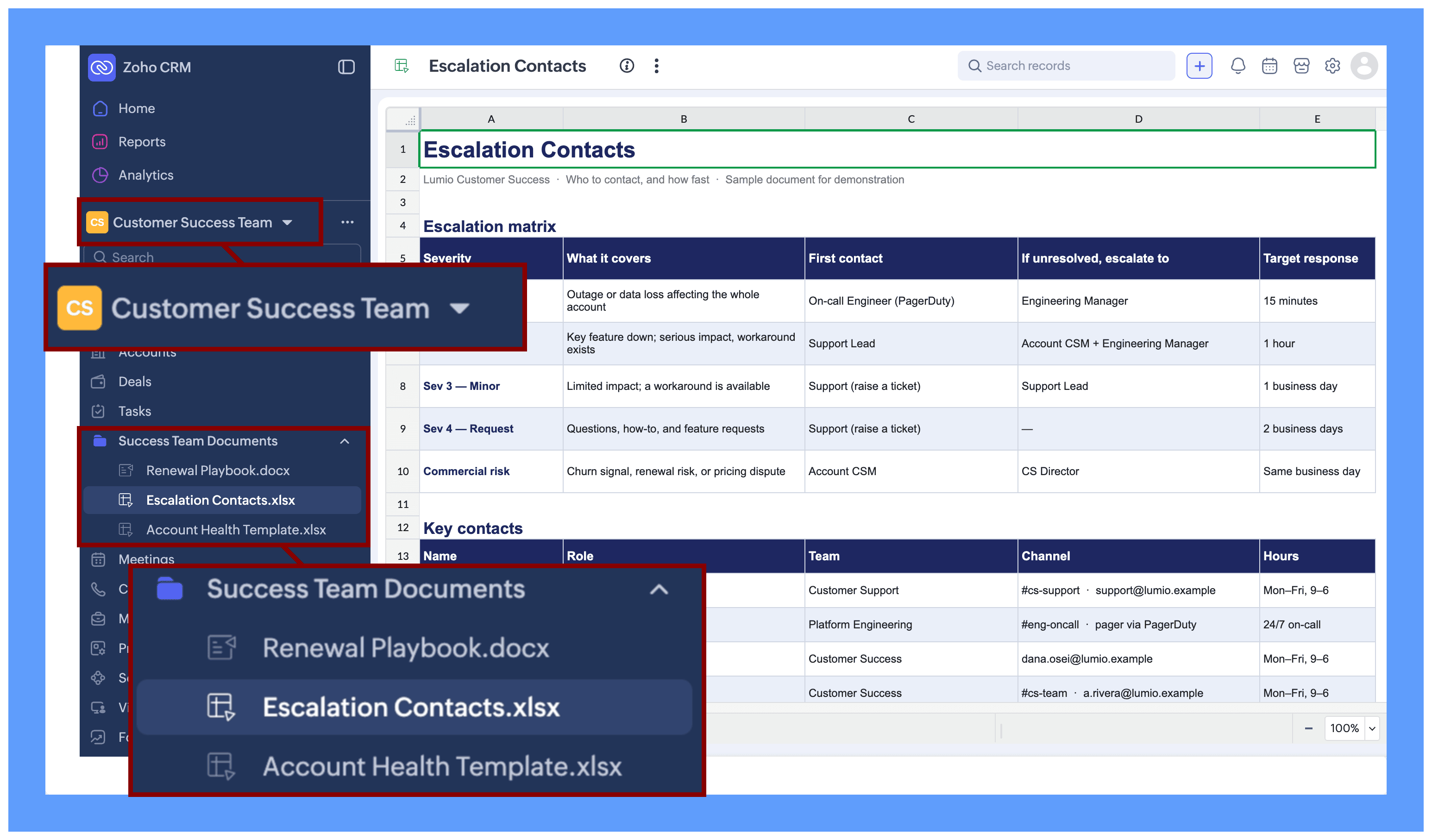
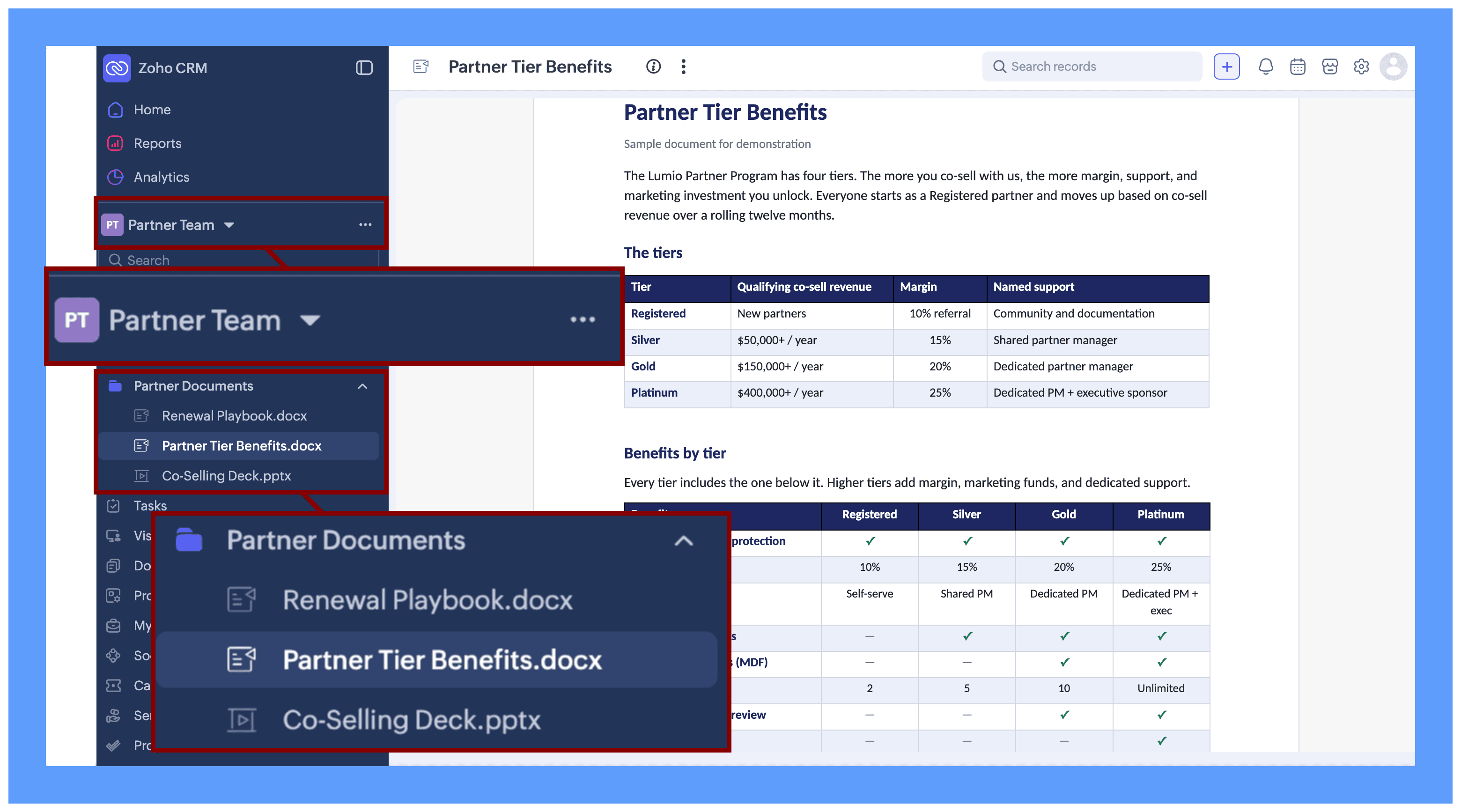
Once added, each file appears in the Teamspace's left panel with an icon indicating its type (document, spreadsheet, or presentation).
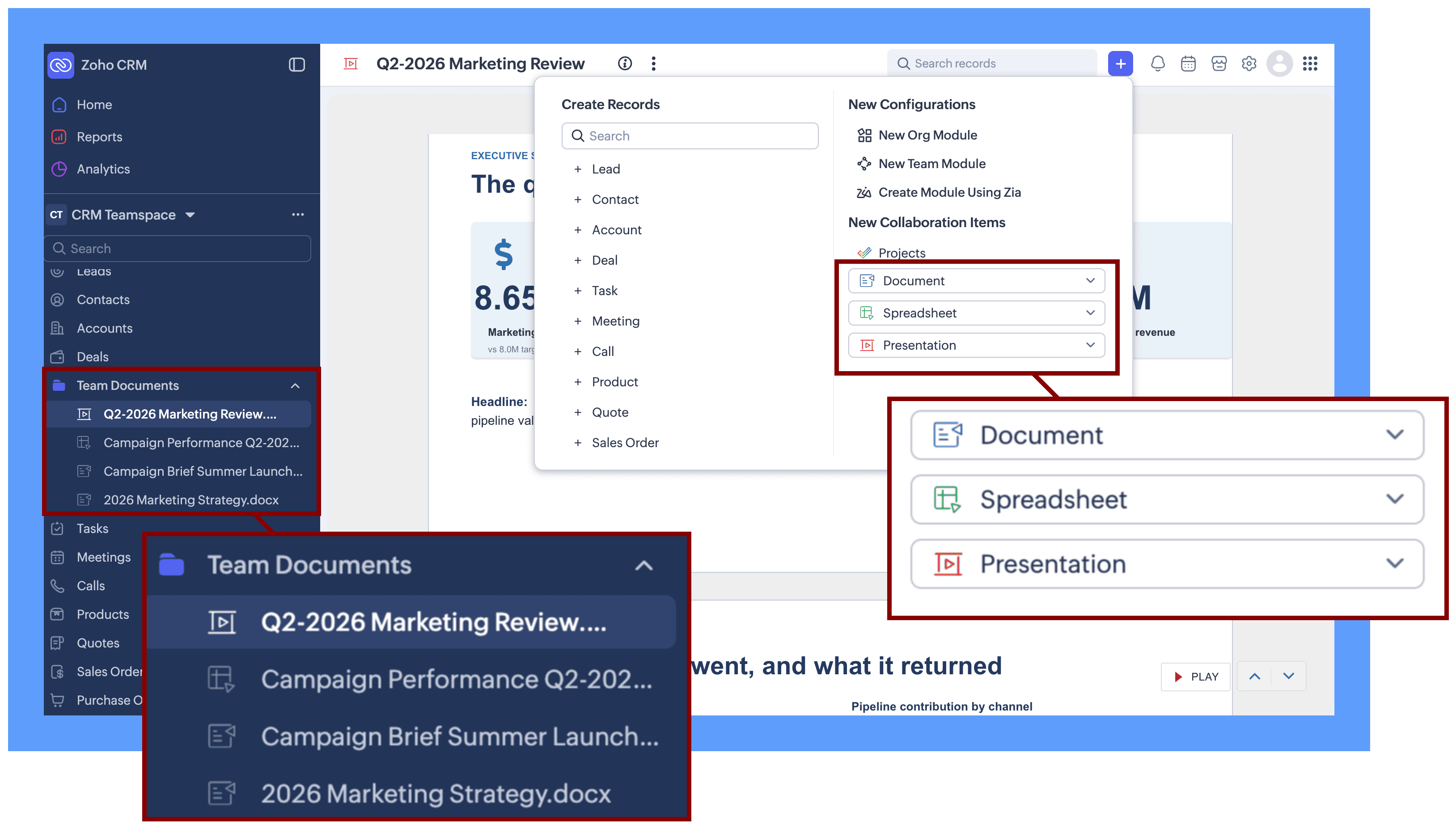
From there you can:
- View and download files: Open the file directly within CRM, or download a copy to your system.
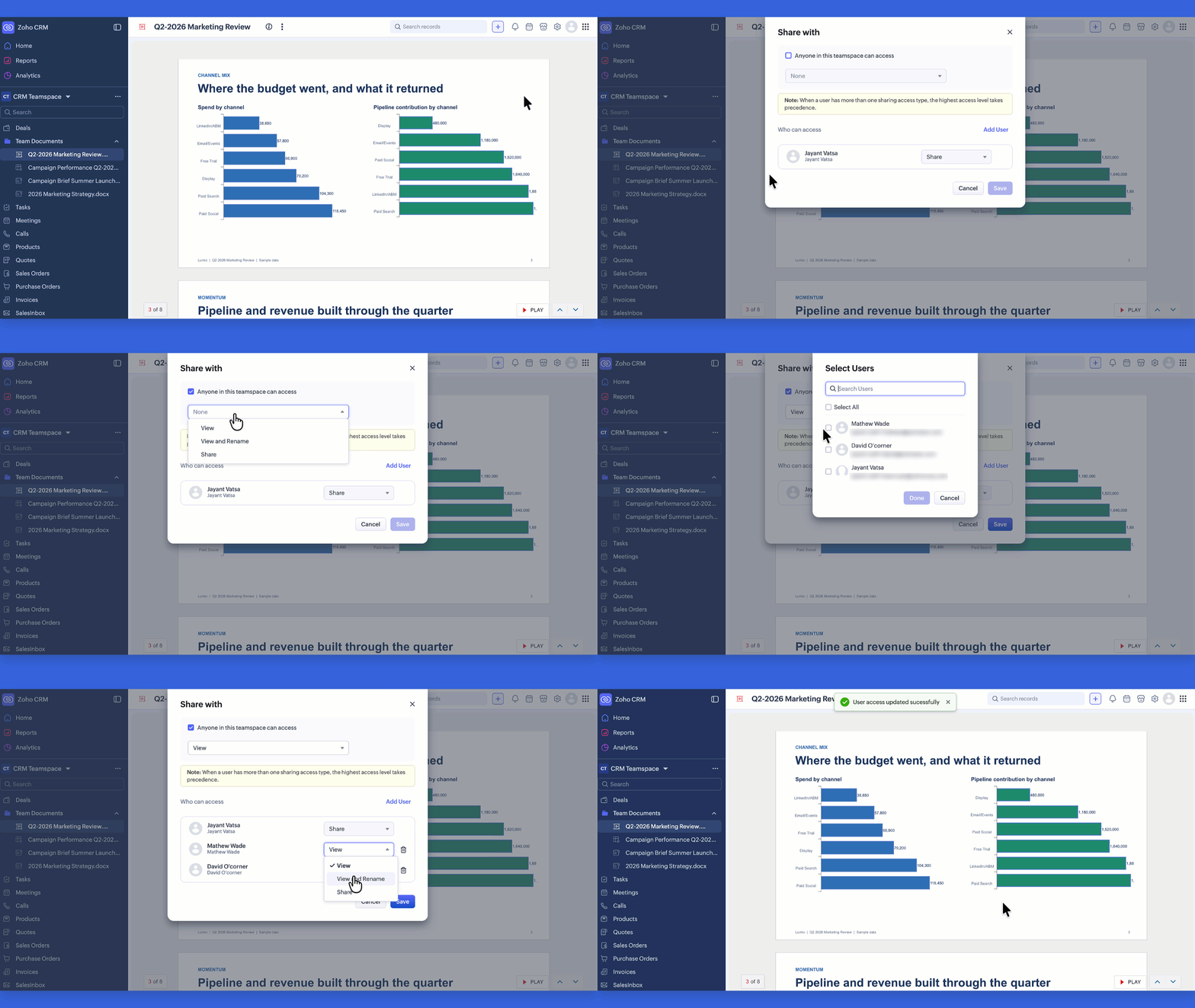
- Sharing selectively: When a file isn't meant for the whole team say a pricing proposal that still needs sign-off, the lead shares it with only specific members and sets each person's access to view, edit, or share. The rest of the Teamspace doesn't see it until it's ready.
Note :
→ When you share the files with everyone in the Teamspace, access follows Teamspace membership. Anyone in the Teamspace gets access to the file directly, without needing to be added to it individually.
→ When you share the files with specific members, only those members can access the file, at the access level you set for each.
Where can files fit in?
Here are a few ways teams put files to work in their Teamspaces:
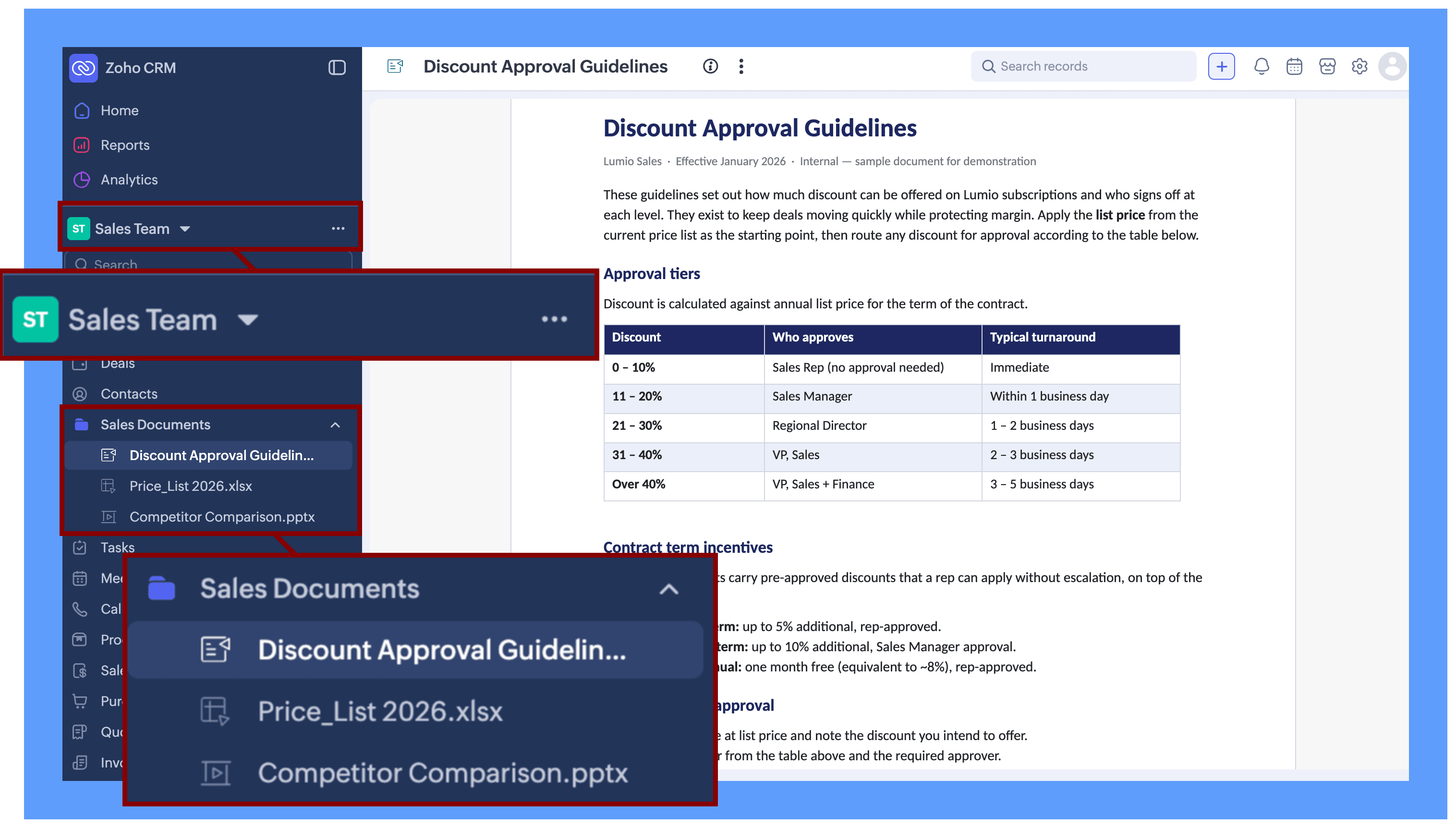
- Sales team: A Sales Manager keeps the current price list, discount-approval guidelines, and a competitor comparison deck in the Sales Teamspace, below the deals and accounts the team is working on. When a new rep joins, everything they need to start selling is already in front of them no hunting through a separate drive.
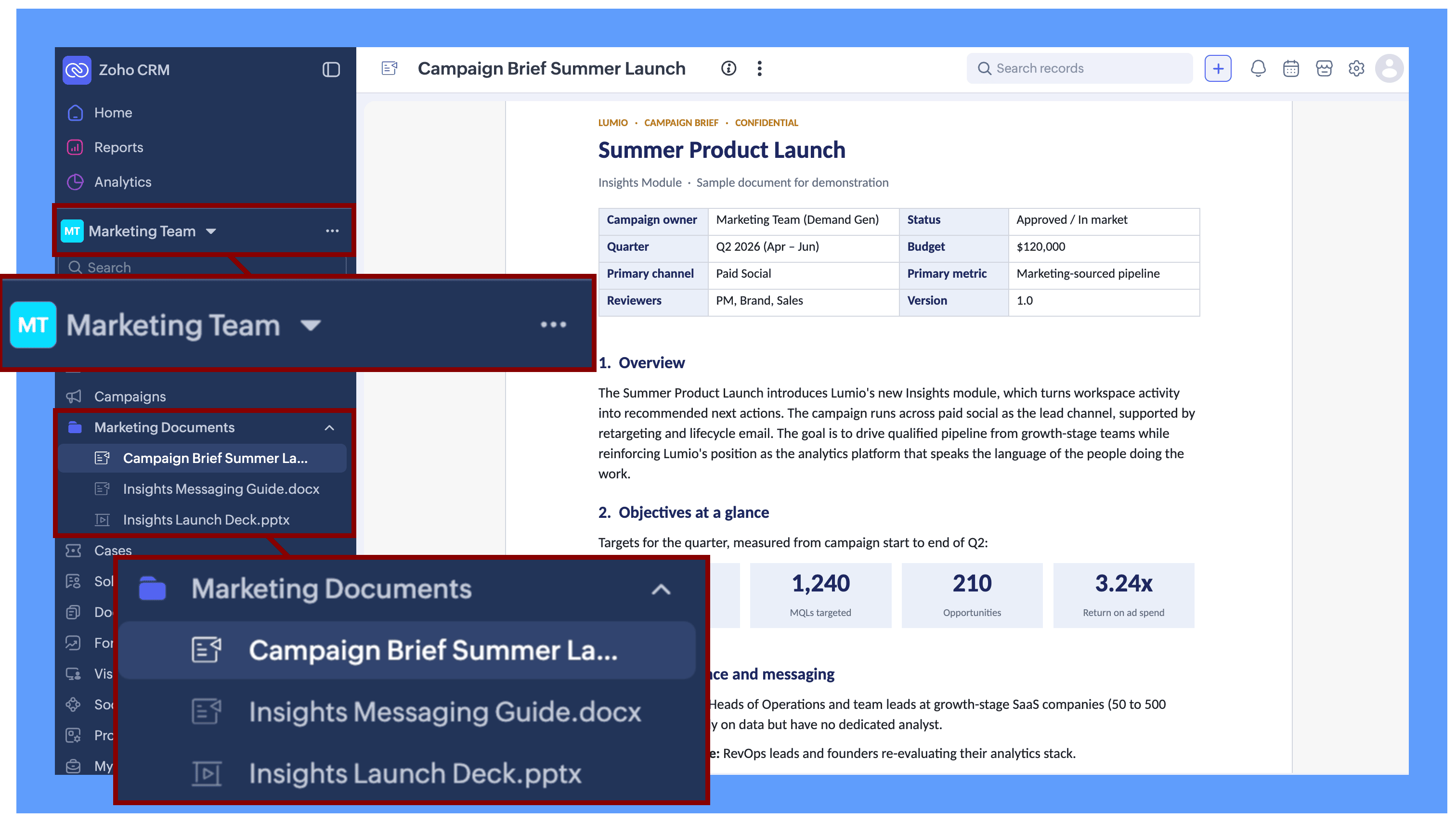
- Marketing team: A marketing lead brings the campaign brief, messaging document, and launch presentation into the campaign's Teamspace, so everyone contributing to the launch works from the same, current version instead of passing copies around.
- Customer Success team: A CSM getting ready for a renewal opens the renewal playbook, the account health template, and the escalation contacts without leaving the accounts they look after. What used to sit in a separate drive now lives beside the customer records, so prep takes a few minutes instead of a scramble.
- Partner team: Partner managers keep the co-selling deck and the tier benefits document in the partner Teamspace. When a partner asks what they qualify for, the answer is a click away rather than buried in a shared folder somewhere.
Availability & Permission:
Editions: All CRM Paid Editions, starting from Standard
DCs- All DC
User Permission:
Adding and managing files follows the Teamspace's existing access roles. Members who have permission to manage the Teamspace can add files, share them, and control access the same way project management is handled today.

The idea is simple: the files a team collaborates on, live, where the team already works.
Please add your files to teamspaces and let us know your thoughts in the comments below.
You can refer to the help doc, Files in Teamspaces