Files in Teamspaces
Availability
- Starting from Standard to Ultimate edition of Zoho CRM for all the DC's
- Supported file types : You can add PDF, XLS, CSV, PPTX, DOCX, and more.
Overview
A Teamspace is built around a specific team and a shared objective, and it holds the modules and projects that team works with every day. Teamspaces now support files. You can add documents, spreadsheets, and presentations as well as uploads such as PDFs and CSVs directly to a Teamspace, so the material your team relies on sits alongside the modules and projects it supports.
Files added in CRM are stored in Zoho WorkDrive and can be opened, shared, and downloaded without leaving CRM. This article explains how to enable the feature, add files, and manage them.

Before you begin :
- Files in CRM are stored in Zoho WorkDrive. If WorkDrive isn't already enabled for your account, you will be prompted to enable it the first time you add a file (see WorkDrive). This is a one-time step.
- You need permission to manage the Teamspace to add files, share them, or control access.
Enable WorkDrive (one-time setup)
The first time you add a file to a Teamspace, CRM checks whether WorkDrive is enabled for your account. If it isn't, you will see the Configure WorkDrive prompt. Click here for Workdrive integration.
- When the Configure WorkDrive dialog appears, review the note explaining that CRM will be integrated with WorkDrive to store and organize your documents and attachments.
- Click Configure.
- Wait for the confirmation. WorkDrive is now enabled for your organization.
Once this is done, there's nothing else to set up, file options become available across all your Teamspaces and records.
 Note: You only need to do this once for your organization. If WorkDrive is already enabled, you won't see this prompt and can go straight to adding files.
Add a file to a Teamspace
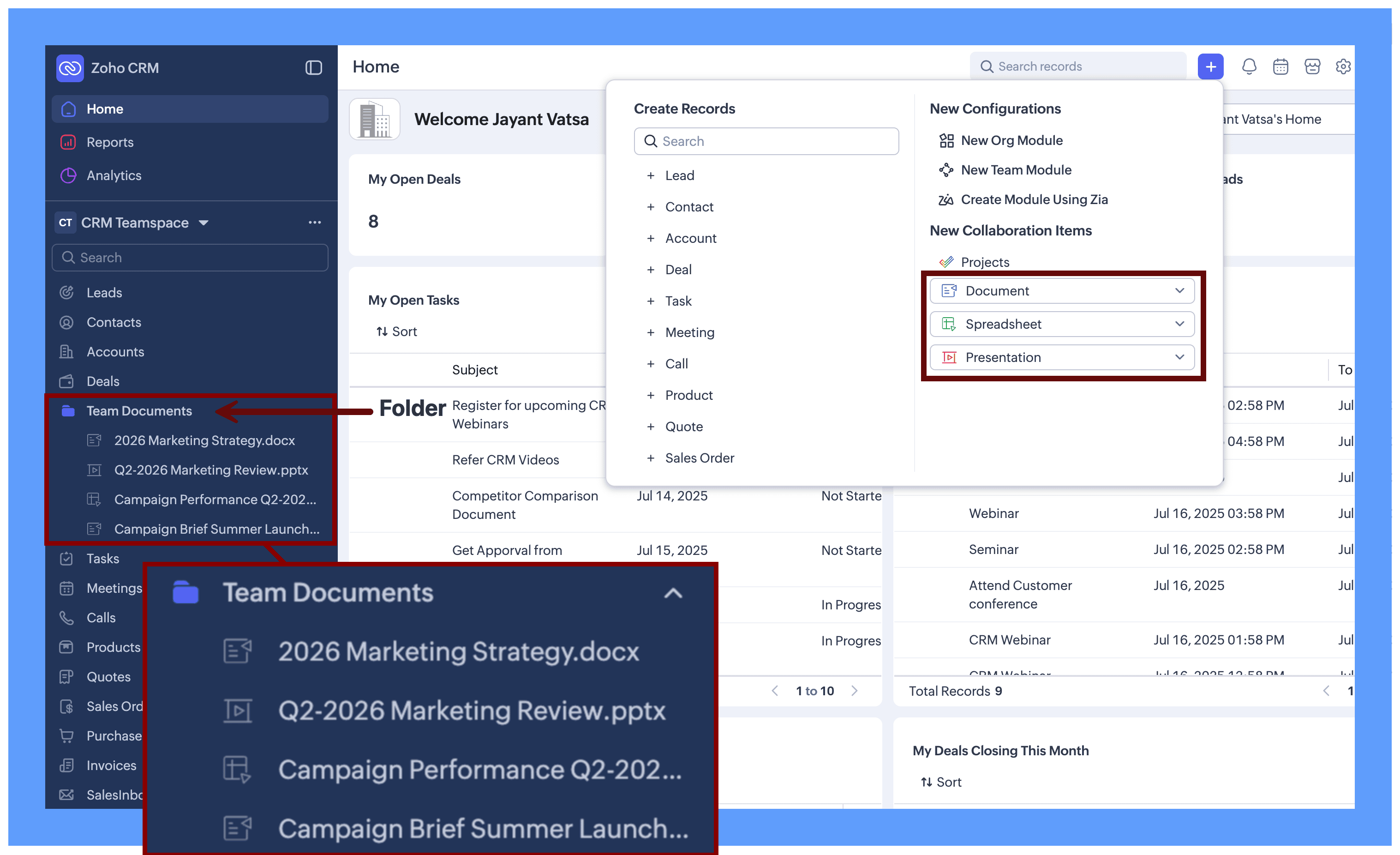
- On the top bar, click the + (Add) menu.
- Under New Collaboration Items, select the type of file you want to add:
- Document
- Spreadsheet
- Presentation
- Choose a source for the file (see the sections below).
- The file is added to the Teamspace and saved to your organization's WorkDrive account automatically.

Choosing a source
After you select a file type, pick where the file should come from:
A Blank Document: Starts from scratch, CRM opens a new, empty file of the type you selected, ready for you to edit.
- Choose Template Begin from a ready-made WorkDrive template.
- Select Choose Template.
- Browse the available templates and select one.
- The file opens based on the template you picked.

Import from Zoho WorkDrive: Bring in a file that already exists in your account.
- Select Import from Zoho WorkDrive.
- In the Pick from WorkDrive window, use the left navigation to locate your file — for example, My Folders, Recent Files, Favorites, Shared with Me, or a Team Folder.
- Select the file you want.
- Click Pick.

Other Cloud Drives Pull a file from a connected drive such as Google or Microsoft.
- Select Other Cloud Drives.
- Choose the connected drive.
- Locate and select the file, then confirm.

Browse from Device Upload a file directly from your computer.
- Select Browse from Device.
- In the file browser, choose the file you want to upload.
- Confirm the upload.
 Note: Files added through any of these sources are saved to your WorkDrive account automatically. A file uploaded from your device or another cloud becomes part of your organization's WorkDrive alongside the rest of your collaboration files.
 How Files in Teamspaces are useful for your teams
Here are a few ways teams put files to work in their Teamspaces:
- Sales team: A Sales Manager keeps the current price list, discount-approval guidelines, and a competitor comparison deck in the Sales Teamspace, below the deals and accounts the team is working on. When a new rep joins, everything they need to start selling is already in front of them no hunting through a separate drive.
- Marketing team: A marketing lead brings the campaign brief, messaging document, and launch presentation into the campaign's Teamspace, so everyone contributing to the launch works from the same, current version instead of passing copies around.
- Customer Success team: A CSM getting ready for a renewal opens the renewal playbook, the account health template, and the escalation contacts without leaving the accounts they look after. What used to sit in a separate drive now lives beside the customer records, so prep takes a few minutes instead of a scramble.
- Partner team: Partner managers keep the co-selling deck and the tier benefits document in the partner Teamspace. When a partner asks what they qualify for, the answer is a click away rather than buried in a shared folder somewhere.


Work with your files
Once added, each file appears in the Teamspace's left navigation with an icon indicating its type document, spreadsheet, or presentation.
Open and edit a file:
- In the Teamspace's left navigation, click the file you want to open.
- The file opens within CRM.
- Edit it from Workdrive.

Share a file and set access levels
You can share a file with everyone in the Teamspace or with specific members, and control what each person can do with it.
- Open or select the file you want to share.
- Choose the Share option.
- Decide who to share with:
- Everyone in the Teamspace — makes the file available to all members.
- Specific members — select the individual members who should have access. Use this when a file isn't ready for the whole team yet, or is meant for only a few people.
- Set the access level for each person or group:
- View — can open and read the file.
- Edit — can open and make changes.
- Share — can open, change, and share the file with others.
- Confirm to apply the access settings.
Download a file
- Select the file in the Teamspace's left navigation.
- Choose the Download option.
- The file is saved to your system.
Where your files are stored
Every file you add in CRM whether to a Teamspace or to a record is stored in your organization's WorkDrive account. For each Teamspace, a folder is created in WorkDrive under the same name as the Teamspace, holding all the files associated with it.
Who can add and manage files
Adding and managing files follows the Teamspace's existing access roles. Members who have permission to manage the Teamspace can add files, share them, and control access the same way project management works today. Members without manage permission can work with files according to the access level they've been given (view, edit, or share).